The short version
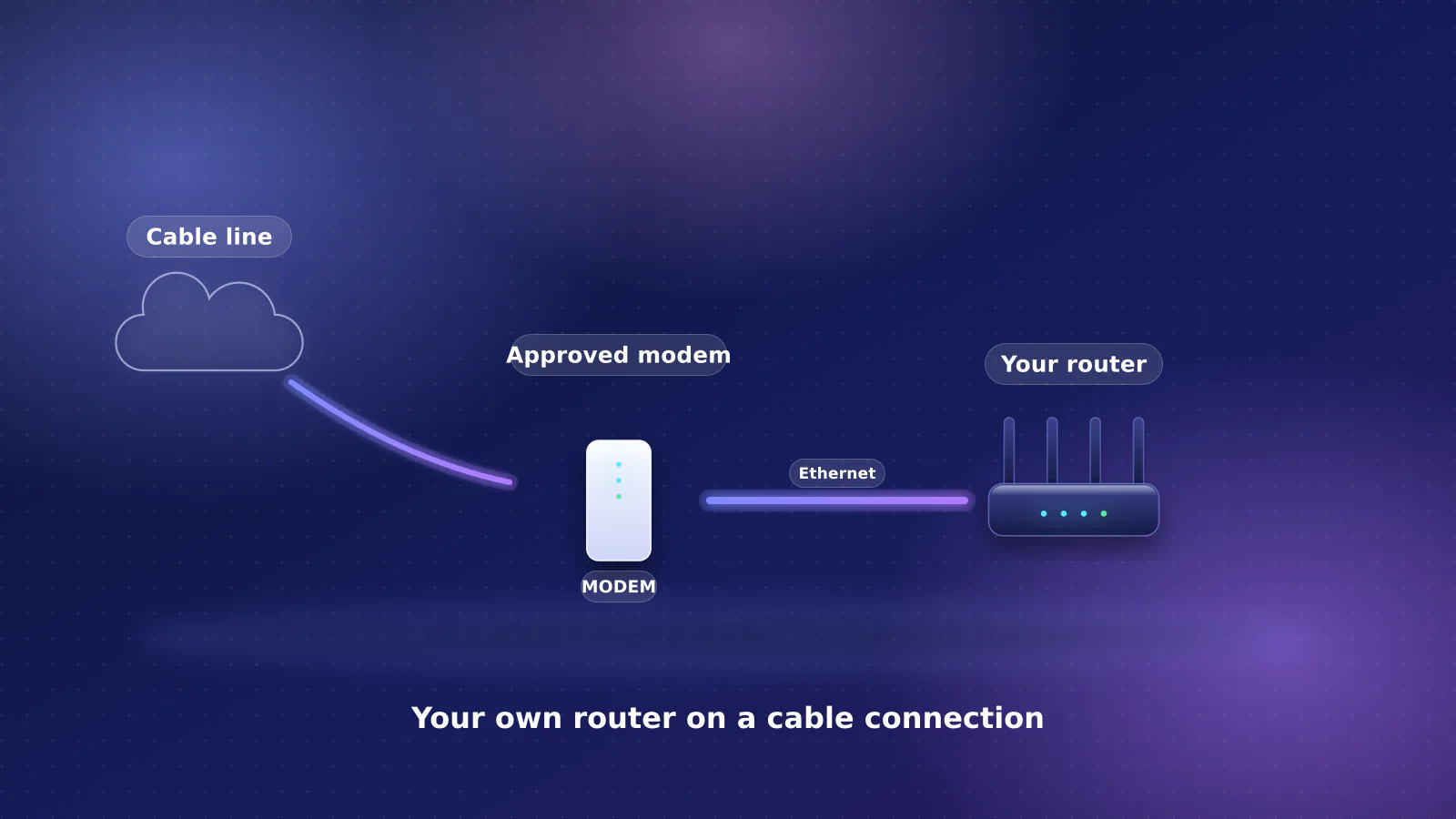
- Your own router: yes. Xfinity's "Using a router" article says "You can use your own router, but you'll need to change some settings on the Wireless Gateway so it only works as a modem", which means turning on bridge mode. You can also skip the gateway and use your own modem with your router.
- Your own modem: yes, from Xfinity's list, on most tiers. Xfinity says your modem "must work with Xfinity and support your internet speed", and that "customer-owned modems are not currently compatible with X-Class speeds", its equal-upload tiers.
- The features stay with Xfinity's gateway. In bridge mode Xfinity says you "won't be able to manage and personalize your network or use WiFi Extenders", and CyberSecure isn't available. With your own modem, Xfinity says you won't get "Xfinity-exclusive features like built-in Xfinity CyberSecure or network management tools", or "automatic hardware upgrades". Xfinity Pro needs Xfinity's gateway.
- On current plans, owning saves nothing on the gateway. Xfinity says its WiFi Gateway is "included in the latest internet monthly plan at no extra cost". Older plans can carry equipment charges; check your bill and broadband label before you buy.
- Bridge mode allows one device. Xfinity says "only one device can be connected to the gateway while in Bridge Mode", so your router goes on the gateway and everything else goes on your router. On plans above 1 Gbps, use the gateway's multi-gig port.
- Use the decision table to choose between keeping Xfinity's gateway, bridging it, or replacing it.
Everything here comes from Xfinity's own pages, read November 27, 2026. They are Xfinity's general pages, not written for one market, so what applies at your address and on your plan can differ. How a gateway, a modem and a router differ is in modem, router, gateway and ONT explained. If you're in the Phoenix area, the providers there are covered in Phoenix internet providers and your own router.
What Xfinity allows
Xfinity's support article "Using your own modem, router, or gateway" (last modified September 2, 2026, by its page data) sets three conditions:
- The modem must be on Xfinity's list for your speed. "Before you buy a device, make sure it works with Xfinity services and supports your internet speed." If it isn't supported, "it won't work with Xfinity", and "You'll need to rent an Xfinity WiFi Gateway or buy a supported device."
- Routers are open. Xfinity's WiFi Gateway page says "most members can buy and set up their own third-party modem and router compatible with our network", and the own-equipment article gives no router list. It adds that "Most modems need a separate router to provide WiFi and work with services like Xfinity Home."
- You take over the upkeep. Under "What am I responsible for when using my own equipment?", Xfinity lists "Keeping your device updated and secure", "Troubleshooting problems with your device" and "Setting up and managing your WiFi security."
The same article says "Xfinity Prepaid and NOW Internet equipment doesn't work with Xfinity Internet services." Xfinity's gateway overview page (modified October 29, 2026) adds a general warning that with third-party modems and gateways "you will miss out on the full suite of Xfinity services", and asks you to confirm your equipment "can achieve the maximum capability of your subscribed speed tier."
What Xfinity's gateway does, and what stays with it
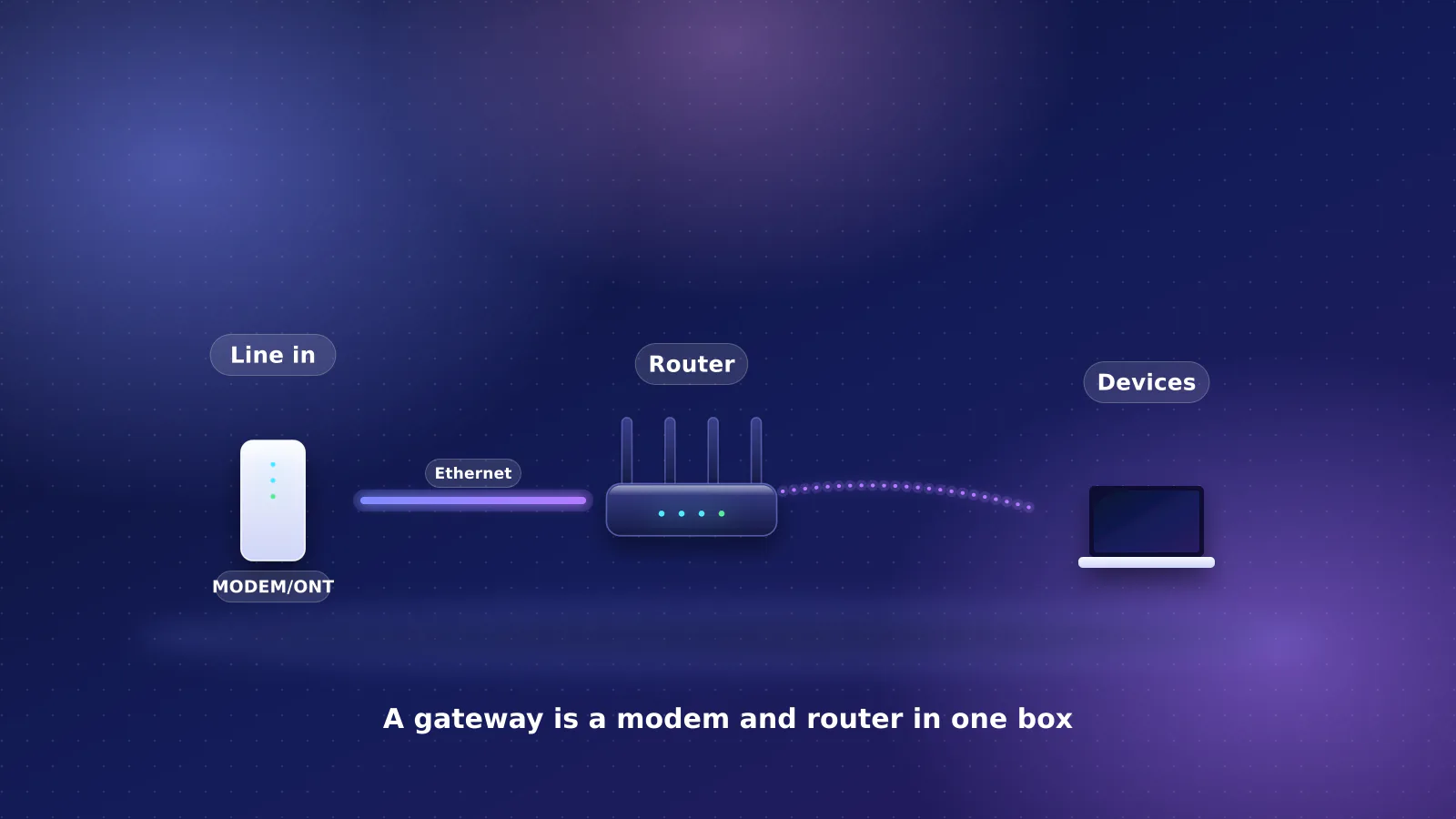
Xfinity's gateway is a modem and a router in one box; its "Benefits of renting an Xfinity Gateway" page says gateways "combine the technology of an Internet/Voice modem and WiFi router." Several features exist only on that box, and Xfinity names them on different pages:
- xFi network management in the Xfinity app. The renting page says "xFi is not compatible with third-party equipment." In bridge mode, Xfinity says you "won't be able to manage and personalize your network". You can still use the Xfinity app for your account.
- Xfinity CyberSecure, which Xfinity says "provides built-in security for every connected device the moment you connect to eligible gateways." The bridge mode article says "you won't be able to access this feature if you choose to enable Bridge Mode on your gateway." Xfinity's Gig page uses another name: it lists an "Xfinity WiFi Gateway with Advanced Security" with its 1 Gig plan. The CyberSecure support article itself doesn't use that name.
- Xfinity WiFi Extenders. Xfinity's extender FAQ (modified October 23, 2026) says they "require a compatible Xfinity Gateway that is not in Bridge Mode", and the bridge mode article says that if extenders are already activated, "you won't be able to enable Bridge Mode."
- Xfinity Pro, an add-on with Xfinity's top gateway, up to two extenders and a 4G LTE backup connection. Its page says "The Xfinity Gateway is the key to unlocking Xfinity Pro features" and "Requires post-paid Xfinity Internet and compatible gateway."
- Hardware upgrades. Xfinity's WiFi Gateway page says that with your own equipment "We also won't be able to provide automatic hardware upgrades."
With your own router you replace these with whatever your router offers: its own app, security features and parental controls, plus things Xfinity's pages don't list for its gateway, such as smart queue management or VLANs, if your router has them.
Keep, bridge or replace: the decision table
There are three supported setups, plus one to avoid (your router behind the gateway with the gateway still routing, which Xfinity warns about below).
| Choice | Good fit when | What you give up | Watch out for |
|---|---|---|---|
| Keep Xfinity's gateway doing everything | Coverage is fine, or Xfinity's extenders would fix it; you want CyberSecure and app management; you're on an X-Class tier; you use Xfinity Pro | Nothing | You manage the network through Xfinity's app and the gateway's settings, with the features Xfinity offers |
| Gateway in bridge mode, your router behind it | You want your own router or mesh and you'd rather keep Xfinity's box, which is included on current plans; you're on an X-Class tier | xFi management, CyberSecure, Xfinity's extenders and Xfinity Pro | Only one device on the gateway. Not possible while Xfinity's extenders are activated. You need a wired computer to turn bridge mode off again. If you have Xfinity Voice, ask Xfinity first. |
| Your own modem and router | You already own a modem on Xfinity's list for your speed, or your plan still charges for the gateway | All of the above, plus automatic hardware upgrades and Xfinity's troubleshooting of the device | Not on X-Class tiers. Xfinity Voice needs a voice-enabled model. In upgraded areas, an uncertified modem may limit you to an older tier. |
| Your router behind the gateway, bridge mode off (avoid) | Only as a stopgap | Nothing yet | Two routers in a row: double NAT, two Wi-Fi networks, and problems with games, VPNs and port forwarding |
If the first row fits, buy nothing. The most common good reason to change is Wi-Fi coverage you want to control yourself with a mesh or access points. A good reason to buy a modem is an older plan that still charges for the gateway; on current plans it's mostly about owning the box when you move or change tiers. Our guide to owning your home network covers the general case.
Bridge mode on Xfinity's gateway
Xfinity's "Using a router" article (modified October 13, 2026) explains why bridging matters: "You'll need to turn on Bridge Mode to let your personal router handle your home network. If you don't, both devices might try to do the same job, which can cause problems." The steps, from Xfinity's bridge mode article (modified August 31, 2026):
- Check for Xfinity WiFi Extenders first. Xfinity says that if extenders are already activated, "you won't be able to enable Bridge Mode."
- Sign in to the gateway's Admin Tool at 10.0.0.1, with the username and password Xfinity describes (the gateway's sticker or the password you set).
- Go to Gateway, then At a Glance, and choose Enable next to Bridge Mode. Xfinity's warning reads: "Enabling Bridge Mode will disable Router functionality of Gateway and turn off the private WiFi network." The gateway may restart.
- Connect your router's internet (WAN) port to an Ethernet port on the gateway. Xfinity says "Any ethernet port can be used but only one device can be connected to the gateway while in Bridge Mode." On a plan above 1 Gbps, pick the multi-gig port (see below).
- Check your router's status page. This step is our suggestion, not Xfinity's: once the gateway is bridged, your router's internet address should no longer be on the gateway's own 10.0.0.x network. If it still is, restarting the router is a reasonable first thing to try.
To undo it, Xfinity says you sign in the same way and set Bridge Mode to Disable, and that this needs a computer wired to the gateway by Ethernet, so keep a cable and the admin password handy. Xfinity also notes that "Enabling Bridge Mode doesn't disable the Xfinity WiFi Home Hotspot feature (available on some gateways)." If the gateway's address page doesn't load, see how to log in to your router. How bridge mode compares with IP passthrough at other providers is in bridge mode vs IP passthrough.
Choosing a modem from Xfinity's list
Xfinity's compatible-device tool, titled "Device Info - Xfinity Compatible Modems", lives at xfinity.com/support/internet/customerowned and needs JavaScript to show the list. Our cable modem guide summarizes Xfinity's groups and the wired speed ratings it gives each model, and its model comparison shows which models also appear on other providers' lists. Three Xfinity rules decide which model you need:
- X-Class tiers need Xfinity's equipment. Xfinity's enhanced-speeds article (modified August 30, 2026) says "X-Class Internet (X-300, X-500, X-Gig, X-2Gig) offers equally fast upload and download speeds above 200 Mbps", that "These speeds are available in limited areas", and that "customer-owned modems are not currently compatible with X-Class speeds."
- In upgraded areas, look for a model certified for enhanced speeds. The same article says "there are limited retail modems, eMTAs or gateways available in the marketplace" that support the faster uploads there. Owned devices that aren't certified "should work for service tier speeds available before the recent upgrade", and Xfinity's agents "will help you identify a compatible service tier if you need it."
- Xfinity Voice needs a voice modem. A phone line runs through an eMTA, a modem with phone ports; our guide lists the voice-enabled models on Xfinity's list. Xfinity's eMTA requirements page (modified August 31, 2026) says "We do not guarantee the compatibility of Xfinity Voice with any other service, system or equipment", and that requirements may change, "including the compatible eMTA makes, models, versions, and styles." Xfinity's bridge mode article doesn't mention Voice; if you have Xfinity Voice and want to bridge the gateway, confirm with Xfinity first.
Xfinity's broadband disclosures say a device "must pass CableLabs certification, UL certification, FCC certification" before it's approved, and that "Comcast may 'end of life' certain cable modem devices." That matters for a used modem: what Xfinity says about older models and expiring modem certificates is in our guide under buying used.
Activating your own modem
Xfinity activates both its gateway and customer-owned modems in the Xfinity app. Its activation article (modified November 24, 2026) says "You must be the Primary user or a Manager to activate the device" and "Activation should take about 20 minutes." In outline:
- Connect the modem to an active cable outlet, with the coax connection "finger tight", and plug it in.
- Open the Xfinity app, sign in, and follow the setup steps for your device; the app checks whether your cable outlet is active and suggests another outlet if it isn't.
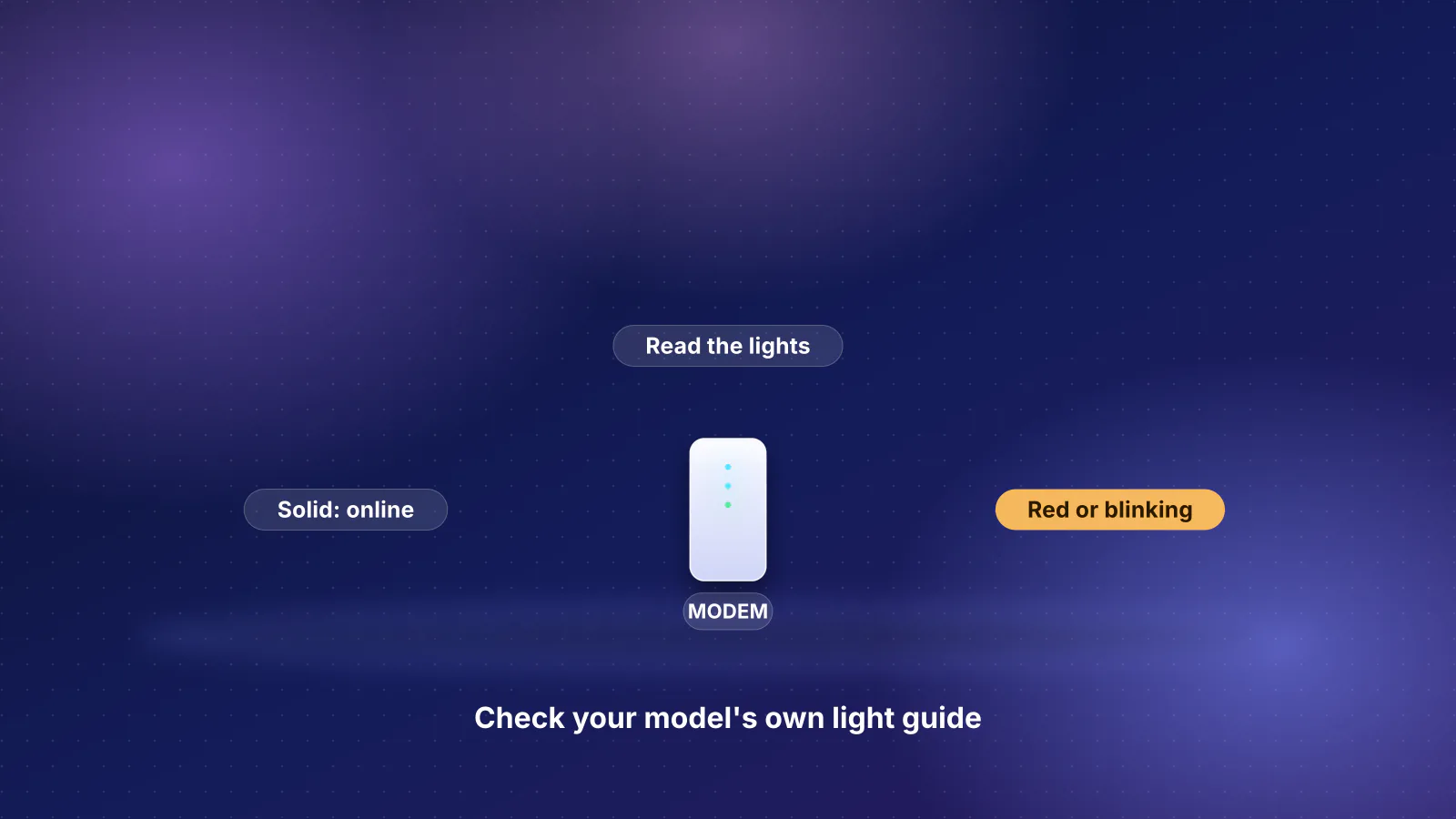
- Wait for the modem to come online. For what its lights mean during startup, use the maker's own guide for your model; our modem lights guide collects several makers' tables.
- Connect your router's internet port to the modem and set up your Wi-Fi in your router's own app.
- Ask Xfinity how to return its gateway if you're replacing it.
Xfinity's activation article adds an exception for some apartment buildings: in fiber-delivered communities, "you are responsible for connecting, installing, and activating your own third-party Ethernet router or device", and "You can't use the Xfinity app for activation." More on how cable activation works across providers is in activating a cable modem.
Equipment charges and xFi Complete
Xfinity's own pages, read November 27, 2026, describe charges this way. Xfinity's WiFi Gateway page says the gateway is "included in the latest internet monthly plan at no extra cost", and its data usage FAQ (modified August 31, 2026) says "New Xfinity Internet plans" include "unlimited data and equipment at no extra cost", while "The 1.2 TB data limit only applies to older (legacy) internet plans." So on a current plan, your own modem doesn't remove a gateway charge. Xfinity's broadband disclosures say only that "Additional fees, such as for equipment rental, installation, and early termination, may apply."
On add-ons, Xfinity's Xfinity Pro page says you can "Add it to any Xfinity Internet plan for just $15/mo", with an optional "Battery Backup $60 one-time charge"; it requires Xfinity's gateway, so it ends if you replace the gateway. Xfinity's extender FAQ lists "One Xfinity WiFi Extender for $119" and "Two Xfinity WiFi Extenders for $199" as purchases, and those extenders stop working if you bridge the gateway.
xFi Complete is an older add-on. Xfinity's Technology Upgrade Program terms (published October 20, 2026) cover customers who subscribed to xFi Complete "prior to 12/31/2024", require them to "Lease an Xfinity Gateway or modem" and to "continue to lease an Xfinity Gateway continuously for three years", and offer one upgrade to a newer gateway after three years, though if "your then current Gateway is Comcast's XB8 model or newer, the Gateway will not be upgraded." The data usage FAQ still names xFi Complete, "where available", as one way to get unlimited data on a legacy plan. Neither page gives a price. If xFi Complete is on your bill, it's tied to a leased gateway, so ask Xfinity what happens to it, and to your data allowance, before you return the gateway.
Older plans' broadband labels list their own equipment and data charges; how to find and read your label, and what our count of Xfinity's label file found, is in reading your broadband label, with the payback arithmetic in when owning pays off.
DOCSIS 3.1, multi-gig tiers and the port that matters
Xfinity's Gig page says it offers "1.2 Gig and 2 Gig speeds in many areas" and "speeds up to 10 Gbps in select locations." Its gateway overview lists the current models by name, and the specs it gives for each show why the port you plug into matters:
- XB9: described as a "DOCSIS 3.1 WiFi 7 gateway", with "one 5 Gbps LAN port and two 1 Gbps LAN ports", and "Up to 2 Gbps downstream and 300 Mbps upstream."
- XB10: described with "Unified DOCSIS 4.0 technology" and Wi-Fi 7, and "Maximum data throughput: 10 Gbps". Its spec row says "Gb Ethernet ports: 4" without speeds; the page's comparison table splits those four into two 10 Gbps ports and two 1 Gbps ports.
- XB8 and XB7: "Gb Ethernet ports: 4" and "Maximum data throughput: 2.5 Gbps". Xfinity's WiFi Gateway page lists "Ethernet ports: Single 2.5Gbps, Three 1Gbps" for the gateway it describes, without naming the model.
A 1 Gbps Ethernet link carries about 940 Mbps of data (why), so on a 1.2 Gig or 2 Gig plan the link from the gateway or modem to your router has to be multi-gig at both ends. The same goes for a modem you buy: Xfinity's list gives a wired speed rating for each model, and the port section of our modem guide explains why a 2.5 Gbps port matters above 1 Gbps.
- Xfinity 2 Gig plan Cable to the gateway (in bridge mode) or to a modem from Xfinity's list
- Gateway or modem port Use the multi-gig port: 5 Gbps on the XB9; the 2.5 Gbps port on the gateway Xfinity's page describes
- Your router's internet (WAN) port At 1 Gbps, this caps the plan at about 940 Mbps
- Your devices On your router's Wi-Fi and ports
For the 10 Gbps tier, Xfinity's overview lists two gateways rated at 10 Gbps, the XB10 and the fiber XER10, but the pages we read don't say which one a new install gets or whether a customer-owned modem can be used, so ask Xfinity before you buy anything for it. Routers sized for each speed are in routers for 2 Gbps plans.
IPv6 with your own router
Xfinity's IPv6 article (modified August 31, 2026) says "We'll maintain support for IPv4, while adding support for IPv6", and that if you have "a wireless gateway (Ethernet to WiFi bridge) connected to an Xfinity Internet gateway", that device "may need to be replaced with one that is IPv6 capable." It doesn't describe how a router of your own receives IPv6.
The standard way is DHCPv6 prefix delegation. RFC 9915 (January 2026, which replaced RFC 8415) defines the IA_PD as "an IA that carries delegated prefixes", and says the client, here your router, "might assign a subnet from a delegated prefix to one of its interfaces." So turn on IPv6 in your router with DHCPv6 and prefix delegation on its internet connection. The Xfinity pages we read don't give the size of the prefix Xfinity delegates. After the switch, run the IPv6 check to see whether your devices have working IPv6 addresses.
When new equipment is justified, and when to get help
- Buy nothing if Xfinity's gateway covers your home and you're on a current plan where it's included. Bridging it only to have your own router is a choice, not a fix.
- A router or mesh of your own is justified when parts of the home have no usable Wi-Fi with the gateway in a central spot, when you need features Xfinity's gateway doesn't offer, or when your plan is above 1 Gbps and your current router has a 1 Gbps internet port. Compare options in extender vs mesh vs access point.
- A modem of your own is justified mainly when you already own one on Xfinity's list for your speed, or when your plan still charges for the gateway. It isn't an option on X-Class tiers.
- Where it should sit: the gateway or modem has to be at a cable outlet. If that outlet is at the edge of the home, a cable from it to a central router or to access points often helps more than a more powerful router.
- Professional help: when the fix is a new outlet or Ethernet run, RouterHaus can connect you with a licensed contractor when the job needs hands on site. Ask for a network plan.
Frequently asked questions
Can I use my own router with Xfinity?
Yes. Xfinity says you can use your own router but need to set its gateway to work only as a modem, which means turning on bridge mode, or you can replace the gateway with a modem from Xfinity's compatible list. With your own router you give up Xfinity's network management in the app, CyberSecure and Xfinity's WiFi Extenders.
How do I put my Xfinity gateway in bridge mode?
Xfinity's steps: sign in to the gateway's Admin Tool at 10.0.0.1, go to Gateway, then At a Glance, and choose Enable next to Bridge Mode. Remove any activated Xfinity WiFi Extenders first, because bridge mode can't be enabled while they're active. Only one device can be connected to the gateway in bridge mode, and turning it off again needs a computer wired to the gateway.
Can I use my own modem on Xfinity's X-Class plans?
No. Xfinity says customer-owned modems are not currently compatible with X-Class speeds, its equal-upload tiers (X-300, X-500, X-Gig and X-2Gig). On those tiers, keep Xfinity's gateway and put your own router behind it in bridge mode.
Will I save money by buying my own modem for Xfinity?
Not on current plans: Xfinity says its WiFi Gateway is included in the latest internet monthly plans at no extra cost. Older plans can carry equipment charges or add-ons such as xFi Complete that are tied to a leased gateway, so check your bill and broadband label, and ask Xfinity what happens to any add-on before you return the gateway.
Do Xfinity WiFi Extenders work with my own router?
No. Xfinity says its extenders require a compatible Xfinity Gateway that is not in bridge mode, and its pages don't describe them working with a customer-owned modem. With your own router, use your router's own mesh or access points instead.
Sources
Read on November 27, 2026. Modified dates are from each Xfinity support article's page data, since most articles don't show a date. Xfinity's compatible-modem tool needs JavaScript and showed no list when we fetched it without a browser; the model details linked above come from our separate cable modem guide. Xfinity's pages serve general content unless you sign in or enter an address.
- Xfinity: Using your own modem, router, or gateway (modified September 2, 2026) and Device Info, Xfinity compatible modems
- Xfinity: Enable or disable bridge mode (modified August 31, 2026)
- Xfinity: Using a router with your gateway (modified October 13, 2026)
- Xfinity: Activate a gateway or third-party modem with the Xfinity app (modified November 24, 2026)
- Xfinity: Devices certified for enhanced speeds required in recently upgraded areas (modified August 30, 2026)
- Xfinity: Overview of Xfinity WiFi Gateways and Routers (modified October 29, 2026) and Benefits of renting an Xfinity Gateway (modified October 13, 2026)
- Xfinity: WiFi Gateway, Xfinity Pro and Gig internet
- Xfinity: Use Xfinity CyberSecure (modified October 30, 2026)
- Xfinity: WiFi Extenders FAQs (modified October 23, 2026)
- Xfinity: Technology Upgrade Program terms and conditions (published October 20, 2026) and Xfinity Internet 1.2 TB data plan FAQs (modified August 31, 2026)
- Xfinity: eMTA requirements for your Xfinity Voice service (modified August 31, 2026)
- Xfinity: What is Internet Protocol, version 6 (IPv6)? (modified August 31, 2026)
- Xfinity: Internet broadband disclosures
- IETF RFC 9915: Dynamic Host Configuration Protocol for IPv6 (DHCPv6), January 2026