
The short version
- If a cable can reach the weak room, use an access point. That can be a spare router in access-point mode, a mesh unit with a wired link, or a ceiling access point. Ethernet is best; existing TV coax with MoCA adapters is a good substitute; powerline works on some wiring and not others.
- If no cable can reach it, add a unit from your router's own mesh family (ASUS AiMesh, TP-Link OneMesh or EasyMesh, or more units of the mesh kit you own). If your router has no mesh family, a two-unit mesh kit that replaces it is usually the better buy.
- A basic extender is the last resort. Wi-Fi is half-duplex: a single-radio extender has to hear each packet and then repeat it on the same channel, and TP-Link says that "normally the wireless speed will get halved." Models that use one band to reach the router and another for your devices avoid most of that.
- The caveat: none of these fixes helps if the slow room isn't a coverage problem, and a wireless add-on placed inside the dead zone inherits its weak signal. Check both first.
This article is about one weak room. Planning several access points for a whole house? See mesh kit or router plus wired access points.
First: is it really coverage?
Run a speed test standing next to the router, then in the weak room. If it's slow next to the router too, the problem is the internet service or the router, and no add-on will fix it. Our dead-zone guide has a table of look-alike problems and the free fixes to try first, such as moving the router out of a cabinet. If the room really is out of reach, the rest of this article picks the add-on.
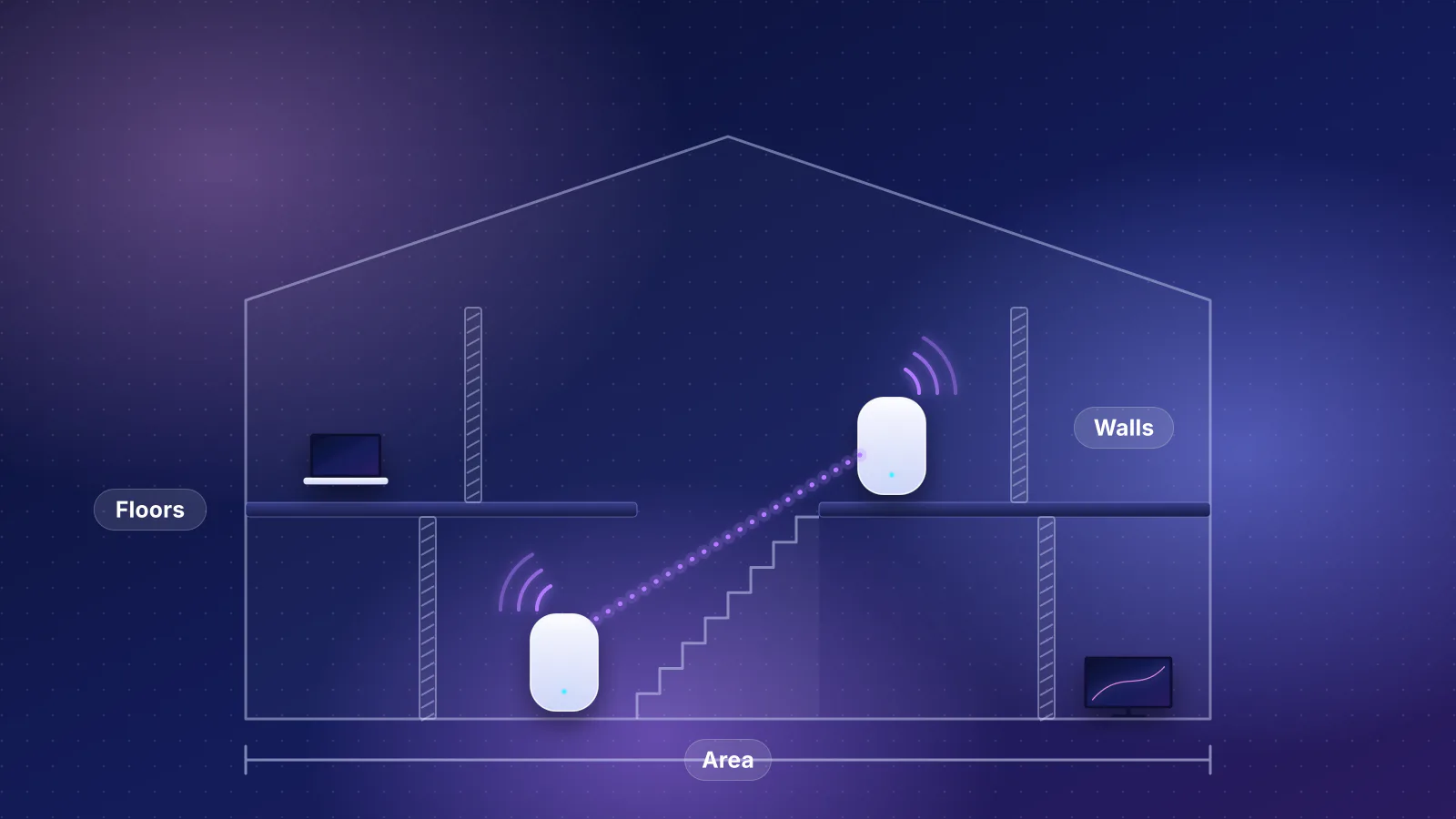
One rule applies to every wireless add-on: put it partway, not in the dead zone. NETGEAR's extender manual recommends a spot "about halfway between your router and the area with a poor WiFi signal", and mesh makers give similar advice (see where the makers tell you to put nodes). An add-on that barely hears the router can only pass on that weak link.

The three fixes at a glance
| Range extender | Mesh node | Access point | |
|---|---|---|---|
| How it reaches the router | Over Wi-Fi | Over Wi-Fi, or a cable where you connect one | Over a cable (Ethernet, or MoCA or powerline adapters) |
| Speed cost of that link | About half on single-radio models; less when one band is used only for the router link | Depends on the radios: none when wired, little with a band reserved for the link, about half when it shares a band with your devices | None on the air; limited by the cable link and the ports |
| Works with | Any router (most models) | Only routers and units from the same mesh family | Any router |
| Network name | The router's name on some models (NETGEAR's One WiFi Name, for example), or a separate one | One network, managed together | Set it to the same name and password yourself |
| What you need | An outlet partway to the room | A router that supports it, or a new kit | A cable path, and a spare router or an access point |
Why a basic extender halves your speed
Wi-Fi devices on one channel take turns. Cisco's throughput guide puts it plainly: "Wi-Fi is a half-duplex medium", and "Since Wi-Fi is a shared medium, the speed experienced depends directly on the number of clients" on the same channel at the same moment. A single-radio extender is one more device taking turns: it receives a packet from the router, then transmits the same packet to your laptop on the same channel, and while it does either, nothing else on that channel can send. Every packet crosses the air twice.
The makers state the result. TP-Link's extender guide says: "Due to the range extender working mechanism, normally the wireless speed will get halved." EnGenius says a repeater radio "must spend half its time providing Wi-Fi connectivity to client devices", and Cisco Meraki puts the loss at "about 50%" for each mesh hop.
Arithmetic, not a measurement: say the extender's link back to the router can carry 300 Mbps of real traffic where it sits. Relaying on that same radio leaves at most about 150 Mbps for the weak room, and less when other devices are using the channel. Add a second extender behind the first and, by the same rule, the far room is down to about 75 Mbps.
A separate radio for the link avoids most of the penalty. The Wi-Fi Alliance's EasyMesh overview says "Fronthaul and backhaul links may use separate radios for better performance". Some extenders do this with their two bands: TP-Link's High Speed Mode uses one band to reach the router and the other for your devices, which it says gives "unaffected high speed", and NETGEAR's FastLane option "connects to your router using one band and connects to your devices using another". The trade-off is that your devices can use only one band near the extender. Tri-band mesh units can do the same without giving up a band, but not all do: eero says its Pro 6E "does not dedicate the 6 GHz band to backhaul". In our catalog, 18 of the 43 current mesh kits are dual-band, so without a cable their units relay on the same radios your devices use (catalog checked October 20, 2026).
The cleanest way to remove the penalty is a cable. More on that link and on placement is in why mesh Wi-Fi doesn't fix every slow room, and which kits' ports cap a wired link is in mesh with Ethernet backhaul.
The decision flow
- Can an Ethernet cable reach the weak room, or a spot near it? Yes: use an access point on that cable (step 4). It gets the full link with no airtime cost.
- No Ethernet, but a TV coax outlet near the router and another in or near the room? MoCA adapters turn that coax into an Ethernet link: go to step 4. No coax? Powerline adapters over the electrical wiring are worth trying if both outlets are on the same circuit; if the link is poor, go to step 3.
- No cable at all. Check whether your router belongs to a mesh family (table below). If it does, add a unit of that family, placed partway to the room. If it doesn't, or it's your provider's gateway, either replace the router with a two-unit mesh kit or, as a cheap stopgap, buy an extender that dedicates a band to the router link.
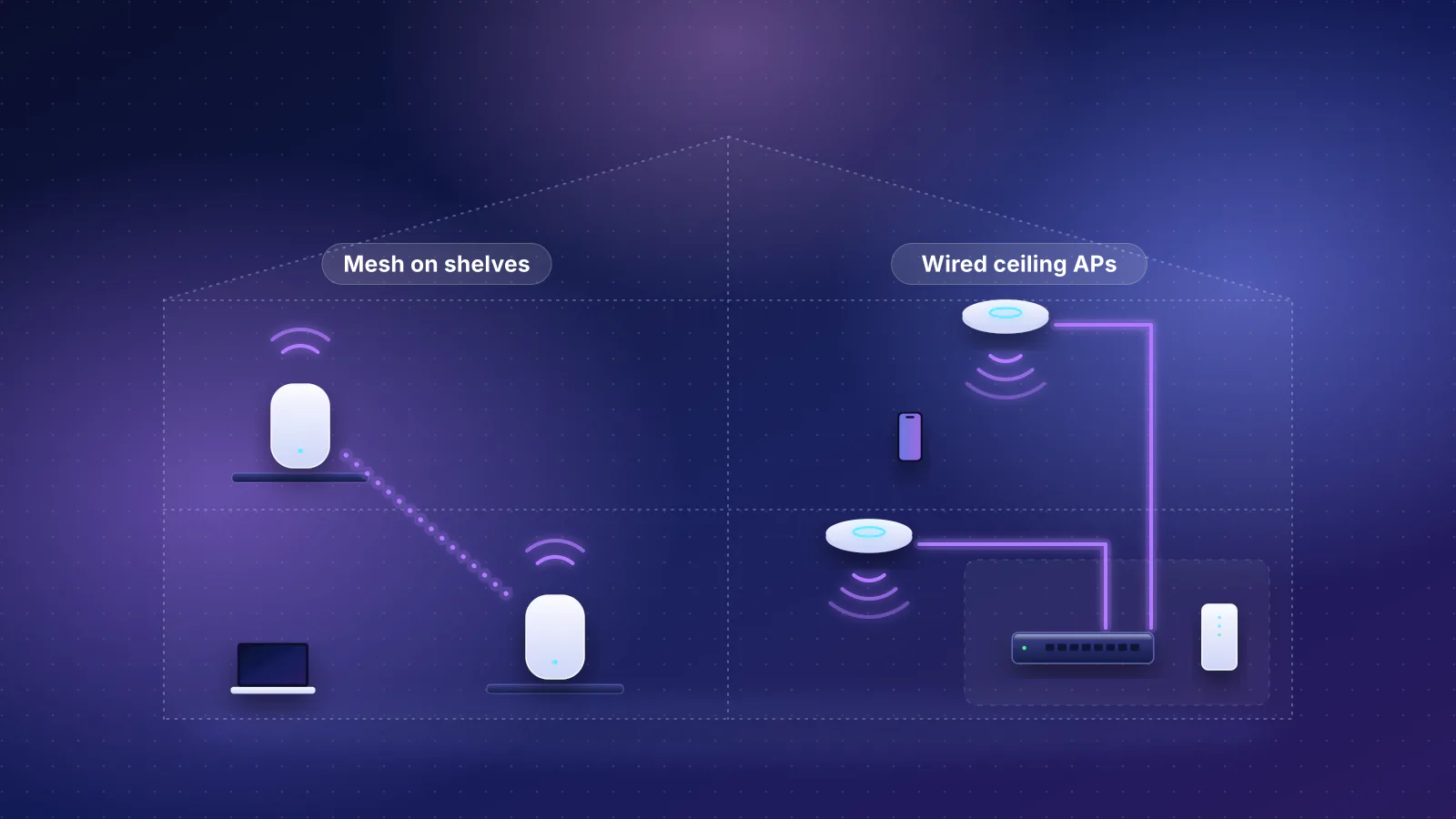
- Pick the access point. A spare router in access-point mode costs nothing extra if you have one. A mesh unit from your family, connected by cable, keeps one managed network. A ceiling access point is the tidy option where you can mount one, but it needs power over the cable (PoE) or a power adapter at the spot.
Does your router belong to a mesh family?
From each maker's documentation, checked October 29, 2026:
| Your router | What joins its mesh | Watch for |
|---|---|---|
| ASUS | Another AiMesh-capable ASUS router as a node; ASUS says "Most ASUS routers already support AiMesh" and that compatible models can be mixed | Nodes can use Ethernet "for single nodes or for the entire network", or a wireless uplink band you choose |
| TP-Link Archer | OneMesh or EasyMesh extenders and routers; TP-Link says the two can be combined | Not Deco: TP-Link says OneMesh can't mix with Deco. OneMesh and EasyMesh use 802.11k/v roaming only, and "Some models may not yet support EasyMesh Ethernet backhaul" |
| NETGEAR Orbi | An Orbi satellite of the same series (NETGEAR matches "the first two digits" of the router's model number) | Orbi satellites "may only be used with a compatible Orbi Router or Orbi System" |
| NETGEAR Nighthawk or another brand | No mesh family of its own. NETGEAR's extenders, including those it sells as mesh extenders, connect to the router's Wi-Fi and can share its network name (One WiFi Name); it says its WiFi 7 extender works with any brand of router or gateway | It's still an extender: it relays over Wi-Fi, so the airtime cost above applies unless it uses a separate band for the link |
| A Wi-Fi CERTIFIED EasyMesh router | EasyMesh access points "from a variety of vendors", per the Wi-Fi Alliance | TP-Link says its EasyMesh gear "Theoretically" works with any certified product, and recommends staying with one brand |
| A mesh kit you own (eero, Deco, Orbi, Nest) | One more unit of the same system | eero says all eeros work together, but warns that mixing its Pro 6E with older-generation eeros may reduce performance |
Families don't mix. TP-Link says even its own Deco, OneMesh, EasyMesh and Omada lines "cannot interoperate in a single unified mesh network", and seamless roaming between them isn't supported. If your router is your internet provider's gateway, ask the provider which extenders or mesh units it supports before buying anything.
Turning a spare router into an access point
If you have an old router and a cable to the weak room, access-point mode is the cheapest fix. The spare router stops routing and simply adds Wi-Fi where the cable ends. ASUS's steps are typical:
- Choose access-point mode in the spare router's setup wizard or settings, with its IP address set to automatic. ASUS says that in this mode "the firewall, IP sharing, and NAT functions are disabled by default."
- Connect the cable from a LAN port on your main router to the spare router. ASUS says to connect "from its WAN or LAN port to the LAN port of router/modem", with Ethernet runs no longer than 100 meters, and that the main router must have DHCP on.
- Copy the Wi-Fi settings. Apple's recommendations for networks with more than one router: "Make sure that all routers on your network use the same name for every band they support", apply the same recommended settings, including security, to each router, put each router on a different channel ("especially if they are close to each other"), and keep "only one DHCP server" on the network.
Two limits. The two routers aren't managed together, so your phone decides on its own when to switch between them; see why a phone sticks to the wrong access point. And an old router keeps its old Wi-Fi generation and whatever security updates its maker still provides. If your main router is ASUS, ASUS documents a better version: an AP-mode router can be the main unit of an AiMesh system, so the second router joins as a managed node.
No Ethernet? Coax and powerline
- MoCA over TV coax is the stronger option. The MoCA Alliance lists MoCA 2.5 at "2.5 Gbps Actual" with under 2.5 ms average one-way latency. You need an adapter at each end and coax outlets near both. Check your cable modem, satellite TV and splitters first; the details are in using TV coax for backhaul.
- Powerline sends data over the electrical wiring. TP-Link says adapters "should always be plugged directly into a wall outlet", that "using a power strip or surge protector can significantly reduce the powerline rate", that motors and phone and laptop chargers can add noise, and that across floors it works "If these floors use the same electrical circuit with no filters". It also says "Actual Powerline data throughput and Powerline range are not guaranteed", so treat the number on the box as a ceiling and test the result.
When an extender is still reasonable
- The room needs modest speed, such as a guest room for browsing and video, and no cable or mesh family is an option.
- You rent or the router is your provider's, and you want something cheap you can take with you.
Get one that can keep a band for the link to the router (FastLane, High Speed Mode or similar), use the same network name as the router where offered (NETGEAR's One WiFi Name, for example), and place it halfway. Don't chain a second extender behind the first. If you later want the whole house covered, a mesh kit replaces both the router and the extender; how many mesh nodes you need helps size it.
If you replace the router: two-unit mesh kits
When your router has no mesh family, the replacement is usually a two-unit mesh kit: one unit replaces the router, the other goes partway to the weak room. The cheapest current indoor kit from each of six mesh brands in our catalog that gives you two units, each with an Ethernet port, at a catalog price not marked unverified:
| Product | Internet port | Fastest LAN port | Maker's routing, plan or wired-speed figure | Price |
|---|---|---|---|---|
| eero 6 (1-pack) Mesh system · Wi-Fi 6 |
1 Gbps | 1 Gbps | 900 Mbps | $89.99 Manufacturer store price, checked October 20, 2026 |
| TP-Link Deco XE75 (2-pack) Mesh system · Wi-Fi 6E |
1 Gbps | 1 Gbps | Not published | $219.99 Manufacturer store price, checked October 20, 2026 |
| ASUS ZenWiFi BD5 (2-pack) Mesh system · Wi-Fi 7 |
2.5 Gbps | 2.5 Gbps | Not published | $299.99 Manufacturer store price, checked October 20, 2026 |
| NETGEAR Orbi 370 Series (RBE373) (3-pack) Mesh system · Wi-Fi 7 |
2.5 Gbps | 2.5 Gbps | Not published | $349.99 List price, checked October 20, 2026 |
| Google Nest Wifi Pro (1-pack) Mesh system · Wi-Fi 6E |
1 Gbps | 1 Gbps | Not published | $199.99 Manufacturer store price, checked October 20, 2026 |
| Linksys Velop Pro 6E (MX6200) (1-pack) Mesh system · Wi-Fi 6E |
1 Gbps | 1 Gbps | Not published | $199.99 Launch price, checked October 20, 2026 |
Per the catalog: eero sells the eero 6 as a 2-pack of two routers for $99.99. Two Nest Wifi Pro or two Velop Pro 6E units cost $399.98 at the single-unit price; the catalog's notes also record launch 2-pack prices of $299.99 (Google, 2022) and $349.99 (Linksys, 2023), and Google's store now shows only "From $199.99". The Orbi 370 is listed as a 3-pack at $349.99 (the catalog's notes also record a 2-pack at $249.99 list price, which NETGEAR's store showed as the original price on October 29, 2026). The eero 6 and ASUS ZenWiFi BD5 are dual-band, so their wireless link shares radios with your devices; the Deco XE75, Nest Wifi Pro and Velop Pro 6E are tri-band Wi-Fi 6E, and the catalog records that the XE75's 6 GHz band can be used as a dedicated link between units. If you can run a cable between the two units, any of them avoids the penalty. For more models, the router finder filters mesh kits by home size and wiring.
Frequently asked questions
Is a mesh extender the same as a mesh system?
Not quite. An extender sold as a mesh extender usually works with any router and can share its network name, but it is still an extender relaying over Wi-Fi. A mesh system's units come from one family and are set up and managed together. Either loses about half its speed when it relays over the same radio your devices use.
Will an extender work with my internet provider's gateway?
Standalone extenders are generally sold to work with any router; NETGEAR, for example, says its WiFi 7 extender is designed to work with any brand of router or gateway, including the one from your provider. Mesh units generally join only their own family, unless both the gateway and the unit are Wi-Fi CERTIFIED EasyMesh, so ask your provider which add-ons its gateway supports.
Can I use my old router as a wireless repeater instead?
If it has a repeater mode, it will work like a single-radio extender and pay the same airtime penalty. With a cable to the room, access-point mode is the better use for an old router.
Does an access point need a special cable?
No. Ordinary Ethernet works, within the 100-meter limit ASUS gives for access-point mode. Ceiling access points that take power over the cable also need a PoE switch or injector at the other end, or a power adapter at the access point if the model accepts one.
Sources
Read on October 29, 2026.
- Cisco: Validate Wi-Fi throughput testing and monitoring guide (half-duplex, shared medium)
- TP-Link: Application scenarios for dual-band range extenders (speed halved, High Speed Mode)
- EnGenius: Wireless backhaul network deployment best practices (repeater radio time split)
- Cisco Meraki: Mesh deployment guide (throughput per hop)
- Wi-Fi Alliance: Wi-Fi CERTIFIED EasyMesh technology overview (January 2024, PDF) (separate fronthaul and backhaul radios, multi-vendor access points)
- NETGEAR: EAX20 mesh extender user manual (PDF) (halfway placement, One WiFi Name, FastLane, access point mode)
- NETGEAR: A WiFi 7 extender can be your network's secret weapon (works with any router or gateway)
- NETGEAR: Orbi satellites (compatible Orbi router only, same series) and Orbi 370 store page (pack prices)
- ASUS: What is AiMesh (mixing models, Ethernet and wireless backhaul)
- ASUS: How to set up access point (AP) mode and How to set up two ASUS routers as AiMesh in AP mode
- TP-Link: Can Deco Mesh, OneMesh, EasyMesh and Omada Mesh work together? and General questions about EasyMesh
- eero: Are all eeros the same? (compatibility, Pro 6E backhaul) and What is bridge mode?
- Apple: Recommended settings for Wi-Fi routers and access points (same name, channels, one DHCP server, NAT)
- MoCA Alliance: MoCA for Wi-Fi backhaul
- TP-Link: Slow powerline adapter speed and What is Powerline?
- Google Store: Nest Wifi Pro ("From $199.99")
- RouterHaus catalog (mesh kit bands, ports, packs and prices; checked October 20, 2026)
.jpg)