The short version
- Your provider is responsible for the connection up to its modem, fiber terminal (ONT) or gateway. Everything after that, the network inside your home, can be yours.
- Owning your router lets you choose the hardware, place and expand it the way your home needs, control the settings, and keep the same network when you move or switch providers.
- The provider's gateway is sometimes the right choice: when it's included at no extra cost and covers your home, when a service or speed tier needs it (some TV, phone and symmetrical plans do), or when the provider requires it to stay in place.
- How you connect your own router depends on what the provider installs: plug into a plain modem or ONT, put the gateway in bridge mode, use IP passthrough, or (when none of those is possible) run your router as an access point.
What your provider actually gives you
Every internet service ends in a box that converts the provider's line into Ethernet. What else that box does varies:
| Device | What it does | Typical with |
|---|---|---|
| Modem | Converts a cable (DOCSIS) or DSL signal to Ethernet. No Wi-Fi, no routing. | Cable or DSL internet with a separate router |
| ONT (optical network terminal, "fiber jack") | Converts the fiber signal to Ethernet. No Wi-Fi, no routing. | Most fiber services |
| Gateway | A modem or fiber terminal and a Wi-Fi router in one box. It routes, hands out addresses and broadcasts Wi-Fi. | Many cable, fiber and 5G home plans |
| Router | Shares the connection among your devices, runs the firewall, and usually provides Wi-Fi. | Provided or bought by you |
If your provider installed a plain modem or ONT, using your own router is simple: it plugs straight in. If it installed a gateway, your router either takes over (bridge mode), receives the gateway's public address (IP passthrough), or works alongside it.
What owning your router changes
- Hardware that fits your home. A small apartment, a long single-story house and a three-story home with block walls need different equipment. Your own router can be a single unit, a mesh system, or wired access points; a provider gateway is one design for everyone.
- Placement and expansion. A router you own can sit where it covers the home best (as long as a cable can reach the provider's box), and you can add units from the same system later.
- Control over settings. Many routers document features some provider gateways don't expose: separate networks (VLANs) for cameras and other devices that only need the internet (Apple Home and Matter accessories stay on the main network; see our Apple Home and Matter guide), a VPN server, Smart Queue Management for lag under load, and management without a cloud account. Check the specific product; the router finder filters by documented features.
- The same network when you move or switch providers. If your router keeps its network name and password, phones, laptops, TVs and smart-home devices reconnect on their own at the new address or with the new provider. You only reconnect the router to the new modem or ONT. (Some adjustments may still be needed; see below.)
- Updates on the maker's schedule, not the provider's, and a choice of makers with published support policies.
Owning your router doesn't automatically make the network faster or more secure. A well-placed provider gateway on a small home can be perfectly good, and a poorly placed or unpatched router of your own isn't an improvement. The point is choice: you decide what fits.
When the provider's equipment is the better choice
- It's included and covers your home. Several providers include a router or gateway at no extra charge, including GFiber, Frontier, Ziply Fiber (on plans up to 5 Gig), T-Mobile and Verizon Fios, and Xfinity for new members on its latest plans (each says so on its plan or equipment pages, checked October 21, 2026). If it reaches every room you use, there may be nothing to fix.
- A service or speed tier depends on it. Verizon's router guide marks the router's coax connection "Required for Fios TV". Spectrum says "Spectrum Home Phone service is not compatible with customer-owned modems" and "Customer-owned modems are only authorized for non-symmetrical speed tiers." Xfinity Voice needs a voice-enabled modem or gateway from Xfinity's compatible list, and Xfinity says "customer-owned modems are not currently compatible with X-Class speeds" (its symmetrical tiers).
- The provider requires it to stay. AT&T's business support says "AT&T requires all gateways to have 802.1x proprietary authentication", so the AT&T gateway stays in place and your router goes behind it using IP passthrough. T-Mobile's 5G gateway also stays; T-Mobile says it can't be put in bridge mode.
- You want the provider to support the Wi-Fi. Providers generally support only equipment they supply. Spectrum: "only Spectrum-provided equipment is supported by our technicians". Quantum Fiber (now owned by AT&T): it "is not able to install or troubleshoot your Wi-Fi or Ethernet function on equipment you provide yourself". AT&T has said Quantum customers will become AT&T Fiber customers "over time", so that policy may change.
How to add your own router
Pick the first option your provider supports:
- Plug into a plain modem or ONT. If the provider's box has no Wi-Fi and doesn't route, connect your router's internet (WAN) port to it and you're done. For cable, you can often buy your own modem too, from the provider's approved list. Check your plan first: Xfinity's X-Class tiers and Spectrum's symmetrical tiers don't work with customer-owned modems, and Spectrum Home Phone and Xfinity Voice need a voice-capable modem from the provider or its list.
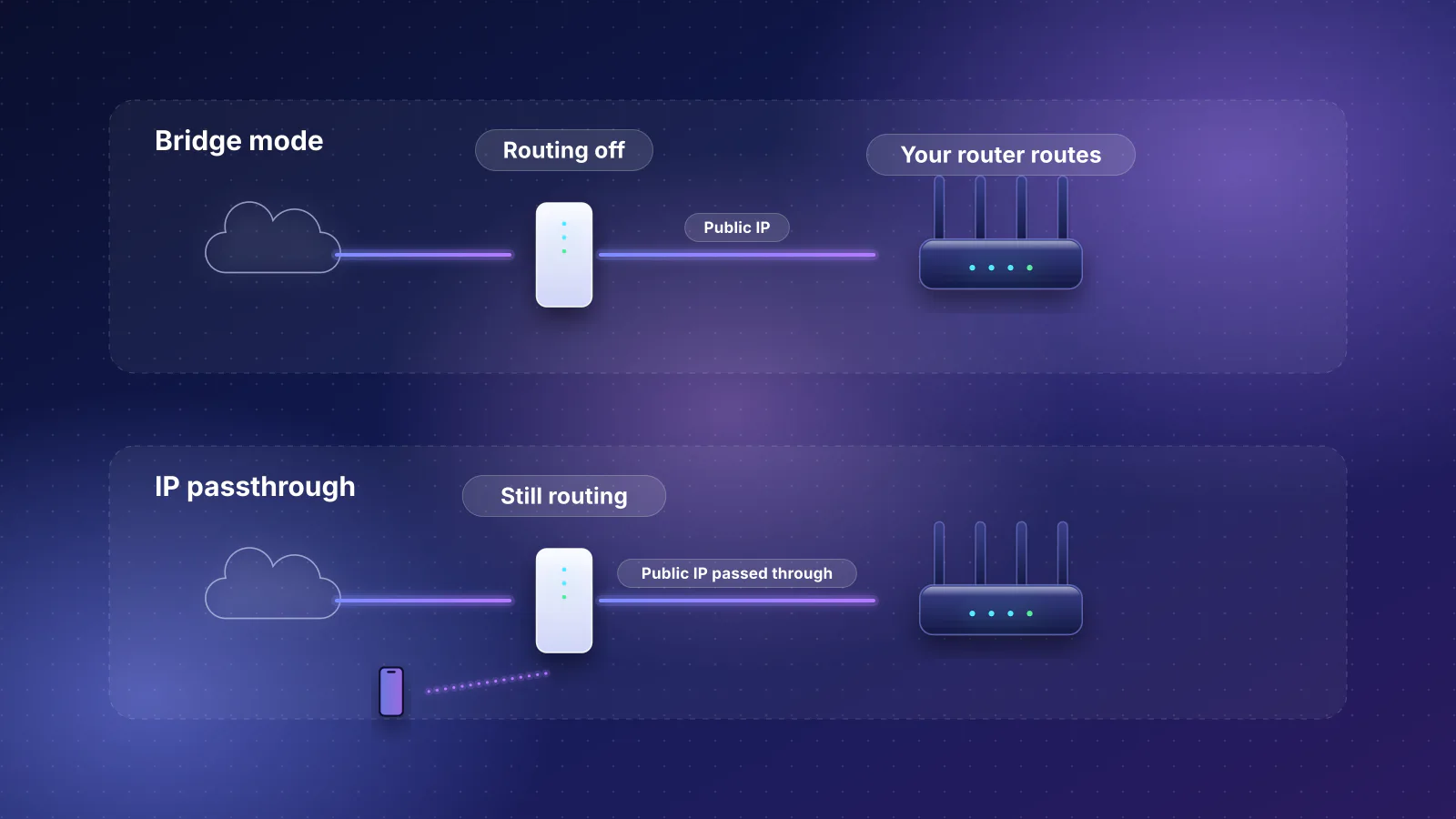
- Bridge mode on the gateway. The gateway stops routing and turns off its private Wi-Fi; your router gets the public address. On Xfinity, only one device (your router) can stay connected to the bridged gateway, and Xfinity's public hotspot stays on. See bridge mode vs IP passthrough.
- IP passthrough. The gateway keeps routing but passes its public address to your router. Used where bridge mode isn't available, such as AT&T Fiber and the Verizon Internet Gateway (5G Home). On Verizon's gateway, your router must use the LAN2 port, and the gateway's Wi-Fi and LAN1 port stop providing internet.
- Access-point mode on your router. When the gateway can't bridge or pass through, run your router (or mesh system) in access-point mode so the gateway does the routing and your equipment provides the Wi-Fi. Some mesh apps, including eero's and Google's, call this setting "bridge mode". Set it on only one device: if both the gateway and your router stop routing, nothing in the home hands out addresses. This avoids double NAT inside your home, though some router features stop working in that mode.
Then turn off the gateway's Wi-Fi if it's still on, so your devices don't flip between two networks.

What the major providers document
Summarized from each provider's own support pages, checked October 21, 2026. Policies and equipment change; check the linked pages before you buy. "Not documented" means we found no official page saying either way.
| Provider | Your own router | How it connects | Watch for |
|---|---|---|---|
| Xfinity | Yes | Own modem from Xfinity's compatible list, or the Xfinity gateway in bridge mode (Gateway > At a Glance at 10.0.0.1) | Customer-owned modems don't work with X-Class (symmetrical) tiers; those need Xfinity's gateway. Bridge mode turns off Xfinity's Wi-Fi network management, extenders and CyberSecure, and only one device can stay connected to the gateway. Xfinity Voice needs a voice-enabled modem. |
| Spectrum | Yes | Spectrum's standard setup is a separate modem; your router plugs into it | Symmetrical tiers require a Spectrum modem; Spectrum Home Phone doesn't work with customer-owned modems. |
| Cox (owned by Charter, Spectrum's parent, since August 2026) | Yes | Certified modem, or the Panoramic gateway in bridge mode | Cox says bridge mode isn't compatible with fiber service or MoCA-based services. Since September 16, 2026, new purchases in former Cox areas are Spectrum plans, which follow Spectrum's modem policy. Existing customers can keep their Cox plans, and Charter says they won't see service changes for now unless they ask for them. We found no page saying whether Cox's gateway or bridge-mode rules will change. |
| AT&T Fiber | Yes, behind the AT&T gateway | IP passthrough on the gateway (on the BGW210/BGW320, set Allocation Mode to Passthrough and enter your router's MAC address) | AT&T says bridged mode isn't compatible with its services (802.1X gateway authentication). AT&T's business support adds that passthrough removes the gateway's firewall protection, so your router's firewall does that job. |
| Verizon Fios | Not documented by Verizon (see note) | Your router's WAN to the ONT's Ethernet port, where Verizon's own router connects | Fios TV needs the Verizon router's coax connection. We found no current Verizon page on using your own router. A 2015 user guide reports that some installs feed the router over coax, so Verizon has to switch the ONT to Ethernet, and that you should release the Verizon router's DHCP lease before swapping routers. Verizon doesn't document these steps. |
| Verizon 5G Home (Verizon Internet Gateway) | Yes, behind the gateway | IP passthrough (Verizon's article: "Verizon Internet Gateway - Configure IP Passthrough / Bridge Mode") | The gateway stays. Your router must use the LAN2 port; the gateway's Wi-Fi turns off and LAN1 no longer has internet. |
| GFiber (formerly Google Fiber) | Yes ("recommended for advanced users") | Plug into the Fiber Jack; bridge mode mainly for homes without a separate Fiber Jack, or for setups such as a static IP block | GFiber publishes recommended router specs by plan (10 Gbps WAN for 2 Gig and up). GFiber announced in March 2026 that it will combine with Astound Broadband; we found no announcement that the deal has closed. |
| Frontier Fiber (owned by Verizon since January 2026) | Yes, after activation | Router to the ONT | First activation must use Frontier's router; Frontier supports only its own routers. Verizon says nothing is changing with Frontier accounts or equipment for now; policies may change later. |
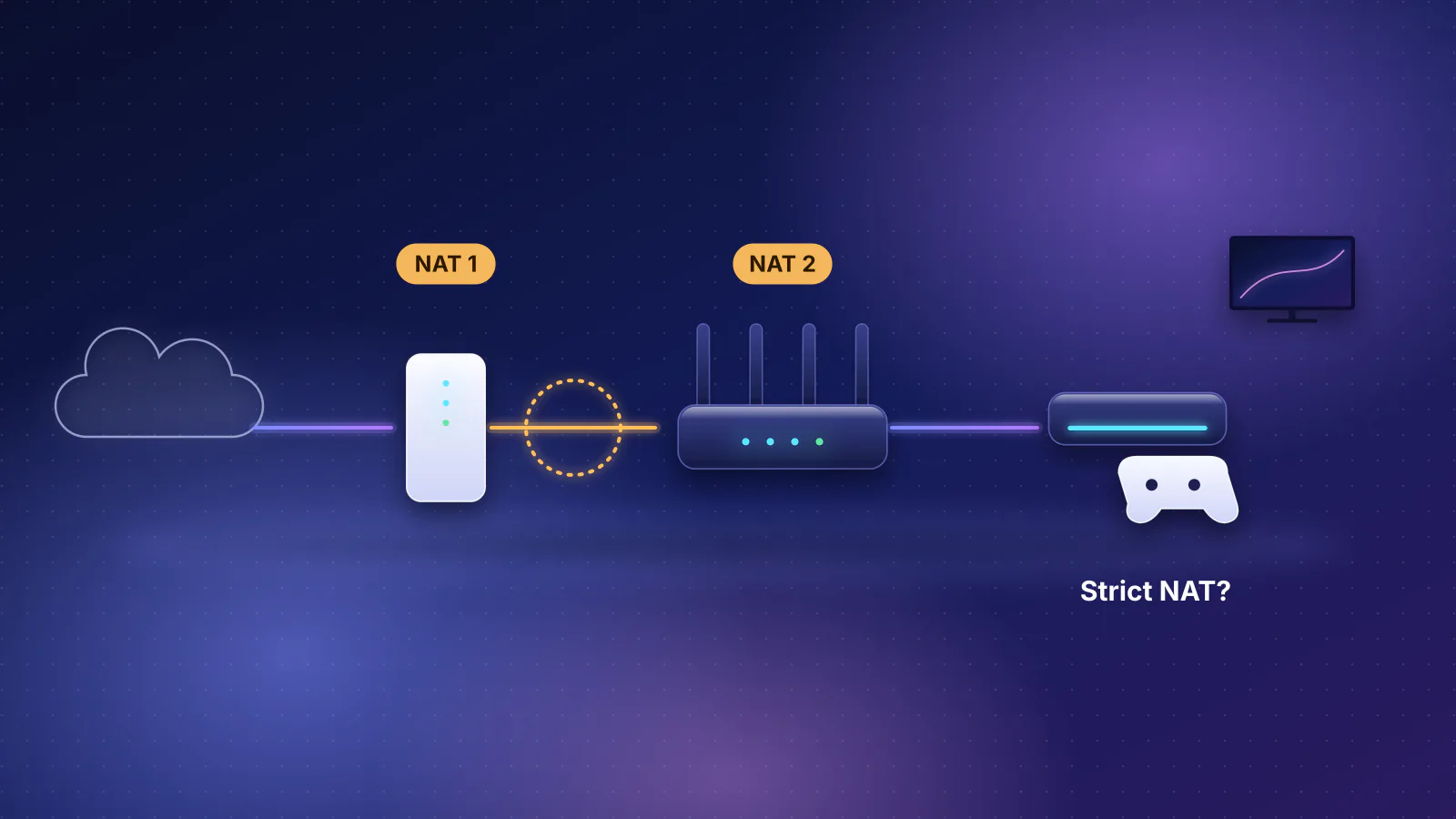
| T-Mobile Home Internet | Yes, behind the gateway | Ethernet from the gateway; no bridge mode | Expect double NAT. The gateway can't do port forwarding or change NAT type. Turn off the gateway's Wi-Fi in the T-Life app. |
| Starlink | Yes | "Bypass mode" in the Starlink app, with your router connected by Ethernet (which port depends on the kit). The Gen 2 router (Standard Actuated kits) has no Ethernet port, so it needs Starlink's Ethernet adapter as well as bypass mode. Performance and Enterprise kits usually skip bypass mode: your router plugs into the power supply's Ethernet port. | Default IPv4 is shared carrier-grade NAT (CGNAT, 100.64.0.0/10); a public IPv4 option exists on Priority plans. Bypass mode turns off the Starlink router's Wi-Fi, and only a factory reset takes the router out of bypass mode. |
Moving or switching providers
This is where owning your router pays off most. Here is the short version; move with your network has the full step-by-step. Keep the router's network name (SSID), password and security setting the same, and at the new home or with the new provider:
- Connect the router's WAN port to the new modem, ONT or gateway (bridge, passthrough or behind it, as above). On Verizon Fios, see the ONT note in the table above.
- If the new provider needs it, enter its connection details on the router. We found no PPPoE login documented for your router by any of the cable, fiber, 5G or satellite providers in the table above. A few providers, mostly on DSL, use PPPoE, a username and password for the connection itself; AT&T's and CenturyLink's DSL help pages both have you enter PPPoE details. If a new provider gives you a PPPoE username and password, enter them in the router's internet (WAN) settings.
- Your devices find the familiar network and reconnect.
Two things catch people out. The security mode has to match as well as the name and password (why the security mode matters), and a router or mesh system the provider supplied is usually the provider's equipment, so it stays behind or goes back with the rest (what moves and what stays, and return deadlines and fees).
What can still need attention: a different internet handoff (for example a gateway that must stay in place), placement in a new floor plan, a busier wireless neighborhood, and devices that pinned themselves to a specific band. If the new connection is faster than 1 Gbps, check that your router's internet port can carry it; the network planner shows the slowest link for a plan, and our guides to multi-gig bottlenecks and routers for multi-gig fiber go further.
Choosing a router to own
Start from your home, not from speed numbers: size, floors, wall materials and whether cable can reach other rooms decide whether one router, a mesh kit or wired access points is right. The network planner works that out with total costs, and the router finder lets you filter 143 models by verified specs. Ownership features worth checking: documented firmware updates, management without a cloud account if that matters to you, and whether security features are paid add-ons.
Frequently asked questions
Is it legal to use my own router?
Yes. Federal law (47 U.S.C. § 562) goes further: a provider of fixed broadband or pay-TV service may not charge you for using equipment you provide, such as a router. The law covers fixed broadband, not mobile service, and it doesn't make every device work on every network. Providers still set what connects, and some services, such as certain TV and phone services, need the provider's equipment.
Will my own router make my internet faster?
Not by itself. Your plan speed doesn't change. A better-placed router, a mesh system or wired access points can make Wi-Fi faster and more reliable in the rooms you use, and a router with Smart Queue Management can reduce lag when the connection is busy.
Do I still pay for the provider's equipment?
Not for using your own. Under 47 U.S.C. § 562, a fixed broadband provider may not charge you for using a router you provide, or rental for equipment it hasn't given you or that you've returned. Several providers include their router at no extra charge; others list a monthly gateway or Wi-Fi fee, so check your bill. Returning unused equipment can end a rental charge, but don't return a gateway your service still runs through: AT&T Fiber, T-Mobile and Verizon 5G Home gateways stay in place, and Frontier needs its router for the first activation.
What if my provider's gateway can't do bridge mode?
Use IP passthrough if it's offered. If not, run your own router or mesh system in access-point mode so only the gateway routes, and turn off the gateway's Wi-Fi. On T-Mobile and Starlink's default plan, the provider's own NAT stays either way, so IPv4 port forwarding still won't work.
Will the provider support my router?
Usually not. Most providers support the connection up to their own equipment and only their own routers. You'll rely on the router maker's support and documentation.
Sources
Provider policies, plan pages and ownership filings were read on October 21, 2026.
- 47 U.S.C. § 562: Consumer rights in sales (Cornell LII)
- Xfinity: Enable or disable bridge mode on your gateway
- Xfinity: Using your own modem, router, or gateway with Xfinity and Device Info: compatible modems (voice-enabled models marked)
- Xfinity: Devices certified for enhanced speeds required in recently upgraded areas (X-Class)
- Xfinity: Xfinity WiFi Gateway (included for new members)
- Spectrum: Using your own equipment on our network and DOCSIS modem policy
- Cox: Enabling bridge mode on the Panoramic Wifi gateway
- Charter: Form 8-K on completing the Cox transaction (effective August 19, 2026), Charter: Cox transaction customer FAQ and Cox/Spectrum Phoenix & Tucson pricing guide, October 2026 (PDF)
- AT&T Business: Bridge mode with AT&T, AT&T: Configuring IP Passthrough (business DSL, 2012, PDF), AT&T Business: Configuring IP Passthrough and DMZplus and AT&T: Get help with DMZ+ zone devices (BGW210/BGW320 IP Passthrough steps)
- AT&T: Connecting a non-AT&T provided router to your AT&T Internet (DSL) and CenturyLink: WAN settings, advanced modem setup (PPPoE)
- Verizon: Router user guide, CR1000A (PDF) and Fios internet FAQ (router included)
- Verizon: Verizon Internet Gateway - Configure IP Passthrough / Bridge Mode and 5G Home Internet support overview
- Logan Marchione: Use your own router with Verizon FiOS (user guide, 2015)
- GFiber: Set up bridge mode with the gFiber app, Set up your own router at home and Internet products and pricing overview
- GFiber: GFiber and Stonepeak's Astound to combine (March 2026)
- Frontier: How to use your Frontier router and Frontier internet equipment
- Verizon: Form 8-K on completing the Frontier acquisition (January 20, 2026) and Frontier is becoming Verizon FAQs
- T-Mobile: Connect your devices to T-Mobile Home Internet and 5G Home Internet plans
- Starlink: What is bypass mode? and What IP address does Starlink provide?, Can I use my own router with Starlink? and Does the WiFi router have any Ethernet (LAN) ports?
- Quantum Fiber: Bring your own Wi-Fi equipment and About Quantum Fiber (now part of AT&T)
- Lumen: Form 8-K on completing the sale to AT&T (February 2, 2026) and AT&T: announcement of the Lumen fiber purchase (May 2025)
- Ziply Fiber: Our approach to pricing (router included)
- eero: What is bridge mode? and Google Nest Help: Bridge mode