The short version
- A VLAN splits one physical network into several separate ones. Each gets its own address range, and traffic between them has to pass through the router, where firewall rules decide what's allowed. That's the whole security benefit: the rules, not the VLAN number.
- Separate networks don't mean blocked traffic. On TP-Link Omada gateways, and between networks in UniFi's Internal firewall zone, networks can reach each other until you turn on isolation or add a block rule. pfSense and OPNsense do the opposite: a new network can reach nothing until you allow it. TP-Link's Deco IoT network "allows cross-network communication by default", and ASUS's IoT network shares your main subnet by default.
- Consumer mesh systems offer a guest network, sometimes an IoT network, not VLANs. eero's guest network, and Deco's in Router mode, are isolated from your main network by default; NETGEAR documents the same default for its older Orbi models. eero's separate IoT network needs the eero Business subscription ($299.99 a year). None of the 43 current mesh systems in our catalog is recorded as documenting VLANs.
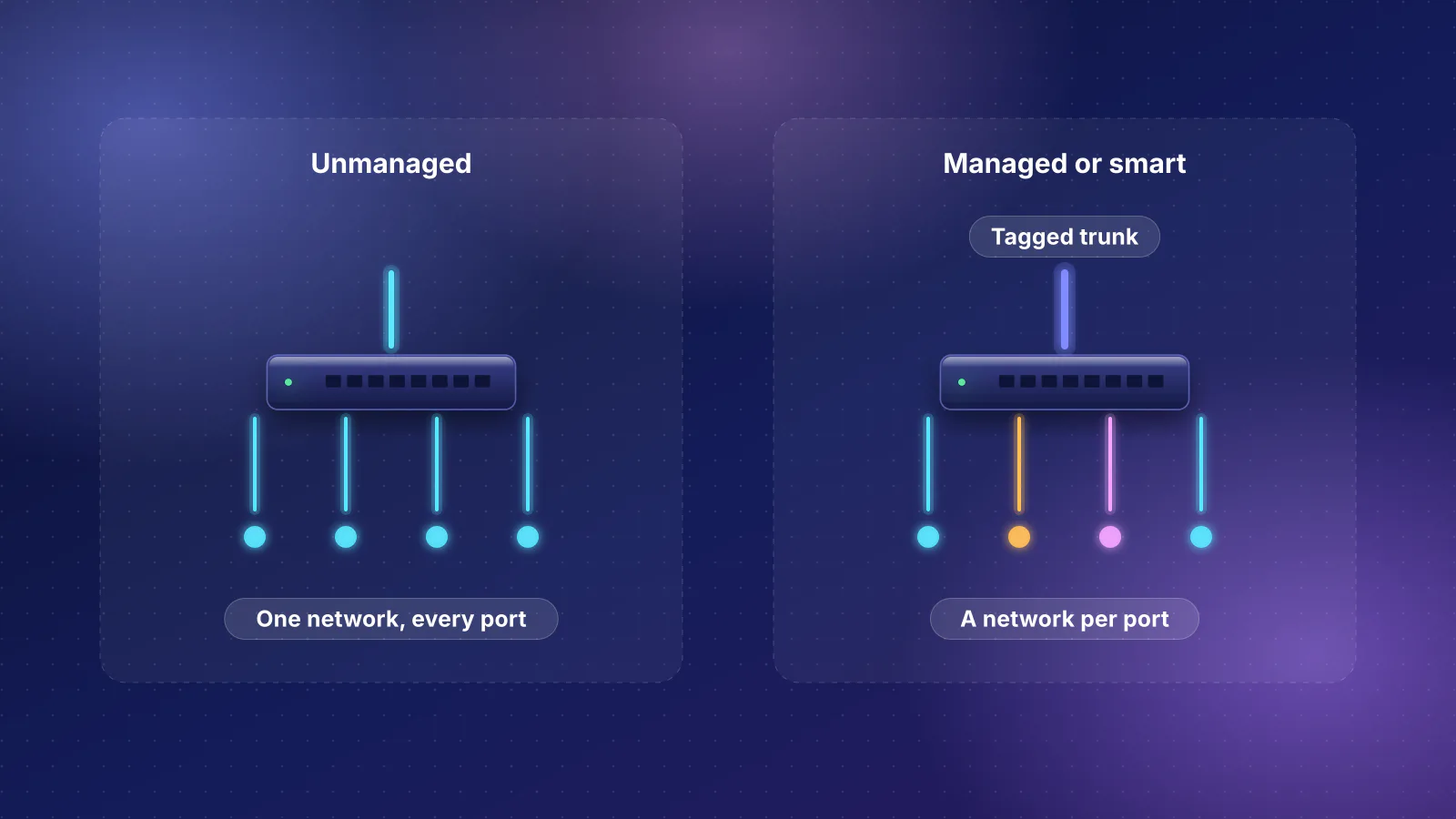
- Full VLANs need three things that agree: a router that supports them, access points that map each Wi-Fi name to a VLAN, and a managed or smart switch wherever a wired device needs to be on a particular network.
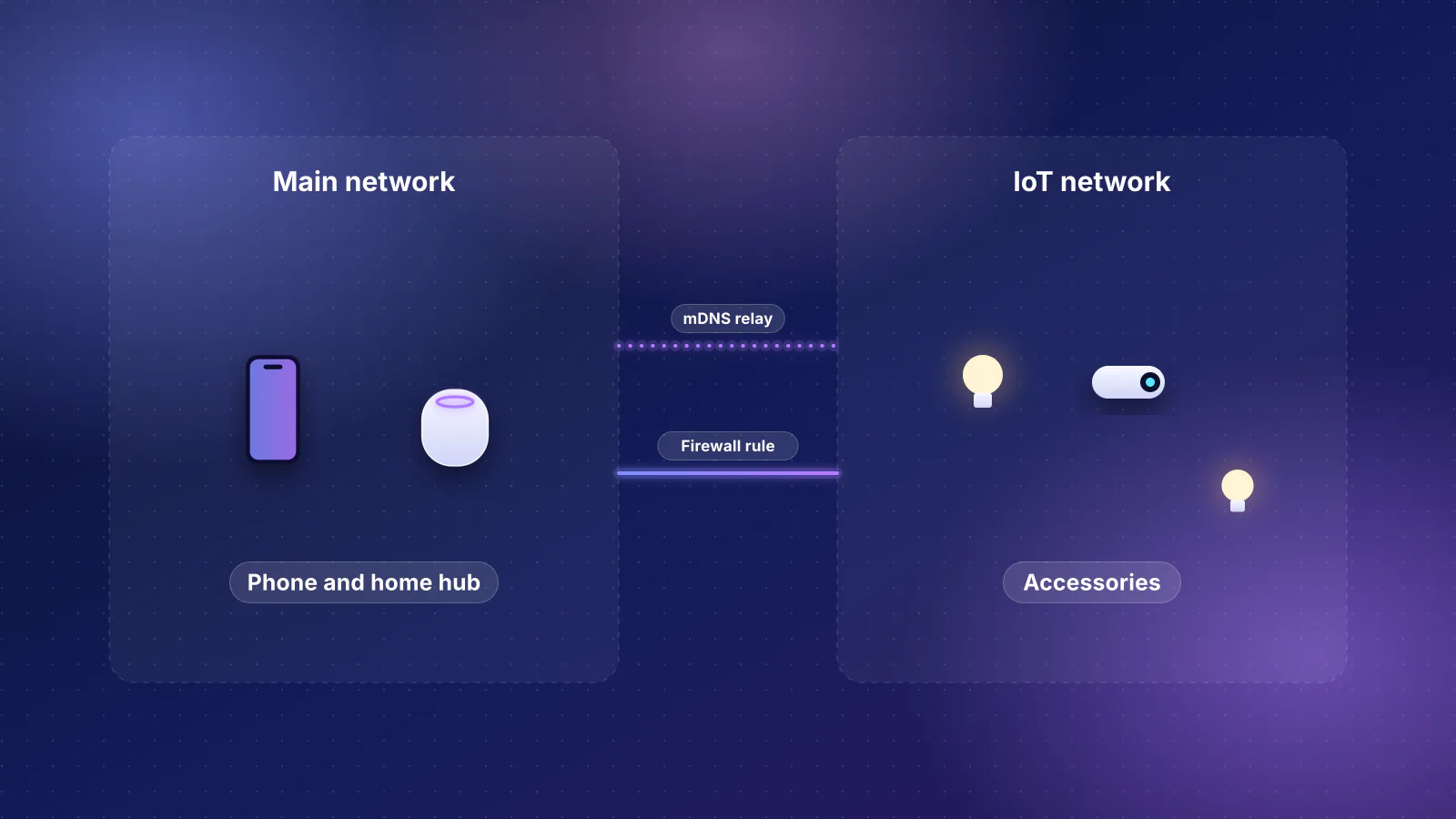
- Separation breaks discovery. AirPlay, Chromecast, AirPrint, HomeKit and Matter find devices with multicast that stays on one network unless the router relays it (UniFi gateways do by default). Keep the phones and the things they control together, and separate the devices you only use through a cloud app.
What a VLAN is
A VLAN (virtual LAN) is a separate network that shares cables, switches and access points with other networks. ASUS defines it as "a logical network that is created within a larger physical network". The standard behind it is IEEE 802.1Q (current edition 802.1Q-2022, "Bridges and Bridged Networks"), which, as MikroTik's documentation puts it, "defines how to insert a four-byte VLAN identifier into the Ethernet header". That identifier, the VLAN ID or tag, tells each switch and access point which network a frame belongs to. MikroTik's software accepts IDs from 1 to 4094 and says 0, 1 and 4095 "should not be used in generic VLAN setups".
Two kinds of port carry VLANs:
- Access (untagged) port: carries one VLAN, without tags, to a device that knows nothing about VLANs, like a TV, printer or camera. ASUS: an access port "is used to carry traffic for a single VLAN".
- Trunk (tagged) port: carries several VLANs, each frame tagged, between the router, switches and access points. ASUS: a trunk port "is used to carry traffic for multiple VLANs". It can also carry one untagged network, which Ubiquiti calls the Native VLAN: "Devices physically connected to a switch port will be placed on this Native VLAN."
An access point does the same job for Wi-Fi: each Wi-Fi network name (SSID) is tied to one VLAN. Ubiquiti: "Each SSID can be mapped to a single VLAN, ensuring that all connected devices remain within the designated VLAN." So a phone on "Home" and a smart plug on "Home-IoT" can share one access point and still be on different networks.
- Smart plug Joins the "Home-IoT" Wi-Fi network
- Access point Tags its traffic VLAN 20 and sends it up a trunk cable
- Managed switch Passes the tagged frame on its trunk port to the router
- Router or gateway Firewall rule decides: internet yes, main network no
- Your phone On "Home", the untagged default network: only reached if a rule allows it
Each VLAN is its own IP subnet, so each needs its own DHCP scope to hand out addresses; UniFi, for example, sets the "VLAN ID, subnet range, DHCP" for each network you create. A device on a VLAN with no DHCP server, or on a port the switch isn't carrying that VLAN on, simply gets no address. That's the typical symptom of a VLAN setup that's half done.
Guest network, IoT network or full VLANs
Most routers offer one of three levels. They differ in what they can separate and whether they block anything out of the box.
- Guest network: a second Wi-Fi network with internet access only. eero: "Devices connected to the guest network cannot communicate with devices connected to the main network nor with each other." TP-Link: "When Deco works in the Router mode, the guest network and the main network are isolated" (in access point mode an "Allow Local Access" switch decides). NETGEAR's guest-network article for its older Orbi models (Wi-Fi 5, Cable, Voice and Cellular) keeps "Allow guests to see each other and access my local network" cleared by default, so guests "cannot access computers or devices that are connected to your Orbi network"; we found no equivalent statement for its Wi-Fi 6E and Wi-Fi 7 models. Good for visitors. For smart-home gear it's a blunt tool: eero's own example is that a laptop on the guest network can't play music on a Sonos speaker, even one on the guest network too.
- IoT network: a third Wi-Fi network for smart devices, often 2.4 GHz only so setup apps work. Read what it isolates. TP-Link pitches the Deco IoT network as improving "connection success and security", but says it "allows cross-network communication by default", so out of the box it mainly solves the 2.4 GHz setup problem (the same article mentions a separate per-device Device Isolation setting). ASUS's IoT network, on the models ASUS lists, has "Use same subnet as main network" on by default; ASUS says to turn it off "to create a dedicated IoT Network". NETGEAR's Orbi article (Wi-Fi 6E and Wi-Fi 7 models) covers turning the IoT network on, but not whether it's isolated from the main network.
- Full VLANs: as many networks as you need, on Wi-Fi and on wired ports, with rules you write between them. This is the only level that can put a wired camera, recorder or TV on a separate network.
| Router type | Guest network | IoT network | Full VLANs | Traffic between networks out of the box |
|---|---|---|---|---|
| eero (consumer) | Yes, isolated | Only with eero Business ($299.99 a year) | No: VLAN tagging only for internet providers that require it | Guest blocked; with eero Business, "all wifi networks are isolated from each other" |
| TP-Link Deco | Yes, isolated in Router mode | Yes (Deco app, More > IoT Network; varies by model) | Not documented for your own networks | Guest blocked in Router mode; IoT network allowed to cross by default |
| NETGEAR Orbi | Yes; isolated by default on older (Wi-Fi 5) models, not documented for newer ones | Wi-Fi 6E and 7 models; off by default | Not documented for your own networks | Guest blocked on older models; newer guest and IoT not documented |
| ASUS router | Yes; "Access Intranet" controls reach | On listed models, firmware 3.0.0.6.102_34312 or later | On listed models; ASUS calls the firmware "an early stages beta" | IoT shares the main subnet until you change it |
| UniFi gateway, switches and access points | Yes (hotspot or isolated network) | Any network you create | Yes | Allowed between networks in the Internal zone until you isolate or add a policy |
| TP-Link Omada gateway, switches and access points | Yes, isolated (Guest Network checkbox) | Any network you create | Yes | Allowed: gateway access rules include "an implicit permit rule" |
| pfSense (Netgate) or OPNsense firewall, plus your own switch and access points | Build it as a VLAN | Build it as a VLAN | Yes | Blocked: a new interface has no allow rules |
From each maker's documentation, checked November 7, 2026. If your router is your internet provider's gateway, check its manual for which of the three it offers. For how eero, ASUS and UniFi compare beyond separation, see our eero, ASUS and UniFi comparison; for a shop with card terminals, the separation rules in our small-office router guide apply.
Default allow or default deny: the setting that matters most
Creating a VLAN gives a device a different address. Whether it can still reach your laptop depends on the router's default policy, and the big platforms disagree.
- UniFi (Network 9.0 and later): the firewall groups networks into zones. In Ubiquiti's zone matrix, Internal to Internal is "Allow All", meaning "All traffic is allowed from the source zone to the destination zone." Ubiquiti's VLAN guide offers "network isolation" as an option when you create a network, and its isolation guide says turning it on "automatically configures the necessary firewall rules to block inter-VLAN traffic". The same VLAN guide notes that "Most third-party gateways block inter-VLAN communication by default", which is the opposite of UniFi's Internal zone.
- TP-Link Omada: "Since Omada Gateway ACLs include an implicit permit rule, only traffic matching the configured deny rules will be blocked." To separate two networks you add a deny rule from one LAN to the other, with TP-Link's Bi-Directional option or a second, reversed rule.
- pfSense: Netgate: "By default, there are no firewall rules on the new interface, so the firewall will block all traffic." Its isolated-network pattern allows DNS and ping to the firewall, rejects everything else to the firewall and to private address ranges, then allows the internet.
- OPNsense: "the default (inbound) policy is block if nothing else is specified." Devices on a new VLAN interface can't reach other networks or the internet until you add rules.
A sample home VLAN plan
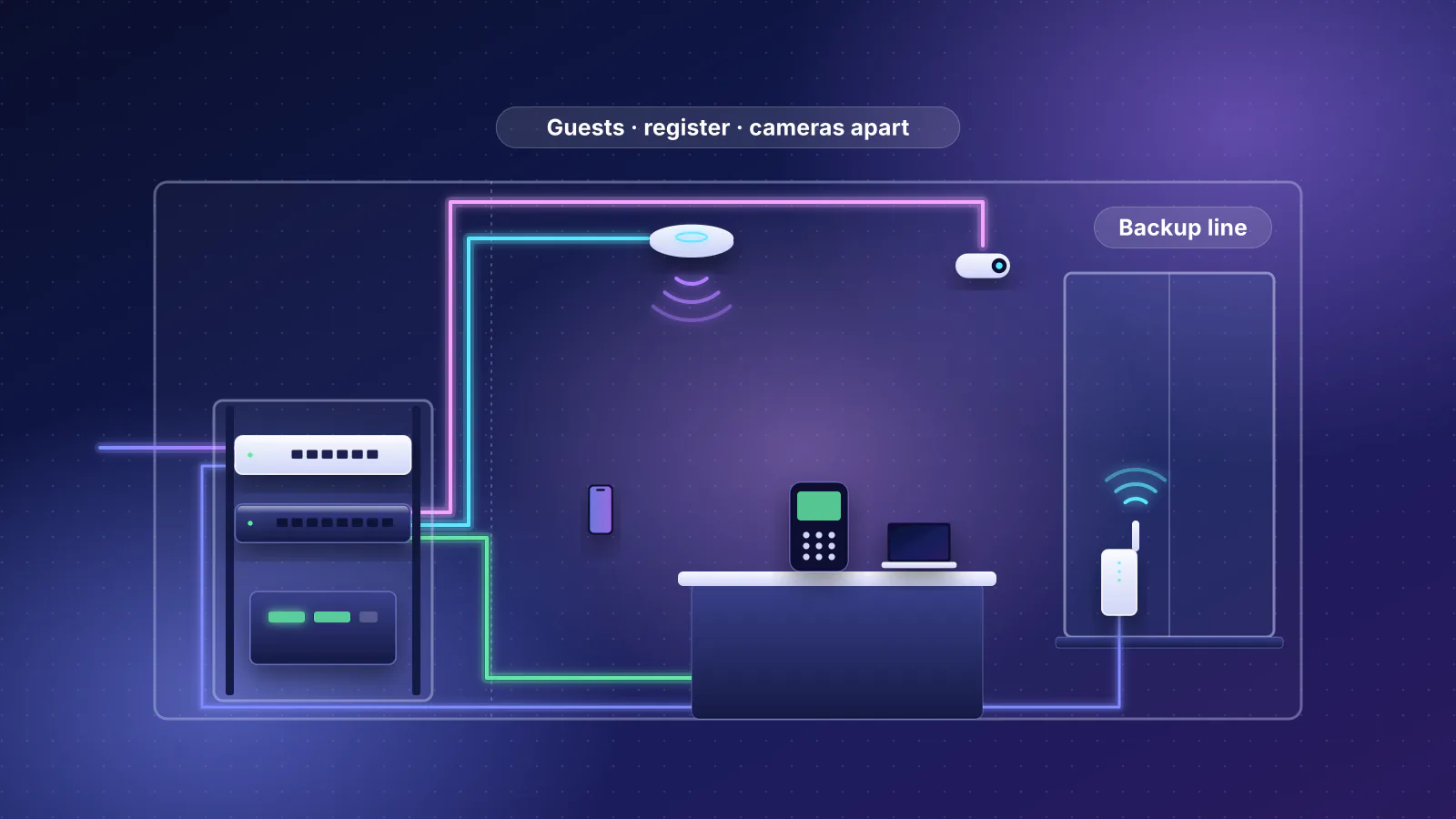
This is an example for a typical house with smart plugs, a few cameras and visitors, not a standard. VLAN numbers and subnets are arbitrary; pick a scheme you can remember (here the VLAN ID matches the third number of the subnet). Each /24 subnet has 254 usable addresses (256 addresses, minus the network and broadcast addresses: RouterHaus's arithmetic), far more than a home needs.
| VLAN | Name | Subnet | Who's on it | Allowed to reach |
|---|---|---|---|---|
| Untagged (default) | Main | 192.168.1.0/24 | Phones, laptops, Apple TV and HomePod hubs, Chromecast and AirPlay speakers, HomeKit and Matter accessories, the printer | Internet; IoT and Cameras networks (to control and view them) |
| 20 | IoT | 192.168.20.0/24 | Devices you run only through the maker's cloud app: robot vacuum, plugs, appliances, a TV you never cast to | Internet only. Replies to connections the Main network starts |
| 30 | Cameras | 192.168.30.0/24 | Wired and Wi-Fi cameras, and the recorder (NVR) on the same VLAN | Each other and the recorder; internet only if the camera app needs the maker's cloud. Main can reach the recorder |
| 40 | Guest | 192.168.40.0/24 | Visitors | Internet only, with client isolation on |
| 50 (optional) | Work | 192.168.50.0/24 | An employer's laptop or phone | Internet only |
Three choices in this plan are deliberate:
- Smart-home and casting devices stay on Main. Apple's Home troubleshooting starts with "Connect your iPhone, iPad, or Mac to the same Wi-Fi network as your accessories", and moving them to another network is the quickest way to break casting and Home control (see what breaks). Separate what you don't need to discover locally.
- The recorder lives with the cameras. Two devices on the same VLAN talk without touching the firewall, so recording never depends on a rule. If cameras and recorder are split, you need an allow rule for the video streams. Client isolation on the cameras' Wi-Fi would also stop a Wi-Fi camera reaching a recorder on the same network, which is how eero's IoT network behaves: there, "no two devices can talk to each other".
- "Allowed to reach" is one-way. A rule that lets Main start connections to IoT, with replies allowed back, lets your phone talk to the vacuum without letting the vacuum start anything toward your laptop. That's how a stateful firewall works: OPNsense's documentation says you "only need to allow traffic in one direction to automatically allow related packets for the same flow back in", and TP-Link's Omada gateway rules have a stateful "States Type" setting it recommends leaving on Auto. It suits app-controlled devices, not casting: Ubiquiti warns that AirPlay and screen mirroring "will not work when the receiving device is only allowed to respond", one more reason those devices stay on Main.
What hardware you need
A router that routes and filters VLANs
In our catalog (current models, checked November 7, 2026), 21 of 22 gateways and 16 of 58 Wi-Fi routers are recorded as documenting VLAN support, against none of the 43 mesh systems. The router finder filtered to VLAN support lists them all. A few, chosen to show the range of management styles:
| Product | Internet port | Fastest LAN port | Maker's routing, plan or wired-speed figure | Price |
|---|---|---|---|---|
| ASUS RT-BE86U Router · Wi-Fi 7 |
10 Gbps | 2.5 Gbps | Not published | $269.99 Manufacturer store price, checked October 20, 2026 |
| GL.iNet Flint 3 (GL-BE9300) Router · Wi-Fi 7 |
2.5 Gbps | 2.5 Gbps | Not published | $209.99 Manufacturer store price, checked October 20, 2026 |
| Ubiquiti UniFi Dream Router 7 (UDR7) Router · Wi-Fi 7 |
10 Gbps | 2.5 Gbps | Not published | $307.00 Manufacturer store price incl. US store surcharge (list $279.00), checked October 20, 2026 |
| Ubiquiti UniFi Cloud Gateway Ultra (UCG-Ultra) Gateway · no Wi-Fi |
2.5 Gbps | 1 Gbps | Not published | $142.00 Manufacturer store price incl. US store surcharge (list $129.00), checked October 20, 2026 |
| Netgate 1100 pfSense+ Security Gateway Gateway · no Wi-Fi |
1 Gbps | 1 Gbps | 927 Mbps | $289.00 Manufacturer store price, checked October 20, 2026 |
- The ASUS RT-BE86U is on ASUS's VLAN support list; ASUS documents the VLAN steps in its web interface and calls the required firmware "an early stages beta".
- The UniFi Dream Router 7 is router, controller and access point in one, so its own Wi-Fi maps SSIDs to VLANs; add UniFi switches and access points as you grow. For choosing among UniFi models, see which UniFi gateway to buy.
- The Cloud Gateway Ultra and Netgate 1100 have no Wi-Fi: you need access points that support VLAN-tagged SSIDs. With the Netgate, pfSense's default-block policy means you write every allow rule.
A managed switch wherever the wired networks split
A switch that can't be configured can't assign a port to a VLAN, so everything plugged into it lands on one network. You need a managed or smart switch (which is which; our component catalog records "smart" web-managed models such as the TP-Link TL-SG108E alongside fully managed ones) at any point where:
- a cable carries more than one network, such as the run from the router to an access point broadcasting Main, IoT and Guest (that port is a trunk), or
- wired devices that belong to different networks plug into the same switch (each port is an access port on its VLAN).
Two vendor details catch people out. UniFi switch ports carry every VLAN by default ("By default, UniFi switch ports allow traffic from all VLANs created in UniFi"), so for a camera port you set the Native VLAN to Cameras and choose "Block All", which "only permits traffic to pass on the Native (Untagged) VLAN." And ASUS's trunk mode drops untagged frames ("All tagged packets are allowed, non-tagged will be dropped"): a trunk goes to a managed switch or access point, never to a laptop.
Access points that map Wi-Fi names to VLANs
Every access point broadcasting a separated network must support SSID-to-VLAN mapping and must be on a trunk port carrying those VLANs. UniFi, Omada and MikroTik document it for their access points. Consumer mesh satellites don't take your VLANs: eero lists VLAN tagging only for internet providers that need it, and TP-Link's Deco IoT network article covers a Wi-Fi name, security and bands, not VLAN IDs. That's why "add VLANs to my mesh" usually means replacing the mesh with a router or gateway and access points (see mesh vs a router plus access points).
The order to set it up
Changing VLANs on the switch port you're connected through can cut you off from the switch, so build from the router outward and test each step.
- List your devices and how you control each one. Anything you cast to, AirPlay to, print to or control with Apple Home, Google Home or Matter stays on Main unless you're ready to relay discovery between networks. Anything controlled only through the maker's app can move.
- Check every box in the path. Router or gateway with VLANs, managed switches where networks share a switch, access points that tag SSIDs. One unmanaged switch or mesh satellite in the wrong place undoes the plan for everything behind it.
- Create the networks on the router: name, VLAN ID, subnet and DHCP for each. On UniFi, decide now whether to turn on network isolation; on Omada, plan the deny rules; on pfSense and OPNsense, plan the allow rules, starting with DNS to the firewall.
- Write the rules between networks to match your "allowed to reach" column: Main to IoT and Cameras allowed, IoT, Cameras and Guest to Main blocked, every separated network blocked from the router's admin page.
- Set the switch ports. Make the uplink to the router a trunk first, then the trunks to access points, then access ports for wired cameras, TVs and the recorder.
- Create the Wi-Fi networks and map each to its VLAN. A 2.4 GHz-only IoT network helps devices that can't join 5 GHz, the problem TP-Link built its Deco IoT network for.
- Move devices one group at a time, guest first (nothing depends on it), then cameras, then IoT. Give the recorder and cameras fixed DHCP reservations so your rules can name them.
- Test from both sides using the checks in the callout above, then cast, print and open the Home app from your phone to confirm nothing on Main lost a device.
What breaks, and the general fix
Most of what breaks is discovery. AirPlay, AirPrint, Chromecast, HomeKit and Matter find devices with multicast DNS (mDNS). Its queries go to the address 224.0.0.251, which RFC 6762 calls "link-local", and names ending in .local "are meaningful only on the link where they originate". RFC 5771 says that address block carries traffic "that is not forwarded off link". Unless the router runs an mDNS relay (UniFi gateways switch one on by default, below), a router between two VLANs doesn't pass it on, so your phone on Main stops seeing the speaker on IoT even if a rule allows the connection itself. The specific rules for Apple Home and Matter are in HomeKit and Matter across VLANs, and the AirPlay symptoms and fixes in fixing AirPlay on mesh Wi-Fi.
| What | What the maker requires | Typical symptom without a relay |
|---|---|---|
| AirPlay | Apple: "Connect your device to the same Wi-Fi network as your Apple TV, AirPlay-compatible smart TV, or Mac." | The Apple TV or speaker disappears from the AirPlay list |
| Chromecast and Google TV | Google says to disable "Access Point (AP) isolation, also known as "Client Isolation" or "Guest Mode"", including on guest networks | The Cast button finds nothing |
| AirPrint printers | Apple: make sure your device "is connected to the same Wi-Fi network as your printer" | The printer isn't offered |
| HomeKit and Matter | Apple: "Connect your iPhone, iPad, or Mac to the same Wi-Fi network as your accessories." Matter also relies on local IPv6 | "No Response" accessories, failed pairing |
The general fix is an mDNS relay (also called a reflector, repeater or proxy) between the networks that need it, plus firewall rules for the connections that follow. Each platform has limits worth knowing before you plan around one:
- UniFi gateways have a Multicast DNS proxy with Auto, Off and Custom modes, and Ubiquiti says it "is automatically enabled on newly created networks". Gateways cap how many networks can use it: two on the UniFi Express and Gateway Lite, 30 on the Dream Router, Dream Router 7 and Express 7, 50 on most larger models. Ubiquiti advises relaying "only where needed".
- Omada access points forward Bonjour between VLANs from controller version 5.9, but TP-Link's guide notes that "Currently, mDNS cross VLAN forwarding does not support wired clients", which matters if the Apple TV, printer or device looking for them is wired. The same rule screen has a Gateway device type for Omada gateways, which the guide doesn't cover.
- OPNsense uses the mdns-repeater plugin, which "requires at least 2 interfaces, and no more than 5 interfaces to work".
A relay helps AirPlay, casting and printing. It doesn't carry everything Matter and Thread need: Thread border routers announce routes with IPv6 Router Advertisements, which stay on one network. Our Apple Home, Matter and Thread guide covers that in detail. For most homes the simpler answer is the one in the sample plan: keep smart-home and casting devices on Main and separate the rest.
What separation protects, and what it doesn't
The FBI's 2015 public service announcement on the internet of things lists "Isolate IoT devices on their own protected networks" first among its consumer recommendations, followed by "Disable UPnP on routers". The NSA's 2023 home-network guidance for teleworkers, per the agency's announcement, includes "implementing wireless network segmentation". The reasoning is that a cheap camera or plug with a flaw, once compromised, can't reach your laptop or NAS directly if the firewall between them blocks it.
The limits are just as real:
- Separation doesn't fix the device. A compromised device on an IoT VLAN still has your internet connection. The FBI's 2025 warning about the BADBOX 2.0 botnet describes infected streaming boxes, projectors and photo frames whose home networks are sold as "residential proxy services known to be used for malicious activity". An IoT VLAN with internet access doesn't stop that; removing the device does. The FBI's advice there is to consider disconnecting suspicious devices, watch your network's traffic, check IoT devices for suspicious activity, avoid apps from unofficial stores and keep firmware updated.
- Every exception is a path. A rule that lets Main reach IoT, or an mDNS relay that announces your devices across networks, is an opening. On UniFi the relay is on for new networks and shares all services unless you change it, so set it to Custom and pick the networks and services. Keep exceptions narrow and one-way.
- The labels can mislead. An "IoT network" that allows cross-network traffic by default (Deco) or shares your main subnet by default (ASUS), or a UniFi network left in the Internal zone without isolation, looks separated in the app and isn't.
- Devices on the same VLAN still reach each other. Use client isolation on guest Wi-Fi so one visitor's infected laptop can't probe another's, and leave it off where devices must talk (cameras to a recorder).
- The basics still matter more. A strong Wi-Fi password, changed default passwords and security updates, which the same FBI announcement stresses, protect every network, separated or not.
Frequently asked questions
Do I need a managed switch to use VLANs?
Only where wired devices on different networks share a switch, or where one cable carries several networks, such as the run to an access point that broadcasts your main, IoT and guest Wi-Fi. A switch that can't be configured puts everything plugged into it on one network. If all your separated devices are on Wi-Fi and each access point plugs straight into the router, you may not need one.
Is a guest network as good as an IoT VLAN?
For devices that only need the internet, a guest network that's isolated by default, as on eero and on Deco in Router mode, does the main job. It can't separate wired devices, and on eero guest devices can't talk to each other either, so a phone on the guest network can't control a speaker on it. Check the setting: ASUS's Access Intranet option, Deco's Allow Local Access switch in access point mode and the guest checkbox on older Orbi models decide whether guests can reach your main network.
Will putting smart-home devices on a VLAN break HomeKit, Google Home or Alexa?
It can. AirPlay, Chromecast, HomeKit and Matter discover devices with multicast DNS, which stays on one network, and Apple tells you to connect your iPhone to the same Wi-Fi network as your accessories. Devices that work only through the maker's cloud app usually keep working from another network. Keep anything you control locally on your main network, or relay mDNS between networks and expect some troubleshooting.
Can eero or Deco do VLANs?
Not for dividing your own network. eero documents VLAN tagging only for internet providers that require it; its isolated IoT network comes with the eero Business subscription. TP-Link's Deco IoT network is a separate Wi-Fi name that allows cross-network communication by default. For real VLANs you need a router or gateway that supports them, plus compatible access points and switches.
How many VLANs does a home need?
Usually three or four: a main network for phones, computers and smart-home devices you control locally, an IoT network for cloud-app devices, a guest network, and a camera network if you run a local recorder. Every extra network adds rules and discovery problems, so add one only when a group of devices really needs different rules.
Sources
Read on November 7, 2026.
- IEEE: 802.1Q-2022, Bridges and Bridged Networks (standard page)
- MikroTik: VLAN (802.1Q tag, ID range, trunks) and VLANs on wireless
- IETF RFC 6762: Multicast DNS, RFC 4861: Neighbor Discovery for IP version 6 (Router Advertisements) and RFC 5771: IANA guidelines for IPv4 multicast address assignments (Local Network Control Block)
- Ubiquiti: Creating virtual networks (VLANs) (updated September 21, 2026)
- Ubiquiti: Zone-based firewalls in UniFi and Implementing network and client isolation in UniFi
- Ubiquiti: Switch port VLAN assignment (trunk and access ports)
- Ubiquiti: UniFi Gateway, Multicast DNS (mDNS) proxy and Managing broadcast traffic with UniFi
- TP-Link Omada: Omada gateway access control configuration examples, How to configure SSID VLAN on Omada AP with third-party gateway, How to configure a guest network on an Omada controller and How to use Bonjour related functions of Omada AP on Omada Controller
- Netgate: Configuring an OPT interface as an additional LAN (pfSense)
- OPNsense: Rules (firewall) and Multicast DNS proxy
- ASUS: What is VLAN and how to set it up (last updated May 5, 2025), How to set up IoT Network (Guest Network Pro) and How to configure the guest network to deny access to the internal network
- eero: How do I share my eero network with guests?, What advanced features does eero support? and What is eero Business? and How do I get started with eero Business?
- TP-Link: Deco smart home setup, settings to prevent and fix connection and dropping issues (IoT Network; last updated July 2, 2026) and How to set up a guest network for TP-Link Deco (last updated April 23, 2026)
- NETGEAR: How do I set up a guest network on my Orbi WiFi System? (applies to Orbi Wi-Fi 5, Cable, Voice and Cellular models) and How do I enable or disable the IoT network on my Orbi WiFi 6E System?
- Apple Support: Use AirPlay to stream video or mirror the screen of your iPhone or iPad and About AirPrint
- Apple Support: If your HomeKit or Matter accessory isn't responding in the Home app
- Google: Can't connect Chromecast or Google TV Streamer to Wi-Fi (AP isolation)
- Home Assistant: Matter integration documentation (IPv6 and mDNS requirements)
- FBI IC3: Internet of Things poses opportunities for cyber crime (I-091015-PSA, September 10, 2015, PDF)
- FBI IC3: Home internet connected devices facilitate criminal activity (I-060525-PSA, June 5, 2025)
- NSA: NSA releases Best Practices for Securing Your Home Network (press release, February 22, 2023)
- RouterHaus catalog (VLAN support as recorded in
features.vlan; switch management types)