The short version
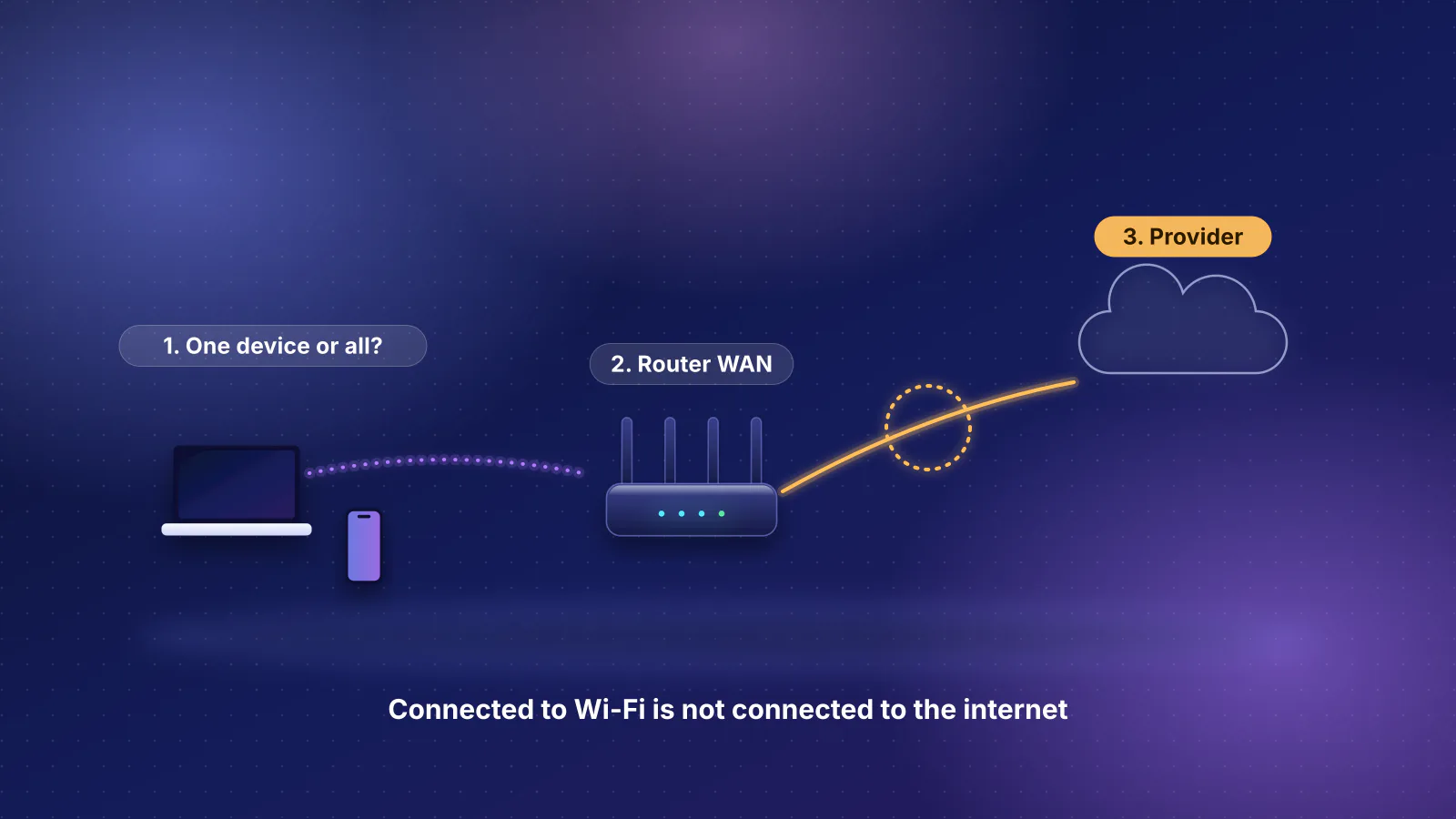
- "Offline" usually means the node lost its link back to the main unit (the backhaul), not that it's broken. NETGEAR's magenta satellite light means "No backhaul connection or no Internet connection."
- Distance and walls are the most common cause. eero says wireless units "should be no more than 50 feet from another eero"; Ubiquiti wants at least -60 dBm to the wired uplink.
- Swap it, move it, then wire it. TP-Link's swap test shows whether the fault follows the unit or stays in the spot.
- Wired nodes drop for wiring reasons: cabled to the provider's gateway instead of the main unit, or a switch that blocks the backhaul.
- Power, heat, firmware and radar are the rest. Use the original adapter, give the unit air, update every unit, and expect brief 5 GHz drops on a radar (DFS) channel.
- Usually nothing to buy. A move, a cable or a setting fixes most cases. New hardware is justified only when no spot within range works or the unit itself is faulty.
Not sure the node is the problem at all? The step-by-step slow internet diagnosis separates the line, the Wi-Fi and the device first.
What "offline" means in each app
A satellite has two links: one to your devices, and one back to the main unit, called the backhaul. "Offline" in an app usually means the backhaul dropped, even if the node still broadcasts a network name.
| System | What it shows | What the maker says it means |
|---|---|---|
| eero | Red LED; offline entries in the app's Event Stream | "A red LED means your eero isn't receiving an internet connection." If every eero is red, the problem is usually upstream of the primary eero. |
| TP-Link Deco | Flashing or solid red light; signal bars per satellite | A red satellite has lost its connection to the main Deco. "The recommended signal strength is 2 bars." |
| NETGEAR Orbi | Satellite ring light; the app's network map | Blue: "Strong connection". Amber: "Fair connection; consider repositioning the satellite." Magenta: "No backhaul connection or no Internet connection." The app's network map marks a lost satellite "Not connected." |
| Google Nest Wifi | A point shown offline; a rating in the mesh test | The mesh test rates each point's link as a "weak connection" or "good connection"; for a weak one, Google says to move the point closer. |
| ASUS AiMesh | Node status in the ASUS Router app or web interface | Shows "how good the reception is from the AiMesh router" for each node. |
| Ubiquiti UniFi | Access point marked "Isolated" | The AP "loses connectivity with the UniFi Console on its management network/VLAN"; clients often keep working. For a mesh AP, the likely cause is that "there isn't sufficient signal strength." |
One case isn't a fault. TP-Link says that if the internet works through a Deco but the app shows units offline, "the issue is likely a display refresh problem in the app": tap "Check Again", swipe down on the Network page, or close and reopen the app.
The likely causes, and the sign each leaves
| Cause | Typical sign |
|---|---|
| Too far, too many walls or floors | A wireless node; amber, weak or few bars in the app |
| Interference near the node | The fault stays in one spot whichever unit you put there |
| Wired backhaul set up wrong | A cabled node; often after a cable or switch change |
| Power or heat | The node restarts; uptime resets; worse in a hot room or cabinet |
| Firmware out of step | Started after an update, or one unit lags the others |
| Radar on a DFS channel | 5 GHz drops for minutes at a time, then comes back |
| Two routers, or the node on the wrong network | The node never joins, or gets its address from the provider's box |
| A faulty unit | The fault follows the unit when you swap it with a working one |
A safe order of checks
None of these steps changes a setting. Do them in order, one change at a time, so you know what fixed it.
- Note the pattern. One node or all of them? Wired or wireless? All the time, or at certain hours? Every node offline at once points upstream: eero and Google both start with the modem and the main unit, and Google power cycles the modem first, then the main unit, then the rest.
- Read the indicator and the log. Check the node's rating in the app (table above), then its history. eero's Event Stream (on eero Secure, Plus and Business networks, under the clock icon on the Devices tab) logs "An eero on the network went offline", port speed changes and temperature status. On ASUS, System Log > General Log shows "Uptime", the time since the router was turned on. A node that drops and restarts points at power; one that stays up but loses its link points at the backhaul.
- Rule out power. Plug the node straight into a wall outlet with its own adapter: TP-Link's first fix for random reboots is to make sure the unit "is using its original power adapter", and eero says "Only use the included power adapter with your Device." Take it off any timer, smart plug or switched strip, and out of any cabinet.
- Swap it with a working unit. TP-Link: "Swap the problematic satellite with a working one (move them to each other's location)." If the problem follows the unit, contact the maker. If it stays at the original spot, "the problem is likely interference or obstacles."
- Move it closer, as a test. Put it about halfway to the main unit, in the open, for a day. eero says to move a red wireless unit "closer to another eero"; Google says you "might need to move the point closer to your router or to another mesh point"; UniFi's first step for an isolated mesh AP is "Move the APs closer together."
- Wire it temporarily. If you have a long patch cable, run it from the main unit to the node for an hour. eero lists an Ethernet link to another eero as a step, and ASUS says "If connecting to the AiMesh node wirelessly fails, please try using a wired connection." Stable when wired means the wireless backhaul is the cause.
What each result means
| What you saw | What it points to | Next step |
|---|---|---|
| App was wrong; internet works through the node | A display problem (TP-Link documents this for Deco) | Refresh or reopen the app; nothing to fix |
| Fault follows the unit in the swap | The unit | Reset and re-add it; contact the maker if it persists |
| Stable when moved closer | Distance or walls | Find a spot in between, or wire it |
| Stable on a temporary cable, unstable wireless at every spot that covers the room | The wireless backhaul can't reach | Wired or MoCA backhaul |
| Drops on its permanent cable, fine on a direct cable | The wiring path: port, switch or cable | Wired backhaul mistakes |
| Uptime resets when it drops | Power or heat | Power and heat |
| 5 GHz drops for minutes, then returns by itself | Possibly a DFS radar event | DFS and interference |
| Node never joins, or gets its address from the provider's box | Double routing or wrong network | Two routers in a row |
Placement: the fix for most wireless nodes
A satellite has to be close enough to keep a strong backhaul while still reaching the area it covers. ASUS: "put the AiMesh node between your AiMesh router and your existing dead zone." The specifics:
- eero: "no more than 50 feet from another eero" when wireless ("Depending on your home, this can vary"); "at a height halfway between the floor and the ceiling, not on the ground"; not "inside a media console or cabinet". Keep it away from appliances, metal furniture, glass and aquariums.
- TP-Link Deco: "Place your satellite Deco at the same height as the source Deco. 1-1.5 ft off the floor is ideal", away from walls, metal, microwaves and Bluetooth devices. Aim for two bars or better.
- NETGEAR Orbi: "blue is the goal"; on amber, "Move the satellite a bit closer to the router" or reduce obstructions.
- Google Nest Wifi: place the point "in between the places of poor coverage and the closest mesh point", clear of thick walls, furniture and appliances.
- ASUS AiMesh: "aimed high and in open space"; within 1 to 3 meters of the router during setup, then move it to its final spot.
- Ubiquiti UniFi: at least -60 dBm to the wired uplink, "a clear line of sight" where possible, and "a maximum of only two hops for a wireless AP".
Two traps cause repeat drops. A node can pick a farther, weaker upstream unit: TP-Link's Specified Connection setting lets you choose its source (for a satellite that "keeps switching between nodes"), and ASUS has a per-node "Backhaul Connection Priority". And a chain of wireless hops: if a node relays through another wireless node, move it to reach the main unit directly, or wire the middle one.
Wall materials change node spacing; see Wi-Fi placement in stucco and block homes. If no spot between the main unit and the dead room rates well, why mesh Wi-Fi doesn't always fix coverage explains why more wireless hops won't help much.
Wired backhaul mistakes that knock a node offline
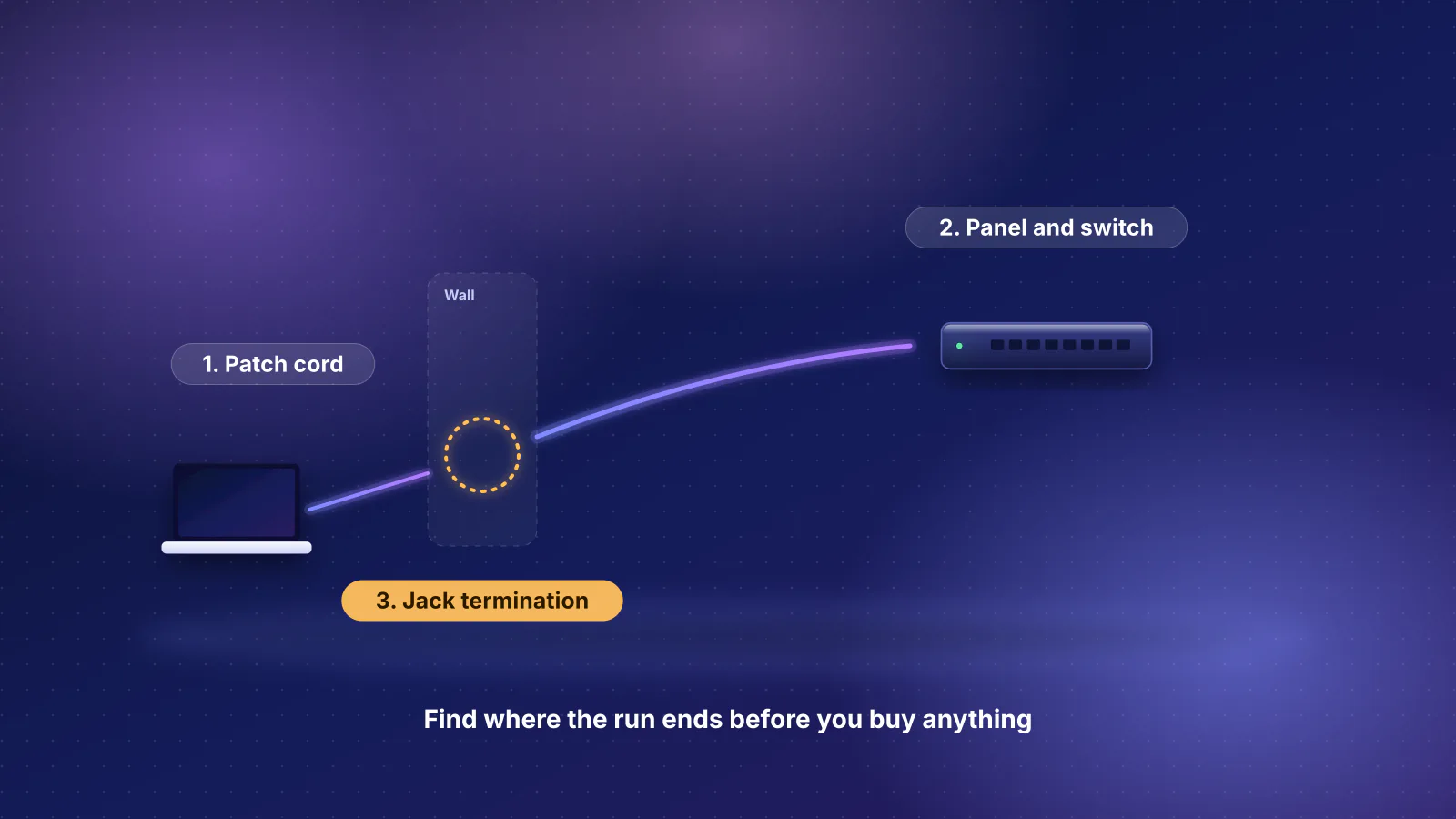
A cabled node should be the most stable in the home. When it isn't, the wiring path is usually why:
- Satellite in the bedroom Wired backhaul, set up in the app
- Wall jack and in-wall cable Cat5e or better
- Switch in the closet Also has a cable to the provider's gateway
- Provider's gateway In front of the main mesh unit: the satellite lands on the wrong network
- Main mesh unit Routing its own network behind the gateway
- Cabled to the wrong box. TP-Link (Router mode): "satellite Decos must connect to the LAN port of the main Deco" or a switch on it; "Do not connect satellite Decos directly to the modem or router that sits in front of the main Deco." Google lists "Modem → Switch → Wifi router" as a setup to avoid, "so the Wifi router isn't able to form the mesh with the Wifi point." eero: "Always plug the switch into your eero and not directly into your modem."
- Cabled before setup. TP-Link: "Set up all Deco units wirelessly first." Google: "Don't connect points that aren't set up yet to a switch." NETGEAR: update all Orbi firmware before setting up Ethernet backhaul.
- The wrong port. ASUS wires the router's LAN port to the node's WAN port. On a Deco with IPTV on, "the selected IPTV port can't use to establish the ethernet backhaul".
- A switch that blocks the backhaul. Deco's Ethernet backhaul uses IEEE 1905.1, and TP-Link says "some switches, mainly the D-Link switches, will not forward packets based on IEEE 1905.1 protocol" and that a switch with loop detection "may block the port used by Deco." NETGEAR says its managed switches' L2 Loop Protection "conflicts with your Orbi's backhaul detection system" ("The Ethernet port on the managed switch is turned off"); the fix is to disable it.
- Managed switch features. eero recommends an unmanaged switch, or on a managed one "disabling features such as Spanning Tree Protocol (STP/RSTP), Internet Group Management Protocol (IGMP)" and removing VLAN and QoS settings. Google recommends an unmanaged switch or disabling STP while still passing BPDUs. The makers differ, so follow your own system's article; the Ethernet backhaul guide compares them.
- A damaged cable or jack. TP-Link: "Replace any cables that look old or damaged." eero's test: plug the unit's cable into a laptop. Internet on the laptop means the eero is likely at fault; none means the cable, port or connection.
When several wired Decos go red, TP-Link says to "unplug all the cables, and remove any network switches between Decos": the quickest way to tell a switch problem from a node problem. For a wired UniFi AP that becomes isolated, Ubiquiti's first step is to "Revert any recent changes to switch ports, subnets, or firewall rules."
Two routers in a row: double NAT and the wrong network
When the provider's gateway still routes and your mesh routes behind it, the home has two networks. Google: "A double NAT happens if another router, for example a Nest Wifi router, is connected to the ISP modem or gateway." Google says that can affect gaming, port forwarding and UPnP; for a mesh node, the bigger risk is a node cabled to the gateway's network (diagram above). The fixes:
- Take the provider's router out of routing. Google recommends removing the provider's router or, where it's built into the modem, putting that box in bridge mode; TP-Link says "configuring the modem router in bridge mode is recommended to avoid double NAT"; NETGEAR recommends bridge mode on an ISP gateway.
- Or put the mesh in access point mode. NETGEAR's alternative is to turn off the gateway's Wi-Fi and set the Orbi to AP mode, noting "some popular features are disabled in AP mode" (guest network, website blocking, VPN, remote management). In Deco's Access Point mode, satellites "can connect to any Deco unit or to the main modem/router". eero calls its version bridge mode and warns "there are eero Plus features that don't work properly in bridge mode." Google says "Bridge mode on Wifi devices only works on a single Wifi device setup", so this isn't an option for a multi-point Nest Wifi mesh.
To check for two routers and pick a fix for your provider's box, see how to tell if you have double NAT and bridge mode vs IP passthrough.
If you've set fixed (static) addresses or changed the network's address range, make sure no device has the same address as a node; the IETF's address conflict standard calls a duplicate address "an annoying and hard-to-diagnose problem". When client devices show as offline in the Deco app but are connected, TP-Link's checks include making sure they aren't set to a static IP.
Power, heat and switched outlets
A node that restarts looks offline until it boots and rejoins.
- Use the original adapter. TP-Link, eero and Google all say so.
- Give it air and keep it in range. eero says "Your Device may get warm during normal use", to keep it away from "space heaters, heater vents, radiators", and lists 0 to 40°C operating for most current models. Google's safety guide says to keep Nest Wifi Pro and its adapter "well ventilated when in use" (with the same line for Nest Wifi and Google Wifi), and that when it gets too hot you may see "reduced performance and connectivity or device power down."
- Avoid switched or timed outlets (our advice, not a maker's). None of the makers' articles we read covers smart plugs or energy-saving strips, but a node on an outlet that a timer, a wall switch or an auto-off strip can cut will drop each time it's cut.
If restarts cluster in the afternoon, or eero reports a temperature status, move the node somewhere cooler first.
Firmware and a 6 GHz setting
TP-Link says to "ensure all Deco units are running the latest firmware"; NETGEAR says the router and satellites should run the latest firmware and warns "interrupting power during a firmware update or reset can create additional setup issues." ASUS's sync guide asks that "AiMesh nodes have been updated to the latest firmware."
A satellite out of reach can miss an automatic update. NETGEAR's steps: power cycle it, "Move your Orbi satellite to an outlet that's closer to your Orbi router", or update it manually. Ubiquiti's last resort for an isolated mesh AP is to "hardwire the AP into your network and update the AP to the latest available version", then reset and re-adopt it.
On ASUS Wi-Fi 7 systems, a setting can look like a dropped node: "If MLO is enabled on AiMesh primary router, the node without MLO will not broadcast 6GHz WiFi." Devices near that node can't use 6 GHz on it even though the node is online; ASUS puts the switch under Wireless > MLO.
DFS radar events and interference on the 5 GHz backhaul
"UniFi APs mesh over their 5GHz frequency," Ubiquiti says. Part of the 5 GHz band (5.25 to 5.35 GHz and 5.47 to 5.725 GHz) is shared with radar, and devices there must use Dynamic Frequency Selection (DFS). Under 47 CFR 15.407, the device that picks the channel checks it for radar for 60 seconds before using it; when radar is detected, "all transmissions shall cease on the operating channel within 10 seconds", and that channel then has a non-occupancy period of at least 30 minutes. The 30 minutes applies to that channel; the network can move to another channel sooner.
- eero: on radar, "it will automatically switch over to a non-DFS channel."
- Ubiquiti: an AP must "stop broadcasting immediately" and wait "anywhere between 1-10 minutes, depending on your country"; "Your 2.4GHz WiFi will remain active during this time." Radar events "may ultimately result in frequent interruptions in your WiFi."
None of the makers' articles we read says exactly how a radar event affects its own node-to-node link. The pattern to look for: 5 GHz devices on a node drop for a few minutes, then recover on their own. If your system lets you avoid DFS channels, test with them off for a week.
Ordinary interference looks different: the fault stays at one spot whichever unit sits there. Move the node away from the appliances and metal the makers list rather than setting channels by hand; Ubiquiti warns a wrong manual setting "has the potential to completely break your meshed network."
The fix: placement, a cable, coax, or access point mode
Match the fix to the test result, cheapest first:
- Move the node to a spot that rates well and still covers the room. Free, and the usual fix.
- Wire it with Ethernet if the temporary cable made it stable. Ubiquiti: "It is always preferable to hardwire your equipment to your central router/gateway for optimal performance and stability." See mesh with Ethernet backhaul for the switch rules.
- Use the TV coax if a coax outlet is near the node but Ethernet isn't. A pair of MoCA adapters turns a coax run into an Ethernet link; the MoCA Alliance lists MoCA 2.5 at 2.5 Gbps with "< 2.5 ms one-way avg latency". MoCA vs powerline vs a wireless bridge compares the options.
- Fix the routing if the node sits on the provider's network: bridge the gateway, or use access point mode (above).
If the node stays online but devices hold on to a farther unit as you walk around, that's roaming, not an offline node: see mesh roaming and sticky clients.
When a new node or a different system is justified
- Replace the unit when the fault follows it in the swap test and a reset and re-add don't fix it. Ask the maker about warranty first.
- Add a node only when no single spot between the main unit and the far room rates well and wiring isn't possible. See how many mesh nodes you need.
- Consider a different design when the home already has Ethernet to most rooms: wired access points have no wireless backhaul to lose. See mesh vs router plus access points.
- Don't buy because a node dropped once, because the rating is fair but stable, or before the move and cable tests. New hardware placed too far away fails the same way.
When to get professional help
Get help when the node needs a cable that nobody can run: through finished walls, between floors, or to the closet where the cables meet. Fishing cable through walls, attics and fire-rated spaces is a job for a licensed low-voltage contractor; see running Ethernet in an existing home. RouterHaus can connect you with a licensed contractor, or review your layout and test results with you first: ask for a network plan. For a unit that fails the swap test, contact the maker's support.
Once it's stable, the Network Health check gives you a baseline in the node's room to compare against next time.
Frequently asked questions
Why does my mesh satellite keep going offline?
Usually because it's losing its link back to the main unit: too far away, too many walls, interference, or a wired link set up wrong. Power, heat, out-of-date firmware and radar on 5 GHz DFS channels cause the rest. Move it closer as a test, then try a temporary Ethernet cable.
How far apart should mesh nodes be?
The makers' rules differ: eero says no more than 50 feet between wireless eeros; TP-Link recommends 2 bars in the Deco app; NETGEAR wants a blue satellite light; Ubiquiti wants at least -60 dBm. Go by your app's rating.
My wired mesh node goes offline. What's wrong?
Check that its cable leads back to the main mesh unit or a switch plugged into it, not to the provider's gateway. Then take any switch out as a test: TP-Link and NETGEAR document switch features that can block the backhaul port.
Do I need a new mesh system if a node keeps dropping?
Rarely. A move, a cable or a setting fixes most cases. Replace a unit only if the fault follows it in a swap; add a node or change systems only if no spot within range rates well and wiring isn't possible.
Can radar really knock my mesh offline?
On a DFS channel, briefly. FCC rules require transmissions on that channel to stop within 10 seconds of detecting radar and keep it unused for at least 30 minutes. eero switches to a non-DFS channel; Ubiquiti says its APs pause 1 to 10 minutes depending on the country.
Sources
Read on November 27, 2026.
- eero Support: Why does my eero have a red LED?, How much distance should there be between eeros?, Where should I place my eeros? and What are eero Events?
- eero Support: Using an Ethernet switch, What is bridge mode?, What is Dynamic Frequency Selection (DFS)? and What should I do if my eero network is offline?
- eero: Safety and compliance information
- TP-Link Support: Fix Deco disconnecting and internet instability issues, Why is my Deco showing offline in the app?, Deco placement guide and Specified Connection on the Deco app
- TP-Link Support: Ethernet backhaul for Deco and Deco with an existing router: Router mode and Access Point mode
- NETGEAR: What do Orbi lights mean? and NETGEAR Support: Lines and colors in the Orbi network map and Orbi satellite firmware isn't updating
- NETGEAR Support: Ethernet backhaul on Orbi, Orbi Ethernet backhaul issues with a NETGEAR managed switch, Problems with an Orbi connected to an ISP gateway and Router mode vs AP mode
- Google Nest Help: Nest Wifi network not working, Test mesh connection, Wired connections and switches and Fix double NAT when two routers run at the same time
- Google: Safety and regulatory guide (Nest Wifi Pro, Nest Wifi, Google Wifi)
- ASUS Support: How to set up an AiMesh system (web GUI), What to do if AiMesh synchronization fails, Wired connection between AiMesh routers (Ethernet backhaul) and How to save the system log
- Ubiquiti Help Center: Considerations for optimal wireless mesh networks, UniFi isolated devices and DFS channels
- 47 CFR 15.407: General technical requirements (U-NII devices, DFS)
- IETF RFC 5227: IPv4 Address Conflict Detection
- MoCA Alliance: MoCA for Wi-Fi backhaul