The short version
- A mesh node is only as fast as its link back to the router, the backhaul. When that link is wireless and shares a radio with your devices, Ubiquiti says each hop cuts throughput by at least 50%.
- Most slow rooms on a mesh come down to one of five causes: a node placed in the dead zone instead of partway to it, a weak backhaul link, floors and dense walls between nodes, a phone still connected to a distant node, or nodes chained one behind another.
- Fix it in this order: read each node's backhaul indicator, move nodes to where the makers say they belong, wire the weakest link (Ethernet, or MoCA over TV coax), then remove nodes that only add hops. Buy more hardware last.
- The caveat: wired backhaul removes the relay penalty but not the walls between a node and your device. If a room is behind a concrete wall or floor, it still needs a radio on its side of that barrier.
Still deciding whether you need mesh? Start with mesh or a single router. Not sure the slow room is a coverage problem? Rule out the look-alikes first. This article is for a mesh system that's already installed and still disappoints.
The hop that halves your speed
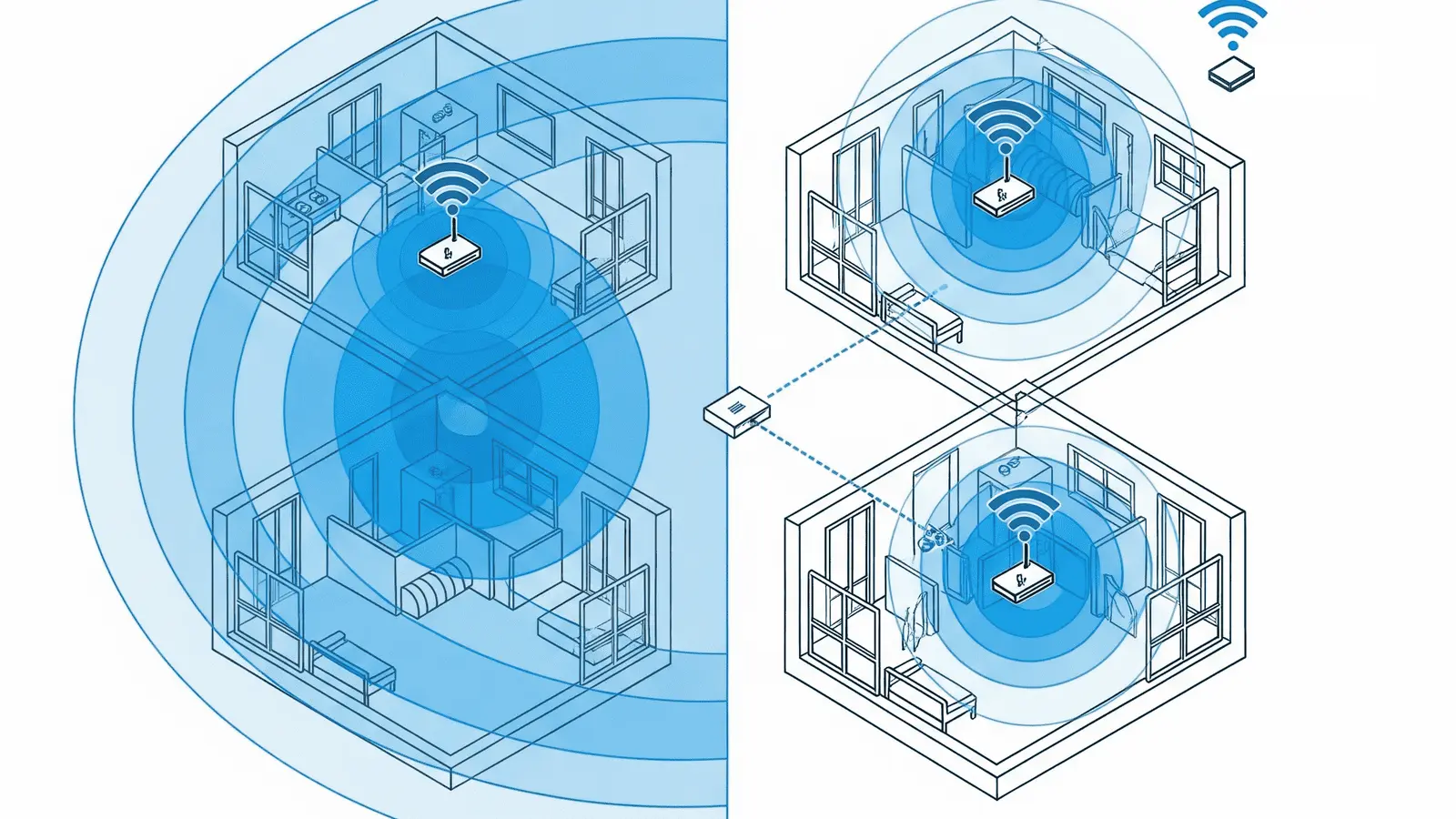
A mesh node has two wireless links: the fronthaul to your phone or laptop, and the backhaul to the main router (or another node). Your device sees only the fronthaul, which is why a phone can show full bars next to a satellite and still test slow. A node that relays over the same radio it uses for your devices has to split that radio's time between the two jobs. EnGenius puts it plainly: the radio "must spend half its time providing Wi-Fi connectivity to client devices and half its time providing wireless backhaul", and "the data capacity is reduced by 50% at each hop", a quarter after two hops. Ubiquiti's optimization guide says each wireless hop "reduces throughput by at least 50%", and Cisco Meraki's mesh guide gives "about 50%" per hop and recommends designing for no more than one hop.
- Internet plan 1 Gbps
- Main mesh unit 2.5 Gbps internet port
- Satellite node Wireless backhaul through two walls, on the radio it also uses for devices: the bottleneck
- Laptop Strong signal to the satellite
Arithmetic, not a measurement: if a satellite's wireless backhaul can carry 600 Mbps of real traffic and the same radio also serves your devices, the 50% model leaves about 300 Mbps for the room. Put a second satellite behind the first and the far room is down to about 150 Mbps before any walls are counted. NETGEAR says a backhaul that "often shares bandwidth with connected devices" can mean "reduced performance and increased latency during periods of high traffic".
| Backhaul type | Airtime cost to your devices | What limits it |
|---|---|---|
| Wireless, shared radio (most dual-band systems) | High: the node relays on the radio your devices use | Signal between nodes, then the 50%-per-hop split |
| Wireless, dedicated or preferred radio (some tri- and quad-band systems) | Low on the client radio | Signal between nodes; 6 GHz backhaul reaches less far than 5 GHz |
| Ethernet | None | The slowest port on the cable path |
| MoCA over TV coax | None | The adapters' Ethernet ports and the coax wiring |
Two spec-sheet details matter. "Tri-band" doesn't always mean a reserved backhaul band: ASUS says only that "on some tri-band models" you can assign one. And the band matters: NETGEAR chose 5 GHz for the Orbi 970's dedicated backhaul because regulations let 5 GHz transmit at higher power than 6 GHz, which "translates into more distance between router and satellite". Wi-Fi 7 systems can also combine bands into one backhaul; see Wi-Fi 7 MLO explained.
Where the makers tell you to put nodes
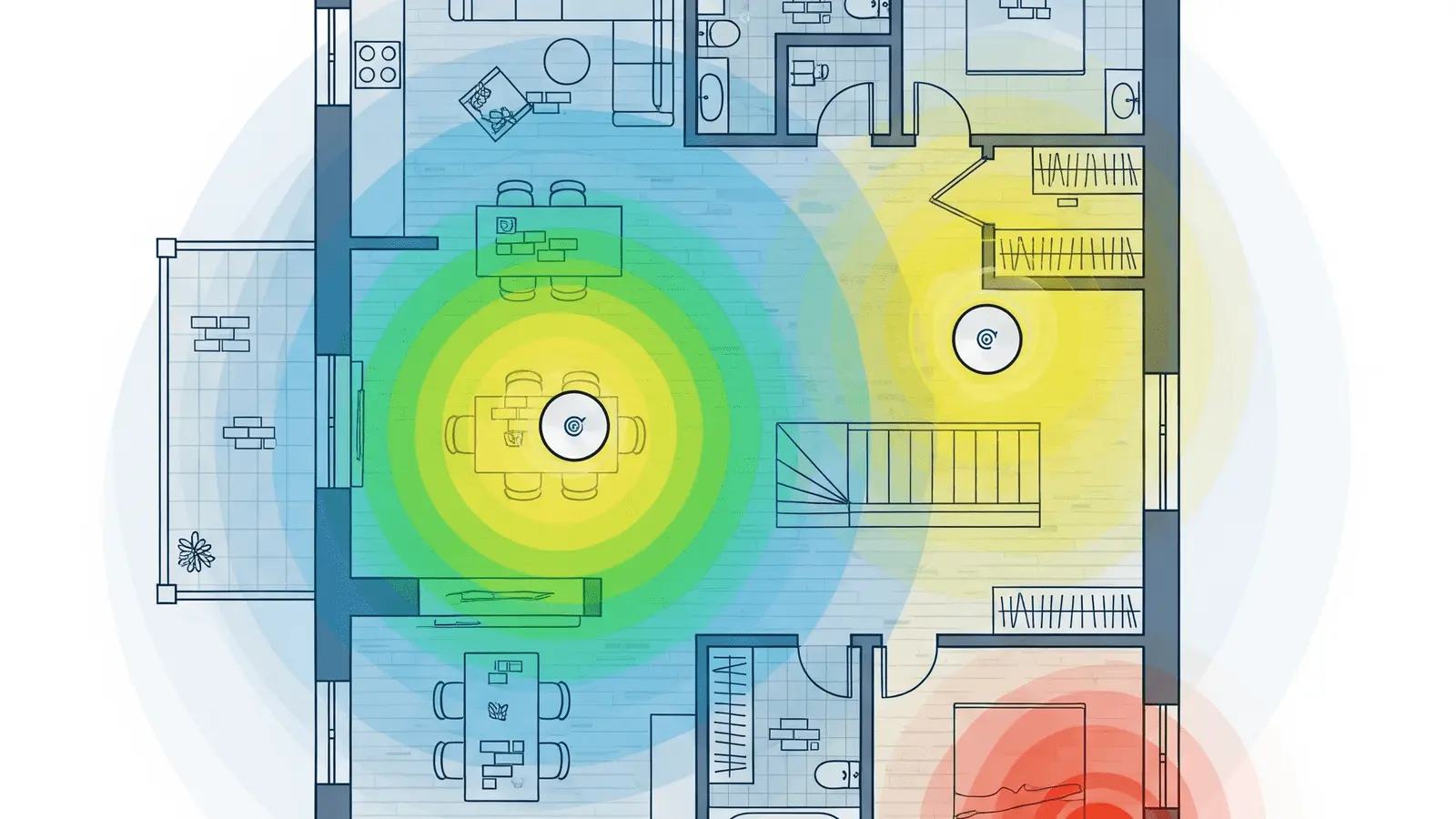
The makers' placement guidance agrees on one point: don't put a node in the room that needs Wi-Fi. A node in a dead zone has a weak backhaul, and everything it serves inherits that weakness. Here's what each says, checked October 21, 2026:
| Maker | Spacing and position | How to check the link |
|---|---|---|
| eero | 20 to 30 feet apart, no more than 50 feet between wireless eeros. "Don't place eeros directly in dead zones": put them halfway between the gateway eero and the dead zone. | The eero app's placement steps |
| TP-Link Deco | No more than 50 feet apart when wireless. Satellite at the same height as the Deco it connects to, in the open, away from walls and metal. | Deco app: TP-Link recommends 2 bars between units |
| NETGEAR Orbi | About halfway between the router (or another satellite) and the dead zone, in the open with line of sight where possible. The Orbi 770 manual says to avoid basements, attics and closets. | Satellite light after syncing: blue is good, amber is fair (move it closer), magenta means it failed to sync |
| ASUS AiMesh | Between the router and the dead zone, "aimed high and in open space". | ASUS Router app or web interface shows the node's reception from the router |
| Google Nest Wifi | About halfway toward the weak area, "no more than 2 rooms away" from the router or another point, in an open area. | Mesh test in the Google Home app |
The practical rule: a node goes where it can still hear the router well, usually short of where instinct puts it. If the app reports a fair or weak link, move the node closer first. Ubiquiti aims for at least −60 dBm between a meshed access point and its parent, 10 dB stronger than the −70 dBm it gives as the minimum for a stable device connection. eero adds that if you can move the modem and gateway out of a basement to a central spot, "you'll improve the speed of your entire network with that one change".
Walls and floors: the numbers behind one node per floor
Signal loss is measured in decibels (dB): every 3 dB halves the power, 10 dB leaves a tenth and 20 dB a hundredth. The ITU's indoor propagation recommendation (ITU-R P.1238-13, September 2025) gives planning values in its Table 5, "floor penetration loss factors":
| ITU-R P.1238-13 value | 2.4 GHz | 5.2 GHz |
|---|---|---|
| Residential, house | 5 dB | 7 dB (footnoted "wooden mortar") |
| Residential, apartment (footnoted "per concrete wall") | 10 dB | 13 dB |
| Office, one floor | 14 dB | 16 dB |
| Reinforced concrete floor with a suspended ceiling (measured) | Not given | 20 dB; 30 dB with lighting fixtures; 36 dB with air ducts under the floor |
The apartment figures sit in the floor-loss table but carry the footnote "per concrete wall", so read them as the cost of one concrete barrier. The last row is a measurement the ITU cites with the signal hitting the floor straight on and other paths excluded; in a real home a signal "may find other external paths" with less loss.
Arithmetic from the table: 7 dB through a house floor leaves about a fifth of the signal power, while 20 dB through a reinforced concrete floor leaves a hundredth, and every row loses more at 5.2 GHz than at 2.4 GHz. This is why the RouterHaus coverage rule of thumb asks for one access point per floor in multi-floor homes over about 1,200 sq ft. Put nodes near the stairwell, where the path between floors is most open, and wire any node that has to cross a concrete floor. For which materials cost the most signal, see why range matters.
Your phone may be talking to the wrong node
A mesh system can't move your phone. Your device decides when to roam, and it can hold on to a node long after a nearer one would be better. These are called sticky clients.
Apple documents its rule exactly. An iPhone or iPad keeps its current access point until the signal falls past −70 dBm (a Mac waits until −75 dBm). Only then does it look for another, and the new one must be 8 dB stronger if the iPhone is sending data, or 12 dB stronger if it's idle (12 dB for a Mac either way). Apple's example: an iPhone whose signal drops to −75 dBm during a call looks for a candidate of at least −67 dBm. So if you walk into a room with a new node while your phone still reads −65 dBm from the old one, it will stay put.
The 802.11k, 802.11v and 802.11r amendments help a device find a neighbor, accept a suggested move and hand off faster, but none forces it to move, and support varies: Microsoft says Windows 10 supports 802.11r (fast BSS transition) only on 802.1X (enterprise) networks, not the password (PSK) networks most homes use; its page doesn't cover Windows 11.
The makers' tools nudge rather than force. eero's client steering "encourages" devices to switch to the nearest eero but "does not guarantee" it, because "different devices have different thresholds for when to roam". ASUS's Roaming Assistant disconnects a device whose signal falls below a threshold (−70 dBm by default) so it reconnects elsewhere. TP-Link's Fast Roaming on Deco is 802.11r, and TP-Link warns that devices without 802.11r support may fail to connect or drop off when it's on.
A quick check: if a device is slow in a room with a node, turn its Wi-Fi off and on. If the speed jumps, it was most likely clinging to a far node: a roaming problem that another node won't fix.
More nodes can make it worse
Adding a node is the instinctive fix, and the makers set limits:
- Google recommends a maximum of five Wifi devices in one network: "Adding more might be detrimental to Wi-Fi performance."
- ASUS says the best AiMesh experience is five routers: one AiMesh router and four nodes.
- TP-Link recommends up to six Deco units on Wi-Fi or powerline backhaul for most models (some Wi-Fi 6, 6E and 7 models allow more), and notes that more units "does not always improve wireless throughput or stability".

A node added beyond the last satellite can end up connecting through it, a second wireless hop: under the 50% model the far room gets about a quarter of the first link's capacity, and EnGenius notes latency grows with every hop. Ubiquiti recommends at most two wireless hops and warns that too many meshed access points on one parent add interference and load. Aim for every wireless node to link directly to the main unit or to a wired node.
Mixing generations has its own limits. TP-Link and ASUS both say to make the newest or highest-spec unit the main one, since every hop starts there; ASUS warns that with multi-link operation (MLO) on at a Wi-Fi 7 main router, a node without MLO "will not broadcast 6GHz WiFi"; and eero says pairing a Pro 6E with older-generation eeros "may result in reduced performance". Nodes from different makers never form one mesh.
Wired backhaul: the real fix
eero, TP-Link, NETGEAR and ASUS all document Ethernet between nodes. A wired node gets all of its radio time back for your devices, and its distance from the router no longer matters. You don't have to wire everything: TP-Link notes that Ethernet backhaul applies only between the units you cable. If you can wire one link, wire the weakest one. The details that trip people up:
- Which ports. ASUS: router LAN port to the node's WAN port, with backhaul priority set to "WAN first" if you want it to prefer the cable. eero and Orbi: a switch or a daisy chain both work.
- Don't wire a satellite to the modem. In router mode, TP-Link says satellites must connect to the main Deco's LAN port or a switch behind it; connecting one to the modem or router in front of the main Deco creates a network loop.
- Switch compatibility. TP-Link says some switches don't forward the IEEE 1905.1 packets Deco's Ethernet backhaul uses, and switches with loop detection can block a Deco port during the change from wireless to wired backhaul.
- Port speed caps the link. A wired backhaul is only as fast as the slowest port on the path. The Google Nest Wifi Pro, for example, has 1 Gbps ports. For plans or file transfers above a gigabit, every hop needs multi-gig ports; see where multi-gig networks bottleneck.
| Product | Internet port | Fastest LAN port | Maker's routing, plan or wired-speed figure | Price |
|---|---|---|---|---|
| eero 7 (1-pack) Mesh system · Wi-Fi 7 |
2.5 Gbps | 2.5 Gbps | Not published | $169.99 Manufacturer store price, checked October 20, 2026 |
| eero Pro 7 (1-pack) Mesh system · Wi-Fi 7 |
5 Gbps | 5 Gbps | 5 Gbps | $299.99 Manufacturer store price, checked October 20, 2026 |
| TP-Link Deco BE23 (3-pack) Mesh system · Wi-Fi 7 |
2.5 Gbps | 2.5 Gbps | Not published | $299.97 Manufacturer store price, checked October 20, 2026 |
| TP-Link Deco BE63 (2-pack) Mesh system · Wi-Fi 7 |
2.5 Gbps | 2.5 Gbps | Not published | $449.99 Manufacturer store price, checked October 20, 2026 |
| NETGEAR Orbi 370 Series (RBE373) (3-pack) Mesh system · Wi-Fi 7 |
2.5 Gbps | 2.5 Gbps | Not published | $349.99 List price, checked October 20, 2026 |
| NETGEAR Orbi 770 Series (RBE773) (3-pack) Mesh system · Wi-Fi 7 |
2.5 Gbps | 2.5 Gbps | Not published | $699.99 Manufacturer store price, checked October 20, 2026 |
| ASUS ZenWiFi BD4 (2-pack) Mesh system · Wi-Fi 7 |
2.5 Gbps | 2.5 Gbps | Not published | $229.99 Manufacturer price (not re-confirmed), checked October 20, 2026 |
| ASUS ZenWiFi BT8 (2-pack) Mesh system · Wi-Fi 7 |
2.5 Gbps | 2.5 Gbps | Not published | $599.99 Manufacturer price (not re-confirmed), checked October 20, 2026 |
Per the catalog, every unit in these kits has at least one 2.5 Gbps port, including the Orbi 370 satellites. The dual-band kits gain most from a cable, because otherwise their backhaul shares a radio with your devices.
No Ethernet? Use the TV coax
MoCA adapters carry Ethernet over the coax cable already in many walls; the MoCA Alliance lists MoCA 2.5 at 2.5 Gbps with under 2.5 ms average one-way latency. Check three things before you buy:
- The Ethernet port, not the MoCA number. Hitron's HTEM4 is a MoCA 2.5 adapter with a 1 Gbps Ethernet port; Hitron says "1 Gbps is the maximum throughput to end devices". ScreenBeam's ECB7250 and goCoax's MA2500D have 2.5 Gbps Ethernet ports.
- Your cable modem. goCoax's adapters use 1125 to 1675 MHz. goCoax says a cable modem's upper frequency is typically 1002 MHz, but some DOCSIS 3.1 modems go higher (it suggests checking CableLabs' certification list), and ScreenBeam warns that DOCSIS 3.1 modems "might conflict". goCoax also calls for a point-of-entry (PoE) filter before the modem and splitters that pass 1125 to 1675 MHz.
- Where it won't work. goCoax says standard MoCA and satellite TV can't share a coax network, and ScreenBeam and Hitron say their adapters don't work on satellite TV or AT&T U-verse coax.
For new construction, pre-wiring Ethernet is still the better long-term answer.
When wired access points beat mesh
Ubiquiti calls hardwiring access points "the ideal method to provide the highest performance and stability", and EnGenius recommends avoiding mesh unless no other backhaul is viable. If Ethernet reaches every node spot, wire the mesh you own or switch to ceiling or wall access points powered over Ethernet (PoE), at the cost of more setup. Ubiquiti vs eero vs ASUS compares an app-run mesh, a feature-rich router with mesh, and a gateway with access points.
A six-step check for a mesh that underperforms
- Test beside the main unit, wired if possible. If it's slow there, the problem is the internet service or the router, not the mesh.
- Read every node's backhaul indicator in the app or on the satellite light, and note whether any node connects through another node.
- Move the weakest node closer to the router and check again.
- Rule out roaming by turning Wi-Fi off and on on the slow device.
- Remove chained or surplus nodes beyond the maker's recommended count, then wire what you can, starting with the node that crosses a floor or the thickest wall.
- Re-test in the rooms you use, including latency during a video call. Consistency matters more than a peak number.
Frequently asked questions
Does a tri-band mesh system still need wired backhaul?
Not always. A third radio can carry the backhaul so your devices keep their own, but that link still weakens with distance, walls and floors. If a node crosses a floor or a masonry wall, wiring it is the more reliable fix.
Can I use powerline adapters for backhaul?
Some systems support it. TP-Link's Deco P7 and P9 can use the home's electrical wiring for backhaul, but TP-Link says that connection only forms between Deco powerline products. For other systems, Ethernet or MoCA over TV coax are the documented wired options.
Should I turn on fast roaming (802.11r)?
Try it, but turn it off if any device starts failing to connect, as TP-Link warns can happen with devices that lack 802.11r support. It speeds up a handoff; it does not make a device roam sooner.
Do I need to rerun setup after wiring a node?
Usually not. TP-Link says to set every Deco up wirelessly first and then connect the cables, and that the Ethernet backhaul activates on its own. On ASUS AiMesh the system picks wired or wireless automatically unless you set the node's backhaul priority to WAN first. Check the app afterwards to confirm the node shows a wired connection.
Sources
Read on October 21, 2026.
- Ubiquiti: Optimizing WiFi connectivity and reducing latency (wireless hops, mesh and client signal levels)
- Ubiquiti: Considerations for optimal wireless mesh networks (hardwiring, two-hop limit, parent overload, −60 dBm mesh link)
- EnGenius: Wireless backhaul network deployment best practices
- Cisco Meraki: Mesh deployment guide (maximum mesh hops)
- NETGEAR: Orbi 970 enhanced dedicated wireless backhaul
- NETGEAR: Orbi 770 series user manual (PDF) (satellite placement and LED)
- NETGEAR (Australia): How many mesh Wi-Fi satellites do you need? (halfway placement, line of sight)
- eero: Where should I place my eeros? and How much distance should there be between eeros?
- eero: Can I connect my eeros with Ethernet? and Are all eeros the same?
- eero: Why doesn't my device connect to the closest eero? and What advanced features does eero support? (client steering)
- TP-Link: Deco placement guide (height, 2 bars) and Deco range and placement distance (50 feet)
- TP-Link: Deco Ethernet backhaul setup, wiring rules and troubleshooting
- TP-Link: How many Deco units do I need? and Mix and match Deco models
- TP-Link: Why clients fail to connect when Fast Roaming is enabled
- ASUS: How to locate the AiMesh router and node for the best signal and How to set up an AiMesh system (web GUI) (node count, MLO with older nodes)
- ASUS: Ethernet backhaul between AiMesh routers and What is AiMesh (backhaul band selection)
- ASUS: How to enable the Roaming Assistant
- Google: Where to place your Wifi devices and How many Nest Wifi Pro, Nest Wifi, or Google Wifi routers or points do I need?
- ITU-R P.1238-13 (09/2025): Propagation data and prediction methods for the planning of indoor radiocommunication systems and radio local area networks (Table 5 and the measured floor losses below it)
- Apple: Wi-Fi roaming support in Apple devices
- Microsoft: Fast roaming in Windows 10 with 802.11k, 802.11v and 802.11r
- MoCA Alliance: MoCA for Wi-Fi backhaul
- Hitron: HTEM4 MoCA 2.5 adapter, goCoax: MA2500D and ScreenBeam: ECB7250
- RouterHaus catalog (ports, bands and prices of the systems in the table)