The short version
- "Connected" and "internet" are two different checks. Your device joined the Wi-Fi (or the cable is live), but its test of the internet failed: Windows fetches a small file from Microsoft's test site, Android probes Google servers. The break is somewhere between the router and that server.
- First question: one device or all of them? One device points at its settings; every device points at the router, modem or provider.
- Read the device's address. One starting 169.254 means no DHCP server answered and the device gave itself an address that RFC 3927 says is "not routable".
- Then three tests: ping the router (default gateway), ping 1.1.1.1, then look up a name with
nslookup. Where the chain stops is where the fault is. - On public Wi-Fi, look for a sign-in page. If it doesn't appear on an iPhone, Apple says to open captive.apple.com in Safari.
- If every device is affected, read the router's WAN status and the modem or ONT lights, check for an outage, then restart in Microsoft's order: modem first, router after it.
- New equipment is rarely the fix. Consider a router only when a computer plugged straight into the modem works and the router still fails after restarts.
If pages load but slowly, that's a different problem: start with the step-by-step slow internet diagnosis.
First: one device, or every device?
This question splits the problem in half, for free. Take a second phone or laptop to the same spot, join the same network and open a site you don't usually visit. If you can, also test a computer on an Ethernet cable to the router. Microsoft's Wi-Fi troubleshooting uses the same split: try "another laptop or phone", and if the router looks like the problem, try "connecting your PC directly to your modem by using an Ethernet cable".
| What you see | Where the problem most likely is | Start here |
|---|---|---|
| Only one device says no internet; others are fine on the same network | That device: its address, a VPN, proxy, private DNS, date or a saved network setting | Check 1, then device settings |
| Every Wi-Fi device fails, but a computer on Ethernet to the router works | The router's Wi-Fi side, or Wi-Fi devices not getting addresses | Check 1 on a Wi-Fi device, then restart the router |
| Every device fails, wired included | The router's internet side, the modem or ONT, or the provider | Router WAN status and modem lights |
| Only on one public or guest network (hotel, cafe, office, apartment building) | A sign-in page, or a network that identifies devices by their hardware address | Captive portals and private Wi-Fi addresses |
What the "no internet" message actually means
Windows and Android decide whether you're online by fetching something small from a known server, and Apple's devices show a similar warning. When that check fails or comes back wrong, you get the warning even though the Wi-Fi link works.
Windows: the "No Internet" icon and the NCSI probe
Windows' check is the Network Connectivity Status Indicator (NCSI). To decide, Microsoft says, "Windows sends a small HTTP request" to a server on the internet; "If it doesn't get any information back from the server, then this icon will appear." Microsoft's NCSI guides give the details:
- The web probe fetches
www.msftconnecttest.com/connecttest.txt, and Microsoft says the expected response is "HTTP 200 OK" with a payload containing the text Microsoft Connect Test. - A DNS probe looks up
dns.msftncsi.com; Microsoft's example shows the answer 131.107.255.255. From Windows 11, its FAQ says, "HTTP is always used". - If a probe fails without going through a proxy, Windows sets the connection to "Local", the connected-without-internet state. Behind a sign-in page it's local too.
The icon can also be wrong: "The inability of NCSI to complete a probe doesn't necessarily imply that the client machine can't access the internet." Microsoft's rule of thumb is that if an application such as Office says there's no internet "but you're able to browse websites, this indicates an NCSI problem", often a VPN, proxy or security software intercepting the probe. Microsoft's browser test: open http://www.msftconnecttest.com/connecttest.txt, where the expected content is the text Microsoft Connect Test. A login page instead points to a captive portal, and an error suggests the request isn't getting out.
iPhone and iPad: "No Internet Connection"
Apple's platform support guide says the indicator appears "below the network name in Settings > Wi-Fi" when the device has joined the network but can't reach internet services, and it puts the usual causes in one phrase: "DHCP configuration issues, DNS problems, or network outages." Its checks match this article's: try another device, and read the IP address, subnet mask and router in the network's Info screen.
Android: "No internet access" and "Connected without internet"
The wording varies by phone maker. Since Android 5.0, Android's developer page says, devices have detected sign-in pages using "cleartext HTTP probes to known destinations (such as connectivitycheck.gstatic.com)", treating a redirect as a sign-in page. Samsung's Knox knowledge base describes a "Connected without internet" status when a device-wide VPN blocks that check, and with a Private DNS hostname set, Android "marks the network as 'No internet access' if it can't reach the server." Google's Pixel help gives the plain reading: if the phone connects "but you still have no internet, the problem is most likely with your internet connection."
The chain, and which test checks each link
A request from your phone passes through each of these in turn. Each check below tests one link, so you can stop as soon as one fails:
- Your device Needs a real address, a router (gateway) and DNS servers from DHCP: check 1
- Wi-Fi or Ethernet link "Connected" only proves this hop works
- Router, home side Hands out addresses and usually answers DNS: ping the gateway
- Router, internet (WAN) side Needs an address from the provider: the WAN status page
- Modem, ONT or provider gateway Needs a live line: its status lights
- Provider network and the internet Outages show here: ping 1.1.1.1, then the outage page
Check 1: does the device have a real address?
Likely cause it rules in or out: the device didn't get an address from the router's DHCP server, so it can talk to nothing beyond the Wi-Fi link.
The check. On Windows, open Command Prompt and type ipconfig; Microsoft's troubleshooting steps use it to read the "Default gateway" for the Wi-Fi adapter. On an iPhone or iPad, tap the info button next to the network in Settings > Wi-Fi and read IP Address and Router. On Android, open the network's details in Wi-Fi settings (the menu names vary by maker).
| What the device shows | What it means |
|---|---|
| An address starting 169.254, or no address | No DHCP server answered, so the device assigned itself a link-local address. RFC 3927 registers 169.254/16 for this, and "A router MUST NOT forward a packet with an IPv4 Link-Local source or destination address." Microsoft says a Windows PC does this "in the event that a DHCP server is not available", and then "cannot communicate with computers on other subnets." |
| A normal private address (often 192.168.x.x or 10.x.x.x) but no router or default gateway listed | Addressing is incomplete; the device has no path out. Treat it as a DHCP problem too. |
| A normal address and a gateway | DHCP worked. Go to check 2. |
The change. For one device: turn Wi-Fi off and on, or forget the network and join it again (Google's Pixel help: "Touch and hold the network name. Tap Forget."). On Windows, Microsoft's command sequence, run in an administrator Command Prompt, is netsh winsock reset, netsh int ip reset, ipconfig /release, ipconfig /renew and finally ipconfig /flushdns. If every device gets 169.254, the router's DHCP server isn't answering: restart the router (below).
When the address pool runs out
A router hands out addresses from a set range (TP-Link's guide: "Enter the starting and ending IP addresses in the IP Address Pool"). RFC 2131, the DHCP standard, says each is assigned "for a limited period of time" and can be reused once its lease has expired; Apple recommends a lease of "8 hours for home or office networks."
Our reading of those documents, not a measured result: a small pool with long leases can fill up in a home with many phones, TVs, cameras and smart plugs, so the newest device gets no address while everything already connected keeps working, and phones that rotate their private Wi-Fi address (below) can look like new devices. Compare the router's list of DHCP clients with the size of the range; a wider range or a shorter lease is a free fix. Apple's same page also says "Your network should have only one DHCP server", so check that a provider gateway and your own router aren't both handing out addresses.
Check 2: the router, an internet address, then a name
Likely cause it separates: a router that isn't passing traffic, a line that's down, or only DNS (names) failing while the connection works.
The check, in Command Prompt on a Windows PC. Microsoft describes ping as verifying "IP-level connectivity", and nslookup as a tool to "diagnose Domain Name System (DNS) infrastructure."
pingfollowed by your default gateway fromipconfig(for exampleping 192.168.1.1; use your own). Microsoft: if you get replies, "then you have a connection to your Wi-Fi router."ping 1.1.1.1, an address of Cloudflare's public DNS resolver. A reply means traffic leaves your home and comes back, with no name lookup involved.nslookup example.com, which asks your configured DNS server, thennslookup example.com 1.1.1.1, which asks Cloudflare's directly (in Microsoft's reference, the second parameter "is the name or IP address of a DNS name server").
| Result | What it means | Next step |
|---|---|---|
| Gateway doesn't reply | The device isn't really talking to the router: a weak link, wrong network or a router that has stalled | Move closer, rejoin, then restart the router |
| Gateway replies, 1.1.1.1 times out ("Request timed out") | The router can't get traffic out: its internet side, the modem or the provider | Router WAN status and modem lights |
1.1.1.1 replies, nslookup fails with your DNS server but works with 1.1.1.1 | Only DNS is broken: the router's or provider's DNS, or a device DNS setting | Restart the router; see the router versus device DNS settings |
| Everything works here, but the device still says no internet | The connection works; something is blocking the device's own check or its browser | VPN, proxy and device settings, or a sign-in page |
A laptop on the same network can run these tests for the whole home.
Captive portals: the sign-in page that didn't appear
Public networks, "like at cafes or airports" in Google's words, often hold you at a sign-in page. RFC 8952, the IETF's captive portal architecture, defines a captive portal network as one that "limits the communication of attached devices to restricted hosts" until the user meets its conditions, and says current portals "typically implement some variations of forging DNS or HTTP responses." That's what trips the operating system's check.
- Windows recognizes a portal when the probe gets a response whose content doesn't match "Microsoft Connect Test". Then, Microsoft says, "It's up to the user to authenticate with the hotspot."
- iPhone and iPad: "If the captive portal page doesn't appear, have the user manually navigate to captive.apple.com in Safari," Apple's support guide says.
- Android: Google's Pixel help says to "Check for a notification that asks you to sign in" on the network. From Android 11, Android can also read a portal address the network advertises in DHCP (option 114).
A VPN or a device set to its own encrypted DNS can keep the portal from loading: pause it until you've signed in (the DNS trade-offs table covers this).
Private and random Wi-Fi addresses
Phones don't show networks their hardware (MAC) address by default. On iOS 18, macOS Sequoia and later, Apple's devices default to a Fixed private address on new WPA2 or stronger networks and a Rotating one, which "rotates to a different private address every two weeks", on open or weakly secured ones. Android "uses a randomized MAC address by default" from Android 10, one per network, and on some networks in Android 12 and later "re-randomizes the MAC address at the start of every connection."
That matters where a network recognizes devices by MAC address: a portal that remembers you signed in, MAC filtering, parental controls or an address reservation. When the address changes, the network sees a stranger. Apple's guidance: if a device "can't access network resources or the internet after joining", install the latest software, then turn Private Wi-Fi Address off for that network (Settings > Wi-Fi, the info button). Android lets you "enable or disable MAC randomization for individual networks" on the network's details screen. Change it for that network only: the private address is a privacy feature.
Settings on the device that block the internet
When only one device fails and its address and pings look fine, check these before any reset:
- VPN. Microsoft says problems "occur when VPNs or third-party software are introduced which can intercept, misroute, or delay NCSI active probes", and Samsung documents the Android equivalent. Disconnect the VPN and test.
- Proxy. Microsoft's fix: Settings > Network & Internet > Proxy, and "Turn off any manual proxy settings."
- Private DNS on Android. With a hostname set, Android marks the network "No internet access" when it can't reach that server. Remove the hostname and test.
- Date and time. "An incorrect date and time on your phone can cause Wi-Fi connection problems," Google says; turn on "Set time automatically".
- Airplane mode. Make sure it's off on Windows; on Android, Google suggests turning it on, waiting 10 seconds and turning it off.
A full reset comes last, and erases more than you might expect. On Windows, "Using network reset should be the last step you try"; it "removes any network adapters you have installed and the settings for them." On an iPhone, Apple says to "Reset network settings only if other solutions fail": it "resets all Wi-Fi networks and passwords, cellular settings, and VPN and APN settings." If one device still fails, the order of fixes for a device that won't join covers band and security settings.
When every device is affected: router, modem and provider
If every device, wired included, reaches the gateway but not 1.1.1.1, the break is on the router's internet side or beyond. Three checks, in order:
1. The router's WAN (internet) status
Open the router's app or web page and find its internet or WAN status. ASUS's guide for a router that can't get online starts with a good cable from the WAN port to the modem, then the connection type (Automatic IP, PPPoE or static), which "needs to be confirmed with your Internet Service Provider (ISP)"; for Automatic IP it suggests you "restart the router (and modem) to try again." Then read the WAN IP address:
- 0.0.0.0, blank, or 169.254.x.x: the router is getting no address from the modem or provider. That's this article's problem; go to the lights and the outage check.
- A private address (10.x, 172.16 to 172.31, 192.168.x) or 100.64 to 100.127: the router is behind another router or the provider's NAT. That doesn't by itself stop the internet; see below.
- Any other address: the router got a public address from the provider, so the line is most likely up. If devices still fail, look at the router's DNS settings or restart it.
Check your router's internet (WAN) address
2. The modem, ONT or gateway lights
Each provider documents its own boxes; two examples:
| Box | What the provider says the light means |
|---|---|
| Xfinity xFi Gateway | Steady white: "On or operational". Steady red: "No internet connection". Other combinations: "Connecting to Xfinity systems", and Xfinity says to "Wait for about 15 minutes for this cycle to complete." |
| AT&T fiber ONT (Indoor 010) | PON solid green: "The ONT is connected to the AT&T network"; flashing: connecting. PON off: check power and "the fiber cable to be sure it's connected to the PON port." ALARM solid red: "The ONT isn't working as expected." |
A light that says the box has no connection to the provider means nothing in your home will fix it, and no new router will either. If you've just installed a modem you bought, it may not be activated yet: see activating your own modem.
3. Your provider's outage check
On your phone's cellular data, check the provider's app or outage page (Xfinity's app shows outage information once you sign in, and its Outage Map works from your address without signing in). Microsoft's step: "Contact your ISP or check online on another device (if you can) to see if there's a service outage." If there is one, wait for the repair; the outage and restart step in the slow internet guide covers Xfinity's and AT&T's outage tools.
Ethernet connected but no internet? The same checks apply. To split router from line, plug a computer straight into the modem: Microsoft says that if it connects, "it confirms the connection problem is due to the Wi-Fi router", and ASUS says that if it can't, confirm with the provider. Wall jacks that don't work at all are a separate fault: the dead Ethernet jacks fixer covers it.
Router reboot or modem power cycle: which one
A restart clears a stalled DHCP server or a stuck connection, but restart the right box for the result you saw:
| Result | Restart |
|---|---|
| Devices get 169.254 or can't ping the gateway, but the router's WAN shows a public address | The router only. The line is up; its home side has stalled. |
| The router's WAN shows 0.0.0.0 or 169.254, or the modem lights show no connection, and there's no outage | Modem and router, in Microsoft's order (below). |
| Only one device fails | That device, not the network. |
Microsoft's order for a full power cycle: unplug the router, then the modem; "Wait at least 30 seconds or so"; plug the modem back in and wait until its lights stop blinking; then plug in the router and "Wait a few minutes for the modem and router to fully power on." (With a single provider gateway that's both modem and router, there's only one box to restart.)
A restart is not a reset. Don't press and hold the reset button unless you mean to start over: NETGEAR, for example, says a factory reset "deletes all personalized settings including your user name, password, WiFi network name (SSID), and security settings", and every device then has to join again.
Double NAT and CGNAT are different problems
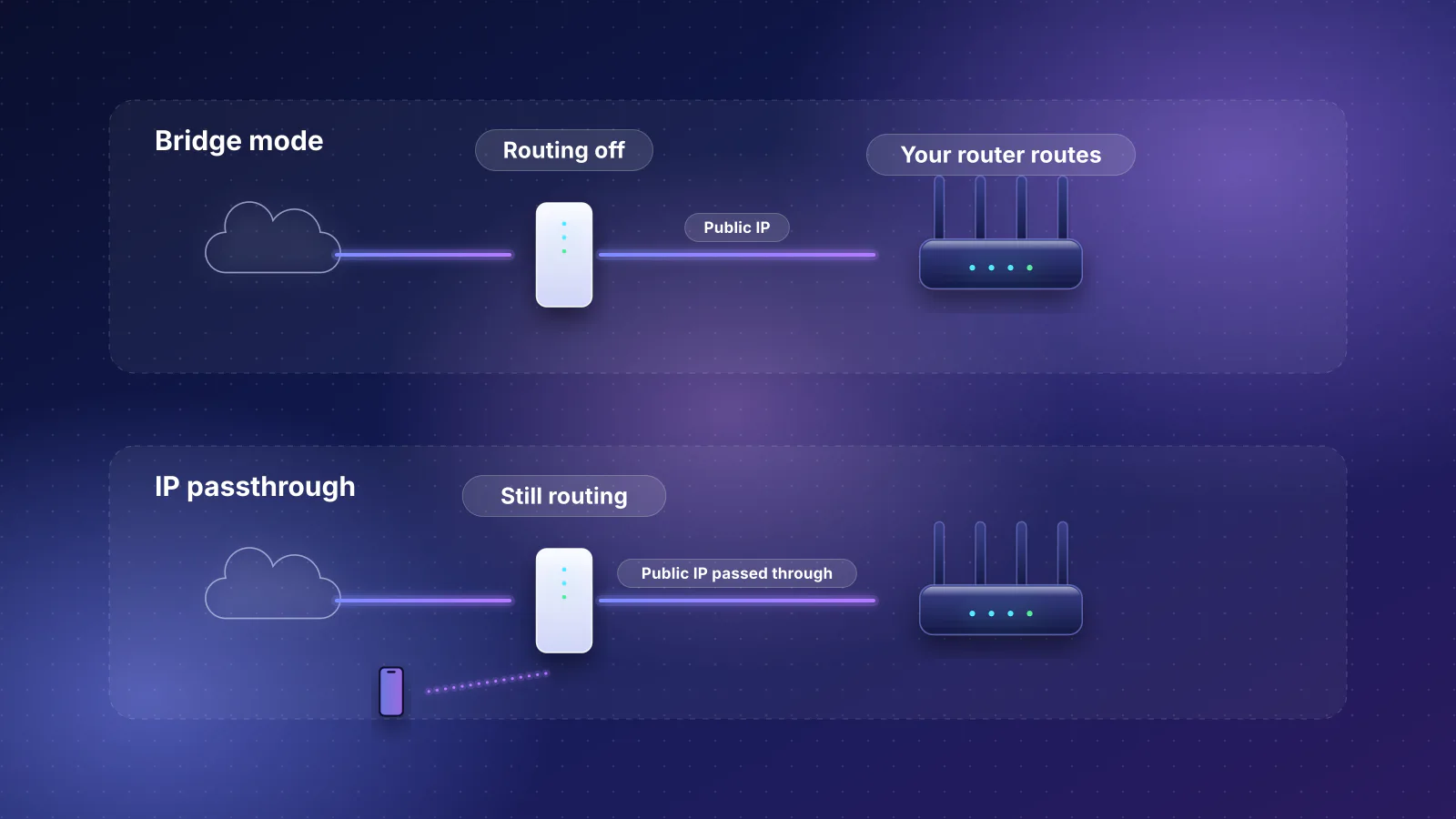
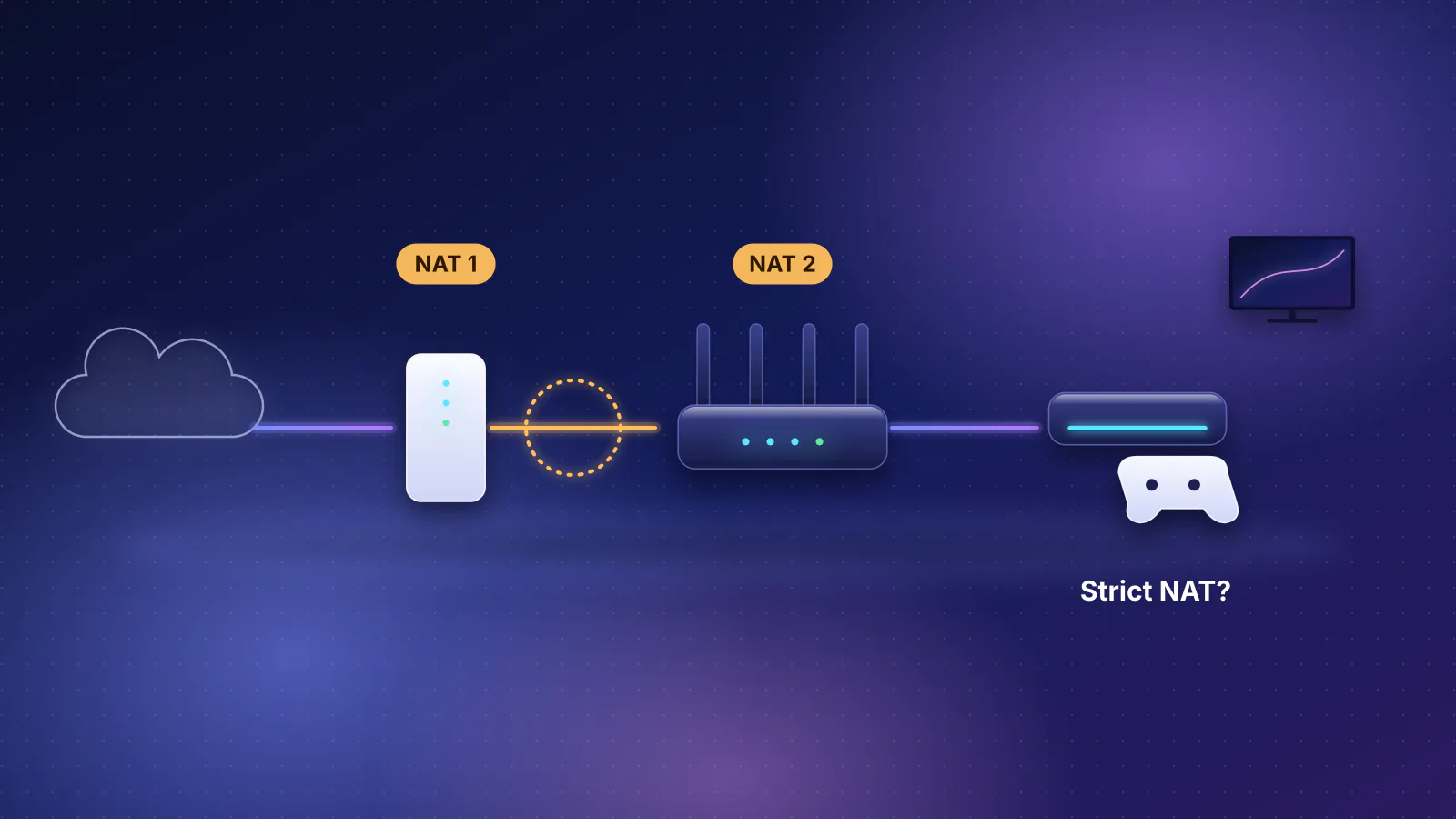
A private WAN address means two routers are both translating addresses, usually a provider gateway and your own router. That breaks things like strict NAT in games and port forwarding, but browsing still works, so it doesn't cause the no-internet warning. Apple's router settings guidance is "Generally, enable NAT only on your router." If that's what you found, fixing double NAT covers bridge mode, IP passthrough and access-point mode. A 100.64 address is the provider's carrier-grade NAT: also not a cause of no internet, and explained separately.
When new equipment is justified (rarely)
Buy something only when the tests point at a specific box and the free fixes haven't held:
- Your router, if a computer plugged straight into the modem gets online while the same computer behind the router doesn't, after restarts and with the WAN type confirmed with the provider, or if it keeps dropping its DHCP or WAN connection and its maker no longer updates it. What a new router won't fix is worth reading first.
- A modem you own, if the provider confirms the line is good and the modem still won't come online, or it's no longer on the provider's approved list. If the modem or gateway is rented, ask the provider to test it.
- Not a mesh kit or a new Wi-Fi standard. Faster or wider Wi-Fi doesn't help when the device already says "connected": the link that works isn't the link that's broken.
Once it's working again, RouterHaus's Network Health check gives you a baseline to compare against next time, and how to test your home network explains the wired and room-by-room tests behind it.
When to call the provider, and when to get help
Call the provider when the modem, ONT or gateway lights say there's no connection, the router's WAN gets no address after a full power cycle, a computer plugged into the modem can't get online, or an outage has no repair time. Tell them what you tested and what each test showed.
On someone else's network (a hotel, office or building), Google's help points you to "the network administrator", who runs its addressing, sign-in page and any MAC filtering.
Get hands-on help when the problem is wiring you can't reach: wall jacks that don't connect, a cable run between the modem and the router's room, or equipment in a closet you can't trace. RouterHaus can connect you with a licensed contractor when the job needs hands on site; ask for help with your network.
Frequently asked questions
Why does my phone say connected but no internet?
The phone joined the Wi-Fi, but its check of the internet failed. Android probes Google servers such as connectivitycheck.gstatic.com and Windows fetches a test file from Microsoft; when that fails, you see the warning. Common causes are a sign-in page, no address from the router (169.254), a VPN or Private DNS setting, or the internet line itself being down.
What does a 169.254 IP address mean?
The device gave itself an address because no DHCP server answered. RFC 3927 reserves 169.254/16 for this, and routers must not forward it, so the device can't reach the internet. Rejoin the network or restart the router; if every device gets one, the router's DHCP server isn't working.
Should I restart the modem or the router?
If devices can't reach the router but the router's WAN has an address, restart the router. If the router's WAN shows 0.0.0.0 or 169.254, or the modem lights show no connection, power cycle both: modem first, wait for its lights to settle, then the router, as Microsoft's steps describe.
Windows says no internet but websites load. Is something wrong?
Usually not with your connection. Microsoft says that if you can browse websites while Windows reports no internet, it's an NCSI problem: something such as a VPN, proxy or security software is blocking Windows' test request. Open www.msftconnecttest.com/connecttest.txt to see what that request gets back.
Will a new router fix connected but no internet?
Rarely. Most cases are a device setting, a sign-in page, a stalled router that a restart clears, or the line or provider. A new router helps only when a computer plugged straight into the modem works and the same computer behind your router doesn't, after restarts and correct WAN settings.
Sources
Read on November 27, 2026.
- Microsoft Support: Fix Wi-Fi connection issues in Windows
- Microsoft Learn: NCSI overview, NCSI frequently asked questions and Troubleshoot NCSI guidance
- Microsoft Learn: ping and nslookup
- Microsoft Support: How to use automatic TCP/IP addressing without a DHCP server
- Apple Platform Support: Troubleshoot Wi-Fi connectivity on iPhone and iPad
- Apple Support: If your iPhone or iPad won't connect to a Wi-Fi network
- Apple Support: Use private Wi-Fi addresses on Apple devices and About private Wi-Fi addresses and enterprise networks
- Apple Support: Recommended settings for Wi-Fi routers and access points
- Google Pixel Phone Help: Fix Wi-Fi connection problems and Android Help: Fix internet connection problems on Android devices
- Android Developers: Captive portal API support (Android 11)
- Android Open Source Project: MAC randomization behavior
- Android Developers Blog: DNS over TLS support in Android P (April 2018)
- Samsung Knox: "Connected without internet" status after connecting to Wi-Fi
- IETF RFC 3927: Dynamic Configuration of IPv4 Link-Local Addresses
- IETF RFC 2131: Dynamic Host Configuration Protocol
- IETF RFC 8952: Captive Portal Architecture
- Cloudflare: 1.1.1.1 IP addresses
- ASUS Support: Troubleshooting when the router can't connect to the internet (FAQ 1030645)
- TP-Link: Archer C58HP user guide, Customize your network settings (DHCP server)
- NETGEAR: How do I perform a factory reset on my NETGEAR router?
- Xfinity Support: xFi Gateway LED lights and Check for a service outage
- AT&T Support: Learn about optical network terminal status lights