The short version
- Divide your living area by about 1,800 sq ft for drywall and wood walls, 1,400 for plaster, or 1,000 for block, brick or stucco, and round up. Then make sure every floor gets its own unit if the home is over about 1,200 sq ft. That's the rule the RouterHaus planner and finder use.
- A 2-pack fits one floor up to about 3,600 sq ft with drywall (2,800 with plaster), or two floors up to the same totals. A 3-pack fits up to about 5,400 sq ft with drywall, 4,200 with plaster or 3,000 with masonry, on up to three floors.
- Makers claim more: the median current Wi-Fi 7 kit from eero, TP-Link, NETGEAR, ASUS and Linksys claims about 2,700 sq ft per unit, nearly one and a half times our drywall figure. Treat those claims as best cases.
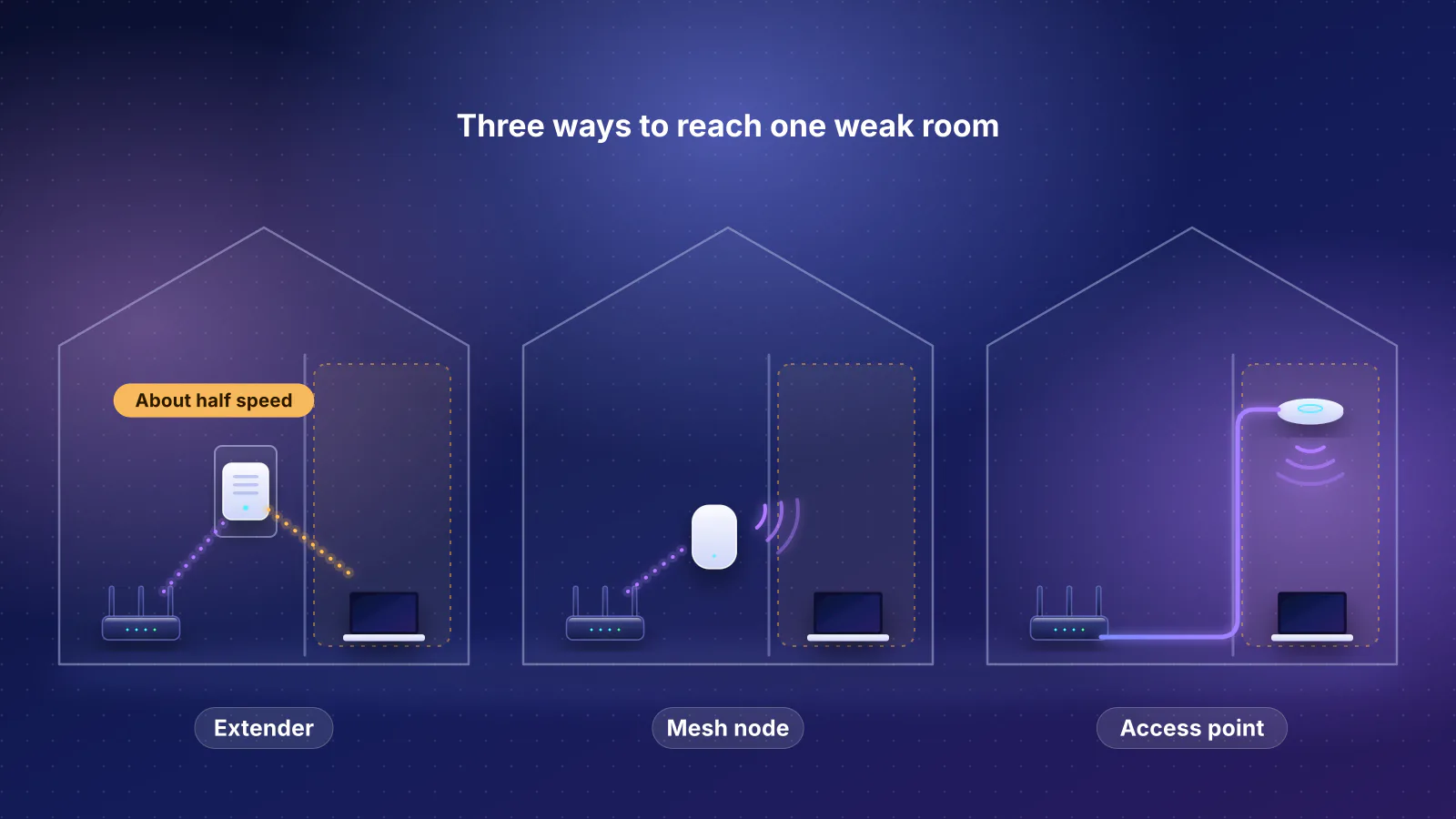
- Before buying a third unit to reach a far room, try a cable. A wired unit can sit where it covers best, and it skips the wireless relay that, by the makers' rule of thumb, costs about half the speed at each hop when the backhaul shares a radio with your devices.
- The caveat: area math assumes the units can be placed well. A long single-story home with the internet at one end, or a detached office, needs a look at the floor plan, not just the square footage.
Not sure you need mesh at all? Start with mesh or a single router, or compare an extender, mesh or an access point. Already own a mesh with a slow room? See why mesh Wi-Fi doesn't fix every slow room.
The rule in one calculation
RouterHaus sizes every home the same way, in the planner, the router finder and our articles. From the methodology: about 1,800 sq ft per access point with drywall or wood-frame walls, 1,400 with plaster, 1,000 with block, brick, stucco or concrete; and homes of two or more floors over about 1,200 sq ft in total get at least one access point per floor. An access point here means any unit that broadcasts Wi-Fi: the main mesh unit counts as one. The numbers are deliberately cautious round figures, not measurements of any product.
Turned around, here's the most floor area each pack size covers by that rule (arithmetic: units × area per unit):
| Units | Drywall or wood | Plaster | Block, brick or stucco | Floors it can cover (homes over 1,200 sq ft) |
|---|---|---|---|---|
| 1 (a router) | 1,800 sq ft | 1,400 sq ft | 1,000 sq ft | 1 |
| 2-pack | 3,600 sq ft | 2,800 sq ft | 2,000 sq ft | Up to 2 |
| 3-pack | 5,400 sq ft | 4,200 sq ft | 3,000 sq ft | Up to 3 |
| 4 units | 7,200 sq ft | 5,600 sq ft | 4,000 sq ft | Up to 4 |
Use the wall type that dominates between the main unit and the rooms you use. If you're between two answers, the planner's rule rounds up, and so should you. For what to look for in the kit itself (bands, ports, backhaul), see the mesh section of our router buying guide.
Six worked homes
Each example applies the planner's rule to the home's exact area (the planner itself works in bands, so near a band edge it can differ, as above), then says what the floor plan might change.
| Home | Arithmetic | Units | Buy |
|---|---|---|---|
| 1,500 sq ft, one floor, drywall | 1,500 ÷ 1,800 = 0.83 | 1 | A single router, or a 1-unit mesh you can add to |
| 1,500 sq ft, one floor, plaster or masonry | 1,500 ÷ 1,400 = 1.07; 1,500 ÷ 1,000 = 1.5 | 2 | 2-pack |
| 2,500 sq ft, two floors, drywall | 2,500 ÷ 1,800 = 1.39; two floors, over 1,200 sq ft in total | 2 | 2-pack, one unit per floor |
| 3,500 sq ft, plaster | 3,500 ÷ 1,400 = 2.5 | 3 | 3-pack (with drywall it would be 2: 3,500 ÷ 1,800 = 1.94) |
| 2,400 sq ft ranch, about 100 ft long, internet at one end | 2,400 ÷ 1,800 = 1.33 | 2 by area | 2-pack, if the main unit can move toward the middle (below) |
| 2,000 sq ft house, drywall, plus a detached office | 2,000 ÷ 1,800 = 1.11 for the house; the office isn't in the rule | 2 + 1 | 3-pack, with the office unit wired |
1,500 sq ft on one floor
With drywall, one well-placed router covers it by the rule, so a mesh kit isn't needed. If you like the idea of growing later, a single unit of a mesh system does the same job today: eero, ASUS, TP-Link and Google all sell single units (see adding a unit later). With plaster or block walls the same floor area needs two units by the rule. For finding out whether you have a coverage problem at all, see how to measure signal room by room.
2,500 sq ft on two floors with drywall
Area alone says two, and so does the floor rule: one unit per floor. A 2-pack fits. Google gives almost the same example for its own systems: for "a 2-story house that's 2,200 sq ft, we recommend 2 mesh points: one for the first (ground) floor, and one for the floor above (or below, in case of a basement)". More on placing them in the two-story section below.
3,500 sq ft with plaster walls
This is where wall type flips the answer. With drywall, 3,500 sq ft is just under two units' worth (3,600); with plaster it's 2.5, so three. If the house is on two floors, the floor rule asks for two, and the area rule's three wins. With block or brick it would be four (3,500 ÷ 1,000 = 3.5), and that's the point at which our finder suggests a consultation unless every unit can be wired: four or more access points without Ethernet between them lose a lot of speed.
A long ranch with the internet at one end
Area says two, but area assumes each unit sits where it covers best. In a house about 100 ft long with the modem in the garage at one end, the main unit is stuck at the end, and the far bedrooms are roughly 100 ft away. eero's placement guidance puts wireless units 20 to 30 feet apart and "no more than 50 feet"; Google says points work best "about 2 to 3 rooms apart". A 2-pack's satellite can't be both close enough to the main unit and close enough to the far rooms.
There are three ways out, cheapest first:
- Move the main unit toward the middle with a long Ethernet cable from the modem. eero says that moving the gateway to a central spot will "improve the speed of your entire network with that one change". Then a 2-pack fits the rule again.
- Wire the far satellite. A cable from the main unit lets the second unit sit in the far wing at full speed; eero notes that when units are wired, "spacing between eeros is more flexible".
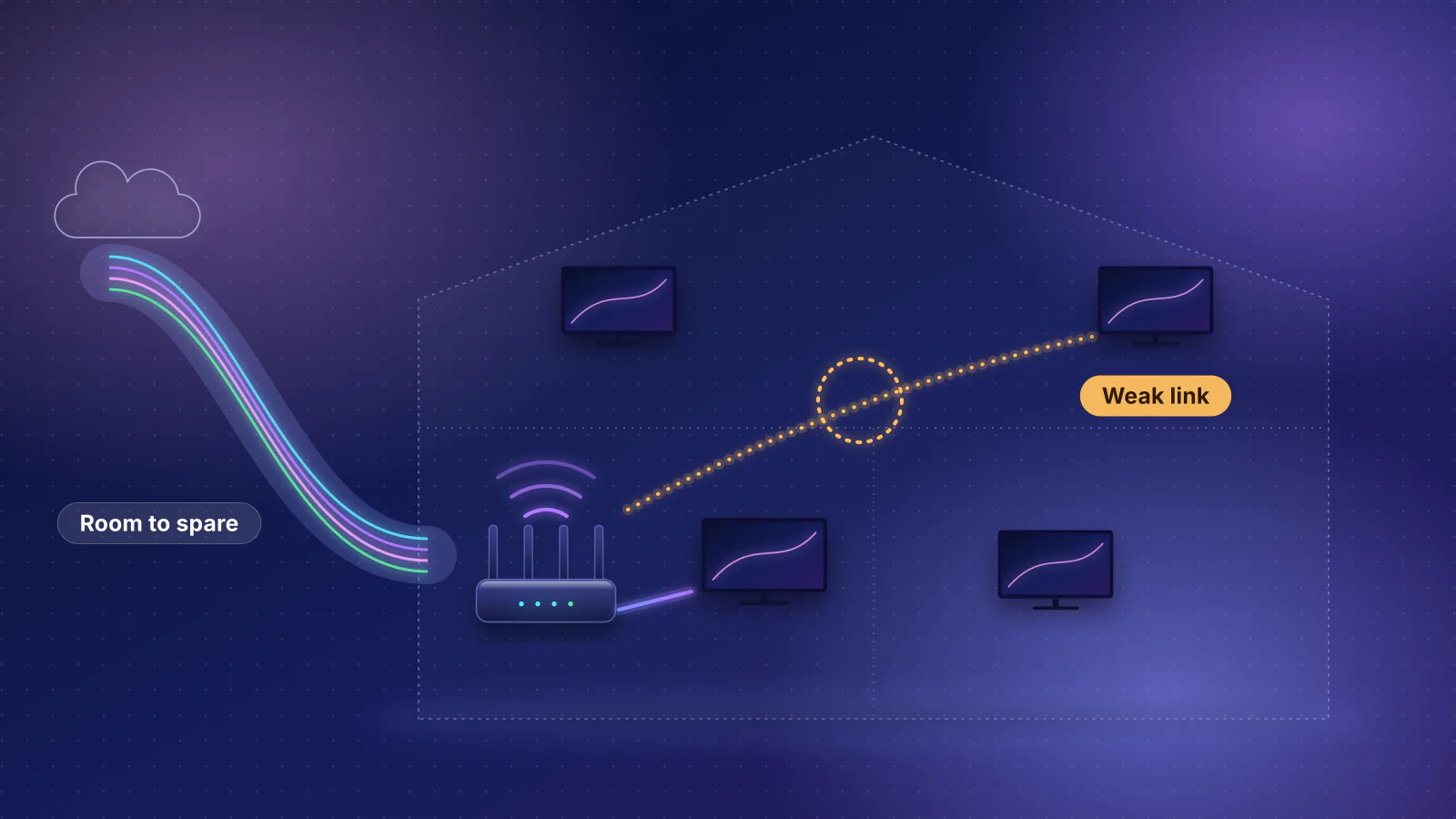
- Buy a third unit and relay wirelessly. It works, but the far unit connects through the middle one: by the rule of about 50% per wireless hop (see the hop that halves your speed), the far rooms get about a quarter of the first link's capacity on a kit whose backhaul shares a radio with your devices. Arithmetic, not a measurement.
A house with a detached office
The rule sizes the house: 2,000 sq ft of drywall is two units. A detached office, casita or garage is a separate problem, and our single-vs-mesh decision table says to put a wired access point in that building, because exterior walls are often the thickest in the house. So buy a 3-pack: two units for the house and one for the office, connected by an outdoor-rated Ethernet run. The planner sizes only the main house, so add the outbuilding's unit yourself. If a cable can't be run, the catalog lists outdoor-rated mesh units (the eero Outdoor 7, Deco BE65-Outdoor and ZenWiFi BD5 Outdoor) that can sit on the house wall facing the office, but that link is still wireless.
Mesh for a two-story house
Floors block Wi-Fi more than most interior walls, which is why the rule gives each floor its own unit once a home passes about 1,200 sq ft. The ITU planning figures behind that are in walls and floors: the numbers. For a two-story home:
- Two floors, up to 3,600 sq ft with drywall: a 2-pack, one unit per floor. Over 3,600 sq ft, or with plaster over 2,800 sq ft, a 3-pack.
- A small townhouse of 1,200 sq ft or less: the floor rule doesn't apply, and one well-placed router often covers it.
- A finished basement counts as a floor. A two-story house over a basement is three floors with Wi-Fi, so three units. NETGEAR says that for Wi-Fi in a basement or garage "you will probably need a dedicated satellite node for that space".
- Placement: put the upstairs unit roughly above the main unit, or near the stairwell where the path between floors is most open. NETGEAR notes that "higher satellite placement can offer a clearer signal path and also reach devices upstairs".
- The floor is the link most worth wiring. If one cable run is possible, use it between floors; see mesh systems with wired backhaul for which kits make full use of it.
When wiring one node beats buying another
A cable doesn't change how many radios the rule asks for. It changes where you can put them and how fast each one runs. That matters most when the reason you're eyeing a third unit is that the second one is too far from the main unit, not that the home is too big for two.
- Each wireless relay costs speed. By the makers' rule of about 50% per hop, a unit relaying on the radio its devices use leaves about half of its link for the room, and a unit behind it about a quarter (arithmetic, not a measurement). A cable has no relay cost.
- Spacing stops mattering. eero's 50-foot spacing is for wireless units; it says wired units can be spaced more flexibly, so they can sit wherever the rooms need them.
- Some systems lose features with more wireless nodes. ASUS says that in an AiMesh system with several Wi-Fi 7 nodes, "only the first node can use MLO Backhaul" (a chipset limitation, and only between units of the same model), so in a wireless ZenWiFi 3-pack the second node goes without it. A cable makes the point moot for that node.
- TP-Link relaxes its unit limit for wired systems. It recommends up to six Deco units on Wi-Fi backhaul for most models but says that with Ethernet backhaul there's "theoretically no limit". Google's and ASUS's limits don't depend on backhaul: Google recommends a maximum of five Wifi devices in one network, and ASUS says "The best experience is the mesh system of 5 routers": one AiMesh router and four nodes.
The practical rule: if the area rule says two and the far end is still weak, move the main unit or wire the satellite before you buy a third. If the area rule says three, buy three, and wire whichever one crosses a floor or the thickest wall.
What the makers' coverage claims imply
Every maker publishes coverage in square feet, and none of the coverage figures we read says what walls or layout it assumes. Here are the claims for every current Wi-Fi 7 kit from eero, TP-Link, NETGEAR, ASUS and Linksys whose maker ties a figure to a pack size, divided per unit (catalog checked October 20, 2026, and the makers' pages). The RouterHaus figure for comparison is 1,800 sq ft per unit with drywall.
| Kit | Maker's claim | Per unit |
|---|---|---|
| eero 7 | 2,000 sq ft per unit | 2,000 |
| eero Pro 7 | 2,000 sq ft per unit on the product page (eero's comparison table says 2,500) | 2,000 |
| eero Max 7 | 2,500 sq ft per unit | 2,500 |
| eero PoE 7 | 2,000 sq ft per unit | 2,000 |
| Deco BE23 | 2,500 sq ft (1-pack) | 2,500 |
| Deco BE25 | 2,600 sq ft (1-pack) | 2,600 |
| Deco BE63 | 5,800 sq ft (2-pack) | 2,900 |
| Deco BE65 | 7,600 sq ft (3-pack) | 2,533 |
| Deco BE68 | 8,100 sq ft (3-pack) | 2,700 |
| Deco BE77 | 3,300 sq ft (1-pack) | 3,300 |
| Deco BE85 | 9,600 sq ft (3-pack) | 3,200 |
| Deco BE95 | 9,600 sq ft (3-pack) | 3,200 |
| Orbi 370 | 6,000 sq ft (3-pack); 2,000 per added satellite | 2,000 |
| Orbi 770 | 8,000 sq ft (3-pack); 2,750 per added satellite | 2,667 |
| Orbi 970 | 10,000 sq ft (3-pack); 3,300 per added satellite | 3,333 |
| ZenWiFi BD4 | 4,900 sq ft (2-pack); 6,500 (3-pack) | 2,450 (3-pack: 2,167) |
| ZenWiFi BD5 | 5,000 sq ft (2-pack); 6,800 (3-pack) | 2,500 (3-pack: 2,267) |
| ZenWiFi BT6 | 5,800 sq ft (2-pack); 3,000 (1-pack) | 2,900 |
| ZenWiFi BT8 | 5,900 sq ft (2-pack); 3,000 (1-pack) | 2,950 |
| ZenWiFi BT10 | 6,000 sq ft (2-pack); 3,000 (1-pack) | 3,000 |
| ZenWiFi BQ16 Pro | 8,000 sq ft (2-pack); 4,000 (1-pack) | 4,000 |
| Velop Pro 7 | 3,000 sq ft per unit | 3,000 |
| Velop Micro 7 | 2,200 sq ft per unit | 2,200 |
What to take from it:
- Claims run from 2,000 to 4,000 sq ft per unit, with a median of about 2,700, against our 1,800 for drywall. A 3-pack advertised for "up to 6,000" or "up to 10,000" sq ft is, by our rule, a 5,400 sq ft kit with drywall and a 4,200 sq ft kit with plaster.
- Some makers add the same area per unit, some don't. NETGEAR's Orbi 370 page counts 2,000 sq ft for each unit up to a 4-pack, and Google lists the Nest Wifi Pro (Wi-Fi 6E) at 2,200 sq ft per router, up to 8,800 for four. ASUS's ZenWiFi BD4 and BD5 claims grow by less than one unit's worth from the 2-pack to the 3-pack.
- Claims aren't always consistent. eero's product page and support table disagree on the eero Pro 7, and NETGEAR's Orbi 970 satellite page says both "up to 3,300 sq. ft." and "2,700 sq. ft." of added coverage.
- The makers themselves hedge. eero says the number you need depends on "Length, number of rooms, and floors" and obstacles "like brick walls"; NETGEAR calls its per-satellite figures "estimates only"; TP-Link says its figures for unit counts are "for reference only".
2-pack or 3-pack: the cost of guessing wrong
If you're unsure, compare two mistakes: buying a 3-pack and not needing the third unit, or buying a 2-pack and adding one later. From the makers' own regular or list prices recorded in our catalog (catalog checked October 20, 2026; sale prices vary and aren't used), for every current Wi-Fi 7 kit where the catalog has the maker's price for the 2-pack, the 3-pack and a single unit. The catalog marks the ASUS BD4, BT8, BT10 and BQ16 Pro prices as not re-confirmed.
| Kit | 2-pack | 3-pack | Single unit | Third unit bought later costs more by |
|---|---|---|---|---|
| eero 7 | $284.99 | $399.99 | $169.99 | $54.99 |
| eero Pro 7 | $549.99 | $799.99 | $299.99 | $49.99 |
| eero Max 7 | $1,149.99 | $1,699.99 | $599.99 | $49.99 |
| Deco BE23 | $199.98 | $299.97 | $99.99 | $0 |
| Orbi 370 | $249.99 | $349.99 | $149.99 (satellite) | $49.99 |
| Orbi 770 | $549.99 | $699.99 | $299.99 (satellite) | $149.99 |
| Orbi 970 | $1,499.99 | $1,999.99 | $799.99 (satellite) | $299.99 |
| ZenWiFi BD4 | $229.99 | $299.99 | $129.99 | $59.99 |
| ZenWiFi BD5 | $299.99 | $369.99 | $179.99 | $109.99 |
| ZenWiFi BT6 | $369.99 | $549.99 | $189.99 | $9.99 |
| ZenWiFi BT8 | $599.99 | $849.99 | $329.99 | $79.99 |
| ZenWiFi BT10 | $689.99 | $999.99 | $359.99 | $49.99 |
| ZenWiFi BQ16 Pro | $1,699.99 | $2,299.99 | $899.99 | $299.99 |
Arithmetic: the last column is the 2-pack plus a single unit, minus the 3-pack. Two patterns stand out. The cheap kits with a small 3-pack premium are the safe bet when you're unsure: the ZenWiFi BD4 and BD5 3-packs cost $70 more than their 2-packs, while adding a unit later costs $129.99 or $179.99. On the Deco BE23, TP-Link's regular prices are exactly linear, so waiting costs nothing. On premium kits like the Orbi 970 and ZenWiFi BQ16 Pro, the third unit costs $500 to $600 in the pack, so it's worth being sure, and wiring a 2-pack may be the better buy. Two- and three-unit prices for Wi-Fi 7 kits are compared in Wi-Fi 7 mesh kits under $500 and four mid-range Wi-Fi 7 kits compared.
Adding a unit later
Every maker in this article sells single units, but check that the one you add will join your system:
- eero sells every model as a 1-pack and says its hardware can "mix and match". Watch the eero 6 3-pack: it's one router and two extenders, and eero says the extenders "don't have any Ethernet ports", so they can never be wired.
- NETGEAR sells add-on Orbi satellites by series (RBE370, RBE770, RBE970) and says to "choose add-on satellites that are compatible with your Orbi Router"; its example is a 960 Series kit, designed to work with 960 Series add-on satellites.
- TP-Link offers 1-packs of the Deco models whose pages we checked (BE23, BE25, BE63, BE77, BE85, BE95), and says different Deco models can work in one network.
- ASUS sells ZenWiFi units singly on its US store, and other ASUS routers that support AiMesh can join as nodes; ASUS says the router with the highest specifications should be the main one.
- Google sells the Nest Wifi Pro singly, but it "can't be combined with Nest Wifi or Google Wifi".
- Linksys Cognitive Mesh units (Velop Pro 7, Pro 6E, Micro 6 and 7) "are not backward compatible" with its older Intelligent Mesh products, and the Velop Micro 6's LN1200 nodes are child-only units with no Ethernet port.
Frequently asked questions
Is it bad to have more mesh nodes than I need?
It can be. Each extra wireless unit that connects through another one adds a relay hop, and the makers set limits: Google recommends no more than five Wifi devices in one network, ASUS says the best AiMesh experience is five routers, and TP-Link notes that more Deco units do not always improve throughput or stability. A unit you don't need is better left in the box than plugged in behind another one.
Does the number of devices change how many nodes I need?
Not in the RouterHaus rule, which sizes by area, floors and walls; the finder suggests a consultation at 80 or more devices instead. eero says its own recommendation also weighs the number of users and your internet plan, so a home where many busy devices sit far from the main unit may justify an extra unit there.
Should I count the garage or an unfinished basement?
Count the floor area where you want Wi-Fi. A finished basement used daily is a floor and gets its own unit. An unfinished basement or garage you only walk through can be left out, unless something there needs a connection, such as a camera or a car charger.
Can I mix a 2-pack and a single unit of a different model?
Often, within one maker. eero mixes its models, TP-Link says different Deco models can work together, and ASUS AiMesh routers can join ZenWiFi systems. NETGEAR wants satellites from the same Orbi series, Google's Nest Wifi Pro won't join older Google Wifi, and Linksys's Cognitive Mesh units won't join its older Intelligent Mesh. Make the newest or highest-spec unit the main one.
Sources
Read on October 29, 2026.
- RouterHaus: How we recommend routers and the planner's coverage code (area per access point, floor rule, consultation triggers)
- Google: How many Nest Wifi Pro, Nest Wifi, or Google Wifi routers or points do I need? (coverage per router, two-story example, five-device limit)
- Google: Hardwire Nest Wifi Pro, Nest Wifi, or Google Wifi with Ethernet (compatibility between generations)
- eero: How many eeros do I need?
- eero: Where should I place my eeros? and How much distance should there be between eeros?
- eero: Mesh wifi product comparison (coverage per device, extenders without Ethernet) and Can I connect my eeros with Ethernet?
- TP-Link: How many Deco units do I need for my Deco mesh network? (updated April 17, 2026) and Deco Ethernet backhaul (mixing Deco models)
- TP-Link product pages: Deco BE23, Deco BE25, Deco BE63, Deco BE68, Deco BE77, Deco BE85, Deco BE95 (coverage by pack, pack sizes sold)
- NETGEAR (Australia): How many mesh WiFi satellites do I need? (estimates, basement and upstairs placement, matching add-on satellites)
- NETGEAR add-on satellites: Orbi 370 (RBE370), Orbi 770 (RBE770), Orbi 970 (RBE970), and the Orbi 370 3-pack (coverage per pack)
- ASUS: How to set up an AiMesh system (web GUI) (five-router recommendation, MLO backhaul on the first node only)
- ASUS US eShop: ZenWiFi BD4 (3-pack coverage)
- Google Store: Nest Wifi Pro tech specs (coverage per router and pack)
- Linksys: How to add a wired child node to a Velop Cognitive Mesh system (compatibility with Intelligent Mesh) and Velop Micro 6 (LN1100 and LN1200) support
- RouterHaus catalog (coverage claims, pack sizes and makers' pack prices, checked October 20, 2026)