The short version
- Your phone or laptop decides when to roam, not the mesh. Apple says devices "are responsible for maintaining their 802.11 connection", including when to move to another access point. A mesh system can suggest a move; it can't make one.
- Devices wait until the signal is already mediocre. An iPhone doesn't look for another node until its current one falls to about −70 dBm, and then wants one at least 8 dB stronger (12 dB if it's idle). A Mac waits until −75 dBm. Android's defaults skip the system's own scans while a 5 or 6 GHz connection stays above −70 dBm and was checked recently. Ubiquiti gives −70 dBm as the minimum for a stable connection, so a "sticky" phone is working as designed, right at the edge.
- 802.11k, v and r make roaming faster and better informed, but the device still has the last word. 802.11k hands the device a list of nearby nodes, 802.11v lets the network suggest one, and 802.11r shortens the handoff. The device can ignore all of them, and 802.11r can stop some older devices connecting at all.
- Fix it in this order: confirm it's roaming with the walk test, leave the maker's steering features on (eero Client Steering, Deco Mesh Technology, UniFi BSS Transition), move nodes so a strong one is waiting where you walk, try 802.11r if your devices cope, adjust a sticky laptop's own roaming setting, exclude stationary devices from steering, and use "kick" features such as Minimum RSSI last. Wire the backhaul of the node you roam to, so moving to it is worth it.
Our guide to why mesh doesn't fix every slow room introduces sticky clients and the quickest check: turn the device's Wi-Fi off and on, and if it gets faster, it was clinging to a far node. This article goes further: the rules each platform uses, a symptom table, the roaming settings each maker documents, and a repeatable test.
Who decides when a device roams
Every mesh node broadcasts the same network name, but each radio has its own hardware address, the BSSID. Moving from one BSSID to another is a roam, and the device starts it. Apple's deployment guide is explicit: "Devices connected to a Wi-Fi network are responsible for maintaining their 802.11 connection. One portion of this connection relationship is deciding when to roam." Intel says the same about its laptop adapters: roaming "is based on signal quality rather than distance to an AP/router", and "if the signal quality to an AP/router that is further away remains good the client may not roam to a nearer AP/router, or may not roam immediately." Intel says that in most cases this is "normal and expected": the behavior is designed "to increase the efficiency of the Wi-Fi network by minimizing unnecessary data traffic" and "aids in conserving battery power consumption".
The makers agree from the other side. eero says some devices "may have a stronger wireless connection to an eero farther away" because "different devices have different thresholds for when to roam between eeros". A TP-Link staff guide on Deco roaming puts it in one line: "Whether to roam is decided by clients and Deco just gives a roaming advice."
The thresholds each platform documents
Apple publishes exact numbers. Android publishes its framework defaults, which phone makers can change. Microsoft and Intel describe the mechanism but not the dBm values. Signal strength is in dBm, a negative number where closer to zero is stronger.
| Device | Starts looking when the current node falls to | What a new node needs | Roaming setting you can change |
|---|---|---|---|
| iPhone, iPad | −70 dBm | 8 dB stronger while sending data, 12 dB stronger while idle | None documented |
| Mac (Apple silicon and Intel) | −75 dBm | 12 dB stronger, busy or idle | None documented |
| Android (open-source defaults, Android 12 page) | With the screen on, the system skips its own scans while the signal is above −70 dBm on 5 or 6 GHz (−73 dBm on 2.4 GHz), it chose a network in the last 10 minutes and the connection reaches the internet, or while more than 16 packets per second are flowing. With the screen off, the Wi-Fi chip's firmware does the roaming scans. | Firmware roaming thresholds aren't published | None documented; phone makers set the defaults |
| Windows laptop with an Intel adapter | Set by Intel's "Roaming aggressiveness" (default Medium); Intel gives no dBm values | Not published | Roaming aggressiveness, Lowest to Highest |
Apple's own example: an iPhone on a voice call whose signal drops to −75 dBm "searches for roam candidate BSSIDs that have an RSSI of at least –67 dBm". Ubiquiti says clients "often roam to another AP around -70 to -75 dBm, and usually only when another AP has far greater signal strength."
Two details matter at home. Apple says it also scores candidates on "channel utilization and quantity of associated clients", and prefers Wi-Fi 7 over Wi-Fi 6 and wider channels over narrower ones, so the strongest node doesn't always win. And Android's page says that when the phone's chip supports firmware roaming, a candidate with the same network name and security type counts as a match for the connected network, and "no further action is taken". RouterHaus's reading: on such phones, moves between your mesh nodes are left to the chip.
What that means for a walk between two nodes
RouterHaus's arithmetic from Apple's numbers, for an iPhone on a call (sending data) as you walk from node A toward node B:
- The phone doesn't scan for node B until node A reads −70 dBm or weaker (Apple: the device "scans for roam candidate BSSIDs" after it crosses the trigger).
- At that moment, node B must read at least −62 dBm (−70 + 8) for the phone to move. Idle in a pocket, it needs −58 dBm (−70 + 12).
- A Mac at its −75 dBm trigger needs node B at −63 dBm or better.
So a smooth handoff needs a spot on your route where the old node is weak and the new one is already strong. If both nodes read around −72 dBm in the hallway between them, the phone has crossed its trigger but has no candidate 8 dB better, so under Apple's rules it stays where it is while the signal keeps falling. Apple warns about exactly this in network design: with cells that overlap at −67 dBm, an iPhone "keeps its connection to the BSSID longer than expected" because its trigger is −70 dBm.
Set that against Ubiquiti's figures (−70 dBm minimum for a stable connection, −65 dBm recommended) and a phone obeying Apple's rule spends its last minutes on the far node at the very edge of what Ubiquiti calls stable.
Symptom, cause, fix
Most roaming complaints fit one of these rows. The "How to check" column uses the tests in the walk test below.
| Symptom | Likely cause | How to check | Fix to try first |
|---|---|---|---|
| Slow in a room with its own node; turning Wi-Fi off and on fixes it | The device is still on a far node that hasn't fallen past its roam trigger | The mesh app's client list shows the far node; it switches after Wi-Fi off and on | Leave steering on; move nodes or lower transmit power where the system allows (placement) |
| A call freezes for a few seconds as you walk between rooms or floors, then recovers | A slow roam: scanning every channel without an 802.11k neighbor list, or a full sign-in without 802.11r | Walk test with a call or continuous ping running | Confirm 802.11k/v steering is on; try 802.11r if offered (802.11k, v and r) |
| The call drops completely on the same stretch of the walk | No node 8 to 12 dB stronger is available when the old one fades, or a "kick" feature disconnected the device | Signal readings along the route; check for Minimum RSSI or Roaming Assistant settings | Move or add coverage on that stretch; turn off hard kicks |
| Some devices can't join, or drop off, after Fast Roaming is turned on | Devices that don't understand 802.11r | Turn Fast Roaming off and retry | Leave it off, or give those devices a network without it (UniFi) |
| Devices disconnect at room edges after enabling Minimum RSSI or Roaming Assistant | The node is forcibly disconnecting them | Turn the feature off for a day | Use a soft "suggest and then disconnect" option, or set the threshold lower (weaker) than −70 dBm (kick features) |
| A TV, speaker or desktop sits on a far node permanently | It probably joined that node at startup and never moves, because its signal stays above its trigger | Client list | Restart its Wi-Fi; on Deco and ASUS, exclude it from steering (maker table) |
| Laptop holds a weak node while phones move normally | The adapter's roaming setting or driver | Compare with a phone on the same route | Intel adapters: raise Roaming aggressiveness one step; update the driver (client settings) |
| Full bars next to a node, but slow on every device connected to it | Not roaming: the node's wireless backhaul is weak | The node's backhaul indicator in the app | Move or wire the node; see the backhaul section |
| A device holds a weak 6 GHz link instead of a stronger 5 GHz one | Ubiquiti says some devices "stick" to 6 GHz even when 5 GHz would cover better | The band shown in the client list | Check placement and fast-roaming support; see how an iPhone picks a band |
802.11k, v and r: what each one actually does
All three are IEEE amendments to the 802.11 Wi-Fi standard, published in 2008 (k and r) and 2011 (v). Both ends must support a feature for it to work: Microsoft says the Wi-Fi driver must support them and "All three features need AP-side support".
| Amendment | IEEE name | What it does for a roaming device | The catch |
|---|---|---|---|
| 802.11k | Radio Resource Measurement | The network sends a Neighbor Report listing nearby access points. Apple devices use its first six entries to prioritize which channels to scan; without it, "the client has to scan every channel on each band", which Apple says "can add several seconds". | Speeds up the search; doesn't change when the search starts |
| 802.11v | Wireless Network Management | BSS Transition Management lets the network suggest a better access point. Microsoft says Windows 10 devices "accept and respond" to these frames; Apple says its devices review the "BSS transition data (supplied by the network)" when they need to roam. | A suggestion only; Deco's staff guide says clients "may refuse the roaming suggestion or respond slowly" |
| 802.11r | Fast BSS Transition | Shortens the security handshake at each handoff, so fewer frames are exchanged before data flows again. Microsoft's example is "an active Skype call". | Some devices that don't support it fail to connect when it's on; Windows 10 supports it only on 802.1X (enterprise) networks, not password networks |
Apple says iPhone, iPad and Macs with Apple silicon can support all three, while Intel-based Macs "don't support Fast BSS Transition, but they interoperate" with networks that use it. Apple adds that, depending on the Wi-Fi vendor, 802.11r "can work with both pre-shared key (PSK) and 802.1X authentication", so it isn't limited to enterprise networks on Apple devices. Microsoft's page covers Windows 10 only and says PSK and open networks "aren't supported"; we found no equivalent statement for Windows 11.
The Wi-Fi Alliance packages similar ideas into two certification programs, Wi-Fi Agile Multiband (access point, band and channel selection) and Wi-Fi Optimized Connectivity, which it says "improves mobility and allows users to experience more consistent connections while roaming within and across networks". RouterHaus didn't check which home mesh products carry either certification.
Why 802.11r breaks some devices: TP-Link explains that with Fast Roaming on, Deco's beacons carry 802.11r information, and "Some wireless clients don't support the 802.11r roaming standard and couldn't recognize the 802.11r related information in the Beacon frames". Those clients "may fail to connect" or drop off. Ubiquiti lists 802.11r among the settings to turn off for older devices that can't connect. If you turn it on, watch your oldest smart-home gadgets, printers and streaming sticks for a few days.
The roaming settings each maker documents
This is what each maker's support documentation says you can change, checked November 7, 2026. "Not documented" means RouterHaus didn't find it in the maker's support pages and manuals for that system; it isn't proof the setting is absent from the app.
| System | Steering (802.11k/v or equivalent) | Fast roaming (802.11r) | Band steering | Kick weak clients | Transmit power |
|---|---|---|---|---|---|
| eero | Client Steering, on by default: Settings > Advanced networking > Client steering. eero says it "does not guarantee" a device picks the closest eero. eero's blog says TrueRoam runs in the background without being turned on. | Not documented; we found no eero support article naming 802.11k, v or r | Part of Client Steering (2.4 to 5 GHz; toward 6 GHz on eero Pro 6E, Pro 7, Max 7 and PoE 7) | Not documented | Not documented |
| TP-Link Deco | Mesh Technology, per device: TP-Link's staff guide says it is "the switch for 802.11k/v". Some models have no toggle and keep it on. | Fast Roaming: More > Advanced > Fast Roaming | Not documented as a separate setting | Not documented; TP-Link says Deco can't pin a device to one unit | Not documented |
| NETGEAR Orbi (770 manual) | Not documented; the manual doesn't mention 802.11k, v or r | Not documented | "Automatic bandsteering" across the three bands; no setting | Not documented | Transmit Power Control for 2.4 and 5 GHz, 100% by default; can't be changed for 6 GHz |
| ASUS (AiMesh) | AiMesh roaming; the Roaming Block List excludes chosen devices from it | Not documented in the ASUS articles we read | Smart Connect: one name for all bands | Roaming Assistant, per band: Wireless > Professional, disconnects clients below −70 dBm by default | Not documented in the ASUS articles we read |
| Google Nest Wifi Pro | "Proactive 802.11k/v client steering" (spec sheet); no setting documented | Not listed | "Proactive band steering"; no setting documented | Not documented | Not documented |
| Ubiquiti UniFi | BSS Transition (per network), recommended on; U7 Pro spec lists 802.11k and 802.11v | Fast Roaming (802.11r), "strong recommendation" on | Band Steering, recommended on | Minimum RSSI (hard kick), Interference Blocker and Roaming Assistant (soft kick, Network 9.2 and later), per access point | Per radio or per access point; Ubiquiti's guidance names High, Medium and Auto |
eero, Nest and Orbi keep roaming automatic, Deco and ASUS expose a few switches, and UniFi exposes nearly everything: more ways to fix a problem, and more ways to create one.
Two maker tools are aimed at devices that don't move. TP-Link suggests turning off Mesh Technology for devices you don't want roaming; after that, "roaming can only be initiated by the clients themselves". ASUS's Roaming Block List does the same for AiMesh, with the note that a listed device "will do self roaming to a better mesh node" anyway.
Settings on the device side
RouterHaus found no roaming setting for iPhone, iPad or Mac in Apple's documentation, and Android's page describes defaults that phone makers configure, not user controls. Windows laptops are the exception, through the Wi-Fi adapter's driver.
On Intel adapters, Intel's steps for Windows 10 are: right-click Start, choose Device Manager, expand Network adapters, right-click the wireless adapter, choose Properties and open the Advanced tab. Intel's articles on these settings sit in its legacy-products section and list older Centrino-era adapters; Dell's current guide for its laptops (updated May 2026) lists the same Roaming Aggressiveness and Preferred Band properties on Intel adapters, with the caveat that some options "may not be available" depending on the adapter, driver and Windows version. Three settings there bear on roaming:
- Roaming aggressiveness "alters the signal strength threshold at which the WiFi adapter starts scanning for another candidate AP". Lowest waits until the signal is "very low"; Highest scans "when the signal strength with the current AP is still good". Medium is the default and Intel's recommended value, and Intel says to go back to Medium if another value doesn't help. RouterHaus's suggestion for a laptop that clings to a far node as you carry it around: try Medium-High before Highest, one step at a time. Dell's advice points the other way for a laptop that stays on a desk: Lowest or Medium-Low, "to prevent connection lag and drops".
- Preferred band (No Preference by default, or prefer 2.4 or 5 GHz). Intel describes it as a way to reduce interference; RouterHaus's suggestion is that preferring 5 GHz may also keep a laptop off a far node's 2.4 GHz band.
- Transmit power: Intel's ideal is the lowest level "still compatible with communication quality", to limit interference in crowded places, but it warns that lowering it reduces "the radio coverage". Don't lower it on a laptop that already struggles at the edge of a node.
Other adapter brands use their own names, and Microsoft notes that 802.11k, v and r work on Windows only when "the WLAN radio driver" supports them, so a driver update from the laptop maker is worth checking before anything else.
Node placement and transmit power
Because devices roam on signal strength, where you put a node decides where a device leaves the previous one. The makers' general placement rules are in our placement table. For roaming, add three checks:
- Walk the routes you use on calls. From the handoff arithmetic, an iPhone on a call needs a point on that route where the old node has dropped to −70 dBm and the new one is at −62 dBm or better. If one stretch, such as a stairwell, has two weak nodes and no strong one, that's where calls fail. Move the nearer node toward that stretch, or wire a node so it can sit there.
- Measure with the device that has the problem. Apple's network design guide says phones "see different cell boundaries" from laptops, whose antennas are "much larger and more powerful", and that "It's always best to measure using the target device." A laptop survey is a guide; the phone's behavior in the walk test is the answer.
- Turn power down only where nodes are close. Ubiquiti advises "High Transmission Power on APs, unless they are very close together" for homes, and medium power in dense offices "to prevent them from interfering with one another". RouterHaus's reading of Apple's rules: a node louder than its area needs keeps phones past the point where a nearer node would serve them better, so lowering it can move the handoff point. NETGEAR's Orbi 770 lets you lower 2.4 and 5 GHz power (not 6 GHz); UniFi offers it per radio; we found no documented setting for eero, Deco or Nest.
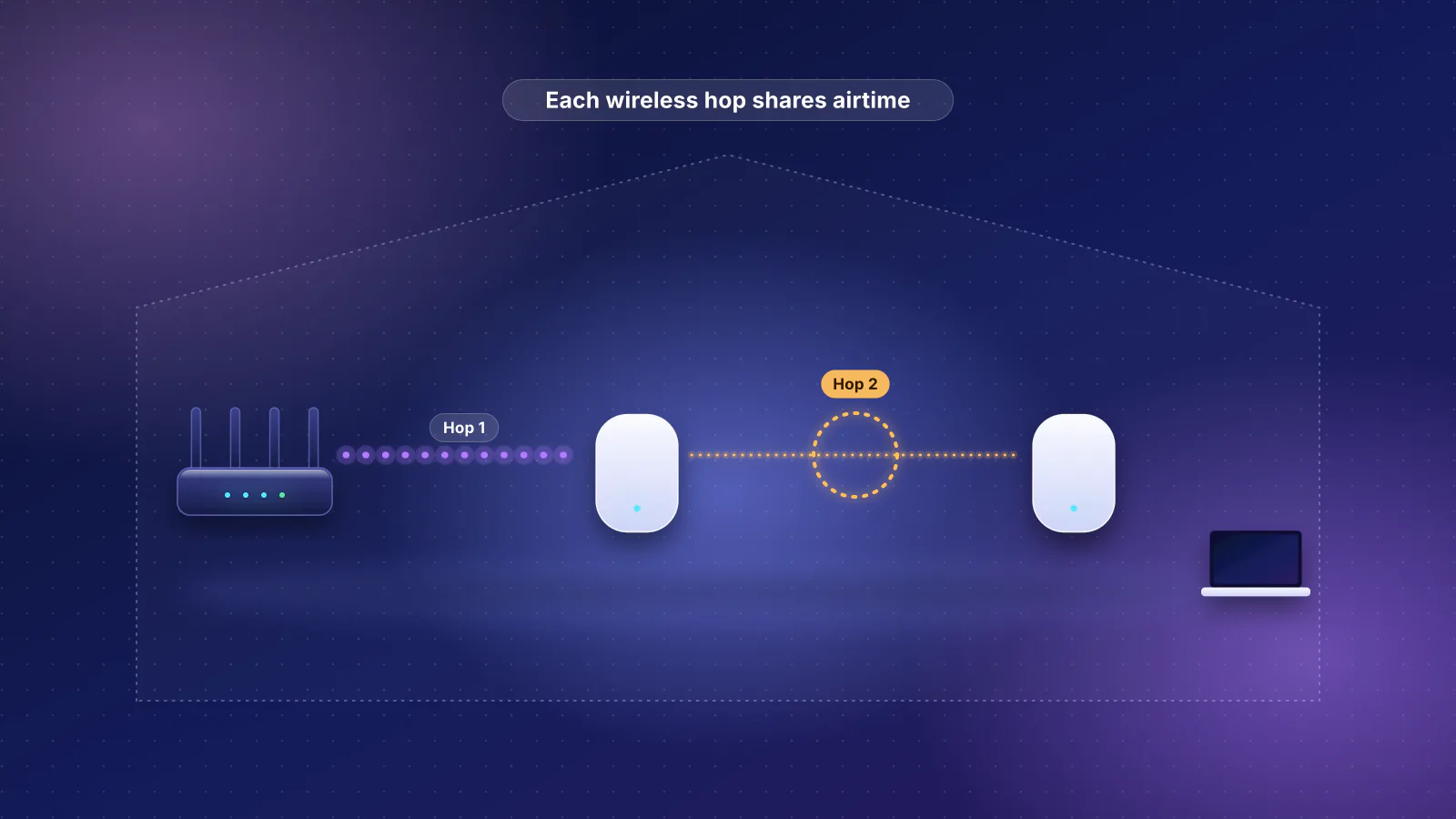
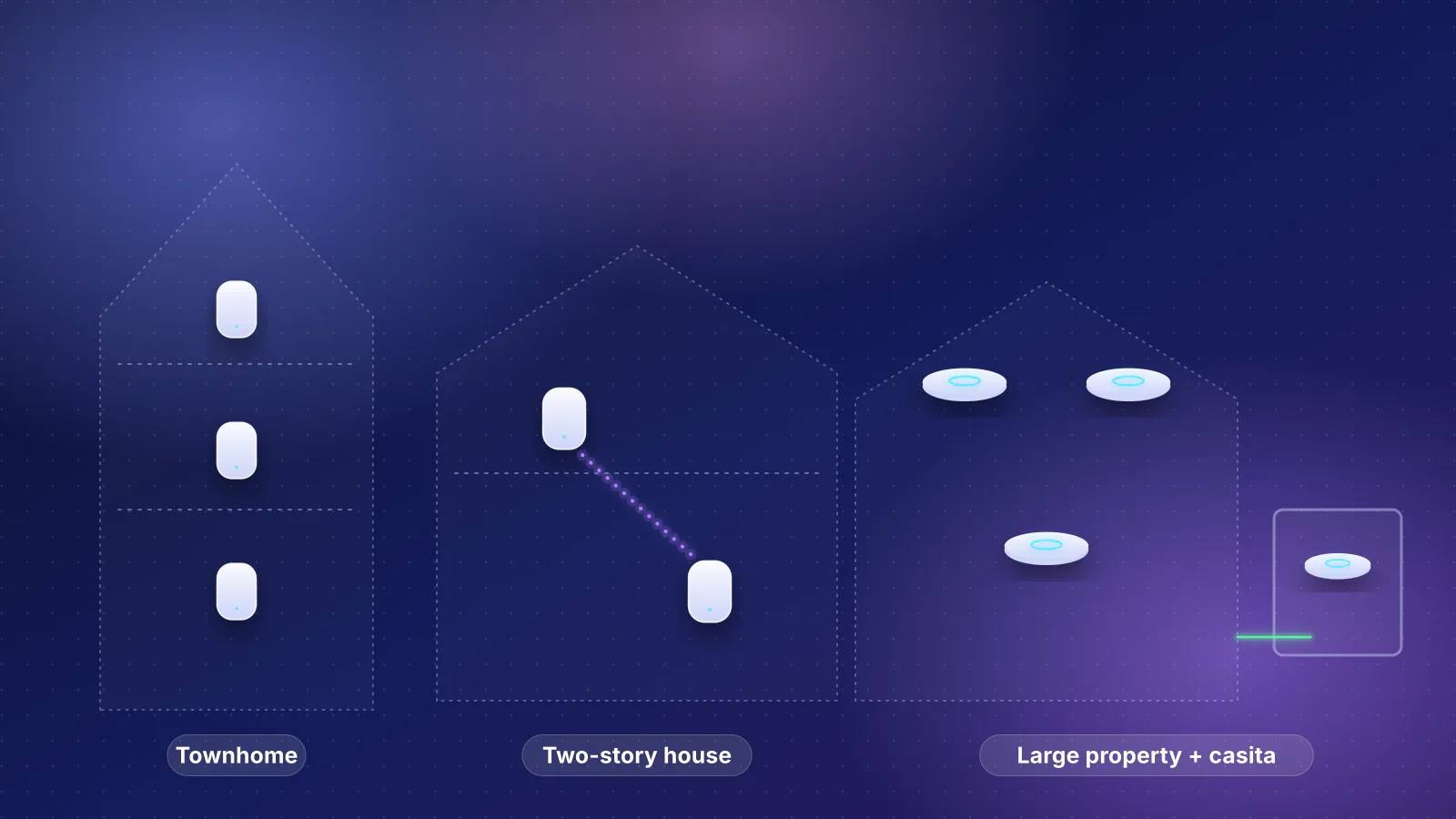
Adding a node isn't the default fix. If a phone in the office still reads the living room node above −70 dBm, a new office node doesn't change its decision: it only gives it a better candidate once it does look. And every extra wireless hop costs throughput; Ubiquiti recommends at most two. See how many mesh nodes you need before buying one.
Minimum RSSI and other kick features: use with care
Because the network can't move a device, some systems offer the blunt alternative: disconnect it when its signal is weak, so it has to reconnect, ideally to a nearer node.
- UniFi's Minimum RSSI tells an access point to disconnect clients below a set signal level. Ubiquiti warns it "can have implications for general roaming if improperly tuned; some devices may refuse to connect to an AP from which they have been kicked multiple times", and calls it "generally not recommended unless running a high density deployment."
- UniFi's Roaming Assistant (Network 9.2 and later) first uses BSS transition frames to warn clients they will be disconnected. Ubiquiti says this "soft kick" is "tolerated much better by modern clients" and "generally recommended to be set to a value below -70 dBm".
- ASUS's Roaming Assistant disconnects clients when their signal falls below a threshold, −70 dBm by default.
RouterHaus's arithmetic on why these can backfire: ASUS's default −70 dBm is the same level at which an iPhone starts looking for itself, so it adds little for iPhones; and a Mac, whose own trigger is −75 dBm, gets disconnected before it would have chosen to move. If no other node is stronger at that spot, the device may just reconnect to the same node after a gap, which on a call is worse than staying put. Try kick features last, set them weaker than −70 dBm, prefer the soft version where one exists, and turn them off if any device starts dropping.
Why the backhaul still matters
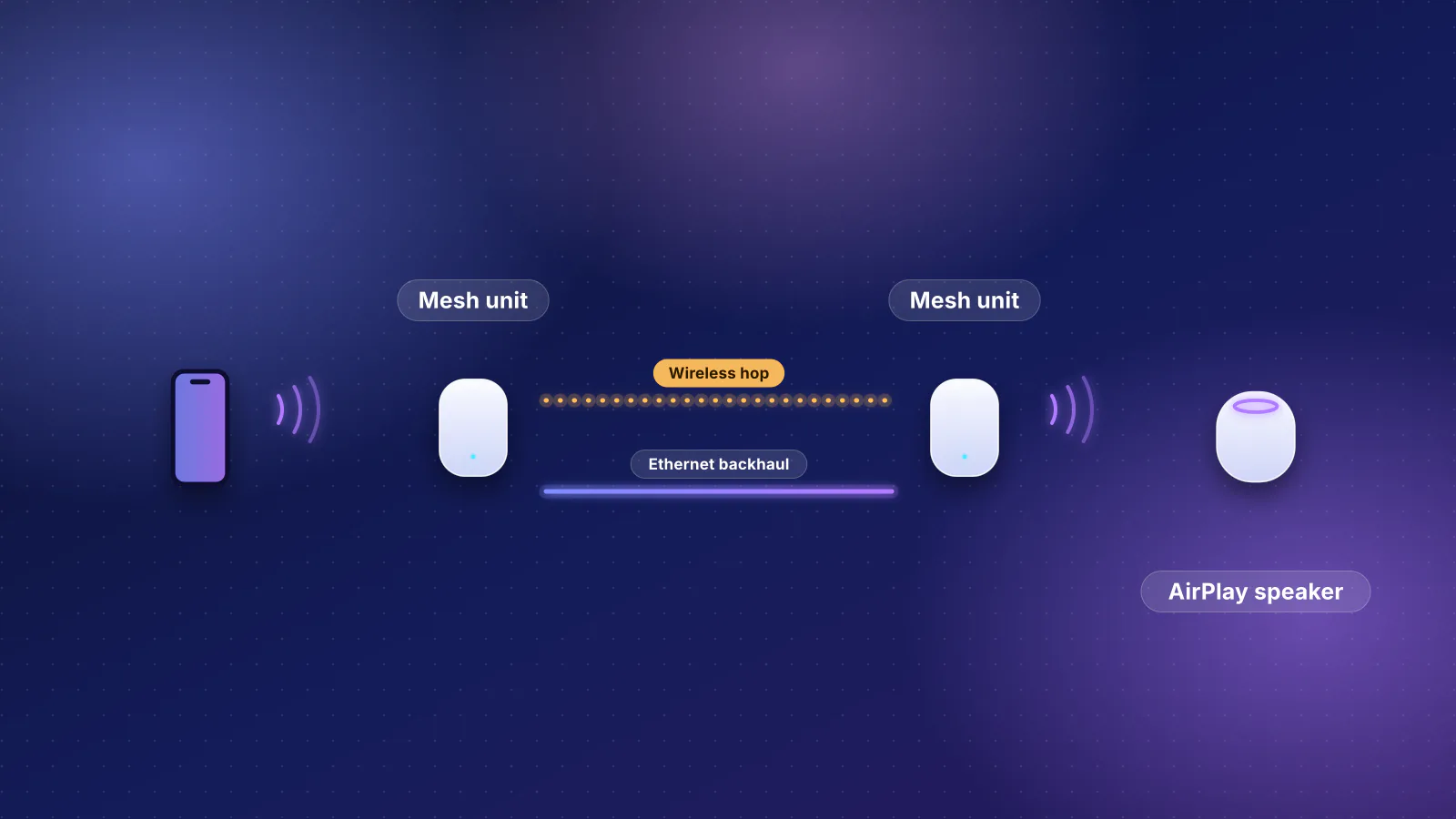
Roaming fixes get a device onto the nearest node; the backhaul decides whether that node is worth being on. A phone that roams correctly to a satellite whose wireless link to the router is weak gets a strong signal and a slow connection. Ubiquiti says "each 'wireless hop' reduces throughput by at least 50%" and calls hardwiring access points "the ideal method to provide the highest performance and stability".
A cable also frees placement. A wireless satellite has to sit where it still hears the router well (Ubiquiti aims for −60 dBm or better between a meshed access point and its parent), usually short of where you need coverage. A wired one can go where the roaming arithmetic says it should: at the stretch where calls fail, or in the room you use. If only one node can be wired, wire the one your devices roam to most. For which kits make that easy, see mesh systems with wired backhaul, and MoCA over TV coax where there's no Ethernet. Some Wi-Fi 7 systems can run the wireless backhaul over multi-link operation: ASUS documents an AiMesh "MLO Backhaul", limited to the first node and to identical models. See Wi-Fi 7 MLO explained.
The walk test: find out what your devices actually do
The test turns "the Wi-Fi is flaky" into a specific row of the symptom table. Change one setting at a time between runs.
What you can read on each device
- Any phone: the mesh app's client list is the dependable check. eero's device page "Shows which eero your device is currently connected to and which wifi frequency it's using (2.4, 5, or 6 GHz)". TP-Link's guide shows Deco clients listed under each unit (tap the Internet icon, then a Deco). UniFi shows each client's signal under Radios > Coverage. iPhones don't show signal strength or band; see how to tell which band an iPhone uses.
- Windows: Microsoft lists
netsh wlan show interfacesamong its baseline Wi-Fi diagnostics. It reports the current connection; look for the BSSID (the node you're on) and Signal lines, though Microsoft doesn't document the output line by line.netsh wlan show networks mode=bssid, Microsoft says, "adds the BSSID, signal strength, channel, and radio type for each visible network", so you can see every node the laptop hears. After a dropped call,netsh wlan show wlanreportbuilds a report of "recent wireless sessions, disconnect reasons" and related events. - Mac: hold Option and click Wi-Fi in the menu bar or Control Center. Apple's Mac User Guide says this menu shows details "such as the IP address, router address, channel, frequency (or band), security standard, and 802.11 protocol", and that it holds Open Wireless Diagnostics; Apple's list doesn't include the BSSID or signal strength. If your Mac shows them there, use them as a convenience and confirm with the mesh app's client list.
Converting Windows' percentage to dBm. Microsoft's Wi-Fi programming documentation defines signal quality as 0 to 100, where 0 "implies an actual RSSI signal strength of -100 dbm" and 100 "implies an actual RSSI signal strength of -50 dbm", linear in between. That makes it roughly dBm = −100 + (percentage ÷ 2): 60% is about −70 dBm and 76% about −62 dBm. This is RouterHaus's arithmetic, and it assumes netsh prints that same value, which Microsoft's netsh page doesn't state; treat it as approximate.
The steps
- Pick a route you actually walk while on calls, from the room with one node to the room with another. Note where each node sits and where calls tend to fail.
- Start at node A. Confirm in the client list (or with netsh on a laptop) that the device is on node A, and note the signal.
- Start something continuous: a voice or video call, or on a laptop a continuous ping to the router (
ping -tfollowed by the router's address on Windows; Microsoft's reference writes the switch as/tand says it keeps pinging "until interrupted"). - Walk slowly to node B's room and stand there for a minute. Note any freeze, its length, and where it happened.
- Check which node the device is on now. On a laptop, note the BSSID and signal of both nodes.
- Turn the device's Wi-Fi off and on in node B's room and check again.
- Walk back and repeat with the device idle (screen off, no call). Apple's 12 dB idle rule and Android's screen-off firmware roaming mean idle and busy behavior can differ.
| What happened | What it means | Next step |
|---|---|---|
| Moved to node B with no noticeable freeze | Roaming works on this route | If node B is still slow, look at its backhaul |
| Moved, but the call froze for a few seconds | Slow handoff | Confirm steering (802.11k/v) is on; try 802.11r if your devices cope |
| Stayed on node A, then moved to B after Wi-Fi off and on | Sticky: node A never fell past the device's trigger, or B was never 8 to 12 dB stronger | Placement and transmit power; Roaming aggressiveness on Intel laptops |
| Stayed on A even after Wi-Fi off and on | Node A probably really is the strongest signal in node B's room | Node B is badly placed (or blocked); move it before anything else |
| The connection dropped mid-route | A gap in coverage on the route, or a kick feature | Turn off Minimum RSSI or Roaming Assistant; move or wire a node to cover that stretch |
| Phones fine, one laptop sticky | That adapter or driver | Driver update, then Roaming aggressiveness |
Frequently asked questions
Can I force a device to use the nearest mesh node?
Usually not. TP-Link says Deco can't fix a device to a specific unit, and eero says Client Steering doesn't guarantee a device picks the closest eero. Turning the device's Wi-Fi off and on makes it choose again, and on Deco and ASUS you can exclude a stationary device from the system's roaming suggestions, though ASUS notes the device still roams on its own.
Will adding another mesh node fix a phone that clings to a far one?
Not by itself. A phone keeps its node until that node's signal falls to its own trigger, about -70 dBm for an iPhone, whatever else is nearby. A new node only helps once the phone looks, and only if it is 8 to 12 dB stronger than the old one at that point. Check placement first, and see how many nodes your home needs before buying.
Should I turn on Minimum RSSI to stop sticky clients?
Only as a last step. Ubiquiti calls Minimum RSSI generally not recommended outside high-density deployments and warns some devices may refuse to reconnect to an access point that has kicked them several times. If your system has a soft version, such as UniFi's Roaming Assistant, use that with a threshold below -70 dBm.
Why does my laptop roam differently from my phone?
They use different rules. Apple's Macs wait until -75 dBm and want a node 12 dB stronger, while iPhones look at -70 dBm and accept 8 dB stronger during a call. Windows laptops follow their adapter's driver; on Intel adapters, the Roaming aggressiveness setting moves the threshold.
Sources
Read on November 7, 2026.
- Apple Platform Deployment: Wi-Fi roaming support in Apple devices (who decides, −70 and −75 dBm triggers, 8 and 12 dB rules, the −67 dBm examples, candidate scoring, 802.11k/v/r support and behavior)
- Apple Platform Deployment: Optimize your Wi-Fi networks for Apple devices (phones see different cell boundaries; measure with the target device)
- Apple: Use the Wi-Fi status menu on Mac (the details the Option-click menu shows), Use Wireless Diagnostics on your Mac and If your Mac isn't connecting to the internet over Wi-Fi (Open Wireless Diagnostics from the Option-click menu)
- Android Open Source Project: Wi-Fi network selection (scan-skipping thresholds, firmware roaming, configurable defaults)
- Microsoft: Fast Roaming in Windows 10 with 802.11k, 802.11v, and 802.11r
- Microsoft: Wireless network connectivity issues troubleshooting (netsh show interfaces, networks mode=bssid, wlanreport)
- Microsoft: netsh wlan and ping
- Microsoft: WLAN_ASSOCIATION_ATTRIBUTES (BSSID and the 0 to 100 signal-quality scale)
- Intel: Wi-Fi Roaming Aggressiveness Setting, Wi-Fi Client Adapter Connection and Roaming Behavior and Advanced Intel Wireless Adapter Settings (all three in Intel's legacy-products section; last reviewed February 2025, October 2021 and February 2025)
- Dell: Change the Intel Advanced Wi-Fi Adapter Settings to Improve Slow Performance and Intermittent Connections (last modified May 7, 2026; Roaming Aggressiveness and Preferred Band on current laptops, availability caveat)
- IEEE 802.11 Task Group k: Radio Resource Measurement, Task Group r: Fast Roaming/Fast BSS Transition and Task Group v: Wireless Network Management (scope and publication; 802.11v-2011 date from the IEEE 802.11 timelines)
- Wi-Fi Alliance: Network management (Wi-Fi Agile Multiband and Wi-Fi Optimized Connectivity)
- eero: Why doesn't my device connect to the closest eero?, What advanced features does eero support? (Client Steering) and What device information can I see with eero?
- eero blog: TrueMesh, TrueRoam and TrueChannel (maker's description of TrueRoam)
- TP-Link: Why my clients fail to connect to the Deco Wi-Fi when Fast Roaming is enabled? and Why my devices cannot connect to Deco Wi-Fi (Fast Roaming location)
- TP-Link Community (official staff configuration guide, linked from TP-Link's FAQ): Get to know Fast Roaming / Seamless Roaming on a Deco system (802.11k/v/r on Deco, Mesh Technology toggle, client decides)
- NETGEAR: Orbi 770 series user manual (PDF, June 2024) (bandsteering, Transmit Power Control)
- ASUS: How to enable the Roaming Assistant, What is Roaming Block list?, How to configure Smart Connect and What is MLO and how does it work? (MLO Backhaul)
- Google Store: Nest Wifi Pro tech specs (band steering and 802.11k/v client steering)
- Ubiquiti: UniFi WiFi SSID and AP settings overview (Band Steering, BSS Transition, Fast Roaming, Minimum RSSI, Roaming Assistant)
- Ubiquiti: Optimizing WiFi connectivity and reducing latency (−70 and −65 dBm, transmit power, 6 GHz stickiness, wireless hops) and Maximizing wireless speeds (where clients usually roam)
- Ubiquiti: Unable to connect to WiFi (Fast Roaming and legacy clients) and Considerations for optimal wireless mesh networks (hardwiring)
- Ubiquiti: U7 Pro tech specs (802.11k, v and r)