The short version
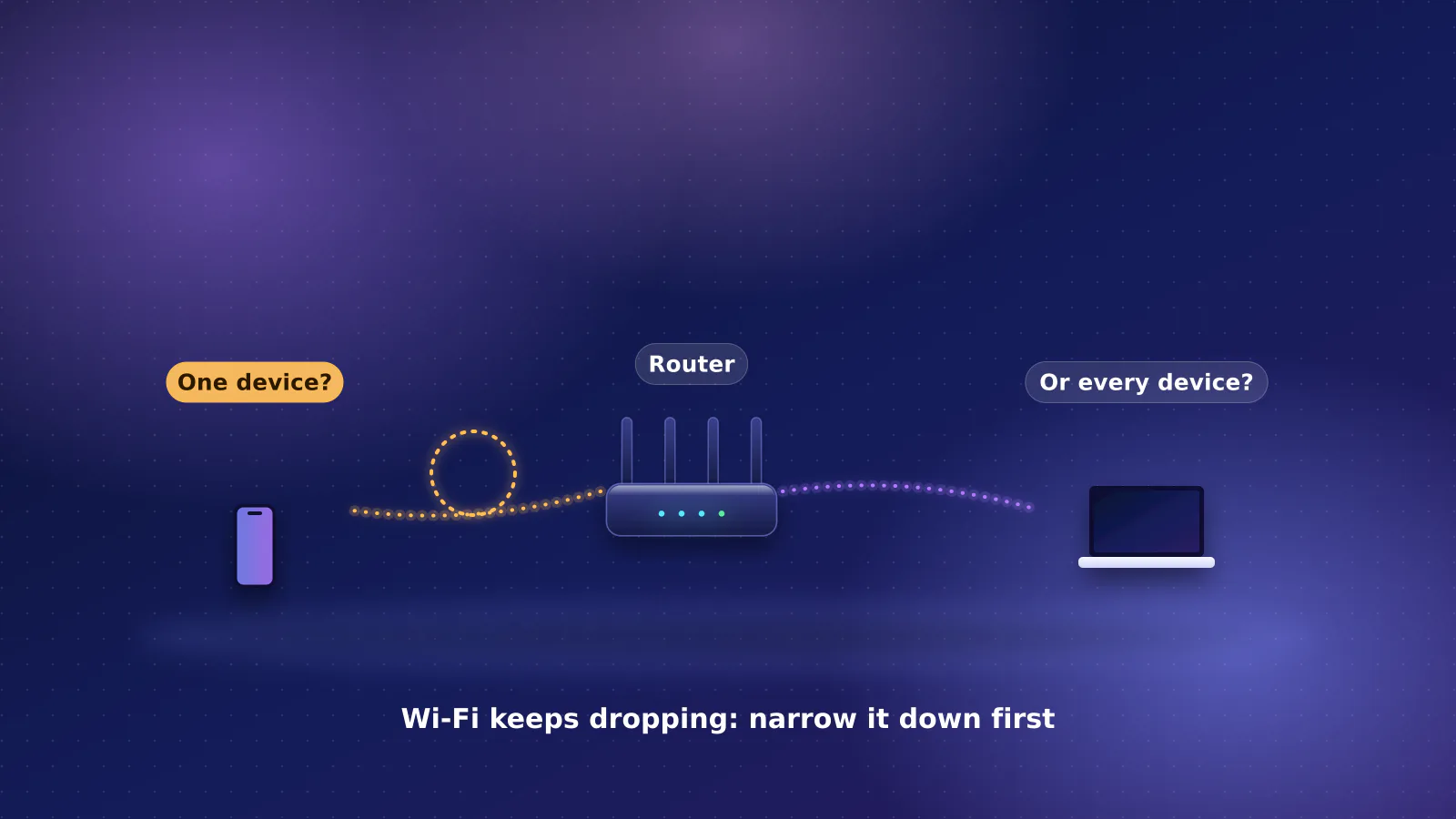
- First find out whether it's the stick or the network. If a phone held next to the TV streams fine while the stick buffers or drops, the stick's own link is the problem. If everything in the house drops, start with why Wi-Fi keeps disconnecting instead.
- Read the stick's own test. On a Roku, Settings > Network > Check connection rates the signal Excellent, Good, Fair or Poor; Roku says Poor means "Frequent buffering or disconnects likely."
- The TV itself is often in the way. Roku says "TVs can block Wi-Fi signals, especially if you use a Roku streaming stick plugged directly into the back", and offers a free HDMI extender to move the stick out from behind the screen.
- Check the power. Roku says many TVs "do not supply enough power" through their USB port, and Google says a Chromecast with Google TV or Google TV Streamer on the TV's USB port "might not be getting enough power." Amazon says its 2026 Fire TV Sticks can run from the TV's USB port with the included cable, so follow the instructions for your model.
- Use 5 GHz if the stick can see it. Roku calls 5 GHz "faster and less crowded than 2.4 GHz", and Google says a combined network name with band steering "may cause connectivity issues" for its streaming devices.
- Buy last, and buy small. A wired adapter, or a mesh unit or access point near the TV, targets the weak link itself. Roku says USB Ethernet adapters for its devices must be 10/100 Mbps, which is still four times the 25 Mbps Roku recommends for 4K.
First: is it the stick or the whole network?
A streaming stick that drops or buffers can be the only thing wrong, or the first thing you notice when the whole network is having trouble. The two need different fixes, so start with a two-minute check that changes nothing:
- Note when it happens. Every evening, only in one room, only after the TV has been on for a while, or at random.
- Hold a phone next to the TV, on the same network, and play a video or run a speed test while the stick is struggling.
- Check another device elsewhere in the house, ideally one on a cable.
| What you see | What it points to | Where to go |
|---|---|---|
| The phone next to the TV is fine; only the stick drops or buffers | The stick's own link: the TV blocking it, power, band or a setting | Keep reading |
| The phone is weak next to the TV too, but fine near the router | Coverage in that room | This article, then measure the signal room by room |
| Everything drops, wired devices included | The line or the provider | When it's the line |
| Only in the evening, on every device | Congestion on the line or on your Wi-Fi | Internet slow at night |
| Several TVs buffer when they play at once | Plan or Wi-Fi capacity | Planning for several 4K TVs |
Read the stick's own connection test
Each maker gives the stick a way to report on its own link. Read it once while the problem is happening, and again after each change, so you know which change helped.
Roku: Check connection and About
Roku's path is Home, then Settings > Network > Check connection. Roku says the test checks whether the device can see your network and reach the internet, and shows a check mark beside each item that passes. The latest results stay under Settings > Network > About. Here is how Roku describes each signal rating:
| Rating | Roku's description | Suggested next step |
|---|---|---|
| Excellent | "Strong, stable signal. Streaming should be smooth with no buffering." | If it still buffers, Roku points to other devices using the bandwidth or the app's own requirements |
| Good | "Reliable for most streaming. 4K or high-quality videos might buffer once in a while." | Try the placement and band changes below |
| Fair | "Weak signal. You may notice pauses or drops in video quality." | Roku: "Move your Roku device closer to the router or remove walls/obstacles." |
| Poor | "Very weak signal. Frequent buffering or disconnects likely." | Roku: "Restart Roku device and router, move them closer together, or use a wired connection." |
The same test measures download speed against Roku's typical requirements: 3 Mbps for standard definition, 5 Mbps for HD and 25 Mbps or more for 4K. Roku notes that if the result looks fine and video still stutters, other devices may be using the bandwidth or the app may have its own requirements; each service's own figures are in internet speed for streaming. If the test can reach the router but not the internet, Roku suggests opening a public website on another device: if that fails too, the provider may have an outage.
If you see a "Low signal strength" message on screen, Roku says the player has detected a poor connection between your router and the player, and points to its Wi-Fi improvement tips, which are the steps below.
Fire TV and Google streamers
This article doesn't cover Fire TV menu steps: Amazon's Fire TV help pages couldn't be read for it, so for any Fire TV setting or menu path, use Amazon's own Fire TV help. The Fire TV facts here come from Amazon's announcements, and the router-side checks and placement steps apply to any stick.
For a Fire TV, a Chromecast with Google TV or a Google TV Streamer, the most useful evidence is often on the router side. If your router or mesh app lists connected devices with their signal or band, find the stick there and note which band it's on and how its signal compares with a phone in the same spot; reading the router's evidence covers what those apps and logs show. Google's own guidance gives a useful yardstick: it says its streaming device "works best within 20 feet of the Wi-Fi router."
Behind the TV: placement and the HDMI extender
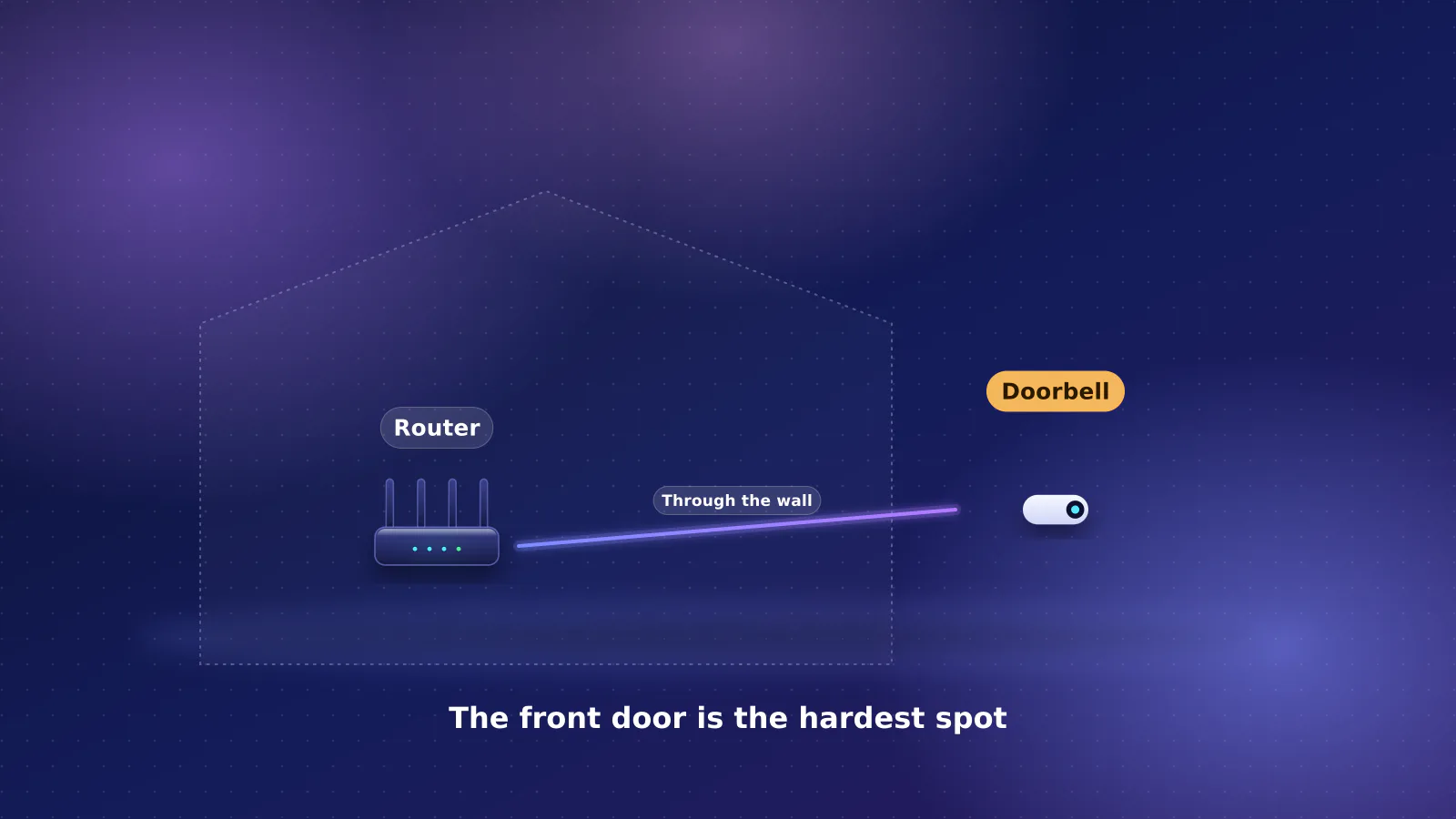
Likely cause: the TV. A stick plugged straight into an HDMI port on the back of a TV has the TV itself, and often a wall, between it and the router. Roku says it plainly: "TVs can block Wi-Fi signals, especially if you use a Roku streaming stick plugged directly into the back." Its fix is to "Use the free HDMI extender to move it out from behind the TV." Google gives the same advice for its devices, to "move your streaming device further away from your TV" and not to let it touch "other devices, wires, or cables."
Check: on a Roku, run Check connection, move the stick out from behind the screen on Roku's extender, and run it again. A rating that climbs from Fair to Good or Excellent confirms it. On other sticks, compare the signal the router reports before and after the move.
Exceptions and cautions, from the makers:
- Roku Streaming Stick+ and Streaming Stick 4K. Roku says "The Roku Streaming Stick+ connects to the network via advanced wireless receiver" and that "Using an HDMI extender will not improve the wireless signal strength" on it. The Streaming Stick 4K can use Roku's free extender, but Roku says "The long-range Wi-Fi® receiver is built into this cable" (the USB power cable that came with it), and that using another cable "may prevent the device from turning on (error 022)." Keep that cable.
- Chromecast with Google TV and Google TV Streamer. Google says they "don't have an HDMI extender." For them, the fixes are distance from the TV, distance from the router and the band.
Placement of the router matters as much as the stick. Roku's list: move the device and router "closer to each other", make sure "there aren't any walls, cabinets, or large furniture between" them, keep both out of enclosed spaces, and "Put both the router and the Roku device higher up, such as on a shelf." Google adds that "Physical obstructions like walls or large appliances can also affect the connection."
Here's an illustrative example of where the weak hop usually is. It isn't a measurement:
- Internet plan Comfortably above the 25 Mbps Roku recommends for 4K
- Router Another room, inside a cabinet
- Streaming stick Plugged into the back of the TV, through a wall: the weak link
- TV HDMI from the stick
Power: the TV's USB port or the wall adapter
Likely cause: not enough power. A stick that can't get enough power can restart or misbehave, which looks like a dropped connection from the couch. The makers' guidance differs by model, so go by the instructions for yours:
| Device | What the maker says about power |
|---|---|
| Roku Streaming Stick 4K | "Use the included power adapter"; powering it from the TV's USB port "may work on some TVs, but many do not supply enough power." |
| Roku Streaming Stick, Stick Plus and Streamer | "The USB port on some TVs may be unable to power a Roku device"; if so, "use a 5V 1A USB power adaptor and connect to a wall outlet", with the USB cable that came with the stick. |
| Any Roku player | If it shows a low power message or restarts on its own, plug it into a wall outlet "instead of your TV's USB port." |
| Chromecast with Google TV and Google TV Streamer | "If it's plugged into your TV's USB port or a different adapter, it might not be getting enough power." Google advises the power adapter that came with it, and gives 5V/1.5A as the recommended spec for a replacement. |
| Fire TV Stick 4K and Fire TV Stick HD (2026) | Amazon says both use "Direct Power" to run "using a TV's USB port with the included cable"; the HD can also run on "a USB-C cable and a wall adapter." |
| Fire TV Stick (Amazon's 2024 setup article) | Amazon's setup article describes plugging the USB cable into "the included power adapter" and then into an outlet "for optimized performance." |
Check: if your stick came with a wall adapter and it's running from the TV, move it to the adapter and an outlet for a day. If the drops stop, power was the cause.
2.4 GHz, 5 GHz and band steering
Likely cause: the stick is on the slower, more crowded band, or being moved between bands. Roku says "5 GHz is faster and less crowded than 2.4 GHz" and suggests switching to the 5 GHz network if both your router and Roku support it. Google says: "If your router supports both 2.4 GHz and 5 GHz, make sure your streaming device is on the 5 GHz network." Run the stick's connection test on each band while you compare, and keep the one that rates better in that spot.
Three details trip people up:
- One name for both bands. If your router shows one network name for both bands, it steers each device to a band itself. Google warns that Smart Connect or band steering "may cause connectivity issues" with its streaming devices and suggests connecting "specifically to the 5 GHz network for better performance." To do that, the router has to show the bands as separate names, at least while you test. One network name, band steering and why setup fails explains how and what it costs other devices.
- DFS channels. Roku says "Some Roku player models can't use certain 5 GHz DFS (Dynamic Frequency Selection) channels", namely channels 50 to 64 and 100 to 144. If your Roku doesn't see your 5 GHz network at all, Roku suggests setting the router to a channel from 36 to 48 or 149 to 165. Radar-forced channel changes on DFS channels can also make 5 GHz devices drop briefly; see channel changes and DFS.
- Wi-Fi 6E and 6 GHz. Amazon called the Fire TV Stick 4K Max it announced in 2023 "the industry's first streaming stick to include support for Wi-Fi 6E", meaning "customers with a compatible router" benefit; its 2022 announcement called the third-generation Fire TV Cube "the first streaming media player in the industry with Wi-Fi 6E support". A 6 GHz link only helps if the router offers 6 GHz and its signal reaches the TV. The first-generation Chromecast, Google says, "is only compatible with 2.4 GHz Wi-Fi networks."
Interference is the other 2.4 GHz problem. Roku says to "Keep your router away from cordless phones, microwaves, and baby monitors," and to angle the router's antennas in different directions. If the drops line up with the microwave running, interference is the likely cause.
Mesh, extenders and isolation settings
Likely cause: the stick is on an extender or mesh unit with a setting that blocks it, or on a node far from where it should be. Google says that if you add a repeater or mesh point for coverage, "You'll need to disable AP isolation on your Wi-Fi extender" before setting up the streaming device; AP isolation (also called client isolation or guest mode) stops devices on the network reaching each other, and Google's steps turn it off on the router itself too. A stick that connects but can't be cast to, or can't be found by the phone app, may be isolated rather than weak; the same-network rule for AirPlay explains which router settings cause it.
A stick that never moves can still be connected to a farther node than the one in its room. If your mesh app shows which node the stick uses, check it's the nearest one. The device, not the mesh, usually decides when to switch nodes; why devices stick to the wrong node covers it.
Connected, but nothing plays
A stick that shows a good signal but can't load anything is past the Wi-Fi and into the internet side. Roku's connection test separates the two: a red X for the wireless connection means the Roku can't reach your router or network, while a router connection with a failed internet connection points to the router, the line or the provider. Roku's suggestions are to restart the Roku and the router, confirm the Wi-Fi network, check a public website from another device for an outage, and contact the provider.
When other devices load sites fine and only the stick can't, check the same things as for any device: an address problem, or a DNS or filtering setting on the router. Connected but no internet walks through them in order, DNS included.
Hotels, dorms and sign-in pages
Networks that make you accept terms or sign in on a web page (a captive portal) are a problem for devices with no browser. The makers handle them differently:
- Roku has Hotel & Dorm Connect: choose the network under Settings > Network > Set up new wireless connection, select "I am at a hotel or college dorm", then finish the sign-in on a phone or laptop, following the prompts on the TV. Roku says you have "several minutes to authenticate", points to its device comparison chart for which models support the feature, and says that "Streaming results may vary depending on the connection speed at the hotel or college dorm." If the device has been offline a long time, Roku suggests connecting it at home before you travel and checking for a software update.
- Google streaming devices "don't support networks requiring connection through a captive portal", Google says. Google also says that if you can't change a network's AP isolation setting, you can't set up the device on it, and that "This also applies to connecting through a guest, hotel, or public network with AP or client isolation."
The fixes, in order
- Restart the chain. Roku says to unplug the Roku, router and modem, wait about 15 seconds, then plug in "the modem in first, then the router, then your Roku player." Google says to leave the router unplugged for 2 minutes, and that its streaming device "must be disconnected from the power source in order to reboot"; unplugging it from the HDMI port doesn't restart it.
- Run the stick's connection test (on a Roku, Check connection; on other sticks, the signal your router app reports) and write down the result, so you can tell whether each later step helped.
- Move the stick out from behind the TV. On a Roku stick, use Roku's free HDMI extender (not the Streaming Stick+, which Roku says an extender won't help). Google's current streamers have no extender, so move them further from the TV. For a Fire TV, check Amazon's own help.
- Fix the power: the maker's adapter and a wall outlet, unless your model is designed for the TV's USB port and shows no low-power warning.
- Move the router into the open, higher up and out of cabinets, away from microwaves and cordless phones.
- Try 5 GHz on its own, by showing the bands as separate names while you test. On a Roku that can't see 5 GHz, move the router off DFS channels.
- Reset the stick's network settings. On a Roku that keeps failing to connect, Roku's path is Settings > Advanced system settings > Network connection reset > Reset connection, then rejoin Wi-Fi.
- Check isolation settings on the router and any extender if the stick connects but apps or casting can't find it.
- Test with a cable. Roku says that with a wired connection, "If everything streams smoothly, your Wi-Fi setup is the problem." That tells you whether the next step is a wired link, a better access point, or a call to the provider.
When new equipment is justified
Buy nothing until the steps above have had a fair test. An HDMI extender is free from Roku, and moving a router or a power plug costs nothing. When the stick still rates Fair or Poor after that, the purchases worth making are small and aimed at that one link:
| If this is true | What's justified | What the makers say |
|---|---|---|
| An Ethernet cable or jack can reach the TV | A wired adapter for a Roku or Chromecast that accepts one, or a streamer with an Ethernet port | Roku: "Some Roku players support a wired Ethernet connection with a USB adapter"; adapters must be "10/100 Mbps only. Gigabit (1000 Mbps) adapters won't work." That's still four times Roku's 25 Mbps 4K figure. Google's Ethernet adapter "provides both power and internet connectivity" for Chromecast with Google TV and Chromecast Ultra. Google TV Streamer has "Ethernet (10/100/1000 Mbps)" built in; Amazon says the 2022 Fire TV Cube has "a new Ethernet port if you need a wired network connection." |
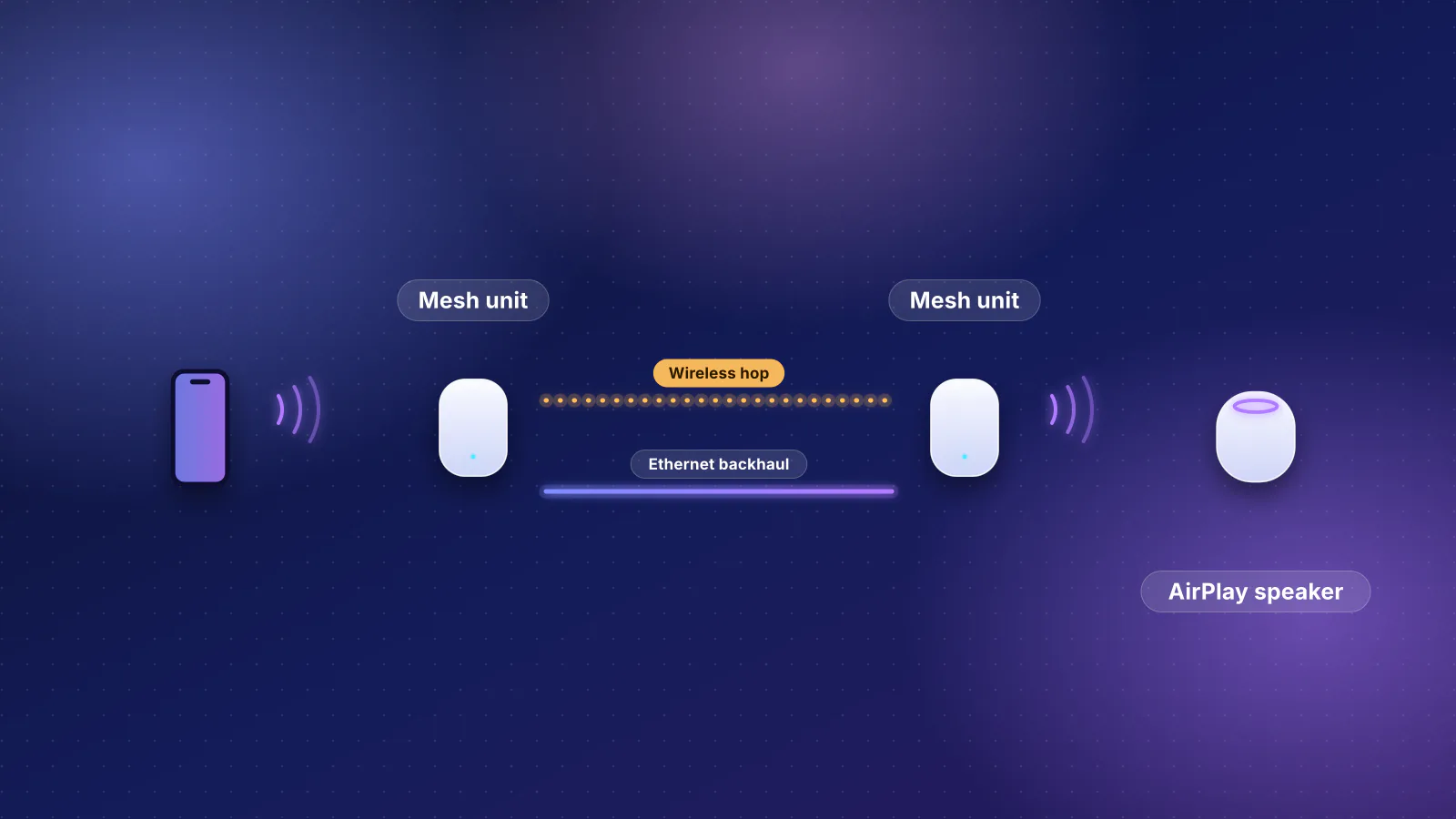
| No cable can reach, and the room is weak for every device | A mesh unit or access point near the TV, ideally with a short cable from it to the stick | Google suggests "a Wi-Fi repeater or mesh point" for coverage, with AP isolation off. See extender vs mesh vs access point for which fits. |
| The router is old and every device is slow or short-ranged | Possibly a new router, after the free checks | Roku says a router "older than five years" may not deliver the speed or range you need, and that newer routers, especially mesh or dual-band systems, "often fix persistent Roku Wi-Fi problems." Age alone isn't the test; when to replace your router has the ones that matter. |
Check compatibility before you buy an adapter: Roku lists which of its devices accept a USB Ethernet adapter (among them the Streaming Stick and Streaming Stick Plus, models 3840X and 3830X, which take a USB-C adapter, and some Express, Streambar and soundbar models), and says "Not all Roku devices support using an Ethernet adapter to connect to your wired network." Wiring a TV in general is covered in Wi-Fi or Ethernet for the TV.
When to get professional help
Call your provider when the connection test can reach the router but not the internet and other devices are failing too. Get hands-on help when the fix is physical: running a cable to the TV wall, adding a jack, or putting an access point where the TV room keeps dropping. RouterHaus can connect you with a licensed contractor when the job needs hands on site; start at a network consultation.
Frequently asked questions
Why does my Fire TV Stick or Roku keep disconnecting when my phone is fine?
The stick is usually in a worse spot than the phone: behind the TV, which Roku says can block Wi-Fi signals, sometimes powered by a TV USB port that can't supply enough power. Move it out from behind the screen (on a Roku, with Roku's free extender), use a wall adapter if your model came with one, and try the 5 GHz band. For Fire TV menu steps, use Amazon's own help.
Does an HDMI extender really help a streaming stick's Wi-Fi?
For many sticks, yes: Roku offers a free one to move the stick out from behind the TV. Not for every model: Roku says an extender will not improve signal strength on the Streaming Stick+, and Google says its Chromecast with Google TV and Google TV Streamer don't have one.
Should my streaming stick be on 2.4 GHz or 5 GHz?
5 GHz if it can reach it. Roku calls 5 GHz faster and less crowded, and Google says to put its streaming devices on 5 GHz when the router supports both. Run the stick's connection test on each band and keep the one that rates better.
Is it OK to power a Roku or Fire TV Stick from the TV's USB port?
It depends on the model. Roku says many TVs don't supply enough power and recommends the included adapter for the Streaming Stick 4K. Amazon says its 2026 Fire TV Stick 4K and HD can run from the TV's USB port with the included cable. If the stick restarts or shows a low-power warning, use a wall outlet.
Will a wired adapter fix buffering on a Roku stick?
If Wi-Fi is the cause, yes, and Roku's own advice says how to tell: if everything streams smoothly on a wired connection, your Wi-Fi setup is the problem. On the Roku models that accept a USB Ethernet adapter, Roku says it must be 10/100 Mbps, which is still four times the 25 Mbps Roku recommends for 4K.
Sources
Read on November 27, 2026.
- Roku Support: How to improve the Wi-Fi or wireless internet connection to your Roku streaming device
- Roku Support: How to check the connection on your Roku streaming device
- Roku Support: What to do if you see the "Low signal strength" message
- Roku Support: How to set up your Roku Streaming Stick 4K
- Roku Support: How to set up your Roku Streaming Stick, Streaming Stick Plus, or Streamer
- Roku Support: How to connect your Roku streaming device to the Internet
- Roku Support: How to use USB to connect your Roku streaming device to a wired network
- Roku Support: How do I use Hotel & Dorm Connect to connect to the internet?
- About Amazon: Fire TV Stick 4K with Direct Power and Wi-Fi 6 (September 30, 2026)
- About Amazon: Fire TV Stick HD (April 15, 2026)
- About Amazon: How to connect your Fire TV Stick to a smart TV (updated December 27, 2024)
- Amazon press release: Fire TV Stick 4K and 4K Max (September 20, 2023)
- Amazon press release: third-generation Fire TV Cube (September 27, 2022)
- Google Streaming Help: Troubleshoot Chromecast and Google TV Streamer connection
- Google Streaming Help: Can't connect Chromecast or Google TV Streamer to Wi-Fi
- Google Streaming Help: Troubleshoot "Low power" and "g.co/cast/power" screens
- Google Streaming Help: Ethernet adapter for Chromecast, a quick start guide
- Google Store: Google TV Streamer (4K) tech specs