
The short version
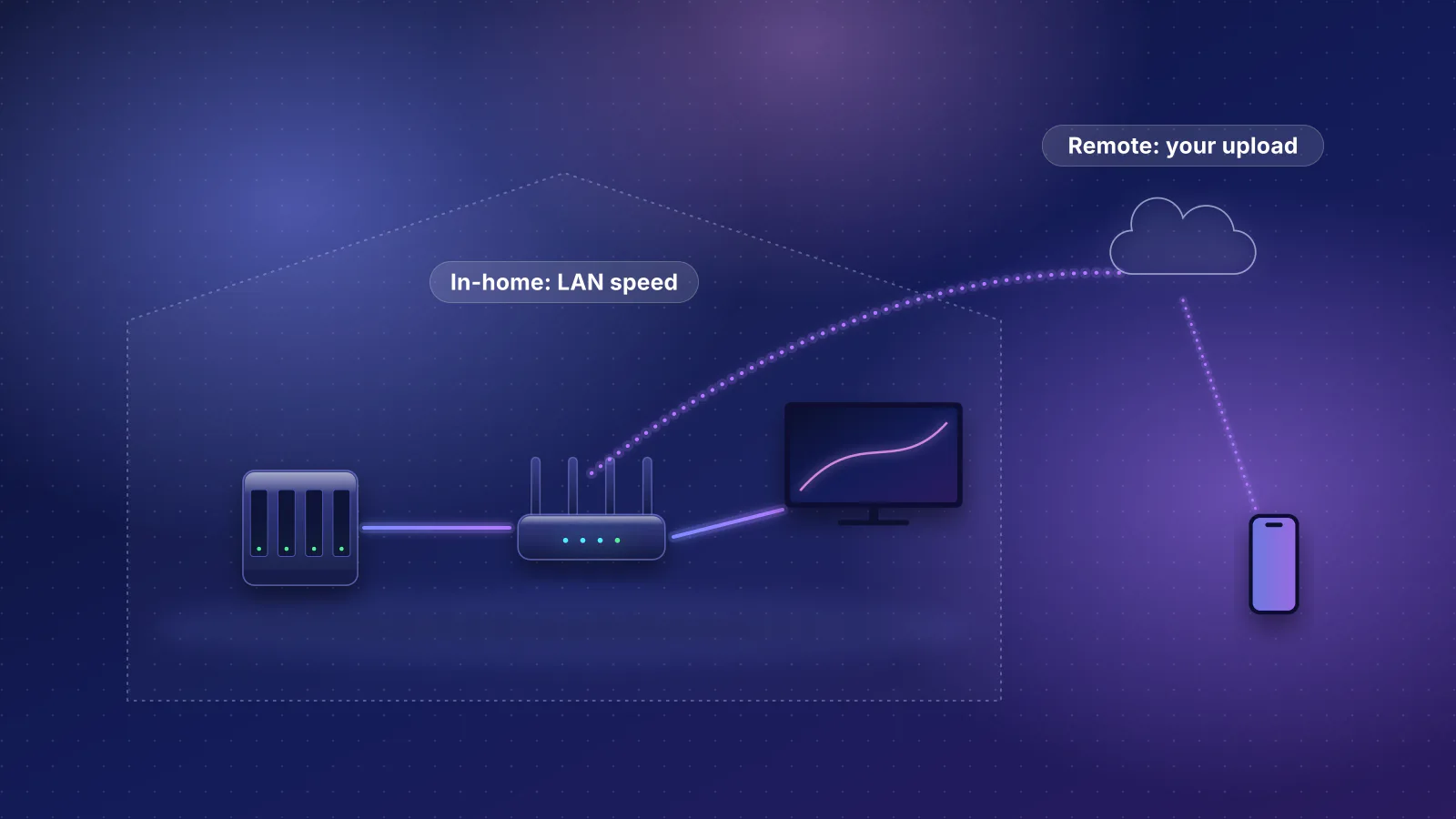
- Your plan is rarely the problem. The services' own figures range from 15 Mbps (Netflix) to 25 Mbps (Apple TV app, Disney+) per 4K stream, so four TVs at once need about 100 Mbps. That's a third of a 300 Mbps plan.
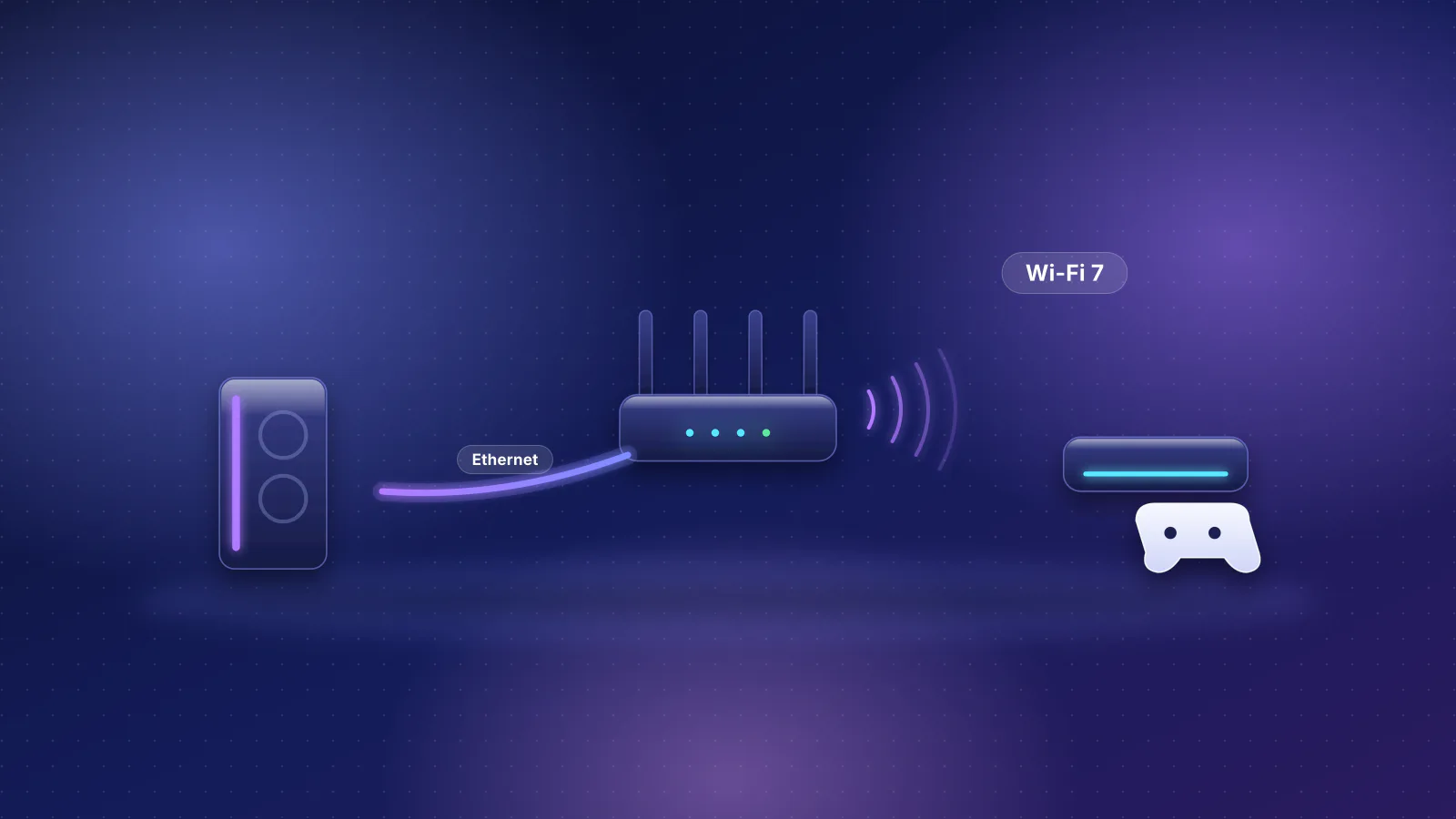
- The link to each TV is usually the problem. Apple says an Apple TV should be on Ethernet when it's available. If you can't run a cable to the TV, put a mesh unit or access point in that room and plug the Apple TV into it.
- Know your model. The new Apple TV 4K (4th generation, announced October 13, 2026) has Wi-Fi 7, Gigabit Ethernet and Thread on every unit. The 2022 model came in two versions, and the cheaper Wi-Fi-only one has no Ethernet port and no Thread radio.
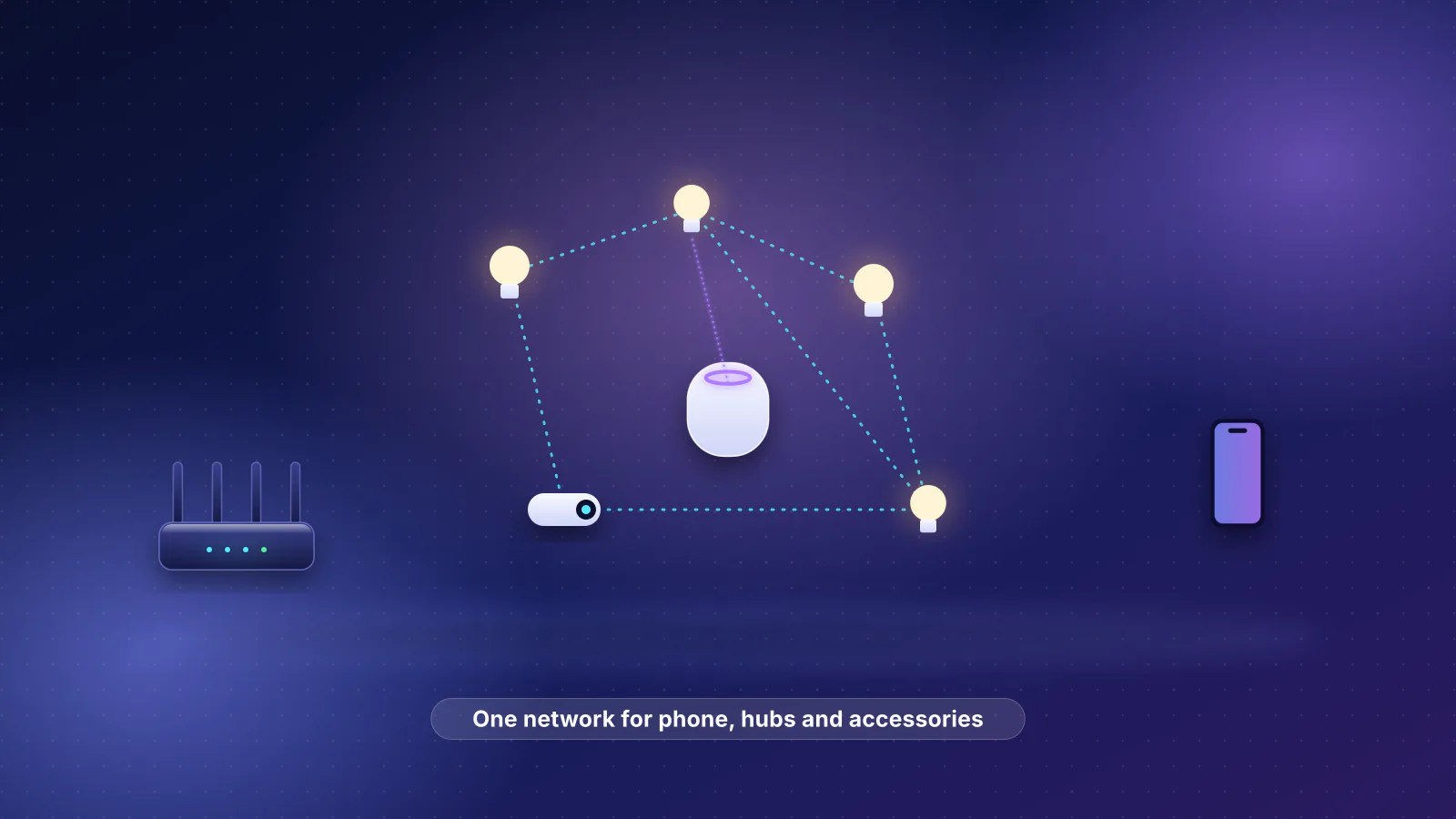
- Keep TVs, phones and hubs on one network. The Home app needs it, and it's the first thing Apple's AirPlay troubleshooting checks. Guest networks, client isolation, multicast filtering and separate VLANs can each hide a TV from the AirPlay list.
- Caveat: Apple hasn't yet published the new model's Wi-Fi bands or channel widths, and the bitrates here are the services' recommended connection speeds, not measurements.
What each Apple TV 4K has for networking
From Apple's tech specs and its Identify your Apple TV model page, checked October 21, 2026:
| Model (year, model number) | Wi-Fi | Ethernet | Thread radio | On tvOS 27? |
|---|---|---|---|---|
| Apple TV 4K, 4th generation (2026) | Wi-Fi 7 (802.11be), 2x2 MIMO | Gigabit | Yes | Yes (pre-orders open; available November 13) |
| Apple TV 4K, 3rd generation, Wi-Fi + Ethernet (2022, A2843) | Wi-Fi 6 (802.11ax), 2x2 | Gigabit | Yes | Yes |
| Apple TV 4K, 3rd generation, Wi-Fi (2022, A2737) | Wi-Fi 6 (802.11ax), 2x2 | None | No | Yes |
| Apple TV 4K, 2nd generation (2021, A2169) | Wi-Fi 6 (802.11ax) | Gigabit | Yes | Yes |
| Apple TV 4K, 1st generation (2017, A1842) | Wi-Fi 5 (802.11ac) | Gigabit | No | No |
Three details matter for planning:
- The 2021 and 2022 models top out at 80 MHz on 5 GHz. Apple's Wi-Fi specifications list a maximum link rate of 1,200 Mbps for both, on 5 GHz with 80 MHz channels, and no 6 GHz band. A router's 160 MHz or 6 GHz features don't speed up these TVs. A link rate is the best-case radio rate, not throughput.
- The 4th-generation model's Wi-Fi details aren't published yet. Apple's spec page says Wi-Fi 7 with 2x2 MIMO "available in countries and regions where supported", but it doesn't list bands or channel widths. Apple's deployment guide (dated September 17, 2026) doesn't include the new model yet. Until it does, don't buy a router on the assumption that the new Apple TV uses 6 GHz.
- Older models are falling off the update list. Apple's security-releases page lists tvOS 27 (September 14, 2026) for Apple TV 4K (2nd generation) and later, so the 2017 model and Apple TV HD don't get it. Apple TV HD also has only 10/100 Ethernet.
What 4K streaming actually needs
Each service publishes a recommended connection speed for 4K. These are planning figures from the services, checked October 21, 2026, not measured stream bitrates:
| Service | Recommended for 4K | What the service says |
|---|---|---|
| Apple TV app | 25 Mbps | "Apple recommends a minimum speed of 25 Mbps for 4K streaming." Below that, Apple devices switch to a lower-quality version automatically. |
| Netflix | 15 Mbps | "15 Mbps or higher" for UHD 4K. Its data-usage page says 4K uses up to 7 GB per hour. |
| YouTube | 20 Mbps | Listed as the "recommended sustained speed" for 4K UHD. |
| Disney+ | 25 Mbps | "25.0 Mbps for 4K UHD content". |
Netflix's two numbers agree. Arithmetic, not a measurement: 7 GB an hour is 7 × 8,000 megabits ÷ 3,600 seconds, about 15.6 Mbps on average.
Household arithmetic: several TVs at once
The table uses the highest figure above, 25 Mbps, for every TV. It's arithmetic from the services' recommendations, not a measurement.
| TVs streaming 4K at once | Total | Share of a 100 Mbps plan | 300 Mbps plan | 1 Gbps plan |
|---|---|---|---|---|
| 1 | 25 Mbps | 25% | 8% | 2.5% |
| 2 | 50 Mbps | 50% | 17% | 5% |
| 3 | 75 Mbps | 75% | 25% | 7.5% |
| 4 | 100 Mbps | 100% | 33% | 10% |
What this means in practice:
- Below about 200 Mbps, four 4K streams take half or more of the connection, so a big download, game update or cloud backup at the same time can push the services to drop quality. SQM (smart queue management) keeps one heavy download from crowding out the rest; see our bufferbloat and SQM guide.
- On 300 Mbps or more, the plan has room to spare. If a TV still buffers, look at that TV's link first.
- Data caps add up. Using Netflix's ceiling of 7 GB an hour, four TVs watching 4K for three hours is up to 4 × 3 × 7 GB = 84 GB in one evening. If your plan has a monthly cap, check it.
- A healthy Wi-Fi link has room too. One 25 Mbps stream is about 2% of the 1,200 Mbps best-case link rate Apple lists for the 2021 and 2022 models (arithmetic; real throughput is lower than the link rate). Buffering on Wi-Fi usually means a weak or crowded link: a TV behind masonry, inside a cabinet, or sharing a channel with busy neighbors. Wi-Fi capacity is shared airtime, as our guide to busy networks explains.
Wi-Fi or Ethernet for the TV
Apple's own deployment guidance is direct: "Apple TV should be connected to Ethernet if available." It goes further for one case: an Apple TV "should always be connected to Ethernet" when the Wi-Fi network uses DFS channels (5 GHz channels shared with radar) and you want peer-to-peer AirPlay. For the 2021, 2022 Wi-Fi + Ethernet and 2026 models, the port is Gigabit, which is far more than any stream needs.

If you can't run a cable to the TV:
- Put a mesh unit or access point in the TV room and plug the Apple TV into its Ethernet port with a short cable. The Apple TV then uses the unit's link back to the router instead of its own antennas, which are often tucked behind the screen.
- Give that unit a wired link (Ethernet or MoCA over coax) if the house allows it. A wireless link between units shares airtime with your devices; see why backhaul matters more than the box. Adding units only helps where they can link well; see why mesh Wi-Fi doesn't always fix coverage.
- Mind the placement. Apple's AirPlay guidance says mounting an Apple TV "in a cabinet, behind a TV, above a projector, or in the ceiling could degrade the signal" between it and the devices that AirPlay to it.
- If you're building or renovating, run Ethernet to every TV location; see suggested drops by room.
When an Apple TV is on Ethernet, tvOS lets you put its Wi-Fi in low-power mode by turning off Peer-to-Peer Wireless (Settings, AirPlay and Apple Home). Apple notes that Wi-Fi then stays in low-power mode until another device's AirPlay request activates it again. Leave the setting on if guests AirPlay to that TV without joining your network, since that uses the peer-to-peer link.
The router settings Apple recommends
Apple's support article Recommended settings for Wi-Fi routers and access points (dated July 14, 2026) applies to every router and every band. The settings that matter most for TVs:
| Setting | Apple's recommendation | Why it matters for TVs |
|---|---|---|
| Network name (SSID) | One name for all bands, on every router or mesh unit | Apple warns that different band names can stop devices connecting reliably to all bands and all units. |
| Security | WPA3 Personal, or WPA2/WPA3 Transitional | Avoid WPA/WPA2 mixed, WEP and TKIP, which Apple says reduce reliability and performance. |
| Channel and width | Channel Auto; 20 MHz on 2.4 GHz; Auto or all widths on 5 and 6 GHz | Apple says Auto on 5 and 6 GHz "ensures the best performance and compatibility with all devices", and 20 MHz on 2.4 GHz avoids interference problems. |
| WMM | Enabled | Wi-Fi multimedia prioritizes video and voice; Apple says disabling it affects performance and reliability. |
| DHCP and NAT | On only on the one device that routes | Apple warns that NAT on two devices (double NAT) "might cause devices to lose access to certain resources on the network". |
| Hidden network, MAC filtering | Disabled | Apple says neither secures the network, and some Apple devices use a different MAC address on each network. |
| Firmware | Automatic updates on | Updates fix stability as well as security. |
That article doesn't mention multicast, client isolation or IPv6. Apple covers those in its AirPlay and Home troubleshooting pages, below.
AirPlay, discovery and the "same network" rule
Apple's deployment guide describes three ways an iPhone, iPad or Mac finds an Apple TV:
- Bonjour (Apple's name for multicast DNS service discovery). Because "multicast traffic is usually not routed across subnets", Apple says Apple TVs must be "on the same IP subnet" as the devices that use them.
- A Bluetooth Low Energy advertisement that carries the Apple TV's IP address, heard by devices "generally within the same room". It doesn't need the same network, but it does need a path: it works "as long as … there are no firewalls restricting access from the source device to the Apple TV".
- Peer-to-peer Wi-Fi, a temporary direct link that Apple says typically operates on channel 149 (Apple writes "149+1"), or on channel 44 (42 in most of Europe) where 149 isn't allowed. Apple suggests avoiding channels 149 and 153 in rooms where peer-to-peer AirPlay is used a lot.
Apple's deployment guide notes that AirPlay itself doesn't strictly need a shared network, because of the Bluetooth and peer-to-peer paths. In a home, though, Apple's first troubleshooting step is to check that the devices "are on the same Wi-Fi network", and its Apple TV network page adds that "peer-to-peer traffic may be blocked on guest networks". These router features can each break discovery:
| Router feature | What it does to AirPlay and the Home app | What to do |
|---|---|---|
| Guest network | Guests usually can't reach your main network, and Apple says peer-to-peer traffic may be blocked | Keep Apple TVs, HomePods and your own phones on the main network. Guests can still use peer-to-peer AirPlay if the Apple TV's Allow Access setting is Everyone. |
| Client or AP isolation | ASUS: "wireless clients or devices will not be able to communicate with each other". Ubiquiti: blocks device-to-device traffic "including discovery and casting protocols". | Leave it off on the network your TVs use. |
| Multicast filtering | Ubiquiti says its Multicast & Broadcast Control "blocks cross-AP device discovery (e.g., Apple TVs won't work across APs)". | Leave it off in a home. Ubiquiti suggests its Multicast to Unicast option for small and medium networks instead. |
| TVs on a separate VLAN | Bonjour doesn't cross the boundary on its own | Use your router's mDNS relay for both networks (Ubiquiti: "Ensure mDNS is enabled for both your client network, and the network associated with your AirPlay/Chromecast devices") and allow traffic from phones to TVs. |
| Two routers (double NAT) | A TV wired to the provider's gateway and a phone on your own router are on different networks | Make one device the router; see how to fix double NAT. |
On the Apple TV itself, Settings, AirPlay and Apple Home, Allow Access offers Everyone, Anyone on the Same Network, Only People Sharing This Home, and a password option. In normal router mode, a mesh system from one maker is one network, so phones and TVs on different units find each other as long as none of the features above is switched on.
The Apple TV as a home hub
An Apple TV becomes a home hub when you assign it to a room in the Home app, and the current Home app needs a hub to share control of your home and send notifications. Thread accessories need a Thread-capable hub: of the TVs in the table, that's the 2nd generation, the 3rd-generation Wi-Fi + Ethernet model and the 4th generation, not the Wi-Fi-only 2022 model.
One wrinkle: for a "Thread Border Router Required" alert, Apple's troubleshooting says that if the hub is an Apple TV on Ethernet, connect it to Wi-Fi instead, on the same network as your iPhone. Apple doesn't explain why, and it's a troubleshooting step, not a general rule, but it underlines the main point: the Ethernet jack and the Wi-Fi must be the same network. Our Apple Home, Matter and Thread guide covers hubs, Thread and the router settings that cause "No Response".
A practical layout for two to four TVs
The pattern is the same at every size: wire what you can, give every other TV a strong link in its own room, and keep everything on one network.
- Main TV: Ethernet straight to the router, or to a switch next to it.
- Every other TV: Ethernet if a cable can reach; if not, a mesh unit or access point in that room with the Apple TV plugged into it, and wired backhaul to that unit wherever you can.
- Settings: one network name, Apple's recommended security and channel settings, no client isolation or multicast filtering on that network, and only one device doing routing.
- Hubs: pick the best-connected Apple TV with Thread as your preferred home hub (Home app, Home Settings, Home Hubs & Bridges).
Here's an example of a failing path, followed by the fixed one:
- Internet plan 500 Mbps: room for four 4K streams
- Router Living room, Apple TV wired
- Mesh unit Hallway, wireless backhaul
- Bedroom Apple TV Wi-Fi 6 from behind the screen, two walls away: the weak link
- Internet plan 500 Mbps
- Router Living room, Apple TV wired
- Mesh unit Moved into the bedroom, wired backhaul if possible
- Bedroom Apple TV Ethernet to the mesh unit, Gigabit
If you're buying a mesh kit for this layout, each unit needs spare Ethernet ports. A third band (6 GHz) also gives the units another band to link over, which leaves more 5 GHz airtime for the 2021 and 2022 Apple TVs that can't use 6 GHz; check the maker's documentation for how its kit uses the band. These are the Wi-Fi 7 mesh kits in our catalog with all three bands (2.4, 5 and 6 GHz), a published price under $500, and at least two LAN ports on each unit:
| Product | Internet port | Fastest LAN port | Maker's routing, plan or wired-speed figure | Price |
|---|---|---|---|---|
| MSI Roamii BE Pro Mesh System (MRBE110) (2-pack) Mesh system · Wi-Fi 7 |
2.5 Gbps | 2.5 Gbps | Not published | $299.99 Manufacturer price (not re-confirmed), checked October 20, 2026 |
| ASUS ZenWiFi BT6 (2-pack) Mesh system · Wi-Fi 7 |
2.5 Gbps | 1 Gbps | Not published | $369.99 Manufacturer store price, checked October 20, 2026 |
| Linksys Velop Pro 7 (MBE7000) (1-pack) Mesh system · Wi-Fi 7 |
2.5 Gbps | 1 Gbps | Not published | $399.99 Launch price, checked October 20, 2026 |
| TP-Link Deco BE63 (2-pack) Mesh system · Wi-Fi 7 |
2.5 Gbps | 2.5 Gbps | Not published | $449.99 Manufacturer store price, checked October 20, 2026 |
Per the catalog, MSI lists three 2.5 Gbps LAN ports per Roamii BE Pro unit, ASUS three 1 Gbps LAN ports per ZenWiFi BT6 unit, Linksys four 1 Gbps LAN ports on the Velop Pro 7, and TP-Link four auto-sensing 2.5 Gbps ports per Deco BE63 unit (one becomes the internet port on the main unit). Any of them is more than an Apple TV's Gigabit port needs. Compare prices by pack: the Linksys row is a single unit, the others are two-packs. MSI's price and pack size are marked not re-confirmed in our catalog (its ports come from MSI's user manual), so check them with MSI before relying on that row. Check the pack size against your number of rooms; the planner does that sizing.
Frequently asked questions
Does the new Apple TV 4K need a Wi-Fi 7 router?
No. It works with any router, and Ethernet is a better choice than any Wi-Fi when you can use it. Apple lists Wi-Fi 7 with 2x2 MIMO but hasn't published which bands or channel widths it uses, so don't buy a router only on the assumption that it uses 6 GHz.
Which Apple TV can be a Thread border router?
Apple lists the Apple TV 4K 2nd generation and the 3rd-generation Wi-Fi + Ethernet model as Thread-enabled, and the 4th generation's spec page lists Thread. The 3rd-generation Wi-Fi-only model and the 2017 model have no Thread radio.
Why can't my iPhone see my Apple TV for AirPlay?
Check that both are on the same network, not the guest network, and that the router's client isolation and multicast filtering are off. Then check Allow Access under AirPlay and Apple Home on the Apple TV, and restart both devices.
Is 100 Mbps enough for 4K streaming?
For one or two TVs, yes. By the services' own figures, four 4K streams need about 100 Mbps, so a 100 Mbps plan has no room left for anything else at that moment. Apple says its devices switch to a lower-quality version when the connection isn't fast enough, so the picture usually drops in quality before it stops.
Should I connect the Apple TV with Ethernet and Wi-Fi at the same time?
Plug in Ethernet and the Apple TV uses it. Its Wi-Fi radio stays available for peer-to-peer AirPlay unless you turn off Peer-to-Peer Wireless. Make sure the Ethernet port is on the same network as your Wi-Fi.
Sources
Read on October 21, 2026.
- Apple: Apple TV 4K (4th generation) technical specifications
- Apple Newsroom: Apple unveils the new Apple TV 4K, supercharged by Siri AI (October 13, 2026)
- Apple Support: Apple TV 4K (3rd generation) tech specs
- Apple Support: Identify your Apple TV model
- Apple Platform Deployment: Wi-Fi and Ethernet specifications for Apple devices
- Apple Support: Apple security releases (tvOS 27 device list)
- Apple Support: Find movies with 4K, HDR, Dolby Vision, or Dolby Atmos in the Apple TV app
- Netflix Help Center: Netflix-recommended internet speeds and How to control how much data Netflix uses
- YouTube Help: System requirements and supported devices
- Disney+ Help Center: Internet speed recommendations
- Apple Platform Deployment: Use AirPlay with Apple devices
- Apple Support: Recommended settings for Wi-Fi routers and access points
- Apple Support: If screen mirroring or streaming isn't working on your AirPlay-compatible device
- Apple Support: If Apple TV has a "Network Issue" or "No Internet"
- Apple TV User Guide: Change network settings on Apple TV 4K and Adjust settings for AirPlay and Apple Home
- Apple Support: Set up your HomePod, HomePod mini, or Apple TV as a home hub and Update Apple Home
- Apple Support: If you see a "Thread Border Router Required" or "Needs Thread Network" alert
- ASUS: How to set up the AP Isolated feature
- Ubiquiti: Managing broadcast traffic with UniFi and Best practices for Chromecast and AirPlay
_with_Touch_Remote_Control_(51268992247).jpg)