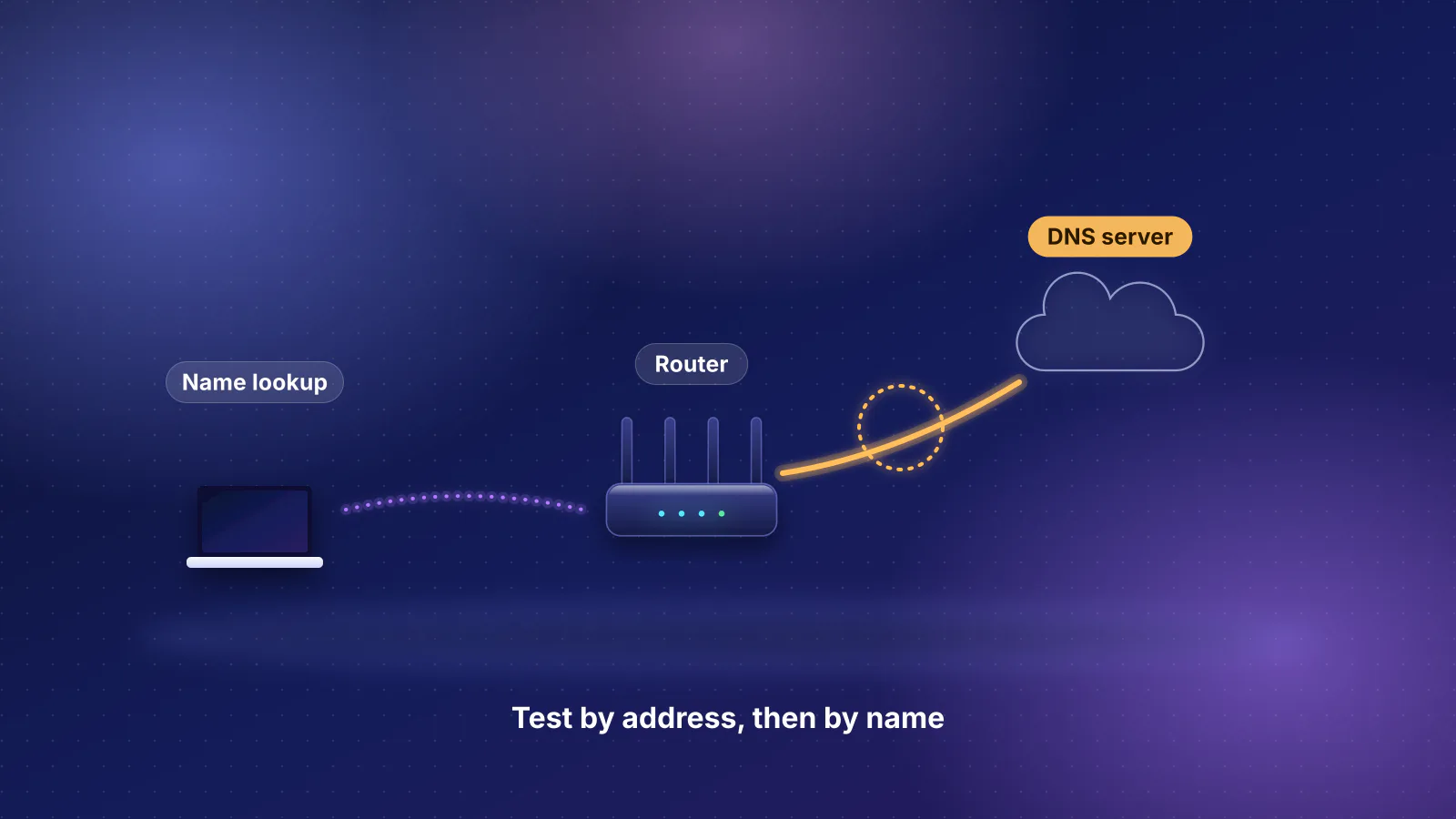
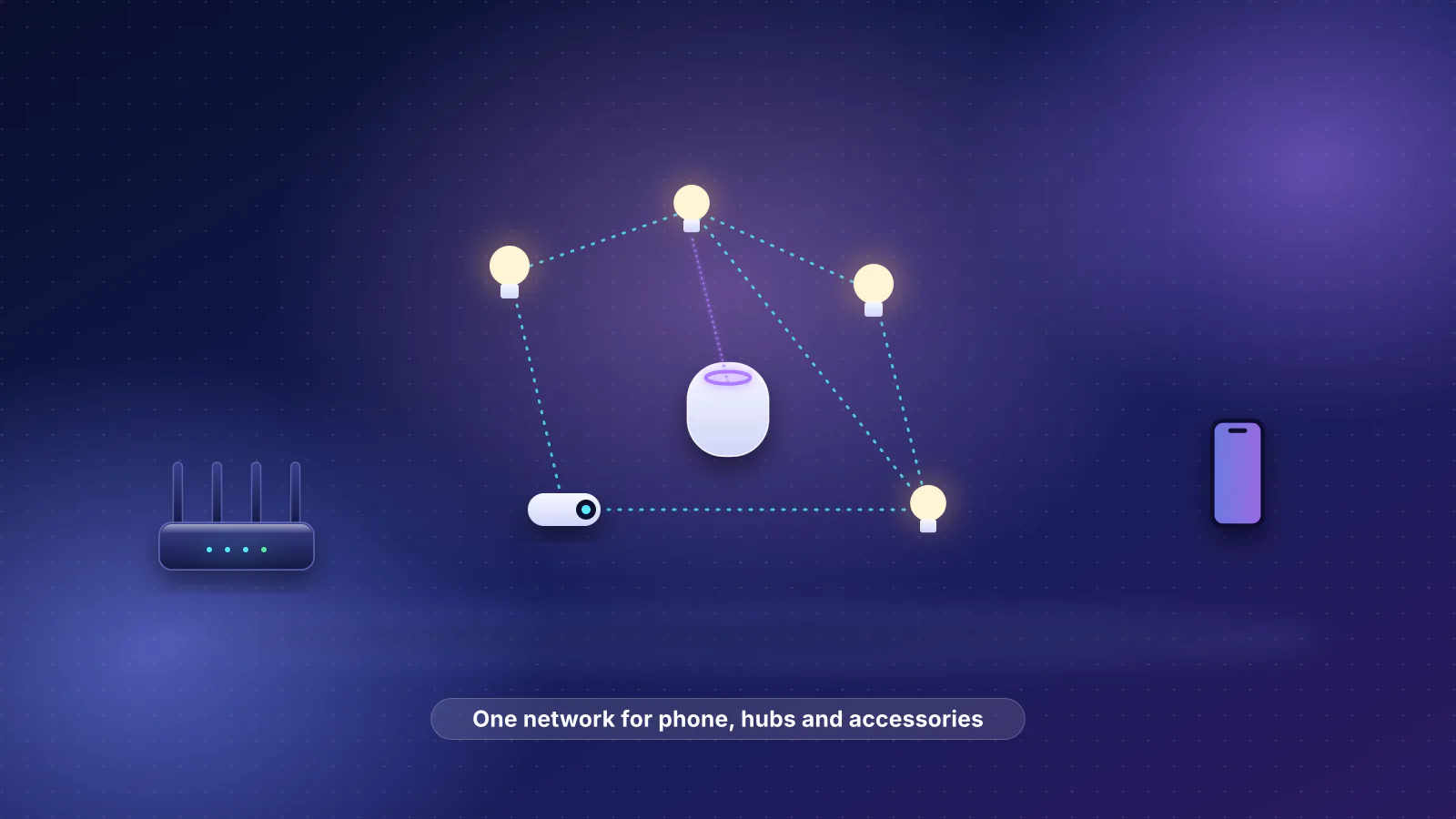
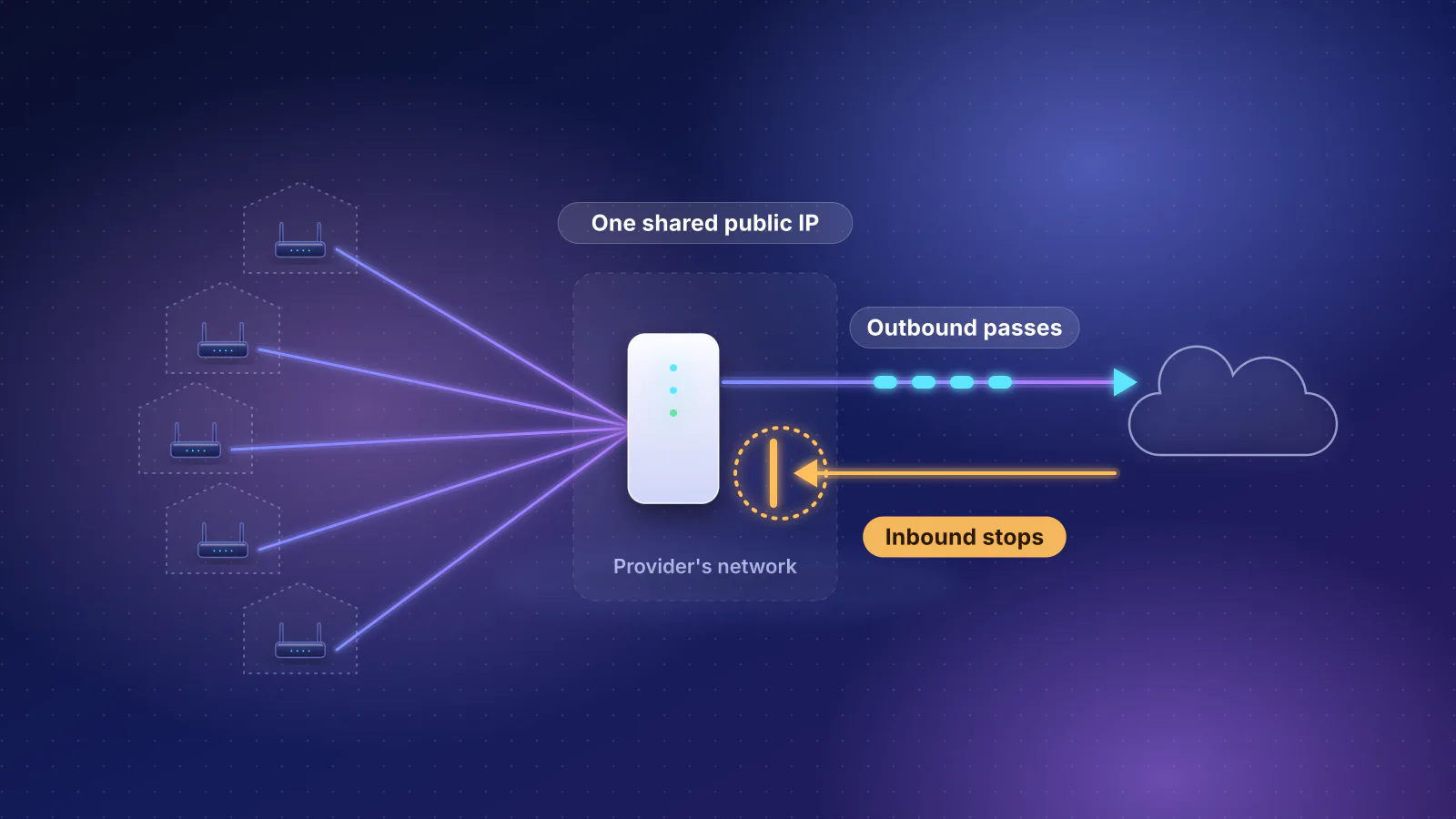
The short version
- First, make sure it's a disconnect. If the device drops off the network and rejoins, read on. If it stays connected but pages stop loading, that's a different fault: see Wi-Fi connected but no internet.
- The pattern points to the cause. One device everywhere points at that device's settings or driver. Every Wi-Fi device at the same moment points at the router. Wired devices dropping too points at the line. One room points at signal or roaming. One time of day points at a schedule, heat or interference.
- Read the evidence before changing anything. On Windows,
netsh wlan show wlanreportlists "the different reasons you were disconnected" for the last three days. On a Mac, Option-click the Wi-Fi menu and open Wireless Diagnostics. Your router's log and client list show the other side. - The common fixes are free settings. Windows' power plan (Microsoft: set the adapter's Power Saving Mode to Maximum Performance), a private address that a MAC filter doesn't recognize, a WPA2/WPA3 mode an older device can't keep up with (eero says such devices may end up "disconnecting intermittently"), a crowded 2.4 GHz channel, and router firmware.
- Some drops are by design. On a radar (DFS) channel, FCC rules require the router to stop transmitting on that channel within 10 seconds of detecting radar. Ubiquiti says access points must then wait "anywhere between 1-10 minutes, depending on your country".
- Buy nothing until the evidence says so. A new router is justified when the router is out of firmware support or the drops follow the router itself; a new laptop adapter when one PC drops with a current driver and everything else is fine.
First: one device, every device, one room or one time of day?
Note the next three drops: the time, which devices lost Wi-Fi, where they were, and whether a wired computer lost the internet at the same moment. Those four facts sort the problem before you touch a setting. Microsoft's own troubleshooting guidance for unreliable connections asks for the same: "Record the time, network name, access point, signal conditions, and whether the device roamed before the disconnect."
| What you see | Most likely cause | Start here |
|---|---|---|
| One device drops, in every room; others stay connected | That device: Windows power saving, an old driver, a private address the router filters, or a security mode it can't handle | Power saving, private addresses, security mode |
| Every Wi-Fi device drops at the same moment; a wired computer stays online | The router's radio: a channel change, a restart, heat or firmware | Channel changes, heat, firmware and schedules |
| Everything drops, wired devices included | The line or the provider, not Wi-Fi | When it's the line |
| Drops in one room, or as you walk between rooms | Weak signal, band steering, or a device holding on to a far mesh node | Signal and band steering, roaming |
| Drops at about the same time each day | A router schedule, afternoon heat, an appliance or neighbors' traffic, or an address lease that isn't renewing | Same time every day |
| 5 GHz devices drop for a few minutes, then come back on their own; 2.4 GHz devices stay up | A radar event on a DFS channel | Channel changes |
| Started after a new router, a firmware update or a security change | WPA3 or transition mode, or a changed network name | Security mode |
Read the evidence before you change anything
Each platform keeps some record of what happened. Read it once after a drop; it often names the cause outright.
Windows: the wireless network report
- Open Command Prompt as administrator (Microsoft: "press and hold (or right-click) Command prompt, and then select Run as administrator").
- Run
netsh wlan show wlanreport. Microsoft Learn says it "generates an HTML report that summarizes recent wireless sessions, disconnect reasons, adapter information, and related events" and "displays the report location when it completes." Open that file in a browser. - Read the summary chart first. The report "shows all the Wi-Fi events from the last three days and groups them by Wi-Fi connection sessions", and "A red circle indicates an error."
- Then read the Disconnect Reasons list and each session's duration and disconnection reason.
What the results mean:
- Many short sessions, all on one network, while other devices stayed connected: the laptop is the place to look; go to power saving and the driver.
- A disconnect reason that came from the access point: Microsoft Learn says to "Decode the
Reasonvalue before you form a theory": it comes "from the IEEE 802.11 disassociation frame that the AP sent", and its example, reason 0x4, means "disassociated due to inactivity", which points at the router's session timers or the client's power saving. Look at the router's log for the same minute. - Drops that follow a sleep, resume or update: Microsoft lists issues that start "after an operating system, driver, firmware, policy, sleep, or resume event" as their own case. Compare the driver with the PC or adapter maker's latest version.
Two more commands help: netsh wlan show drivers shows the adapter and driver details Microsoft asks for, and netsh wlan show networks mode=bssid "adds the BSSID, signal strength, channel, and radio type for each visible network", which shows whether the laptop hears your router well and what channel it's on. Microsoft also points to Event Viewer: Applications and Services Logs > Microsoft > Windows > WLAN-AutoConfig > Operational.
Mac: the Wi-Fi menu and Wireless Diagnostics
Hold Option and click Wi-Fi in the menu bar. Apple says this shows details "such as the IP address, router address, channel, frequency (or band), security standard, and 802.11 protocol." Note the channel and band; if they change around the time of a drop, see channel changes. The same menu opens Wireless Diagnostics, which reports issues it finds with possible solutions; Apple notes it "doesn't change your network settings" and saves a file whose name "starts with WirelessDiagnostics and ends with .tar.gz" in /var/tmp, useful if you need to send it to whoever manages the network.
Android and iPhone
- Android: the network's settings live under Settings > Network & internet > Internet, then the settings icon next to your network, where Google's help shows the "Randomized MAC address" setting (Android 10 and later). On a Pixel, also check Adaptive connectivity: with "Auto-switch to mobile network" on, Google says the phone moves to mobile data when the Wi-Fi has no internet or its link to the access point is weak, which can look like Wi-Fi dropping.
- iPhone and iPad: we found no Apple documentation of a band or channel readout in iOS Settings, so the router or mesh app is the better check; see how to tell which band an iPhone is using.
The router's side: client list and log
The router or mesh app shows which unit and band each device uses; eero's device page, for example, "Shows which eero your device is currently connected to and which wifi frequency it's using (2.4, 5, or 6 GHz)." A router's system log has the rest: on ASUS it's System Log > General Log, with the router's uptime and "detailed system activities records". Check three things in it for the minute of the drop: whether the router restarted (uptime resets), whether the Wi-Fi channel changed, and whether the internet (WAN) side went down.
- Laptop Wi-Fi link: the WLAN report shows a disconnect at 8:14 pm (illustrative)
- Router Log: same uptime before and after, no channel change
- Modem or ONT Wired PC stayed online at 8:14 pm
- Provider No outage
Signal and band steering
Likely cause: the device is at the edge of range, or it's being moved between 2.4 and 5 GHz. Ubiquiti says "A signal strength of -70 dBm or better is required for stable connections" and recommends -65 dBm or better.
Check: does the drop follow the room, not the device? Take a second device to the same spot. If both drop there and neither drops next to the router, it's coverage: measure the signal room by room before buying anything.
Network names: makers disagree on the test, so know which you're doing.
- One name for every band is the normal setting. Apple recommends "a single, unique name (case-sensitive) for all bands" and warns that with mismatched names "devices might not connect reliably to your network". NETGEAR lists mismatched 2.4 and 5 GHz names as one of two name problems that "commonly cause disconnection issues".
- Make the name unique. NETGEAR says that with a common default name, "your wireless devices might connect to a different nearby WiFi network with the same name as yours."
- Splitting the bands is a diagnostic step. ASUS's disconnection guide suggests turning off Smart Connect so each band has its own name. If a device stays connected once it's held on one band, steering was the trigger; eero says its client steering "does not guarantee that a device will choose the 5 GHz or 6 GHz bands", only favors it. Go back to one name afterwards, and keep a 2.4 GHz-only device on its own network only if it needs it.
Roaming between mesh nodes or access points
If drops happen while you walk, or a device in a far room stays on a distant node, it's roaming, not a fault. The device, not the mesh, decides when to move: the thresholds each platform uses and the walk test cover it, including 802.11r, which can stop some older devices connecting. If the node itself is going offline (its light changes, the app shows it missing), that's a backhaul problem instead: see mesh node keeps going offline. Speakers and Apple TVs that cut out on a mesh have their own causes in AirPlay dropouts on mesh Wi-Fi.
Power saving on Windows laptops
Likely cause: the adapter saving power, especially on battery. Microsoft's Wi-Fi troubleshooting has a section for a connection that "drops frequently", and its first step is the power plan.
- Control Panel > Hardware and Sound > Power Options, then change your plan's settings and open the advanced power settings.
- Expand Wireless Adapter Settings > Power Saving Mode and, per Microsoft, "Set Power Saving Mode to Maximum Performance."
- On a laptop, Intel says there are separate "On battery" and "Plugged in" values. Change the one that matches when the drops happen; Intel warns Maximum Performance on battery drains it faster.
The Device Manager checkbox is where the sources disagree. In its general troubleshooting steps (not the dropping-connection section), Microsoft's same article says to "Uncheck Allow the computer to turn off this device to save power" on the adapter's Power Management tab. Intel says that this setting "has no effect on Wi-Fi power management", "only affects how Windows and the device driver handle the device power-down during suspend and hibernation", and that it strongly recommends "keeping the default value checked". Both point to the power plan setting, so change that first. Intel also "strongly recommends not to modify or change any of the default Wireless Power Settings", and says the latest versions of Windows 10 and Windows 11 disable access to these advanced power options; if yours are missing, Intel says to check with Microsoft or the PC maker.
What the result means: if the WLAN report shows fewer disconnects after a few days, it was power saving. If not, put the setting back and update the driver from the PC or adapter maker. Microsoft suggests uninstalling the driver if the connection "stopped working properly after a recent update", and treats a network reset as the last step.
Private addresses, MAC filters and address leases
Likely cause: the router recognizes devices by hardware (MAC) address, and the device is using a private one. Apple devices and Android phones do this by default, and Windows does when Random hardware addresses is on for a network; how each platform picks and changes its address is in private and random Wi-Fi addresses. Where to turn it off for one network:
- iPhone and iPad: Settings > Wi-Fi, the network's More Info button, Private Wi-Fi Address. Mac: System Settings > Wi-Fi, Details next to the network, Private Wi-Fi Address.
- Android 10 and later: Network & internet > Internet, the network's settings, Randomized MAC address.
- Windows: Network & internet > Wi-Fi > Manage known networks, the network, Random hardware addresses.
Check: look in the router for a MAC filter or an address reservation. On ASUS, the Wireless MAC Filter's Accept mode allows only "devices in the MAC filter list"; a phone whose address changed is no longer on that list. Android's own documentation says "Persistent MAC addresses are necessary when networks rely on MAC address persistence to provide useful functionality." A parental-control rule set for that device can stop matching for the same reason.
Change: either update the router entry with the address the device shows for your network now, or turn the private address off for your home network only. Apple's advice is to install the latest software first and try again "before you decide whether to turn this feature off". Keep it on elsewhere: it's a privacy feature.
Leases: every address a router hands out is a lease, and RFC 2131, the DHCP standard, says that if a lease expires before the client can reach a DHCP server, "the client must immediately discontinue use of the previous network address." If a device drops at a regular interval, check the router's DHCP client list; pool size and lease length are in when the address pool runs out.
Security mode: WPA3 and transition mode
Likely cause: the router was set to WPA3, or to WPA2/WPA3 transition, and an older device copes badly. eero is specific: "Some legacy devices may struggle to connect to any network with Hybrid or Enhanced encryption", with symptoms that include "the device not getting an IP address" or "disconnecting intermittently."
Check and change: if the drops started after a router, firmware or security change and the dropping device is older (a printer, a plug, a console), follow the fix order in WPA3 vs WPA2 transition mode, which also covers checking a Windows adapter and why 6 GHz is WPA3 only.
Channel changes: DFS radar events and 6 GHz
Part of the 5 GHz band (5.25 to 5.35 GHz and 5.47 to 5.725 GHz) is shared with radar. Under 47 CFR 15.407, a router there checks for radar before using a channel, and when radar is detected "all transmissions shall cease on the operating channel within 10 seconds"; the channel then has "a non-occupancy period of at least 30 minutes." eero says its system "will automatically switch over to a non-DFS channel"; Ubiquiti says access points must "stop broadcasting immediately", then wait "anywhere between 1-10 minutes, depending on your country", and "Your 2.4GHz WiFi will remain active during this time." How this affects a mesh system's 5 GHz link between nodes is in DFS and the mesh backhaul.
The sign it leaves: 5 GHz devices drop together, recover within minutes, and the router log or the Mac's Option-click menu shows a new channel afterwards. Change: if your router lets you, leave DFS channels out of automatic selection for a week (ASUS calls the setting "Auto select channel including DFS channels") and see whether the drops stop.
The radar rule covers only those 5 GHz ranges. For 6 GHz, the same section makes standard-power 6 GHz access points check an automated frequency coordination (AFC) system "at least once per day"; that requirement doesn't cover low-power indoor units. With no radar rule on 6 GHz, look at range and settings for a 6 GHz device that keeps dropping: see why 6 GHz fades first.
Interference on 2.4 GHz
Likely cause: a crowded or noisy 2.4 GHz channel. It matters most for smart plugs, cameras and older devices that use only that band.
Check: do drops line up with the microwave running, or with evenings when neighbors are home? ASUS's disconnection guide names "microwave ovens, refrigerator, wireless phones, power boxes" as sources of interference.
Change: Apple recommends 20 MHz width on 2.4 GHz, which "helps to avoid performance and reliability issues", and the channel set to Auto; Microsoft's dropping-connection steps say to "change the wireless channel to reduce interference". ASUS also suggests restoring channel bandwidth to default and placing the router "in the center of the environment where possible, in an open area." In an apartment, neighbors' networks are a likely cause: see crowded channels.
The router: heat, firmware and schedules
If every Wi-Fi device drops at once and the router's uptime resets, the router itself restarted.
- Heat. Google's safety guide says its Wi-Fi units should be "well ventilated when in use" and that an overheated device may show "reduced performance and connectivity or device power down." Its stated operating range for Nest Wifi Pro is 32 to 95°F. A router in a closed cabinet, a garage or a sunny window is the first suspect.
- Firmware. After checking the internet side, ASUS's first fix for frequent disconnects is updating the router's firmware, and Apple recommends letting the router "automatically install software and firmware updates as they become available." Update every mesh unit, not only the main one. ASUS also lists updating the drivers or firmware on the device that drops.
- Reset last. ASUS's final step is a factory reset and setting the router up again; note your settings first.
Drops at the same time every day
Look for something scheduled before anything else. ASUS routers have a wireless scheduler that turns a band off at set times ("Wireless scheduler is only applied on switching on or off specific WiFi signal") and a scheduled reboot, during which ASUS says the network disconnects for about 1 to 3 minutes. A parental-control schedule set on the router can look the same for the devices it covers. If nothing is scheduled, the usual time-linked causes are afternoon heat, an appliance on a timer, evening congestion on 2.4 GHz, and an address lease that fails to renew at a regular interval (above).
When it's the line: outages that look like Wi-Fi drops
A phone or laptop may report a Wi-Fi problem when the internet behind the router went away. ASUS's disconnection guide starts there: check whether the router's network map shows the internet as disconnected, and if the provider's modem has Wi-Fi of its own, test it; if that fails too, ASUS says to "contact your ISP for modem internet issue." A wired computer settles it: if it loses the internet at the same moment, no Wi-Fi setting will help. The WAN, modem and outage checks are in when every device is affected; keep the times you noted for the provider.
When new equipment is justified
- Nothing to buy when the cause was power saving, a private address, a security setting, a channel or a schedule, which covers most of this article.
- A new router when the router no longer gets firmware updates and the drops are Wi-Fi only after the line has been checked, or when the drops follow that router to a cool, open spot with everything else ruled out. If it's an older router of your own, the planner below starts from that.
- Another access point or mesh unit only when the drops follow a room whose signal measures below the -70 dBm Ubiquiti gives for a stable connection and moving the router doesn't fix it; wire it back where you can.
- A USB or replacement adapter for one Windows PC that still drops on the latest driver from its maker while other devices are fine in the same spot.
- Not a new router when wired devices drop too. That's the line, and the provider fixes it.
When to get professional help
Call the provider first when wired devices drop with the Wi-Fi, and bring the times and the router's WAN log. Get hands-on help when the fix is physical: a cable run to put an access point where a room keeps dropping, or a network closet that runs hot. RouterHaus can connect you with a licensed contractor when the job needs hands on site; start at a network consultation.
Frequently asked questions
Why does only one device keep disconnecting from Wi-Fi?
Look at that device first. On a Windows laptop, Microsoft says to set the adapter's Power Saving Mode to Maximum Performance in the power plan, then update the driver. On any device, check whether the router has a MAC filter or reservation that its private address no longer matches, and whether an older device is struggling with WPA3 or transition mode.
How do I see why my Windows laptop disconnected?
Run netsh wlan show wlanreport in an administrator Command Prompt. Microsoft says the report covers Wi-Fi events from the last three days, lists the disconnect reasons and shows how long each session lasted. Errors show as red circles in the summary chart.
Why does my Wi-Fi drop at the same time every day?
Check for a schedule first: a wireless scheduler, a scheduled router reboot or a parental-control schedule. If there isn't one, afternoon heat, an appliance on a timer, evening congestion on 2.4 GHz or an address lease that isn't renewing are the usual time-linked causes.
Why do my 5 GHz devices drop for a few minutes and come back?
Most likely a radar event on a DFS channel. FCC rules require the router to stop transmitting on that channel within 10 seconds of detecting radar; Ubiquiti says access points must then wait 1 to 10 minutes, depending on the country, and that 2.4 GHz stays up meanwhile. Test with DFS channels left out of automatic selection.
Will a new router stop my Wi-Fi disconnecting?
Only if the router is the cause. If wired devices drop too, it's the line. If one device drops, it's that device's settings. A new router is justified when yours no longer gets firmware updates and the drops are Wi-Fi only after the line has been checked.
Sources
Read on November 27, 2026.
- Microsoft Support: Analyze the wireless network report
- Microsoft Support: Fix Wi-Fi connection issues in Windows
- Microsoft Learn: Troubleshoot wireless network connectivity issues
- Microsoft Support: Connect to a Wi-Fi network in Windows (random hardware addresses)
- Intel: Power management settings for Intel wireless adapters
- Apple Mac User Guide: Use the Wi-Fi status menu and Use Wireless Diagnostics
- Apple Support: Use private Wi-Fi addresses on Apple devices
- Apple Support: Recommended settings for Wi-Fi routers and access points
- Android Open Source Project: MAC randomization behavior
- Google: Manage advanced network settings on your Android phone and Pixel Phone Help: Fix Wi-Fi connection problems
- Google: Safety and regulatory guide (Nest Wifi Pro, Nest Wifi, Google Wifi)
- IETF RFC 2131: Dynamic Host Configuration Protocol
- 47 CFR 15.407: General technical requirements (U-NII devices, DFS and AFC)
- eero Support: What is encryption in the eero app?, What advanced features does eero support?, What is Dynamic Frequency Selection (DFS)? and What device information can I see with eero?
- Ubiquiti Help Center: Optimizing WiFi connectivity and reducing latency and DFS channels
- ASUS Support: WiFi signal is often disconnected (FAQ 1030641), How to set up Wireless MAC Filter, How to save the system log, Switch the WiFi signal at a specific time and Restart the router at specific times
- NETGEAR Support: My wireless devices are disconnecting from my WiFi network; what do I do?