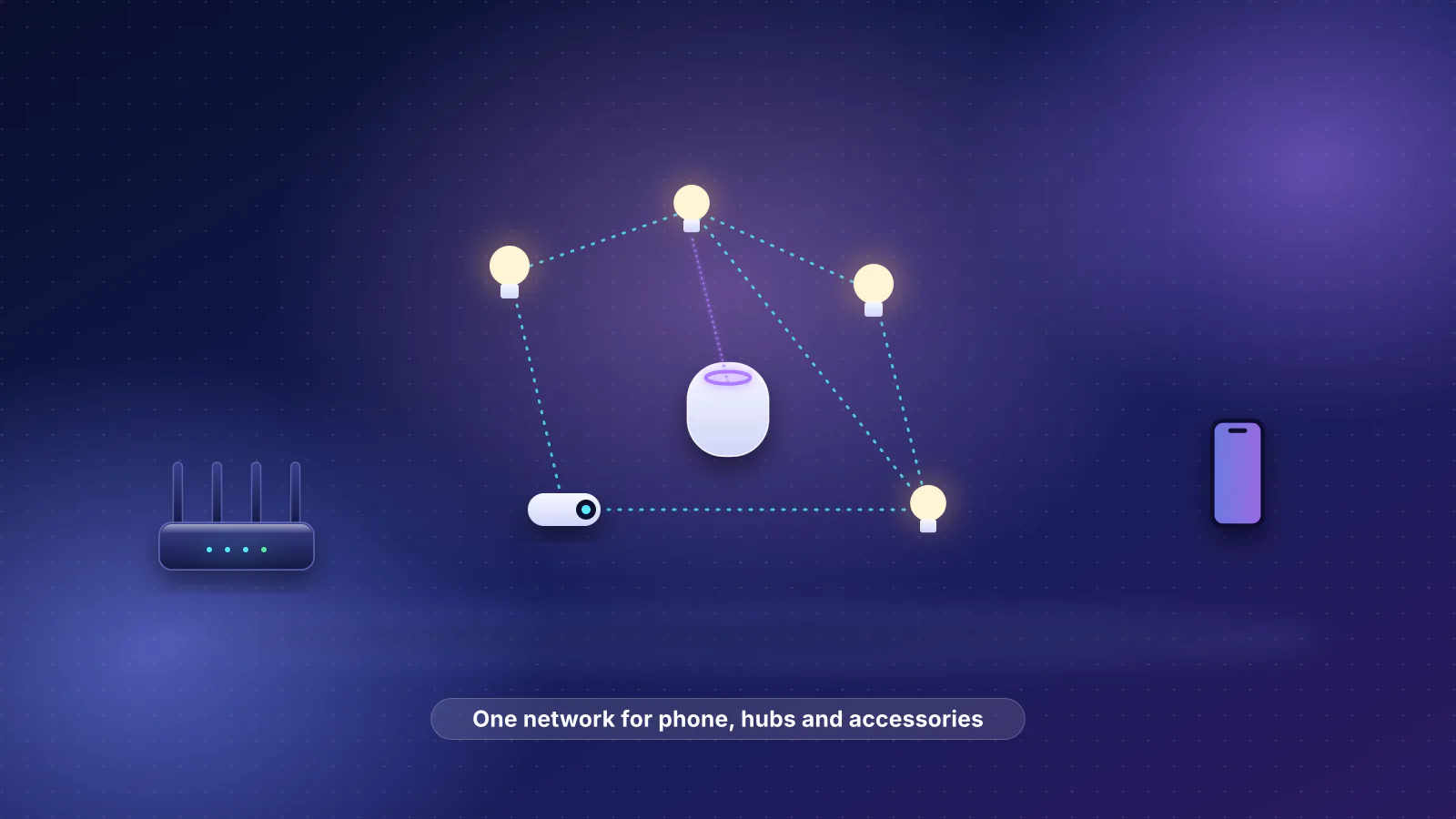
The short version
- Your router almost certainly still has 2.4 GHz. Mesh systems and most dual-band routers broadcast it under the same name as 5 GHz. Google says of Nest Wifi that "All radio bands are active simultaneously" and "A single network name is used across all the bands."
- The usual failure is the phone, not the plug. TP-Link puts it plainly: "Most IoT devices only work on 2.4GHz, and their setup apps require your phone to be on the same band," and with one name for both bands "your phone often connects to 5GHz, causing setup failures."
- Fix it in this order: retry setup with the device near the router; get the phone onto 2.4 GHz by pausing or splitting the higher bands for a few minutes (eero has a button for it, Nest Wifi has none); if the device keeps failing or keeps dropping, give it its own 2.4 GHz network (Deco, Orbi and UniFi have one built in).
- Check the other causes while you're there: WPA3, protected management frames (PMF), Wi-Fi 6 features, a hidden network name and captive-portal networks all break some smart devices, by their makers' own pages.
- New equipment is rarely the answer. Every system covered here offers at least one of these fixes. Buy something only when your router offers none of them, or when the device's location simply has no usable 2.4 GHz signal.
This guide is about getting a 2.4 GHz-only device onto your network. If a device joins but then won't stay connected, start with why Wi-Fi keeps disconnecting; if it stopped joining after you turned on WPA3, see WPA3 vs WPA2 and older devices.
Why so many smart devices are 2.4 GHz only
Plugs, bulbs, cameras, thermostats and smoke alarms are built around small, low-cost Wi-Fi chips, and many of those chips have only a 2.4 GHz radio. Espressif, which makes Wi-Fi chips for this kind of product, describes its ESP32-C3 as "Wi-Fi (2.4 GHz band)" and lists "Generic Low-power IoT Sensor Hubs" among its uses. Its newer ESP32-C5 is "A 2.4 and 5 GHz dual-band Wi-Fi 6 RISC-V MCU", so dual-band gadgets are coming, but a lot of what's sold and installed today is 2.4 GHz only. Range helps explain the choice too: TP-Link's Kasa page notes that "The 2.4 GHz band typically provides a longer range than the 5 GHz band."
What the makers say about their own products:
| Maker | What its support page says |
|---|---|
| Google Nest | "Some Nest products, like the 2nd generation Nest Thermostat and Nest Protect, only support 2.4GHz Wi-Fi networks." Google's router page adds that "some smart home devices can only use the 2.4 Ghz band and do not support 5 and 6 Ghz." |
| Ring | "All Ring devices are compatible with 2.4 GHz wifi networks"; "some Ring devices are also compatible with 5 GHz networks". The app's Device Health page shows which model you have. |
| TP-Link Tapo cameras | "most Tapo Cams require 2.4 GHz, though some models support 5 GHz", and it says to check your model's specifications. |
| Wyze cameras | "No, Wyze Cam v4 supports 2.4 GHz only." Wyze's setup troubleshooting page for the Wyze Cam v3 says "Check that your phone or tablet is on a 2.4 GHz network", and if one of your networks has "5" in the name, "do not connect to it." |
| Apple Home accessories | "Some accessories aren't compatible with 5.0 GHz networks." |
| Philips Hue | Not a Wi-Fi problem at all: the lights talk to the Bridge over Zigbee, and the "Hue Bridge does not connect directly to WiFi; it must be hardwired to your router to function." |
The Hue row matters because it's a different kind of device. Zigbee and Thread gadgets reach your network through a hub or border router, so band settings don't affect them; if one of those is misbehaving, see fixing unreliable Thread networks instead.
One network name, band steering and why setup fails
A single name for every band is the normal, recommended setup. Apple's router guidance says to set the network name "to a single, unique name (case-sensitive) for all bands." Behind that one name, the router decides which band to nudge each device toward. Google calls this Band Steering, which "will attempt to guide your connected devices to the band with the best performance for each device." A phone that can use 5 GHz is usually steered there, which is exactly what you want for the phone.
The trouble starts at setup. Many smart-device apps want the phone on the same band the device will use, and they check the phone's current connection. When the phone is on 5 GHz under the shared name, the app refuses to continue or the device never gets the network details. The device itself would happily join the 2.4 GHz side of the same name; it's the handoff that fails.
- Setup app On the phone, checks the phone's current band
- Phone Steered to 5 GHz under the shared network name
- Router or mesh unit Broadcasts 2.4, 5 (and maybe 6) GHz under one name
- Smart plug or camera 2.4 GHz radio only
Once the device has joined, the phone can go back to 5 GHz. The same-band requirement in these makers' pages is about setup; none of the pages we read asks for the phone to stay on 2.4 GHz afterward.
The other reasons setup fails
If the band isn't the problem, these are, by the makers' own pages:
| Cause | What the makers say | Where it's covered |
|---|---|---|
| WPA3 or WPA2/WPA3 transition mode | Google: "Some legacy WPA2 devices may be incompatible with WPA3 and experience connection issues when WPA3 transition mode is on." Ubiquiti: "WPA3 is not recommended for 2.4GHz networks due to compatibility issues." Wyze's Cam v3 page asks for WPA/WPA2. | Which security setting to pick |
| Protected management frames (PMF) | Ubiquiti: "We recommend you disable PMF, as it can cause compatibility issues with some IoT clients." It's off by default on UniFi WPA2 networks and can't be turned off on WPA2/WPA3 or WPA3 networks. ASUS also lists disabling PMF. | Below, and how transition mode works |
| Wi-Fi 6 and Wi-Fi 7 features | ASUS's IoT compatibility page says to disable 802.11ax / WiFi 6 mode, Target Wake Time and Wi-Fi Agile Multiband to improve IoT compatibility; TP-Link suggests a 2.4 GHz mode of "802.11 b/g/n/ax mixed (without BE)"; Ubiquiti lists Multi-Link Operation as a setting to turn off for IoT networks. | Below |
| Hidden network name | Apple recommends hidden network "Set to Disabled"; Ubiquiti lists "Hide WiFi Name" as off for IoT. Tapo: if the SSID is hidden, choose "Other Network" and type it in. | Below |
| Captive portal or enterprise network | Google: "Nest products do not work with captive portal networks", and 802.1x/RADIUS enterprise networks "are not compatible". Ring: devices "will not work with a mobile phone hotspot." | These need a different network, not a setting |
| Isolation on the network | TP-Link Kasa: if the device's light shows it's connected but it never appears, check "whether AP Isolation or Client Isolation is enabled." | Guest network, IoT network or VLANs |
Change one of these at a time, and only for as long as you need to. A setting like 802.11ax mode or PMF applies to the whole band or network it's set on, so turning it off for one plug changes it for every device there. That's one reason the dedicated network in the fix order below is often the cleaner answer.
A safe check first: which band is the phone on?
Before changing any router setting, find out what's actually happening. This changes nothing:
- Read the device's own spec. The box, the app's device page or the maker's support page says whether it supports 5 GHz. Ring and Tapo both say some of their models do.
- See which band the phone is on. Many router and mesh apps list each connected device with the band it's on. For an iPhone, see how to tell which band an iPhone is using.
- Read the setup app's error message. "You must connect to a 2.4GHz network" (the wording TP-Link quotes for Deco) means the band. A wrong-password or timeout error after the band is right points to security mode, distance or isolation.
| What you find | What it means | Go to |
|---|---|---|
| The device supports 5 GHz | Band isn't the cause; look at security, distance or the network type | The other reasons |
| Device is 2.4 GHz only, phone is on 5 GHz, app complains about the band | The classic setup mismatch | Steps 1 and 2 |
| Phone is already on 2.4 GHz and setup still fails | Signal at the device's spot, security mode, PMF or a Wi-Fi 6 feature | Steps 1 and 4 |
| Device joins, then drops off again later | Coverage or a setting the device can't keep up with, not setup | Step 3 and 2.4 GHz interference |
The fixes, in order
1. Retry setup with the device near the router
This costs nothing and fixes a weak-signal setup. Apple's advice for an accessory that won't add: "Bring the accessory closer to the router for the setup process." Tapo says the same: "Ensure the smart device is close to the router to get a strong Wi-Fi signal." Set the device up in the same room as the router or the nearest mesh unit, then move it to where it lives.
Two makers suggest something that sounds like the opposite, and it's for a different reason: when the higher bands can't be paused, Google says to "try to move farther away from your router and point" (a Nest Wifi point is its satellite unit) "until your phone moves to the 2.4 GHz band", and TP-Link's Kasa page suggests moving "the router and smart device farther apart." That uses 2.4 GHz's longer reach to push the phone off 5 GHz. It's a workaround; step 2 does the same job more reliably where your router supports it.
2. Put the phone on 2.4 GHz for a few minutes
Briefly hide or turn off 5 and 6 GHz, or give 2.4 GHz its own name, set the device up, then put everything back. Keep the main network's name and password the same throughout, so the device is joining the network it will stay on. What each maker documents:
| System | Can the main network's bands be split? | What the maker offers |
|---|---|---|
| eero | No: "There is no way to permanently separate the frequencies broadcast by the eero into distinct 2.4, 5, and 6 GHz bands." | In the app, Support (or Settings, Troubleshooting), then "Connect 2.4 GHz only devices", which hides 5 and 6 GHz. eero's how-to article says "up to 10 minutes" and its bands article says 30 minutes; tap Cancel to end it early. |
| Google Nest Wifi, Nest Wifi Pro, Google Wifi | No way documented: Google says "A single network name is used across all the bands" and "All radio bands are active simultaneously" | No pause or split on the page we read. Google says to connect the phone to 2.4 GHz manually if it allows, or move farther from the router until the phone switches. |
| TP-Link Deco | Not on the main network: "Deco mesh uses one Wi-Fi name for both 2.4GHz and 5GHz" | The IoT Network (step 3), which TP-Link says to "Use it before pairing to avoid band mismatch" |
| NETGEAR Orbi | No: "Separating the 2.4GHz and 5GHz frequencies into two different networks is not supported at this time." | The IoT network, which on the Orbi Wi-Fi 6E and Wi-Fi 7 models NETGEAR lists can be set to "2.4GHz only" (step 3) |
| NETGEAR Nighthawk Wi-Fi 7 | Yes: "Clear the Enable Smart Connect check box", then set each band's security separately | NETGEAR says these routers "do not have a dedicated IoT network"; for devices that can't use WPA3, it suggests the Smart Connect change with WPA/WPA2 on each band, or the guest network |
| ASUS | Yes: turn off "Enable Smart Connect" and "select the [Band] for your network devices" | The same FAQ lists the Wi-Fi 6 features to turn off for IoT compatibility |
| Ubiquiti UniFi | Yes: SSIDs broadcast on all bands by default, and Ubiquiti says they "can also be configured so that SSIDs are limited to select WiFi bands" | Ubiquiti recommends limiting IoT devices "to a 2.4GHz network if you are experiencing connectivity issues", with Band Steering off (step 3) |
| TP-Link Kasa's advice for any dual-band or mesh router | Use "a different network name (SSID) for the 5 GHz band than for the 2.4 GHz band", or "try turning off the 5 GHz band on your router temporarily" | |
On a router with separate settings per band, the simplest temporary split is to turn off 5 GHz (and 6 GHz) for setup rather than renaming 2.4 GHz: devices already on the main name stay on it, and nothing needs to be rejoined afterward. If you rename a band instead, the new device remembers that name, so either keep the 2.4 GHz name permanently or set the device up again after you change it back. Apple recommends one name for every band, and split names have their own side effects (see signal and band steering), so don't leave the main network split unless something needs it.
On a phone, also forget any other networks it might jump to during setup. TP-Link's Deco page suggests going further: forget the main network on the phone and "temporarily disable Cellular Data (4G/5G) on your phone" so the app's traffic goes over the network you're setting up.
3. Give the devices their own 2.4 GHz network
If a device fails even with the phone on 2.4 GHz, or you have many such devices, a second network name just for them is the lasting fix. It can be 2.4 GHz only, use WPA2, and have settings tuned for small devices, without touching the main network your phones and laptops use. Where the makers build it in:
- TP-Link Deco: More, IoT Network; set a name and password, choose security (WPA2, WPA/WPA2 or None) and choose the band, 2.4 GHz or 5 GHz. TP-Link says "The IoT Network allows cross-network communication by default"; if HomeKit or Google Home can't find devices on it, check that Device Isolation is off. Choose WPA2, not None.
- NETGEAR Orbi: under Wireless IoT Settings at orbilogin.com, NETGEAR says to pick "2.4GHz and 5GHz (default), 2.4GHz only, or 5GHz only", and to use the 2.4 GHz-only option "if you are having issues connecting your smart devices to the IoT SSID." For the IoT network on its Wi-Fi 7 Orbi systems, NETGEAR recommends "WPA2-PSK [AES]".
- Ubiquiti UniFi: "create a dedicated WiFi SSID and enable IoT under WiFi Optimization." Ubiquiti's IoT list turns off Band Steering, Hide WiFi Name, Multi-Link Operation, Client Device Isolation, fast roaming and two multicast settings, and leaves DTIM and minimum data rate on Auto. Its general troubleshooting steps also say "Legacy clients may not support 5 GHz or 6 GHz" and "Ensure your WiFi is being broadcasted on all frequency bands to maximize compatibility."
- Routers without an IoT network: for Nighthawk Wi-Fi 7 routers, which have no IoT network, NETGEAR suggests the guest network for devices that can't use WPA3. That can work for a plug run from a cloud app, but check whether your guest network isolates devices (Deco's IoT network, for comparison, has a Device Isolation switch), and remember that Apple Home and Matter devices need to stay on the same network as their hubs. Read 2.4 GHz-only devices in Apple Home and why discovery breaks across networks before you move them.
- eero and Google Nest Wifi: neither support page we read offers a dedicated IoT network. Use the temporary pause (eero) or the phone-band workaround (Google) for setup.
A separate network name is not the same as a separate VLAN. Whether it keeps those devices away from your computers depends on the router's isolation settings; if that's your goal too, see guest network, IoT network or full VLANs.
4. Relax one setting on the device's network
If the device still won't join, try the settings from the table above one at a time, ideally on the dedicated network from step 3 so the main network keeps its stronger settings: WPA2 (AES) instead of WPA3 or transition mode, PMF off where your router allows it on WPA2, the 2.4 GHz mode without Wi-Fi 6 or Wi-Fi 7, the network name visible, 2.4 GHz at 20 MHz wide (Apple: "Set to 20 MHz for the 2.4 GHz band"). Kasa's page names "WPA2+AES" as its own fallback. Change one thing, retry, and put back anything that didn't help.
When new equipment is justified
Rarely. Every system above offers at least a temporary way to get a phone onto 2.4 GHz, and most offer a lasting one. Things that don't justify buying anything:
- A mesh system with one network name. That's how they're designed, and the pause, IoT network or phone-band workaround covers setup.
- A single stubborn device on a router that can split bands or add an IoT network. Use those first.
Spending money starts to make sense in a few cases:
- Your router offers none of the fixes (no per-band settings, no way to turn off 5 GHz, no second network) and you have several 2.4 GHz-only devices to add or re-add over time. A router or mesh that documents a dedicated IoT network or per-band settings is then a reasonable buy; the planner below can filter for VLAN support.
- The device's spot has no usable 2.4 GHz signal once it's installed, such as a camera at the far end of a yard. That's a coverage problem; see outdoor Wi-Fi for the yard and pool.
- You're choosing new devices anyway. A dual-band model, or a Zigbee or Thread device on a hub such as the Hue Bridge, avoids the band issue entirely.
When to get professional help
Nearly all of this is app settings you can change and change back. Hands-on help is worth it when the real fix is physical: Ethernet to a hub, a wired access point for an outdoor camera, or a mesh unit placed somewhere you can't easily run power or cable. When the job needs hands on site, RouterHaus can connect you with a licensed contractor through a consultation request.
Frequently asked questions
Do I need to turn off 5 GHz permanently for a 2.4 GHz-only device?
No. The 5 GHz band only gets in the way during setup, when the phone's app expects the phone to be on the same band as the device. Pause or turn off 5 GHz for a few minutes, set the device up, then turn it back on. The device stays on 2.4 GHz under the same network name.
My mesh system has no separate 2.4 GHz network. What do I do?
Use the maker's own option. eero has a Connect 2.4 GHz only devices button that hides 5 and 6 GHz for a few minutes. Google's page describes one name across all bands and documents no way to split them; it suggests getting the phone onto 2.4 GHz manually or by moving farther from the router. Deco and the newer Orbi models NETGEAR lists offer an IoT network that can be set to 2.4 GHz.
Will a 2.4 GHz-only device slow down my 5 GHz devices?
Not by being on the network. It uses the 2.4 GHz radio, which is separate from 5 and 6 GHz. The one exception is a setting you change for it: turning off Wi-Fi 6 mode or PMF affects every device on that band or network, which is why a dedicated IoT network is the cleaner place to relax settings.
Should I put smart plugs on the guest network?
It can work for a plug you control through a cloud app, and NETGEAR suggests it on its Nighthawk Wi-Fi 7 routers, which have no IoT network, for devices that can't use WPA3. But a guest network may isolate devices, so phones on the main network may not find them there, and Apple Home and Matter accessories need to be on the same network as their hubs.
Why does my camera's app say my phone must be on 2.4 GHz when my router has 2.4 GHz?
Because the phone is connected on 5 GHz under the same network name. The router has both bands; the app checks the phone's current band. Get the phone onto 2.4 GHz for setup with your router's pause or band settings, then let it go back to 5 GHz.
Sources
Read on November 27, 2026.
- eero Support: How do I temporarily hide the 5 and 6 GHz bands? and Can I set my eeros to use the 2.4, 5, or 6 GHz frequency?
- Google Nest Help: How Nest Wifi, Nest Wifi Pro, and Google Wifi 2.4, 5 GHz, and 6 GHz bands work
- Google Nest Help: Wi-Fi networks that are incompatible or aren't recommended
- Google Nest Help: Security features for Google Nest Wifi and Google Wifi
- TP-Link: Deco smart home setup, settings to prevent and fix connection and dropping issues
- TP-Link: Recommendations for Wi-Fi setup for IoT smart home devices
- TP-Link: Is your Kasa device not connecting? Troubleshooting setup issues
- TP-Link Tapo: Tapo camera not connecting to Wi-Fi, troubleshooting guide
- NETGEAR: Can I choose if my Orbi router broadcasts separate WiFi networks for 2.4GHz and 5GHz?, How do I change the Internet of Things (IoT) WiFi band on my Orbi? and How to resolve issues connecting devices to your NETGEAR WiFi 7 network
- Ubiquiti Help Center: Unable to connect to WiFi (IoT device connectivity) and Broadcasting multiple WiFi SSIDs
- ASUS Support: How to improve compatibility of IoT devices with an ASUS WiFi 6 (802.11ax) router
- Ring: Video doorbell and security camera FAQ
- Wyze Support: Does Wyze Cam v4 support 5 GHz networks? and My camera is not connecting to the network (Wyze Cam v3)
- Philips Hue: How to connect the Hue Bridge to Wi-Fi
- Apple Support: If you can't add a smart home accessory to the Home app and Recommended settings for Wi-Fi routers and access points
- Espressif: ESP32-C3 hardware design guidelines, product overview and ESP SoCs product list (ESP32-C5)