The short version
- Name the symptom first. A speaker missing from the AirPlay list is a discovery problem, usually a router setting. Audio that cuts out often points to the speaker's own Wi-Fi link. An echo between a TV and AirPlay speakers is usually fixed with the Apple TV's Wireless Audio Sync. "Works on one floor only" is usually the mesh unit that floor depends on.
- Missing speakers: AirPlay finds devices with Bonjour, which uses multicast that Apple says "is usually not routed across subnets". A guest network, an IoT network with isolation, a VLAN without an mDNS relay, client isolation, multicast filtering or a second router can each hide a speaker.
- Dropouts: check the speaker's signal and which mesh unit it's on. Apple calls two bars or fewer on a HomePod weak. A speaker attached to a far unit over a wireless backhaul is the classic mesh case; wiring that unit, or wiring the Apple TV to it, is the dependable fix.
- Delay: Apple says AirPlay's enhanced buffering streams audio "faster than real-time" so playback survives interruptions. For a TV with wired and AirPlay speakers, run Wireless Audio Sync on the Apple TV.
- Caveat: eero, TP-Link, NETGEAR and Google don't document how their mesh units carry multicast between them, and Apple doesn't publish AirPlay's latency, buffer size or bitrate. This guide sticks to what the makers do document.
Our Apple TV network guide covers the basics: the three ways an iPhone finds an Apple TV and the router features that break the "same network" rule. This article goes further into fixes, for any AirPlay 2 receiver on a mesh system: HomePod, Apple TV, Sonos and other AirPlay speakers.
How AirPlay finds a speaker, and why mesh Wi-Fi makes that harder
Apple's deployment guide describes three ways an Apple device finds an Apple TV (Bonjour, a Bluetooth advertisement and a peer-to-peer link), and says devices "prefer peer-to-peer discovery but typically establish a connection using the method that's the most responsive or the one most recently used." The Bluetooth and peer-to-peer methods are documented only for an Apple TV as the receiver, and Bluetooth reaches devices "generally within the same room". For a HomePod or a third-party speaker in another room, Bonjour is the method that matters.
Bonjour uses multicast DNS (mDNS), defined in RFC 6762. Devices announce and query services by sending to the address 224.0.0.251 (FF02::FB in IPv6) on UDP port 5353. Addresses in the 224.0.0.x range are link-local: RFC 4541 calls them "not to be routed". That's why a speaker on another subnet or VLAN disappears unless a router relays mDNS between them.
Multicast is also the kind of traffic Wi-Fi handles worst. The IETF's RFC 9119, on multicast over Wi-Fi, explains why:
- No acknowledgments. Because "there are no ACKs for multicast packets, it is not possible for the AP to know whether or not a retransmission is needed." The RFC adds: "It is not uncommon for there to be a packet loss rate of 5% or more."
- The slowest rate. Multicast "is generally transmitted at the slowest rate of all the connected devices", so it takes far more airtime than the same data sent to one device.
- Unicast avoids most of it. The RFC says sending unicast instead "avoids most of the problems specific to multicast over Wi-Fi": frames are "acknowledged and buffered for power-save clients in the way that unicast traffic normally operates", at the cost of sending the same frame to each device.
Ubiquiti puts the airtime cost in numbers: "A few hundred Kbps of mDNS traffic can be the equivalent of a few hundreds Mbps of unicast traffic." On a mesh, discovery traffic has to reach every unit, including those linked to the router over a wireless backhaul. The consumer mesh makers don't document how their units forward multicast to each other, so there's no published basis for saying one brand handles it better than another.
Once a speaker is found, the audio stream is a separate matter. Apple's WWDC 2023 session on AirPlay audio says enhanced audio buffering is "built from the ground up with whole home audio in mind" and that "the audio streams faster than real-time playback speed in order to minimize playback interruptions." In Apple's demo, a HomePod keeps playing while the iPhone leaves Wi-Fi range. Apple also calls it responsive: "your app immediately responds to a tap on HomePod or when using your iPhone as a remote control." It doesn't publish how much audio is buffered or AirPlay's latency. Apple says most of its own media apps use AVQueuePlayer, one of the player classes that get enhanced buffering. Apple's developer documentation describes what an app has to do to get it (use Apple's player classes, and mark its audio as long-form, which "allows your audio to benefit from AirPlay 2 for extended buffering"), so not every app or sound on your iPhone or Mac is buffered the same way.
Symptom, cause, fix
Start with the row that matches what you see. The causes in each row are in the order to check them.
| What you see | Most likely causes | Fix first | Then |
|---|---|---|---|
| A speaker or TV is missing from the AirPlay list | Phone and speaker on different networks (guest, IoT, a second router); client or device isolation; a VLAN without an mDNS relay; multicast filtering; AirPlay restricted in the Home app; the speaker offline | Check that the iPhone and the speaker are on the same main network, not the guest network. Look for a Network Mismatch alert in the Home app. | Turn off isolation and multicast filtering for that network. If you use VLANs, relay mDNS for both networks. Check Home Settings, Speakers & TV. |
| Audio drops every few minutes, or a speaker vanishes and comes back | A weak link at the speaker; the speaker on a far mesh unit with a wireless backhaul; heavy multicast on a busy network; roaming features a device handles badly | Read the speaker's signal (Home app, HomePod settings, Wi-Fi Network) and check which unit it's connected to. Move that unit closer to the router or the speaker closer to a unit. | Wire that unit, or wire an Apple TV to it. On UniFi, turn on Multicast to Unicast. On Deco, try turning off Fast Roaming and Beamforming. |
| Music stops everywhere at once | Apple says the Home app may use a HomePod, Apple TV or AirPlay speaker as "the main audio source", and Siri or another task on that device "might cause playback to stop everywhere" | Start playback again from the iPhone or with Siri. | Stream from the iPhone or Mac instead, as Apple suggests, if it keeps happening. |
| Delay, echo or lip-sync drift | An Apple TV playing to HDMI speakers and AirPlay speakers together; the same receiver listed twice. Apple doesn't publish AirPlay's latency, so there's no documented figure for "normal" delay | Run Wireless Audio Sync on the Apple TV (Settings, Video and Audio, Calibration). | Pick "Receiver Speakers" rather than the receiver's AirPlay entry when a receiver is listed twice. |
| Works on one floor, or only near the router | The far floor's unit has a weak or two-hop wireless backhaul; the speaker on a 2.4 GHz link; peer-to-peer AirPlay out of range | Read every unit's backhaul indicator in the mesh app; put a unit on that floor where it still hears the router well. | Wire that unit (Ethernet or MoCA), or wire an Apple TV to it. Don't wire a Sonos product to a satellite: Sonos says a wired Sonos setup on a mesh must connect to the primary unit. |
| Apple Music plays cleanly, but another app or the Mac's sound stutters | The source, not the network: buffering applies to apps that use it, and Sonos warns that macOS system audio over the older AirPlay 1 may bring "a delay or audio interruptions" | Test the same speaker with Apple Music. If that's clean, look at the app. | Update the app; on a Mac, play from an app with an AirPlay button rather than system audio. |
A diagnosis order that separates the causes
- Restart and update first. Apple's own first steps: turn the devices on and keep them near each other, update them, check they "are on the same Wi-Fi network", and restart them.
- Confirm the network on both ends. On the iPhone, Settings, Wi-Fi. For a HomePod, the Home app, the HomePod's settings, Wi-Fi Network. Apple says a HomePod and iPhone should be "connected to the same preferred Wi-Fi network", and the Home app shows a Network Mismatch alert with a Move HomePod option when they aren't.
- Check who's allowed to AirPlay. In the Home app, Home Settings, Speakers & TV. On an Apple TV, Settings, AirPlay and Apple Home, Allow Access. Sonos adds that a password set on an Apple TV or AirPlay TV can make Sonos ask for one too.
- Read the signal and the node. Apple says two bars or fewer on a HomePod's Wi-Fi indicator is weak. The indicator only shows when your iPhone is on the same network, and not on networks that block peer-to-peer traffic. The eero app's device page shows which eero a device is "Connected to" and on which band; check whether your mesh app shows the same.
- Move the speaker next to the main unit for a while. Play the same playlist there. If the dropouts stop, the problem is the path to the speaker's usual unit (see mesh causes). If they continue next to the router, it's a setting or the source.
- Go through the router settings in the per-brand table: guest and IoT networks, isolation, multicast options, VLANs and double NAT.
- Wire what you can. An Apple TV on Ethernet, a Sonos product wired to the main mesh unit, or a cable to the unit that serves the far room.
What's different on a mesh
The speaker hangs off a far unit
A speaker inherits every weakness between it and the router. If its unit links back over Wi-Fi, that backhaul is the weak hop, and a unit linked through another unit is weaker still; Ubiquiti says each wireless hop "reduces throughput by at least 50%" (our guide to slow mesh rooms explains the arithmetic). Apple doesn't publish an AirPlay bitrate. Our reading: audio needs far less capacity than video, so the likelier problem is a link that stalls or loses frames rather than one that's too slow. Here's the failing case and the fixed one:
- Router Ground floor, iPhone nearby
- Mesh unit Stair landing, wireless backhaul
- Mesh unit Upstairs bedroom, linked through the landing unit: a second wireless hop
- HomePod Wi-Fi only, two bars
- Router Ground floor
- Mesh unit Upstairs, Ethernet or MoCA backhaul
- HomePod Same room as the unit, strong signal
For the cable side, see what each maker documents about wired backhaul, and MoCA over TV coax for rooms without Ethernet.
Speakers don't move, but they still pick a unit
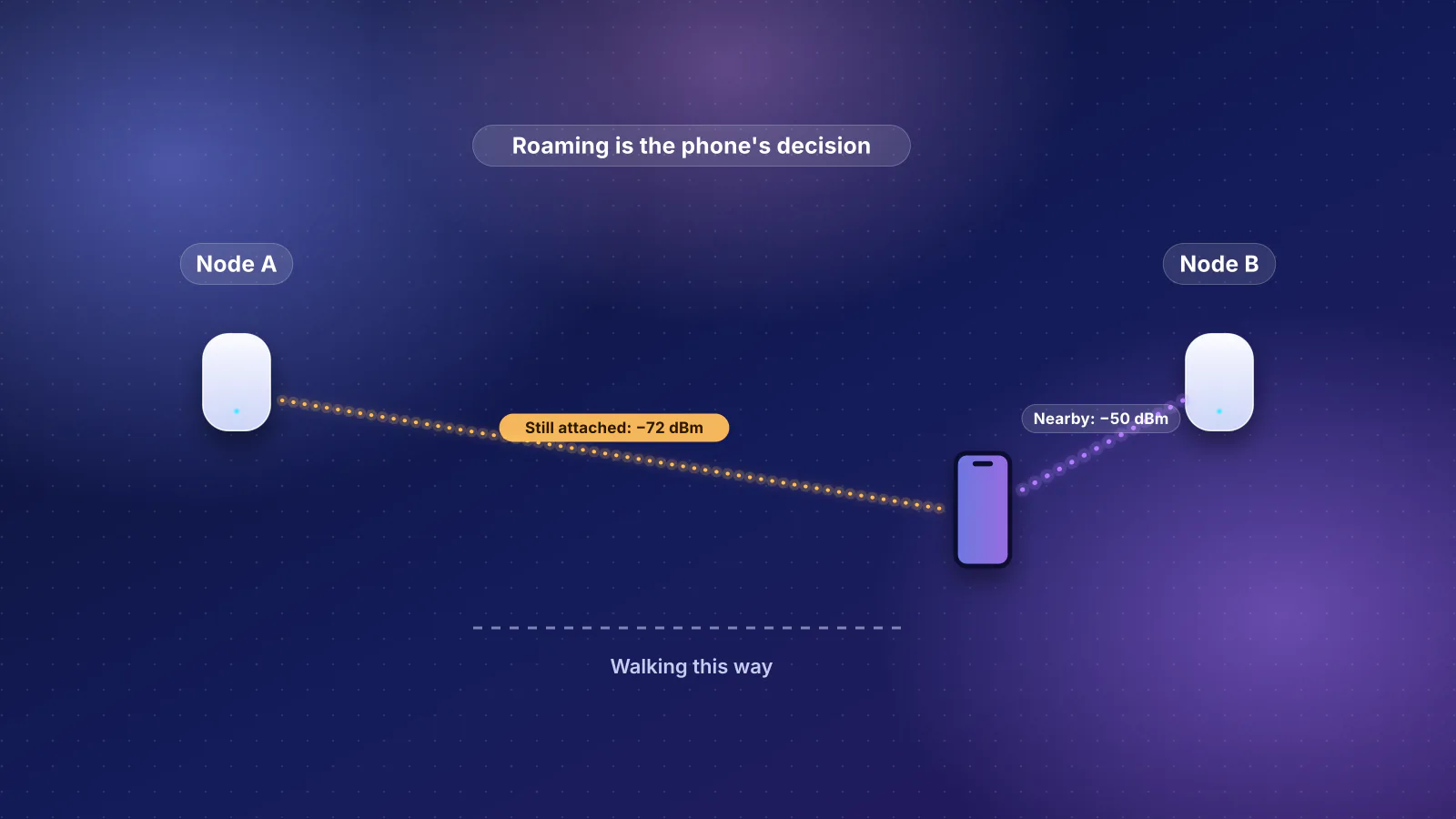
Apple publishes roaming rules for iPhone, iPad and Mac (an iPhone holds on to its access point until the signal falls below −70 dBm; see sticky clients, and the thresholds each platform uses), but not for HomePod or Apple TV. A speaker joins a unit when it connects and the mesh can only encourage it to choose well: eero says its client steering "does not guarantee that a device will choose the 5 GHz or 6 GHz bands nor the closest eero". If a speaker sits on a far unit when a nearer one is available, restarting the speaker makes it reconnect, which gives it another chance to pick the nearer unit (no maker documents how a speaker chooses). The iPhone roams as you walk around; with enhanced buffering the speaker keeps playing through that, as in Apple's demo.
Band steering and older radios
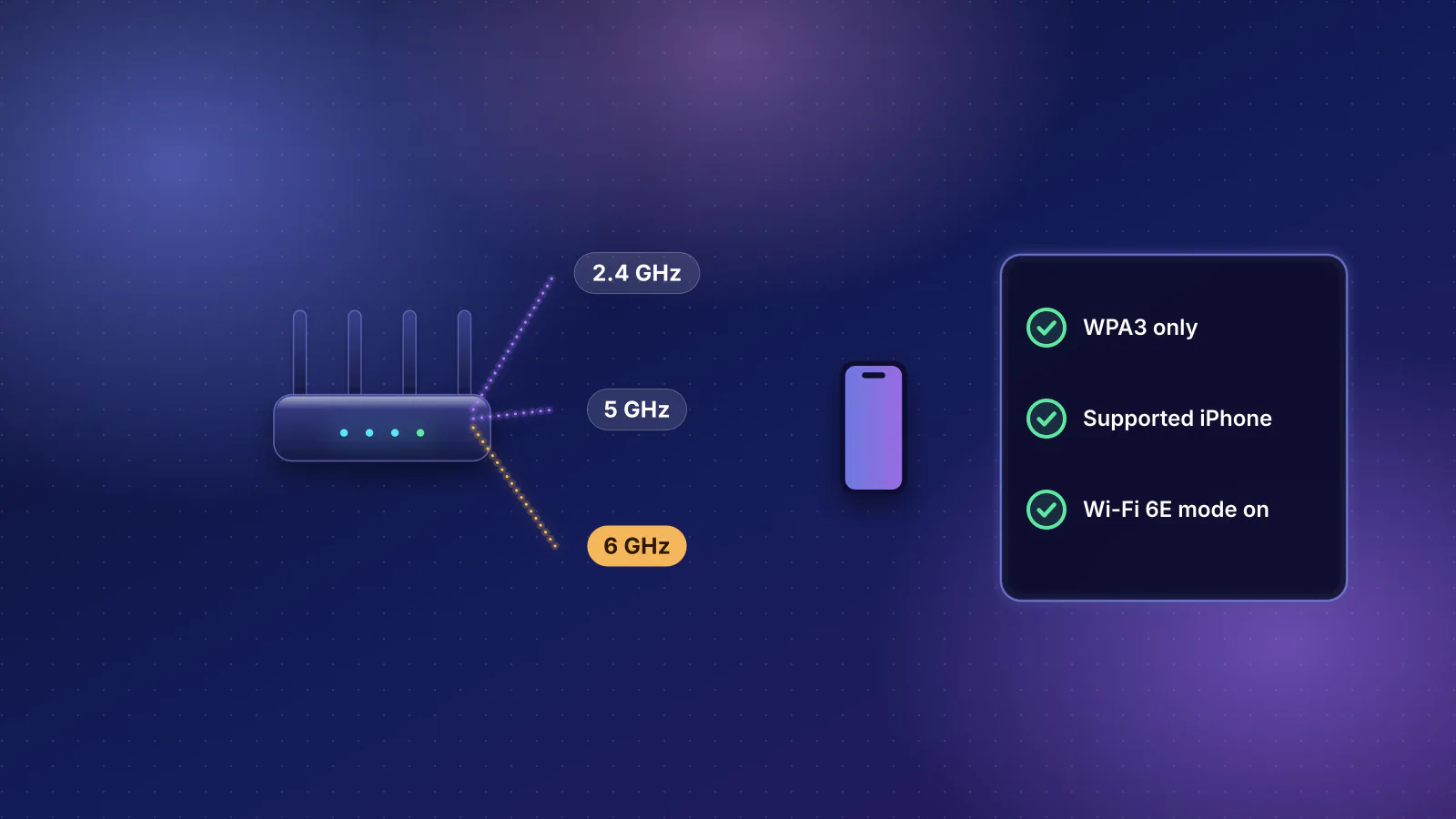
Many AirPlay speakers have modest radios. Apple lists 802.11n Wi-Fi for the HomePod (2nd generation) and the original HomePod mini, and Wi-Fi 6E for HomePod mini 2. Sonos says all its products work with 802.11b/g on 2.4 GHz and lists "Routers that only provide 5 GHz WiFi" as unsupported. eero, Deco, Orbi and Nest Wifi each use one network name across their bands and steer devices between them, which fits Apple's advice to use one name for all bands. When a steering or roaming feature causes trouble, the makers' advice is to test with it off:
- TP-Link says Fast Roaming (802.11r) can make devices that don't support it "fail to connect" or disconnect, and its smart-home guide suggests turning off Fast Roaming and Beamforming for smart-home devices that fail to connect or drop.
- eero lets you turn Client Steering off (Settings, Advanced networking, Client steering).
- Ubiquiti recommends leaving Band Steering and BSS Transition on, noting that "some very old devices" may have roaming issues with BSS Transition.
Change one setting at a time and give it a day, so you know which one mattered.
Peer-to-peer AirPlay and the channel plan
Peer-to-peer AirPlay to an Apple TV, which Apple devices prefer for discovery and which lets guests AirPlay without joining your network, sets up a temporary link that Apple says "typically operates on Wi-Fi channel 149+1", and may also use channel 6 or 149 at 80 MHz. Apple's setup advice for it:
- Keep the sending device "within 25 to 30 feet" of the Apple TV, with few obstructions.
- "If possible, avoid using Wi-Fi channels 149 and 153 in rooms where peer-to-peer AirPlay is frequently in use."
- An Apple TV "should always be connected to Ethernet" when the Wi-Fi uses DFS channels and peer-to-peer AirPlay is wanted.
eero turns DFS on automatically and picks channels itself; its Compatibility Mode page says DFS, WPA3 and Client Steering can be set individually in the app, or turned off together by eero Support. On eero, an Apple TV on Ethernet follows Apple's advice without giving up the DFS channels. The Orbi 770 manual lets you set fixed 2.4 and 5 GHz channels, TP-Link says some Deco models allow manual channels, and on UniFi you set channels per access point, so on those you can keep 149 and 153 away from the TV room.
The settings that matter, brand by brand
These are the setting names each maker documents, checked November 7, 2026. Where a cell says a maker doesn't document something, we found nothing in its support documentation; that isn't proof the setting doesn't exist in its app.
| System | Guest and extra networks | Isolation and multicast | Roaming and bands |
|---|---|---|---|
| eero | Guest devices are on a different subnet and "cannot communicate with devices connected to the main network nor with each other"; eero's example is a laptop that can't play to a Sonos speaker. Keep speakers, TVs and phones on the main network. | No LAN multicast or client-isolation setting documented. (Multicast IPTV, under ISP Settings, is for providers that require it, not for AirPlay.) | Client Steering on by default (Settings, Advanced networking). DFS automatic. Compatibility Mode, through eero Support, turns off WPA3, Client Steering and DFS together. eero says there's "no way to permanently separate" its bands. |
| TP-Link Deco | In router mode, "the guest network and main network are always isolated"; in access point mode an "Isolated From Main Network" toggle appears. The IoT Network (More, IoT Network) "allows cross-network communication by default". | Device Isolation (Security, Device Isolation): isolated devices "cannot transfer data with devices on your home network". Make sure speakers and TVs aren't on the list. No multicast setting documented. | Fast Roaming and Beamforming (More, Advanced): TP-Link suggests turning them off for devices that drop. The 2.4 and 5 GHz bands share one name and "cannot be separated". |
| NETGEAR Orbi | The Orbi 770 manual lists three networks: main, IoT (enabled by default) and guest. For Wi-Fi 5 Orbis, NETGEAR documents an "Allow guests to see each other and access my local network" box, cleared by default. | "Disable IGMP Proxying" concerns multicast "from the Internet", per the manual, not AirPlay inside your network. No LAN multicast setting documented. We found no statement on whether the IoT network can reach the main one, so keep AirPlay devices on the main network. | The Orbi 770 manual says the router "supports automatic bandsteering" across its three bands. |
| Google Nest Wifi | Guest network with "Shared devices": you pick devices guests can use, "like a Google streaming device, smart TV, wireless speaker, or printer". Google doesn't say whether this covers AirPlay discovery. | No multicast or isolation setting documented. | One network name for all bands; Google says its Band Steering "will attempt to guide" devices to the best band, and documents no switch for it. Google's placement help suggests a mesh test "to verify your connections are strong". |
| Ubiquiti UniFi | Put AirPlay devices on the main network, or on a media VLAN with mDNS relayed to your client network ("Ensure mDNS is enabled for both your client network, and the network associated with your AirPlay/Chromecast devices"). | Leave Client Device Isolation and Multicast and Broadcast Control off (the latter "blocks cross-AP device discovery (e.g., Apple TVs won't work across APs)"). Turn on Multicast to Unicast, which Ubiquiti suggests for "small to medium networks" (its settings overview describes the same conversion under the name Multicast Enhancement). | Ubiquiti recommends Band Steering, BSS Transition and Fast Roaming on, and Minimum RSSI only for high-density sites. |
Two settings that look relevant usually aren't:
- IGMP snooping on a switch or router shouldn't block IPv4 Bonjour. RFC 4541 says snooping switches must forward 224.0.0.x traffic "on all ports", and Ubiquiti says its switches always flood 224.0.0.0/24. If discovery fails only through one managed switch, test with its multicast features off; eero already recommends turning IGMP off on a managed switch in an eero network (see our wiring rules).
- A separate IoT network is fine for devices you control through their own cloud app, but AirPlay speakers, Apple TVs and the phones that use them need to see each other. Our Apple Home network guide covers the same trade-off for HomeKit and Matter.
If you run VLANs on a UniFi gateway, its mDNS proxy has Auto, Off and Custom modes, and Custom lets you add services by name. Apple says networks that relay Bonjour for AirPlay should advertise both _airplay._tcp and _raop._tcp. Ubiquiti also warns that relaying mDNS to more networks "will also increase the amount of traffic forwarded between the networks". If two routers are in the picture (a provider gateway and your mesh both routing), devices on each can't see each other; see how to fix double NAT.
Put the receiver on a wire where you can
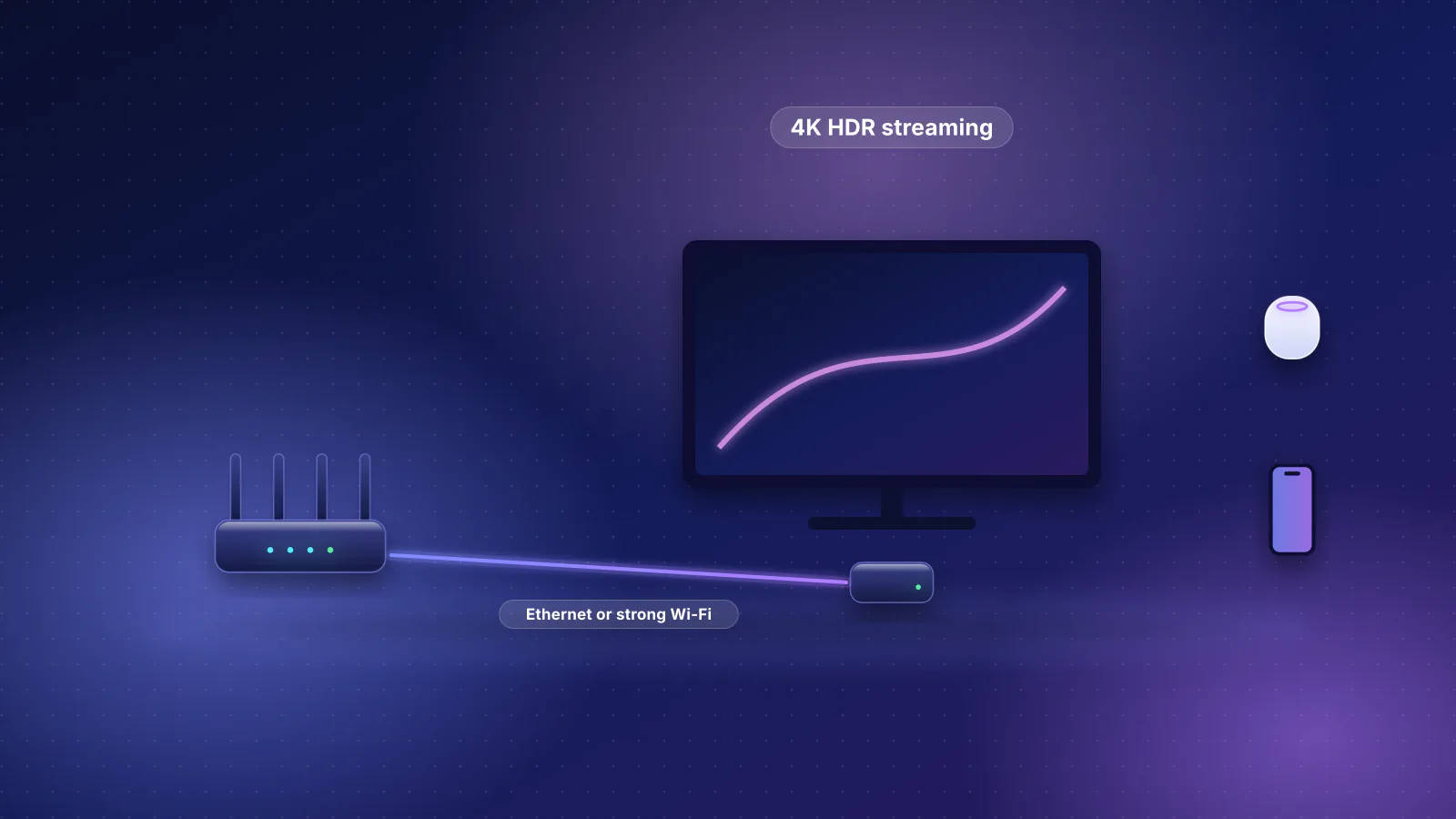
Apple's first AirPlay setup recommendation is that "Apple TV should be connected to Ethernet if available." On a mesh, that cable can go to the mesh unit in the TV room rather than to the router: the Apple TV then rides the unit's backhaul instead of its own antennas behind the screen. The Apple TV guide lists which models have an Ethernet port. Apple's HomePod spec pages list Wi-Fi and no Ethernet, so for a HomePod the Wi-Fi link is everything: put a mesh unit in or near its room.
An Apple TV on Ethernet can also anchor the room's audio. Apple's tvOS guide says you can stream from Apple TV to HomePods and other AirPlay speakers "connected to the same network", and set them as its default output (Settings, Video and Audio, Audio Output). With AirPlay speakers other than HomePod, "system alerts and game sounds" still play through the TV speakers.
Delay and lip-sync
Apple says AirPlay plays to several speakers "in perfect sync" and that enhanced buffering is responsive to commands, but it doesn't publish AirPlay's latency or buffer length, so there's no documented "normal" delay to compare against. What you can fix:
- Echo between the TV and AirPlay speakers. Apple says that with an Apple TV connected to a receiver or TV over HDMI, "you may experience audio latency, a delay that sounds like an echo". Go to Settings, Video and Audio, Calibration, Wireless Audio Sync, and hold your iPhone close to the TV or receiver speakers: the Apple TV "plays tones through your wired speakers in order to measure the TV's audio/visual latency, then it matches the output for the wireless speakers."
- The same receiver listed twice. Apple notes that some receivers and smart TVs appear both as "Receiver Speakers" (over HDMI) and as an AirPlay speaker; "For the best audio quality, choose Receiver Speakers."
- Screen mirroring. Apple doesn't publish mirroring latency. If a video lags, start AirPlay from the app's own AirPlay button rather than mirroring the screen, and keep the Apple TV on Ethernet so only the sending device is on Wi-Fi.
Sonos on a mesh
Sonos products that support AirPlay 2 work like any other AirPlay speaker, with a few rules of their own from Sonos's support pages:
- Same subnet, no guest network. Sonos requires the "Sonos app and all Sonos products are on the same subnet" and lists guest networks, portal-login networks, WPA/WPA2 Enterprise and VPNs that block local access as unsupported.
- Wire to the main unit. "In WiFi mesh networks, Sonos products must be wired to the primary mesh node if using a wired setup."
- Not every speaker takes AirPlay. Speakers set up as surround speakers can't, and a missing speaker should first be checked for power and its connection to the Sonos system. Sonos says you can group an AirPlay-playing product with any other Sonos product "for multi-room playback".
- SonosNet and loops. Ubiquiti says Sonos devices "commonly cause network loops", which it ties to SonosNet, Sonos's own 2.4 GHz mesh, and its spanning-tree behaviour; its advice is to wire all Sonos devices or none, and to turn SonosNet off (Settings, Network, SonosNet on S2 systems) where you can.
Frequently asked questions
Why does my HomePod disappear from AirPlay and then come back?
Usually its Wi-Fi link is marginal or it sits on a mesh unit with a weak wireless backhaul. Check its signal in the Home app, where Apple calls two bars or fewer weak, and check which mesh unit it uses. Move a unit closer to it or wire that unit, then test again.
Can AirPlay work across a guest network or VLAN?
Not through a guest network on most mesh systems, because guest devices are isolated from the main network. The exception is an Apple TV whose Allow Access setting is Everyone, which guests can reach over peer-to-peer AirPlay. Across VLANs it can work if the router relays mDNS between them and allows the traffic; Apple says a relay should advertise both _airplay._tcp and _raop._tcp.
Does turning on Multicast to Unicast help AirPlay?
On UniFi, Ubiquiti suggests it for small and medium networks. It turns lossy multicast frames into acknowledged unicast ones, which the IETF describes as avoiding most multicast problems on Wi-Fi at the cost of sending a copy to each device. eero, Deco, Orbi and Nest don't document a similar setting.
Why is there a delay when I AirPlay to several speakers?
Apple doesn't publish AirPlay's latency or how much audio it buffers. It says AirPlay streams audio faster than real time to ride out interruptions and plays to several speakers in sync. The delay you can fix is between a TV's own speakers and AirPlay speakers: run Wireless Audio Sync on the Apple TV.
Will a new mesh system fix AirPlay dropouts?
Only if the cause is the backhaul or coverage. Settings such as guest networks, isolation and multicast filtering exist on most systems, and a new kit with a wireless backhaul can repeat the same weak hop. Wiring the unit that serves the speaker is the more dependable fix.
Sources
Read on November 7, 2026.
- Apple Platform Deployment: Use AirPlay with Apple devices (discovery methods, Bonjour and subnets, peer-to-peer channels, Ethernet, DFS, 25 to 30 feet,
_airplay._tcpand_raop._tcp) - Apple Support: If screen mirroring or streaming isn't working on your AirPlay-compatible device (first steps; music that stops everywhere)
- Apple Support: If HomePod has a "Network Issue" or "No Internet" (same network, signal bars, Network Mismatch, peer-to-peer, NAT)
- Apple Support: Recommended settings for Wi-Fi routers and access points
- Apple Developer, WWDC23: Tune up your AirPlay audio experience (enhanced audio buffering)
- Apple Developer: Playing custom audio with your own player and Implementing simple enhanced buffering for your content (long-form audio and extended buffering)
- Apple TV 4K User Guide: Play audio throughout your home, Calibrate video and audio (Wireless Audio Sync), Use HomePod or AirPlay-enabled speakers with Apple TV 4K and Adjust settings for AirPlay and Apple Home
- Apple Support: HomePod (2nd generation) tech specs, HomePod mini tech specs and HomePod mini 2 technical specifications
- IETF RFC 6762: Multicast DNS, RFC 4541: Considerations for IGMP and MLD snooping switches and RFC 9119: Multicast considerations over IEEE 802 wireless media
- Ubiquiti: Managing broadcast traffic with UniFi, Best practices for Chromecast and AirPlay and UniFi WiFi SSID and AP settings overview
- Ubiquiti: UniFi Gateway mDNS proxy, UniFi switch settings (IGMP snooping) and Best practices for Sonos devices
- Ubiquiti: Optimizing WiFi connectivity and reducing latency (wireless hops)
- eero: How do I share my eero network with guests?, What advanced features does eero support?, What is DFS?, What is Compatibility Mode?, Can I set my eeros to use the 2.4, 5, or 6 GHz frequency?, How do I configure ISP settings? (Multicast IPTV) and What device information can I see with eero?
- TP-Link: Deco common questions (guest isolation, shared band name, manual channels), How to set up Device Isolation, Deco smart home dropping? 3 settings to fix it and Why clients fail to connect when Fast Roaming is enabled
- NETGEAR: How do I set up a guest network on my Orbi WiFi System? and Orbi 770 series user manual (June 2024, PDF) (three networks, band steering, fixed channels, IGMP proxying)
- Google Nest Help: Create, edit and share a Guest Wi-Fi network, How Nest Wifi, Nest Wifi Pro, and Google Wifi 2.4, 5 GHz, and 6 GHz bands work (Band Steering) and Where to place your Wifi devices (mesh test)
- Sonos: Stream AirPlay audio to Sonos and Sonos system requirements