The short version
- Your plan's speed is delivered to the router, for the whole household. Xfinity says a plan is "often faster than a single device can handle, especially over a WiFi connection." Test the plan with a cable or your provider's router test, not a phone.
- The link rate your device shows is a ceiling, not a speed. TP-Link says real transfer speed is "typically 40–60%" of it. Even Intel's best case for new 6 GHz gear assumes 90%.
- The device sets the first ceiling. A two-stream Wi-Fi 6 device on an 80 MHz channel links at about 1,200 Mbps, which at 40 to 60% is roughly 480 to 720 Mbps: short of a gigabit plan before anything else gets in the way. On 2.4 GHz, Apple's devices link at 195 to 299 Mbps.
- Then distance, walls, other devices and mesh hops take their share: the rate falls as the signal weakens, and everyone on the channel takes turns.
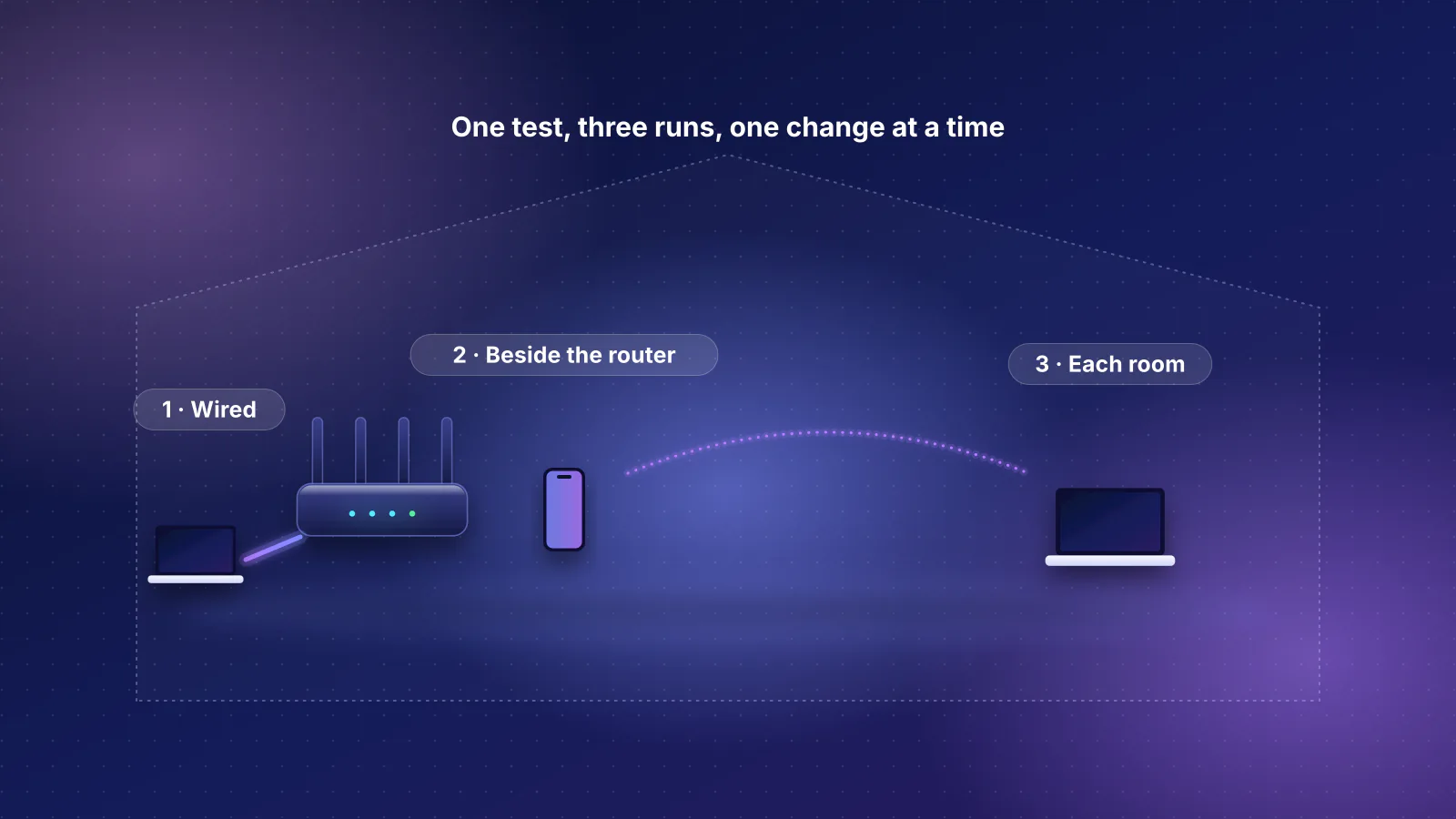
- The check: test wired, then on Wi-Fi beside the router, then in the room, and read the device's link rate each time. A result near half the link rate is normal; one far below it, or a low link rate beside the router, is worth fixing.
If wired tests are slow too, this isn't a Wi-Fi problem: start with the step-by-step slow internet diagnosis. On a 2 Gbps or faster plan, the multi-gig bottleneck guide covers the extra limits above 1 Gbps.
Your plan is measured at the router, not at your phone
Providers size plans for the household and test them at their own equipment. Xfinity says a plan is "sized" to support all connected devices at once and that "Speeds through a hardwired connection are naturally faster than speeds over WiFi because of potential wireless interference." eero's in-app test measures "speeds from your Internet Service Provider (ISP) at your gateway eero", so it shows the same result wherever you stand. GFiber's app has a router test that "Measures speed directly from the gFiber network to your router", and GFiber says Wi-Fi results typically max out "around 300–800 Mbps regardless of gigabit capabilities."
So a Wi-Fi speed test answers a different question from "am I getting my plan?" It measures one device, over one radio link, to one server. Use a wired computer or the provider's router test for the plan, and a Wi-Fi test for the Wi-Fi.
- Internet plan 1 Gbps, about 940 Mbps usable over gigabit Ethernet
- Router Gigabit ports, Wi-Fi 6
- Laptop, 2 streams at 80 MHz 1,201 Mbps link rate; roughly 480 to 720 Mbps at 40 to 60%
The link rate is a ceiling, and here's how it's set
TP-Link defines Wi-Fi link speed as "the maximum negotiated speed between two devices", set by their capabilities and signal quality; Apple calls its published figure the PHY data rate, "The highest rate at which a client can transmit data over Wi-Fi." Three things multiply into it:
- Spatial streams. Each Apple device in the table below has two. One stream gives half the rate, four give double.
- Channel width. Twice the width carries twice the data: 160 MHz doubles 80 MHz. Apple recommends 20 MHz on 2.4 GHz, which is why that band's rates are so much lower.
- Modulation and coding, which falls as the signal weakens. Wi-Fi 6 added 1024-QAM (MCS 10 and 11) and Wi-Fi 7 adds 4096-QAM; both need a strong, clean signal.
The top rates that result, from the makers' and test vendors' own figures:
| Link | Top link rate | Where the figure comes from |
|---|---|---|
| Wi-Fi 5, 2 streams, 80 MHz | 866.7 Mbps | Intel's protocol table (Apple lists 866 Mbps) |
| Wi-Fi 6, 1 stream, 80 MHz | 600.4 Mbps | NI's 802.11ax overview |
| Wi-Fi 6, 2 streams, 80 MHz | 1,201 Mbps | 2 × 600.4 (Apple lists 1,200 Mbps) |
| Wi-Fi 6 or 7, 2 streams, 160 MHz, 1024-QAM | 2,402 Mbps | 2 × 1,201 (Apple and Intel list 2,400 Mbps) |
| Wi-Fi 7, 2 streams, 320 MHz, 4096-QAM | 5,760 Mbps | Intel's footnote for its Wi-Fi 7 cards |
NI's figures show how streams and width multiply: 600.4 Mbps for one stream at 80 MHz, and 9,607.8 Mbps for eight streams at 160 MHz, which is 16 times as much (arithmetic: 9,607.8 ÷ 600.4 = 16.0, eight times the streams and twice the width). Every figure in the table is a best case at close range, with the top modulation.
From link rate to the speed a test shows
A speed test counts only the data that arrives. Between the link rate and that number sit:
- Overhead. NETGEAR says "The rate obtained at the application layer is much lower than the physical layer rate", because of "High overhead involved in WiFi connections" and "Data retransmission because of the inherent unreliability of a WiFi connection."
- Taking turns. Only one device on a channel transmits at a time, the router included, so a download shares the air with every other device and nearby network on the channel. The mechanisms are set out here with their research sources.
- The usual protocol overhead that applies on a cable too: about 5 to 6% for TCP over IPv4 with 1,500-byte packets (the arithmetic).
How much is left? The makers' own rules of thumb differ:
| Source | What it says | Share of link rate |
|---|---|---|
| TP-Link | Actual transmission speed is "typically 40–60% of the associated speed" | 40 to 60% |
| NETGEAR | "a link rate of 300 Mbps usually corresponds to 50 to 90 Mbps speed on the TCP/UDP layer" | About 17 to 30% (its example uses a 300 Mbps link) |
| Intel | An "industry-standard assumption of 90% efficiency" for new products in the 6 GHz band, giving 5.19 Gbps from 5.76 | 90%, a best case |
Taking TP-Link's middle range, which sits between the other two, here's what each common link leaves for a single download (arithmetic, not a measurement):
| Device link | Link rate | At 40 to 60% | Can it show a 1 Gbps plan? |
|---|---|---|---|
| 2.4 GHz, 2 streams, 20 MHz (Apple's devices) | 195 to 299 Mbps | 78 to 179 Mbps | No; not a 300 Mbps plan either |
| Wi-Fi 6, 1 stream, 80 MHz | 600 Mbps | 240 to 360 Mbps | No |
| Wi-Fi 5, 2 streams, 80 MHz | 867 Mbps | 347 to 520 Mbps | No |
| Wi-Fi 6, 2 streams, 80 MHz | 1,201 Mbps | 480 to 720 Mbps | No |
| Wi-Fi 6E or 7, 2 streams, 160 MHz | 2,402 Mbps | 961 to 1,441 Mbps | Close to it, at close range |
That range matches what GFiber tells its customers to expect ("around 300–800 Mbps"), and it's why a phone that shows 400 to 600 Mbps beside the router on a gigabit plan is usually working as designed.
What common devices top out at
Apple publishes the top PHY rate of each device by band, which makes its devices a useful reference. From its specification tables (all two streams):
| Device | 5 GHz (and 6 GHz) | 2.4 GHz |
|---|---|---|
| Apple TV 4K (3rd generation) | 1,200 Mbps, Wi-Fi 6 at 80 MHz; no 6 GHz | 195 Mbps |
| iPad (A16) | 1,200 Mbps, 80 MHz; no 6 GHz | 299 Mbps |
| MacBook Air (M2) | 1,200 Mbps, 80 MHz; no 6 GHz | 195 Mbps |
| MacBook Air (M3 and M4) | 2,400 Mbps at 160 MHz, on 5 and 6 GHz | 195 Mbps |
| iPhone 16 and iPhone 17 | 2,400 Mbps at 160 MHz, Wi-Fi 7, on 5 and 6 GHz | 229 Mbps |
Two practical points. A 160 MHz rate needs the router to use a 160 MHz channel; Apple recommends "Auto or all channel widths" on 5 and 6 GHz, saying it "ensures the best performance and compatibility with all devices." And none of these devices can show even a 300 Mbps plan on 2.4 GHz, so a phone or tablet that has drifted onto 2.4 GHz will test slowly however good the plan is. For which iPhones have which radios, see the iPhone Wi-Fi 7 guide.
Why the rate falls away from the router
The top rates above need a strong signal. TP-Link's definition ties link speed to "signal quality", and eero's troubleshooting guide notes that "Wifi signals get weaker with distance and when passing through objects like walls, floors, and large appliances", and that "concrete and brick reduce signal more than drywall or wood." As the signal weakens, the radios step down to slower modulation and coding, and the link rate drops with each step.
eero's suggested test is the right one: stand next to the router or node and test. If speeds are fast there but slow where you need them, "there may be too many obstacles between the eero and that location." The fix is coverage, not a faster plan: dead-zone fixes, cheapest first. Homes with stucco over wire mesh or block walls lose more per wall; see Wi-Fi placement in stucco and block homes.
Everything else on the channel takes a turn
Wi-Fi capacity is shared airtime. While a TV streams or a laptop backs up, your test gets fewer turns; a distant, slow device takes longer turns. That's one reason a Wi-Fi test can be fast late at night and slow in the evening even when the internet line isn't the limit. The airtime explainer covers how capacity splits.
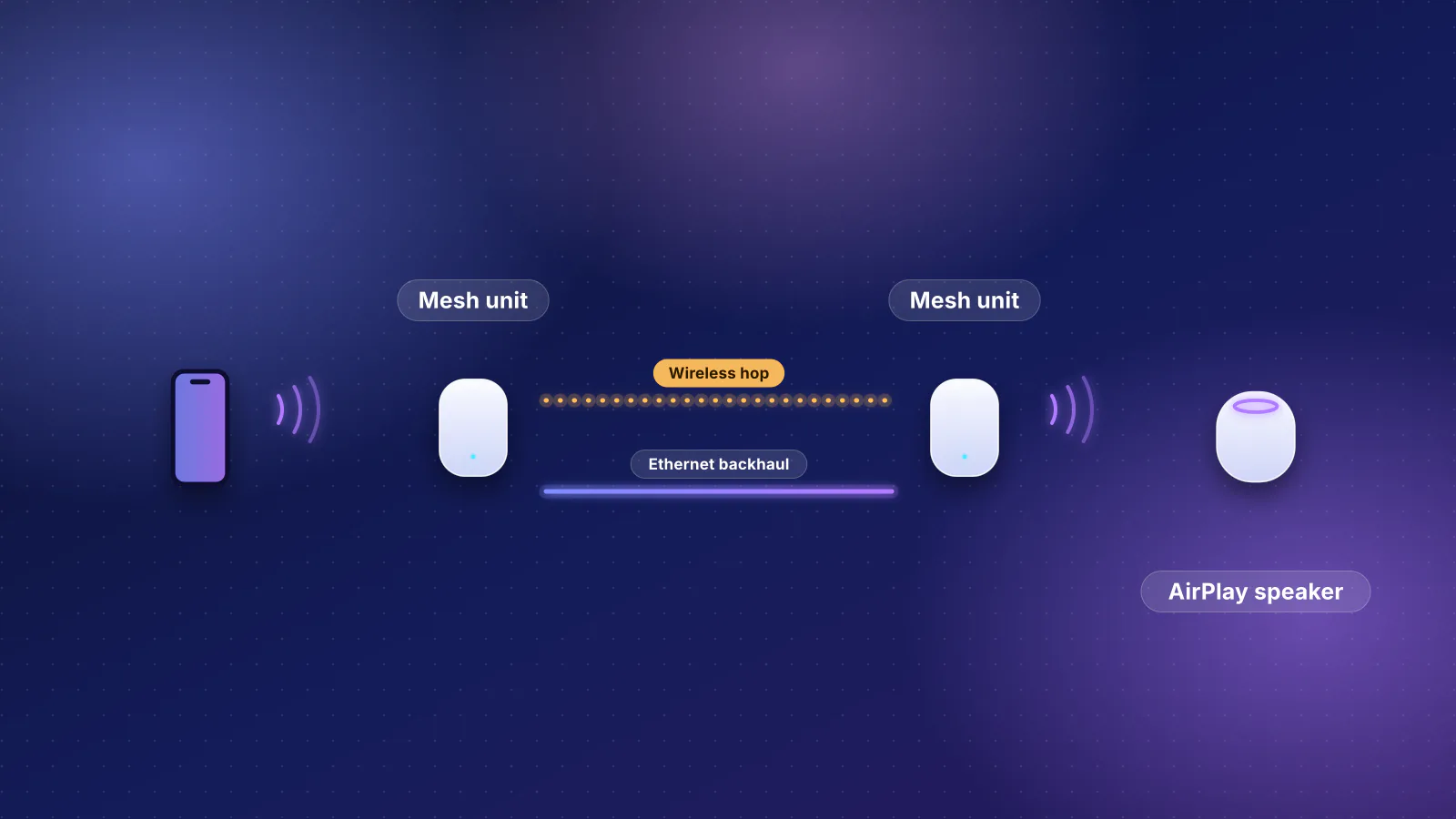
Mesh adds one more shared hop: a node connected to the router by Wi-Fi spends airtime relaying every packet, so devices on that node get less. The hop that halves your speed explains it, and wired backhaul is the fix.
Check yours in four steps
- Test wired. A computer on a cable to the router, or your provider's router test. If this is well short of the plan, the Wi-Fi isn't the problem: see the clean wired test.
- Test on Wi-Fi beside the router, with the device you care about, and read its link rate at the same moment. TP-Link's steps: on a Mac, hold Option and click the Wi-Fi icon ("The Tx Rate shown is the link speed"); on Android, open Settings, Wi-Fi and tap the connected network; on Windows, run
ncpa.cpl, right-click the Wi-Fi adapter and choose Status. (TP-Link's guide doesn't cover iPhone.) - Test in the room where it's slow, same device, same test, and read the link rate again.
- Compare. Use the table below. Repeat each test two or three times and use the middle result; one run proves little.
| What you see | What it means | What to do |
|---|---|---|
| Beside the router: link rate high, result about half of it | Normal. The device or the plan is the ceiling | Nothing, unless you need more on that device: then a cable, or a device with a faster radio |
| Beside the router: link rate low (for example under 300 Mbps on a recent device) | The device is on 2.4 GHz, a narrow channel, or an older mode | Check the band and channel width in the router (Apple's recommended settings); try another device to rule out the first one |
| Beside the router: link rate high, result far under half | Something else is using the channel, or the device or router is struggling | Pause other traffic and retest; restart both; compare a second device |
| Fine beside the router, slow in the room, link rate drops | Coverage | Move the router or node, wire the backhaul, or add a wired access point |
| Fine at quiet times, slow when the house is busy | Shared airtime, or a saturated connection | The busy-home playbook, and check latency under load |
RouterHaus's Network Health check runs the speed test and lets you label where you ran it, so you can compare the spot beside the router with the slow room on the same device and see which row you're in.
When new hardware helps, and when it doesn't
- A faster plan doesn't raise a single Wi-Fi device's ceiling. It helps when several devices download at once.
- A new router helps when the router is the limit: it can't run 80 MHz or wider on 5 GHz, it has no 6 GHz band for devices that support it, or one router can't cover the home. It doesn't help a device whose own radio is the limit, like a 2.4 GHz-only gadget or an 80 MHz Apple TV.
- Mesh helps coverage; wired backhaul keeps it from halving speed at the far node. Wired access points do the same with less airtime lost.
- A cable is still the only way a single device gets the full plan on a gigabit or faster line.
The planner sizes coverage for your home's area and floors; for a wired layout with access points, the Network Builder lays out the parts. In the Phoenix area, local help can survey a home that's hard to cover.
Frequently asked questions
Why does my phone show 400 Mbps on a gigabit plan?
Most likely because it's a two-stream device on an 80 MHz or 160 MHz channel, and Wi-Fi delivers well under its link rate: TP-Link puts real transfer at 40 to 60% of the link speed. Test with a cable or your provider's router test to check the plan itself.
Is Wi-Fi 7 enough to get my full gigabit plan over Wi-Fi?
Possibly, at close range, if both the router and the device support 160 MHz or 320 MHz channels on 5 or 6 GHz. A two-stream device at 160 MHz links at about 2,400 Mbps, which at 40 to 60% is roughly 960 to 1,440 Mbps. Farther away, or on an 80 MHz channel, it won't.
What link rate should I see?
Beside the router on 5 or 6 GHz, close to the device's published maximum (for example 1,200 Mbps for a two-stream Wi-Fi 6 device at 80 MHz). A recent device showing under about 300 Mbps beside the router is probably on 2.4 GHz or a narrow channel.
Why is upload slower than download on Wi-Fi?
Check the plan first: its broadband label gives the typical upload speed, and on many plans it is lower than download. Then compare a wired upload test with the Wi-Fi one; only the difference between them is the Wi-Fi.
Do Wi-Fi speed test apps measure my Wi-Fi?
They measure the whole path from the device to a test server, Wi-Fi included. To measure only the Wi-Fi, test between a wired computer and the Wi-Fi device inside your home, with a tool such as iPerf3; see how to test your home network properly.
Will a range extender make Wi-Fi faster?
Usually not where speed is concerned. A wireless extender relays every packet over the air, using airtime twice. It can help a device that otherwise can't connect at all; for speed, a wired access point or mesh with wired backhaul is better.
Want to measure the Wi-Fi on its own, without the internet in the path? See how to test your home network properly.
Sources
Read on November 26, 2026.
- Xfinity: What WiFi speeds to expect with your Xfinity Internet service (last modified August 31, 2026)
- eero: Why are my eero App speed test results different from the ones on my device?
- eero: Why are my speeds slow in one area or on one device?
- GFiber: Run a gFiber internet speed test
- TP-Link: What is Wi-Fi link speed and how to check it on Windows, Mac and Android (updated June 10, 2026)
- NETGEAR: What is the difference between WiFi data rate and WiFi link rate? (updated July 7, 2025)
- Intel: Different Wi-Fi protocols and data rates
- Intel: Wi-Fi 7 series products (2x2 client speed footnote)
- NI: Introduction to 802.11ax high-efficiency wireless (symbol duration, subcarrier spacing, maximum data rates)
- Apple Platform Deployment: Wi-Fi and Ethernet specifications for Apple devices
- Apple Support: Recommended settings for Wi-Fi routers and access points (July 14, 2026)