TL;DR: capacity is shared, so manage airtime and your upload
- Get fast devices onto fast bands: phones and laptops on 6 GHz or 5 GHz, TVs and consoles wired where possible, and let 2.4 GHz-only gadgets stay on 2.4 GHz.
- Improve weak links first. A device with a poor signal uses far more airtime for the same data.
- Turn on SQM if your router has it, so one big upload or download doesn’t make everything else lag.
- Use mesh with wired backhaul (Ethernet or MoCA) in larger homes so the mesh doesn’t compete with your devices for airtime.
- One network name with band steering. Skip range extenders.
Airtime, not Mbps: how Wi-Fi really splits capacity
Devices on the same channel take turns transmitting. Apple’s Wi-Fi deployment guide puts it plainly: “As more devices use the same channel, the relative network speed for those devices decreases.” A device with a weak signal or an older Wi-Fi standard sends data at a lower rate, so it needs more time on the air to move the same amount; TP-Link’s explainer on airtime fairness says slow clients “need more time to transfer the same data,” while faster devices wait. That time is unavailable to everything else. This is why device count alone doesn’t predict problems: a few dozen mostly idle sensors use little airtime, while one struggling camera at the edge of coverage can drag a channel down.
| Device | Link quality | Behavior | Airtime impact |
|---|---|---|---|
| Security camera (2.4 GHz) | Fair or weak | Continuous uploads if it records to the cloud around the clock | High: slow link, rarely idle |
| Smart TV (5 GHz) | Good | Bursty 4K stream | Moderate if the signal is strong |
| Phone (6 GHz, Wi-Fi 7) | Excellent | Apps and calls | Low: fast, short bursts |
| Laptop (5 or 6 GHz) | Good | Large downloads and uploads | High during transfers; SQM helps |
| Smart plugs and sensors (2.4 GHz) | Varies | Tiny, occasional messages | Low, even in large numbers |
The table is an illustration of how the mechanism plays out, not a measurement of any device.

The Wi-Fi 6 and Wi-Fi 7 toolbox: OFDMA, MU-MIMO, MLO, 6 GHz
- OFDMA: splits a channel into smaller pieces so several devices can share one transmission. It suits many small transfers from phones and smart-home gear. It arrived with Wi-Fi 6 (Wi-Fi Alliance).
- MU-MIMO: sends separate streams to several capable devices at the same time, which helps when multiple fast devices are busy at once. Downlink MU-MIMO arrived with Wi-Fi 5 (802.11ac), and Wi-Fi 6 extended it (Cisco).
- MLO (Wi-Fi 7): lets a Wi-Fi 7 device keep links on more than one band and use the clearer one. Most consumer hardware switches a single radio between links rather than transmitting on two bands at once (TP-Link). Both the router and the device need Wi-Fi 7; our MLO explainer covers the modes.
- 6 GHz: a less crowded band with room for 160 MHz channels (Apple counts at least seven in North America) and, on Wi-Fi 7, 320 MHz channels (Wi-Fi Alliance). Modern devices finish transfers faster there and leave airtime on 5 GHz for everything else. It usually reaches less far than 5 GHz from the same router: the signal loses only slightly more over distance, but Cisco (Wi-Fi 6E white paper) expects most 6 GHz access points to run under the FCC’s low-power indoor limits, which allow less power than some 5 GHz channels (47 CFR 15.407). It works best near the router or a mesh unit.
Which devices belong on which band
With one network name, band steering makes these choices for you. Use this table to understand what you see in your router’s device list, not as a reason to create separate networks.
| Band | Typical devices | Why |
|---|---|---|
| 6 GHz | Wi-Fi 6E and Wi-Fi 7 phones, laptops, tablets | Most capacity and least interference near the router; frees 5 GHz for older devices. |
| 5 GHz | TVs, streaming boxes, consoles, older laptops | Good mix of reach and speed. Wire stationary devices when you can to save airtime. |
| 2.4 GHz | Smart plugs, sensors, many cameras and appliances | Longest reach; many smart-home devices only support this band (TP-Link, for example, says current Kasa products are 2.4 GHz only). If you set channels by hand, use 1, 6 or 11 so neighbors don’t overlap (Apple). |
QoS & SQM: stopping bufferbloat
A common trigger is your internet upload. When something fills your upstream (a cloud backup, cameras uploading to the cloud), packets wait in oversized queues and delay jumps. Calls glitch and games lag even though “the internet is fast.” This is called bufferbloat (our bufferbloat guide goes deeper). Fix it:
- Turn on SQM (smart queue management, such as fq_codel or CAKE) and set the limits to about 90% of your measured download and upload speeds, as OpenWrt’s SQM guide recommends. Measure when the connection is otherwise idle. Not every router asks for numbers: eero’s SQM is a single on/off switch, and Ubiquiti doesn’t recommend its Smart Queues on connections of 300 Mbps or more. The trade-off: you give up some peak speed (by the overhead formula on OpenWrt’s SQM details page, a 90% setting tests at roughly 85% of your old result at best, and real results vary), and SQM runs on the router’s processor, so on fast plans a slower router can cut speed well below that. If it does, keep SQM only if the latency gain matters more to you.
- If latency still rises under load, lower the limits a little and test again.
- Use priority rules as a supplement. Router “QoS” usually means device or app priority. It is not the same as SQM, but giving work laptops and calls priority over backups can help on top of it.
Routers in our catalog with documented SQM include the eero 7 and UniFi Express 7; the router finder’s SQM filter lists the rest.
Mesh & backhaul: don’t starve your devices
- Wired backhaul (best): Ethernet or MoCA between mesh units keeps the air free for devices.
- Wireless backhaul (good): prefer tri-band or quad-band systems with a band set aside for backhaul (NETGEAR), or Wi-Fi 7 with MLO backhaul.
- How many units: as a rule of thumb, plan about one access point per ~1,800 sq ft with drywall and wood walls, ~1,400 with plaster and ~1,000 with block, brick, stucco or concrete, and usually one per floor in multi-floor homes over about 1,200 sq ft (our coverage model). For wireless backhaul, follow the mesh app’s placement or signal indicator.
Congestion playbook
- Update firmware and turn on WPA3 (WPA2/WPA3 transitional mode if older devices need it) and the 6 GHz band if you have one (Apple, CISA).
- One network name with band steering on. Let modern devices pick 6 GHz.
- Wire the heavy users: TV, console, desktop and NAS on Ethernet; otherwise make sure they have a strong 5 GHz signal.
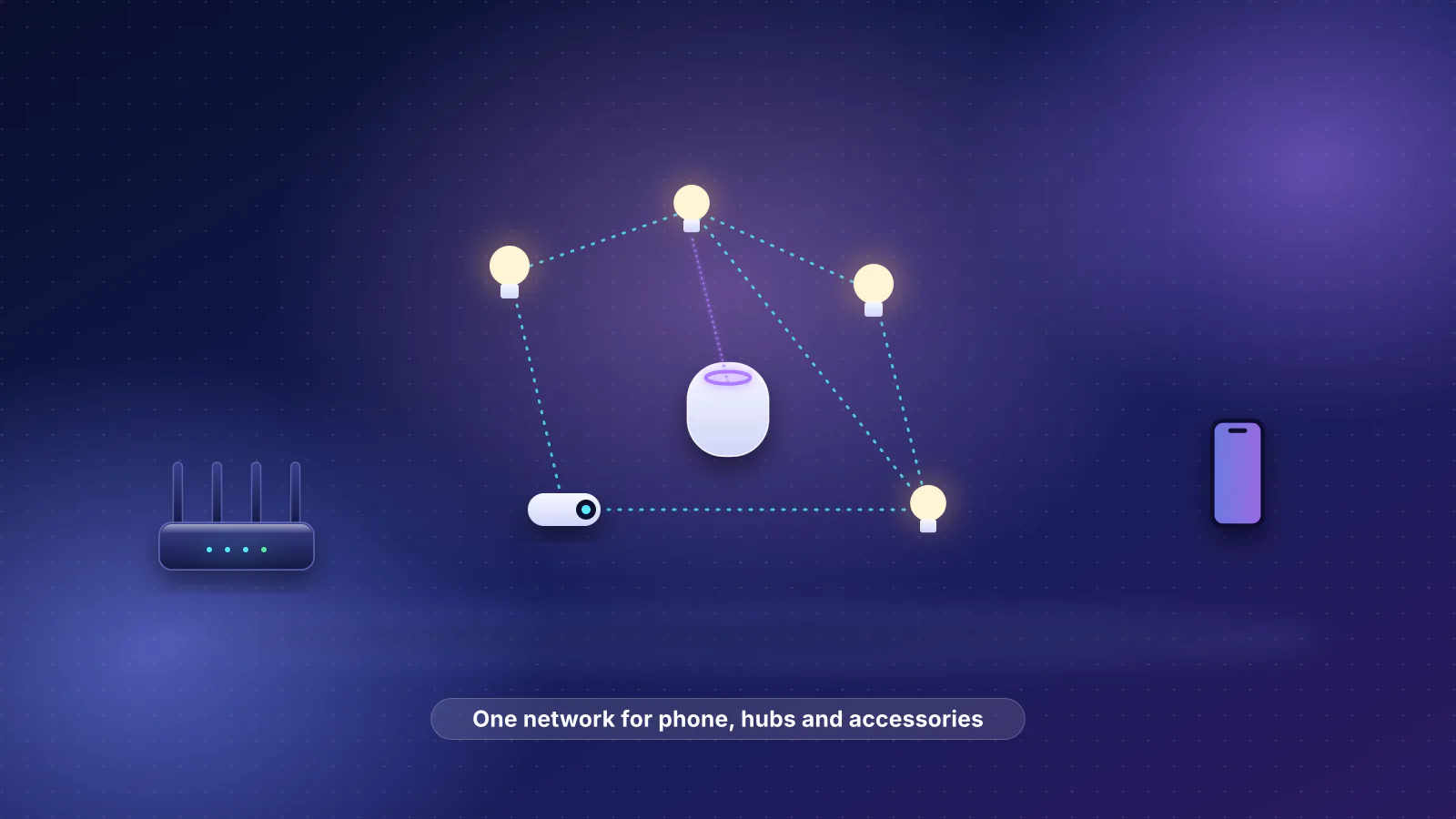
- Separate smart-home gear that only needs the internet: CISA suggests putting smart-home devices on a guest network if internet access is the only thing they require. This helps security, not speed. Keep Apple Home and Matter accessories, home hubs and the phones that control them on your main network: Apple says they need to be on the same Wi-Fi network, and guest networks may block the peer-to-peer traffic they rely on (our Apple Home and Matter network guide has the details).
- SQM: turn it on, at about 90% of measured speeds where it asks for them; add priority for calls and work devices if you like.
- Backhaul: wire the mesh if possible; otherwise check the app’s link-quality indicator and move units closer if it’s weak.
- Room tests: run a speed and latency test in the office, living room and bedrooms; move units a few feet and test again.
Gamers in the house? Our latency and jitter guide goes deeper on lag. Working from home? See the work-from-home network guide. Coverage gaps? Start with beating dead zones. For a large or complicated home, a consult can map out access points and cabling.
Frequently asked questions
Why does my network slow down when lots of devices are online?
Wi-Fi devices on the same channel take turns, so they share airtime. Devices with weak signals or older Wi-Fi use more time for the same data, and a saturated upload adds delay for everyone. Improve weak links, wire stationary devices and turn on SQM.
How many devices can a Wi-Fi router handle?
There is no single number. Idle smart-home devices use very little airtime, while a few busy devices with weak signals can slow a channel. Manufacturer device-count claims are rough guides; signal quality and how busy each device is matter more.
Do I need Wi-Fi 7 for a busy home?
Not necessarily. Wi-Fi 6 already brought OFDMA and extended MU-MIMO. Wi-Fi 7 with a 6 GHz band helps if you have many modern phones and laptops, because they finish faster on the less crowded band. Better placement, wiring and SQM often help more.
What is the single best quick fix?
If your router has SQM, turn it on and, if it asks for speeds, set them to about 90% of your measured speeds. A saturated upload is a common cause of choppy calls and lag. If there’s no SQM, pause or schedule large backups for off-hours.
Should I split my 2.4 GHz and 5 GHz networks?
Usually no. One network name with band steering lets each device pick the best band, and Apple recommends a single name for all bands. If a 2.4 GHz-only device won’t pair, follow its maker’s setup instructions. Don’t move Apple Home or Matter accessories to a guest network to get them paired: they need to be on the same network as your phone and home hubs.
Is mesh required for many devices?
Device count alone doesn’t require mesh; coverage does. In larger or multi-floor homes, mesh with wired backhaul keeps every room on a strong signal, which reduces the airtime each device needs.
Sources
Read on October 21, 2026.
- Wi-Fi Alliance: Wi-Fi (MAC/PHY), Wi-Fi 6 and Wi-Fi 7 features (OFDMA, multi-user MIMO, multi-link operation, 320 MHz channels in 6 GHz)
- Cisco: IEEE 802.11ax, the sixth generation of Wi-Fi (white paper) (downlink MU-MIMO in 802.11ac; OFDMA new in 802.11ax)
- Cisco: Wi-Fi 6E white paper (5 vs 6 GHz path loss; low-power indoor operation)
- eCFR: 47 CFR 15.407, U-NII general technical requirements (5 and 6 GHz power limits)
- TP-Link: Wi-Fi 7 MLO, what is multi-link operation and how does it work?
- TP-Link Omada: What is EAP/CAP airtime fairness (slow clients need more airtime)
- TP-Link: Application scenarios for dual-band range extenders (extender speed halved)
- TP-Link: Kasa smart home devices FAQs (2.4 GHz only)
- Apple Platform Deployment: Optimize your Wi-Fi networks (shared channels, 2.4 GHz channels 1, 6 and 11, 6 GHz channel counts)
- Apple: Recommended settings for Wi-Fi routers and access points (one network name, WPA3)
- Apple: If you can’t add a smart home accessory to the Home app and If your HomeKit or Matter accessory isn’t responding (same Wi-Fi network)
- Apple: If Apple TV has a “Network Issue” or “No Internet” (peer-to-peer traffic may be blocked on guest networks)
- CISA: Project Upskill module 5, securing your home Wi-Fi (guest network for internet-only smart devices, firmware updates, WPA3)
- OpenWrt: SQM (smart queue management) and SQM details (overhead formula)
- eero: What is Smart Queue Management (SQM)? (on/off switch)
- Ubiquiti: UniFi Gateway, Smart Queues (not recommended at 300 Mbps or more)
- NETGEAR: Mesh Wi-Fi satellites, how many do you need? (dedicated backhaul band)