The short version
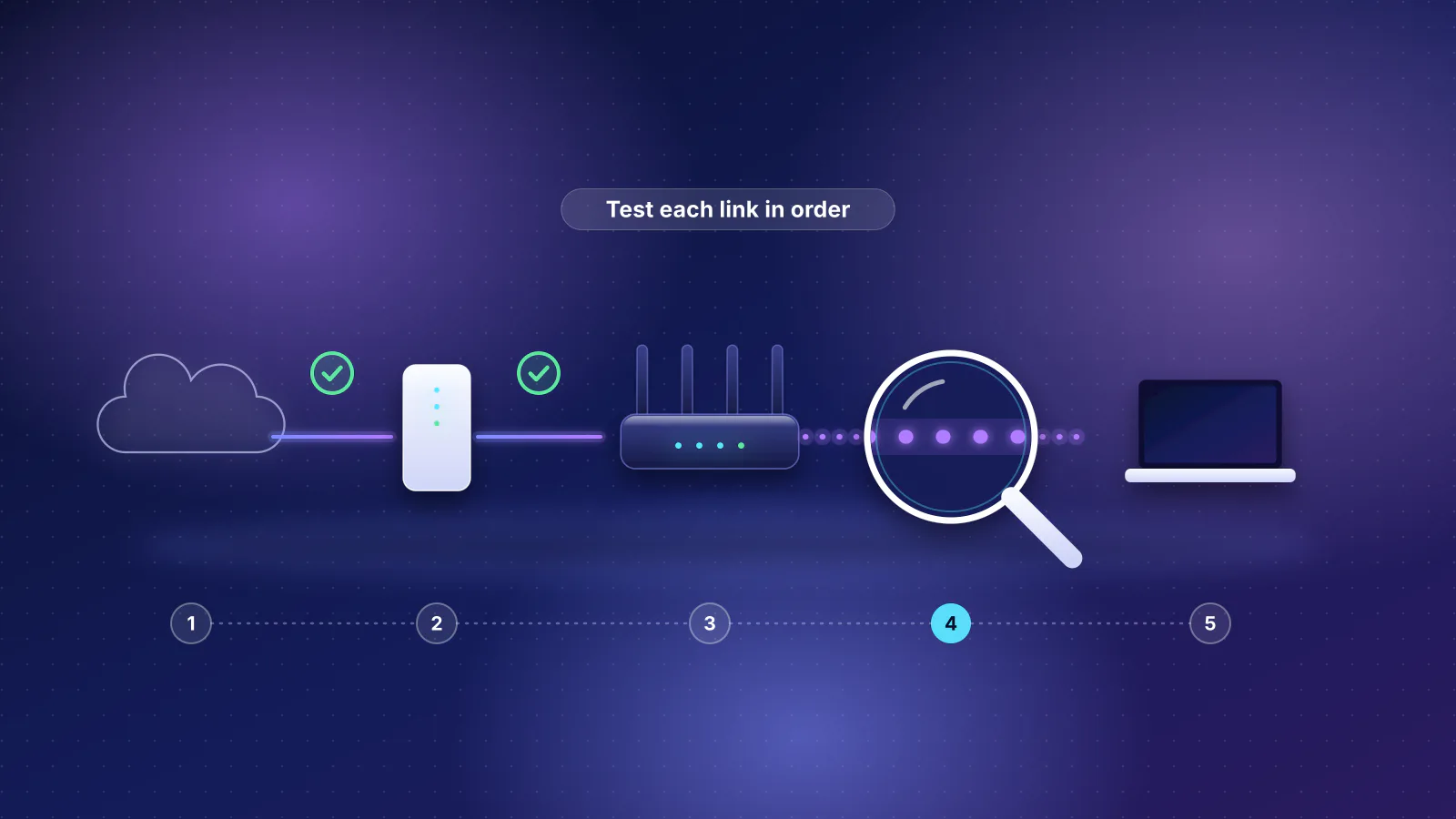
- Test in layers, each removing one suspect: the provider's router test or a wired computer (the line), Wi-Fi beside the router (the router's radio and your device), then each room (coverage).
- Keep everything but one thing the same: the device, the test, the server and, for before-and-after comparisons, the time of day. Run each test three times and use the middle result.
- Read latency, not just download speed. Note idle latency and latency while the line is busy; the rise between them is bufferbloat, and it's invisible to a plain speed number.
- Test the Wi-Fi without the internet using iPerf3 between a wired computer and the Wi-Fi device. Your provider and the test server drop out of the result.
- Judge a change against your own spread. If the "after" result falls inside the range of your three "before" runs, you can't say it changed anything.
If you already know something is wrong and want the diagnosis order, start with why is my internet slow. This article is the measuring method behind it: how to get numbers you can trust and compare.
What a speed test actually measures
A speed test measures the path from one device, through one app, to one server, at one moment. How it gets its numbers matters when you compare them. Cloudflare publishes the method of its test's open-source engine, which is a good example of the moving parts:
- Latency: the default sequence takes 20 latency samples and reports the median.
- Download and upload: it transfers blocks that grow from 100 kB to 250 MB (50 MB for upload), skipping larger sets once requests take long enough, and computes each request's speed as size divided by time. The reported bandwidth is the 90th percentile of those measurements: Cloudflare's 2020 explanation is "we take the 90th percentile of measurements, or p90", rather than the single fastest.
- Loaded latency: by default it sends latency requests during downloads and uploads, every 400 ms.
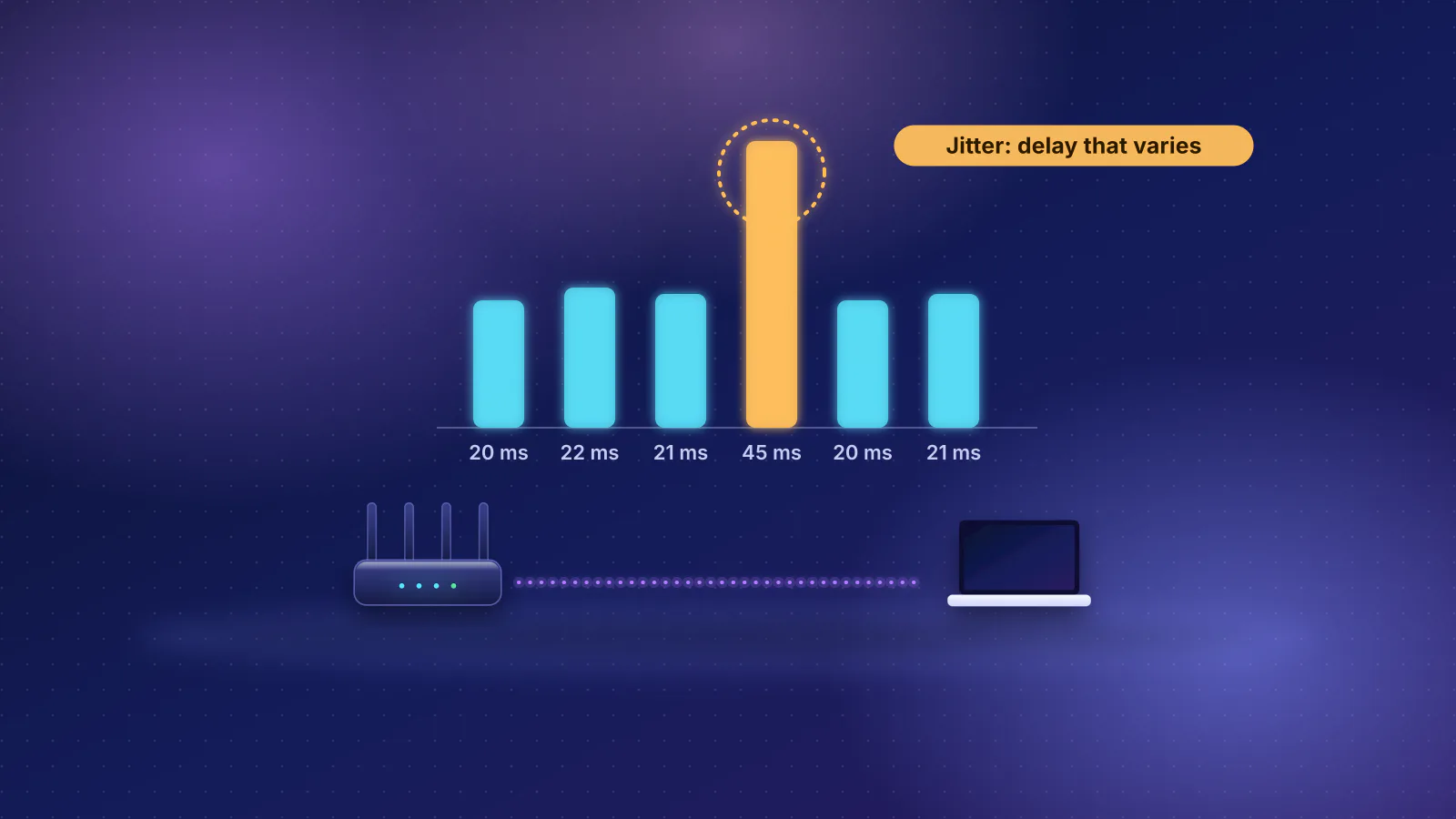
- Jitter is "the average distance between consecutive latency measurements"; packet loss is opt-in and needs a separate relay server.
Other tests make other choices. M-Lab's NDT is "a single stream performance measurement", and M-Lab says its "measurements are always conducted off-net", outside your provider's network, while results from on-net servers "are often higher". By contrast, M-Lab notes, "Other popular tests try to transfer as much data as possible at once across multiple connections to their server." Neither approach is wrong; they answer different questions, which is why you pick one test and stay with it.
The IETF's framework for TCP throughput testing (RFC 6349) adds two points that apply at home: it recommends running "single- and multiple-TCP-connection throughput tests" to baseline a network, and "to run the tests at different times of the day."
Five rules for results you can compare
- Same device. Devices have different radios and adapters, so a phone and a laptop in the same spot can legitimately give very different results.
- Same test and server. Pick one test, and if it lets you choose a server, choose the same one each time.
- Quiet network. Pause backups, cloud sync, game downloads and streaming on other devices, and turn off a VPN for the test unless the VPN is what you're testing.
- Three runs, middle result. M-Lab warns that "A test conducted five minutes ago may show very different results from a test conducted twenty minutes ago." Three back-to-back runs show you how much your results move on their own; the middle one is your number and the spread is your margin.
- One change at a time. Move a node or change a setting, not both, or you won't know which one did it.
Step 1: the wired baseline
Connect a computer to one of the router's LAN ports with a cable and run your test three times. This is the best your connection can do inside the home, with no Wi-Fi in the way. Also run your provider's or router maker's own test if there is one: eero's in-app test measures "speeds from your Internet Service Provider (ISP) at your gateway eero", and GFiber's router test "Measures speed directly from the gFiber network to your router". Those take your computer out of the path too.
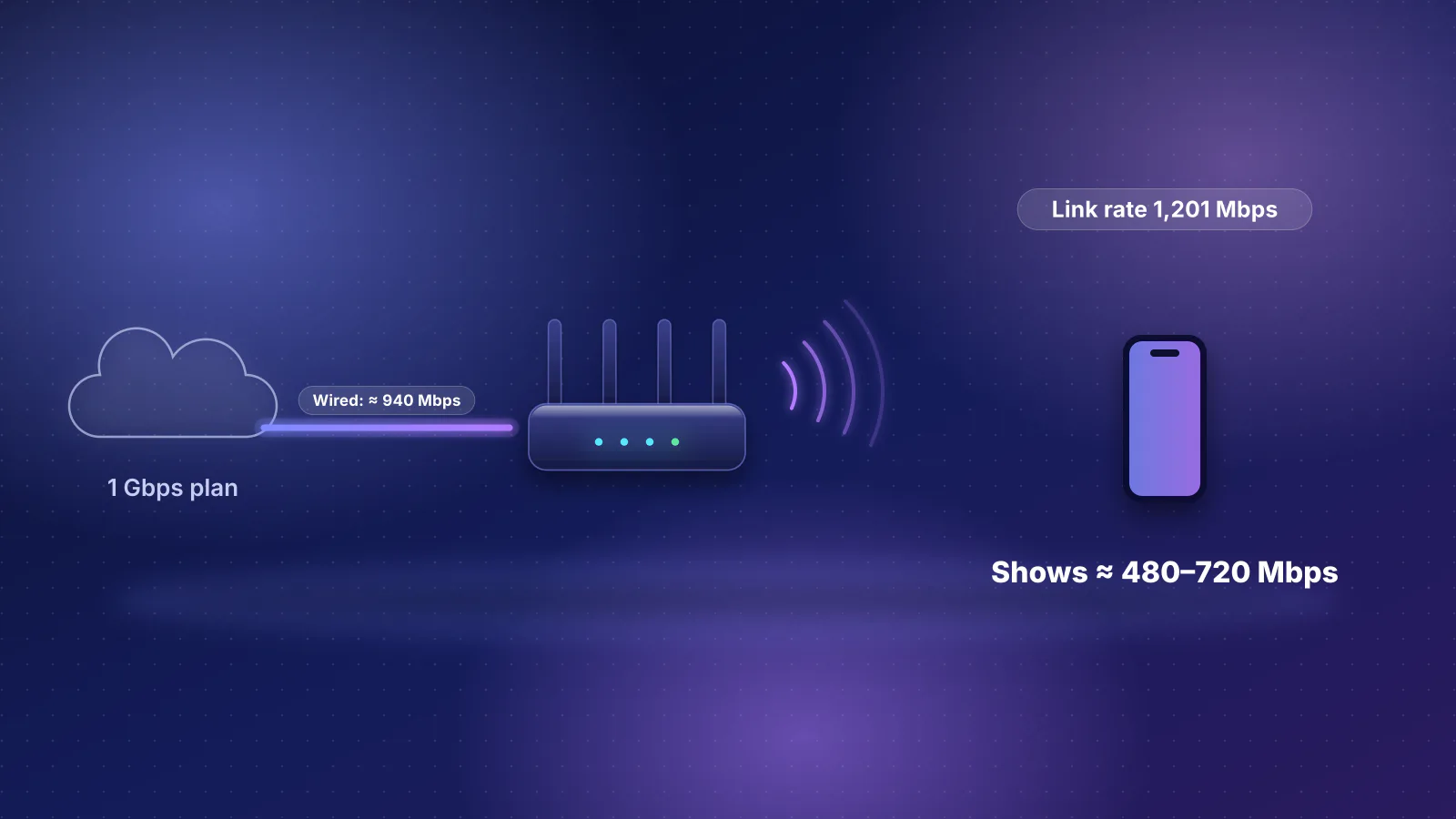
- Know the ceiling. A 1 Gbps Ethernet link carries at most about 940 Mbps of TCP data: RFC 6349's table lists 949.2 Mbps, and TCP timestamps or IPv6 take a little more. So a gigabit plan that tests at 940 is at the link's limit. The overhead arithmetic is here.
- Check the computer's link. If the result is stuck at about 90 to 95 Mbps, the adapter or cable has connected at 100 Mbps; on a multi-gig plan, a 1 Gbps adapter caps you at about 940. How to check negotiated speeds.
- Compare with the right number: the typical speed on your plan's broadband label, not the headline tier (where to find it).
If the wired baseline is well short of the label after a restart of the modem and router, stop here: the problem is the line, the provider's equipment or your router's internet port, and no Wi-Fi change will fix it.
Step 2: Wi-Fi beside the router, then room by room
Take one Wi-Fi device, the one you care about most or your newest phone or laptop, and test it a few feet from the router, then in each room you use. Write it down. A sheet like this is enough:
| Where | Band and link rate | Download / upload (middle of 3) | Idle latency | Latency while loaded |
|---|---|---|---|---|
| Wired, at the router | Cable, 1 Gbps | |||
| Wi-Fi, beside the router | ||||
| Living room | ||||
| Office upstairs | ||||
| Bedroom at the far end |
The link-rate column is what makes the sheet useful. On a Mac, hold Option and click the Wi-Fi icon (TP-Link: "The Tx Rate shown is the link speed"); on Android, tap the connected network in Wi-Fi settings; on Windows, open the Wi-Fi adapter's Status window. A result near half the link rate is normal Wi-Fi; a link rate that collapses from one room to the next is coverage. Why Wi-Fi delivers about half its link rate explains the arithmetic.
RouterHaus's Network Health check runs the speed test, records idle latency, jitter and latency under load, and lets you label each run with where you were, so the beside-the-router and far-room results sit side by side on the same device.
Step 3: test the Wi-Fi without the internet
An internet speed test can't separate your Wi-Fi from your provider's evening congestion or a busy test server. A test between two of your own devices can. iPerf3, a free command-line tool whose documentation ESnet publishes, sends data from one computer to another and reports the rate; the internet isn't involved at all.
- On a wired computer (plugged into the router or a switch), start the server:
iperf3 -s. Note its local IP address. - On the Wi-Fi laptop, in the room you're testing, run
iperf3 -c 192.168.1.20 -t 30 -O 3(use the server's address). That's 30 seconds instead of the default 10, with the first 3 seconds left out; the manual describes-Oas a way "to skip past the TCP slow-start period." - Test the other direction with
-R, which "Reverse[s] the direction of a test, so that the server sends data to the client." That's the download direction for the Wi-Fi device, and usually the one you care about. - Try parallel streams with
-P 4(the manual: "Set the number of parallel client streams to run"). RFC 6349 recommends both single- and multiple-connection tests. Since popular internet tests use several connections, as M-Lab notes, compare their result with the parallel iPerf3 figure, not the single-stream one.
Two practical limits. The wired computer needs a link faster than the Wi-Fi you're measuring, or you're measuring its port; and iPerf3 versions before 3.16 run in a single thread, which only matters at multi-gigabit speeds. iPerf3 doesn't need the internet, but both computers must let the connection through their firewalls; the server listens on port 5201 by default.
Comparing the iPerf3 result with an internet test from the same spot splits the problem: fast iPerf3 and a slow internet test means the Wi-Fi is fine and the limit is upstream; slow on both means it's the Wi-Fi.
Step 4: latency under load
Download speed alone hides the problem most people actually feel: lag and stutter while someone else uploads or downloads. Use a test that measures latency during the transfer, such as Cloudflare's (it reports latency during download and upload) or, on a Mac with macOS Monterey or later, Apple's networkQuality command, which reports responsiveness in round-trips per minute; Apple says a Low rating means "the connection in some apps or services might be unreliable" when other devices share the network.
Record idle and loaded latency on the wired computer first. A large rise there is bufferbloat on the internet connection; the bufferbloat guide explains the grades and the fix. A rise only on Wi-Fi is the Wi-Fi hop. For what jitter figures mean and why tests disagree on them, see jitter explained.
Testing a change: before and after
Most network changes (moving a mesh node, changing a channel width, adding an access point, turning on smart queue management) are judged by a single test afterwards. A fair comparison takes a few more minutes:
- Before: run your sheet in the rooms the change should affect, three runs each, at a time you can repeat. Note the spread of the three.
- Make one change. Give the network a few minutes to settle after any restart before testing again.
- After: same rooms, same device, same test and server, at a similar time of day, three runs each.
- Judge it against the spread. If the new middle result is outside the range of the three "before" runs, the change probably did something. If it's inside, call it no change, however the single best run looks.
- Check you didn't move the problem. A node moved toward the far bedroom can weaken the room it left. Test the neighbouring rooms too.
The fourth step is our rule of thumb, not a statistical test; with three runs it is a coarse check that catches the common mistake of reading noise as improvement. For a decision that costs money, such as buying another node, repeat the before and after on a second day.
Reading the results
| Pattern | Where the limit is | Next step |
|---|---|---|
| Wired baseline well short of the plan | Line, provider equipment or router internet port | The bottleneck diagnosis order; then your provider |
| Wired fine; Wi-Fi beside the router about half the link rate | Nowhere: that's normal Wi-Fi | A cable or a faster-radio device if that device needs more |
| Wired fine; Wi-Fi beside the router has a low link rate | Band, channel width or the device | Check router settings; compare a second device |
| Fine beside the router, link rate and speed fall by room | Coverage | Dead-zone fixes; on mesh, the six-step mesh check |
| iPerf3 fast, internet test slow from the same spot | Upstream of your Wi-Fi | Compare with the wired baseline at the same time of day |
| Latency jumps under load on a cable | Bufferbloat on the connection | Smart queue management |
| Results fine at quiet times, poor in the evening, on a cable | Provider congestion | Check the time of day and take your sheet to the provider |
If the pattern points at hardware, the slow Wi-Fi fixer starts with the free fixes, the bottleneck finder names the slowest rated link in a wired path, and the planner sizes coverage. In the Phoenix metro, local help can do the room-by-room survey for you.
Frequently asked questions
Which speed test should I use?
Any reputable one, as long as you use the same one every time. Tests differ in the number of connections and in server location (M-Lab uses one connection to servers outside your provider's network, and says results from servers inside a provider's network are often higher), so switching tests mid-comparison changes the answer.
Why test on a cable if I only use Wi-Fi?
Because it splits the problem in half. A good wired result proves the line and the router are fine, so any shortfall on Wi-Fi is the Wi-Fi. Without it, you can't tell a Wi-Fi problem from a provider problem.
Do I need iPerf3?
Only if you want to measure the Wi-Fi itself, without the internet in the path. It's the clearest way to tell whether a slow room is a Wi-Fi problem or a provider problem when the two look alike.
How many times should I run a test?
At least three in a row, using the middle result, and the same again at another time of day if you suspect evening congestion. RFC 6349, the IETF's framework for TCP throughput testing, recommends running tests at different times of the day.
Does the router's own speed test replace a wired test?
It answers a slightly different question. A test in the router or the provider's app measures from the router to the internet, so it rules out the line and the provider's side; a wired computer test also includes the router's LAN port and the computer. Use both if you can.
Should I test on 2.4 GHz?
Test on whatever band the device picks, since that's what it uses day to day; Apple recommends one network name for all bands, so the device chooses. Note the band with each result, because a device that drops to 2.4 GHz in a far room will test much slower.
Sources
Read on November 26, 2026.
- Cloudflare: speedtest measurement engine (README: default measurement sequence, percentiles, loaded latency, jitter, packet loss)
- Cloudflare: Test your home network performance (May 26, 2020)
- Cloudflare: How does Cloudflare's Speed Test really work? (October 27, 2025)
- M-Lab: NDT (Network Diagnostic Tool)
- M-Lab: Frequently asked questions
- IETF RFC 6349: Framework for TCP throughput testing (informational, August 2011)
- ESnet: Invoking iperf3 (manual for iperf3 3.22.1)
- ESnet: iperf3 frequently asked questions (multi-threading from 3.16)
- Apple Support: Test Wi-Fi networks with Apple Network Responsiveness (networkQuality)
- eero: Why are my eero App speed test results different from the ones on my device?
- GFiber: Run a gFiber internet speed test
- TP-Link: What is Wi-Fi link speed and how to check it on Windows, Mac and Android
- Apple Support: Recommended settings for Wi-Fi routers and access points