The short version
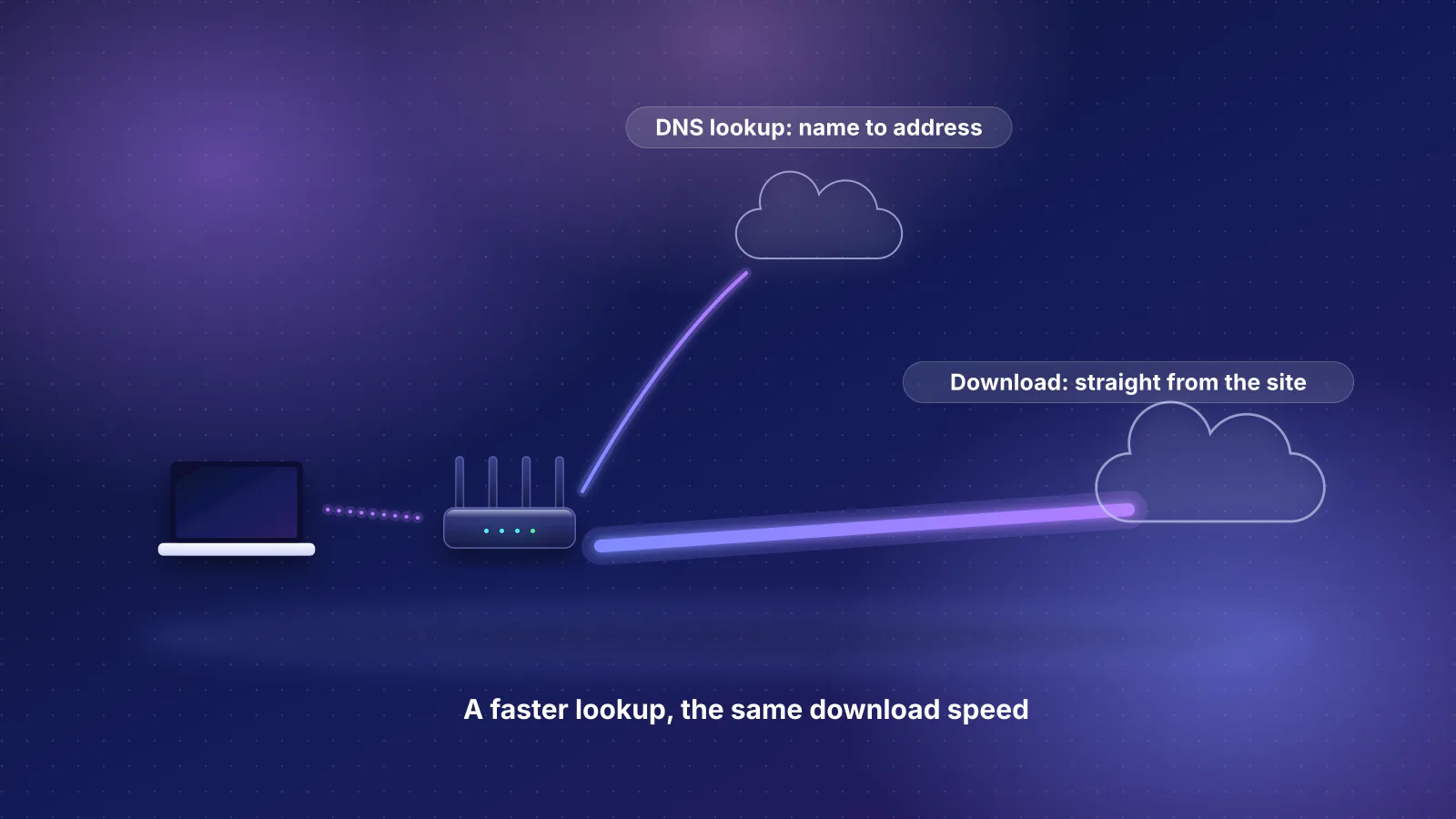
- DNS turns a site's name into an address. "Not responding" means the server your device asks for those addresses didn't answer. The connection itself may be fine, or it may be down; the message alone doesn't say which.
- DNS_PROBE_FINISHED_NO_INTERNET usually isn't a DNS problem. Chrome shows it when its test lookup through your DNS settings failed and Google Public DNS couldn't be reached either. In Chromium's code, that status means "There's no internet connection."
- DNS_PROBE_FINISHED_BAD_CONFIG is the real DNS error. Google's server answered but yours didn't: "The DNS configuration is wrong, or the servers are down or broken."
- The test:
ping 1.1.1.1(an address, no lookup), thennslookup example.com(your DNS server), thennslookup example.com 1.1.1.1(a public one). Which of the three fails tells you where to look. - Fix in this order: flush the device's cache, check its DNS setting, pause any VPN or filtering app, check IPv6 DNS, then the router's DNS and the provider.
- Changing DNS servers fixes one case: your current server is down while the line works. It does nothing when the connection is down, and set on one device it can hide a router or VPN fault that will come back.
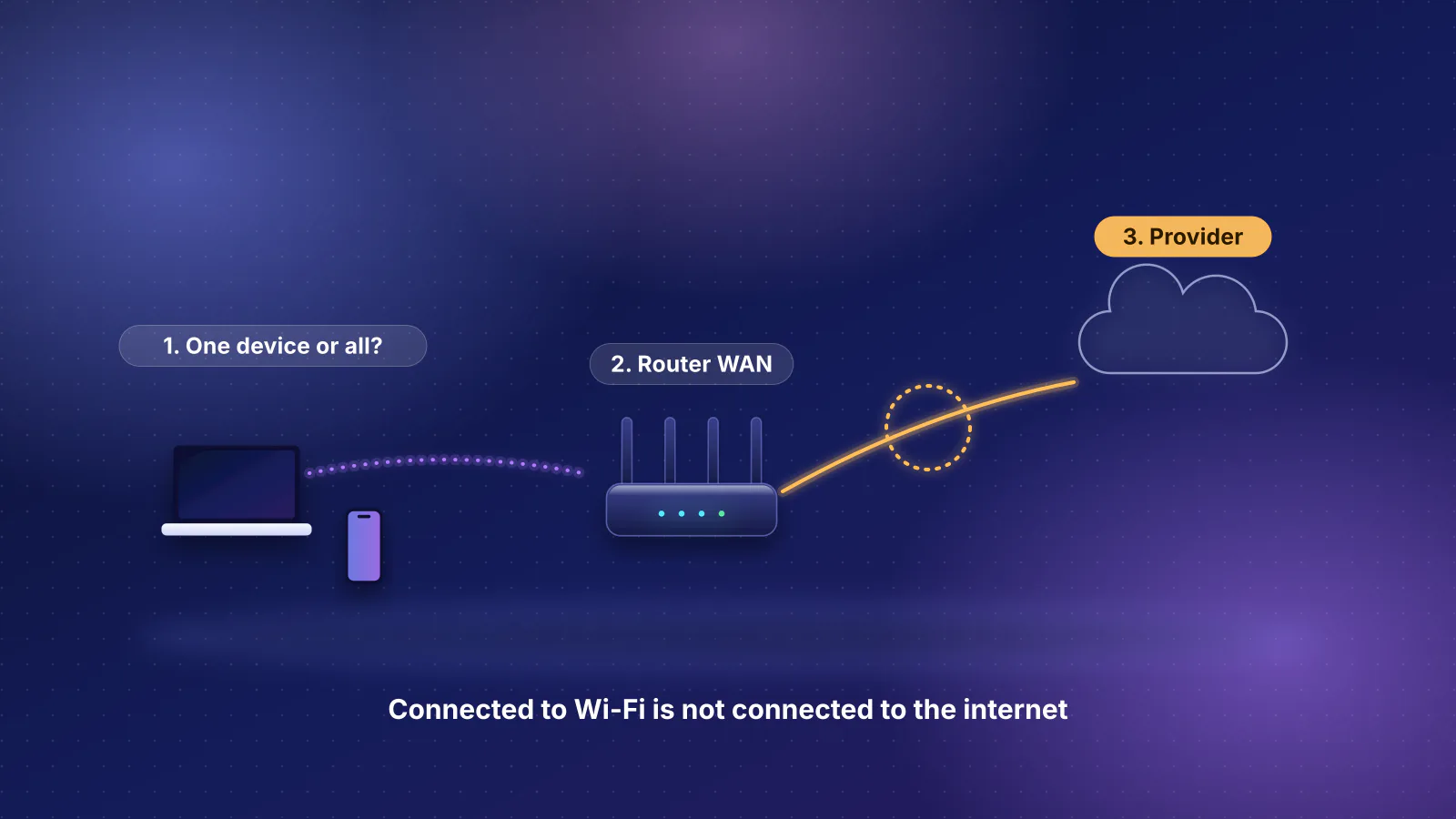
If the device says it's connected but nothing works at all, the full chain from device to provider is in connected to Wi-Fi but no internet. This page is about the DNS messages and what to do about each.
What each message means
Different software reports the same failure in different words. Here is what each source says about its own message:
| Message | What it means, in its maker's words where they give them | Where to start |
|---|---|---|
| Windows troubleshooter: the DNS server isn't responding | In plain terms, the DNS servers Windows is set to use didn't answer. The Microsoft Wi-Fi fix page we read doesn't quote or define the troubleshooter's message; under "Check your DNS server" it says to "Verify that you have a DNS server listed and that you can ping it." | The lookup test |
| Chrome: DNS_PROBE_FINISHED_NO_INTERNET | "There's no internet connection." Google Public DNS was unreachable too. | The connection, not DNS: confirm with ping 1.1.1.1, then the no-internet checks |
| Chrome: DNS_PROBE_FINISHED_BAD_CONFIG | "The DNS configuration is wrong, or the servers are down or broken." | Device setting, then router DNS |
| Chrome: DNS_PROBE_FINISHED_BAD_SECURE_CONFIG | "The secure DNS configuration is wrong, or the servers are down or broken." | Chrome's secure DNS setting |
| Chrome: DNS_PROBE_FINISHED_NXDOMAIN or ERR_NAME_NOT_RESOLVED | Chromium: "The DNS servers are working fine, so the domain must not exist." Google's Chrome help: the address "doesn't exist or now has a different IP address." | Check the spelling; then flush the cache and look for a filtering app |
| Chrome: DNS_PROBE_FINISHED_INCONCLUSIVE | "The probe was inconclusive." | The lookup test |
How Chrome picks the error
When a page fails because a name didn't resolve, Chrome can run a probe before it shows the error page. This is how Chromium's source code (the main branch, read on November 27, 2026) handles it, not a documented promise from Google, and it can change between versions. The code runs two test lookups: one through your device's current DNS settings, and one sent straight to Google Public DNS, whose addresses the code stores as "8, 8, 8, 8" and "8, 8, 4, 4". It then reads the pair:
- Your DNS works: the name really doesn't exist (NXDOMAIN).
- Yours fails, Google's answers correctly: BAD_CONFIG, or BAD_SECURE_CONFIG when the current settings use only encrypted lookups (the code's "secure" mode).
- Yours fails and Google's is unreachable: NO_INTERNET. A comment in the code explains that your current DNS "may be a router on the LAN, so it may be reachable but returning errors", which is why the outside server decides.
- Yours fails and Google's answers with errors or wrong results: INCONCLUSIVE. The code's comment suggests a captive portal or a restrictive firewall "may be intercepting or rewriting DNS traffic", or the public server may be failing.
So NO_INTERNET means Chrome couldn't reach Google Public DNS either, which usually means the connection itself is down. Changing your DNS server can't fix that if requests aren't getting out. A comment in Chromium's code also says the probe isn't run when the "Use web service to resolve navigation errors" preference is off, or when probes are disabled by a field trial, so you may see a plain name error instead.
Where a lookup can fail
A lookup passes through up to five places before it gets an answer. Each fix below works on one of them:
- The device's DNS cache Recent answers, including recent failures: flush it
- The device's DNS setting, browser secure DNS, VPN or filtering app Decides which server is asked: check it
- Wi-Fi or Ethernet to the router Must work before any lookup can
- The router's DNS Often the server your devices are told to use; it passes lookups on to the provider
- The provider's or a public DNS server Answers the lookup, if the line is up
Step 1: one device or every device?
Open the same site on a second phone or laptop on the same network. One device with the error points at that device's cache, DNS setting, VPN or security software. Every device with it points at the router, the provider's DNS or the line. The one device or every device table has the full split, including the wired test.
Step 2: test by address, then by name
Likely cause it separates: a DNS server that isn't answering, a device or app blocking DNS, or a connection that's down, which only looks like DNS.
The check, in Command Prompt on Windows (Terminal on a Mac runs ping and nslookup too):
ipconfig /all. Microsoft's DNS client guide says to "Check the DNS servers that are listed in the output, and verify that the IP addresses listed are correct." Note each one; it may be your router's address, your provider's, or one someone typed in.pingeach listed DNS server. Microsoft: "If no configured DNS server responds to a direct pinging of its IP address, this indicates that the source of the problem is more likely network connectivity between the client and the DNS servers." It also warns that ping needs ICMP allowed through any firewall, so a public server that ignores pings isn't proof of a fault.ping 1.1.1.1. That's an address of Cloudflare's public resolver; a reply means traffic reaches the internet with no lookup involved.nslookup example.com, thennslookup example.com 1.1.1.1. The first asks your configured server; the second asks Cloudflare's directly (the no-internet checks explain the pair). Microsoft's DNS client guide adds that nslookup "doesn't use the client's DNS cache", so it tests the server, not the cache.
Microsoft defines the nslookup errors you may see: "timed out" means "The server didn't respond to a request after a certain amount of time and a certain number of retries"; "Nonexistent domain" means "The computer or DNS domain name doesn't exist"; "Refused" means the server "refused to service the request". In the DNS standard, RFC 1035, a server failure means the server "was unable to process this query due to a problem with the name server."
| Result | What it means | Next step |
|---|---|---|
ping 1.1.1.1 fails, and both lookups time out | The connection is down. DNS is only the first thing to notice. This is what Chrome's NO_INTERNET reports. | Router, modem and provider checks, not DNS settings |
| Ping works; your server times out or refuses; 1.1.1.1 answers | Your configured DNS server is the fault: a manual setting, the router or the provider's server. Chrome calls this BAD_CONFIG. | Step 4, then step 7 |
| Ping works; both lookups time out | Our reading of the results, not a measured case: something on the device or network is stopping DNS queries in general, such as a VPN, a filtering app or security software. | Step 5 |
| Your server says "Nonexistent domain" for a site that works elsewhere; 1.1.1.1 returns an address | Your server is filtering or blocking that name, or has a stale answer | Filtering apps and router DNS |
| Both lookups work, but the browser still shows the error | DNS works now. The failure was a cached answer, or the browser uses its own secure DNS. | Step 3 and Chrome's secure DNS |
On a phone, the quickest version of this test is a second device: if a laptop on the same Wi-Fi resolves names with its default server, the phone's own settings are the place to look.
Step 3: flush the device's DNS cache
Likely cause: the device remembered a failure. Microsoft's guide says that if a lookup shows "Name does not exist" in the cache, "a negative response was returned from a DNS server and was cached on the client", and the fix is to "clear the cache by running ipconfig /flushdns."
- Windows:
ipconfig /flushdns"Flushes and resets the contents of the DNS client resolver cache", Microsoft says, and is used "to discard negative cache entries".ipconfig /displaydnsshows what's cached first, if you're curious. - Mac: Apple's archived article on resetting the DNS cache, which Apple says "is no longer updated", gives
sudo killall -HUP mDNSResponderfor "OS X Yosemite and later (v10.10.4 or later)". It names no version after OS X, and we found no current Apple page with a cache command, so Apple doesn't document whether it applies to current macOS. - Phones: the Apple and Google pages we read give no cache command for iPhone or Android. Rejoining the network is covered in rejoining and resetting a device.
What the result means: if the site loads after a flush, the server had a problem earlier that has since cleared. If not, the server is still failing: carry on.
Step 4: check the device's own DNS setting
Likely cause: the device, or the browser, is set to a DNS server that no longer answers. Typed-in servers can stay set after you move networks, and encrypted DNS can be blocked: Apple's router guidance covers the case where "your device warns you that your network is blocking encrypted DNS traffic."
| Where | Where to look | What to change for the test |
|---|---|---|
| Windows | ipconfig /all lists the servers in use. Microsoft's advice for a static setup is to "modify the client TCP/IP properties to use valid configuration settings"; for an automatic one, ipconfig /renew renews it "with the DHCP server", which on a home network is usually the router. | Set DNS back to automatic, or correct the manual addresses |
| Mac | Apple: choose Apple menu > System Settings, click Network, "click a network service, click Details, then click DNS." | Remove manually added servers so the Mac uses the network's |
| Android | Settings > Network & internet > Private DNS, with "Off," "Automatic," or "Private DNS provider hostname." Google's blog on the feature says that with a hostname set, Android "marks the network as 'No internet access' if it can't reach the server." | Switch a hostname to Automatic. Google's help says "By default, your device uses Private DNS with all networks that can use Private DNS" and recommends keeping it on, so go back to Automatic rather than Off. |
| Chrome | Settings > Privacy and security > Security, "Use secure DNS". Google: "By default, secure DNS in Chrome is turned on in automatic mode." | If you see BAD_SECURE_CONFIG and chose a custom provider, choose "Select your current service provider" to see whether the custom one is the fault |
Two notes. Chrome's help says that if your device "is managed or parental controls are turned on, you can't use Chrome's secure DNS feature", so on a work laptop the setting may be greyed out on purpose. And browser and phone encrypted DNS defaults are covered in detail in what your devices already do with encrypted DNS.
Step 5: VPN, filtering and security apps
Likely cause: an app is deciding where your lookups go. Microsoft's VPN documentation says that when a VPN connects, the device "receives an IP address and, optionally, the IP address of one or more DNS servers", and that a Windows rule table, the NRPT, is "the first place that the stack will look after the DNSCache." If the VPN's DNS server can't be reached, lookups sent to it fail even though the connection itself works.
- Disconnect the VPN and test again. If names resolve without it, the VPN's DNS is the fault; reconnect, update the VPN app or ask whoever runs it. Microsoft also documents rules under which name resolution for named domains "is done over the VPN", so on a work laptop leave those settings to the IT team. The work-from-home VPN section covers the home side.
- Pause filtering, ad-blocking or parental-control apps that handle DNS, then test again. If a name works on 1.1.1.1 but your server returns "Nonexistent domain", a filter is one likely reason (our reading of the nslookup definitions, not a measured case).
- Security software. Google's Chrome help says to "Make sure any firewall or antivirus software isn't blocking your connection." Turn it off only briefly to test, and back on afterwards.
Step 6: IPv6 DNS servers
Likely cause: a device on an IPv6 network can be given IPv6 DNS servers as well as IPv4 ones. RFC 8106 lets routers "advertise a list of DNS Recursive Server Addresses" to IPv6 hosts in their router advertisements; it says this and DHCPv6 "can be used together", and that by default "the DNS information from DHCP takes precedence over that from RAs for DNS queries." Our reading of the standard, not a measured case: an IPv6 DNS server that doesn't answer can make some lookups fail while others work.
The check: in ipconfig /all, any DNS server written with colons is an IPv6 address. Query it directly: nslookup example.com followed by that address. Then try Cloudflare's IPv6 resolver, 2606:4700:4700::1111.
What it means: if the IPv4 server answers and the IPv6 one times out, the IPv6 side of the router or the provider is the weak part. That's a fault to fix, not a reason to leave IPv6 off for good; how to check IPv6 and whether to turn it off cover the trade-off. If you set public DNS on the router, give it both the IPv4 and IPv6 addresses.
Step 7: the router's DNS
Likely cause: when the DNS server your devices list is the router's own address, the router answers them and passes lookups on to the servers on its internet side. ASUS, for example, says its routers "automatically obtain the IP of the DNS server from your Internet Service Provider (ISP) by default." Where else DNS can be set is in router-level or device-level DNS.
The check: compare nslookup example.com followed by the router's address with the same lookup against 1.1.1.1. If the router fails and 1.1.1.1 works from the same device, the router or the servers it forwards to are the problem.
The change, cheapest first:
- Restart the router. If the modem is a separate box, follow the modem-then-router order.
- Open the router's WAN or internet settings and check the DNS entry. On ASUS routers it's WAN > Internet Connection > WAN DNS Setting. If someone typed in servers that no longer work, set it back to automatic. ASUS warns that "By changing DNS server, there will be a temporary internet disconnect", and that DNS addresses can't be entered arbitrarily: use the values your DNS provider publishes.
- If the provider's box is doing the routing, its DNS may not be changeable. Google's setup guide notes that "Some ISPs hard-code their DNS servers into the equipment they provide." Which box is routing in your setup is covered in modem, router, gateway or ONT.
Step 8: a provider outage
If the router forwards to the provider's servers and they fail while 1.1.1.1 answers, the provider's DNS may be down. If ping 1.1.1.1 fails too, the outage is the whole connection. Either way, check the provider's outage page from your phone's cellular data, as the whole-home checks describe; the outage step in the slow internet guide lists provider outage tools.
When to change DNS servers, and when it hides the fault
Switching servers is common advice for these errors, and makers give it: Google's Chromebook help says that if you see a DNS error, "try switching to one of Google's public name servers", and ASUS says "It is recommended that you change the DNS server" for DNS errors. It's the right fix in one situation and a cover-up in others:
| What the test showed | Changing servers |
|---|---|
| Ping 1.1.1.1 works; your provider's server fails, repeatedly, on every device | Fixes it. Set the new server on the router so every device gets it. |
| Ping 1.1.1.1 fails (Chrome's NO_INTERNET) | Does nothing. No server is reachable; fix the connection. |
| Only one device fails because of a VPN, filter or stale manual setting | Hides it. A new server on that device may work until the VPN reconnects or you join another network. Remove the cause instead. |
| The router's DNS stalls now and then, and a restart clears it | Hides it. Setting public DNS on every device bypasses the router but leaves the router fault. If it keeps happening after a firmware update, see when new equipment is justified. |
| Printers or NAS names stop working after the change | Causes a new fault: a device that skips the router can't resolve names only the router knows. See local names. |
If you do change, Google's setup guide says to "write down the current server addresses or settings" first, test afterwards, and if the tests fail, "Roll back the DNS changes you made and run the tests again"; if they still fail, "there is a problem with your network settings; contact your ISP or network administrator for assistance." Which server to pick, and whether it's faster, is in DNS servers at home.
When new equipment is justified
Almost never for a DNS error. A new router won't help when the line is down, a VPN is misrouting lookups or the provider's server is out. Consider one only when the tests consistently point at your own router: other devices on the same network fail the same way, the same lookup works when a computer is plugged into the modem directly or set to a public server, a restart only helps for a while, and the router's maker no longer releases updates. What a new router won't fix is worth reading before you buy. If the faulty box is the provider's gateway, ask the provider to test or swap it first.
Once it's working, RouterHaus's Network Health check gives you a baseline for next time.
When to get help
Call the provider when the provider's DNS servers fail from every device while public ones answer, when ping to 1.1.1.1 fails after a full restart, or when their outage page shows a problem in your area. Tell them which lookups failed and against which servers.
On a work laptop or a network you don't run, the VPN, DNS settings and filters belong to the IT team or network administrator; ask them rather than changing settings yourself.
Hands-on help is rarely needed for DNS. If the tests point at wiring or equipment you can't reach, RouterHaus can connect you with a licensed contractor when the job needs hands on site; ask for help with your network.
Frequently asked questions
What does DNS_PROBE_FINISHED_NO_INTERNET mean?
Chrome tested a lookup through your DNS settings and one sent directly to Google Public DNS, and could not reach Google's server either. Chromium's code describes this status as "There's no internet connection." Check the connection itself: if ping 1.1.1.1 fails, changing DNS servers won't help.
Is DNS_PROBE_FINISHED_BAD_CONFIG different?
Yes. Google's server answered but yours didn't, so Chromium reports that "The DNS configuration is wrong, or the servers are down or broken." Check the device's DNS setting, any VPN or filtering app, then the router's DNS and the provider.
Should I just switch to 8.8.8.8 or 1.1.1.1?
Only if the test shows your current server failing while the connection works. Set it on the router so every device gets it, and write down the old settings first, as Google's setup guide advises. It won't fix a connection that's down, and on one device it can hide a VPN or router fault.
Does flushing the DNS cache fix it?
Sometimes. Microsoft says ipconfig /flushdns discards negative cache entries, the remembered failures that keep a site broken after the server has recovered. If the site still fails after a flush, the server itself is still not answering.
Why does only my laptop say the DNS server isn't responding?
Other devices working on the same network points at that laptop: a manually set DNS server, a VPN, security software or a filtering app. Check ipconfig /all for the DNS servers it lists and test with the VPN disconnected.
Sources
Read on November 27, 2026.
- Chromium source: net_error_info.h (DNS probe status definitions) and dns_probe_service_factory.cc (probe logic)
- Google Chrome Help: Get help with common error messages in Chrome, Fix connection and loading errors in Chrome and Manage Chrome safety and security (secure DNS)
- Chromebook Help: Fix DNS errors
- Google Public DNS: Get started
- Android Help: Manage advanced network settings on your Android phone (Private DNS)
- Android Developers Blog: DNS over TLS support in Android P (April 2018)
- Microsoft Learn: Troubleshooting DNS clients
- Microsoft Learn: ipconfig and nslookup
- Microsoft Learn: VPN name resolution
- Microsoft Support: Fix Wi-Fi connection issues in Windows
- Apple Support: Change DNS settings on Mac
- Apple Support: Reset the DNS cache in OS X (archived)
- Apple Support: Recommended settings for Wi-Fi routers and access points
- ASUS Support: How to manually assign WAN DNS server to ASUS router (FAQ 1045253)
- Cloudflare: 1.1.1.1 IP addresses
- IETF RFC 1035: Domain names, implementation and specification
- IETF RFC 8106: IPv6 Router Advertisement Options for DNS Configuration