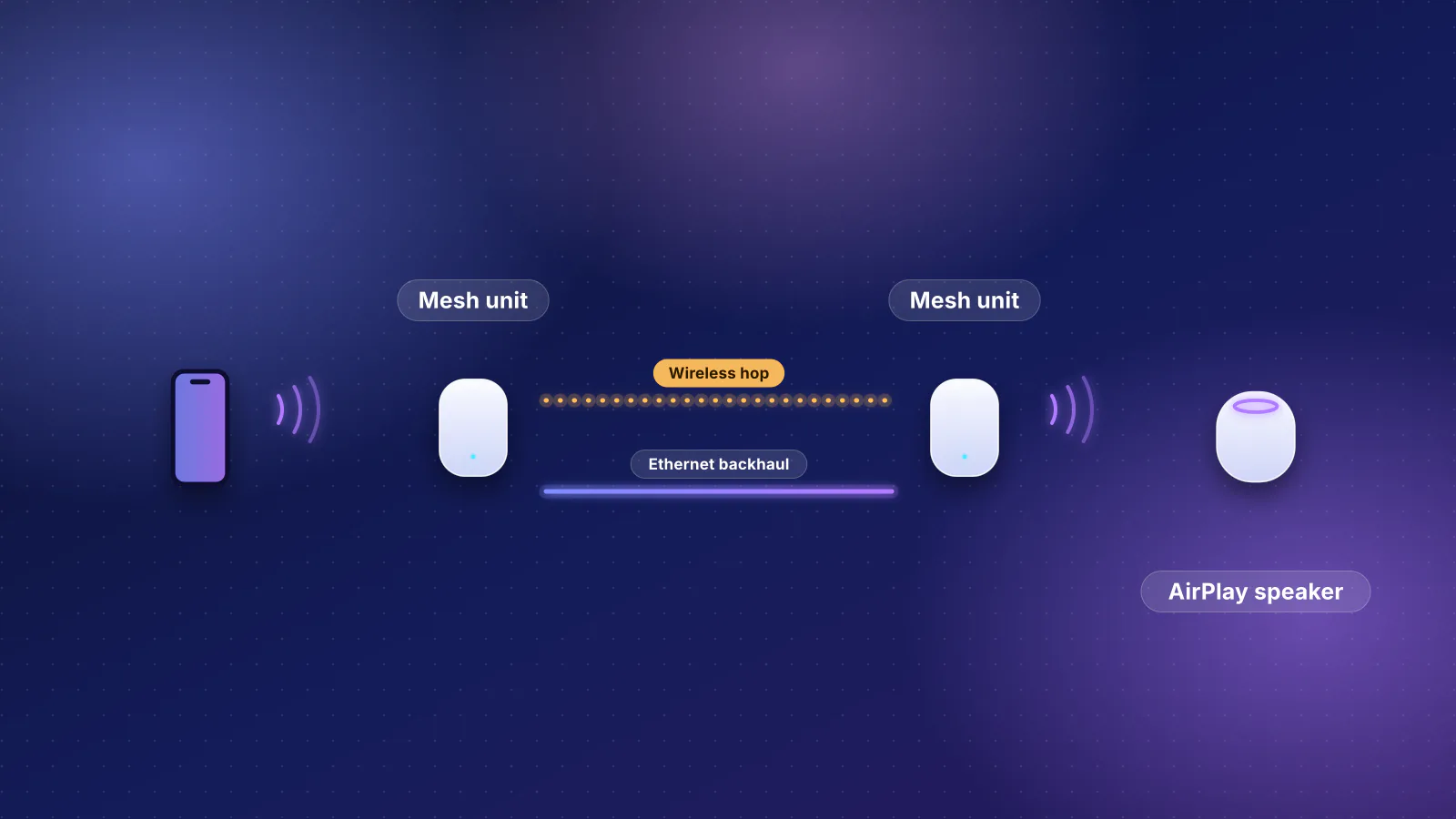
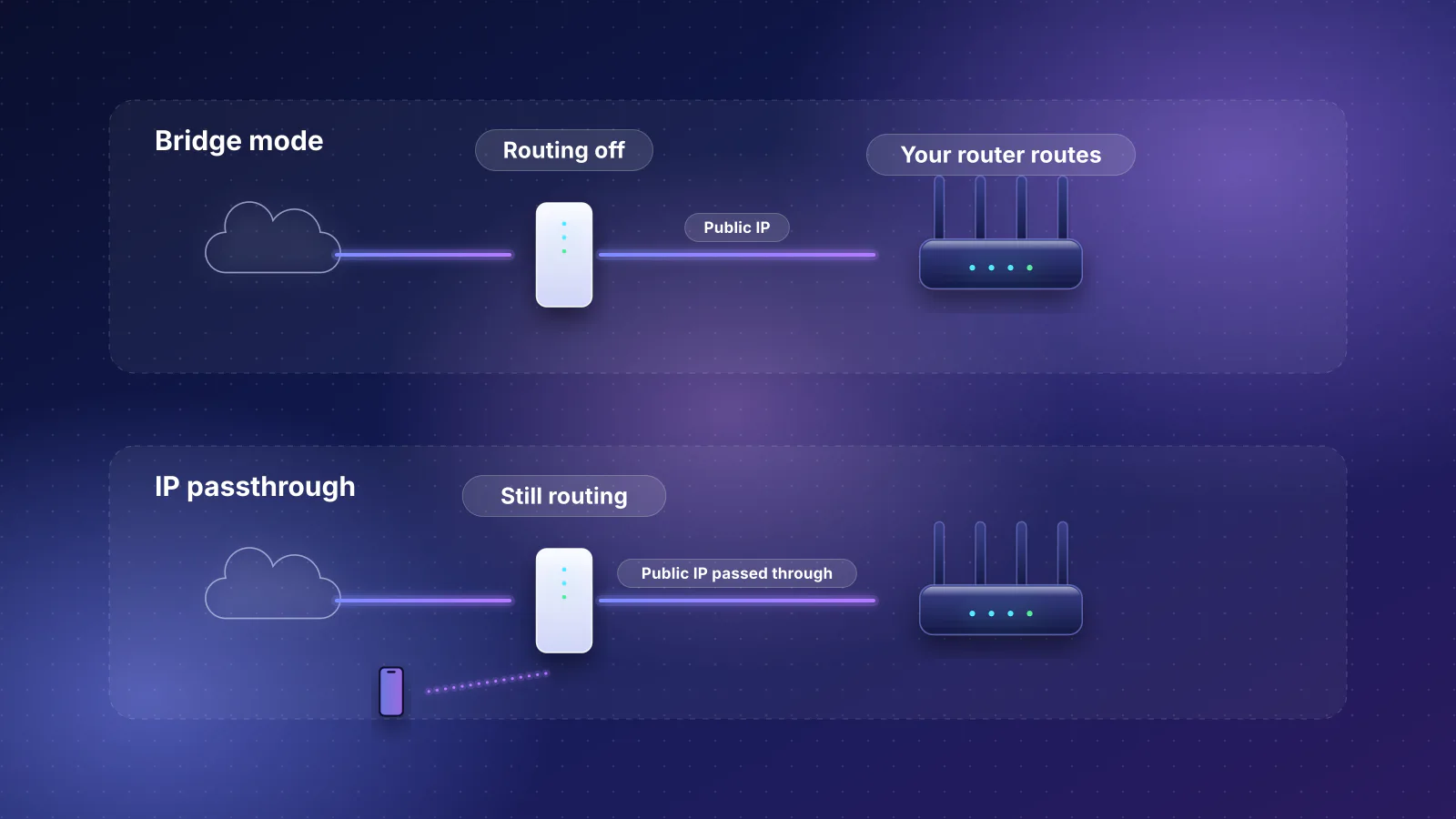
The short version
- First work out which situation you're in. Your own internet and router in your unit is a crowded-channel problem. Wi-Fi the building provides is a managed network with its own rules, and the fixes are different.
- On a crowded channel, everyone takes turns. Apple: "As more devices use the same channel, the relative network speed for those devices decreases." Your neighbours' devices count. Use 5 GHz and 6 GHz where the signal is good, keep 2.4 GHz at 20 MHz, and remember that wider channels are, in Apple's words, "more susceptible to interference".
- Building Wi-Fi often keeps residents' devices apart. Client isolation stops a phone finding a TV, so AirPlay and Chromecast casting can fail even though the internet works. Google says its streaming devices don't support networks with a sign-in page and need isolation turned off.
- An Apple TV 4K can stream on building Wi-Fi once it joins, and it can join a sign-in page network using your iPhone, and Apple lists the 3rd-generation and later models for username-and-password (802.1X) networks. What may not work is AirPlay and the iPhone remote, which look for the TV on the same network.
- Your own router in the wall jack gives you a private network where AirPlay works, but ask the building first: it can create double NAT, and managed systems can detect and block routers they didn't install.
This article is about the building. For streaming setup in general, see Apple TV 4K network setup; for a small home's coverage, the network plans by home type.
Which kind of apartment network do you have?
| Your setup | How to recognise it | What usually goes wrong | Start here |
|---|---|---|---|
| Your own internet plan and router | You pay a provider; the router or gateway is in your unit and you can open its settings | Slow or unsteady Wi-Fi in the evening, from neighbours' networks on the same channels | Crowded channels |
| Building Wi-Fi with a shared network name | One network name for the whole building; often a web sign-in page or a username and password | Internet works, but phones can't find TVs, speakers or printers; some devices can't join at all | Building-provided Wi-Fi |
| Building Wi-Fi with a network just for your unit | Management gave you a personal network name or key | Usually behaves like a home network; check with management that your devices can see each other | Per-unit networks |
| A live wall jack | An Ethernet jack in the unit that connects to the building's network | Unsure whether you may connect your own router, and how | The wall jack |
Crowded channels: when the neighbours are the problem
Wi-Fi devices on the same channel take turns to transmit, and the turns are shared with every network on that channel, not just yours. Apple's Wi-Fi deployment guide says each user's experience "depends on the available wireless bandwidth on the channel the device is using, and on the number of devices sharing that bandwidth", and that "As more devices use the same channel, the relative network speed for those devices decreases." In a building, the devices on your channel include your neighbours' phones, TVs and laptops. Why a busy channel adds delay and variation as well as slowness is in Ethernet vs Wi-Fi and how Wi-Fi splits capacity.
The bands differ in how much room they have:
| Band | Room to spread out (North America) | What that means in a building |
|---|---|---|
| 2.4 GHz | Three channels that don't overlap: Apple says to "use channels 1, 6, and 11, which don't overlap" | Every nearby network shares three lanes. Keep it for devices that only support 2.4 GHz. |
| 5 GHz | Cisco Meraki: "The 802.11 standard defines 23 20MHz wide channels in the 5 GHz spectrum" | Many more lanes, but a wide channel uses several of them at once. |
| 6 GHz | Apple and HPE Aruba: 59 channels at 20 MHz, 29 at 40 MHz, 14 at 80 MHz or 7 at 160 MHz | The most room, and Aruba notes it "does not accommodate Wi-Fi technologies older than Wi-Fi 6", so older devices can't crowd it. Your devices need Wi-Fi 6E or 7 to use it. |
Settings that help
- 2.4 GHz at 20 MHz. Apple's router recommendation is "Set to 20 MHz for the 2.4 GHz band", to avoid interference "especially near other Wi-Fi networks and 2.4 GHz devices".
- Leave channel selection on automatic first. Apple: "When channel selection is set to automatic, your router selects the best Wi-Fi channel for you." A router can only choose well among channels that are actually less busy, which is where 5 and 6 GHz help.
- Be ready to try a narrower channel on 5 GHz. Apple recommends "Auto or all widths" for 5 and 6 GHz, but also warns that "Wider channels are faster but more susceptible to interference and more likely to interfere with other devices." Its deployment guide puts the trade-off plainly for 6 GHz: "Smaller channel width designs allow for more channel reuse at the cost of lower channel bandwidth." If evening speeds swing widely on 80 or 160 MHz, test 40 MHz against it.
- Use 6 GHz if your devices support it. Apple's deployment guide calls 6 GHz "a potentially less used frequency space". In the US, low-power indoor 6 GHz routers, the class most home routers use, are also held to lower radiated power than 5 GHz under the FCC's rules (the power limits), which shortens range in both directions: less reach into your neighbours' units, and theirs into yours.
- Put the router in the middle of the unit, in the open, rather than by the window or the shared wall, so your devices hear it more strongly than they hear the neighbours.
Judge any change the same way: test at the same time of evening, on the same device, before and after, three runs each. The rule for telling a real change from noise is in testing a change, and RouterHaus's Network Health check records speed, latency and jitter for each run so the evening results sit side by side.
Building-provided Wi-Fi: why your devices can't see each other
A network the building runs for all residents has to stop one resident reaching another's devices. The usual tool is client isolation (also called AP isolation). It's a security feature, and it's working as designed when your phone can't find your TV. Google's Chromecast help says you need to turn off AP isolation, which it says is also called client isolation or guest mode, to set up its devices, and that this "also applies to connecting through a guest, hotel, or public network with AP or client isolation."
Discovery is the part that breaks. Apple's deployment guide says Bonjour, the discovery AirPlay normally uses, "requires Apple TV devices and AirPrint printers to be on the same IP subnet" as the devices that use them, "Because multicast traffic is usually not routed across subnets." A building network can put residents on separate networks or block the traffic between them; either way, your phone stops hearing your TV announce itself.
| What you want to do | On building Wi-Fi with isolation or a sign-in page | Source |
|---|---|---|
| Stream from apps on the TV itself | Works, as long as the device can join the network | Streaming needs the internet, not your phone |
| Chromecast or Google TV Streamer | Can't join a network with a sign-in page; needs isolation turned off to set up | Google: "Google streaming devices don't support networks requiring connection through a captive portal"; isolation must be disabled, which "also applies to connecting through a guest, hotel, or public network" |
| AirPlay to an Apple TV by Bonjour | Fails when isolation blocks discovery | Apple: Bonjour needs the same IP subnet |
| AirPlay to an Apple TV peer to peer | Can work: Apple says AirPlay devices "don't need to be on the same network, or on any network at all" | Apple: peer-to-peer discovery; set the Apple TV to let everyone use AirPlay (see below) |
| Apple TV Remote on your iPhone | Needs the phone and TV on the same Wi-Fi network | Apple: "Check that your iPhone or iPad is on the same Wi-Fi network as your Apple TV" |
| The remote that came with the Apple TV | Works | Apple lists the Siri Remote's connection as "Bluetooth 5.0 wireless technology" |
Will an Apple TV 4K work on your building's Wi-Fi?
Work through it in order:
- Can it join?
- A plain password (the same for everyone, or one for your unit): yes, like any network.
- A web sign-in page: Apple's user guide says that if Apple TV "detects a captive network, a screen appears with options"; you choose to continue on your iPhone or iPad and sign in there. Apple adds that "Some captive networks have time limits for staying connected", and that you repeat the steps when the connection expires.
- Your own username and password (802.1X): Apple's deployment guide lists Apple TV 4K (3rd generation) Wi-Fi and the Wi-Fi + Ethernet model or later as able to connect to 802.1X networks, the Wi-Fi + Ethernet model on Ethernet too with tvOS 17 or later. The guide doesn't describe an Apple TV-specific setup, so ask the building how it expects TVs to join.
- Is there enough speed? "Apple recommends a minimum speed of 25 Mbps for 4K streaming", and below that, Apple devices switch to a lower-quality version. On a shared building network, test in the evening, from where the TV sits.
- Can your phone reach it? If AirPlay and the iPhone remote can't find the TV, isolation is the likely reason. On the Apple TV, go to Settings, AirPlay and Apple Home, Allow Access. "Everyone" means, in Apple's words, "Everyone can stream content to your Apple TV 4K", which lets AirPlay use its peer-to-peer path instead of the building network. In a building, everyone includes the neighbours within range, so consider the Require Password option in the same menu.
- Is there a better path? If your unit has a live Ethernet jack and your Apple TV is the Wi-Fi + Ethernet model, a cable takes the TV off the crowded air. The Wi-Fi-only 3rd-generation model has no Ethernet port: Apple's guide notes "Ethernet is not available on Apple TV 4K (3rd generation) Wi-Fi." Which model has what is in our Apple TV model table.
The short answer: once it has joined, the Apple TV streams from its own apps; the friction is getting your phone to see it. Your own router, or a per-unit network from the building, removes that friction.
Per-unit networks: the building's own fix
Some managed Wi-Fi systems can give each resident a private slice of the shared network, so your devices find each other and nobody else's. Cisco Meraki's version, Wi-Fi Personal Network, "segments the wireless network on a per-user basis", so that discovery protocols such as AirPlay "discover only their own devices connected to an SSID shared by other devices". Meraki names "university dorms, hotels, senior homes" among the places it's meant for.
Whether your building's system offers one, and has it turned on, is a question for management or the building's network provider. It's worth asking before you buy anything, because it fixes casting without a second network.
Plugging your own router into the wall jack
If the unit has a live jack, a router of your own can give you a private network where every device sees every other, which is exactly what AirPlay's same-subnet rule needs. Three things to settle first:
- Whether you're allowed. The building's network is someone else's, and its rules are in your lease or the network provider's terms. Managed systems can treat a router they didn't install as a rogue access point. Meraki's Air Marshal, for example, can flag "SSIDs that are broadcast by rogue access points and seen on wired LAN" and contain them by "sending deauthentication packets with the spoofed MAC address of the rogue access point", which knocks your devices off your own network. Ask before you plug in.
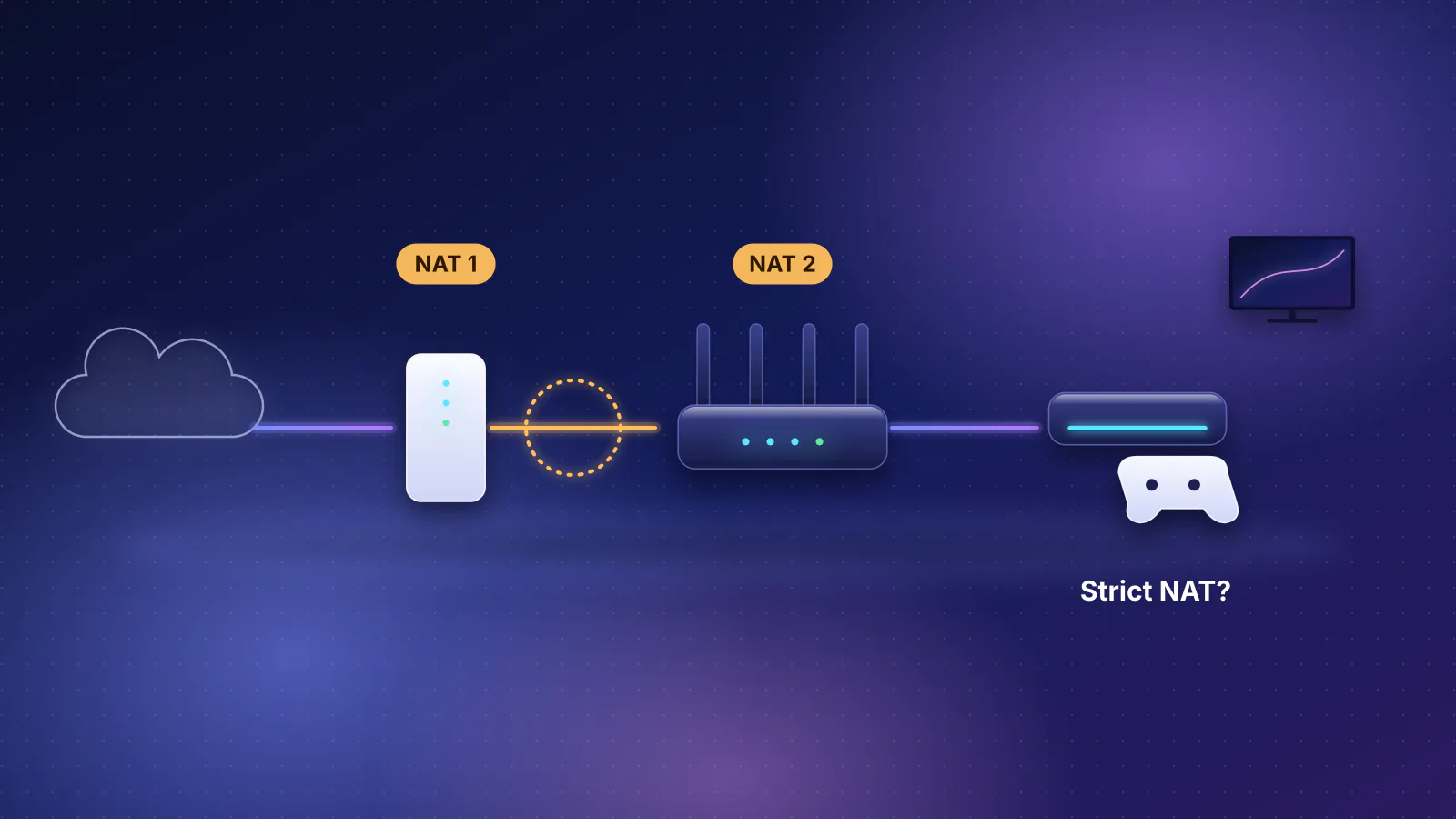
- Router mode creates double NAT. Your router translates addresses behind the building's network, which also translates them. For browsing and streaming that's usually fine; it can break port forwarding, hosting games and some VPNs. What double NAT breaks has the list, and the card below checks for it.
- Access-point mode avoids double NAT, but changes the outcome. Your devices then get their addresses from the building's network, so whether they can see each other depends on how the building's network is set up. Ask the building which mode it expects.
Questions to put to management or the network provider, in one message: Is the jack in my unit live? Is it on the same isolated network as the Wi-Fi? May I connect my own router, and in router or access-point mode? Do you offer a per-unit network?
Frequently asked questions
Will an Apple TV 4K work on shared Wi-Fi in an apartment building?
Usually, for streaming. It can join a network with a web sign-in page through your iPhone, and Apple lists the 3rd-generation and later models for 802.1X username-and-password networks. What often fails is AirPlay and the iPhone remote, which look for the TV on the same network; setting AirPlay access to Everyone lets AirPlay use its peer-to-peer path instead.
Why can't my phone find my TV on the building Wi-Fi?
Most likely client isolation, which stops residents' devices reaching each other, including the discovery traffic AirPlay and Chromecast use. Ask management whether they offer a per-unit network, or whether you may connect your own router.
Does Chromecast work on apartment or dorm Wi-Fi?
Not on a network with a web sign-in page: Google says its streaming devices don't support captive portals. It also needs client isolation turned off for setup, which a building's network may not allow.
Can my neighbours see my AirPlay devices?
On a network with isolation, not through the building network. If you set your Apple TV's AirPlay access to Everyone, people nearby can see it through AirPlay's peer-to-peer path, so add a password in the same menu.
Is 2.4 GHz useless in an apartment?
Not useless, but crowded: in North America it has three non-overlapping channels, 1, 6 and 11, which every nearby network shares. Keep it at 20 MHz for devices that need it and put everything that can use 5 or 6 GHz there.
Do I need a mesh system in an apartment?
Measure first. Test speed and latency in each room you use, beside the router and away from it; if the far rooms hold up, more hardware won't fix a crowded channel. The room-by-room method is in our home network testing guide.
Sources
Read on November 26, 2026.
- Apple Platform Deployment: Optimize your Wi-Fi networks for Apple devices
- Apple Support: Recommended settings for Wi-Fi routers and access points (July 14, 2026)
- Apple Platform Deployment: Use AirPlay with Apple devices
- Apple Platform Deployment: Connect Apple devices to 802.1X networks
- Apple TV 4K User Guide: Change network settings on Apple TV 4K (tvOS 27)
- Apple TV 4K User Guide: Adjust settings for AirPlay and Apple Home (tvOS 27)
- Apple Support: Set up the Apple TV Remote on your iPhone or iPad (November 12, 2026)
- Apple Support: Apple TV 4K (3rd generation) tech specs
- Apple Support: 4K streaming in the Apple TV app (25 Mbps recommendation)
- Google Streaming Help: Can't connect Chromecast or Google TV Streamer to Wi-Fi
- Cisco Meraki documentation: Channel planning best practices
- Cisco Meraki documentation: Wi-Fi Personal Network (WPN)
- Cisco Meraki documentation: Air Marshal
- HPE Aruba Networking: Wi-Fi 6E features and benefits