The short version
- Test another device in the same spot first. Google's Pixel help puts it plainly: "If other devices can use the network, the problem is most likely with your phone." If a second device is fast where the slow one stands, the router and the internet line are working.
- Read the slow device's band and Wi-Fi standard. On Windows 11 the network's properties show the Network band (channel); on a Mac, Option-click the Wi-Fi menu for the channel, band and 802.11 protocol. A device on 2.4 GHz, or one with an older radio, is slower by design.
- Then look at what's on the device. Google says any VPN may reduce internet speeds, Apple says speed tests "may appear lower" with iCloud Private Relay on, and security software that inspects traffic can get in the way. Background downloads, including Windows update sharing, use the same link.
- On mesh, check which node it's on. A device can stay on a far node; eero's first step is to "Check which eero your device is connected to."
- Keep the router. When only one device is slow, a new router doesn't fix the others (they're fine) and may not fix that device either. The purchase that sometimes is justified is a newer Wi-Fi adapter for an old computer.
Is the device dropping off Wi-Fi rather than just slow? That's a different diagnosis: why Wi-Fi keeps disconnecting. If every device is slow, start with the step-by-step slow internet diagnosis instead.
First: the same-spot test
Microsoft's and Google's troubleshooting both include this test, because it splits the problem in two. Microsoft's Windows steps say to try another laptop or phone on the same network: "If you can connect, the source of the problem is likely due to your device." For a slow connection, its advice is "Connect another device to the Wi-Fi", and "If the issue persists, the router may require maintenance or replacement."
- Pick a second device on the same network: ideally one of a similar type (two phones, or a phone and a laptop) so the comparison is fair.
- Stand in the same spot, where the slow device is normally used, and run the same speed test on both, one after the other, not at the same time.
- Repeat it two or three times and compare the middle results. One run proves little.
- Optional, for a laptop: if it has an Ethernet port or adapter, test it on a cable to the router. Fast on the cable and slow on Wi-Fi points to the laptop's Wi-Fi link rather than the line.
| What you see | What it means | Go to |
|---|---|---|
| The second device is fast in the same spot; the slow one is slow everywhere | The slow device: its radio, band, software or settings | Read its connection, then the causes in order |
| The second device is fast; the slow one is slow only in some rooms | Its radio is weaker or it's holding on to a far access point or node | A far mesh node and placement |
| Both are slow in that spot, fine near the router | Coverage in that room, not the device | Dead-zone fixes, cheapest first |
| Both are slow even beside the router | The router, the line or the plan | The clean wired test |
| Slow only while a VPN, a privacy relay or one app is running | That software | VPNs, relays and security apps |
RouterHaus's Network Health check runs a speed test where you can note where you're testing, name the room and choose "Only one device has trouble", which helps keep the two devices' results straight.
Read the slow device's connection
Before changing anything, find out which band and Wi-Fi standard the slow device is actually using. It often answers the question on its own.
- Windows 11: Microsoft says to go to Settings > Network & internet > Wi-Fi, open your network's properties and check the value next to Network band (channel).
- Mac: hold Option and click Wi-Fi in the menu bar. Apple says the details shown below the network include the channel, band, security standard and 802.11 protocol.
- iPhone and iPad: see how to tell which band an iPhone is using; the router or mesh app's client list is usually the easiest check.
- Android: the Google help pages we read for this article show signal strength only as the Wi-Fi icon and don't document a band or link-speed readout, so use the router or mesh app's client list. For US subscribers on Pixel 11 phones, Google lists a Wi-Fi diagnostics tool under Settings > Device health & support that checks device settings for Wi-Fi performance and runs a speed test.
- TVs and streaming sticks: use the device's own network test; Roku's and Fire TV's checks are covered here.
Where a device shows a link rate as well, compare it with what that device's radio can do: how the link rate is set and what share of it a speed test shows.
- Internet line and plan Fine: a wired test or a second device gets close to the plan
- Router or mesh node Fine: another device is fast in the same spot
- Wi-Fi link to the slow device Band, Wi-Fi standard, which node, distance
- The device's own software VPN or relay, security apps, background downloads, driver
Cause 1: it's on 2.4 GHz or has an older Wi-Fi radio
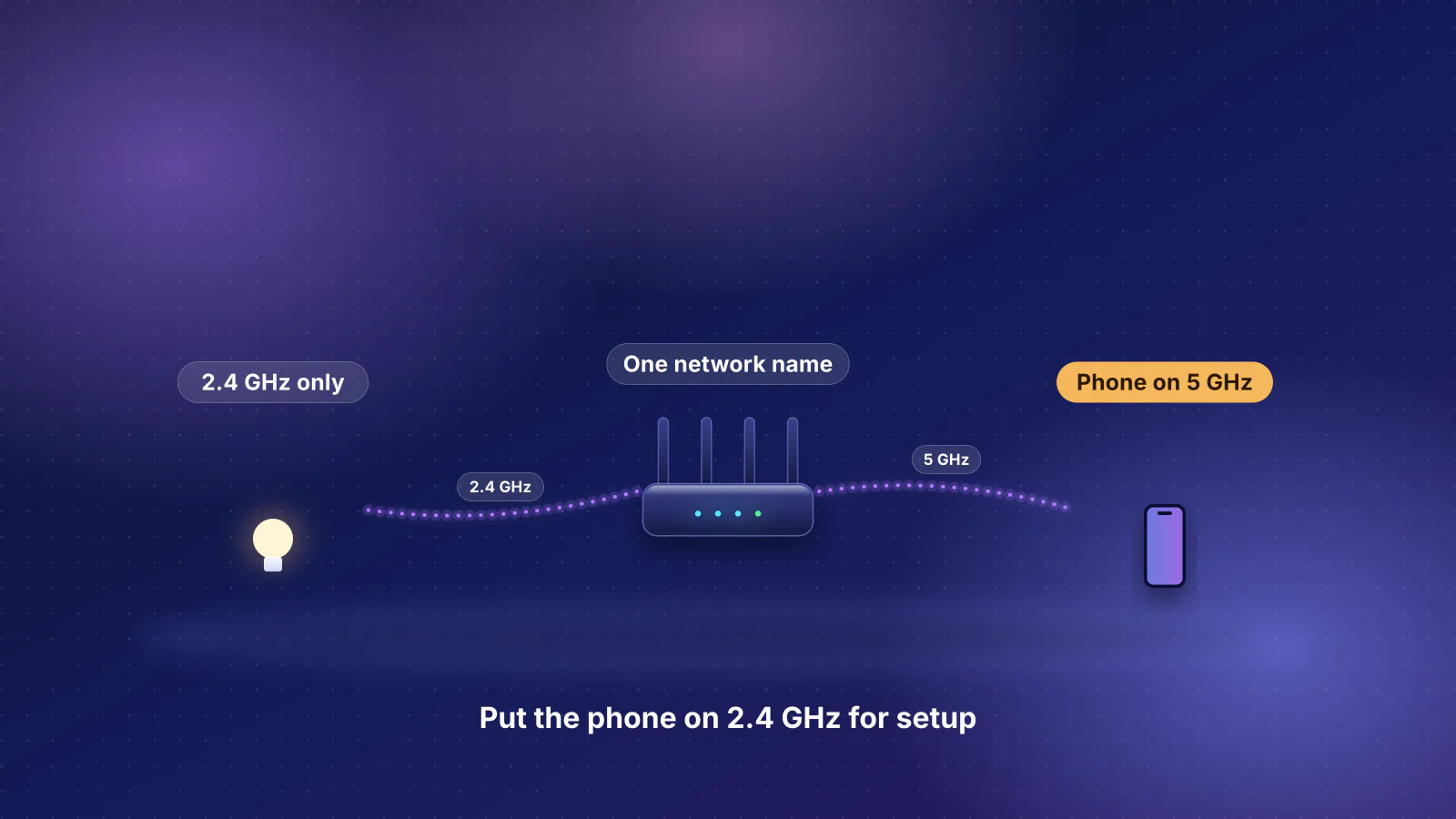
Likely cause: the device joined the 2.4 GHz band, or its radio is a generation or two older than the others. Microsoft's description of the bands: 2.4 GHz has longer range but is slower and more congested, 5 GHz generally offers "faster throughput" with shorter range, and 6 GHz needs a router and device that both support Wi-Fi 6E. eero says "Older devices or devices with older wifi standards may not be capable of the same speeds."
Apple's own specifications show how much the radio alone matters. All iPhone X models list a top rate of 866 Mbps on 5 GHz (802.11ac, 80 MHz, two streams); all iPhone 11 models list 1,200 Mbps (802.11ax, same width and streams). Two phones side by side, both working correctly, can test differently for that reason alone. More devices are in the device ceilings table.
Check: the band and protocol readout above. On Windows, Microsoft's step for an adapter that finds no networks is a useful check here too: open Device Manager > Network adapters, your wireless adapter's Properties, then "Select the Advanced tab, look for a Wireless Mode or Band setting, and make sure it allows your network frequency."
What the result means:
- On 2.4 GHz, but the device supports 5 GHz: it chose the wrong band, or the adapter is set to avoid 5 GHz. Fixable in settings.
- On 5 GHz with an older protocol (802.11n or ac) while the others use ax or be: the radio is the ceiling. That's normal, not a fault.
- The device has 2.4 GHz only (many smart plugs, cameras and older gadgets): it will always be the slow one; connecting 2.4 GHz-only devices covers living with that.
Change: on the device, forget the network and rejoin near the router; on Windows, set the adapter's band setting to allow 5 GHz if it's restricted. On the router, Apple recommends a network name that's "a single, unique name (case-sensitive) for all bands" and a radio mode of All, so "All devices, including older devices, can then connect using the fastest radio mode they support." Apple also recommends 20 MHz on 2.4 GHz and Auto or all widths on 5 and 6 GHz. Microsoft adds a caution for older laptops: "some older Wi-Fi network adapters and drivers don't work well with" 40 MHz channels.
Cause 2: it's stuck on a far mesh node or access point
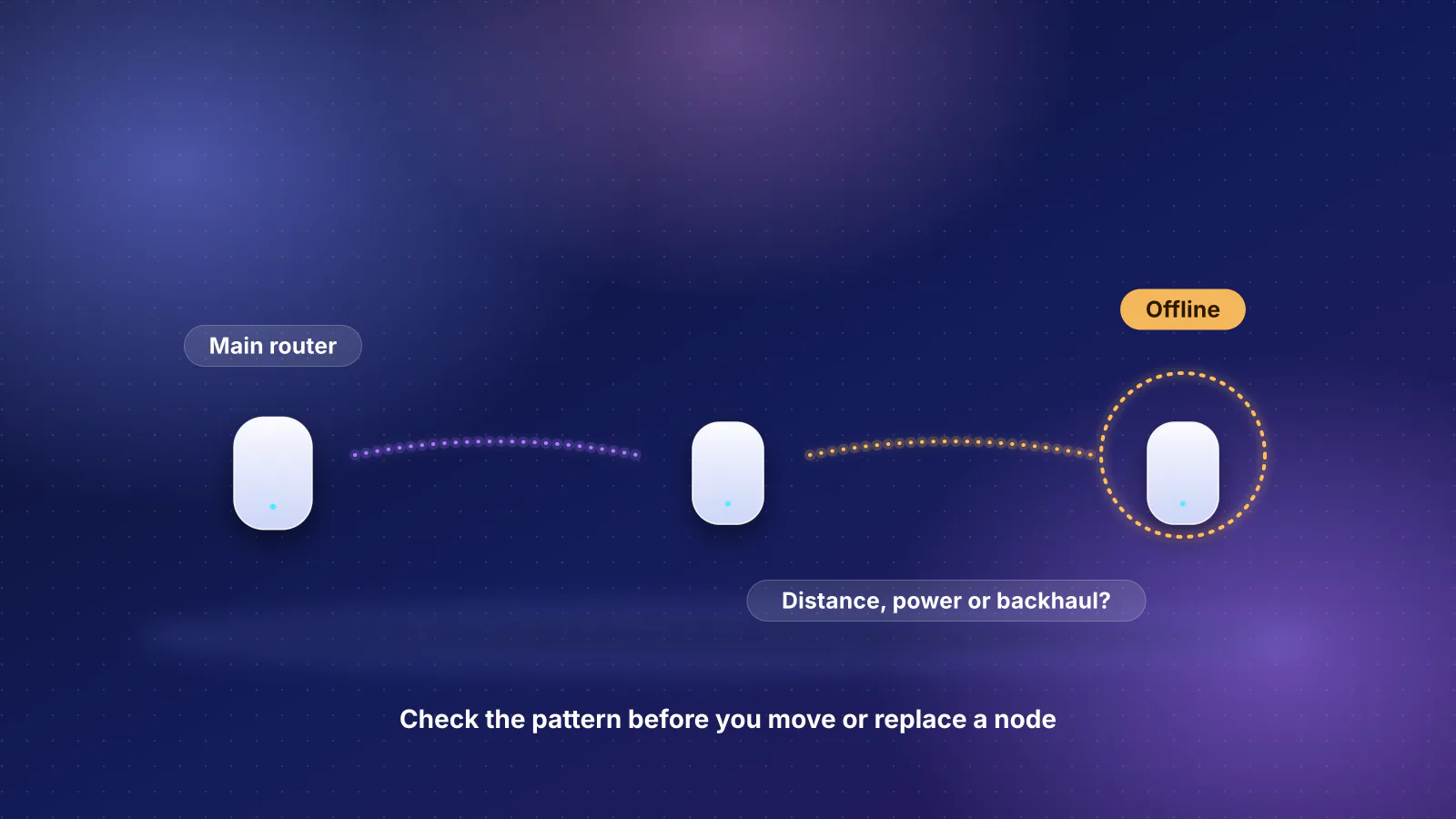
Likely cause: on mesh or multi-access-point Wi-Fi, the device, not the router, decides when to move. Apple documents that iPhones and iPads keep their connection until the signal crosses about -70 dBm and Macs about -75 dBm, so a device can stay on a farther node with a weaker, slower link while a phone that joined later sits on the close one. The thresholds and settings are in why devices stick to the wrong node.
Check: the mesh app's client list. eero's own steps: "Check which eero your device is connected to" and confirm it's the nearest one.
Change: eero suggests you "turn wifi off on your device, wait 5 seconds, then turn it back on", and if it still picks a farther node, "forget the network on your device and reconnect." If it keeps happening in the same place, the walk test shows whether node placement or a roaming setting is the fix.
Cause 3: a VPN, a privacy relay or security software
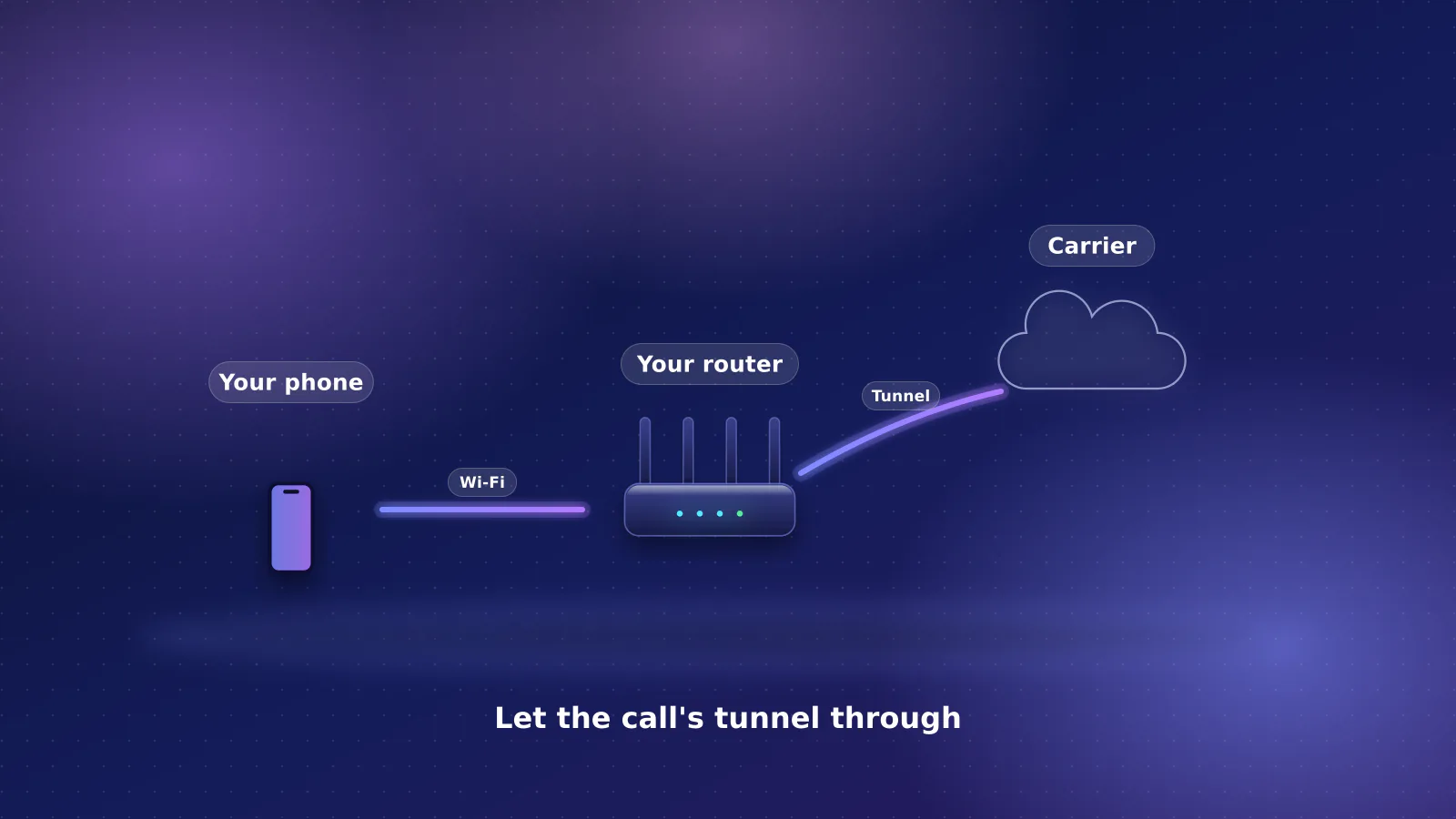
Likely cause: software that routes or inspects the device's traffic. Google's Pixel help page for VPN by Google says that any VPN may reduce internet speeds and increase connection latency. Apple says "some speed test measurements may appear lower when Private Relay is enabled", because iCloud Private Relay uses a single connection where speed tests typically open several at once; Apple's point is that the test reads lower, not that browsing slows. And Apple's network troubleshooting notes that "Third-party security software that monitors or interacts with network connections can potentially block some connections."
Check: run the same test with the software off.
- Windows: Microsoft says a small blue shield on the Wi-Fi icon means you're connected to a recognized VPN. Disconnect it in the VPN app or in Settings and test again.
- Android: Google's path is Settings > Network & internet > VPN, then the settings icon next to the VPN: "To disconnect: Turn off that VPN."
- iPhone and Mac: Apple suggests looking for VPN apps, then searching Settings (or System Settings) for "VPN", "profile", "firewall" and "filter". For Private Relay on one network, Apple's path on iPhone is Settings > Wi-Fi, the network's More Info button, Limit IP Address Tracking; on a Mac, System Settings > Network > Wi-Fi, Details next to the network, Limit IP address tracking. Apple notes the change applies to all your devices that use Private Relay.
- Security apps: Apple's advice is to "Use the app to turn off its features, then see if the issue continues", and contact the vendor if you're unsure. Turn protection back on after the test.
What the result means: much faster with the software off means the software is the ceiling. If you need the VPN, you could try a nearer server or another of the provider's protocols, or exclude the apps that need speed if the VPN supports it. A Private Relay test result that's lower while pages load normally is the measurement effect Apple describes, not a fault. No change means the software isn't the cause; leave it on.
Cause 4: something on the device is using the connection
Likely cause: the device is downloading, uploading or syncing in the background, so your test or video gets what's left. Microsoft's steps for a connection that's "very slow" include opening Task Manager (Ctrl + Shift + Esc) and ending processes "consuming high network bandwidth"; another Microsoft page on slow connections says "some add-ons can slow your Internet connection" and suggests closing other programs.
Check and change, by platform:
- Windows updates: Delivery Optimization can download updates and, per Microsoft, share them with other PCs. Its settings are at Settings > Windows Update > Advanced options > Delivery Optimization, where you can limit download bandwidth (as Mbps or a percentage) and upload bandwidth to other devices on the internet, and the Activity monitor shows this month's downloads and uploads. Microsoft notes the download limits apply to automatic update downloads only.
- Cloud photo and file sync: pause it and test again. A full upload can also make downloads feel slow; see how to tell whether upload is the bottleneck.
- iPhone and iPad on Low Data Mode: Apple says it "Reduces the quality of streaming content" and "Turns off automatic downloads and backups". If video looks poor on one iPhone only, check Settings > Wi-Fi, the info button next to the network, Low Data Mode. It's a per-network setting, so it can be on at home and off elsewhere.
Cause 5: an old driver, or a recent update
Likely cause: the Wi-Fi driver or system software. Microsoft's Windows steps are to run Windows Update and compare the adapter's Driver Version and Driver Date (Device Manager > Network adapters > the adapter's Properties > Driver tab) with the latest versions on the device maker's website. If the connection "stopped working properly after a recent update", Microsoft says to uninstall the adapter's driver (with "Attempt to remove the driver for this device" checked) and restart. Microsoft Learn's troubleshooting guidance also asks you to record recent changes to Windows, the wireless driver, security software and VPN software; if the slowdown started on a particular day, check what changed that day.
Google's Pixel help says to check for the latest system update, since updates can include fixes, and to forget and re-add the network (Settings > Network & internet > Internet > Saved networks). Restart the device after any of these.
Last resort: a network reset (Windows 11: Settings > Network & internet > Advanced network settings > Network reset; Pixel: Settings > System > Reset options > Reset Bluetooth & Wi-Fi). Microsoft says "Using network reset should be the last step you try": on Windows it removes installed network adapters and their settings, so VPN software may need reinstalling.
Cause 6: power saving on a laptop
Likely cause: the Wi-Fi adapter saving power. Microsoft lists the setting under connections that drop, not ones that are slow, but a laptop that's slow mainly on battery is worth the same check: Control Panel > Hardware and Sound > Power Options, change your plan's advanced power settings, and set Wireless Adapter Settings > Power Saving Mode to Maximum Performance. The separate battery and plugged-in values Intel describes, the trade-off with battery life and the Device Manager checkbox are covered in the power-saving section of the disconnect guide. If it makes no difference after a few days, put it back.
Cause 7: a rule on the router for that one device
Likely cause: a per-device limit set and forgotten. Many routers can cap one client: ASUS's Bandwidth Limiter, for example, sets a maximum download and upload speed for a chosen device, picked by name, IP address, IP range or MAC address. If your router has parental controls or QoS priority rules, check those for the device too.
Check: the router or mesh app's QoS, bandwidth or parental-control pages for a rule that names the slow device. If the device uses a private (randomized) Wi-Fi address, a rule made by MAC address may follow an old address while the device appears under a new one; how each platform picks its address is in private and random Wi-Fi addresses.
Change: remove or update the rule. Leave private addresses on where they're not causing a problem: they're a privacy feature.
Cause 8: distance, position and where the device sits
Likely cause: the slow device simply has a weaker link where it's used: a TV in a cabinet, a laptop on a desk behind a wall, a phone that's always in the far bedroom. Microsoft's advice for slow connections starts with "Ensure the device is close to the router and free of obstructions", and its home-layout guide adds "Check how your device is oriented when using Wi-Fi" and "Your position can cause some signal loss." It also notes that "The strongest signal strength will usually be a few feet from your access point, but not right next to it."
Check: test the slow device beside the router, then in its usual place. Fast beside the router and slow in its place, while a second device is fine there, means the slow device's radio copes less well with distance than the other's. On 6 GHz the rules also hold a device's transmit power below the router's (why the device can be the weaker end).
Change: move the device or the router a little, take a stick out from behind the TV, or give a fixed device (a TV, a desktop, a console) a cable.
The fixes, in order
- Same-spot test with a second device. If both are slow, follow the coverage or wired-test links above instead.
- Band and protocol: rejoin near the router if it's on 2.4 GHz and supports 5 GHz; check the Windows adapter's band setting.
- On mesh, the node it's on: toggle Wi-Fi, or forget and rejoin.
- VPN, Private Relay and security software off, one at a time, then back on.
- Background downloads, sync and updates; Delivery Optimization limits; Low Data Mode on iPhone.
- System and driver updates, then a restart; a driver reinstall if it started after an update.
- The laptop adapter's power setting.
- Per-device rules on the router.
- Only then, a network reset.
When new equipment is justified
- Not a new router, when other devices are fast in the same spot. The router is already delivering; replacing it doesn't raise the slow device's radio ceiling.
- A newer Wi-Fi adapter for a computer whose built-in radio is several generations behind the router, or that has no 5 GHz support at all. Check its Wi-Fi standard first (the protocol readout above), and check that the adapter's maker supports your operating system.
- A cable or an Ethernet adapter for a fixed device that sits far from the router. It takes the device off the shared Wi-Fi airtime altogether.
- A newer device, eventually, when the slow one's radio is the ceiling and the speed matters to you. A phone or tablet that's working as designed doesn't need replacing just to match a newer one's speed test.
- Router or coverage changes only if the same-spot test showed every device is slow there, or the router lacks the band the device supports (for example no 6 GHz for a Wi-Fi 6E or 7 laptop that needs it). Then the questions are coverage and placement: when to replace your router.
When to get professional help
A single slow device rarely needs anyone on site: the checks above are all settings. Two cases do: when the same-spot test shows a whole room or floor is slow and moving the router hasn't helped, and when a fixed device (a TV wall, a home office) needs a cable run that you can't do yourself. RouterHaus can connect you with a licensed contractor when the job needs hands on site; ask for a network plan.
Frequently asked questions
Why is my laptop's Wi-Fi slow when my phone is fast?
If the phone is fast in the same spot, the network is working and the laptop is the cause. Check which band and 802.11 protocol it's using, whether a VPN or security app is running, whether it's downloading updates, and whether its Wi-Fi driver is current. An older laptop's radio may simply be slower than a newer phone's.
Can a VPN make Wi-Fi slow on one device?
It can make that device's internet slower: Google says any VPN may reduce internet speeds and increase latency. The Wi-Fi itself isn't affected, but everything the device sends goes through the VPN's servers. Test once with the VPN off to see whether it's the cause.
Why is one iPhone slower on speed tests than another?
Several reasons are documented by Apple: an older model has a lower top Wi-Fi rate (all iPhone X models list 866 Mbps on 5 GHz, all iPhone 11 models 1,200 Mbps), iCloud Private Relay can make speed tests read lower, and Low Data Mode reduces streaming quality. Check the band it's on as well.
Should I buy a new router if only one device is slow?
No, not if other devices are fast in the same spot. The router is already working. If the slow device is an older computer, a newer Wi-Fi adapter is the purchase that can help; if every device is slow in that spot, the problem is coverage.
Why is my TV slow on Wi-Fi when other devices are fine?
TVs and streaming sticks often sit behind or inside furniture, far from the router, and some have older or 2.4 GHz-only radios. Run the device's own network test, check the band, and consider a cable for a TV that never moves. Streaming sticks have their own guide.
Sources
Read on November 27, 2026.
- Microsoft Support: Fix Wi-Fi connection issues in Windows
- Microsoft Support: Wi-Fi and your home layout
- Microsoft Support: Faster and more secure Wi-Fi in Windows
- Microsoft Support: Why is my Internet connection so slow?
- Microsoft Support: Delivery Optimization in Windows
- Microsoft Learn: Troubleshoot wireless network connectivity issues (updated July 29, 2026)
- Apple Support: Use the Wi-Fi status menu on Mac
- Apple Platform Deployment: Wi-Fi and Ethernet specifications for Apple devices
- Apple Platform Deployment: Wi-Fi roaming support in Apple devices
- Apple Support: Recommended settings for Wi-Fi routers and access points (July 14, 2026)
- Apple Support: If your device has network connectivity issues, check for VPN and other third-party security software (December 8, 2025)
- Apple Support: About iCloud Private Relay
- Apple Support: Manage iCloud Private Relay for specific websites, networks, or system settings (October 1, 2026)
- Apple Support: Use Low Data Mode on your iPhone and iPad (September 15, 2025)
- Pixel Phone Help: How to fix Wi-Fi connection problems
- Pixel Phone Help: Connect to Wi-Fi networks on your Pixel phone
- Android Help: Connect to Wi-Fi networks on your Android device
- Android Help: Connect to a virtual private network (VPN) on Android
- Pixel Phone Help: Connect to VPN by Google on your Pixel device (data and battery impacts)
- eero: Why are my speeds slow in one area or on one device?
- ASUS: How to set up Adaptive QoS, Bandwidth Limiter (updated February 3, 2025)