The short version
- Upload is everything you send: your side of a video call, photos and files going to cloud backup, cloud cameras recording, and live streams. The FCC's broadband label lists it as its own figure, "Typical Upload Speed".
- Each use needs only a few Mbps, but they add up. By the makers' own figures, a 1080p Zoom call sends 3.8 Mbps, a Google Meet 1080p call up to 3.6 Mbps, and one Nest Cam IQ on its highest setting up to 4 Mbps. A 1080p live stream on YouTube is recommended at 14 Mbps.
- Backups are the usual culprit. A backup or sync app will use all the upload it can get, and Backblaze warns that set too high it "can use all available bandwidth of the network."
- Cable plans are asymmetric by design. DOCSIS gives upstream a small, low slice of the cable's frequencies (5 to 42 MHz in the traditional split). Fiber standards such as XGS-PON run the same 10 Gbit/s each way, so fiber plans can be symmetric, but the plan is the provider's choice: check your label.
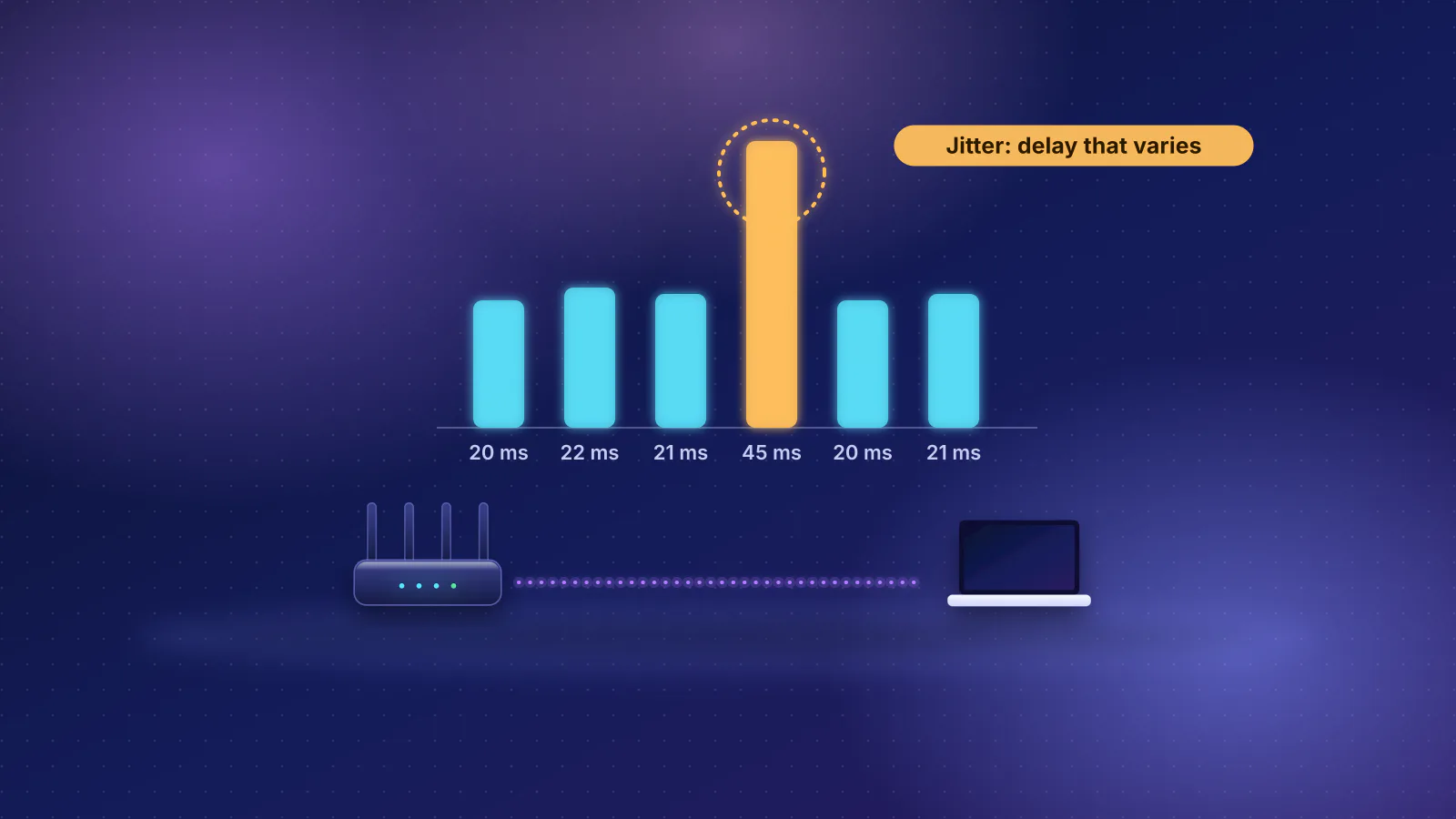
- The test: on a cable, compare your upload result with the label, then watch latency while the upload runs. A big jump in latency during upload, not the upload number itself, is what makes calls and games stutter, and smart queue management fixes it.
Not sure the problem is upload at all? Start with the step-by-step slow internet diagnosis. For the measuring method behind every test here, see how to test your home network.
What uses your upload
The FCC's label glossary defines typical upload speed as "the speed that data can be sent from a device to other devices". In a home, four kinds of traffic go that way in quantity:
- Video calls. Your camera and microphone are sent continuously for the whole call, so each person on a call at home is a steady upload.
- Cloud backup and sync. Photo libraries, computer backups and file sync send large amounts at once, often in the background.
- Cloud security cameras. A camera that records to the cloud sends its video out, continuously or on each event. Google's Nest page tells owners to "Make sure that your internet service plan has enough upload bandwidth to support the number of cameras you have."
- Live streaming and creating. A live stream sends its whole video feed up in real time; uploading finished video sends the file.
Streaming TV and browsing run the other way: the video and pages come down to you, and what goes up is small requests. That's why a home can stream several 4K TVs on a plan whose upload would struggle with two calls and a backup.
How much upload each use needs
Each figure below is the maker's own published guidance, checked November 26, 2026, not a measurement:
| Use | Upload per device or stream | What the maker says |
|---|---|---|
| Zoom, one-to-one, 1080p | 3.8 Mbps | "For 1080p HD video: 3.8Mbps/3.0Mbps (up/down)"; 720p is 1.2 Mbps each way |
| Zoom, group call, 1080p | 3.8 Mbps | Same 3.8 Mbps up; 720p group video is 2.6 Mbps up |
| Microsoft Teams, video meeting | 2.5 Mbps recommended, 4 Mbps best | Per user: 150 kbps minimum, 2,500 kbps recommended, 4,000 kbps for best performance |
| Google Meet, HD video | Up to 1.7 Mbps (720p), up to 3.6 Mbps (1080p) | Per participant, outbound, for small organizations and individuals |
| Nest Cam IQ Indoor or Outdoor | Up to 4.0 Mbps | "High: 4000 Kbps (4.0 Mbps)"; its lowest setting is 0.8 Mbps |
| Nest Cam (battery or wired) | 0.7 to 1.0 Mbps; 2 to 3 Mbps during recorded events | High 0.7 Mbps (2.0 Mbps during events), Max Video 1.0 Mbps ("about 3000 Kbps (3.0 Mbps)" during events) |
| YouTube live stream, 1080p at 30 fps (H.264) | 14 Mbps recommended, 5 Mbps minimum | YouTube also says to run "a speed test to test your upload bitrate" |
| YouTube live stream, 4K at 60 fps (H.264) | 50 Mbps recommended, 14 Mbps minimum | Lower rates are listed for HEVC and AV1 |
Two things to note. Zoom's and Google's figures are peaks; apps lower their quality when bandwidth runs short, and Nest says its cameras "automatically adjust video resolution and compression according to how much bandwidth is available". And Nest's monthly figures show how much a camera that records around the clock sends in total: up to 400 GB a month for a Nest Cam IQ on High.
An illustrative household
Arithmetic, not a measurement, using the figures above for a home where two people work from home and two cameras record to the cloud:
| At the same moment | Upload |
|---|---|
| Two 1080p Zoom calls | 2 × 3.8 = 7.6 Mbps |
| Two Nest Cam IQ cameras on High | 2 × 4.0 = 8.0 Mbps |
| Total before any backup | 15.6 Mbps |
On a connection with 10 Mbps of upload, that household is already over its limit; on 20 Mbps, it fits with a little room, until a backup starts. The backup is the part that sizes everything: a 200 GB first backup at a full 20 Mbps takes 200 × 8,000 ÷ 20 = 80,000 seconds, about 22 hours, and for that whole time it competes with the calls (again arithmetic, at a steady full rate).
Why cable upload is smaller, and fiber's often isn't
Cable (DOCSIS). A cable line carries both directions on one coaxial cable by splitting it into frequency ranges. CableLabs, which writes the DOCSIS standards, explains that downstream "is usually transmitted on a high-band frequency range, whereas the lower band is dedicated to upstream traffic", a layout that dates from cable's origins as one-way TV. The size of the upstream slice depends on the split the provider has built:
| Split | Upstream range (CableLabs) | Width (arithmetic) |
|---|---|---|
| Sub-split | 5 to 42 MHz | 37 MHz |
| Mid-split | 5 to 85 MHz (downstream above 108 MHz) | 80 MHz |
| High-split | Up to 204 MHz (downstream from 258 MHz) | About 200 MHz |
CableLabs says DOCSIS 3.1 "can now reach download speeds of up to 10 Gbps" with "upstream speeds of up to 1 Gbps", and that DOCSIS 4.0 supports "up to 10 Gbps speeds downstream capacity and up to 6 Gbps upstream capacity", which it presents as a route to "symmetrical multi-gigabit speeds". What your plan gets depends on the split and DOCSIS version in your area, and on the plan itself.
Fiber (PON). On a passive optical network, one fiber from the provider is shared among several homes through splitters, which the ITU describes as a "point-to-multipoint optical access infrastructure". The ITU's standards set the line rates. XGS-PON is a "Symmetrical nominal line rate of 9.95328 Gbit/s in both the downstream and upstream directions." The older G-PON standard lists downstream rates of 1,244.16 and 2,488.32 Mbit/s and upstream rates up to 2,488.32 Mbit/s. Those are the shared line rates, not your plan: the provider decides how much of each direction a plan gets. Some fiber plans are sold with matching upload and download; GFiber's 1 Gig plan, for example, lists "Up to 1 Gbps (1,000 Mbps)" each way through a wired connection.
The practical rule: read your plan's broadband label for the typical upload figure rather than assuming it from the technology. If you're choosing between plans and upload matters to you, compare that line first. Which internet type suits gaming compares the types on latency as well.
How to tell whether upload is your bottleneck
Run these on a computer with a cable to the router, so the Wi-Fi hop doesn't muddy the result, and keep everything else in the house quiet while you test.
- Find your label's typical upload. That's the figure to compare against, not the plan's headline.
- Test the upload on a cable. Run your test three times and take the middle result. Well under the label, after a modem and router restart, is a line or equipment question for your provider. Close to the label means the connection delivers what you pay for, and the question is whether that's enough.
- Watch latency while the upload runs. Use a test that reports latency during the upload phase, not just at idle. RouterHaus's Network Health check and Cloudflare's speed test both do. Cloudflare's own guidance: "Large differences between the idle and loaded numbers are a common indicator of a poor connection", and with differences "approaching 100 milliseconds or more over a wired connection, your ISP is likely at fault." The queue that causes it usually sits in the modem or on the provider's side, which is why smart queue management on your own router, shaping just below the line's speed, can take it over (how bufferbloat works).
- Repeat over Wi-Fi where you work. Upload over Wi-Fi depends on your device's transmitter, which is usually weaker than the router's; why your phone is the weaker end. A good wired upload and a poor Wi-Fi upload puts the limit in the room, not the plan.
- Catch the culprit in the act. If calls break up at particular times, check what was uploading then: a backup, a photo library syncing, a camera recording an event. Pause it and test again.
| What you see | What it means | Next step |
|---|---|---|
| Wired upload close to the label; latency jumps a lot during the upload | Bufferbloat: the upload queue fills and everything else waits behind it | Smart queue management with an upload limit |
| Wired upload close to the label; latency steady; calls still struggle when the house is busy | The uses at that moment add up to more than the plan's upload | Limit or schedule backups; lower camera quality; consider a plan with more upload |
| Wired upload well under the label after a restart | The line or the provider's equipment | What to tell your provider |
| Wired upload fine, Wi-Fi upload poor in the room you use | The Wi-Fi uplink | A cable or an access point closer to the device |
What to do, cheapest first
- Turn on smart queue management on your router, with the upload limit a little below your measured wired upload. It keeps the upload queue short, so a backup no longer makes calls stutter. On cable lines the upload side is often the worse one: in the user example on OpenWrt's SQM page that the bufferbloat guide cites, a cable line added 38 ms during upload against 18 ms during download. The guide covers setting the limits.
- Tame the backup. Check your backup app's performance or bandwidth settings; Backblaze, for example, has manual and automatic throttle settings and notes that its default aims "to maximize your backup speed while avoiding major impacts to your regular computer usage." Let a large first backup run overnight.
- Lower camera quality where it doesn't matter. Nest suggests lowering a camera's quality and bandwidth if it causes problems, which it says "will help your network run smoother and prevent slowdowns."
- Wire the devices that upload most where you can, so they don't also take shared Wi-Fi airtime; see how Wi-Fi splits capacity.
- Only then change the plan. If the uses that matter at the same moment add up to more than your label's typical upload, more upload is the fix, and the label tells you what each plan actually offers.
Frequently asked questions
Is 10 Mbps upload enough for video calls?
For one or two calls, by the makers' figures: a 1080p Zoom call sends 3.8 Mbps, a Teams video meeting is recommended at 2.5 Mbps and a 1080p Google Meet call up to 3.6 Mbps. Add cameras, backups or a third call at the same time and 10 Mbps runs out, which is when latency under load starts to matter.
Why is my upload so much lower than my download?
On cable, DOCSIS gives upstream a much smaller slice of the cable's frequencies than downstream, so plans are asymmetric. Fiber's line standards can be symmetric, and some fiber plans are. Your broadband label lists the typical upload for your plan.
Does a full upload slow my downloads too?
It can make everything feel slow, because everything you send waits in the same upload queue, including the requests that pages, games and calls depend on. The test is latency during the upload; smart queue management keeps it short.
Will a new router raise my upload speed?
Only if the router or the Wi-Fi is the limit. Test wired first: if the wired upload already matches your label, a new router won't raise it, though one with smart queue management can stop a full upload from causing lag.
How much upload do I need to live stream?
YouTube recommends 14 Mbps for 1080p at 30 fps with H.264 and lists 5 Mbps as the minimum, with lower figures for HEVC and AV1. Leave room for anything else uploading at the same time.
Do cloud cameras upload all the time?
Depends on the plan and setting. A camera recording around the clock uploads continuously; Google lists up to 400 GB a month for a Nest Cam IQ on High. Event-only recording sends less, in bursts.
Sources
Read on November 26, 2026.
- FCC: Glossary of terms used for consumer broadband labels
- Zoom Support: Zoom system requirements, Windows, macOS, Linux (bandwidth requirements)
- Microsoft Learn: Understand Teams network requirements (bandwidth per user)
- Google Workspace Admin Help: Prepare your network for Meet meetings and live streams
- Google Nest Help: Internet bandwidth and speed requirements for Nest cameras
- YouTube Help: Choose live encoder settings, bitrates and resolutions
- Backblaze: Optimize settings for faster uploads
- GFiber Support: gFiber Core 1 Gig plan overview
- CableLabs: Band splits, splitting our way to 10G (December 9, 2021)
- CableLabs: DOCSIS 3.1
- CableLabs: DOCSIS 4.0 technology
- ITU-T Study Group 15: ITU-T passive optical network solutions (overview flyer, PDF)
- ITU-T G.9807.1 (02/2023): XGS-PON, summary
- Cloudflare: How does Cloudflare's Speed Test really work? (October 27, 2025)