The short version
- The plan speed is a ceiling, not a promise for every server. Microsoft says factors "out of your control" include "your physical location in relation to the content server", congestion and whether a game is running, so an Xbox download "might not always match the top speeds that your ISP provides."
- Playing slows downloading on Xbox by design. Microsoft: "background downloads are constrained while a game is running." Quit or suspend the game and the limit lifts.
- Evenings and launch days are slower. Microsoft names "ISP network contention during peak usage windows" and suggests starting big downloads late to run overnight.
- The fixable causes are mostly the last hop. Nintendo lists "Wireless interference or a weak wireless signal" and other devices "using an excessive amount of bandwidth" among the causes. A console on 2.4 GHz, behind a wireless mesh hop or on a powerline pair is usually the bottleneck you can do something about.
- A short cable test settles it. If a cable to the router (or moving the console close, as Nintendo suggests) makes the download much faster, the problem is your Wi-Fi path. If it doesn't, look at the platform, the time of day or your line.
- DNS doesn't speed up a download that has started. It only picks the server; the bytes come from that server.
- Do the math with the size your console shows. Decimal GB × 8,000 ÷ real Mbps = seconds, before install time. The download-time calculator does it for you.
This is a source-based guide. RouterHaus has not measured console downloads; every behavior below is what Microsoft, Sony or Nintendo document, and the example figures are arithmetic, labelled as illustrative.
Causes your home network can't fix
Start here, because no router change helps with any of these, and they are often the whole story.
The content server and the route to it
A game download comes from the platform's content servers, not from your provider. Microsoft's Xbox troubleshooting page lists "your physical location in relation to the content server" and "the size of downloads or updates" among the situations "out of your control that can impact download speeds." A speed test measures your line to a nearby test server; the game comes from somewhere else, over a different path. That is why a speed test result and a download speed can disagree with nothing broken (see why speed tests disagree).
Peak hours and launch days
Microsoft says download speed "can also vary depending on the time of day and day of the week", which "is often caused by ISP network contention during peak usage windows", and gives the test: if downloads are "substantially slower during weekday evenings or weekends compared to weekday mornings/afternoons", contention is the likely cause. Its workaround is to start "late in the evening to let them run overnight, during off-peak hours."
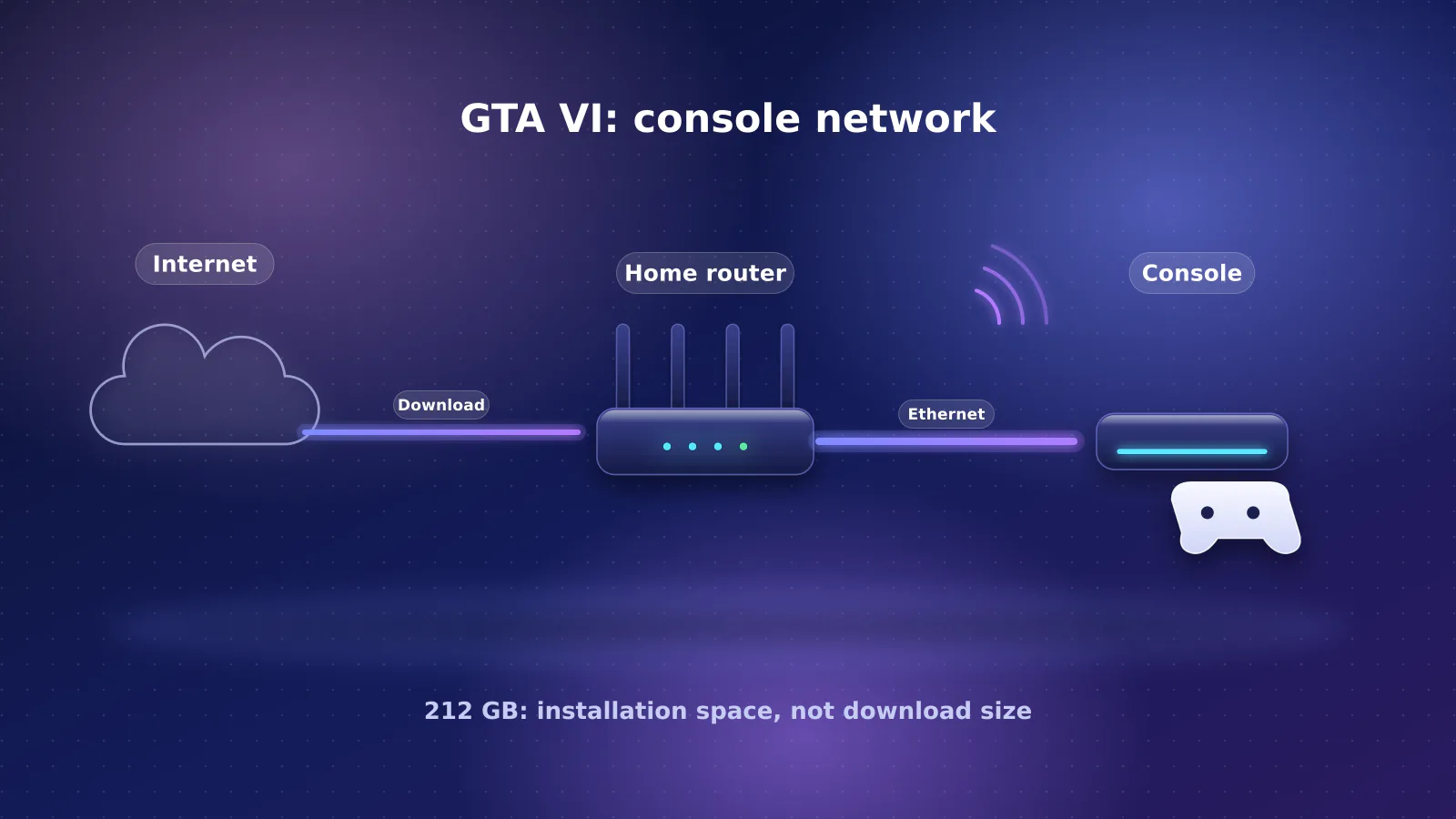
A big release concentrates that demand. Grand Theft Auto VI, released on November 19, 2026 for PS5 and Xbox Series X|S, is the current example: Rockstar says the game "will require up to 212 GB of available space depending on your device," and PlayStation's GTA VI support page tells PS5 owners to turn on Auto-Install in Rest Mode and Stay Connected to the Internet "to be ready to play GTAVI." Neither Rockstar nor PlayStation publishes a download rate, and nothing your router does changes how busy the platform is on launch night. For the GTA-specific setup, see GTA VI on Xbox and PS5: Wi-Fi, Ethernet and downloads.
If the platform itself has a problem, it says so. PlayStation's download troubleshooting starts with "Check the PlayStation status page. If you see any alerts, wait until the service is up and running and then try again." Xbox support links its own Xbox status page.
The console holding downloads back while you play
Microsoft is explicit: "To provide the best gaming experience, background downloads are constrained while a game is running." Its remedy is to suspend the game from My games & apps > Manage > Queue (the Suspend my game option) or quit it, and then: "To avoid slowing your download, don't launch any games until your download has completed." Its download-time table carries the same warning: bandwidth "will be constrained and download time will increase during activities such as streaming content, playing games, or game streaming from your XBOX to a Windows device."
Sony and Nintendo don't document whether their consoles limit downloads while a game is running: none of the PlayStation or Nintendo support pages we read mentions it, so we can't say the Xbox behavior applies to a PS5 or a Switch. It costs nothing to test: quit the game, wait a few minutes and read the speed again.
Writing and unpacking the files
A download isn't finished when the bytes arrive. The console has to write them to storage and install them, and Microsoft lists "Your installation is taking a long time to complete" as one of the symptoms of a slow download. The consoles' storage is fast (Sony lists the PS5's SSD at "5.5GB/s Read Bandwidth (Raw)"; Microsoft lists Xbox Series X|S I/O at "2.4 GB/s (Raw), 4.8 GB/s (Compressed, with custom hardware decompression block)"), but install time still adds to the network time, and the console needs free room to do it.
Space is the other half. Rockstar's 212 GB for GTA VI is free space, not the size of the transfer. PlayStation says "The minimum free space appears on the right of the screen" when you download, and Nintendo's page on Switch downloads that don't progress in sleep mode tells you to check the console's free storage. A full drive looks like a stuck download, and no network change fixes it.
Causes you can fix at home
Microsoft's first home cause is "Network contention on your home network": other devices "compete on your home network for the same download bandwidth as your console." Nintendo's list adds "Slow or unresponsive networking equipment" and "Wireless interference or a weak wireless signal." In practice that means the console's own link, and what sits between it and the router.
The console's Wi-Fi link
Each console's radio sets what its Wi-Fi link can do, whatever router you own:
| Console | Wi-Fi the maker lists | Wired option |
|---|---|---|
| Xbox Series X and Series S | "802.11ac dual band" (Wi-Fi 5) | Ethernet "802.3 10/100/1000" |
| PS5 (2023 models) | IEEE 802.11 a/b/g/n/ac/ax (Wi-Fi 6) | Ethernet up to 1000BASE-T |
| PS5 Pro | IEEE 802.11 a/b/g/n/ac/ax/be (Wi-Fi 7) | Ethernet up to 1000BASE-T |
| Nintendo Switch, OLED, Lite | IEEE 802.11 a/b/g/n/ac (Wi-Fi 5) | None on the console. For the original Switch, Nintendo lists "a wired LAN adapter" (sold separately) in TV mode, and a dock with a LAN port |
| Nintendo Switch 2 | "Wireless LAN (Wi-Fi 6)"; 2.4 GHz and 5 GHz | "the wired LAN port on the dock" in TV mode |
Those are standards, not speeds. A console behind a TV cabinet two rooms from the router may connect at a fraction of what its radio can do. Why your Wi-Fi is slower than your internet plan explains link rate versus real throughput; the short version is that distance, walls and shared airtime cut the rate before your plan ever matters. Two consequences for consoles:
- A new router doesn't upgrade the console. An Xbox Series X stays an 802.11ac device on a Wi-Fi 7 router.
- The Xbox and PlayStation ports are gigabit. Even wired, those consoles can't receive faster than 1 Gbps, so a multi-gig plan helps the rest of the house, not the console's own download. See multi-gig bottlenecks.
A 2.4 GHz connection
Intel's table of Wi-Fi standards lists 802.11ac on 5 GHz only, while 802.11n and 802.11ax run on "2.4 or 5 GHz". Put that table next to the console specs above and an Xbox Series X|S or a Switch, Switch OLED or Switch Lite, whose newest listed standard is 802.11ac, can only use 802.11n when it joins a 2.4 GHz network. That's our reading of the two documents, not something Microsoft or Nintendo states, and none of the sources we read gives a 2.4 GHz speed for any console. Apple's router guidance is to "Set to 20 MHz for the 2.4 GHz band", which it says helps "avoid performance and reliability issues", especially near "other Wi-Fi networks and 2.4 GHz devices, including Bluetooth devices"; for 5 GHz it says to "Set to Auto or all widths."
Microsoft's own advice for a dual-band router is to "try moving your console to the 5-GHz router connection and move other wireless devices to the 2.4-GHz router connection", noting that while 5 GHz "has a shorter range than 2.4-GHz Wi-Fi, it can also have less overlap with other wireless networks and therefore perform better." Nintendo's troubleshooting likewise suggests connecting to the other band if your router has both. If your router shows the console on 2.4 GHz and it's within reasonable range, moving it to 5 GHz is a free thing to try.
A mesh or powerline hop
The console's link is only the last piece. If it connects to a mesh unit that reaches the router over Wi-Fi, the download crosses a second wireless link, and if the console is cabled to a powerline adapter, the electrical wiring is in the path. TP-Link, a powerline maker, says the speed on the box "is the maximum powerline rate at the physical layer", "not the actual throughput speed you will experience", and that the real rate is "typically" 20 to 30 percent of the declared powerline rate, "depending on your home's electrical wiring."
- Content server The platform's, location set by the platform
- Internet plan 500 Mbps, illustrative
- Router Living room
- Mesh unit Hallway, wireless backhaul through two walls: the slow hop
- Console Wi-Fi from inside a TV cabinet
MoCA vs powerline vs wireless bridge compares the ways to replace a slow hop, and mesh with wired backhaul covers cabling the mesh units themselves.
Rest and sleep settings
A download needs the console powered and online. The settings that let it work while you're away:
- PS5: PlayStation says "To download games while in rest mode, set your console to stay connected to the internet": Settings > System > Power Saving > Features Available in Rest Mode > Stay Connected to the Internet, then Auto-Download or Auto-Install in Rest Mode under Settings > Saved Data and Game/App Settings > Automatic Updates.
- Xbox Series X|S: under Profile & system > Settings > General > Power options, Microsoft lists "Supports automatic updates of console, games, and apps" for both Sleep and Shutdown (energy saving); Sleep "Uses more power". The page doesn't say whether a new game waiting in the queue keeps downloading in either mode, so if it matters, leave the console on with no game running.
- Switch: Nintendo says downloads continue in sleep mode when the console is online with enough space, asks you to "keep the console in range of the router when it is placed in sleep mode", and for a wired connection to turn on Maintain Internet Connection in Sleep Mode. Its fallback: "Try completing the download with your console on and out of sleep mode."
Combined with Microsoft's off-peak advice, this is often the most practical fix: let a large download run overnight with no game running (in rest mode on a PS5, sleep mode on a Switch).
The DNS myth
Changing the console's DNS server is a common tip, and PlayStation does offer DNS under the connection's Advanced Settings. But DNS only turns the download server's name into an address; once the download starts, the data flows from that server, not through the DNS server. The one indirect effect is server choice: Google's Public DNS FAQ explains that a name server "returns the closest (in network distance) address to the resolver, not the user." A resolver far from you can, in principle, send you to a farther server; it can't make a nearby one faster. What changing DNS does and doesn't speed up has the test to time lookups if you want to check.
A safe order of checks
Nothing here changes a setting you can't undo. Do it with one download running and note each number.
- Read the console's own figure. On Xbox, Microsoft says to go to My games & apps > Manage > Queue and "note the download speed shown". Check the unit: 1 MB/s (megabyte per second) is 8 Mbps (megabits per second).
- Check the platform's status page for alerts, as PlayStation advises. If there's an outage, wait.
- Quit or suspend any game and stop streaming on the console. Read the speed again after a few minutes.
- Pause other heavy downloads in the house, which Microsoft suggests, then re-read.
- Run the console's connection test with downloads paused: on Xbox, Profile & system > Settings > General > Network settings > Test network connection (Microsoft says to pause queued downloads and close games first); on PS5, Settings > Network > Connection Status > Test Internet Connection; on Switch, the Internet connection test in System Settings. Then run a speed test on another device on the same network, ideally in the same spot; Nintendo suggests this too.
- Take Wi-Fi out of the picture briefly. Run a cable from the console to the router for one test, or, as Nintendo suggests for troubleshooting, move the console "within 10 to 15 feet of the wireless router." If you can see the console in your router's app, note which band it's on.
- Repeat in the morning or late at night to compare with the evening figure.
What each result means
| What you saw | What it points to | What to do |
|---|---|---|
| Speed jumps when you quit the game | The console holding downloads back during play (Microsoft documents this on Xbox) | Don't launch games until the download finishes, or let it run in rest or sleep mode |
| Speed jumps when other devices pause | Contention on your home connection | Schedule the download overnight; Microsoft suggests router QoS to prioritize the console |
| Cable or moving close is much faster | The console's Wi-Fi path: distance, walls, 2.4 GHz, a mesh or powerline hop | The changes in the next section |
| Cable is no faster; another device's speed test is fast | The platform's servers or the route to them, not your network | Check the status page, try off-peak; nothing in the home will help |
| Slow only in the evening, on every device | Peak-hour contention, per Microsoft | Download overnight; if it's every evening, raise it with your provider |
| Every device is slow, even wired at the router | The line or the modem/router | Nintendo suggests power cycling the home network, a different cable, and contacting your ISP if speeds stay low |
| Download done, install crawling or stuck | Storage space or install step, not the network | Free space; check the minimum free space the store shows |
How long a big download takes at your real speed
The arithmetic is simple: size in decimal gigabytes × 8,000 ÷ sustained speed in Mbps = seconds. That's the minimum; protocol overhead, the server and the install step add to it. Microsoft's own table gives the same order of magnitude: at 100 Mb/s it estimates "42 minutes (30G file) to 1.6 hours (70G file)."
The table below uses an illustrative 150 GB transfer, not a published size for any game; read the real size in your console's queue.
| Sustained speed the console actually gets | 150 GB, network time only | Where that speed might come from (illustrative) |
|---|---|---|
| 50 Mbps | About 6 hours 40 minutes | A weak or 2.4 GHz link, or a game running |
| 100 Mbps | About 3 hours 20 minutes | A distant Wi-Fi link or a busy evening |
| 300 Mbps | About 1 hour 7 minutes | A decent 5 GHz link, or the server's pace |
| 1,000 Mbps | About 20 minutes | The line rate of a gigabit console port; real throughput is a little lower |
The gap between rows is the point: moving a console from a 50 Mbps link to a 300 Mbps link saves hours on a big game, while upgrading a 1 Gbps plan to 2 Gbps saves nothing for the console. The download-time calculator takes your size and speed and gives a range instead of a single figure.
Changes that fix the home side
In order of cost, cheapest first:
- Change the habits that cost nothing. Quit games during big downloads, use rest or sleep mode with the settings above, and start overnight.
- Get the console onto 5 GHz. If it's on 2.4 GHz and close enough, forget the network on the console and reconnect to the 5 GHz name, or move it closer. Nintendo's steps include creating a new Internet connection and switching bands.
- Move the console or the router. Nintendo advises moving metal objects and electronic devices away from the console; getting it out of a closed cabinet, with fewer walls in between, works on the same signal path. Moving a mesh unit into the console's room shortens the console's own wireless link.
- Remove the slow hop. If the console hangs off a mesh unit with wireless backhaul, or off powerline, the fix is a wired or MoCA backhaul to that unit, or a cable straight to the router.
- Use Ethernet. Xbox Series X|S and PS5 have gigabit ports; in TV mode a Switch 2 connects by wire through its dock's LAN port, and an original Switch through a LAN adapter or the dock with a LAN port. A cable removes the wireless link entirely; see Ethernet vs Wi-Fi for gaming for what else it changes.
When Ethernet or a move is the fix, and when it isn't
Wire it, or move it, when the cable test in the check order was clearly faster. That result means the Wi-Fi path is the bottleneck and a cable or a better position recovers the difference every time you download. Don't bother when the cable test made no difference: the limit is upstream, at the server, the route or the peak hour, and a cable just gives you the same slow download over copper.
When new equipment is justified
Buy nothing until the cable test points at your network. If it does, and the console can't be cabled or moved, the justified purchases are the ones that fix that hop: a mesh unit or access point near the console with wired or MoCA backhaul, or MoCA adapters where coax already runs. A new router is justified when the router itself is the limit (for example, it can't give the console a usable 5 GHz signal in its room even after moving it). A new router won't change the console's own radio, the platform's servers or the evening peak.
When to get help
If the answer is a cable and there's no easy route from the router to the TV, running Ethernet through walls is a job some people would rather not do. Running Ethernet in an existing home covers the routes and methods; when the job needs hands on site, RouterHaus can connect you with a licensed contractor through a consultation request. If every device is slow even wired at the router, that's your provider's line, and the provider is who to call.
Not sure the console is the only problem? Network Health checks the connection itself, and the slow Wi-Fi fixer sorts the free fixes before anything you'd buy.
Frequently asked questions
Why is my PS5 or Xbox download slower than my internet speed?
Usually one of three things: the platform's content server and the route to it, a game running at the same time (Microsoft says Xbox constrains background downloads while a game runs), or the console's own Wi-Fi link. A short cable test tells the last one apart from the first two.
Does changing DNS make console downloads faster?
No. DNS only finds the address of the download server; the data then comes straight from that server. A resolver far from you can in principle point you at a farther server, but changing DNS won't raise the speed of a download in progress.
Will Ethernet make my game download faster?
Only if Wi-Fi is the bottleneck. If a temporary cable to the router is clearly faster, wiring the console (or moving it closer) is the fix. If the cable makes no difference, the limit is the server, the route or peak-hour demand, and a cable won't change it.
Do PS5, Xbox and Switch download in rest or sleep mode?
PS5 and Switch do, with the right settings; Xbox is less clear. PS5 needs Stay Connected to the Internet and Auto-Download in rest mode; on Xbox, Microsoft lists automatic updates of games and apps for both its Sleep and energy-saving Shutdown options, but doesn't say whether a new download in the queue continues; a Switch continues in sleep mode when online, in range and with enough space, and wired needs Maintain Internet Connection in Sleep Mode.
Is the 212 GB for GTA VI the download size?
Not necessarily. Rockstar says GTA VI requires up to 212 GB of available space depending on your device. That's storage, not the number of bytes your console downloads; read the transfer size in the console's download queue.
Sources
Read on November 27, 2026.
- Xbox Support: Troubleshoot slow game or app downloads
- Xbox Support: About power options on Xbox One and Xbox Series X|S
- Xbox: Xbox Series X and Xbox Series S specifications
- PlayStation Support: How to troubleshoot game downloads from PlayStation Store, How to set up auto-downloads and updates, How to change power-saving settings and How to set up an internet connection
- PlayStation Blog: PS5 specifications (October 2023) and PS5 Pro specifications (November 2024)
- Nintendo Support: Troubleshooting slow download and upload speeds on Nintendo Switch, on Nintendo Switch 2 and Download does not progress while in sleep mode
- Nintendo: Nintendo Switch tech specs, Nintendo Switch 2 tech specs and Nintendo Switch 2 Internet connection FAQ
- Rockstar Games: Grand Theft Auto VI now available (PS5 and Xbox Series X|S)
- Rockstar Support: Grand Theft Auto VI installation requirements (last updated November 3, 2026)
- PlayStation: Grand Theft Auto VI and Grand Theft Auto VI support
- Intel Support: Different Wi-Fi protocols and data rates
- Apple Support: Recommended settings for Wi-Fi routers and access points
- TP-Link: Powerline adapter speed vs actual speed explained
- Google Public DNS: Frequently asked questions