The short version
- The makers' published upload figures run from under 1 Mbps to 15 Mbps per device, and they aren't measured the same way. Ring lists 2 Mbps for a 1080p device, 10 Mbps for 2K and 15 Mbps for 4K. Arlo's minimum requirements list 1 to 3 Mbps per camera by series. Google lists 0.7 to 1.0 Mbps for the Nest Cam (battery) and Nest Cam (wired) on its two top quality settings, and 2.0 to about 3.0 Mbps during recorded events. eufy asks for "At least 2Mbps uploading speed." Wyze says Wyze Cam needs "a minimum upload speed of 1-2 Mbps for SD and 4-7 Mbps for HD", without saying whether that's per camera.
- Add them up. Ring's own example: a 2 Mbps doorbell plus a 3.5 Mbps camera needs "at least 5.5 Mbps to run both devices." Google tells Nest owners to make sure their plan has "enough upload bandwidth to support the number of cameras you have."
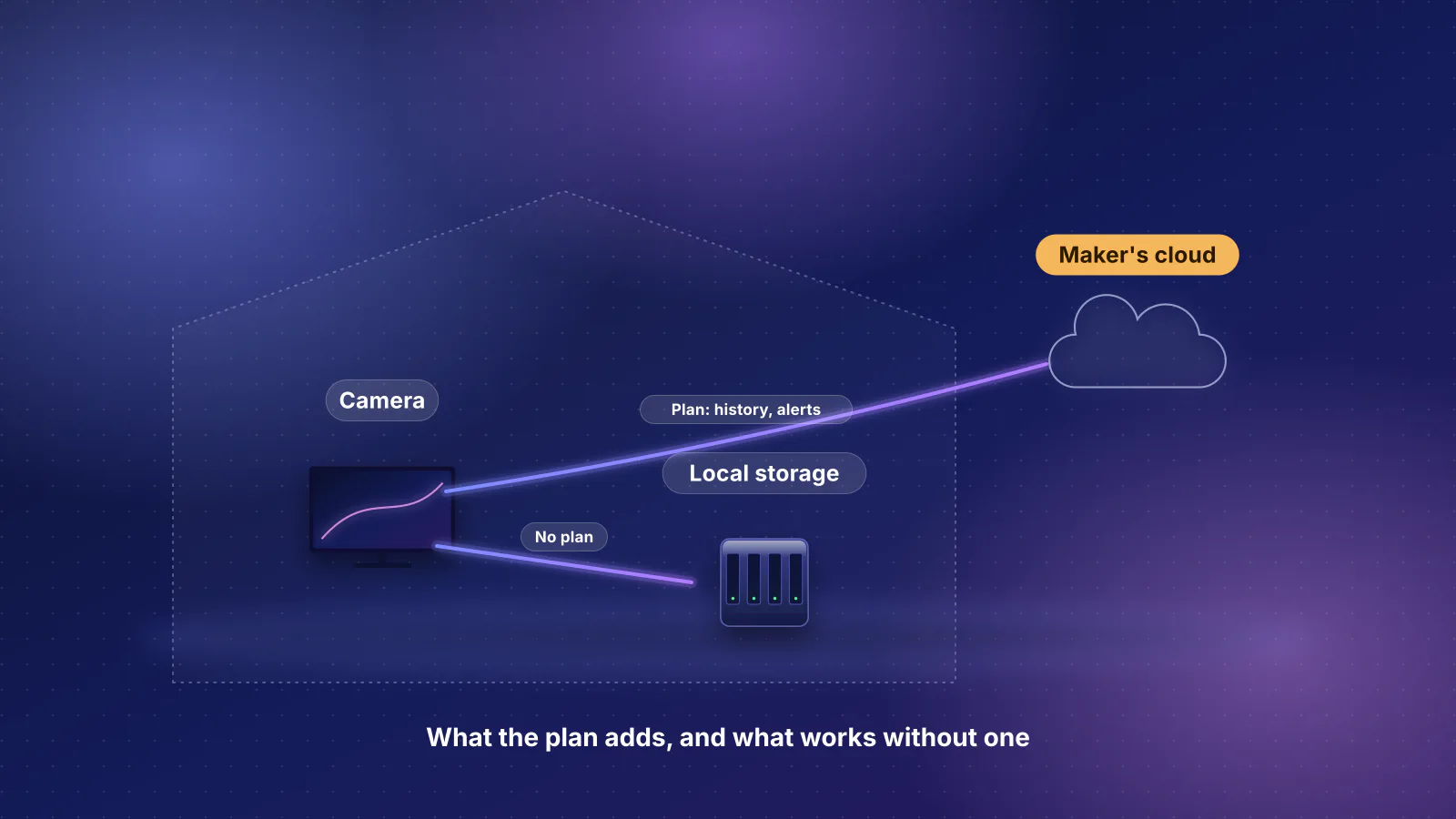
- Where it records decides whether it uses your upload at all. A cloud camera sends its clips (or, on some plans, its whole stream) out of the house. A camera recording to a local NVR or SD card keeps that video at home; Reolink lists recording to an SD card, local live view and local playback as working with a router but no internet. Upload is then used when you watch or play back from outside, and for alerts.
- Wi-Fi is a separate limit. A Wi-Fi camera uses airtime between itself and the router whether it records to the cloud or to an NVR in the closet, and a camera on a slow, weak link takes longer to send the same video. Arlo and Wyze both document 2.4 GHz requirements.
- Check before you change anything: add up your cameras' figures, test your upload on a cable, and check each camera's signal in its app. Wire a camera (usually PoE) when the signal stays poor, it records continuously at a high bitrate, or it's one you can't afford to lose.
This article is about cameras and doorbells. For upload speed in general (calls, backups, live streams, and why cable plans send so much less than they receive), see upload speed explained.
What sets a camera's bitrate
A camera's bandwidth is its bitrate: how many bits of compressed video it produces each second. Five things move it.
- Resolution. Reolink's stream settings guide says higher resolution "provides clearer images but requires more bandwidth and storage." Ring's table shows the scale: 1 Mbps per device at 720p, 2 Mbps at 1080p, 2.5 Mbps at 1536p, 10 Mbps at 2K and 15 Mbps at 4K.
- Frame rate and the bitrate cap. Axis's design tool, AXIS Site Designer, says "For each video stream, you can adjust the camera's frame rate, resolution, video codec, and compression settings." Reolink exposes a "Max Bitrate" setting and says "Higher bitrate offers better quality but demands more bandwidth." Its lower-quality Fluent stream "uses lower resolution, frame rate, and bitrate, designed to reduce bandwidth and storage usage."
- The codec. H.265 (HEVC) compresses better than the older H.264. When the standard was approved, the ITU said it "will need only half the bit rate of its predecessor." For surveillance video, Axis gives a narrower figure: H.265 delivers "comparable quality at 15 to 40 percent lower bitrates."
- The scene. Axis, which makes professional cameras, says "A high-complexity scene will produce a stream with a high bitrate" and that "motion or other events in the scene can cause the stream size and the bitrate to increase significantly." A camera watching a busy street produces more than the same camera watching a quiet hallway. Axis's design tool keeps separate motion estimates "for well-lit and low-light hours."
- What it's doing. Recording continuously, recording only on events, and someone watching live are three different loads, covered next.
Most consumer cameras also adjust on their own. Ring says its devices "adjust video quality based on your internet speed, but needs at least 1 Mbps to work." Google says Nest cameras "automatically adjust video resolution and compression according to how much bandwidth is available." So a camera that's short of upload usually still works; it sends worse video.
Cloud recording versus a local NVR
The biggest single factor in how much internet upload a camera uses is where its recordings go.
Cloud cameras: the video leaves the house
A camera that saves to the maker's cloud has to send each recording out through your upload. How often depends on the model and the plan. Google's Nest page draws the line clearly: a camera with 24/7 or event video history "streams live video and uses bandwidth whenever it is turned on", while one without video history "only uploads video to the Nest service when someone's watching live video", plus small snapshots and notifications. Google adds that its newer models, including the Nest Cam (battery), Nest Cam (wired) and Nest Doorbell (battery), stream only while you watch live or while they record a detected event.
Event recording sends video in bursts: nothing much for minutes, then a clip at a higher rate. Google lists the Nest Cam (battery or wired) at 0.7 Mbps on High but 2.0 Mbps "During recorded events", and 1.0 Mbps on Max Video but "about 3000 Kbps (3.0 Mbps)" during events. Size your upload for the burst, not the average: the moment several cameras see the same delivery van is the moment they all send at once.
Local recording: only live view and remote playback leave
A camera that records to an SD card, a hub with storage or a network video recorder (NVR) keeps its footage inside your network. Reolink's table for its PoE cameras and NVRs, with a router but no internet, lists "Record to SD card", "Local Live-view (in LAN)" and "Local Playback (in LAN)" as working, and "Remote Live-view (in WAN)", "Remote Playback (in WAN)", push notifications and email alerts as not working. In other words, internet upload is used when you watch or play back from away from home, and for alerts.
Remote viewing can still be large for one stream. Reolink lists a maximum of 8,192 kbps (about 8.2 Mbps) for live view in its Clear mode on its Wi-Fi and PoE cameras, and 512 kbps in Fluent mode; its battery cameras top out at 2,048 kbps in Clear. Choosing the lower-quality stream on your phone when you're away is the cheapest way to make remote viewing smooth on a small upload.
Other makers offer local options too, with their own limits. Ring documents Ring Edge, which stores and processes video "on a MicroSD card inserted into your Ring Alarm Pro" rather than in the cloud; Ring says it "supports 1080p video recording and is not compatible with 2K or 4K devices." Ring's page doesn't say how much, if anything, still goes to the cloud, so we don't give an upload figure for it. eufy says several of its eufyCam models "must be used with HomeBase", its own hub.
What each maker publishes
Each figure below is from the maker's own support page, read November 27, 2026. They are the makers' figures, not RouterHaus measurements, and they aren't measured the same way (some are minimums, some per resolution, some maximums), so compare within a brand rather than across brands.
| Maker | Published upload figure | How the maker frames it |
|---|---|---|
| Ring | 720p: 1 Mbps; 1080p: 2 Mbps; 1536p: 2.5 Mbps; 2K: 10 Mbps; 4K: 15 Mbps | "Upload speed per device", under "Upload speeds needed for your Ring device"; minimum 1 Mbps; add devices together |
| Arlo | Ultra series: 3 Mbps; Pro 3 and newer: 2 Mbps; video doorbells: 2 Mbps; Essential 2nd Generation: 2 Mbps; all other Arlo cameras: 1 Mbps | Minimum requirements, "upload per camera" (the page prints "Last updated: 08.01.2025") |
| Google Nest Cam (battery, wired) | High 0.7 Mbps (2.0 during recorded events); Max Video 1.0 Mbps (about 3.0 during events) | Maximum upload bandwidth by quality setting |
| Google Nest Doorbell (battery) | High 0.7 Mbps (2.0 during events); Max 1.0 Mbps | Maximum upload bandwidth by quality setting |
| Google Nest Doorbell (wired) | Low 0.12 Mbps; Medium Low 0.8 Mbps; Max Video 1.25 Mbps | Maximum upload bandwidth by quality setting |
| Google Nest Cam IQ (indoor, outdoor) | Low 0.8 Mbps up to High 4.0 Mbps | Maximum upload bandwidth by quality setting |
| Wyze (Wyze Cam) | 1 to 2 Mbps SD; 4 to 7 Mbps HD | A minimum: "Wyze Cam needs a minimum upload speed of 1-2 Mbps for SD and 4-7 Mbps for HD." The page names no model and doesn't say whether it's per camera |
| Reolink (Wi-Fi and PoE cameras) | Up to 8,192 kbps Clear; up to 512 kbps Fluent | Maximum bitrate for live view and FTP upload; the exact maximum varies by model and is shown under Settings, Stream, Maximum Bitrate |
| Reolink (battery cameras) | Up to 2,048 kbps Clear; up to 512 kbps Fluent | Maximum bitrate for live view and cloud upload |
| eufy | At least 2 Mbps | One general minimum for eufySecurity devices, with no breakdown by model |
| Axis | No single published figure | Per-model estimates in AXIS Site Designer, based on the camera model, scene, light and motion, the recording type, the streams and the live-view schedule |
A few things the table can't show:
- Ring's 2K and 4K figures are the largest numbers in the table. A single 4K Ring device at 15 Mbps needs more than a 10 Mbps upload has in total. The pages measure different things, so this doesn't show that a Ring device uses more than another brand's at the same resolution.
- Wyze's and eufy's figures are minimums. Neither page says whether its number is per camera, so read them as a floor for the connection, not as what each camera typically sends.
- Reolink's figures are ceilings, set by you. Its page says the maximum varies by model and points to each camera's own settings; lowering the cap lowers the bandwidth.
- Axis designs per site rather than per box. Its tool estimates "the cameras' average bandwidth while recording or viewing video", includes live view in the bandwidth estimate but not the storage estimate, and says older models that haven't been measured use default estimates that "are higher."
- eufy's figure is one number for the whole range. We couldn't find per-model upload figures on eufy's support pages.
Illustrative upload arithmetic
The two tables below are illustrative arithmetic on the makers' figures above, not a measurement of any home. Real cameras vary their bitrate with the scene, so treat each total as a peak to plan for.
A cloud setup with everything sending at once
| Device (maker's figure) | Upload |
|---|---|
| One 2K Ring doorbell | 10 Mbps |
| Two Arlo Pro series cameras (2 Mbps each) | 2 × 2 = 4 Mbps |
| One Nest Cam (wired) on Max Video, recording an event | about 3 Mbps |
| Total if all four record at the same moment | about 17 Mbps |
On a plan with 10 Mbps of upload, that burst doesn't fit. Ring and Google both say their devices lower video quality to match the bandwidth available, and anything else uploading at the time (a call, a backup) competes with them. On 35 Mbps the same burst leaves about 18 Mbps for everything else. With a 1080p Ring doorbell (2 Mbps on Ring's table) in place of the 2K one, the total would be 2 + 4 + 3 = 9 Mbps.
The same idea with a local NVR
| Activity (Reolink's maximums) | Internet upload |
|---|---|
| Four PoE cameras recording to an NVR at home | None for the recording itself |
| Watching one camera from away, Clear stream | up to about 8.2 Mbps |
| Watching one camera from away, Fluent stream | up to about 0.5 Mbps |
| Watching all four from away, Clear (4 × 8.2) | up to about 33 Mbps |
Local recording moves the load from "all the time" to "when someone watches". If you rarely view remotely, it barely touches your upload; if you keep a four-camera grid open on a tablet away from home, it can use more than the cloud setup above.
Monthly data, for plans with a cap
Continuous upload adds up. Illustrative arithmetic: a camera sending a steady 2 Mbps around the clock sends 2 × 86,400 × 30 ÷ 8 ÷ 1,000 = 648 GB in a 30-day month. Real cameras send less on quiet scenes. For comparison, Google publishes its own monthly estimates: for the Nest Cam (battery or wired), up to 200 GB a month on High with 24/7 recording and 10 GB on High with event recording, and up to 400 GB for a Nest Cam IQ on High with 24/7 recording. Google calls these high-end estimates. If your plan has a data cap, what counts toward a cap explains how uploads are counted.
Wi-Fi airtime is a different limit from upload
Your internet upload is shared by everything in the house that sends data out. Wi-Fi airtime is shared by everything on the same channel. They fail differently, and a camera can run into either one.
- Driveway camera Wi-Fi only, several walls from the router: weak signal, slow link
- Router Shares one channel with every other Wi-Fi device in range
- Modem Upload from the plan's label, shared by calls, backups and cameras
- Maker's cloud Receives the clips, or relays live view to your phone
Cisco Meraki's high-density design guide puts the basic rule plainly: "only one device can talk at a time while the other devices connected to the same AP" wait their turn, and "the available spectrum is divided among all clients connected to the AP." TP-Link's Omada documentation on airtime fairness adds that slow clients "need more time to transfer the same data." Putting the two together (our explanation, not either maker's wording): a camera with a weak signal usually connects at a slower rate, so the same video takes longer to send and keeps the shared channel busy for longer. As illustrative arithmetic that ignores Wi-Fi's overhead: 4 Mbps of video over a link running at 20 Mbps keeps the channel busy about a fifth of the time; over a link at 200 Mbps, about a fiftieth.
Three practical consequences:
- Local recording over Wi-Fi still uses Wi-Fi. A Wi-Fi camera recording continuously to an NVR uses no internet upload, but it uses airtime every second. Reolink says "the NVR itself takes up almost no bandwidth" and that you only need to add up what the cameras use.
- Signal matters as much as bitrate. Ring's app shows each device's signal strength on its Device Health tile, and Ring grades signal by RSSI. Ring rates "0 to -60" as great, "-60 to -70" as could be improved, "-70 to -80" as poor with possible delays and interruptions, and "-80 or worse" as very poor, with intermittent service or falling offline. Ring also says to contact your provider if a speed test next to the router shows "less than 60% of the internet speed you're paying for."
- Some makers require 2.4 GHz. Arlo says that for direct-to-Wi-Fi connections "a Wi-Fi router with a 2.4GHz band is required." Wyze says "Nearly all Wyze devices require a 2.4 GHz network"; the cameras it lists as also supporting 5 GHz are the Video Doorbell Pro, Battery Cam Pro and Cam Floodlight Pro. For setup trouble on 2.4 GHz-only devices, see connecting 2.4 GHz-only devices; for how a few busy devices can slow everyone else, how Wi-Fi splits airtime.
Hub-based systems change which link to check. eufy says the eufyCam models on its HomeBase page rely on "proprietary power-saving Wi-Fi and low-frequency wireless protocols" and that "connecting eufyCam to regular Wi-Fi networks is not possible." For those cameras, the signal that matters is camera to HomeBase, and the HomeBase's own connection to your router.
How to check your own cameras
None of this needs new equipment. Work through it in order:
- List each camera's figure. Use the maker's page for your model and the quality setting you actually use (the table above, or the camera's own bitrate setting). Add them up, using the event figure where the maker gives one.
- Test your upload on a cable. Use a computer wired to the router, with the cameras running as normal. Compare the result with the cameras' total plus whatever else uploads at the same time (calls, backups).
- Watch latency during the upload. If latency jumps a lot while the upload runs, cameras and calls are queuing behind each other; smart queue management can reduce that without a bigger plan (how SQM works).
- Check each camera's signal in its app, where the maker shows it (Ring's Device Health, for example). Note which cameras sit in the poor range.
- Catch it in the act. If clips stall or live view lags at particular times, check what else was uploading then, and whether it's every camera or only the far ones.
| What you find | What it means | What to change |
|---|---|---|
| Cameras' total close to or over your wired upload | The plan's upload is the limit | Lower quality or bitrate on cameras that don't need it, switch continuous cloud recording to events, or record locally; a plan with more upload only if those aren't enough |
| Upload fine; latency jumps during uploads | Uploads queue behind each other | Smart queue management on the router |
| Upload fine; only the far cameras stall or drop | The Wi-Fi link to those cameras | Move the router or an access point closer, or wire the camera |
| Everything fine at home, remote view stutters | Your upload during remote viewing, or the network you're watching from | Choose the lower-quality stream when away from home |
When a wired or PoE camera is justified
A Wi-Fi camera is fine when its signal is good, its bitrate is modest and it records on events. Wiring it, usually with Power over Ethernet so one cable carries both data and power, earns its cost when:
- The signal stays poor after the free fixes, such as moving the router or an access point.
- It records continuously at a high bitrate. A camera sending several Mbps every second for 24 hours is a permanent load on a shared channel; on a cable it takes no airtime at all.
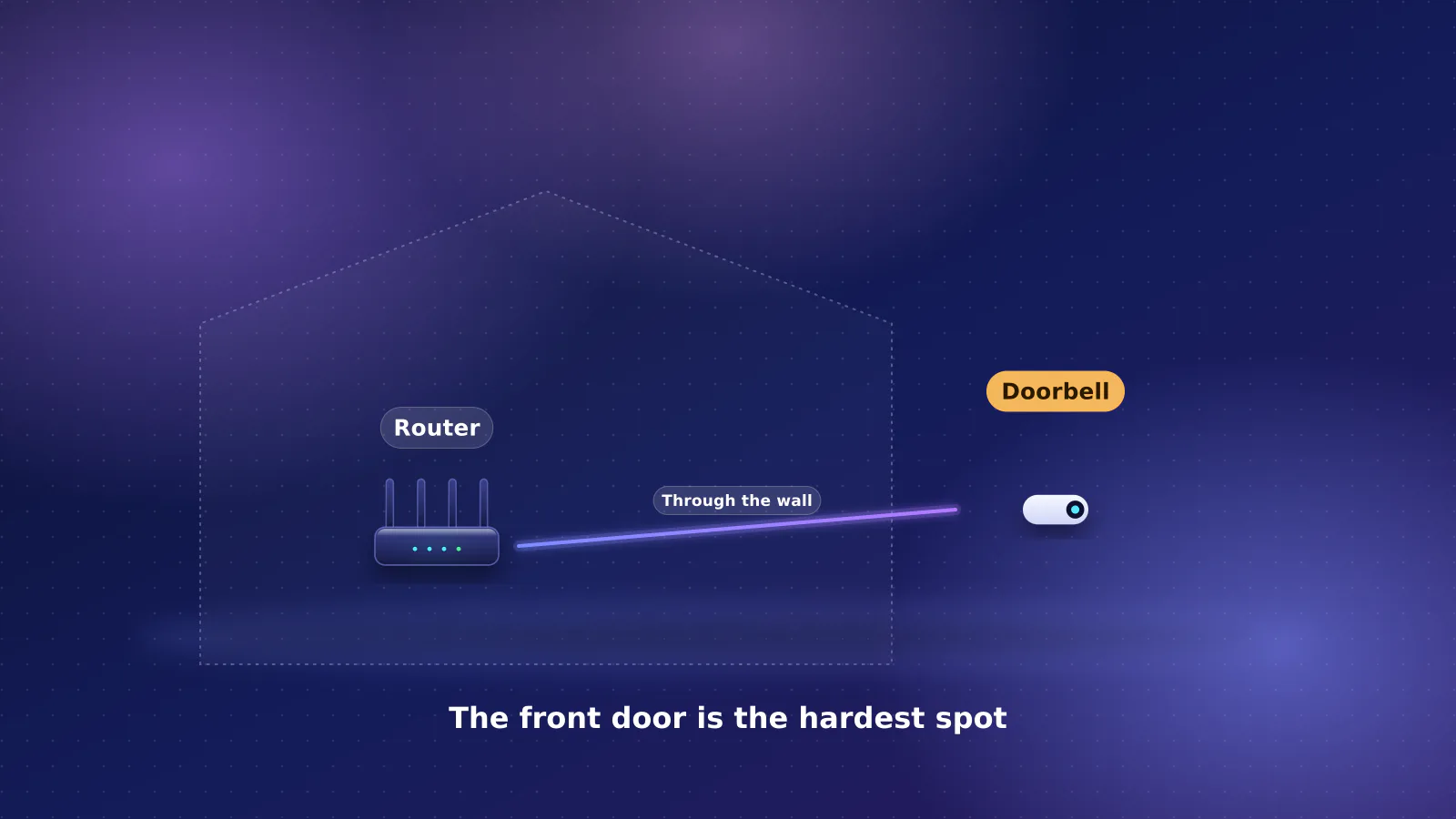
- It's one you can't afford to lose, such as the camera on the front door or the one covering where the car is parked. A cable doesn't depend on the signal.
- You're recording to a local NVR anyway. With the camera wired, the recording traffic between camera and NVR never touches Wi-Fi.
Sizing the PoE switch (per-port class, total power budget and cable loss) is its own job, with a worksheet and worked builds in PoE planning for access points and cameras. Getting the cable outside is covered in running Ethernet in an existing home. If you're adding several cameras, putting them on their own network keeps them apart from your computers; see VLANs for a home network.
When you don't need anything new: if the cameras' total fits your upload with room for calls, the signal is in the good range and clips arrive promptly, nothing needs to change. A new router doesn't raise your plan's upload, and a camera that's struggling for signal is often fixed by moving the router or an access point rather than replacing either.
When to get professional help: drilling an outside wall, running cable along an eave, or mounting a camera on a second-story corner is work where a mistake costs more than the camera. When the job needs hands on site, RouterHaus can connect you with a licensed contractor through a consultation request.
Frequently asked questions
How much upload do I need for one security camera?
By the makers' own figures, from under 1 Mbps to 15 Mbps per device: Ring lists 2 Mbps at 1080p, 10 Mbps at 2K and 15 Mbps at 4K; Arlo's minimum requirements list 1 to 3 Mbps per camera by series; Google lists 0.7 to 1.0 Mbps for the Nest Cam (battery or wired) on its top two settings, up to about 3 Mbps during recorded events. eufy gives one minimum of at least 2 Mbps for its devices, without a per-camera breakdown. Add every camera together, and leave room for calls and backups.
Do security cameras use internet if they record locally?
Not for the recording itself. Reolink lists recording to an SD card, local live view and local playback as working with no internet. Upload is used when you watch or play back from away from home, and for alerts. A Wi-Fi camera recording locally still uses Wi-Fi airtime, though.
Why does my camera work but live view lags?
Live view needs a steady stream, so it shows any shortfall first. Check the camera's signal in its app and your upload on a wired test. If both are fine at home and only remote viewing stutters, choose the camera's lower-quality stream when you're away.
Will H.265 cut my camera's bandwidth in half?
Possibly less than half. The ITU said in 2013 that H.265 needs about half the bit rate of H.264. For surveillance video, Axis says H.265 delivers comparable quality at 15 to 40 percent lower bitrates.
Should I buy a new router for my cameras?
Only if the router is the limit. A new router doesn't raise your plan's upload. If the cameras' total fits your upload and only far cameras struggle, moving the router, adding an access point near them or wiring them usually does more than a new router.
Sources
Read on November 27, 2026.
- Ring Support: Understanding wifi recommendations for Ring devices
- Ring Support: Store and process videos locally with Ring Edge and Ring Alarm Pro
- Arlo Support: What are the minimum requirements for installing and using my Arlo system? (page shows last updated 08.01.2025)
- Google Nest Help: Internet bandwidth and speed requirements for Nest cameras
- Wyze Support: Wyze tips to improve your Wi-Fi connectivity
- Reolink Support: What is the required bandwidth of Reolink WiFi and PoE cameras
- Reolink Support: What's the required bandwidth of Reolink battery-powered WiFi cameras
- Reolink Support: How to find the bandwidth that Reolink cameras will take
- Reolink Support: Reolink stream settings guide (resolution, frame rate, bitrate and more)
- Reolink Support: Can Reolink PoE cameras and PoE NVRs work without internet
- eufy Support: What is the minimum wifi upload speed for eufySecurity devices?
- eufy Support: Does eufyCam have to be used with HomeBase?
- Axis Communications: Bitrate control for IP video, white paper (March 2023)
- Axis Communications: Surveillance video compression
- Axis Help: AXIS Site Designer (bandwidth and storage estimates)
- ITU press release: New video codec to ease pressure on global networks (January 25, 2013)
- Cisco Meraki Documentation: High density Wi-Fi deployments
- TP-Link Omada Support: What is TP-Link EAP/CAP airtime fairness