The short version
- One port faces the internet, the rest face your home. The WAN (internet) port connects to the modem or fiber terminal. LAN ports are for wired devices. A port labeled WAN/LAN can do either job, but only one port at a time is the internet port.
- Most standalone routers in our catalog leave four ports free. Of the 63 current routers in the RouterHaus catalog (as of November 27, 2026), 34 have four wired ports left for devices once the internet cable is in. Mesh units leave fewer: the main units of 19 of the 43 current mesh systems leave one port or none. These are counts from the catalog's spec data, not from testing.
- Count only what has to be wired, plus every mesh unit or access point you'll wire back, plus one spare. That number, not the box's port count, is what you need.
- Short by a few ports? Add an unmanaged switch. It plugs into a LAN port and needs no setup: NETGEAR says its GS308 is "plug-and-play" with ports "needing no additional configuration". A switch with N ports adds N minus 1, because one port connects it to the router. Don't replace a working router just to get more ports.
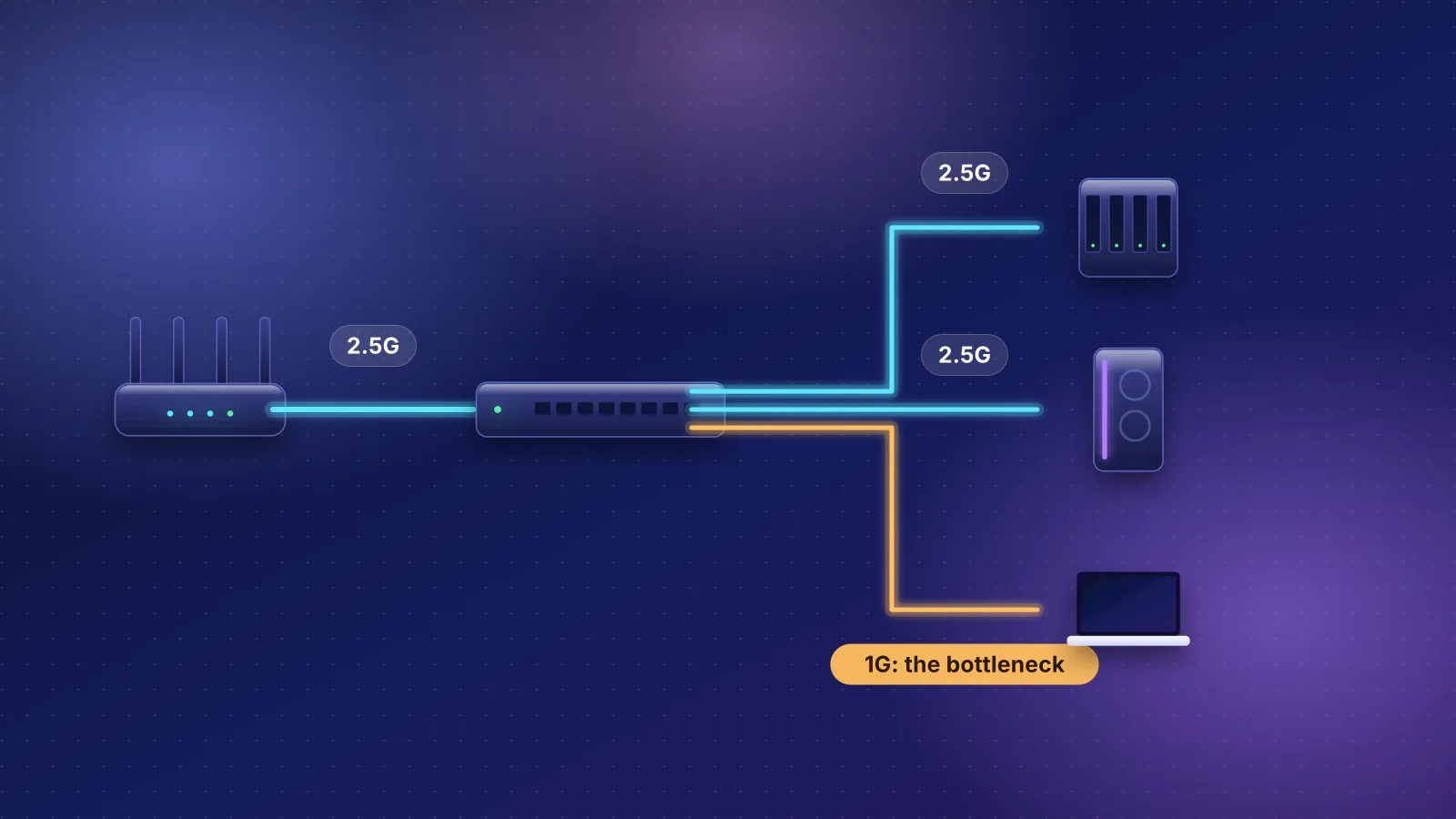
- Multi-gig ports matter in three cases: a plan above 1 Gbps, big file transfers between wired machines (a NAS), and wired backhaul between multi-gig mesh units or access points. Otherwise gigabit ports are enough.
- USB and link aggregation are extras. A USB port can share a drive or, on some models, take a phone's mobile connection by USB tethering as a backup. Link aggregation helps only where the maker documents it on both ends, and it doesn't speed up a single transfer.
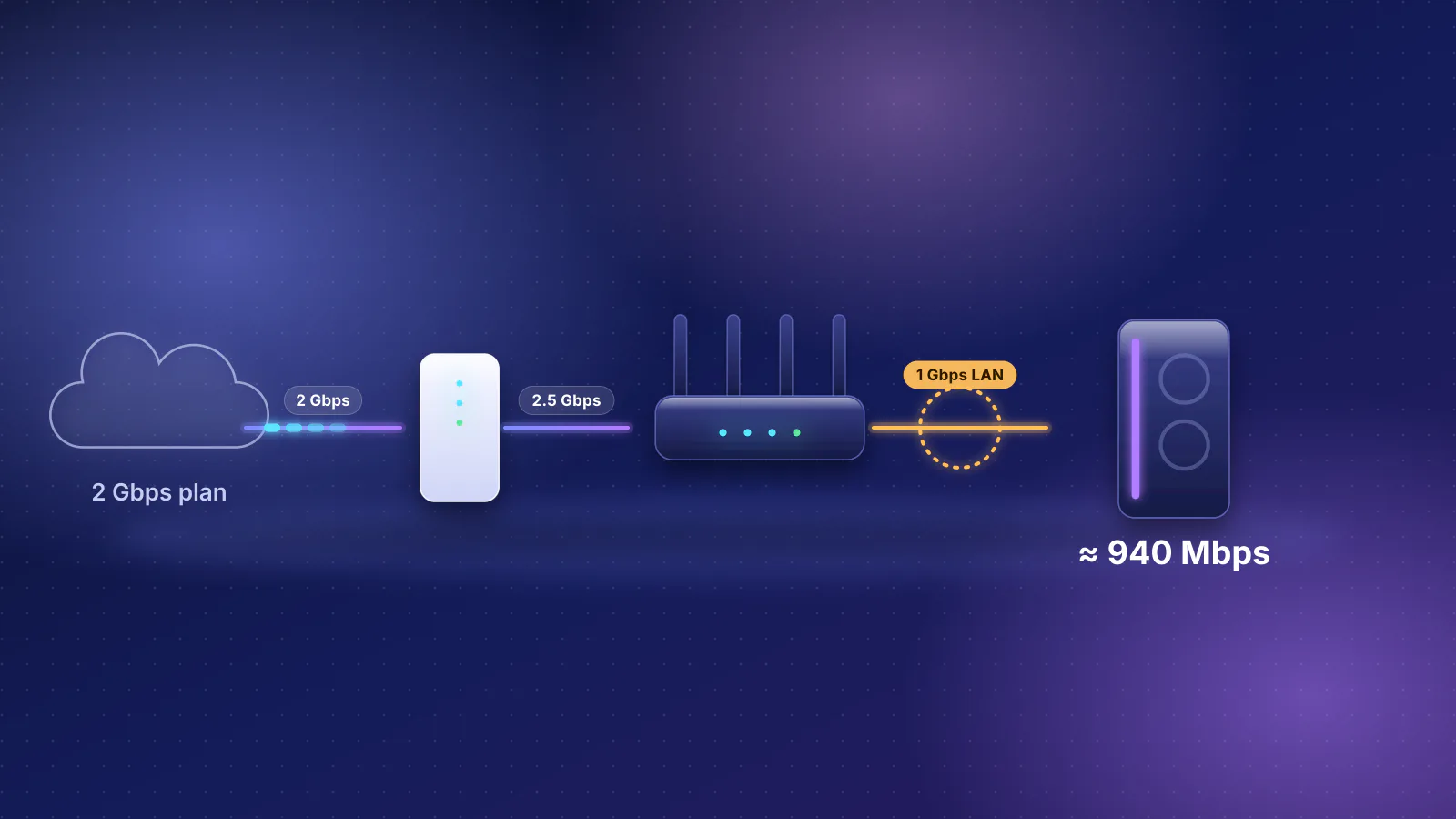
Already on a 2 Gbps or faster plan? Port speed is the bigger question there: see choosing a router for multi-gig fiber. Seeing about 940 Mbps on a faster plan is a troubleshooting job for finding the multi-gig bottleneck.
What each port on a router is for
Makers label ports differently, so read the spec page rather than the colors. Each example below is from the maker's own spec page, read November 27, 2026:
| Port | What plugs into it | Example from a maker's spec page |
|---|---|---|
| WAN (often labeled Internet) | The modem, fiber terminal (ONT) or provider's gateway. Exactly one internet connection, unless you set up dual WAN. | TP-Link Archer AX55: "1× Gigabit WAN Port" |
| LAN | Wired devices, a switch, or a wired mesh unit or access point | Archer AX55: "4× Gigabit LAN Ports" |
| WAN/LAN (combo) | Either the internet line or a device. You choose which port is the internet port; the others serve devices. | ASUS RT-BE88U: "1 x 10Gbps for WAN/LAN" and "1 x 2.5Gbps for WAN/LAN" |
| Multi-gig RJ45 (2.5, 5 or 10 Gbps) | The same cable and plug as gigabit, but faster when both ends and the cable support it | TP-Link Archer BE550: "1× 2.5 Gbps WAN" and "4× 2.5 Gbps LAN" |
| SFP+ | A slot for a module or direct-attach cable rather than a fixed jack; common on gateways and switches | RT-BE88U: "1 x 10Gbps SFP+ Port" |
| USB | A drive to share, and on some models a phone's mobile connection (USB tethering) as a backup | Archer AX55: "1× USB 3.0 Port" |
Two details trip people up. First, mesh systems often have very few ports: Google lists "Two Ethernet ports support 1 Gbps wired speeds per router" for the Nest Wifi Pro, so the main unit has one port for the modem and one for everything else. Second, a combo port only counts once: on the RT-BE88U, whichever WAN/LAN port you use for the internet stops being available for a device. The router guide's port section has a labeled photo of a typical router's back.
How to count the ports you need
Start from your devices, not from the router. Most things in a home connect by Wi-Fi and don't need a port at all.
- List the devices that must be wired. Anything with no Wi-Fi, and anything its maker's setup guide tells you to connect by Ethernet. Check each device's own setup page if you're not sure.
- List the devices that benefit from a cable. A desktop PC or game console that's within reach of a cable, a TV or streaming box in the same cabinet as the router, a network drive (NAS), a printer that drops off Wi-Fi. A device on a cable uses no Wi-Fi airtime, which leaves more for everything else; how bandwidth is shared in a busy home explains how that airtime is shared.
- Add every wired link to other network gear. Each mesh unit or access point you wire back to the router uses a port at the router end (or on a switch). Mesh with Ethernet backhaul covers how those links are laid out.
- Count the cables, not the rooms. If one wall jack feeds a TV cabinet with three devices, that's one router port plus a small switch in the cabinet, not three router ports.
- Add one spare for a laptop you plug in to test or set something up.
An illustrative count (an example home, not data from a real one). The router sits in a living-room cabinet with a cable modem:
| Needs a port at the router | Ports |
|---|---|
| Streaming box and game console in the same cabinet | 2 |
| NAS on the shelf beside the router | 1 |
| Cable to the office jack (desktop PC, printer and a dock behind it) | 1 |
| Wired mesh unit upstairs | 1 |
| Spare | 1 |
| Total | 6 |
On a router with four LAN ports, that home is two short at the router, and the office needs three ports at the far end of one cable. Two five-port switches cover both: one in the cabinet (it uses one router port and gives four), one in the office (one jack in, four out). That's the arithmetic, not a recommendation of a particular switch.
How many ports current routers leave free
These counts come from RouterHaus's own product catalog as of November 27, 2026, not from testing. The catalog records each model's ports from the maker's spec page, checked between October 20 and November 23, 2026; the port records of two models (the RT-BE88U's WAN list and the MSI Roamii BE Lite) are marked as not fully verified. The counting rule: add up every wired port the catalog lists (RJ45 jacks and SFP or SFP+ slots, with an RJ45/SFP+ combo counted once), then subtract one for the internet. A WAN/LAN combo port is counted as the internet port. For mesh systems the figure is for the main unit only, since satellites can differ:
| Ports free for devices | Standalone routers (63 current) | Mesh systems, main unit (43 current) |
|---|---|---|
| None or 1 | 2 | 19 |
| 2 or 3 | 7 | 18 |
| 4 | 34 | 5 |
| 5 or more | 20 | 1 |
The extremes: ASUS lists "7 x 2.5Gbps for LAN" plus one WAN port on the ROG Strix GS-BE18000, and the RT-BE88U has ten wired ports in all, counting its SFP+ slot. At the other end, 17 of the 43 mesh main units in the catalog have two ports, and two have one. If you already own a mesh system, the main unit's port count is a likely reason you're short, and a switch beside it is the simple answer. Some routers can also turn a LAN port into a second WAN port: ASUS's dual WAN page lists "WAN, USB, Ethernet LAN" as the options, which is worth knowing if you plan a backup connection, because it uses up a LAN port (dual-WAN failover at home covers the setup).
When a switch is the right answer
An Ethernet switch adds ports to the network your router already runs: devices plugged into it join the same home network as the router's own ports. Everything behind it shares the one router port it's plugged into, which in a home is rarely a limit: devices mostly talk to the internet, and the plan is usually slower than the port.
- Modem or ONT One cable to the router's WAN port
- Router Four LAN ports, all in use
- Unmanaged switch Plugged into one LAN port; five ports, one used for the uplink
- Wired devices Four more devices, sharing the switch's one link to the router
What the makers say about doing it right:
- Plug it in after the router. eero: "Always plug the switch into your eero and not directly into your modem." The same logic applies to any router, because a device on the modem's side isn't on your home network.
- Unmanaged is enough for adding ports. eero says "Most unmanaged Ethernet switches work with eero" and recommends an unmanaged switch, "especially when hardwiring eeros to one another", warning that managed switches "can negatively impact the throughput of your eeros" and recommending that features such as Spanning Tree Protocol be disabled on them. NETGEAR says its GS308's ports need "no additional configuration".
- Match the switch to the port. eero says it's "always safe to choose a gigabit switch" if you're unsure. Our reasoning from there: an Ethernet link can't run faster than the slower port at either end, so on a 2.5 Gbps router port a gigabit switch caps everything behind it at gigabit. That's fine for most devices, but not for a NAS or a fast PC on a multi-gig plan.
- Devices behind a wireless mesh unit are still on Wi-Fi. eero notes that wired devices connected through a wirelessly linked eero communicate over Wi-Fi, so a switch on a satellite's port adds ports, not a faster path.
When a bigger router is justified instead: when you're replacing the router anyway (it's out of support, or the Wi-Fi doesn't cover the home), and the new one happens to have the ports you need; when you need several ports faster than gigabit and the router you'd buy anyway has them; or when one fewer box in a small cabinet genuinely matters. Buying a new router only to get more ports replaces a working box to solve a problem a switch already solves. When to replace your router covers the reasons that do justify it.
The usual home reason to want a configurable (smart or managed) switch is VLANs: one cable carrying your main, guest and smart-home networks. That decision is in managed vs unmanaged switch. If ceiling access points or cameras need power over the cable, the switch has to supply PoE too; see PoE planning for access points and cameras. Current switches, with makers' prices, are in the switch finder.
When a multi-gig port matters
Multi-gig ports use the same RJ45 plug as gigabit. IEEE's 802.3bz standard, approved "on 22 September 2016", added 2.5 and 5 Gbps Ethernet, with task-force objectives of "Up to at least 100m on four-pair Class D (Cat5e)" cabling at 2.5 Gbps and on "Class E (Cat6)" at 5 Gbps, "on defined use cases and deployment configurations". Which cable carries which speed, and how far, is in Cat5e vs Cat6 vs Cat6a.
A faster port is worth having in three situations:
- Your plan is faster than 1 Gbps. The internet port and at least one LAN port must be at least as fast as the plan, or no wired device sees it. The 10 Gbps-internet, slow-LAN trap and the tier-by-tier port rules are in the multi-gig router guide.
- You move big files between wired machines. A NAS and a PC both on 2.5 Gbps ports (directly or through a 2.5 Gbps switch) copy between them faster than over gigabit, even on a slower internet plan, because that traffic never leaves the house. Building a 2.5GbE home network lists every link that has to match.
- You wire mesh units or access points together. In our reading, a wired backhaul link can run no faster than the slower port at either end (this is RouterHaus reasoning, not a maker's statement), so multi-gig units joined through gigabit ports or a gigabit switch get a gigabit link.
If none of those applies, a plan of 1 Gbps or less with devices that browse, stream and call, gigabit ports carry everything the plan can deliver. A router with all-gigabit LAN ports isn't a defect in that home; 24 of the 63 current routers in the RouterHaus catalog list only gigabit LAN-only ports, though 16 of those 24 also have a faster port in the catalog's WAN list (an internet port, or a WAN/LAN port on some models).
SFP+ ports
An SFP+ port is a slot, not a jack: it takes a module (copper RJ45 or fiber) or a short direct-attach cable, usually at 10 Gbps. In the RouterHaus catalog it appears on 9 of the 63 current routers, like the RT-BE88U with its "1 x 10Gbps SFP+ Port", and on 31 of the 52 current gateways. It's useful for a 10 Gbps link to a switch or NAS in the same cabinet. It doesn't add a port for ordinary devices without a module, and modules differ in which speeds and distances they support. The details, including which providers document a copper handoff, are in SFP+ ports, modules and cables.
What a router's USB port does
A USB port doesn't add network ports. What it does depends on the maker's firmware, and the documented uses are:
- Sharing a drive. TP-Link's USB sharing page calls network sharing "the standard method of sharing Documents/Media files within a home network", with FTP for local or remote access and a media-sharing option. ASUS says AiDisk "combines simple FTP settings with the ASUS DDNS service" to share a router-attached drive over the internet.
- A backup internet connection. On ASUS models with dual WAN, USB is one of the listed WAN types ("WAN, USB, Ethernet LAN"), for failover or load balance. ASUS's USB tethering page shares a smartphone's connection this way and says "Dual WAN is automatically enabled" once it's set up.
Two cautions. Remote access to a shared drive puts it on the internet: ASUS's AiDisk setup offers admin-only access, a limited account, or sharing "without authentication". ASUS's page gives no advice on which to pick; our suggestion is that if you turn remote access on at all, you use an account with a password rather than none. And support varies: of the 63 current routers in the RouterHaus catalog, 48 list at least one USB port, 8 have none and 7 have no USB figure recorded; for mesh systems, 30 of 43 have none or no figure recorded. If you'd use a USB feature, check the model's own spec and support pages before buying for it.
Link aggregation: only where the maker documents it
Link aggregation joins two ports into one logical link. IEEE's 802.1AX standard describes "parallel instances of full-duplex point-to-point links" aggregated so a device "can treat the LAG as if it were a single link". Home routers offer it in two places, and both ends must support it:
| Where | What the maker documents | What it needs |
|---|---|---|
| LAN side (router to NAS or switch) | ASUS: combines "2 Ethernet links into one single logical link", using LAN 1 and LAN 2, and ASUS routers "only support to use 1 pair". NETGEAR: "Most routers use LAN ports 1 and 2 or ports 3 and 4", on the Nighthawk models its article lists (updated July 7, 2025). | The other device must support it: ASUS says both "need to support IEEE 802.3ad protocol" |
| WAN side (modem to router) | ASUS: "WAN Aggregation combines two Gigabit networks to increase the bandwidth up to 2 Gigabits", on supported models. NETGEAR: "the only NETGEAR cable modems that support link aggregation are the CM1100 and CM1200". | A modem that supports LACP (IEEE 802.3ad), cabled to two router ports; ASUS says both sources must be "from same ISP and same front modem/router" |
Two limits. Aggregation uses two ports for one connection, so it makes a port shortage worse. And it spreads separate conversations across the links rather than making one faster: ASUS's own example is two computers reading from a NAS at once, each with a theoretical maximum of 1 Gbps instead of sharing one link. A single computer copying alone gets what one link gives. Why, and when a 2.5 Gbps port at both ends is the better fix, is in the switch guide's link aggregation section and the NAS and workstation guide.
What to do, by situation
| Your situation | What to do |
|---|---|
| Router works well, you're one to four ports short | Add a five- or eight-port unmanaged switch on a LAN port. Buy nothing else. |
| Several wired devices in one room far from the router | One cable (or wall jack) to that room and a small switch there |
| Mesh main unit with one free port | A switch beside it for wired devices and wired backhaul to other units |
| Plan above 1 Gbps, or a NAS and fast PC | A LAN port at the speed you need, and a multi-gig switch if more than one device needs it |
| Main, guest and smart-home networks on one cable | A smart or managed switch that supports VLANs, and a router that does too |
| Router out of support or Wi-Fi doesn't cover the home | Replace it, and count ports as part of that choice |
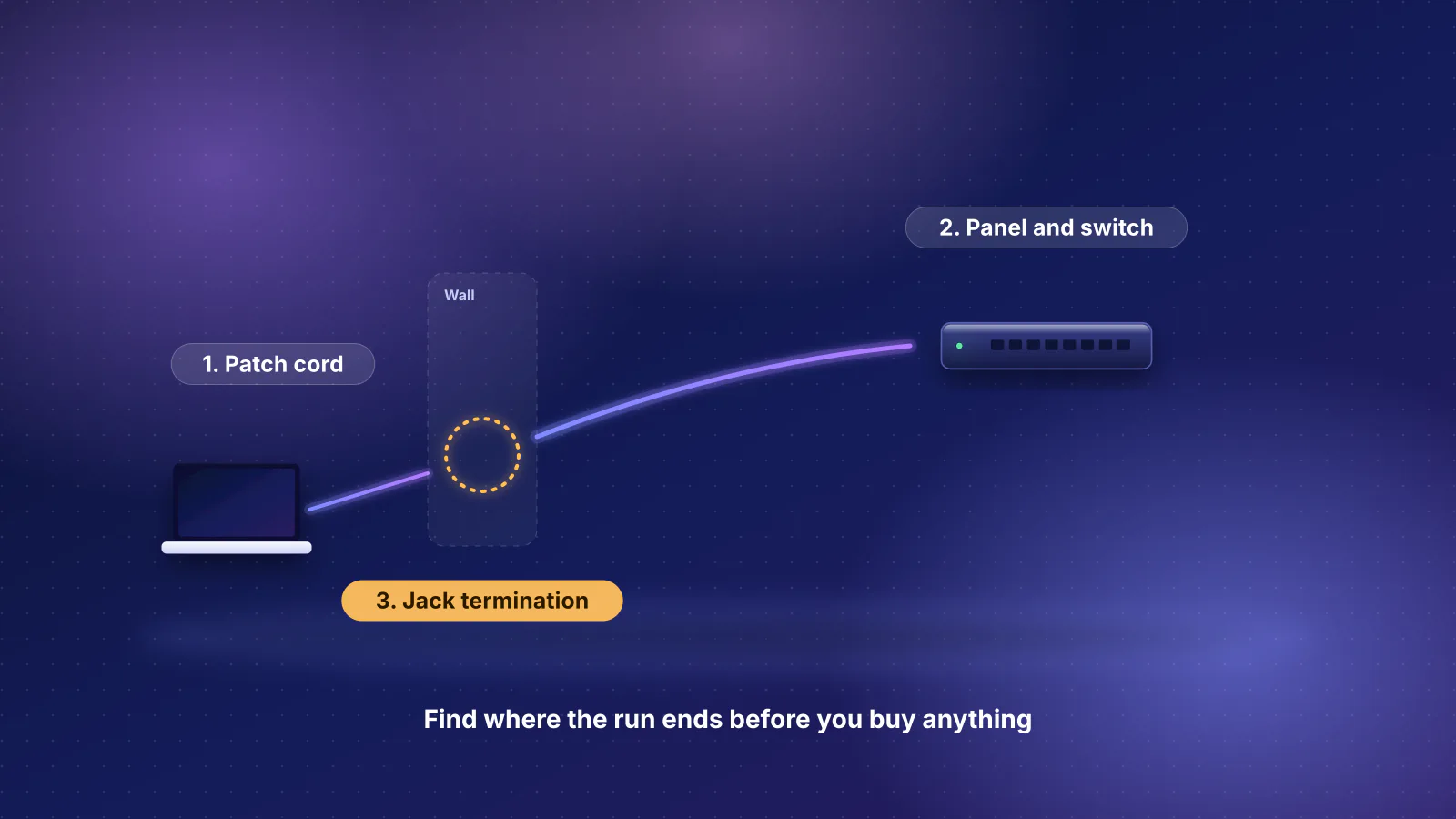
| Rooms you want wired have no cable | See running Ethernet in an existing home |
If the job needs cables run through walls or a closet built out, RouterHaus can connect you with a licensed contractor when the work needs hands on site: ask for a network plan.
Frequently asked questions
What's the difference between a WAN port and a LAN port?
The WAN port connects the router to the internet through your modem, fiber terminal or provider's gateway. LAN ports connect wired devices and other network gear inside your home. A port labeled WAN/LAN can be set as either, but only one port is the internet port at a time.
Does adding a switch slow down my internet?
Not in a typical home. Devices behind the switch share its one link to the router, but that link runs at the port's full speed, which is usually at least as fast as the internet plan. A gigabit switch on a multi-gig router port does cap the devices behind it at gigabit, because a link can't run faster than its slower end.
Can I plug a switch into my modem instead of the router?
Plug it into the router. eero's support page says to always plug the switch into the eero and not directly into the modem, and the same applies to any router: devices on the modem's side aren't on your home network.
Do I need a managed switch just to add ports?
No. An unmanaged switch adds ports with no setup, and eero recommends unmanaged switches with its systems. You need a smart or managed switch when one cable has to carry several networks (VLANs), or when you want features like link aggregation.
Will combining two router ports double my speed?
Not for one device. Link aggregation spreads separate connections across the links, so two computers reading from a NAS can each get a full link if their traffic lands on different links, but a single transfer gets one link's speed. It also needs support on both ends, which ASUS and NETGEAR list by model.
Sources
Read on November 27, 2026. Port and USB counts attributed to the catalog are from RouterHaus's own product catalog as of November 27, 2026, whose records were checked against makers' spec pages between October 20 and November 23, 2026; they are not test results.
- IEEE P802.3bz 2.5G/5GBASE-T Task Force (approval of IEEE Std 802.3bz-2016)
- IEEE 802.3 NGEABT objectives, approved March 2015 (PDF)
- IEEE 802.1: 802.1AX-2020, Link Aggregation
- eero Help: How do I add more Ethernet ports to my network?
- eero Help: Can I connect wired devices to my network using an Ethernet switch?
- NETGEAR: GS308 8-Port Gigabit Ethernet Unmanaged Essentials Switch
- NETGEAR Support: How do I set up LAN Ethernet port aggregation on my NETGEAR Nighthawk router? (updated July 7, 2025)
- NETGEAR Support: How do I set up WAN Ethernet port aggregation on my NETGEAR Nighthawk router? (updated July 7, 2025)
- ASUS Support: How to set up link aggregation on ASUS router (Teaming Port/LACP) (updated July 22, 2024)
- ASUS Support: How to enable WAN Aggregation on ASUS router (updated July 22, 2024)
- ASUS Support: Dual WAN introduction and setup, failover and load balance (updated August 13, 2025)
- ASUS Support: How to set up a smartphone to share the network to the router, USB tethering (updated July 11, 2024)
- ASUS Support: How to access a USB disk connected to ASUS router, AiDisk (updated August 20, 2024)
- TP-Link Support: How do I share a USB drive on my router? (updated November 13, 2025)
- TP-Link: Archer AX55 specifications
- TP-Link: Archer BE550 specifications
- ASUS: RT-BE88U tech specs
- ASUS ROG: ROG Strix GS-BE18000 specifications
- Google Store: Nest Wifi Pro tech specs