The short version
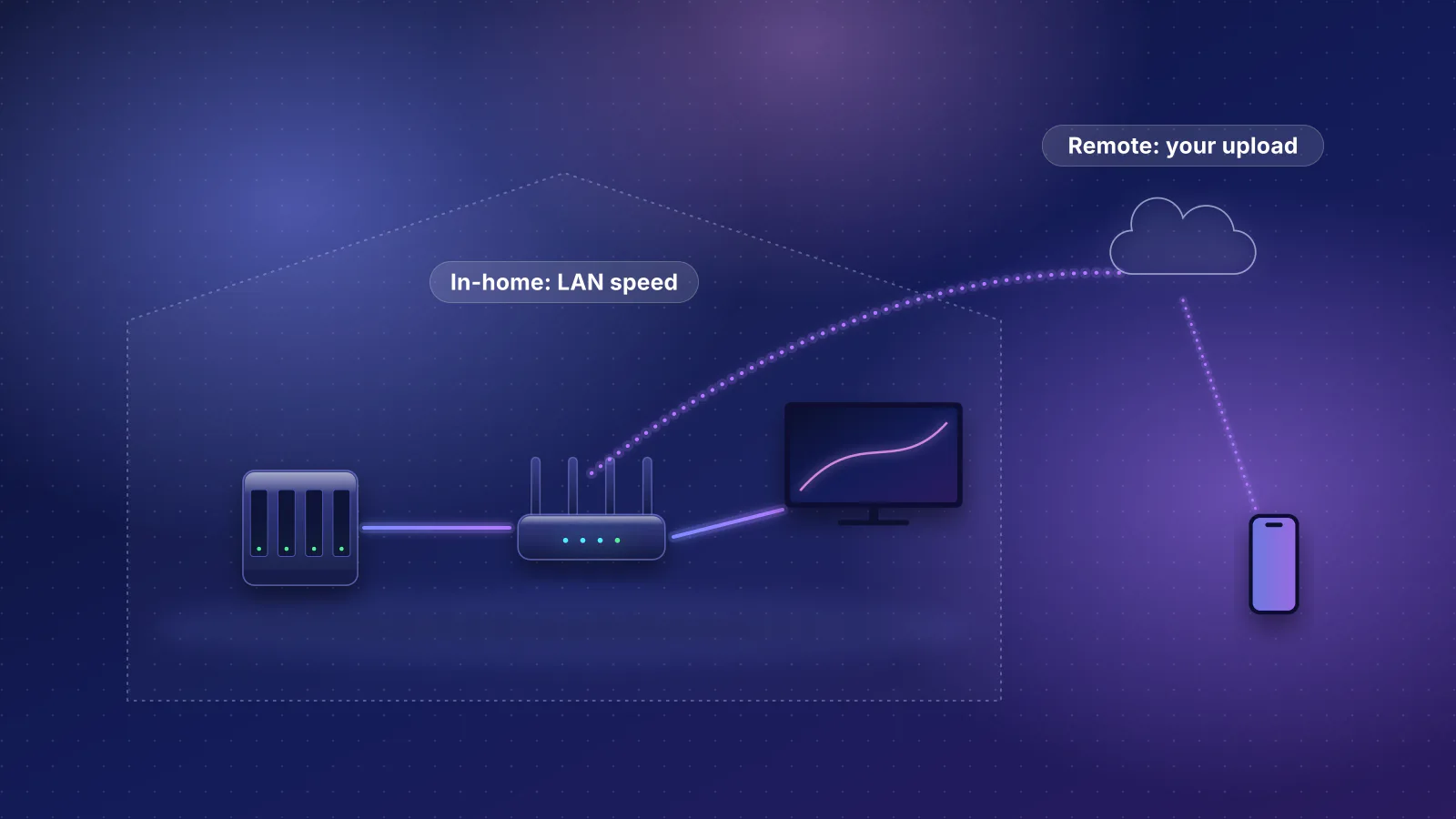
- Put the three machines on one switch. A switch sends traffic between its own ports directly, so NAS-to-workstation copies never pass through the router and never touch your internet connection.
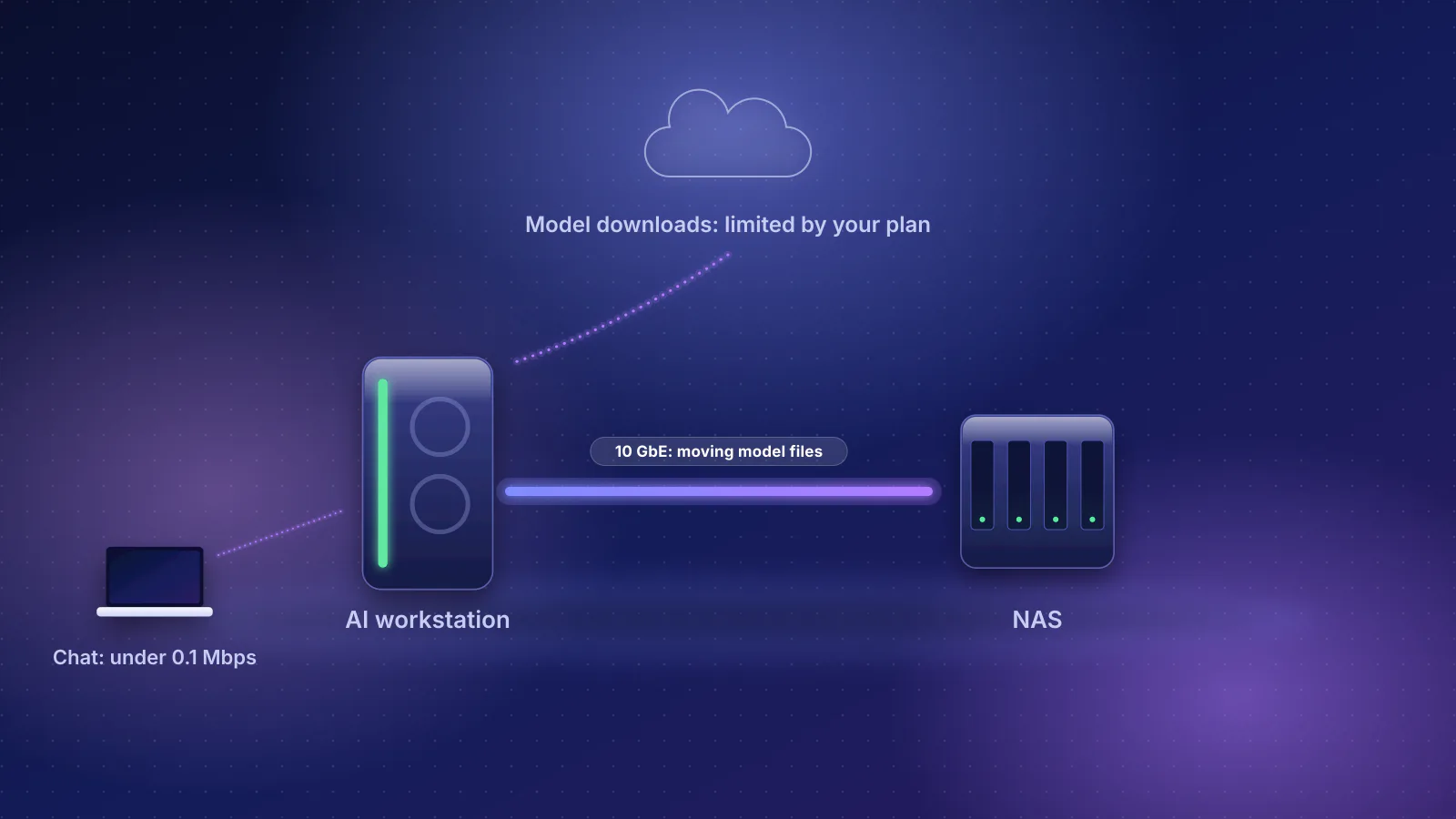
- Give each machine the port speed its storage can use: 2.5 Gbps covers a hard-drive NAS and the gaming PC; 10 Gbps pays off between a fast NAS and an AI workstation that move large model files.
- Separate VLANs change that. Traffic between VLANs has to be routed, so it goes up to the router and back, limited by the router's port and routing speed.
- Link aggregation, jumbo frames and SQM won't speed up a single copy. One transfer stays on one link; jumbo frames need every device to agree; SQM manages only the internet link. SMB Multichannel can help in specific setups.
- The gaming PC's ping is safe as long as bulk copies don't share a congested link with it, such as a single cable between two switches.
Switching vs routing: why the switch goes next to the machines
A switch learns which device sits on which of its ports. In Cisco's words, "the device forwards the packet only to the port associated with the destination address." When the NAS sends a file to the workstation and both are plugged into the same switch, the data goes from one port to the other and nowhere else. The router never sees it, so neither the router's speed nor your internet plan is involved.

A router does a different job: it moves traffic between networks, such as your home network and the internet, or between two VLANs (separate virtual networks on the same cables). Cisco's VLAN guide states that devices "in one VLAN cannot directly communicate with devices in another VLAN without a Layer 3 routing device."
- NAS 2.5 or 10 Gbps port
- Switch Port to port, no router
- AI workstation 2.5 or 10 Gbps port
What happens across VLANs
Some people put the NAS on a separate VLAN for security. That's reasonable, but every copy between the NAS and a computer on another VLAN then travels up to the router, gets routed, and comes back down. The router's LAN port and its routing capacity become the limit.
- NAS (VLAN 20) 10 Gbps port
- Switch 10 Gbps ports
- Router LAN port 2.5 Gbps: the bottleneck
- Switch Back down the same cable
- AI workstation (VLAN 10) 10 Gbps port
Three ways around it: keep the machines that exchange big files on the same VLAN; use a router with a fast LAN port and published routing capacity; or route between VLANs on a Layer 3 switch. Ubiquiti, for example, documents setting a UniFi Layer 3 switch as the router for a network so it routes between VLANs itself. VLANs can also break Valve's local game transfers, which need both Steam clients to "see each other directly on the same LAN."
A router's built-in LAN ports are a switch too, but makers' spec pages, the source of our catalog, list port speeds, not how traffic between two LAN ports moves inside the box. A separate switch for the machines that exchange big files takes that question off the table.
Choosing a port speed for each machine
A link only needs to be as fast as what feeds it. Convert storage speeds to network units (MB/s × 8 ÷ 1,000 = Gbps): one 2.5 Gbps port carries at most 312.5 MB/s, one 10 Gbps port 1,250 MB/s.
| Machine | What it moves | Port to plan for |
|---|---|---|
| NAS, hard drives or 4-bay class | Backups, media, model library. Synology rates the DS925+ at 522 MB/s read (about 4.2 Gbps); one IronWolf Pro drive is rated 285 MB/s at best. | 2.5 Gbps. The DS925+ has two 2.5GbE ports and no 10GbE option listed. |
| NAS, 8-bay or SSD class | Same, faster. Synology rates the DS1825+ at 2,239 MB/s read (about 17.9 Gbps). | 10 Gbps. The DS1825+ ships with 2.5GbE and lists 10GbE and 25GbE add-in cards. |
| AI workstation | Model files of 5 to 700 GB, datasets, checkpoints. Answers to other devices are tiny. | 10 Gbps if the NAS and local SSD keep up; 2.5 Gbps otherwise. See does a local AI workstation need 10GbE? |
| Gaming PC | Game traffic, game downloads (limited by the internet plan), Steam local transfers. Valve says a modern PC "can easily transfer game content with 100MB/sec over a wired network connection" (about 0.8 Gbps). | 2.5 Gbps is plenty; it also covers internet plans up to 2 Gbps. |
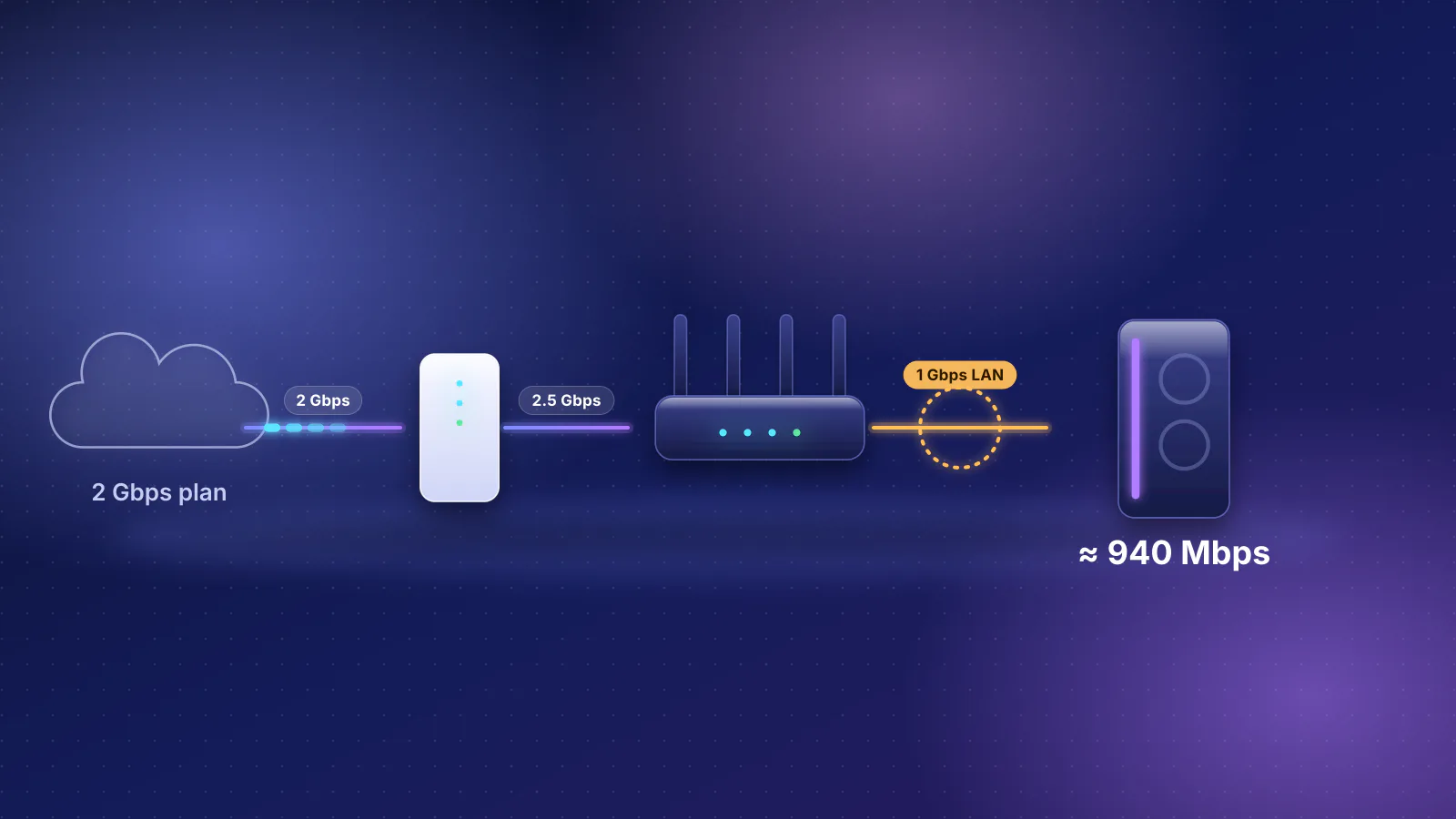
| Uplink to the router | All internet traffic for these machines. | At least your internet plan's speed. See multi-gig bottlenecks. |
If the same NAS also runs Plex or Jellyfin, streams to TVs are a small, steady load next to these copies; our Plex and Jellyfin network guide covers that side.
Three worked layouts
Switches below are from the RouterHaus catalog with the maker's price, checked October 20, 2026. Ubiquiti's US store adds a surcharge; its prices are shown with the surcharge, and the price before it follows. Wired runs: 2.5 Gbps works on Cat5e; 10 Gbps over copper needs Cat6A for full-length runs; on Cat6, industry guidance assures only about 37 m, and up to 55 m depending on crosstalk between cables (details in the 10GbE article).
1. Budget: everything at 2.5 Gbps
Router LAN port to a 2.5 Gbps switch; NAS, gaming PC and AI workstation on the switch. The Ubiquiti Switch Flex Mini 2.5G has five 2.5 Gbps ports ($54 with surcharge, $49 before it), enough for the uplink, three machines and a spare. The Zyxel XMG-108 has eight 2.5 Gbps ports plus a 10G SFP+ slot for a later upgrade ($89.99 on Zyxel's US store, fanless, 9.12 W maximum).
- NAS 4-bay, rated 522 MB/s
- NAS port 2.5 Gbps (312.5 MB/s): the bottleneck
- Switch 2.5 Gbps ports
- AI workstation 2.5 Gbps port, NVMe SSD
Copying the 145 GB 16-bit files of Qwen's 72B model takes 7 min 45 s at 2.5 Gbps by line-rate arithmetic. Good enough if you move big files weekly, not hourly.
2. Mixed: 10 Gbps where the files flow, 2.5 Gbps elsewhere
The QNAP QSW-2104-2T-R2 fits this exactly: two 10GBASE-T ports for the NAS and the AI workstation, four 2.5 Gbps ports for the gaming PC, the router uplink and two more devices. It's unmanaged and fanless, 18 W maximum, $119 on QNAP's US store. The NAS needs a 10GbE port or card (the DS1825+ lists them); the workstation needs a 10GbE port or card.
- NAS 8-bay, rated 2,239 MB/s, 10GbE card
- Switch 10G ports 10 Gbps (1,250 MB/s): the bottleneck
- AI workstation 10GbE, NVMe SSD
Being unmanaged, it can't assign its ports to separate VLANs. If you want VLANs, choose a managed or smart switch.
3. All 10 Gbps
For several fast machines, or a second AI box: the QNAP QSW-3205-5T has five 10GBASE-T ports (36 W maximum, fanless, $279 on QNAP's US store); the MikroTik CRS304-4XG-IN has four plus a 1 Gbps management port ($199 suggested price, 21 W maximum); the Ubiquiti Switch Flex XG has four 10GbE ports and one 1 GbE port, managed in UniFi ($329 with surcharge, $299 before it; 25 W maximum). The uplink to the router can stay at 2.5 Gbps unless your plan is faster: QNAP and MikroTik list 2.5 Gbps among the speeds of these 10G ports, while Ubiquiti's spec page for the Flex XG doesn't list the lower speeds its 10GbE ports support, so check before you rely on a 2.5 Gbps uplink to it.
A router or gateway with fast LAN ports can replace or extend the switch. These are the current routers and gateways in our catalog with four or more LAN ports at 2.5 Gbps or faster and a published price of $400 or less:
| Product | Internet port | Fastest LAN port | Maker's routing, plan or wired-speed figure | Price |
|---|---|---|---|---|
| Ubiquiti UniFi Gateway Max (UXG-Max) Gateway (no Wi-Fi) · no Wi-Fi |
2.5 Gbps | 2.5 Gbps | Not published | $219.00 Manufacturer store price incl. US store surcharge (list $199.00), checked October 20, 2026 |
| Ubiquiti UniFi Cloud Gateway Max (UCG-Max) Gateway (no Wi-Fi) · no Wi-Fi |
2.5 Gbps | 2.5 Gbps | Not published | $219.00 Manufacturer store price incl. US store surcharge (list $199.00), checked October 20, 2026 |
| ASUS RT-BE82U Router · Wi-Fi 7 |
2.5 Gbps | 2.5 Gbps | Not published | $219.99 Manufacturer price (not re-confirmed), checked October 20, 2026 |
| Ubiquiti UniFi Gateway Fiber (UXG-Fiber) Gateway (no Wi-Fi) · no Wi-Fi |
10 Gbps | 10 Gbps | Not published | $307.00 Manufacturer store price incl. US store surcharge (list $279.00), checked October 20, 2026 |
| Ubiquiti UniFi Cloud Gateway Fiber (UCG-Fiber) Gateway (no Wi-Fi) · no Wi-Fi |
10 Gbps | 10 Gbps | Not published | $307.00 Manufacturer store price incl. US store surcharge (list $279.00), checked October 20, 2026 |
| TP-Link Archer GE650 Router · Wi-Fi 7 |
5 Gbps | 5 Gbps | Not published | $349.99 Launch price, checked October 20, 2026 |
| ASUS ROG Strix GS-BE12000 Router · Wi-Fi 7 |
2.5 Gbps | 2.5 Gbps | Not published | $399.99 Manufacturer store price, checked October 20, 2026 |
Two cautions. The routing column reads "Not published" for all seven, and routing speed is what limits traffic between VLANs. ASUS and TP-Link publish no routing figure for these models; Ubiquiti publishes only a figure with its IDS/IPS (intrusion detection and prevention) turned on: 2.3 Gbps for the two Max gateways and 5 Gbps for the two Fiber gateways. And the two UniFi Fiber gateways leave one 10 Gbps port (an SFP+) for LAN in their default setup, so two 10 Gbps machines still need a switch. For 10 Gbps LAN ports specifically, see the table in the 10GbE article.
Link aggregation won't speed up one copy
Link aggregation (LACP, standardized as IEEE 802.1AX) lets several parallel links act as one. It adds capacity for many conversations at once, not for one. Microsoft's older NIC teaming documentation explains that teaming tries "to keep all packets associated with a single flow (TCP-stream) on a single network adapter" to avoid out-of-order packets. Its current SMB Multichannel guide makes the same point for file copies: without Multichannel, "SMB creates only one TCP/IP connection per team", which limits "the maximum use of the team bandwidth".
So bonding a NAS's two 2.5 Gbps ports helps when several computers copy at once. It won't make one NAS-to-workstation copy faster than 2.5 Gbps. If one fast copy is the goal, a single faster port is the direct answer.
SMB Multichannel: the exception for file copies
SMB Multichannel, part of the SMB 3 file-sharing protocol, opens several connections for one session and can use more than one adapter at once. Microsoft's Windows Server documentation says it's enabled by default and needs multiple adapters, or adapters that support RSS (Receive Side Scaling, which spreads network work across processor cores). Microsoft also notes that with adapters of different speeds it uses only the fastest; the slower ones sit idle.
On a Synology NAS it's an option in the SMB settings. Synology's help page says both the NAS and the computer need multiple adapters or RSS-capable ones, that link aggregation isn't supported while it's on, that it's for x64-based models only, and that clients need Windows 8 or later or macOS 11.3 or later. It may also lower write speed to encrypted shared folders. That makes it the way a NAS's two 2.5 Gbps ports can carry one Windows or Mac copy at more than 2.5 Gbps, and only if the computer's side can match, for example with two 2.5 Gbps ports on the same network.
Jumbo frames: leave them off unless every device agrees
Jumbo frames are packets larger than Ethernet's standard 1,500-byte payload. Intel's adapter guide is blunt: enable them "only if all devices across the network support them and are configured to use the same frame size," because otherwise "packets will be dropped." It also says there's no benefit when standard-size frames are in use and that "additional latency may be introduced."
On a home network that also carries game consoles, TVs and phones, the safe setting is the default. If you want to try jumbo frames, do it on a link that carries only the NAS and the workstation, such as a separate direct connection, set the same size on both ends, and set any switch in between to at least that size. Intel says the switch setting must be at least 8 bytes larger than the adapter's on Windows and 22 bytes larger on other operating systems, because makers count frame size differently.
Keeping the gaming PC's latency clean
A big copy between the NAS and the workstation doesn't slow the gaming PC if the PC's traffic doesn't share a busy link with it. Switches are designed to carry traffic on every port at once: Ubiquiti lists 60 Gbps of switching capacity for Ubiquiti's eight-port Flex 2.5G (eight 2.5 Gbps ports plus a 10 Gbps uplink, counted in both directions) and 82 Gbps for the Flex XG.
Contention happens on shared links. Common cases:
- One cable between two switches carrying both a NAS copy and the gaming PC's traffic, for example NAS upstairs, gaming PC and workstation downstairs. Put the machines that exchange big files on the same switch, or make that cable faster than any single copy.
- The router uplink, when the copy crosses VLANs or the NAS is plugged into the router while the gaming PC shares the router's ports.
- Wi-Fi, if either the NAS client or the gaming PC is wireless; airtime is shared, as our article on busy networks explains.
A full link queues packets, and queued packets wait: the same mechanism behind bufferbloat, which OpenWrt describes as "the undesirable latency that arises when your router buffers too much data." SQM (smart queue management) fixes it on the internet side: OpenWrt sets it on the WAN (internet) interface, with rates at about 90% of your measured speeds. It does nothing for copies inside your home, which is why the switch layout matters. For the internet side, see our bufferbloat and SQM guide and gaming latency and jitter.
Frequently asked questions
Does the AI workstation need to be on the same switch as the NAS?
For the fastest copies, yes. On the same switch and network, traffic goes port to port. If they sit on different switches, the cable between the switches must be at least as fast as the copy, and it's shared with anything else crossing it.
Can I plug everything into my router instead of buying a switch?
If the router has enough fast LAN ports, it can work. But a router's single 10 Gbps LAN port serves one device, and makers' spec pages don't say how traffic between their LAN ports moves inside the box. A separate switch makes the fast path explicit.
Should I put the NAS on its own VLAN?
It improves separation, but every copy to a computer on another VLAN is then routed by the router or a Layer 3 switch, at that device's speed. One compromise: keep the NAS and the computers that use it heavily on one trusted network, and isolate cameras, guests and smart-home devices instead.
Will two 2.5 Gbps NAS ports give me 5 Gbps to one PC?
Not with link aggregation: a single transfer stays on one link. SMB Multichannel can use both ports for one copy if the NAS supports it and the PC can match, for example with two 2.5 Gbps ports on that network; Synology lists Windows 8 or later and macOS 11.3 or later as clients.
Does a 10 Gbps switch slow down 1 or 2.5 Gbps devices?
No. Multi-speed 10GBASE-T ports connect at the fastest speed both ends support, such as 2.5 Gbps for a gaming PC. QNAP, for example, lists 10, 5, 2.5 and 1 Gbps for the 10G ports on its QSW-2104-2T-R2.
Sources
Read on October 21, 2026. Catalog prices and specifications were checked by RouterHaus on October 20, 2026.
- Cisco: Catalyst 9200 system management guide, MAC address table
- Cisco: VLAN configuration guide, Cisco IOS XE 17
- Ubiquiti: Layer 3 Routing; Cloud Gateway Fiber and Gateway Fiber, Cloud Gateway Max and Gateway Max tech specs (default WAN ports, IDS/IPS throughput)
- Steam Support: Steam Local Network Game Transfers
- Synology: DS925+ and DS1825+
- Seagate: IronWolf Pro 32TB, 30TB and 28TB data sheet (PDF)
- IEEE 802.1AX-2020: Link Aggregation
- Microsoft: Using NIC Teaming for network subsystem performance (previous-versions documentation)
- Microsoft: Manage SMB Multichannel (requirements, one connection per team without Multichannel, adapters of different speeds)
- Synology Knowledge Center: SMB settings (SMB3 Multichannel)
- Intel: Ethernet adapters user guide, Jumbo Frames
- OpenWrt: SQM (Smart Queue Management)
- IEEE 802.3: 2.5G/5GBASE-T (802.3bz) objectives (PDF) and Fluke Networks: 10GBASE-T field testing requirements (TIA TSB-155, Cat6 37 to 55 m)
- QNAP: QSW-2104-2T-R2, QSW-3205-5T; MikroTik: CRS304-4XG-IN; Ubiquiti: Switch Flex XG, Switch Flex 2.5G, Switch Flex Mini 2.5G; Zyxel: XMG-100 series (as recorded in the RouterHaus catalog)