The short version
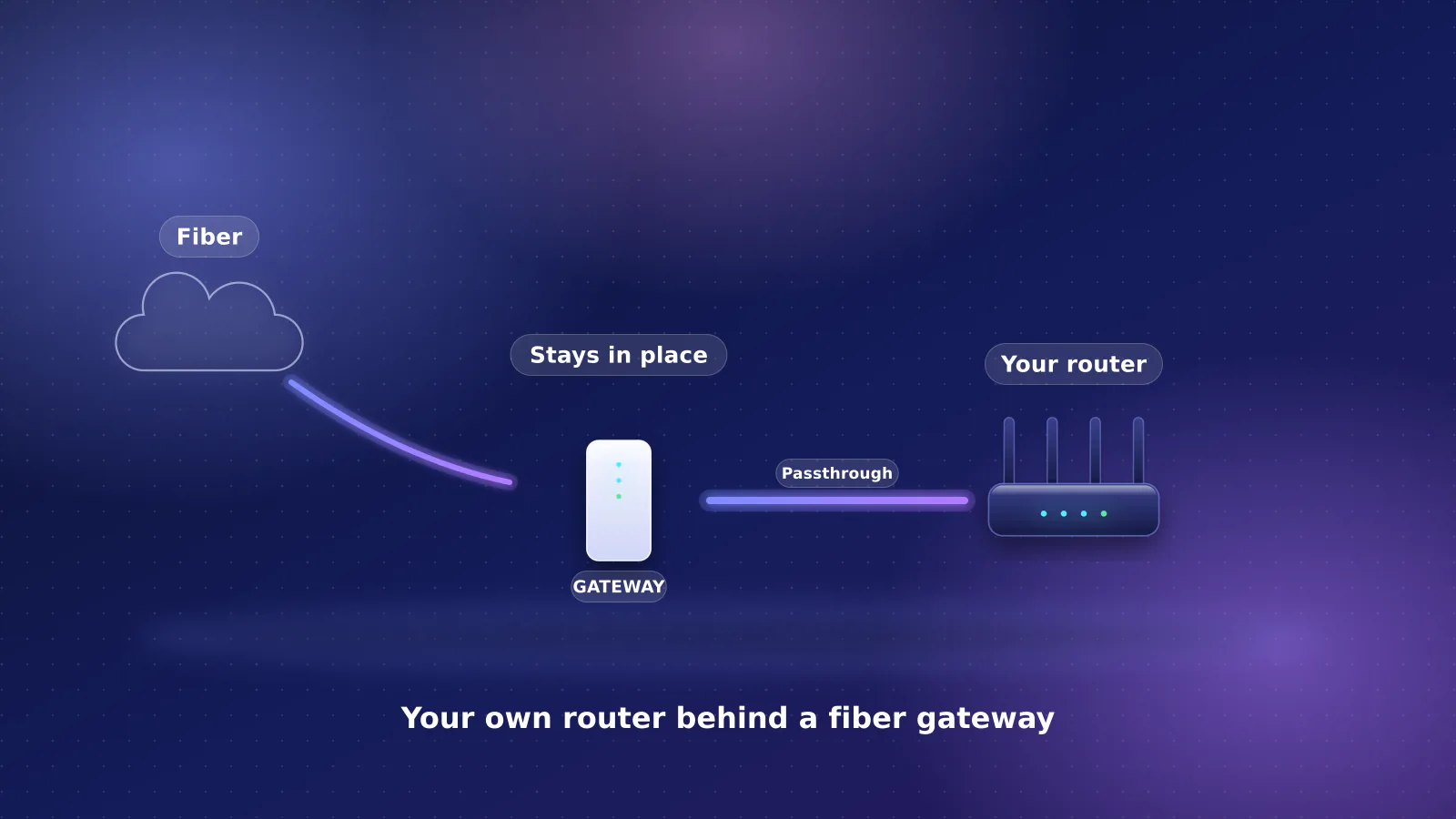
- Yes, you can add your own router, but only behind T-Mobile's gateway. T-Mobile's device-connection page says "Third-party routers can be connected to a T-Mobile gateway using the ethernet port." The gateway holds the SIM and the 5G radio, so it stays.
- There's no bridge mode and no passthrough. T-Mobile says its "gateways do not have the ability to enable and disable bridge mode." We found no IP passthrough setting on any T-Mobile page either.
- Turn the gateway's Wi-Fi off, or rename it. T-Mobile says the gateway's Wi-Fi broadcast "can be disabled in the T-Life app." Otherwise "You will see a Wi-Fi network broadcast by both the gateway and the third-party router."
- Port forwarding, NAT type and static IPs are off the table whatever router you add. T-Mobile says its gateways can't change NAT type or "enable and disable NAT/port forwarding", that it "uses dynamic IP addressing", and that it "does not have the ability to change IP from dynamic to static."
- The best reason to add a router is coverage. The gateway's best spot for 5G signal (T-Mobile suggests near a window or high up) may not be the best spot for Wi-Fi. A cable from the gateway to a router or mesh in the middle of the house solves both.
- You may not need to buy anything. If the gateway already covers your home, keep it. If it doesn't, T-Mobile's own mesh extender, a mesh kit in access point mode, or your own router are all workable; the decision table sorts them.
This guide answers the T-Mobile question from T-Mobile's own support pages, read November 27, 2026. None of the support pages we read shows a publication or last-updated date, so check them again before you rely on a detail. For how T-Mobile compares with other providers' equipment, see 5G home internet and Starlink in our provider guide.
What the T-Mobile gateway is, and why it stays
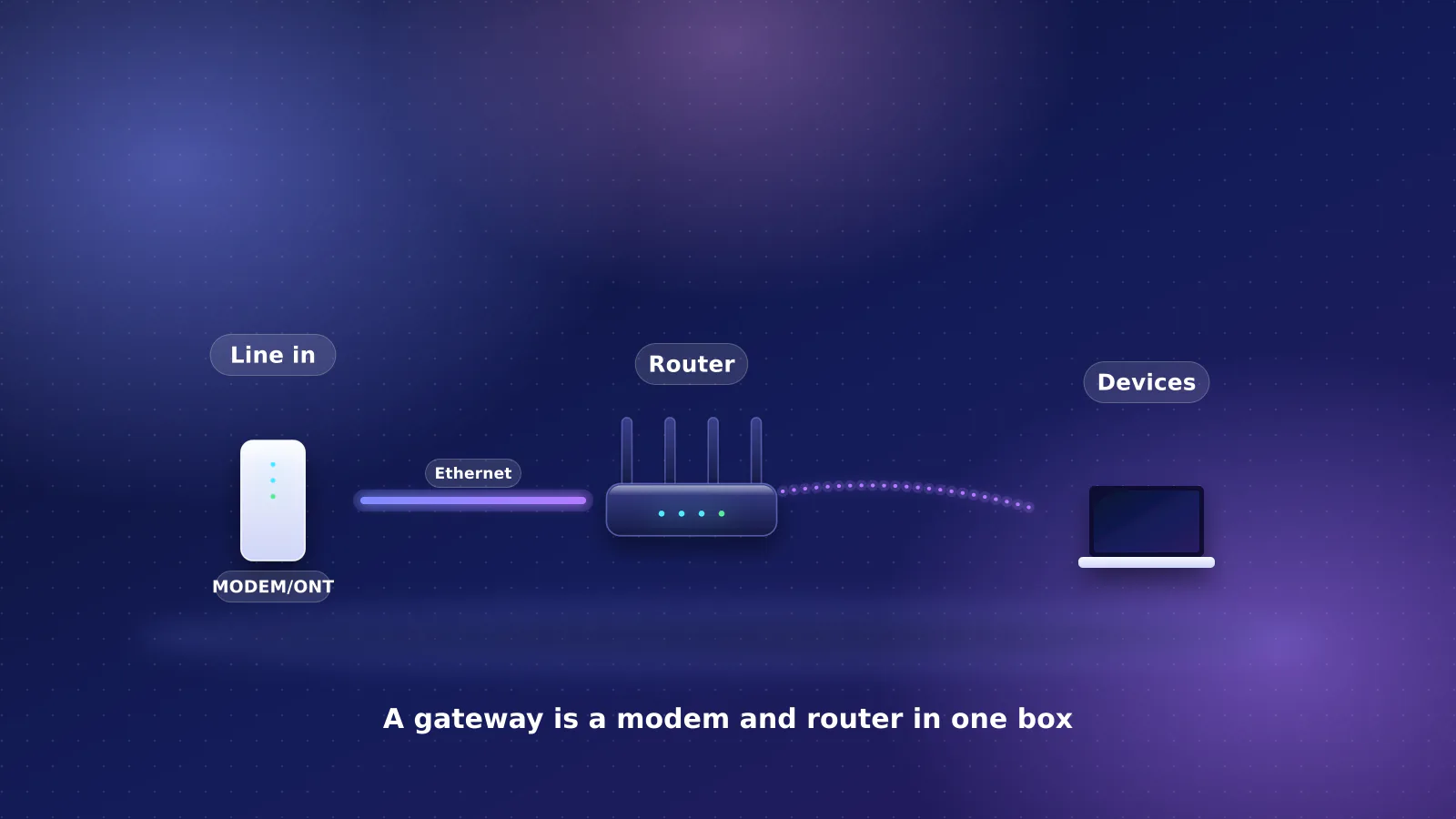
With cable or fiber, a modem or fiber terminal faces the line and a separate router makes your home network. T-Mobile's 5G gateway does both jobs in one box: it connects to T-Mobile's cellular network over the air and runs your home Wi-Fi. T-Mobile's own article on modems and routers (June 28, 2023) presents its home internet as "eliminating the need for this type of dual setup all together."
The gateway is the part that connects to T-Mobile's network: the Gen4 and Gen5 spec pages list a SIM card slot and the 5G bands each unit uses, and T-Mobile's FAQ says the gateway "combines the capabilities of a router and a modem." So no router of your own can replace it; at most, yours sits behind it. T-Mobile's home internet FAQ, in its answers on the Test Drive trial, says you "will need to return the gateway after you cancel your service, or you will be charged a non-return fee."
T-Mobile's gateway setup page lists four models. What each spec page says that matters for your own router:
| Gateway | Wi-Fi, as T-Mobile lists it | Ethernet, as T-Mobile lists it | Also on the page |
|---|---|---|---|
| 5G Gateway Gen5 (G5AR, G5SE) | "Wi-Fi 7", on 2.4, 5 and 6 GHz ("11ax/11be 4x4") | The spec list names two USB-C connections (power, and data) and doesn't mention Ethernet | LCD with up to five signal bars; "An 'X' indicates the gateway is not connected to the cellular network" |
| 5G Gateway Gen4 (G4AR, G4SE) | "11ax 4x4 2.4G" and "11ax 4x4 5G" (Wi-Fi 6) | "GE LAN (Yellow)"; the image label on the page reads "2 GbE RJ-45 LAN ports". T-Mobile doesn't say whether that means two gigabit ports or a 2 Gbps rate, and gives no port speed in the spec list | An optional indoor external antenna, "only compatible with the T-Mobile 5G Gateway Gen4" |
| Sagemcom FAST 5688W | "Dual Band Wi-Fi 6 (802.11ax) with 4 x 4 MIMO" | "Ethernet plugs 2xRJ-45" | T-Mobile's estimate of Wi-Fi range: "approximately 30 feet", depending on interference and obstructions |
| Arcadyan KVD21 | "Dual Band Wi-Fi 6 (802.11ax) with 4x4MIMO" | "Ethernet plugs 2xRJ-45" | Lists the gateway's web admin address as http://192.168.12.1 |
If you have a Gen5, look at the back of the unit before you buy anything: the Gen5 spec page we read didn't list an Ethernet port, and connecting your own router depends on one. T-Mobile's setup page names one port, in its Backup setup instructions: "link your primary router to the LAN1 port on your T-Mobile gateway," for which it says a Gen4 is required. If your gateway has more than one LAN port, LAN1 is the one T-Mobile names.
What you can and can't change on the gateway
T-Mobile's device-connection page (and, for Wi-Fi networks, its T-Life app page) settles most own-router questions. In T-Mobile's words:
| Setting | What T-Mobile says |
|---|---|
| Bridge mode | "T-Mobile gateways do not have the ability to enable and disable bridge mode." |
| IP passthrough | Not mentioned on any T-Mobile page we read. What passthrough does on providers that offer it is in bridge mode vs IP passthrough. |
| NAT type | "T-Mobile gateways do not have the ability to change NAT type." |
| Port forwarding | "T-Mobile gateways do not have the ability to enable and disable NAT/port forwarding." |
| IP address | "T-Mobile Home Internet uses dynamic IP addressing, meaning your IP address will change over time", and T-Mobile "does not have the ability to change IP from dynamic to static." |
| DNS | "The DNS server configuration on the gateway itself is fixed." You can set DNS on connected devices. |
| MTU | "At this time adjusting the MTU size is not supported." It's "set to 1500 across all gateways." |
| Firewall | "T-Mobile Home Internet only provides connectivity and does not have firewall software installed." |
| Wi-Fi networks | Managed in the T-Life app: names, passwords, separate 2.4 GHz and 5 GHz networks, and "up to four additional Wi-Fi networks." WPA2 and WPA3 "are recommended and are default on gateways." |
Two of these change what your own router is for. Because the gateway's DNS is fixed, your router is where you set DNS for the whole house. Because T-Mobile says the service "does not have firewall software installed," your router's firewall is the one you control. The rest (bridge mode, port forwarding, NAT type, static IP) are limits of the gateway or the service that no router behind it changes.
Two ways to connect your own router
Either way, the physical step is the same: an Ethernet cable from a LAN port on the gateway to your router's internet (WAN) port. T-Mobile also says "Network switches that connect to the gateway's ethernet port are compatible with T-Mobile gateways" and "Wi-Fi Extenders and Mesh Products that support Wi-Fi 6 are fully compatible with our 5G gateways." What differs is whether your router keeps routing.
Option 1: your router keeps routing (double NAT)
Your router gets an address from the gateway and builds its own network behind it. That's two routers doing NAT in a row, which Google's Nest Help describes this way: "A double NAT happens if another router, for example a Nest Wifi router, is connected to the ISP modem or gateway." Your router's internet port gets its address from the gateway, so expect a private address there rather than a public one. On the Arcadyan, for example, T-Mobile lists the gateway's own address as 192.168.12.1, which is inside the 192.168.0.0 to 192.168.255.255 block that RFC 1918 sets aside for private networks.
You keep every feature your router has: its app, parental controls, guest network, custom DNS, firewall rules and, if it has them, VLANs or a VPN client. What double NAT usually breaks is port forwarding and UPnP reaching the internet, and T-Mobile says those "cannot be configured on the T-Mobile gateway" in the first place. Our reasoning from that: the second layer of NAT takes away less here than on a service whose first router can forward ports. T-Mobile doesn't make that comparison itself. The one thing to avoid is devices split across two networks: once the gateway's Wi-Fi is off, nothing but your router should be on the gateway's side.
Option 2: your router or mesh in access point mode
Switch your router or mesh to its access point mode (eero and Google call it bridge mode on their own equipment). The gateway keeps doing the routing and hands out addresses; your equipment only supplies the Wi-Fi. There's one home network and one layer of NAT.
The cost is your router's features. eero's list of what you lose in its bridge mode includes "IP reservations and port forwarding", "Smart Queue Management (SQM)", "Custom DNS", "UPnP", "Profiles" and "Device blocking". Google says Nest Wifi in bridge mode loses Family Wi-Fi, Guest Wi-Fi and some security protections. Behind a T-Mobile gateway, that also means DNS falls back to the gateway's fixed setting, unless you set DNS on each device, which T-Mobile says you can. The trade, and how to switch modes, are in our double NAT guide.
Which to pick: Option 1 when you want your router's features, Option 2 when you want the simplest single network. If a game console's NAT result matters to you, run the console's own network test in both layouts and keep the one that tests better; T-Mobile says the gateway's NAT type can't be changed either way.
Setting it up, step by step
- Find the gateway's best signal spot first, using the placement assistant in the T-Life app (see placement below). Your router can go somewhere else; the gateway's spot is about 5G signal.
- Connect the cable. Ethernet from a LAN port on the gateway (LAN1 if it has more than one; that's the port T-Mobile names in its Backup setup) to your router's internet port. Power on the router and set it up in its own app or web page.
- Choose router mode or access point mode on your router, as above.
- Check that devices on your router's Wi-Fi reach the internet before you change anything on the gateway.
- Turn off, or rename, the gateway's Wi-Fi. T-Mobile says the broadcast "can be disabled in the T-Life app." The T-Life support page we read documents the app's My Wi-Fi screen for changing a network's name and password, but doesn't give the steps for switching the broadcast off, so look for the option in the app's Wi-Fi settings. (The only on and off control we found documented is "Pause Backup Wi-Fi", which is for T-Mobile's Backup plan, not this layout.) If you'd rather leave it on, give it a name different from your router's network: T-Mobile gives the same advice for its Backup setup, asking you to verify the backup gateway's Wi-Fi name "is different from your primary gateway" to avoid connection problems.
- Reconnect smart home devices to your router's network. If one only works on 2.4 GHz, note that T-Mobile says common smart home connection issues "are resolved by separating the 2.4 GHz or 5 GHz Wi-Fi networks"; check your own router's band settings for the same option.
Where to put the gateway for signal
On 5G home internet, the gateway's position decides how good the connection is before your router is involved. T-Mobile's guidance:
- Use the placement assistant. In the T-Life app: More, then Gateway placement assistant, then "Ok! Let's do this" and "Start placement assistant." T-Mobile's setup page says the app helps find a spot "close to a window or high up on an upper floor or bookshelf."
- Read the signal bars on the Gen4 or Gen5 display, which T-Mobile says show "up to five bars, indicating signal strength."
- Try more than one spot. T-Mobile's speed page says "Try multiple gateway locations" and "Place the gateway away from other devices." Its troubleshooting page also advises keeping the gateway away from large metal appliances.
- On a Gen4 with no good spot, T-Mobile's external antenna mounts in a window. T-Mobile says it "is only necessary if you are experiencing poor signal due to limited placement options" and "The antenna is for indoor use only."
This is where your own router earns its place. A window on an upper floor may be the gateway's best signal spot and a poor place to broadcast Wi-Fi to the rest of the house. T-Mobile's own speed page puts devices "15 feet from the gateway" as "great for gaming, HD/4K streaming", says devices "20-25 feet away may have reduced speed" for gaming and video calls, and says those "35 feet away may have significantly reduced speeds." It also notes that "Building materials such as brick or metal may cause more interference than thinner materials like drywall." With a cable from the gateway to a router or mesh in a central spot, the gateway sits where the signal is and the Wi-Fi starts where the people are. T-Mobile's own advice for the Wi-Fi is the same: "Connect using ethernet when possible."
- T-Mobile 5G network Labels list typical downloads of 133 to 498 Mbps by plan; signal at the gateway sets what you get
- T-Mobile gateway Over the air from the cell site; routes and does NAT; no bridge mode, no port forwarding
- Ethernet cable From a gateway LAN port (Gen4 spec list: "GE LAN") to your router's internet port
- Your router or mesh Router mode (second NAT, your features) or access point mode (one network)
- Laptops, phones, TVs Wi-Fi from a central spot instead of a window
CGNAT, IPv6 and port forwarding on T-Mobile
Carrier-grade NAT. None of the T-Mobile support, plan or policy pages we read says whether T-Mobile Home Internet uses carrier-grade NAT, for or against. What T-Mobile does document is a changing address ("dynamic IP addressing"), and that "Dynamic IP changes may cause the geolocation to show differently than the physical location of the gateway." It says live TV services that rely on an IP address for location, naming Hulu Live and Sling Live TV, are not compatible with T-Mobile Home Internet, while YouTube TV "will work seamlessly with T-Mobile Internet." To see what's in front of your own line, use the CGNAT check; we don't repeat it here.
IPv6. T-Mobile's only statement on its device-connection page is that "Third-party VOIP services and devices that support IPv6 are compatible with T-Mobile internet service." It doesn't document whether the gateway passes an IPv6 prefix to a router behind it. After setup, look at your router's internet status page for an IPv6 address, and run the IPv6 check from a device on your router's network. If devices get IPv6 on the gateway's Wi-Fi but not on your router, try access point mode, where the gateway does the addressing.
Port forwarding. Your router can forward ports on its own internet side, but T-Mobile documents no way for an inbound connection to get past the gateway to it: T-Mobile says its gateways can't forward ports and that gaming settings such as "NAT/Port forwarding, UPnP/Static IP" "cannot be configured on the T-Mobile gateway." T-Mobile's advice is to "Refer to the manufacturer or developer if NAT or port forwarding is needed." For cameras, a NAS or a game server you need to reach from outside, use an outbound tunnel or relay instead: remote access without port forwarding compares them. Outbound VPNs are fine: T-Mobile says "You can connect to a VPN while using T-Mobile internet service." For console NAT results, see NAT types explained.
What you gain and what you lose
| What changes with your own router | |
|---|---|
| You gain | Wi-Fi placed where you need it instead of where the signal is; your own firewall rules (T-Mobile says the service has no firewall software); DNS of your choice for the whole house (router mode); your router's app, parental controls, guest network and, if it has them, VLANs or a VPN client; Wi-Fi settings that stay put if the gateway is swapped (T-Mobile's plans page lists a "Complimentary gateway upgrade after 3 years" with its All-In plan) |
| You lose | One box and one app: you manage two devices; T-Mobile's help with your equipment (its pages refer you to the maker of your extender or mesh, and to the "manufacturer or developer if NAT or port forwarding is needed"); in router mode, a second layer of NAT |
| Stays the same | No bridge mode, no port forwarding, no NAT type change, no static IP; the gateway's fixed DNS and 1500 MTU; your speed, which depends on 5G signal and the network. T-Mobile's network management page says that, as of May 8, 2024, customers "who exceed 1.2TB" in a billing cycle are Internet Heavy Data Users who "will be prioritized last on the network." |
There's no equipment fee to save, either: the Broadband Facts labels on T-Mobile's plans page list a one-time $35 "Device connection charge" and no monthly equipment charge. Add a router for coverage or control, not to cut the bill.
Keep, add or replace: the decision table
| Choice | Good fit when | Watch out for |
|---|---|---|
| Keep the gateway on its own | The gateway can sit near the middle of the home and still get good signal, and every room has usable Wi-Fi | Nothing to buy. T-Mobile's own estimate of the Sagemcom's Wi-Fi range is "approximately 30 feet" |
| Add T-Mobile's mesh extender | You have a Gen4 or Gen5 and want T-Mobile's own add-on. T-Mobile's plans page lists "Mesh Wi-Fi extender as needed, request after activation" with its All-In plan; check what your plan includes | T-Mobile says to set up the Gen4 or Gen5 first; the extender has "2.5G Ethernet Rj45 LAN Ports" and can connect to the gateway by cable |
| Add your own mesh or access points, in access point mode | You already own Wi-Fi 6 or newer mesh, or the gateway's best signal spot is far from where you use Wi-Fi | Your mesh's router features switch off; DNS stays the gateway's fixed setting unless you set it on each device |
| Add your own router, in router mode | You want your own firewall rules, DNS, parental controls or VLANs, and a separate network you control | Double NAT; turn off or rename the gateway's Wi-Fi so devices don't split across two networks |
| Replace the gateway | Not possible on this service: the gateway is the 5G connection | Return it if you cancel, or T-Mobile says you'll be charged a non-return fee |
| Change service | You need an open NAT, inbound port forwarding or a static IP that tunnels don't cover | No router fixes these on T-Mobile Home Internet. Compare providers that offer a public address in the CGNAT provider table |
T-Mobile Home Internet can also be a backup line rather than your main one: T-Mobile's setup page describes a Backup setup in which you "link your primary router to the LAN1 port on your T-Mobile gateway," and says a "Gen4 Gateway and ethernet cable is required for automatic connection." That's a different layout from this guide's, with your main provider's router in charge.
When new equipment is justified, and when to get help
Buy nothing if the gateway covers your home from a spot with good signal. Equipment is justified when the gateway's best signal spot leaves rooms with weak Wi-Fi: start with what you already own (a router or mesh you can put in access point mode), then T-Mobile's extender if you have a Gen4 or Gen5, then a new router or mesh. On this service, a router with a standard 1 Gbps internet port is enough, so don't pay for multi-gig. A new router won't open NAT, enable port forwarding or speed up the 5G connection; those depend on T-Mobile's gateway and network. For the wider picture of owning your network, see our guide to owning your home network.
If the job is running Ethernet from a window where the signal is good to the middle of the house, that's wiring rather than a setting. RouterHaus can connect you with a licensed contractor when the job needs hands on site; ask for a network plan.
Frequently asked questions
Can I use my own router with T-Mobile Home Internet?
Yes, behind T-Mobile's gateway. T-Mobile says third-party routers can be connected to a T-Mobile gateway using the ethernet port. The gateway can't be removed, because it is the 5G connection, and you'll see Wi-Fi from both the gateway and your router unless you disable the gateway's broadcast in the T-Life app.
Does the T-Mobile 5G gateway have bridge mode?
No. T-Mobile says its gateways do not have the ability to enable and disable bridge mode, and we found no IP passthrough setting on T-Mobile's pages. Use your router in router mode behind the gateway, or put it in access point mode so the gateway does the routing.
Will my own router fix strict NAT or port forwarding on T-Mobile?
No. T-Mobile says its gateways can't change NAT type or enable port forwarding, and that it can't change your address from dynamic to static. Your router sits behind those limits. For remote access, use an outbound tunnel or relay; for an open NAT, you need a service with a public address.
Do I need a multi-gig router for T-Mobile Home Internet?
No. The Broadband Facts labels on T-Mobile's plans page list typical 5G downloads between 133 and 498 Mbps, well under what a standard 1 Gbps internet port carries. Spend on coverage, such as mesh with a wired link from the gateway, rather than port speed.
Where should the T-Mobile gateway go if I use my own router?
Where the 5G signal is best: T-Mobile's T-Life placement assistant suggests a spot close to a window or high up. Then run Ethernet from the gateway to your router or mesh in a central spot, so the Wi-Fi starts where you use it.
Sources
Read on November 27, 2026. T-Mobile's support pages show no publication or last-updated dates (only a 2026 copyright line), so they can change without notice. The plan labels cited were those shown on T-Mobile's plans page on that date; charges and speeds can vary by plan and location.
- T-Mobile: Connect your devices to T-Mobile Internet (third-party routers, mesh, switches, bridge mode, NAT type, port forwarding, IP address, DNS, MTU, firewall, VPN, IPv6, live TV)
- T-Mobile: T-Mobile Internet gateway setup (models, placement, Backup setup)
- T-Mobile: T-Mobile Internet in the T-Life app (My Wi-Fi, additional networks, placement assistant)
- T-Mobile: T-Mobile Home Internet network speed and Troubleshooting
- T-Mobile gateway pages: 5G Gateway Gen5, 5G Gateway Gen4 (including the external antenna), Sagemcom FAST 5688W and Arcadyan KVD21
- T-Mobile: Mesh Wi-Fi extender (V2)
- T-Mobile: 5G Home Internet plans and Broadband Facts labels and Home internet FAQ
- T-Mobile: Network management practices
- T-Mobile: The difference between modems and routers (June 28, 2023)
- Google Nest Help: Fix Double NAT when two routers run at the same time
- eero: What features do I lose if I put my eeros in bridge mode?
- IETF RFC 1918: Address allocation for private internets