The short version
- GeForce NOW lists 15 Mbps for HD at up to 60 fps, 25 Mbps for 1080p at 60 fps and up to 65 Mbps for its highest settings, and NVIDIA says it requires "less than 80ms of network latency from an NVIDIA data center."
- Xbox Cloud Gaming: Microsoft recommends "at least 20 Mbps" and "a wired, Ethernet connection" where possible, or 5 GHz Wi-Fi.
- PlayStation Plus cloud streaming needs a 5 Mbps minimum each way to start a session, 13 Mbps minimum for 1080p, and Sony recommends 23 Mbps for 1080p and 52 Mbps for 4K.
- NVIDIA and Microsoft point the same way on Wi-Fi: both name Ethernet or 5 GHz Wi-Fi. Sony's cloud streaming page names no band. A 2.4 GHz connection is the first thing to rule out.
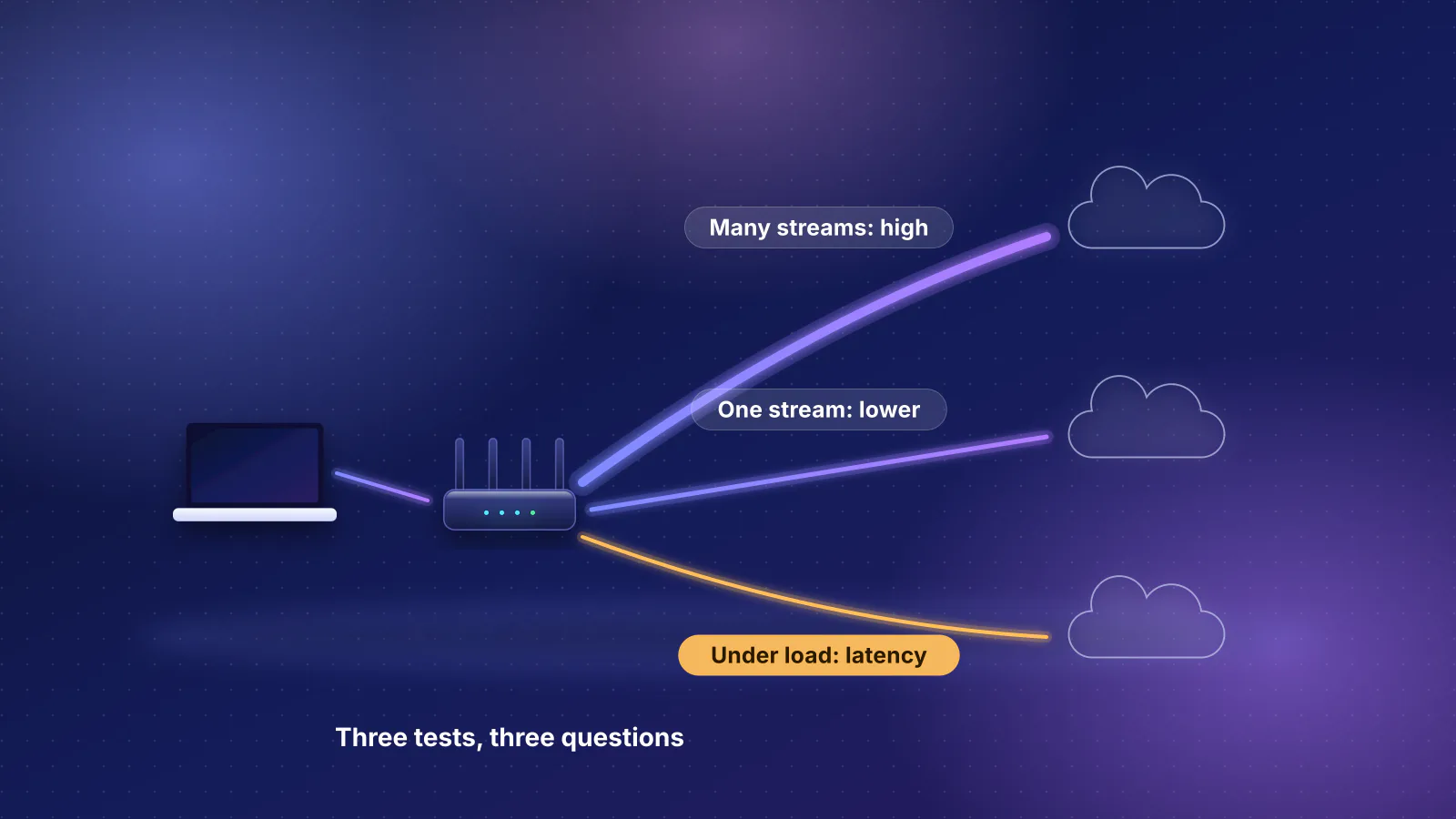
- Speed isn't the only limit. If your plan clears these numbers, stutter and network warnings can still come from the Wi-Fi hop, latency that climbs when someone else in the house uploads or downloads, or the distance to the service's data center, which no router can shorten.
- Fix in this order: get on 5 GHz and closer to the router, then a cable if you can, then smart queue management for latency under load. New gear is justified only when the test that points to it says so.
This is a guide to the services' published requirements, not a RouterHaus test: we haven't measured any of these services on a home network. If the trouble is lag in online games rather than cloud streaming, start with gaming lag on Wi-Fi instead.
Why cloud gaming is harder on a network than an installed game
An installed game runs on your console or PC and only sends small updates to a game server. A cloud game runs in the provider's data center. What reaches you is a continuous video stream of the game, and every button press has to travel to the data center and back before you see its result on screen. So cloud gaming needs three things at once: enough steady download for the video, a short round trip to the data center, and very little variation in that round trip (jitter) or lost packets. When any of the three slips, you can see lower picture quality, a network warning or stutter.
That's also why the same connection can play an installed game well and a cloud game badly. Installed versus cloud-streamed GTA VI walks through the difference for one game.
- Data center Runs the game; distance sets the latency floor
- Provider's network and your line Plan speed, and the queue that fills when the house is busy
- Router Where smart queue management can keep latency low under load
- Wi-Fi hop Band, distance and walls; often the weak link at home
- Console, PC, TV or handheld Decodes the video and sends your inputs back
Each service's published requirements, side by side
Every figure below is the service's own published guidance, read on November 27, 2026. They are requirements and recommendations, not measurements, and they change; check the service's page before you buy anything on the strength of them.
| GeForce NOW (NVIDIA) | Xbox Cloud Gaming (Microsoft) | PlayStation Plus cloud streaming (Sony) | |
|---|---|---|---|
| Lowest figure given | 15 Mbps for HD (720p) up to 60 fps | "at least 20 Mbps" (recommended) | 5 Mbps upload and download to start a session; 7 Mbps minimum for 720p |
| 1080p | 25 Mbps at 60 fps | No separate figure published | 13 Mbps minimum; 23 Mbps recommended |
| Higher settings | On PC, Mac and Linux: 35 Mbps for 1440p at 120 fps; 45 Mbps for 4K at 120 fps; 55 Mbps for 240 and 360 fps; 65 Mbps for 5K at 120 fps | No figure published | 38 Mbps recommended for 1440p; 52 Mbps for 4K |
| Latency | "less than 80ms of network latency from an NVIDIA data center" | No figure published | No figure published |
| Connection advice | "a hardwired Ethernet connection, or a router with a 5 GHz WiFi connection" | Ethernet "where possible", or "5 GHz Wi-Fi or 5G with capable devices" | Cloud streaming page: only "broadband internet Wi-Fi". Sony's PS Portal troubleshooting, written for Remote Play from your own PS5, suggests moving closer to the router and a wired PS5 |
| Data used per hour | Not published | Not published | Not published |
A few details behind the table:
- GeForce NOW's figures depend on the device and membership. NVIDIA's requirements page lists the same 15 and 25 Mbps entry points for every platform, but the higher settings only on the devices that can stream them, and it says a Premium or Ultimate membership is required for them: a SHIELD TV or smart TV tops out at 40 Mbps for 4K at 60 fps (45 Mbps for 4K at 120 fps on smart TVs), iPhone and iPad at 25 Mbps for full HD. NVIDIA's FAQ adds that its Cinematic Quality Streaming mode is recommended at "100 Mbps for the best quality."
- NVIDIA's older help article uses higher numbers. Its lag-reduction article, last updated June 1, 2023, says "GeForce NOW requires a minimum 15mbps" and recommends "50Mbps for 1080p, 64Mbps for 1440p and 75Mbps for 4k streaming." The current requirements page (updated November 19, 2026) is the newer source, so the table uses its figures; the older ones are shown here only as NVIDIA's earlier guidance.
- Xbox: Microsoft's cloud gaming guide on Xbox Wire (published December 19, 2025, updated November 16, 2026) and its Xbox on TVs page both give 20 Mbps and wired or 5 GHz Wi-Fi. Microsoft's support pages for cloud gaming troubleshooting didn't render for us (they need a browser running scripts), so the Xbox column is limited to those two pages.
- PlayStation: Sony's cloud streaming page requires a PlayStation Plus Premium membership and lists the recommended rates; its PS Portal cloud streaming page repeats the 5, 7 and 13 Mbps minimums and says changing resolution requires restarting the game. Note that Sony's 5 Mbps session minimum applies to upload as well as download.
Use each service's own network check first
A general speed test measures your line to a nearby test server. A service's own check measures the path to that service, which is the one that matters. Run it on the device you play on, where you play.
| Service | Its built-in check, by its own pages |
|---|---|
| GeForce NOW | NVIDIA's help article (updated June 1, 2023) says the app "has a built-in network test that quickly assesses your network" and that it "will automatically run the first time you play a game." NVIDIA describes it as testing the connection to GeForce NOW's data centers, separately from speed test websites. The same article lists the warning "You are connected to a 2.4GHz network. 5GHz is recommended". |
| Xbox Cloud Gaming | Microsoft's guide suggests checking your speed with "free online speed tests, such as Speedtest.net, Fast.com, or MeasurementLab." We couldn't open Microsoft's support pages to confirm an in-app cloud test, so we don't describe one. |
| PlayStation Portal | Sony's cloud streaming page for PS Portal says to open the Quick Menu and select Troubleshooting to check network quality and status. Sony's PS5 cloud streaming page doesn't describe a test. |
What the result tells you:
- A 2.4 GHz warning, or a weak signal: the Wi-Fi hop. Start with the first two fixes below.
- Speed well above the service's figure but latency high or unstable: either the Wi-Fi hop or a queue on your line. The latency test below tells them apart.
- High latency even on a cable with the house quiet: the distance to the nearest data center, or the provider's route to it. A router can't change that; NVIDIA's 80 ms limit is measured "from an NVIDIA data center," so where you live relative to its servers sets the floor.
- Speed below the service's figure on a cable: the plan or the line. Choose a lower stream resolution where the service offers one, or take it up with your provider; how to test a connection that slows at busy times sets up the evidence.
How much data cloud gaming uses
None of the three services publishes a gigabytes-per-hour figure on the pages we read. Their bandwidth figures let you work out a ceiling. This is illustrative arithmetic, not a measurement or a published figure: a stream running at a steady rate for one hour uses that rate × 3,600 seconds ÷ 8,000 to give gigabytes.
| Illustrative stream rate | Ceiling per hour (illustrative arithmetic) |
|---|---|
| 13 Mbps (Sony's 1080p minimum) | 13 × 3,600 ÷ 8,000 ≈ 5.9 GB |
| 25 Mbps (NVIDIA's 1080p at 60 fps) | 25 × 3,600 ÷ 8,000 = 11.25 GB |
| 45 Mbps (NVIDIA's 4K at 120 fps) | 45 × 3,600 ÷ 8,000 ≈ 20.3 GB |
| 52 Mbps (Sony's 4K recommendation) | 52 × 3,600 ÷ 8,000 = 23.4 GB |
These are illustrative ceilings: they assume the stream runs at the full listed rate for the whole hour, and a real session may run below it. If your plan has a data cap, or you play on mobile data (NVIDIA warns that on a phone's data plan "you may use up data quickly"), lower the resolution before you lower anything else.
Find where the problem is in ten minutes
The services' checks tell you something is wrong. These steps tell you where. They need a laptop or PC near where you play; a laptop isn't the console's own radio, so treat the Wi-Fi result as a guide to the room, not to the device.
- Check the band. On the device you play on, see which network it joined. If your router shows separate names for 2.4 and 5 GHz, Microsoft's advice for dual-band routers is to make sure the device is "properly set up to only connect over the 5 GHz network."
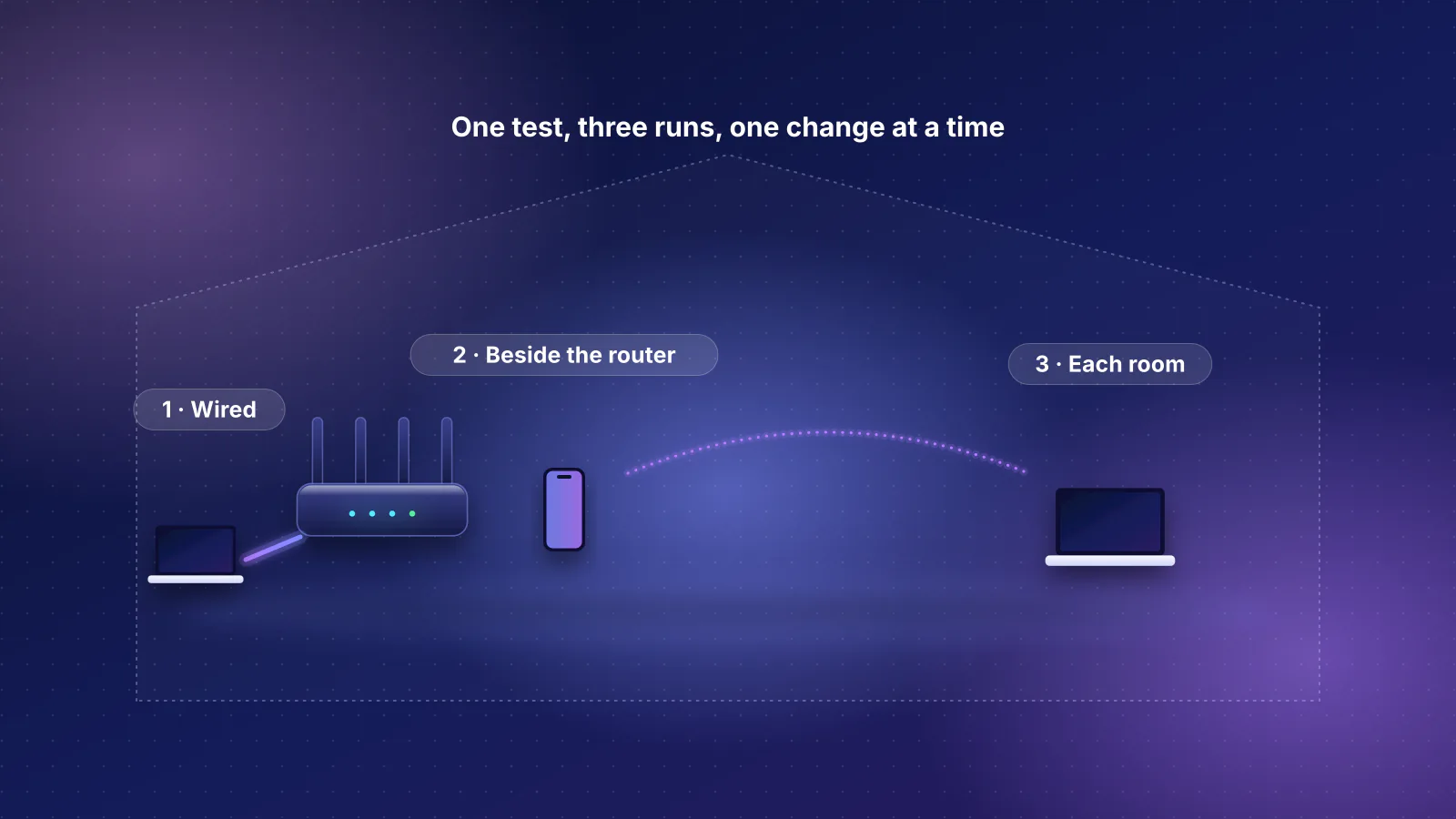
- Test latency idle and under load, wired. On a computer with a cable to the router, run a test that reports latency during download and upload, such as RouterHaus's Network Health check. A big rise in latency while the test loads the line is bufferbloat; the bufferbloat test explains how to read it.
- Repeat over Wi-Fi where you play. If the wired result is steady and the Wi-Fi one isn't, the Wi-Fi hop is the problem. Check your Wi-Fi hop in five minutes has the ping-to-router method that separates the room from the internet.
- Repeat with the house busy. Sony's PS Portal troubleshooting for Remote Play says to "Pause any downloads running on devices connected to your Wi-Fi," and the same step is worth trying on a cloud stream. If the stream only breaks up when someone else is downloading, uploading or streaming, it's either airtime on the Wi-Fi or a queue on the line, and step 2 tells you which.
- Turn off a VPN on the playing device if one is running. NVIDIA's help article says "VPNs can cause many problems including higher latency."
| What you see | What it means | Next step |
|---|---|---|
| Device on 2.4 GHz, or a weak signal warning | The Wi-Fi hop | Move to 5 GHz and closer to the router |
| Wired latency steady; Wi-Fi latency spiky | The Wi-Fi hop: distance, walls or a crowded channel | Placement, then a cable or a wired access point |
| Wired latency jumps a lot under load | Bufferbloat on the line | Smart queue management |
| Wired latency high even when idle and the house is quiet | Distance to the data center or the provider's route | Lower expectations or resolution; no router fixes distance |
| Stutter with steady latency; the service reports lost packets | Packet loss on the Wi-Fi or the line | Find where packets are lost |
The home fixes, in order
Most of these cost nothing. Take them in this order and retest with the service's own check after each one, so you know which change did the work.
- Get on 5 GHz. NVIDIA and Microsoft both name 5 GHz Wi-Fi, and NVIDIA's help article notes that 2.4 GHz can also be disrupted by devices such as "baby monitors or microwaves." If the device keeps falling back to 2.4 GHz, a likely reason is a weak 5 GHz signal where you play, which is the next fix. A router with 6 GHz can help devices that support it; 6 GHz versus 5 GHz range covers the trade-off.
- Move the router or the device. Sony's Remote Play advice for PS Portal is to "position your PS Portal and PS5 console closer to the router" and "make sure there are no obstacles interfering with the signal." Put the router up and in the open, toward where you play. In homes with block or stucco walls, placement can matter more; see Wi-Fi placement in stucco and block homes.
- Run a cable where you can. NVIDIA and Microsoft both prefer a wired connection where the device has a port: NVIDIA recommends "a hardwired Ethernet connection," Microsoft says "it's recommended that you play over a wired, Ethernet connection." Sony's cloud streaming pages don't say; its Remote Play troubleshooting suggests a wired connection for the PS5. A TV or console near the router is the easy case. When a cable can't reach, wiring the access point instead, MoCA and powerline covers the options. Handhelds and phones can't use a cable, so for them the first two fixes are the whole answer.
- Fix latency under load. If your wired test showed latency jumping when the line is busy, turn on smart queue management on your router with limits a little below your measured speeds. It keeps the queue short so the game stream doesn't wait behind someone else's download. Setting the limits explains how. Priority QoS or "game acceleration" settings aren't the same thing.
- Lower the stream resolution. If the line is the limit, pick a lower setting where the service offers one: Sony lists lower speeds for 720p and 1080p, and NVIDIA lists lower figures for each step down in resolution and frame rate. On PS Portal, Sony says 720p is for slower or less stable connections.
For the deeper version of the jitter side, see find where your jitter comes from.
When new equipment is actually justified
Buy nothing if the fixes above get the service's check clean. Equipment earns its price only when a test points to it:
- A router with smart queue management, when your wired test shows bufferbloat and your current router has no SQM setting. Check the maker documents it; the routers with documented SQM list starts there.
- A wired access point or mesh unit near where you play, when the Wi-Fi hop is the problem, placement didn't fix it and a cable to the device itself isn't practical. The point is a wired link back to the router, not a bigger router in the same spot.
- A router with 5 GHz (or 6 GHz), if yours is 2.4 GHz only.
- A different plan or connection type, only when the wired speed is below the service's figure for the resolution you want, or the line's latency is high when idle. Which internet type suits gaming compares fiber, cable, 5G and satellite on latency.
What won't help: a faster plan when wired speed already clears the service's figure, a "gaming" router whose only extra is priority QoS, or anything that promises to cut the distance to the data center.
When to get professional help
If the fix is a cable to the TV or console and the run goes through walls, attics or between floors, that's a job for hands on site. RouterHaus can connect you with a licensed contractor when the job needs one. If the line itself tests poorly on a cable after a modem and router restart, the next call is to your provider, with your test results.
Not sure which of these it is? The lag fixer asks a few questions about where and when it happens and starts with the free fixes.
Frequently asked questions
What internet speed do I need for GeForce NOW?
NVIDIA lists 15 Mbps for HD up to 60 fps and 25 Mbps for 1080p at 60 fps, rising to 35 Mbps for 1440p at 120 fps, 45 Mbps for 4K at 120 fps and 65 Mbps for its highest 5K setting. It also requires less than 80 ms of latency to an NVIDIA data center, and recommends Ethernet or a 5 GHz Wi-Fi router.
Is 20 Mbps enough for Xbox Cloud Gaming?
Microsoft recommends at least 20 Mbps, so 20 Mbps meets its published figure. Leave room for anything else using the connection at the same time, and use Ethernet or 5 GHz Wi-Fi, which Microsoft also recommends.
What speed does PlayStation Plus cloud streaming need?
Sony says a session needs a minimum of 5 Mbps upload and download, 7 Mbps for 720p and 13 Mbps for 1080p. It recommends 13 Mbps for 720p, 23 Mbps for 1080p, 38 Mbps for 1440p and 52 Mbps for 4K. Cloud streaming requires a PlayStation Plus Premium membership.
Why does cloud gaming lag when my speed test is fine?
A speed test measures throughput to a nearby server. Cloud gaming also depends on a short, steady round trip to the service's data center. Lag with good speed can come from the Wi-Fi hop, latency that climbs when the house is busy (bufferbloat), or the distance to the data center. Test latency under load on a cable to tell them apart.
Does cloud gaming work on 2.4 GHz Wi-Fi?
It may connect, but NVIDIA's app warns when you're on 2.4 GHz and recommends 5 GHz, and Microsoft advises making sure your device connects only to the 5 GHz network on a dual-band router. NVIDIA notes 2.4 GHz can also be disrupted by household devices such as microwaves.
Sources
Read on November 27, 2026.
- NVIDIA: System requirements for GeForce NOW cloud gaming (updated November 19, 2026)
- NVIDIA: GeForce NOW frequently asked questions (undated)
- NVIDIA Support: How can I reduce lag or improve streaming quality when using GeForce NOW? (updated June 1, 2023)
- Xbox Wire: Getting started with Xbox Cloud Gaming (December 19, 2025, updated November 16, 2026)
- Xbox: Xbox on TVs (requirements; undated)
- PlayStation: Cloud streaming on PS5 (page dated July 6, 2026 in its metadata)
- PlayStation Support: Cloud streaming for PS5 games on PlayStation Portal Remote Player (US) (February 23, 2026)
- PlayStation Support: How to troubleshoot issues on your PS Portal (US) (March 25, 2026)