TL;DR: fix jitter first, then lower your ping floor
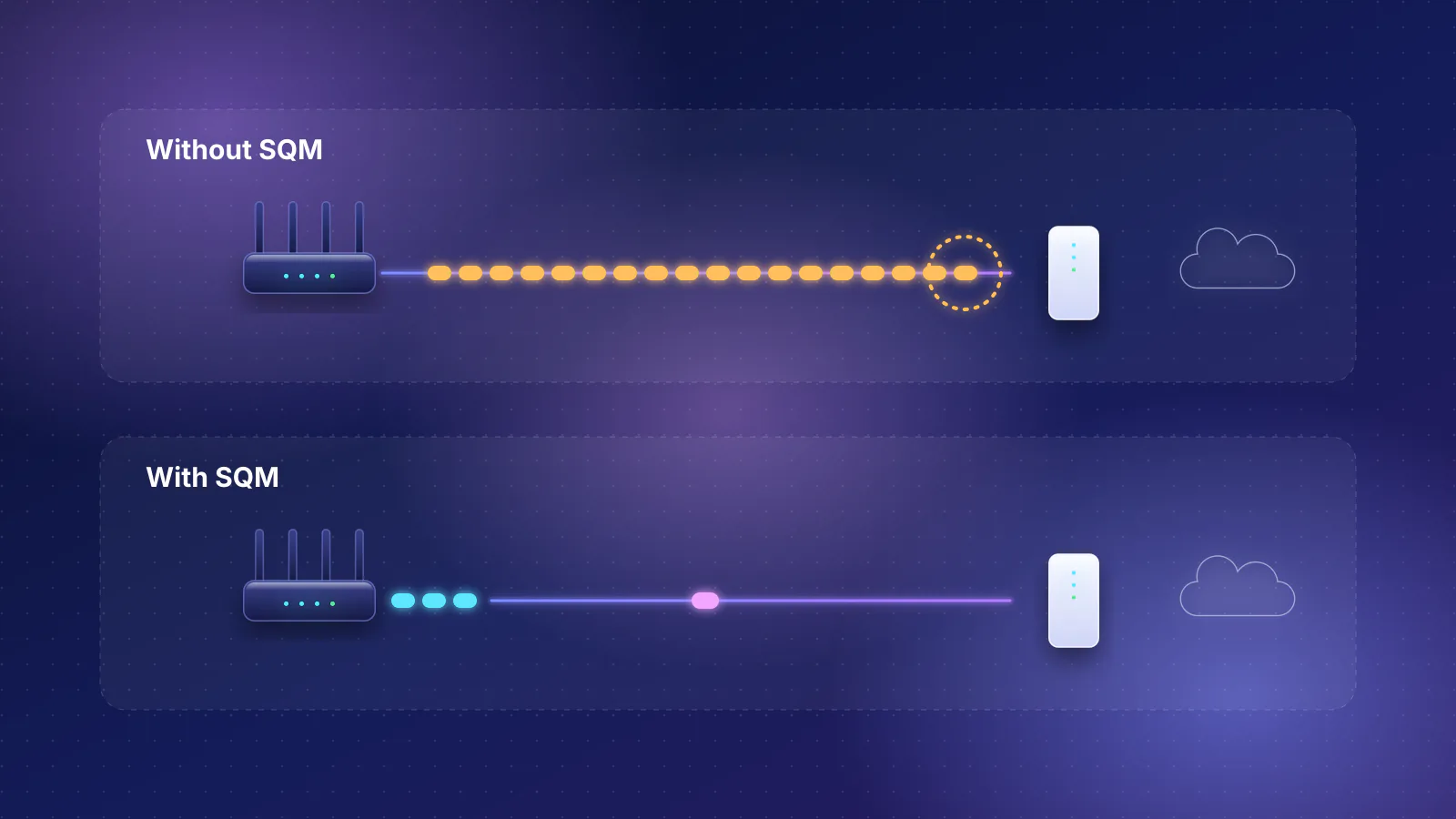
- Turn on SQM (smart queue management) if your router has it. Where it asks for speeds, start at about 90% of your measured speeds, as OpenWrt's guide does. It stops uploads and downloads from flooding the queue. Some makers say it's meant for slower connections, so check yours on a fast plan.
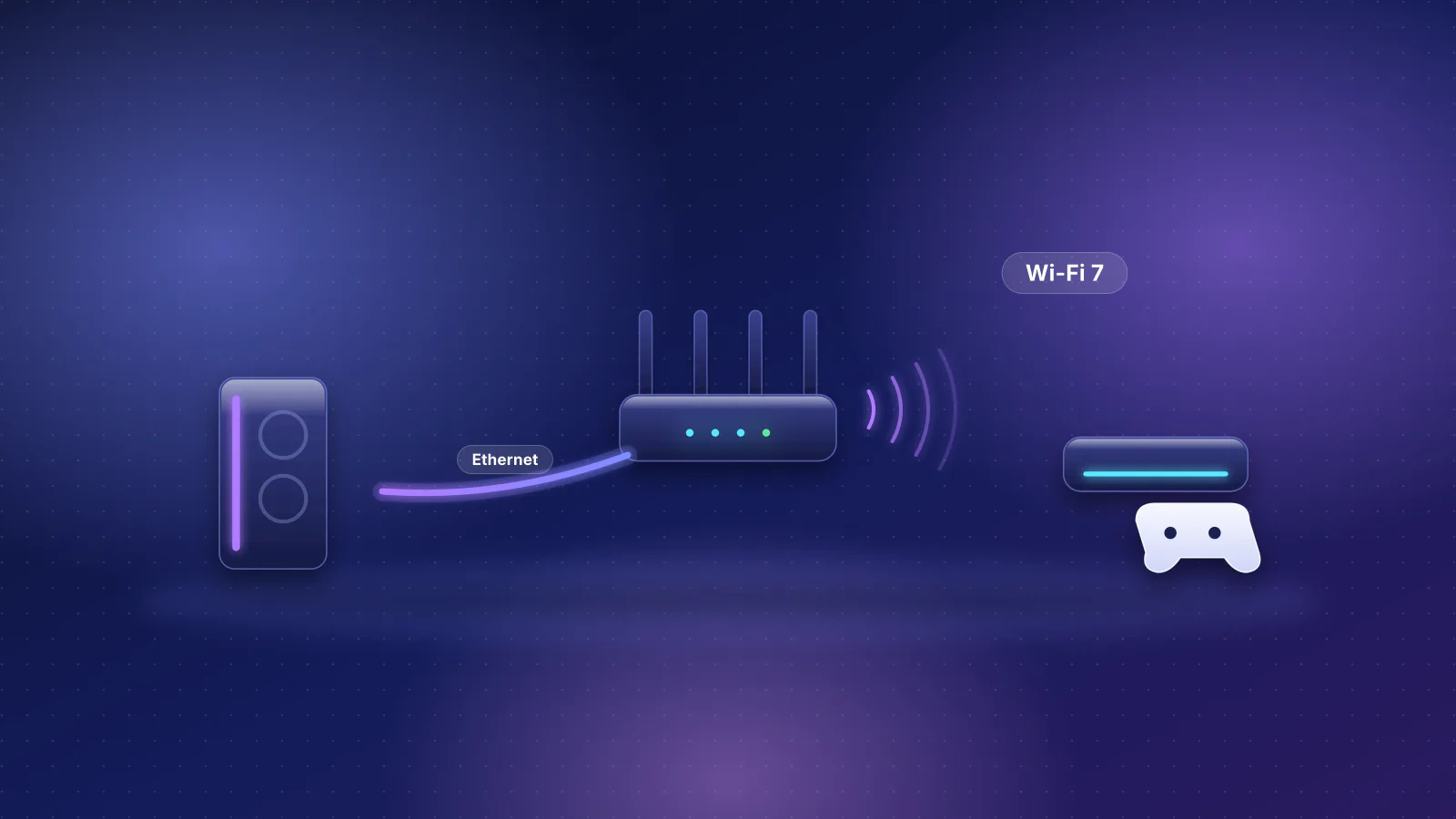
- Wire the console or PC if you can. Ethernet removes Wi-Fi airtime contention entirely.
- On Wi-Fi, use 6 GHz for devices that support it and sit close to the router or a mesh unit.
- Fix placement (central and in the open) or add a mesh unit near your setup.
- Prefer wired backhaul between mesh units (Ethernet or MoCA) so client airtime stays clean.
Latency vs. jitter (gamer definition)
| Metric | What it means | What you want | Feels like when it’s bad |
|---|---|---|---|
| Latency (ping) | Round-trip time for a packet to the game server and back | As low as your distance to the server allows | Delayed peeks and shots |
| Jitter | How much ping varies from one packet to the next | Small and steady, with no spikes | Stutter, warping, inconsistent hit registration |
| Packet loss | Packets that never arrive | Zero | Rubber-banding, actions that don’t count |
Your router can’t shorten the distance to a server in another region. It can stop your own network from adding delay and spikes, which is the part of lag you can fix at home. If your console reports a moderate or strict NAT type, that’s a separate problem from lag; one possible cause is double NAT behind the provider’s gateway.
The low-lag fixes, in order
The first three steps are settings changes. Moving a unit or running a cable takes longer, but those are the fixes for weak Wi-Fi.
- Update firmware on your router or mesh system, then reboot.
- Turn on SQM if your router offers it:
- Run a speed test at a quiet time and note download and upload. OpenWrt’s guide suggests testing on an idle connection with Waveform, Speedtest, LibreQoS or Cloudflare, which also grade bufferbloat.
- If the SQM screen asks for speeds, enter about 90% of those results, as OpenWrt’s SQM guide recommends. OpenWrt then suggests raising the numbers until latency under load starts to climb, and settling just below that point. The trade-off: you give up some peak speed, and because SQM runs on the router’s processor, OpenWrt warns that slower routers “may be unable to keep up” with a fast connection. If speed drops well below your limits, keep SQM only if the latency gain matters more to you.
- Not every router asks for numbers. eero’s SQM is a single switch in the app (Settings, Advanced networking, SQM), with no speeds to enter, and it isn’t available when eeros run in bridge mode. UniFi gateways call it Smart Queues and ask for upload and download values, but Ubiquiti doesn’t recommend it for connections of 300 Mbps or more. GL.iNet’s routers ask for speeds and a queue type (cake is its recommended option), and GL.iNet notes that SQM “works best for low-bandwidth or congested networks.”
- If your router only has “QoS” or “game acceleration,” that usually means device or app priority, which helps less with bufferbloat (see the FAQ). Our bufferbloat guide covers SQM settings in more depth.
- Turn on 6 GHz if your router has it, and keep one network name for all bands, as Apple recommends. Devices that support 6 GHz can then use it when the signal is strong enough.
- Move the radio: put the router or a mesh unit in the room where you play, or one room away, out in the open.
- Wire what matters: run Ethernet to your PC or console. If that isn’t possible, wire a mesh unit near the setup and connect the console to it with a short cable. Ethernet vs. Wi-Fi for gaming goes through the options.
- Retire range extenders. With a wireless repeater, each packet crosses the air twice: once to the extender and once to your device. That costs airtime and adds delay. A mesh system with good backhaul is the better fix.
Router specs that matter for gaming
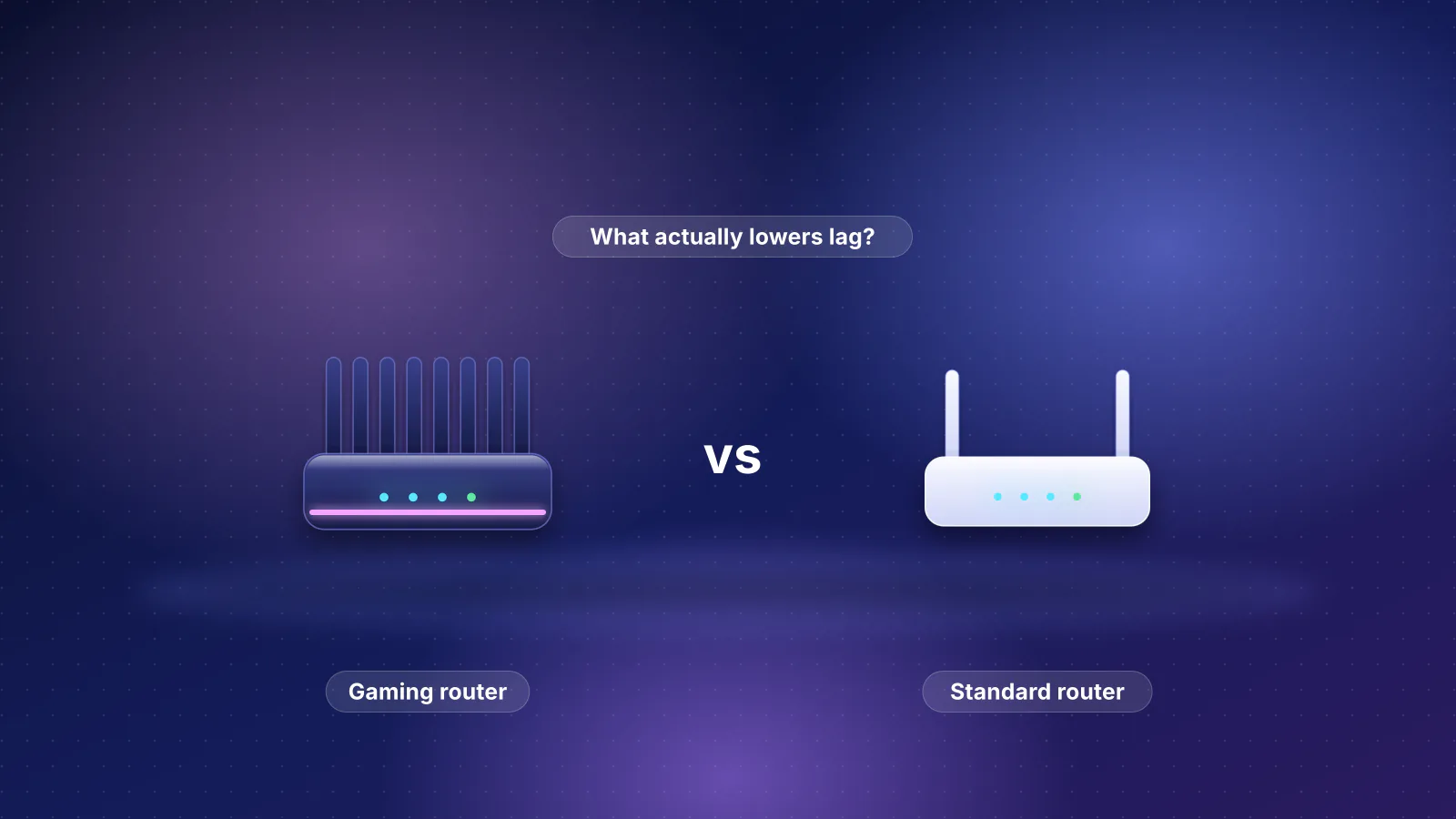
- SQM, not just “gaming QoS”: look for SQM, fq_codel or CAKE in the documentation. FQ-CoDel is an IETF-documented algorithm described as “a powerful tool for fighting bufferbloat and reducing latency” (RFC 8290). Examples with documented SQM include the eero Pro 7 (one switch), the GL.iNet Flint 3 (speed fields and a cake option) and the UniFi Dream Router 7 (Smart Queues, which Ubiquiti recommends only below 300 Mbps). Whether a “gaming router” adds anything beyond this is covered in gaming router vs. standard router.
- Wi-Fi 7 with 6 GHz: the Wi-Fi Alliance describes 6 GHz as clearer spectrum “with less interference from legacy Wi-Fi 4 or Wi-Fi 5 devices,” and less contention means fewer retries. 320 MHz channels help only devices that support them; Apple lists current iPhones at up to 160 MHz (details).
- MLO (Multi-Link Operation): lets a Wi-Fi 7 device keep links on more than one band and move traffic to the clearer one. TP-Link says most consumer hardware uses a mode that switches one radio between bands rather than sending on two bands at once (TP-Link), so expect fewer stalls, not double speed.
- 2.5G ports: a 1 Gbps port tops out around 940 Mbps of real throughput (Verizon quotes “up to 940/880 Mbps” for its gigabit Fios tier). Faster internet plans need 2.5G or faster ports end to end. Ports don’t lower ping on their own.
- Mesh-ready with wired backhaul (Ethernet or MoCA). If wireless backhaul is your only option, prefer tri-band or quad-band systems, which have more radios to share between backhaul and devices.
- WPA3 and one network name for all bands so devices land on the right band without micromanagement.
Mesh & backhaul for gamers
- Best: wire the mesh units together (Ethernet or MoCA). Client airtime stays free, so jitter stays low.
- Good: Wi-Fi 7 mesh with a dedicated backhaul band, or MLO backhaul where the system supports it.
- Avoid: a range extender between you and the router.
- Placement: as a rule of thumb, plan about one access point per ~1,800 sq ft with drywall and wood walls, ~1,400 with plaster and ~1,000 with block, brick, stucco or concrete, and usually one per floor in multi-floor homes over about 1,200 sq ft (our coverage model). For wireless backhaul, use the mesh app’s placement or signal indicator and move units closer if it reports a weak link. More in mesh vs. single router.
How to test properly
- Pause cloud backup and sync apps on computers and phones.
- Use the game’s own network graph or a continuous ping to a server in your game region, not a random website.
- Note the average ping and how much it swings (jitter). Write the numbers down so you can compare after changes.
- Run a speed test that reports latency under load (often shown as “loaded latency” or a bufferbloat grade). If ping jumps sharply during the upload or download phase, you have bufferbloat. Turn on SQM or adjust its limits and test again. OpenWrt aims for an A+ bufferbloat grade on Waveform’s test.
Lag only when the whole house is online? That’s an airtime problem; our guide to busy, many-device homes covers it. Need help planning cabling to a game room? Talk to us about a consult.
Frequently asked questions
Is wired Ethernet still better for gaming than Wi-Fi 7?
Yes, for consistency. Ethernet removes airtime contention and interference. If you can’t run a cable to your setup, put a mesh unit near it, wire the mesh unit back to the router if possible, and connect the console to that unit with a short cable.
Does 6 GHz lower ping?
It doesn’t shorten the distance to the game server, but a less crowded band means fewer retries and less waiting for airtime. That mostly shows up as steadier ping with fewer spikes, as long as you are close enough for a strong 6 GHz signal.
What is bufferbloat and why does it ruin matches?
When a large upload or download fills your connection, packets wait in oversized queues and latency jumps. SQM (smart queue management, such as fq_codel or CAKE) keeps those queues short so game traffic isn’t stuck behind bulk traffic.
Is QoS the same as SQM?
No. Typical router QoS gives some devices or apps priority over others. SQM manages the queues themselves and, on most routers, limits the connection slightly below its real speed so delays don’t build up. SQM is the more reliable fix for bufferbloat. OpenWrt’s SQM includes some prioritization of its own, while GL.iNet’s routers can’t run SQM and their separate QoS feature at the same time.
Should I turn on SQM on a gigabit plan?
Check your router’s documentation first. OpenWrt warns that slower routers may not keep up, Ubiquiti doesn’t recommend Smart Queues at 300 Mbps or more, and GL.iNet says SQM works best on low-bandwidth or congested connections. Turn it on, run a speed test with loaded latency, and keep it only if latency improves without an unacceptable drop in speed.
Which router features help gaming most?
Documented SQM that suits your plan speed, Wi-Fi 7 with a 6 GHz band, at least one 2.5G port if your plan is faster than about 940 Mbps, and mesh with wired backhaul if your home needs more than one access point.
Are range extenders okay for gaming?
They are a last resort. A wireless repeater sends traffic over the air twice, which adds delay and uses airtime. A mesh system with wired backhaul, or a cable to your setup, is a better fix.
Sources
Read on October 21, 2026.
- OpenWrt: SQM (Smart Queue Management)
- eero: What is Smart Queue Management (SQM)?
- Ubiquiti: UniFi Gateway, Smart Queues
- GL.iNet Router Docs 4: SQM
- IETF: RFC 8290, The Flow Queue CoDel Packet Scheduler and Active Queue Management Algorithm
- Wi-Fi Alliance: Wi-Fi Alliance brings Wi-Fi 6 into 6 GHz
- TP-Link: Wi-Fi 7 MLO, what is Multi-Link Operation and how does it work?
- Apple: Wi-Fi and Ethernet specifications for Apple devices
- Apple: Recommended settings for Wi-Fi routers and access points
- Verizon: Fios Gigabit FAQs