The short version
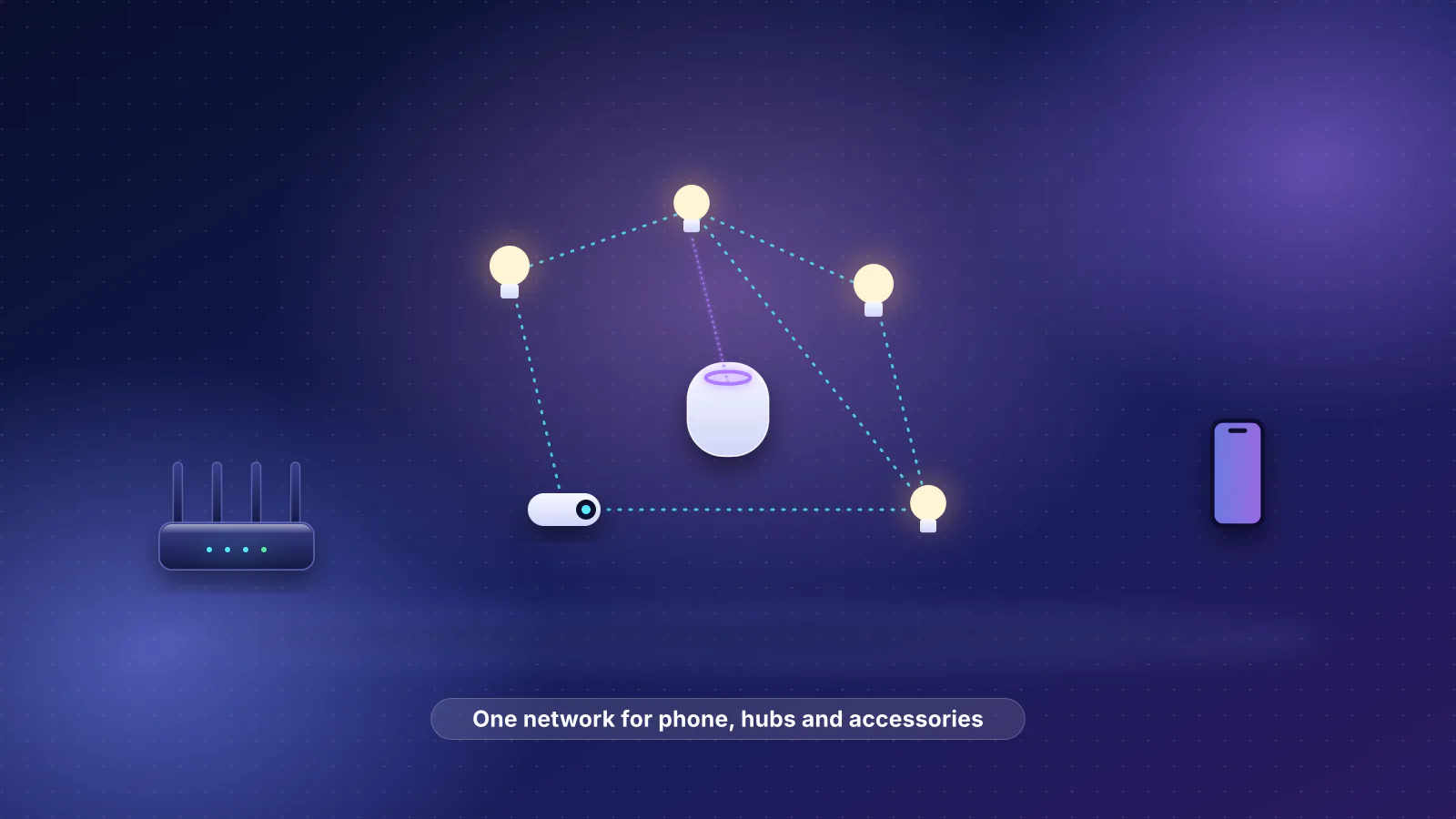
- Devices remember a network, not a router. Give the new router the old network name (SSID), password and security mode, matched "exactly, including capitalization" (TP-Link), and many devices rejoin without being set up again.
- Plan for stragglers. eero's last setup step says "many devices may connect" on their own, TP-Link says some "need a manual reconnect", and Google says Nest cameras and doorbells need updating after a new router.
- Copy the layout, not only the password. Recreate separate 2.4 and 5 GHz names or an IoT network if you had them, and keep the old security mode (often WPA2) even if the new router defaults to WPA3. Change those later, one at a time.
- Router-held settings don't come with you across brands or models: reservations, port forwards, custom DNS and the address range. Write them down first.
- Order matters. Old router's Wi-Fi off first, then hubs and Thread border routers, then one test device, then the rest.
Moving house rather than replacing the router? Move with your network covers what goes with you and what stays with the provider. Still deciding whether to replace it at all? Start with when to replace your router.
Why devices rejoin when the settings match
A phone, plug or camera that joined your Wi-Fi saved the network name, the password and the kind of security the network used, not which box was broadcasting. Offer the same three and the device sees the network it knows. Google puts the failure case the other way round: devices that went offline after a new router are "most likely still trying to connect using your old network's name and password."
What each maker documents for a router swap, read November 27, 2026:
| Maker | What its own pages say | Caveat it gives |
|---|---|---|
| eero | Setup step 6: "You can use your existing wifi name and password to have all your connected devices automatically join your new eero network." | "Many devices may connect" automatically; for the rest, turn Wi-Fi off and on, or "reboot the device". |
| Google (Nest Wifi Pro) | "Reuse the same network name and password as your old network." | If either changes, "each device will need to be reconfigured". Another Google page says devices may need individual updates when the old router "used multiple network names (SSIDs) for the 2.4 and 5 GHz bands" or "a different encryption method". |
| Google (Nest cameras and doorbells) | After a move with the same router, name and password, the camera "will automatically connect to your Wi-Fi network". | "If you change your network name and password, or get a new Wi-Fi router, you need to update" the camera's or doorbell's settings. |
| TP-Link (blog, August 27, 2026) | "Keep the same network name and password on your new router"; "Match them exactly, including capitalization". | "Some smart home devices need a manual reconnect, even when your network name and password stay the same"; "Cameras and locks sometimes need to enter pairing mode first". If the name or password changes, its Tapo and Kasa devices have to be added back in their app. |
| NETGEAR | Restoring a backup with a different name or password means you "might need to reconnect your WiFi devices". | On its Wi-Fi 7 networks, NETGEAR says some older devices must use "a network with a lower level of encryption". |
| Apple | Name: "a single, unique name (case-sensitive) for all bands". | "After changing settings, you might need to forget the network on each device that previously joined the network." |
| Ring | Device Health > Network > Change Network rejoins a device to a network. | "Having more than one wifi router can cause connection problems with Ring devices." |
| Philips Hue | The Hue Bridge "must be hardwired to your router"; the app "will automatically detect your Bridge on the network". | Hue's pages don't cover changing routers; the Bridge is wired, so the Wi-Fi name doesn't matter to it. |
Wired devices don't depend on the Wi-Fi settings (TP-Link: "Ethernet-connected devices are never affected"), though they still depend on the address settings below. And Google is the one maker here that says a new router means updating its cameras and doorbells, so check each one in the Google Home app.
What can still break, and how to check it
Matching the name and password is necessary, not sufficient. The settings that can differ between routers:
| Setting | What goes wrong | What to do |
|---|---|---|
| Network name | Apple says names are case-sensitive, so "Home" and "home" are different networks | Copy it from the old router's admin page or app, not from memory |
| Password | Google: "Passwords are case-sensitive and must match" | Copy it exactly, capitals included |
| Security mode | The new router's security setting may not match the old one. eero's WPA3-only setting means "devices without WPA3 support cannot connect", and Ring lists five doorbells and cameras that show "Incompatible Network" on WPA3 | Match the old mode, often WPA2-Personal (AES). See WPA3 vs WPA2 and transition mode before changing it later |
| Combined or split bands | A new router may broadcast one name for every band (ASUS calls this Smart Connect) where the old one had separate 2.4 and 5 GHz names. Devices saved the old 2.4 GHz name, which no longer exists | Recreate the separate names and passwords for the swap. ASUS: turn off Smart Connect to "set different WiFi names and passwords for different WiFi bands" |
| 2.4 GHz availability | A device that only uses 2.4 GHz can't find a network the new router doesn't broadcast on 2.4 GHz | Leave 2.4 GHz on with the old name; connecting 2.4 GHz-only devices covers band steering |
| Separate IoT or guest network | Devices on the old router's IoT or guest network saved that name, not your main one | Recreate it with the same name, password and security. NETGEAR's Wi-Fi 7 troubleshooting page has you choose WPA2-PSK [AES] for the Orbi IoT network |
| Address range (subnet) | The new router may hand out a different range of addresses from the old one. A device with an address typed into it by hand (a printer, NAS, camera or hub) keeps the old one, and Microsoft's TCP/IP documentation says devices whose addresses belong to different subnets on one network "won't be able to communicate" | Set the new router's range to match the old one (eero lets you change the DHCP range), or change those devices' addresses |
| Address reservations | They're stored on the old router. On the new one, a device may get a different address, and anything pointed at the old one (a port forward, an app set to an IP address) stops working | Recreate each reservation by the device's MAC address |
| Port forwards and UPnP | Forwards are stored on the old router too; remote access to cameras, servers or game consoles stops | Recreate them after the reservations, then check for double NAT |
| Custom DNS | Filtering or a chosen resolver set on the old router is gone | Re-enter the same servers on the new router |
| Multicast and IPv6 settings | Home Assistant says Matter "relies on (local) IPv6 and mDNS (multicast traffic) traveling freely", and a new router's multicast defaults may differ | See the setting-by-setting list in our Apple Home guide |
Before the swap: write it all down
Do this with the old router still running. Its admin page or app is where the settings are; if you can't get in, how to log in to your router has the steps, including app-only mesh systems.
- Each Wi-Fi network, exactly: name (with capitals and spaces), password and security mode, for every band that has its own name, plus any guest or IoT network.
- The address setup: the router's own address and the DHCP range (for example, an illustrative 192.168.1.1 with addresses from .2 to .254).
- Reservations: each device's name, MAC address and reserved address.
- Port forwards: external port, internal port, protocol and the device each one points to. Note whether UPnP was on (eero has it on by default).
- DNS and internet settings: custom DNS servers, and any PPPoE, VLAN tag or static IP your provider requires. eero says a gateway swap may prompt you "to re-enter your PPPoE credentials".
- Devices with fixed addresses: anything you gave an address on the device itself. These are the ones that break if the range changes.
- Your smart-home hubs: which box is the Hue Bridge, which Apple TV or HomePod is your home hub, and which devices are Thread border routers.
Take a settings backup too, but don't count on restoring it to a different router. ASUS says a configuration file is "only applicable to the same model". Within one mesh family, the maker's replace function does the copying: the eero app has Replace eero for the gateway, and with TP-Link's Replace Main Deco the new unit "will automatically sync the previous network settings from the old main unit", though TP-Link adds that "Advanced configurations may vary depending on the Deco model". Changing brands means entering the list above by hand.
The swap, in order
The order comes from the makers' own steps, with one rule running through it: never let two routers broadcast the same name at once. Google says that when two nearby routers are "broadcasting the same Wi-Fi network name", a device may connect to the other one, and Ring warns about more than one router in general.
- Check the internet without the old router. TP-Link suggests plugging a laptop straight into the modem first, so a provider problem doesn't look like a new-router problem.
- Take the old router off the air. If it's a separate box, unplug its power and Ethernet (Google's instruction for an old router). If it's a provider gateway that also serves as your modem, turn its Wi-Fi off instead and keep it powered, as Google says for a modem and router combo.
- Connect and power up in order. TP-Link's sequence: modem off, Ethernet from the modem to the new router's internet (WAN) port, modem on and fully started, then the router.
- Set the internet connection, then the address range, before any device joins, so devices don't join one range and then have to move to another. eero says changing DNS or IPv6 settings reboots its network, another reason to finish settings first.
- Create the Wi-Fi networks with the recorded names, passwords and security modes, including split bands and the IoT network if you had them. Change the router's admin password, which TP-Link notes is separate from the Wi-Fi password, and check for firmware updates.
- Recreate reservations, then port forwards and DNS. Reservations first, so the forwards point at addresses that won't change.
- Plug wired hubs and bridges into the new router: the Hue Bridge (Hue says to "use a primary LAN port on your router"), any Zigbee or Z-Wave hub, and an Ethernet-connected Apple TV.
- Test one device. TP-Link says to confirm the internet works on one device "before reconnecting the rest of your smart home".
- Give everything else a few minutes. TP-Link says plugs and bulbs usually reconnect within a minute or two. Then work through the check below.
After the swap: check each kind of device
Check the hubs first, because one hub that hasn't rejoined makes every device behind it look offline.
- Apple Home. Apple says to check that the home hub is "connected to your home Wi-Fi network, and powered on", and you need one to add Matter accessories. If the Home app shows a HomePod Network Mismatch alert, Apple's fix is View Details, then Move HomePod to your network. Apple's Thread troubleshooting page has an Apple TV hub on Ethernet switch to the same Wi-Fi network your iPhone is on.
- Thread devices. The Thread Group says a Thread network "works independently from the rest of the (Wi-Fi and Ethernet) home or building network", so Thread accessories don't use your Wi-Fi password. They reach your phone through a border router, which has to be back on your network; Apple's Thread-enabled home hubs are the HomePod mini, HomePod (2nd generation), Apple TV 4K (2nd generation) and Apple TV 4K (3rd generation) Wi-Fi + Ethernet. If they show No Response, the border router is the first thing to check; fixing Thread networks covers the router settings it depends on.
- Philips Hue. The Bridge's third light means it's "connected to the Hue internet services". If the app can't find the Bridge, Hue's steps include searching by IP address, which you can find on the router's admin page by the MAC address on the back of the Bridge.
- Google Home and Nest. Open each camera, doorbell, speaker and display in the Google Home app. Google says to reset a device and set it up again if you can't change its network settings in the app.
- Ring. Check Device Health for each device; Change Network is there if one needs it.
- Everything with a reservation or port forward. Confirm each device has its reserved address on the new router's client list, then test remote access from outside your home network (from a phone on cellular data).
- Matter over Wi-Fi. These joined your Wi-Fi during setup like any other Wi-Fi device. None of the Matter help pages we read (Google, Apple, Home Assistant) describes a router swap, so check them in their app like the rest.
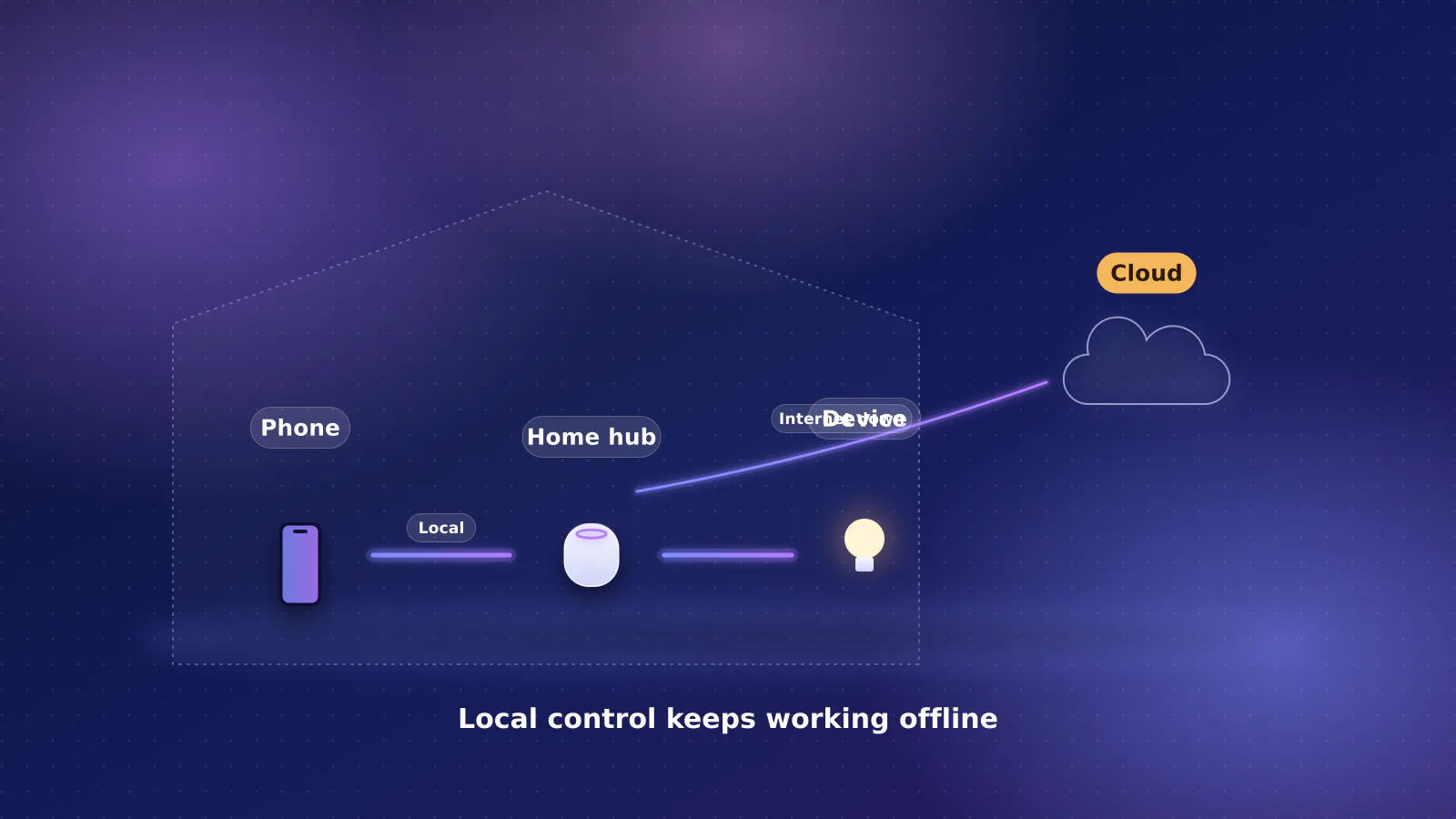
If devices that used to work without the internet now don't, the offline test in local vs cloud smart devices shows how to check.
The devices that don't come back
Work from the least disruptive step to the most, and stop at the first one that works:
- Restart it. eero says to turn the device's Wi-Fi off and on, or reboot it. Apple's steps for an accessory that isn't responding include a restart, which for battery devices can mean taking the batteries out.
- Check the setting it needs. If it's a Ring doorbell or camera showing Incompatible Network, Ring's fix is WPA2-Personal with Protected Management Frames (PMF) set to Disabled. If it's a 2.4 GHz-only device, make sure the 2.4 GHz network carries the old name.
- Forget and rejoin on phones and computers: Apple says you might need to forget the network on each device after a settings change.
- Use the device's own reconnect option: Ring's Change Network, Google Home's Wi-Fi settings, or the maker's app for plugs and bulbs. TP-Link notes that cameras and locks may need pairing mode first, usually by holding a button until a light blinks.
- Try Google's rename trick if several devices cling to the old network: give the new network a different name with the same password, rename the old router's network, then rename the new network back to the original name. Google says devices should then reconnect on their own.
- Give older devices their own network. Ring and NETGEAR both document a separate WPA2 network for devices that can't use the main one; a separate network for WPA2 devices explains the trade-off.
- Last: remove, reset and re-add. Apple's last resort is to remove the accessory from the Home app, reset it as its maker instructs, and add it again. That's the actual re-pair, and it's only needed for the devices the steps above didn't bring back.
When a re-pair or new equipment is justified
Keeping the old settings is a way to get through the swap, not a reason to keep them forever. A planned re-pair is worth it when:
- The password needs to change (too many people know it, or you suspect misuse). Every Wi-Fi device will need it; do it after the swap is stable so you troubleshoot one change at a time.
- You want to merge split bands into one name, as Apple recommends. Devices that only saved the 2.4 GHz name will have to rejoin once.
- You want WPA3. Check each older device first; the WPA3 guide linked above covers which setting to pick.
- You're adding separation, such as a VLAN for cameras. Read HomeKit and Matter across VLANs first, because discovery stops at the VLAN boundary.
New equipment is rarely needed just to keep devices connected, as long as the new router can still offer a WPA2 network on 2.4 GHz, which eero and NETGEAR document for theirs. The exceptions are specific:
- The old router was your Thread border router or hub. Some routers carry Thread (eero has a Thread toggle under its Wireless settings). If the old router was a border router for your accessories, removing it removes that border router. Check whether another device already fills it (how many border routers you need) before buying one. If you're choosing, the smart-home platform records list routers whose makers name them as Matter hubs or Thread border routers.
- A device can't join any network the new router offers, even a separate WPA2 network on 2.4 GHz. Then the device, not the router, is the limit; ask its maker whether a firmware update exists before replacing it.
When to get professional help
A router swap is normally a job you can do from the router's app. Hands on site make sense when the router has to move and needs new cabling, when hubs and cameras are wired through a closet you can't trace, or when a business network depends on reservations and port forwards nobody wrote down. RouterHaus can connect you with a licensed contractor when the job needs someone on site.
Frequently asked questions
Do I have to reconnect all my devices when I get a new router?
Often not. If the new router uses the old network name, password and a security mode your devices support, eero, Google and TP-Link say devices can reconnect without being set up again. Not every device will: Google says Nest cameras and doorbells need updating after a new router, and TP-Link says some cameras and locks need pairing mode.
Does the new router need the same brand as the old one?
No. Devices saved the network name, password and security type, not the router's brand. Brand matters for settings: a backup file usually only restores to the same model (ASUS says so), so reservations, port forwards and DNS have to be entered by hand on a different brand.
Why did my smart plugs come back but my Thread devices didn't?
Thread devices don't use your Wi-Fi password; they reach your network through a border router such as a HomePod mini or Apple TV 4K. If that border router hasn't rejoined the new Wi-Fi, or was the old router itself, Thread devices show as not responding until it's back.
Why can't I reach my printer or NAS after the swap?
If it has an address typed into the device itself and the new router uses a different address range, it's on the wrong subnet. Set the new router's range to match the old one, or change the device's address. If it used a reservation instead, recreate the reservation.
Sources
Read on November 27, 2026.
- eero: How do I set up eero?, What is encryption in the eero app?, What are the Advanced networking settings? and How do I swap my gateway eero?
- Google Nest Help: Devices immediately disconnected after your new Wi-Fi network was set up, Replace existing Nest Wifi or Google Wifi with Nest Wifi Pro and Devices are connected to another router's Wi-Fi network
- Google Home and Nest Help: How to connect your Nest or Home devices to a new Wi-Fi network, Move your camera or doorbell to a different room, home, or country and Set up, manage, and control Matter-enabled devices with Google Home
- TP-Link: How to set up a new router without reconnecting every smart device (August 27, 2026)
- TP-Link Support: How to change the main Deco unit (updated October 8, 2026)
- NETGEAR Support: How do I back up or restore the settings configured on my NETGEAR router? and How to resolve issues connecting devices to your NETGEAR WiFi 7 network
- ASUS Support: How to back up/upload the configuration files of my ASUS router? (updated June 1, 2026) and How to configure Smart Connect (updated December 9, 2024)
- Apple Support: Recommended settings for Wi-Fi routers and access points (July 14, 2026), Use routers secured with HomeKit (October 16, 2025), Set up a home hub (November 12, 2026), If HomePod has a network issue (January 30, 2026), Thread Border Router Required alert (January 13, 2026) and If your HomeKit or Matter accessory isn't responding (March 3, 2026)
- Ring: How to reconnect your video doorbell or security camera to wifi and Fixing setup issues (Incompatible network error)
- Philips Hue: How to connect Hue Bridge to Wi-Fi and Why isn't the third light on my Bridge on?
- Thread Group: Robust IoT connectivity with Thread (March 15, 2024)
- Home Assistant: Matter integration documentation
- Microsoft Learn: TCP/IP addressing and subnetting