The short version
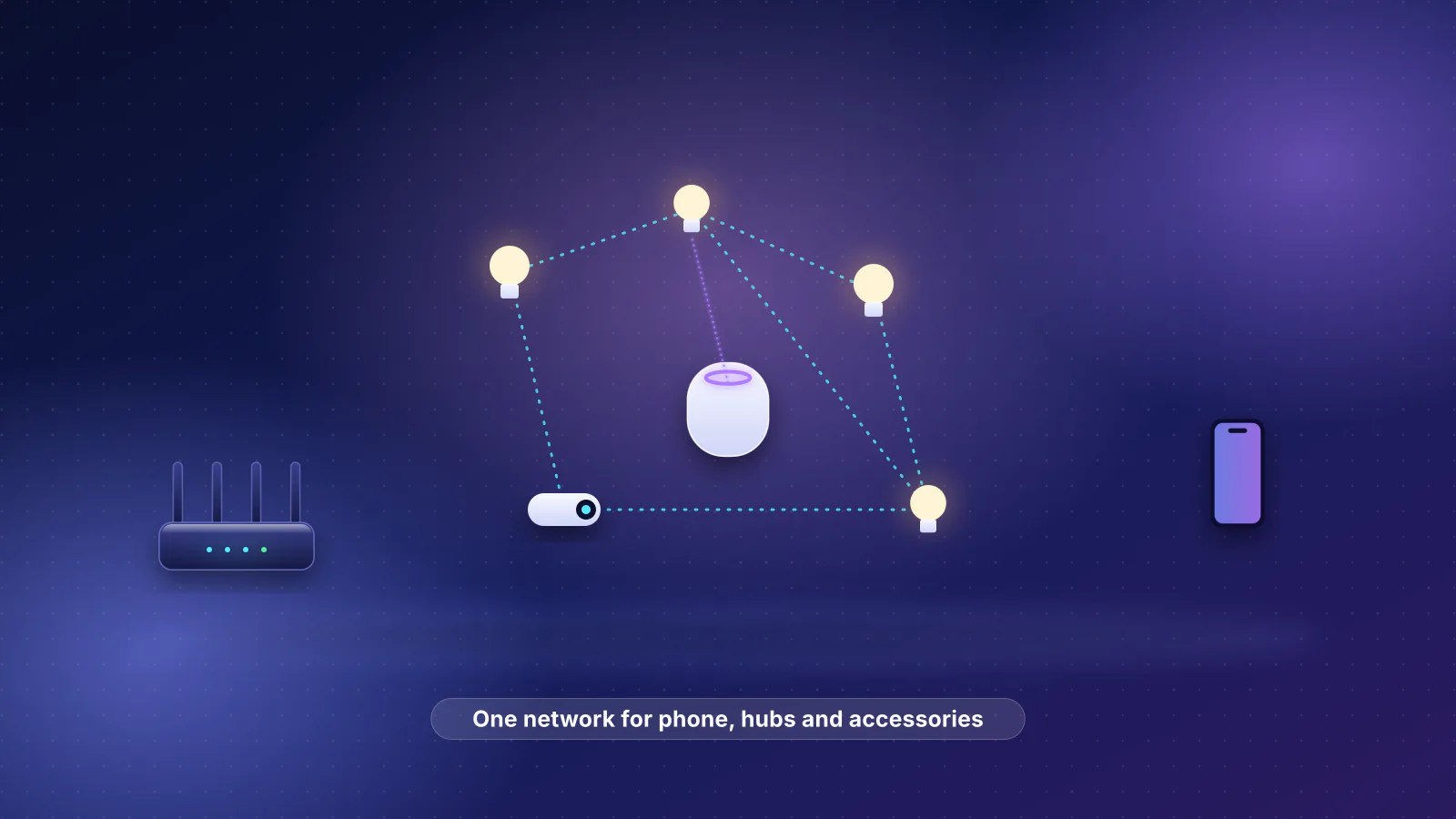
- Keep the same Wi-Fi name, password and security mode. If all three match at the new place, phones, laptops and many smart-home devices can rejoin without being set up again. This applies even if your old Wi-Fi came from the provider's gateway: give your new router the gateway's exact settings.
- What moves: a router or mesh system you own, with its settings. What stays: the provider's fiber terminal (ONT), and usually its modem or gateway, which goes back unless you keep the same provider.
- Don't change the security mode on moving day. Switching from WPA2 to WPA3 can lock out older devices; Ring lists doorbells and cameras that can't join a WPA3 network. Google's help pages also say to update Nest and Google Home devices after a new router or provider.
- The new connection still needs attention: activation, sometimes PPPoE or VLAN settings, and a check for double NAT if the new provider's gateway stays in place.
Why devices reconnect on their own
A phone, laptop or smart plug that has joined a Wi-Fi network saves its name (SSID), its password and the kind of security it uses. When it sees that name again, it tries the saved password with the saved security type. The provider and the street address aren't part of what it saved.
Setup guides build on this. eero's says "You can use your existing wifi name and password to have all your connected devices automatically join your new eero network", while noting that "many devices may connect" on their own and others may need their Wi-Fi turned off and on or a restart. Xfinity's says that when you move service "you should be able to keep your settings", including the Wi-Fi name and password, and that "if you change the WiFi information, you need to reconnect all your devices".
Google is the cautious exception. It says a Nest camera moved with the same router, name and password "will automatically connect", but "If you change your network name and password, or get a new Wi-Fi router, you need to update" the camera's settings. Expect to redo Google devices if the router changes.
| Setting | Must match exactly? | Detail |
|---|---|---|
| Network name (SSID) | Yes | Case-sensitive, per Apple. "Home" and "home" are different networks to your devices. |
| Password | Yes | eero: changing it "will require you to manually reconnect your wireless devices". |
| Security mode | Compatible with each device | A device without WPA3 can't join a WPA3-only network. See security mode pitfalls. |
| Router brand, provider, public IP address | Not part of the saved network | eero's setup guide covers replacing an existing router while keeping the name and password (Google's exception above aside). |
What moves with you and what stays
- Provider's line New address, often a new provider
- Modem, ONT or gateway The provider's: stays on the wall or goes back
- Your router or mesh Moves, with the same name, password and security mode
- Phones, laptops, smart home Look for the network they saved
| Equipment | Goes with you? | What the makers and providers say |
|---|---|---|
| Router or mesh you bought | Yes | eero: "bring your eero system with you and plug it into your modem once your Internet Service Provider (ISP) activates internet access". Its settings go with it. |
| Router or mesh supplied by your provider | Usually no | eero says provider-supplied eeros (Frontier's fiber plans include one, for example) "should not be used outside of ISP-managed networks". The eero app shows "Provided by" under Internet if yours is one. |
| Provider's modem or gateway | Only if you keep the same provider | Xfinity: "Unplug and take your equipment with you, or return it if you need new equipment shipped or installed". Spectrum: call and "we'll let you know if you can take your equipment with you." |
| Fiber terminal (ONT, "fiber jack") | No | AT&T: "Any equipment mounted to the wall should be left in place." GFiber: "Please do not remove or return your Fiber Jack, even if you cancel your Services." |
| Cable modem you own | Only if the next service is cable | It has to be on the new provider's approved list and activated on your account. Cox says a modem bought or received used may not work on its service. CenturyLink says cable modems don't work with its service. |
| Smart-home devices | Yes | Except anything installed that stays with the house (see smart-home devices). |
Returning the provider's equipment
Return leased equipment you won't use and keep the receipt. Under federal law (47 U.S.C. § 562), a fixed broadband provider may not charge you rent for equipment after you've returned it (only for the period you had it), or for using a router you provide yourself. Non-return fees are a separate matter. The deadlines and fees below come from each provider's own pages, checked October 21, 2026.
| Provider | Return window | If not returned | Leave in place |
|---|---|---|---|
| AT&T | 21 days from cancellation or ordering replacement equipment | Gateway: $150 on AT&T Fiber and AT&T Internet, $200 on Internet Air (fee schedule); the return page lists $200 for an "All-Fi Hub". $65 per extender or booster from AT&T's Extended Wi-Fi Coverage service | Fiber jacks, ONTs and anything wall-mounted |
| Verizon Fios | 30 days after disconnection | Up to $375 per item; $200 for the CR1000A/CR1000B router | Not stated; ask Verizon before unplugging anything |
| GFiber | 60 days | Replacement fee per GFiber's schedule | The Fiber Jack and inside wiring |
| Spectrum | Not stated on the pages we read | $90 for a modem or gateway; $90 for a Wi-Fi router or extender | Not stated |
Drop-off rules differ: AT&T wants unpacked equipment taken to a company-owned FedEx Office or The UPS Store and says not to use a drop box; Verizon uses The UPS Store; GFiber accepts FedEx Office, a FedEx Drop Box with its prepaid label, or a gFiber Space.
Keep the name, password and security mode
Before you unplug anything, write down the network name exactly as it appears (capitals and spaces included), the password, and the security mode for each band, and back up the router's settings if it can (Apple recommends a backup before changing settings). If your old network used separate 2.4 GHz and 5 GHz names, keep them: some devices only support 2.4 GHz (Ring says so of some of its own) and saved that name. Apple recommends one name for all bands, but merging them is a change for later.
The security mode is where moves go wrong, usually because someone takes the chance to "upgrade":
- WPA2 (Personal, AES): the most compatible, and eero's default on 2.4 and 5 GHz.
- WPA2/WPA3 transitional (eero: Hybrid): WPA3 devices use WPA3, older ones WPA2, with one password. Apple recommends it "for compatibility with older devices".
- WPA3 only (eero: Enhanced): eero says "devices without WPA3 support cannot connect". WPA3 is mandatory in the 6 GHz band, per the Wi-Fi Alliance, so eero always uses it there.
Three documented pitfalls:
- WPA3-only strands older devices. Ring says its Video Doorbell 3, Video Doorbell 3 Plus, Video Doorbell 4, Stick Up Cam Pro and Spotlight Cam Pro show an "Incompatible network" error on a network using encryption they don't support, such as WPA3. Ring's fix: set the router to WPA2-Personal and, if it has a "PMF" (Protected Management Frames) option, set that to Disabled.
- Transitional mode isn't perfect either. The Wi-Fi Alliance "is aware of some deployment environments where legacy or uncertified devices experience interoperability issues with a network configured for WPA3 transition mode". eero says some older devices "may struggle to connect to any network with Hybrid or Enhanced encryption": no IP address, not seeing the network, or dropping off. If your old network was WPA2 and everything worked, keep WPA2 for the move.
- Going back from WPA3 can confuse devices. With a WPA3 feature called Transition Disable, a network whose access points all support WPA3 tells a device so, and the device stores its profile for that network as "WPA3-Personal Only", according to a Wi-Fi Alliance blog post by two Broadcom engineers. Not every router or device uses it, and the post doesn't cover a network that later returns as WPA2-only, but a device holding such a profile may not join it. Apple's advice for any changed setting applies: forget the network on the device and join again.
When your old Wi-Fi came from the provider's gateway
If the gateway that runs your Wi-Fi goes back when you move, give your new router (or the new provider's gateway) its name, password and security mode.
- Copy the settings from the gateway while it's still running, from its admin page or the provider's app.
- Enter them during setup. eero's app asks for a network name and password at step 6; Xfinity's gateway activation also asks you to choose them.
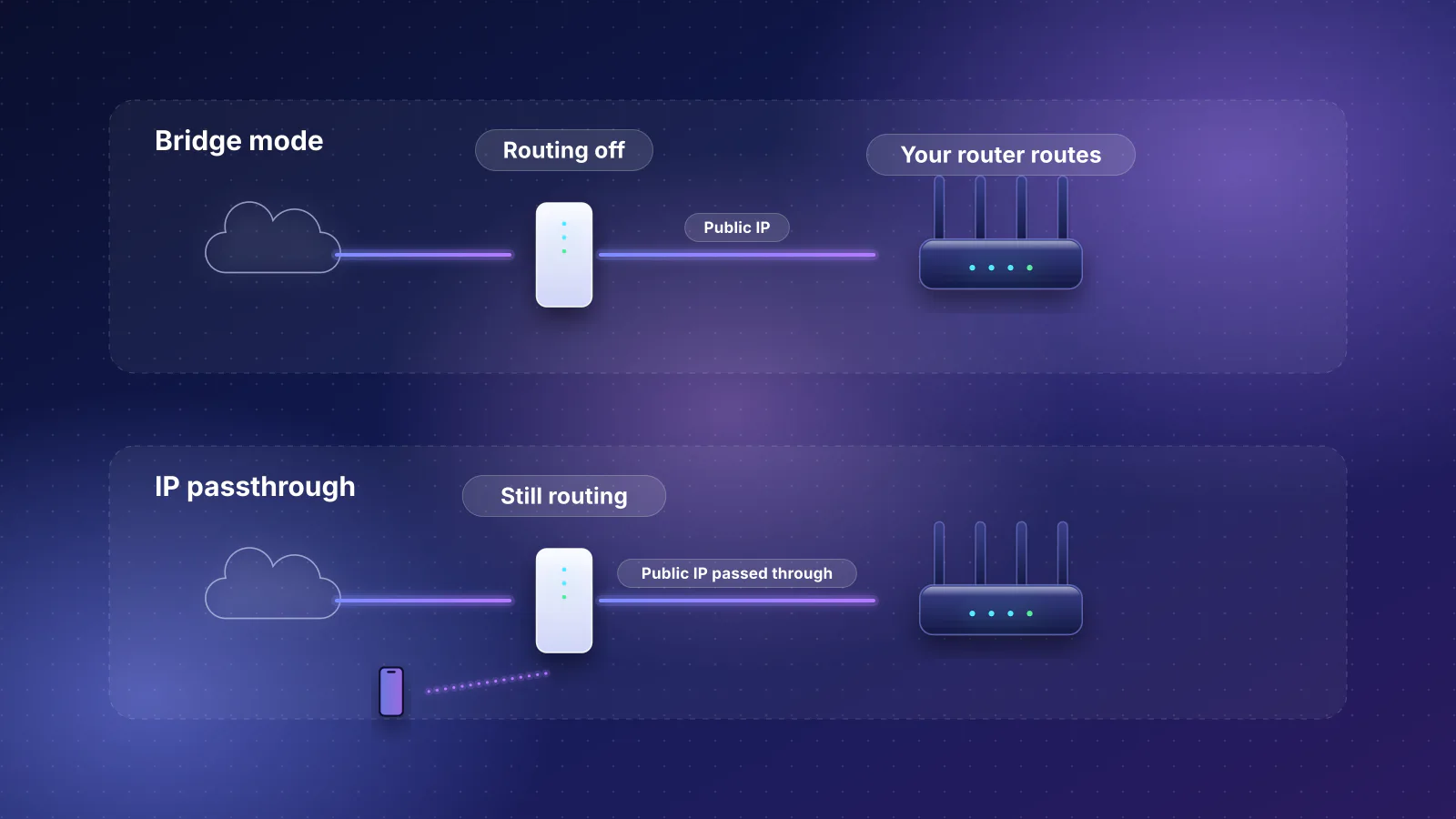
- Make sure only one box broadcasts Wi-Fi. Ring says having more than one router can cause connection problems with its devices. If the provider's gateway stays, turn its Wi-Fi off: T-Mobile says its gateway's Wi-Fi broadcast "can be disabled in the T-Life app", and Verizon's Internet Gateway turns off all its Wi-Fi radios when IP passthrough is on (your router then has to use its LAN2 port). See bridge mode vs IP passthrough.
If the new provider's gateway will be your only router and lets you choose the Wi-Fi name and password, use your old ones there.
Moving a mesh system
What each maker documents, checked October 21, 2026. None of the pages we read asks you to reset the system because the address or provider changed.
| System | Moving or new provider | Provider settings | Handing it to someone else |
|---|---|---|---|
| eero | Plug it in once service is active. On a new provider, "in most cases, you shouldn't have to change anything." | Settings > Advanced networking > ISP Settings: static IP, VLAN tag, PPPoE. PPPoE and VLAN tagging need an eero 6 or newer (not Ring Alarm Pro) on current software. | Transfer network in the app; name, password and devices stay, subscriptions don't. |
| TP-Link Deco | TP-Link's guide reconfigures the internet connection "without performing a factory reset". | More > Internet Connection > Internet Settings: Dynamic IP ("default for most ISPs"), PPPoE, Static IP; VLAN ID if required. | Change the owner in the Deco app without a reset; TP-Link says some models don't support this yet. |
| Google Nest Wifi, Nest Wifi Pro, Google Wifi | "In most cases, you don't need to change network configurations." If it won't connect, restart the modem, then the router, then the other points. | WAN settings in the Google Home app, for PPPoE or a static IP. VLAN tagging isn't mentioned. | Not covered by the pages we read |
| UniFi (Ubiquiti) | No moving guide found. System Config Backups can run weekly to the cloud. | Settings > Internet, where Ubiquiti says to check VLAN tags, static IP or PPPoE credentials per WAN | Backups restore to a replacement console |
The settings move; the layout may not. Put the main unit where the new modem or ONT is (or run a cable to where it should be), then place the others for the new floor plan. Why mesh Wi-Fi doesn't automatically fix poor coverage and mesh vs a single router help you decide whether the new home needs the same setup.

Reservations, fixed addresses and port forwards
- Reservations and port forwards move with your router. They're router settings (eero keeps them under Advanced networking; a UniFi System Config Backup includes "all OS, application, and device configurations").
- Addresses typed into a device are different. A printer, camera or NAS given a fixed address on the device itself keeps it. If a new router uses a different range (say 192.168.x.x instead of 10.0.0.x), that device can't reach anything until you change its address or set the router's range to match (eero: DHCP & NAT).
- Port forwards need a public address. Behind a provider gateway that keeps routing, or on a service that shares one address among customers (carrier-grade NAT), they stop working. Check your router's WAN address after the move.
Smart-home devices
Wi-Fi devices: plugs, cameras, speakers, printers
Keep the name and password and Wi-Fi devices can follow; change them and each one needs updating in its own app. Google applies the same caution to speakers and displays as to cameras: with a new router or provider, change their Wi-Fi network, and some may need a factory reset. Ring's app has Device Health > Network > Reconnect or Change Network. Apple's last-resort step for an unresponsive accessory is to remove it from the Home app, reset it as its maker instructs, and add it again.
Apple Home, Matter and Thread
- Home hubs. Apple says a HomePod or Apple TV home hub should be "connected to your home Wi-Fi network", and that Matter accessories need a home hub. If the Home app reports a network mismatch with a HomePod, Apple's fix is View Details, then "Move HomePod to [Wi-Fi network]".
- Matter over Wi-Fi. During setup, the controller "sends your network credentials to your device" (Home Assistant's documentation), so these devices follow the same rule as any other Wi-Fi device.
- Thread. Thread accessories use their own Thread network, not your Wi-Fi password, and reach your home network through a border router: in Apple Home, a hub with Thread such as a HomePod mini or an Apple TV 4K (3rd generation) Wi-Fi + Ethernet, or a supported third-party one. Bring the hub and keep your Wi-Fi the same.
- Apple Home Collection. Apple's October 13, 2026 announcement says the products in this lineup (made with LG Electronics and Schneider Electric, on sale from December, some in early 2027) "automatically update their network credentials if a customer changes their home Wi-Fi". That's Apple's claim for products not yet on sale, and it doesn't make it for other accessories.
More in building a reliable Apple Home, Matter and Thread network.
Devices you leave behind
For thermostats, doorbells and cameras that stay with the house, Google says to remove each one in the app and factory reset it, which clears your data and lets the next resident add it. A mesh system you leave can be transferred to the new owner's account in the eero or Deco app instead of reset.
Apartments with building-managed internet
Some buildings deliver internet through a system the property runs with a provider. What's documented:
- eero Communities (eeros pre-installed): at sign-up, eero says "Your ISP may ask you for your desired wifi name and password"; if not, you set them later in the eero app. Use your old ones. The network is reset on your move-out date.
- Xfinity fiber communities: Xfinity says "you are responsible for connecting, installing, and activating your own third-party Ethernet router or device", so your router moves in as normal.
- Xfinity WiFi Ready Apartments: the rented gateway is already in a media panel; its activation asks for a Wi-Fi name and password, so use your old ones.
If you can't choose the name and password, plan to reconnect each device once, and ask management whether your own router can use the unit's Ethernet port. If you'd rather use another provider, ask which ones serve the building: rules the FCC announced on February 15, 2022 ban certain revenue-sharing deals that keep competing providers out of apartment buildings and require providers to tell tenants about exclusive marketing arrangements.
Getting the new connection running
- Activate the service. Xfinity activates gateways and approved customer-owned modems in its app (the Primary user or a Manager must do it; about 20 minutes, Xfinity says). Cox points to cox.com/activate. Frontier says "The first time you activate your service, you must use this Frontier router or modem to connect"; your own router can replace it afterwards, though Frontier supports only the routers it supplies.
- Connect your router's internet (WAN) port to the modem, ONT or gateway. If the gateway stays, use bridge mode or IP passthrough where offered. AT&T's passthrough steps for the BGW210 and BGW320 tie it to your router's MAC address ("Passthrough Fixed MAC address"), so update that if you replace the router. That was the only router MAC address requirement in the providers' pages we checked; none asked residential customers to register or clone one. On Verizon Fios, read the notes in the provider table first (Fios TV needs Verizon's router).
- Enter provider settings only if asked. Most services hand out an address automatically. AT&T's DSL steps have you enter PPPoE (a username and password for the connection itself) on your router. CenturyLink says a third-party modem "must support VLAN tagging 201", with the PPPoE username and password from its chat support. eero (6 or newer), Deco and UniFi document both PPPoE and VLAN settings; Google's Nest Wifi pages cover PPPoE and static IP only.
- Check for double NAT. Read your router's WAN address: a private one (starting 10., 172.16 to 172.31, or 192.168.) means something in front of it is still routing, usually the provider's gateway. Double NAT: how to tell and how to fix it has the fixes.
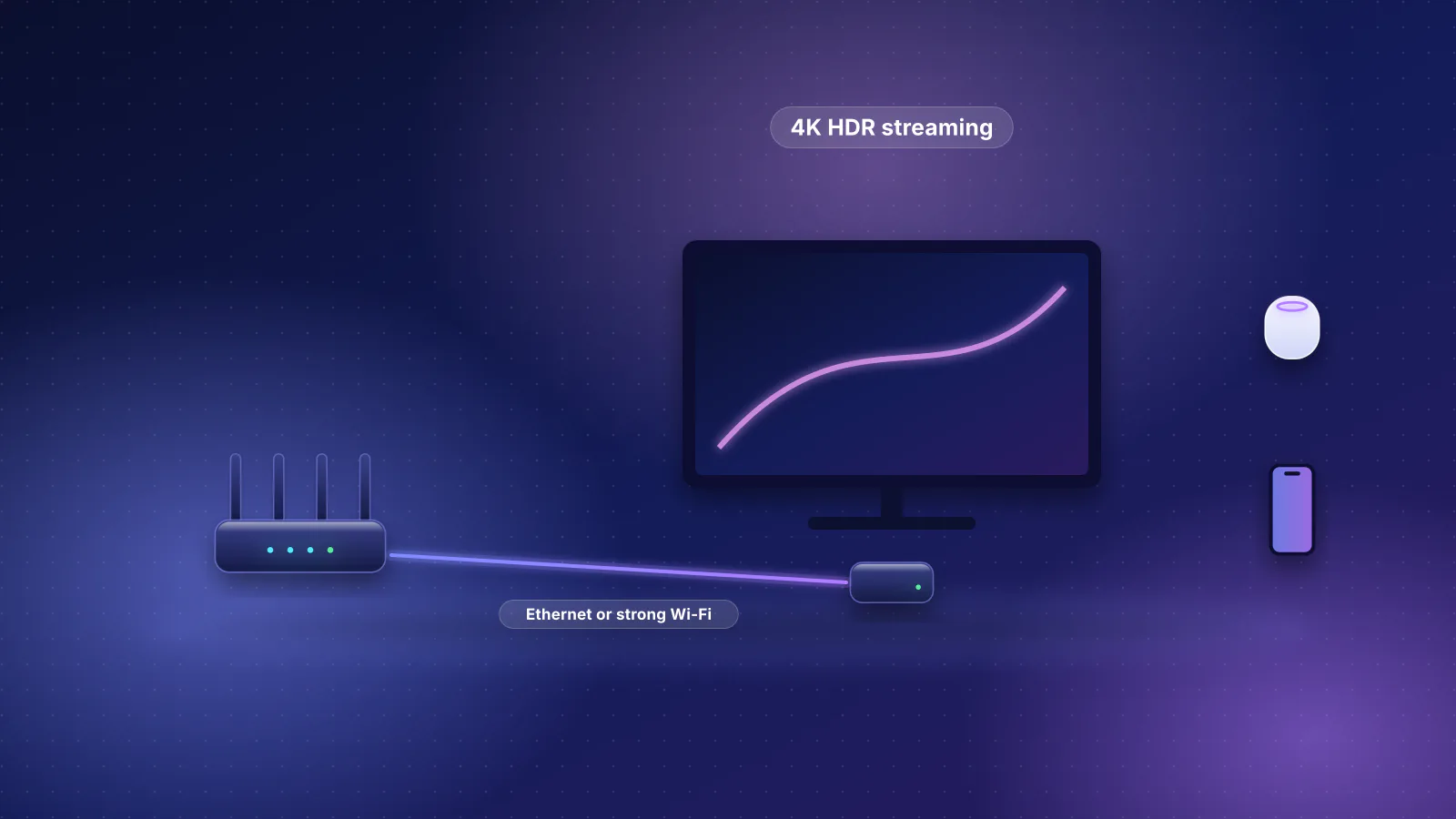
- Check the port speed if the plan got faster. A 2 Gbps plan into a router with a 1 Gbps internet port can deliver about 940 Mbps at most, after protocol overhead. See multi-gig bottlenecks.
Moving-day checklist
The sections above explain each step; this is the order.
- Two to four weeks before: book service at the new address (Xfinity schedules moves up to 30 days ahead and allows an overlap at both addresses; Spectrum asks you to call, with your balance current). Find out what the new service hands you (see the provider table) and whether it needs PPPoE or a VLAN. Bringing a cable modem? Check the approved list.
- The week before: record the Wi-Fi name, password and security mode for each band; screenshot reservations and port forwards or run a backup; separate the provider's equipment from yours, as Spectrum suggests; remove and reset smart-home devices that stay.
- Moving day: leave the ONT or fiber jack on the wall, photograph the cabling before unplugging (Spectrum's tip), and pack the router, mesh points and power adapters together. Bringing provider equipment? Xfinity asks for every cable and power cord too.
- At the new place: activate, connect the router, enter any provider settings, check for double NAT, and turn off Wi-Fi on a gateway that stays. For a device that doesn't rejoin, turn its Wi-Fi off and on or restart it (eero), then forget and rejoin the network (Apple), then use its own reconnect option. Reconnect Google devices in the Google Home app.
- Within the return window: return the old provider's equipment and keep the receipt (21 days for AT&T, 30 for Verizon Fios, 60 for GFiber).
Frequently asked questions
Can I take my router to the new house?
Yes, if you bought it; it keeps its settings. Equipment your provider supplied, including provider-issued eero systems, belongs to the provider. Take it only if you're keeping the same provider and it says the equipment can move.
Should I change my Wi-Fi password when I move?
Only if you have a reason, such as too many people knowing it, because every wireless device then has to be reconnected by hand. Do it after the move, once everything works, so you troubleshoot one change at a time.
Do I need to tell the new provider my router's MAC address?
Not in the provider pages we checked. The exception is AT&T's IP passthrough on the BGW210 and BGW320, which AT&T's steps tie to your router's MAC address. Cable modems are activated by the provider, for example in the Xfinity app or at cox.com/activate.
Why did my smart plugs reconnect but my doorbell didn't?
If the security mode changed, check that first: Ring lists several doorbells and cameras that can't join networks using WPA3. Set the router back to the old mode, or add a separate WPA2 network for those devices. A Google Nest doorbell is different: Google says to update its Wi-Fi in the app after any router change.
Sources
Read on October 21, 2026.
- Apple Support: Recommended settings for Wi-Fi routers and access points
- Wi-Fi Alliance: WPA3 deployment options (PDF) and Wi-Fi Alliance blog (Thomas Derham and Nehru Bhandaru, Broadcom): WPA3 December 2020 update, SAE Public Key and Transition Disable
- eero: How do I set up eero?, What do I need to do if I move homes? and How do I view or change my network password?
- eero: What is encryption in the eero app?
- eero: How do I configure ISP settings? and What are the Advanced networking settings?
- eero: How do I transfer network ownership?, Do I have ISP Provided eeros? and What is eero Communities?
- TP-Link: How to set up Deco after switching to a new ISP and How to transfer Deco ownership in the Deco app
- Google Home and Nest Help: How to connect your Nest or Home devices to a new Wi-Fi network, Moving guide for Google Home and Nest devices and Move your camera or doorbell to a different room, home, or country
- Ubiquiti: Backups and migration in UniFi and WAN failover, load balancing and port remapping on UniFi gateways
- Ring: Fixing setup issues (Incompatible network error) and Fixing offline devices
- Apple Support: If HomePod has a "Network Issue" or "No Internet", Set up your HomePod, HomePod mini, or Apple TV as a home hub and If your HomeKit or Matter accessory isn't responding in the Home app
- Apple Newsroom: Introducing Apple Home Collection (October 13, 2026)
- Home Assistant: Matter integration documentation
- Xfinity: Activate an Xfinity Gateway or third-party modem with the Xfinity app, Equipment to bring when you move and What to expect when you move: FAQs
- Spectrum: Moving your services to a new address, Transferring internet service when you move and Spectrum broadband disclosure (unreturned equipment charges)
- Cox: Certified cable modems
- AT&T: Return your internet equipment and AT&T Internet fee schedule (consumer, effective January 30, 2025)
- AT&T: Get help with DMZ+ zone devices (BGW210/BGW320 IP Passthrough steps) and Connect a non-AT&T router to the internet (DSL)
- Verizon: How to return Fios equipment FAQs and Verizon Internet Gateway: Configure IP Passthrough / Bridge Mode
- GFiber: Return gFiber equipment and devices and Fees schedule and terms (Fiber Jack)
- T-Mobile: Connect your devices to T-Mobile Home Internet
- Frontier: How to use your Frontier router and Frontier internet equipment
- CenturyLink: Using a non-CenturyLink modem
- 47 U.S.C. § 562: Requirements relating to charges for covered services (Cornell LII)
- FCC: FCC adopts rules to give tenants in apartments and office buildings more transparency, competition and choice for broadband service (February 15, 2022, PDF)