The short version
- Look at settings, not symptoms. The FBI lists "overheating devices, problems with connectivity, and changes to settings the administrator does not recognize" as signs of an infected router. The first two have plenty of ordinary causes; the third is the one you can actually check.
- Five settings tell you most of what you need: the router's DNS servers, its admin accounts and remote access, its port forwards (and UPnP list), its firmware version, and its log, if it keeps one. Checking them costs nothing.
- If you find something you didn't set, clean it in this order: disconnect it from the internet, install the maker's latest firmware, factory reset, set a new long admin password and Wi-Fi password from inside your network, then turn remote management and UPnP off unless you need them. ASUS and TP-Link both include a factory reset in their own advice for a suspected compromise. A reboot can disrupt some infections, but the FBI says fixing known vulnerabilities is what prevents reinfection.
- Replace it only if its maker has stopped sending security updates, or the same changes come back after a clean reset. A router that still gets updates is normally cleaned with firmware, a reset and new passwords, which is what the makers' own advice covers.
- Treat "your device is infected" emails and pop-ups with care. Providers do send real notices, but the FTC's advice is to "contact the company using a phone number or website you know is real", never one in the message.
How home routers actually get compromised
Government warnings describe a small number of routes in, and they shape what's worth checking:
- Old firmware with known holes. In May 2025 the FBI warned that end-of-life routers "with remote administration turned on" had been compromised by a new variant of TheMoon malware. TheMoon doesn't need a password: it "scans for open ports and sends a command to a vulnerable script." The FBI links the infected routers to proxy services, which cyber actors use "to hide their identities and location."
- Default or weak admin passwords. The FBI's DNSChanger guidance says that malware tried to log in to home and small-office routers with common default usernames and passwords and, where it got in, changed the router's DNS servers. TP-Link's notice on GhostDNS describes the same pattern: it "scans for the IP addresses of routers that use weak passwords or no password at all" and "changes the default DNS address to the one controlled by the attackers."
- A known flaw that leaves settings behind. ASUS's June 4, 2025 statement, on media reports of attempts to exploit a 2023 vulnerability (CVE-2023-39780) in its routers, acknowledges that "a firmware update alone may not completely address the issue." Its advice adds a factory reset "to clear any unauthorized or abnormal settings."
A settings check tells you more than how the internet feels. A March 12, 2026 FBI FLASH report on another proxy botnet says "The vast majority of observed devices infected with AVrecon malware are small-office/home-office (SOHO) routers." The same report says the actors "sell access to the compromised devices as residential proxies."
The warning signs, and what else causes them
Every sign below appears in FBI, FTC, maker or provider material. Most also have harmless explanations, listed so you don't reset a router that's simply busy or hot.
| Sign | Where it's listed | Ordinary causes to rule out first |
|---|---|---|
| Settings you didn't make (DNS servers, admin accounts, remote access, port forwards) | FBI PSA of May 7, 2025 ("changes to settings the administrator does not recognize"); ASUS statement (a reset "to clear any unauthorized or abnormal settings") | Someone else in the home changed them; a parental-control or filtering service you signed up for; on a provider gateway, the provider's own management |
| Every device on your Wi-Fi is redirected to sites you didn't ask for | FTC lists redirects as a malware sign; the FBI says a router DNS change "may impact all computers" on the network, and TP-Link describes the same kind of DNS change | If only one device is redirected, the problem is more likely that device (see one device or all of them) |
| Failed logins or SSH keys you don't recognize in the router's log | ASUS statement | Your own mistyped password; not every router keeps a log you can read |
| Overheating | FBI PSA of May 7, 2025 | A hot shelf, a closed cabinet or summer heat; see router overheating |
| Connection problems | FBI PSA of May 7, 2025 | Provider outages, evening congestion and Wi-Fi interference are common causes; see why is my internet slow |
| A notice from your provider | Cox publishes a sample of the email it sends when it has "received an alert that one of your home devices may be infected with a virus" | A fake notice; verify it independently (see provider notices) |
A slow connection on its own is not evidence of a hack. A setting you can see and didn't make is.
One device or all of them?
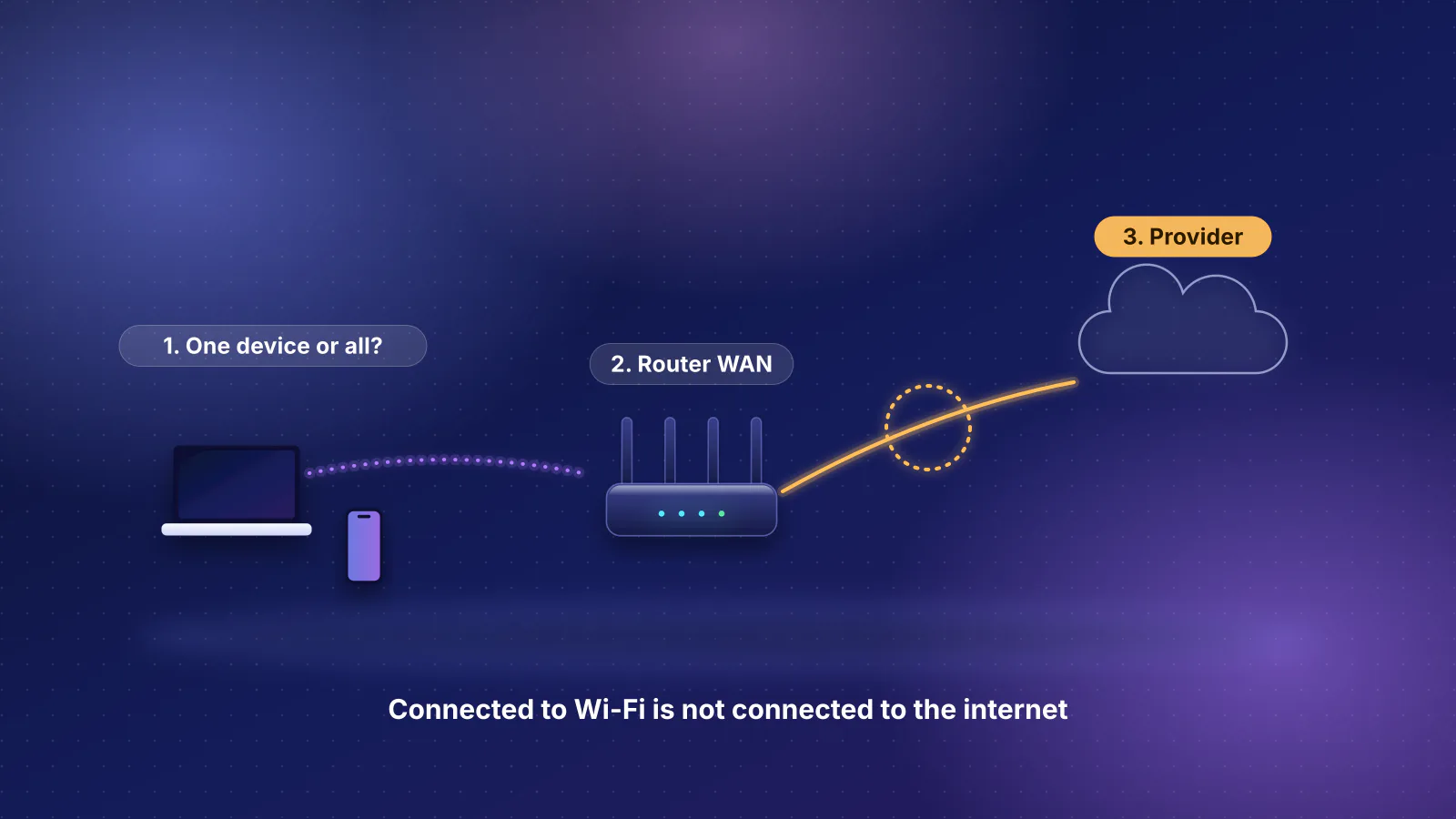
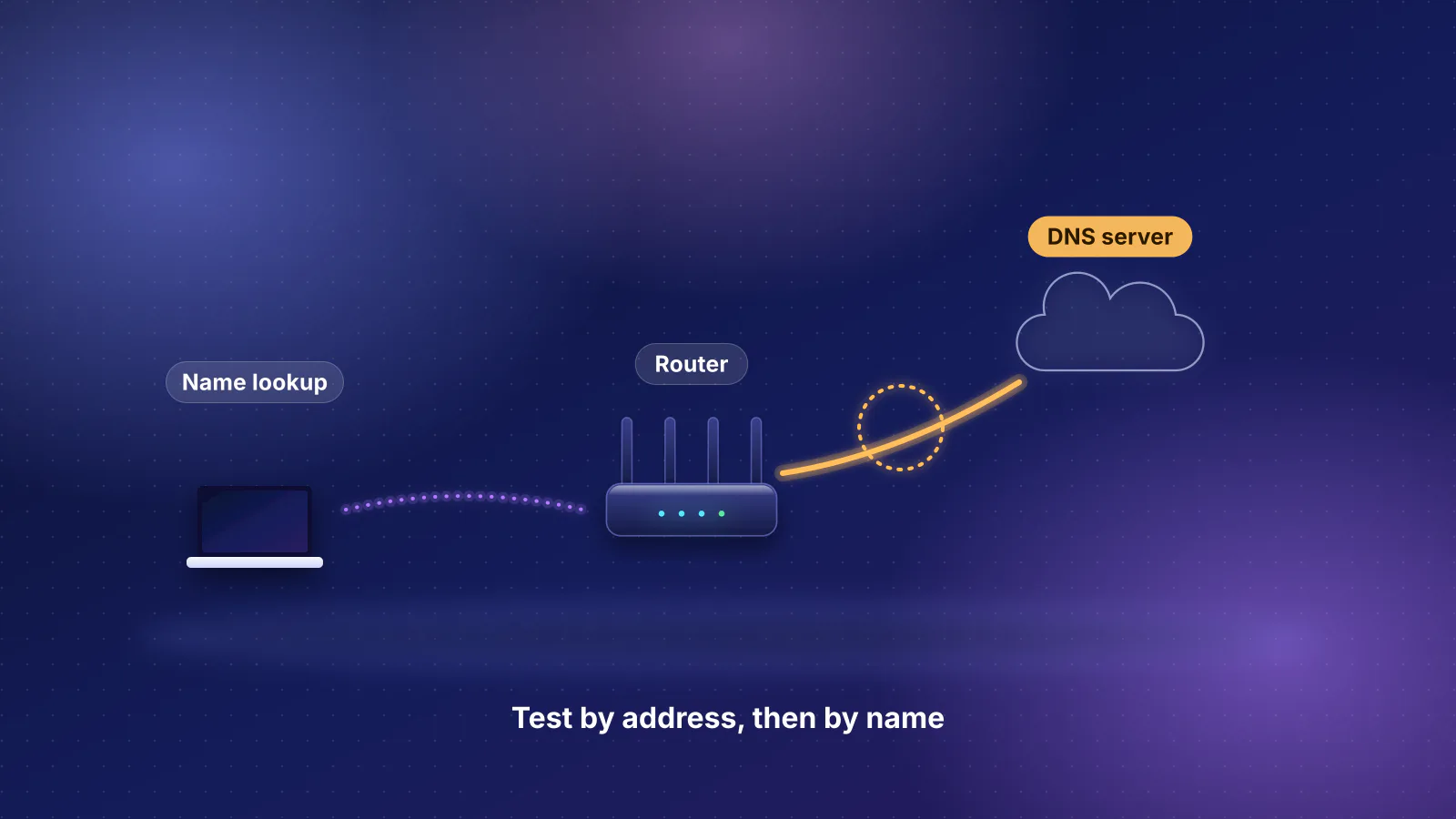
Redirects, pop-ups and strange browser behavior are more often a problem on one computer or phone than on the router. The FTC's malware signs include a browser home page that "changes or automatically redirects you to sites you didn't intend to visit", new toolbars or add-ons, and lots of pop-up ads. A router only gets involved when the change is shared by everything on the network. The FBI explains why: a router DNS change "may impact all computers" on the network, including ones that aren't infected.
- Phone, laptop, TV Each asks the router which DNS server to use
- Your Wi-Fi Carries the router's settings to every device that joins
- Your router Its DNS entry is the one an attacker changes
- Provider network Passes the lookup along
- The DNS server the router names Yours, your provider's, or the attacker's
A quick way to tell them apart:
- Try a second device on the same Wi-Fi and visit the same site. If only the first device misbehaves, follow the FTC's malware steps on that device (update and run security software, change passwords). The router is probably fine.
- Try the affected device on mobile data, with Wi-Fi off. If the redirect disappears off your network and returns on it, the router's settings are the next place to look.
- Compare the DNS servers the device is using with the ones you expect. The FBI's guidance shows how: on Windows, run
ipconfig /alland read the "DNS Servers" line; on a Mac, open the active network connection's DNS settings. How router-level and device-level DNS relate is covered in router-level or device-level DNS.
The five-setting check
Open the router's admin page or app (how to find your router's address if the usual one fails), from a device you trust. The NSA's advice is to "Only make network configuration changes from within your internal network." Then look at five things, and write down what you find before changing anything:
- DNS servers. Find the internet (WAN) and LAN or DHCP settings and read the DNS entries. "Automatic" or your provider's servers is normal, and so is a public or filtering service you chose yourself. An address you don't recognize and nobody in the home set is the classic DNSChanger and GhostDNS change.
- Admin accounts and remote access. Check who can sign in and whether the router can be managed from the internet. On eero, for example, only the network owner can see the admin list, under Settings, then User permissions, where an admin can be removed. On ASUS, the maker names SSH, DDNS, AiCloud and Web Access from WAN as remote access features to disable, and says to "Confirm that the SSH (especially TCP port 53282) is not exposed to the internet".
- Port forwards and UPnP. Look at the port forwarding list (Google's Nest Wifi puts it under Advanced Networking, then Port management, in the Google Home app) and, if your router shows one, the list of ports opened through UPnP. A forward you made for a game or camera is fine. One to a device you don't recognize is not.
- Firmware version. Compare the installed version with the newest one on the maker's own website, where the FTC suggests checking for newer software. An old version simply needs updating. One that doesn't match any release the maker lists deserves a closer look: the FBI's 2026 FLASH report says attackers sometimes "utilize a device's built-in update features to flash the device with a custom firmware image." Where the version is shown, brand by brand, is in how to check your router's firmware version.
- The log, if there is one. ASUS says to "Check the System Log for repeated login failures or unfamiliar SSH keys". Not every router shows a log like this; a missing log isn't a sign of anything.
What your findings mean
| What you found | What it most likely means | What to do |
|---|---|---|
| Everything is as you set it, firmware is current, remote access is off | No sign the router is compromised | Nothing to reset or buy. If a problem remains, it's on a device or elsewhere in the network. |
| Everything looks right, but the firmware is out of date or remote management is on | Not evidence of a compromise, but an open door | Update the firmware and turn remote management off (the last step below). No reset needed. |
| A setting you didn't make, and someone in the home or your provider explains it | Not a compromise | Decide whether to keep it. Change the admin password if more people know it than should. |
| A setting nobody can explain: strange DNS servers, an unknown admin, remote access or SSH you never enabled, an unexpected port forward, unknown SSH keys | Treat the router as compromised | Follow the recovery order below, starting with disconnecting it. |
| A provider gateway shows changes you can't explain | Possibly the provider's management, possibly not | Call the provider on the number on your bill or its website before resetting it. |
If you find a change you didn't make: the recovery order
Government and maker advice agrees on the steps, if not always on the order. ASUS lists three numbered steps: update the firmware, perform a factory reset, then set a strong administrator password. TP-Link's GhostDNS notice puts the reset first and the firmware update second. NETGEAR's VPNFilter advisory (last updated July 7, 2025) lists rebooting, the latest firmware, a changed default admin password and remote management turned off, without a reset. The FBI's 2025 PSA says that if you believe there is suspicious activity, apply security and firmware updates, change your password and reboot the router. The order below is RouterHaus's combination of them, arranged so that nothing you've cleaned is left exposed; where a step is our own suggestion rather than a maker's or agency's, it says so:
- Note what you found. A photo of each odd setting helps if you report it or call the provider.
- Take the router off the internet (our suggestion, so it can't be reached from outside while you work). Unplug the cable from its internet (WAN) port, or unplug the provider's modem. A device connected to the router by cable or Wi-Fi can usually still open its web admin page; a router you manage only through an app may need the internet for that, which the next step allows for.
- Get the firmware from the maker's own site. Download the latest file for your exact model and hardware version from the maker's support page on another connection, such as a phone, rather than from a link in an email. Some routers have no firmware file to download and update only through their app over the internet. For those, our suggestion is to do this step after the reset, with the router reconnected, before you set up anything else, because that is the only way they can update.
- Install the firmware, then factory reset. The reset clears the settings an attacker may have changed, which an update alone may not do (ASUS). What a reset erases on each brand, and how long to hold the button, is in a factory reset is the last step. Our own suggestion, not a maker's instruction: don't restore a saved settings backup afterwards, because a backup made after the change would put the change back, and you can't easily tell when that was.
- Set it up again from inside your network, by cable if you can, with a new admin password before anything else. The NSA says to "Only make network configuration changes from within your internal network"; the cable is our suggestion. The FBI asks for "strong passwords that are unique and random and contain at least 16 but no more than 64 characters"; CISA says to "Create a password that is long, random, and unique." Give the Wi-Fi a new password too: the FTC's Wi-Fi advice covers changing both the Wi-Fi password and the admin password, and our reason for doing it here is that anyone who could open the router's settings may also have seen the Wi-Fi password.
- Reconnect the internet and update again if a newer version is offered, then turn on automatic updates where the router supports them. The NSA says routers "should be updated to the latest patches, preferably through automatic updates."
- Check the five settings once more after a day or two (our suggestion). If the same strange DNS servers, accounts or forwards come back after a clean reset and update, our advice is to replace it. The FBI's 2026 FLASH report describes malware that can "silently disable the device's update and flashing features," making it "extremely difficult to remove."
A reboot by itself isn't a fix. The FBI recommended rebooting home routers in 2018 to temporarily disrupt VPNFilter, and the NSA says to schedule weekly reboots because "Malicious implants have been reported to infect home routers without persistence." But the FBI's 2026 FLASH report adds: "Rebooting devices periodically can disrupt some infections. However, addressing known vulnerabilities is critical to prevent re-infection."
Close the doors it came through
Once the router is clean, turn off what you don't use. This is also the whole fix when your check found nothing worse than an old setting:
- Remote management off. CISA: "Disabling this setting can prevent threat actors from making changes to your router without connecting to your network, either wirelessly or via cable." The FBI, NSA, FTC and NETGEAR all give the same advice. If you need to reach home from outside, our suggestion is a VPN rather than remote management; see what to expose, and how.
- UPnP and WPS off unless something needs them. The FTC says to turn off remote management, WPS and UPnP because they "can make your network less secure", and the NSA says "Disable Universal Plug-n-Play (UPnP)." Some devices rely on UPnP to open ports; Google's Nest Wifi help, for example, says port forwarding is "configured automatically" with UPnP. If turning it off breaks a game or app, our suggestion is a single manual port forward to that device, which opens less than leaving UPnP on for everything.
- Modern Wi-Fi security. CISA calls WPA3 Personal and WPA2 AES "the only two forms of encryption that are considered safe and secure." Which mode to choose for older devices is in which setting to pick.
- Keep smart devices apart. CISA suggests putting smart home devices that only need internet access on the guest network. Going further with separate networks is covered in what separation protects, and what it doesn't.
- Hear about updates. The FTC suggests registering the router with its maker so you hear about new firmware. Which routers update themselves is in does your router update itself.
Provider notices: real ones and fake ones
Some internet providers tell customers when they see signs of an infected device on a connection. Cox's published sample says "We received an alert that one of your home devices may be infected with a virus" and that such malware "can steal passwords and other personal data". Cox's sample doesn't say which device, so run the check above on the router and the FTC's malware steps on your computers.
Fake security warnings are common too. The FTC says "Never call a phone number that appears in a pop-up window", and "Instead, contact the company using a phone number or website you know is real." Call your provider on the number on your bill or its own website, and never install software or give remote access because a message told you to.
When a new router is justified
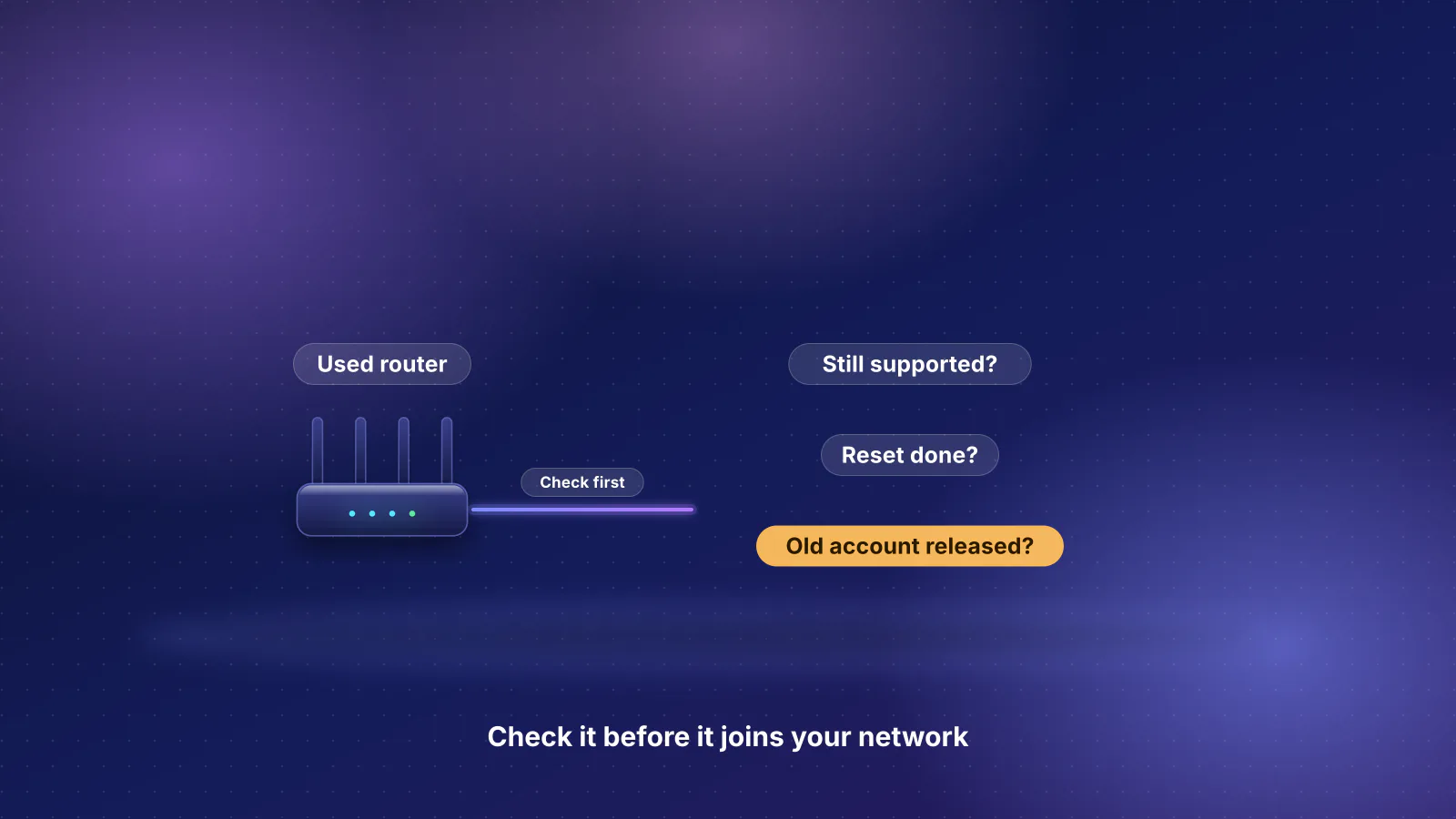
For a router that still gets security updates, the makers' own advice for a suspected compromise is current firmware, a factory reset and a new password, not a new router. A new router is justified when:
- Its maker no longer sends security updates. The FBI says that if a router is at end of life, "replace the device with an updated model if possible", and the NSA says routers "should also be replaced when they reach end-of-life (EOL) for support." Check your exact model on the maker's own list first: how to check your router's support status. Until a replacement arrives, ASUS's advice for its own end-of-life routers is the last available firmware, a strong admin password and remote features turned off.
- The changes come back after a clean firmware install and factory reset (our advice, for the reason in the recovery order).
- It can't offer WPA2 or WPA3, even after an update (FTC).
Don't buy a new router just because the internet feels slow or a pop-up says you've been hacked. When you do replace one, the other checks in when to replace your router decide what the new one needs. If the compromised box is your provider's gateway, ask the provider for a replacement before buying your own.
Reporting it, and when to get professional help
The FBI's 2025 PSA asks people to file a complaint with the Internet Crime Complaint Center at ic3.gov. Tell your provider too if the router is theirs.
Get help when the router sits in the middle of something you can't afford to have wrong: a home office or small business where card terminals, cameras and staff devices share the network, several routers and switches nobody fully understands, or a compromise that keeps coming back. The FBI's DNSChanger guidance itself says "Individuals who believe their computer may be infected should consult a computer professional." RouterHaus can connect you with a licensed contractor when the job needs hands on site; ask for a network plan.
Frequently asked questions
How can I tell if my router has been hacked?
Check its settings rather than how the internet feels. Look at the router's DNS servers, its admin accounts and remote access, its port forwards and UPnP list, its firmware version against the maker's latest, and its log if it has one. A setting nobody in the home made is the clearest sign; the FBI also lists overheating and connection problems, which often have ordinary causes.
Does restarting the router remove a hack?
Not reliably. The FBI recommended rebooting routers in 2018 to temporarily disrupt VPNFilter, and the NSA notes some router implants don't survive a reboot, but the FBI's 2026 report says addressing known vulnerabilities is what prevents re-infection. Update the firmware, factory reset and set a new admin password, as ASUS and TP-Link advise for a suspected compromise.
Will a factory reset fix a hacked router?
It clears settings an attacker changed; ASUS recommends one 'to clear any unauthorized or abnormal settings', noting that a firmware update alone may not completely address the issue. Pair it with the maker's latest firmware so the original hole is closed, and set a new, long admin password straight away. If the router no longer gets security updates, or the changes come back, replace it.
Can someone hack my router from outside my home?
Yes. The warnings cited here describe attacks through remote management, open ports, old firmware and default passwords. The FBI's 2025 warning describes malware that needs no password, found on end-of-life routers with remote administration turned on. Turning remote management off, keeping firmware current and using a strong admin password close the routes those warnings describe.
My internet provider says a device on my network is infected. Is it real?
It may be: providers such as Cox send notices when they see signs of an infected device. Verify it with a phone number or website you know is real, such as the number on your bill, not a number or link in the message, as the FTC advises. Then check the router's settings and run security software on your computers.
Sources
Read on November 27, 2026.
- FBI and IC3: Cyber criminal proxy services exploiting end of life routers (PSA I-050725-PSA, May 7, 2025)
- FBI FLASH: AVrecon malware-infected routers exploited as residential proxies by SocksEscort (March 12, 2026, PDF)
- FBI and IC3: Foreign cyber actors target home and office routers and networked devices worldwide (PSA I-052518-PSA, May 25, 2018)
- FBI: DNSChanger malware (PDF)
- NSA: Best practices for securing your home network (Cybersecurity Information Sheet, February 2023, PDF)
- CISA Project Upskill, Module 5: Securing your home Wi-Fi
- FTC Consumer Advice: How to secure your home Wi-Fi network
- FTC Consumer Advice: Malware: how to protect against, detect, and remove it
- ASUS: Official statement on recent reports regarding router security (June 4, 2025)
- NETGEAR: Security advisory for VPNFilter malware on some NETGEAR devices (last updated July 7, 2025)
- TP-Link Omada support: GhostDNS malware security (December 19, 2024)
- eero: What is eero Multi-Admin?
- Google Nest Wifi Help: Port forwarding or port opening
- Cox: Sample malware and virus email notification (PDF)