The short version
- Check Rockstar's service status first. Rockstar's troubleshooting pages start there, and add that if GTA Online shows as up, "the problem may be related to some connection types conflicting with other players, or other problems with your network setup."
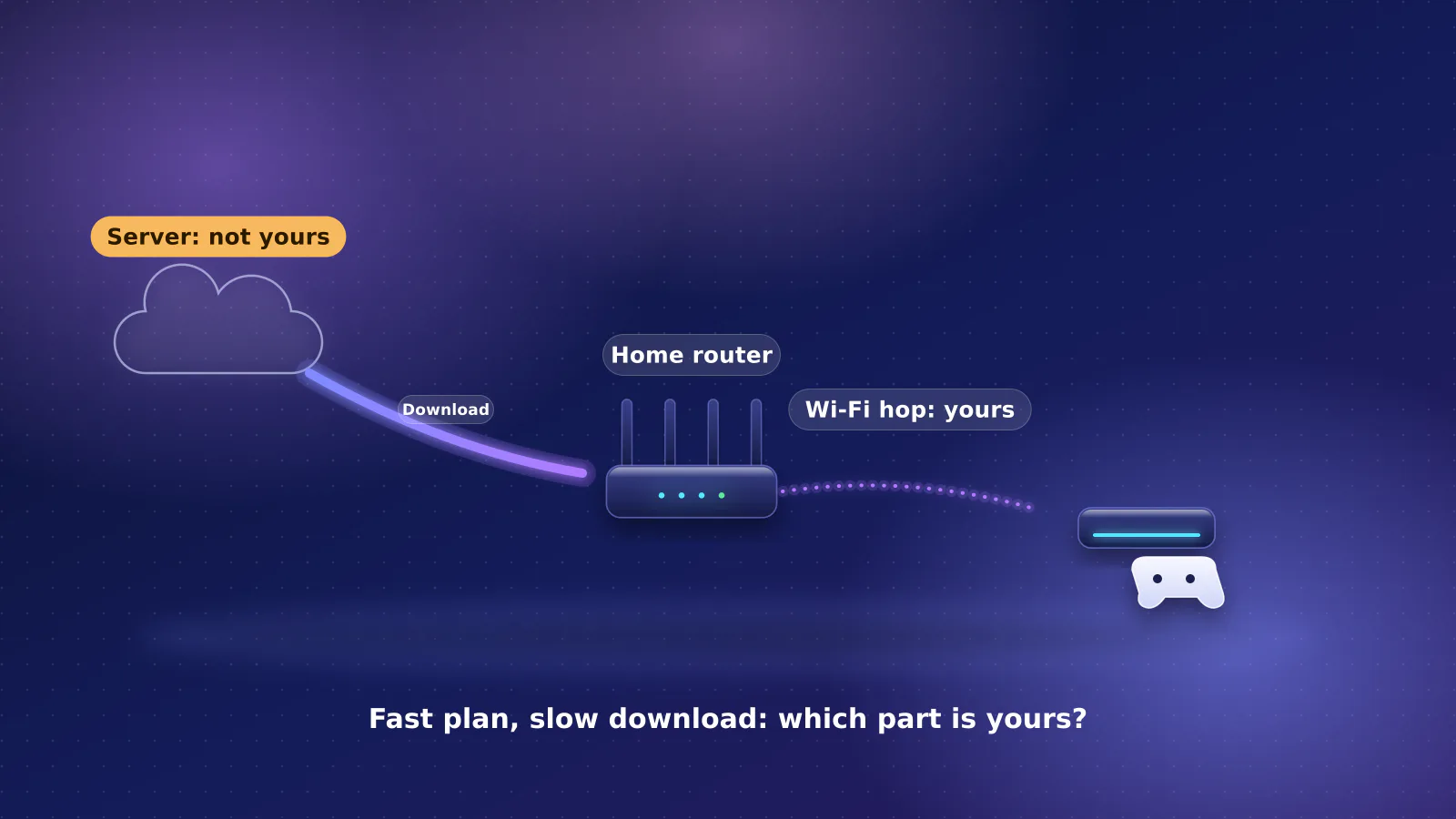
- Some of it isn't in your home. Rockstar's wording points at other players' connections as well as yours. Rockstar's support pages don't describe how GTA Online sessions are hosted, so this article doesn't say; it sorts what you can test and change from what you can't.
- The basics are low. Rockstar lists 7.5 Mbps download and 1 Mbps upload (0.5 Mbps minimum). Microsoft's Xbox page asks for a ping under 150 milliseconds for online gaming. If your plan already clears those speeds, a faster plan is unlikely to be the fix; the tests below look at delay and loss instead.
- The home causes you can fix: a weak or crowded Wi-Fi link (Rockstar suggests trying a wired connection), latency that jumps when someone else uploads or downloads (bufferbloat), and a strict or Type 3 NAT result.
- Test before you change anything. Status pages, then the console's own test, then a loaded-latency test wired and on Wi-Fi in the same spot, then the NAT result. The order is below.
- A gaming VPN or booster changes only the route from your home outward. It can't fix your Wi-Fi, the queue in your own router or another player's connection, and Cloudflare notes that a VPN "can increase latency".
This guide is about lag and dropped sessions while you play. For a strict NAT result and GTA Online's port list, see NAT types explained; for slow game downloads, see why console downloads are slow. GTA VI, released November 19, 2026, is single-player: PlayStation's store FAQ says "Grand Theft Auto VI is a single-player experience", so everything here is about GTA Online.
What Rockstar says causes it
Rockstar keeps a connection troubleshooting page for each platform. The PS5 page (last updated July 5, 2024), the Xbox Series X|S page (September 18, 2025) and the PC page (May 2, 2024) cover saving failures, lost and timed-out sessions and unavailable services. The PC and Xbox pages list the messages "Connection to the session lost due to an unknown network error", "Timed out locating session" and "Rockstar Games Services are unavailable", and the Xbox page adds "Failed to find a compatible GTA Online session".
All three pages send you first to Rockstar's service status, to check for outages or scheduled maintenance. Then comes the line that matters most for lag: when GTA Online shows as up, the cause "may be related to some connection types conflicting with other players". The Xbox page puts it as "A more open NAT Type will have fewer conflicts and connectivity issues with other players."
That is as far as Rockstar's own pages go on cause. Rockstar's troubleshooting pages don't say who hosts a GTA Online session or whether sessions are peer-to-peer, so this guide doesn't state either. What Rockstar's wording does tell you is practical: a session problem can come from your connection, from another player's, or from how the two meet, and only the first is yours to change.
"Rubber-banding" is players' word for being snapped back to where you were a moment ago, or seeing other players and cars jump. Rockstar's pages don't use the term, so treat it as a description of what you see rather than a diagnosis. The tests below look at the network conditions behind most lag: delay (ping), how much that delay swings (jitter) and packets that never arrive (packet loss).
Which causes are yours to fix
| Cause | Whose it is | How you'd know |
|---|---|---|
| Outage or maintenance | Rockstar, or PlayStation Network or Xbox network | The status pages show it; nothing at home will change it |
| Another player's connection | Theirs | Lag follows certain players or lobbies, and your own tests are clean |
| Weak or crowded Wi-Fi at the console | Yours | Worse on Wi-Fi than on a cable in the same spot |
| Bufferbloat (latency jumps when the line is busy) | Yours: a router setting | Ping is steady when idle and jumps during a download or upload |
| Strict, Moderate or Type 3 NAT | Yours, or your provider's if it uses a shared address (CGNAT) | The console's NAT test, and trouble joining friends or sessions |
| Your provider's line or network | Your provider | Wired, idle and still bad |
| On PC: anti-cheat or other software | Yours | A BattlEye kick message rather than a network error (below) |
A test-first order
Each step rules a suspect in or out before you change a setting. Note the time and what else in the house was busy each time it goes wrong, so you can test under the same conditions.
- Check the status pages. Rockstar's service status lists GTA Online for PS5, PS4, Xbox Series X|S, Xbox One and PC. Check your platform's network too: PlayStation's service status page and Xbox status. If any shows a problem, wait it out.
- Run the console's own test. On Xbox, Microsoft's steps are Profile & system, Settings, General, Network settings, then Test network speed & statistics; write down download, upload and ping. Microsoft's minimums for online gaming are 3 Mbps down, 0.5 Mbps up and a ping under 150 milliseconds, and on packet loss it notes "0% packet loss is best". On PS5, Rockstar points to Settings, Network, Connection Status, Test Internet Connection, which also shows your NAT type.
- Test latency under load, from the console's spot. A test that measures delay while it downloads and uploads shows bufferbloat. Cloudflare's speed test records "loaded latency": the round-trip time "while your connection is busy". Run it on a phone or laptop next to the console, then again while someone streams or uploads.
- Repeat on a cable. Plug the laptop, or the console, into the router and run the same tests. Rockstar's PC page says that if you're on Wi-Fi and still having issues, "try a wired connection", and its PS5 page suggests trying a wired Ethernet connection.
- Note the NAT result. Xbox gives Open, Moderate or Strict; PS5 gives Type 1, 2 or 3. Rockstar's PS5 page says Type 3 can play only with open NAT types.
- Test at a quiet hour and in the evening. Wired results that are fine in the morning and bad at night, with nothing else running at home, suggest the cause is outside your home.
- Console Wi-Fi or a cable: yours to change
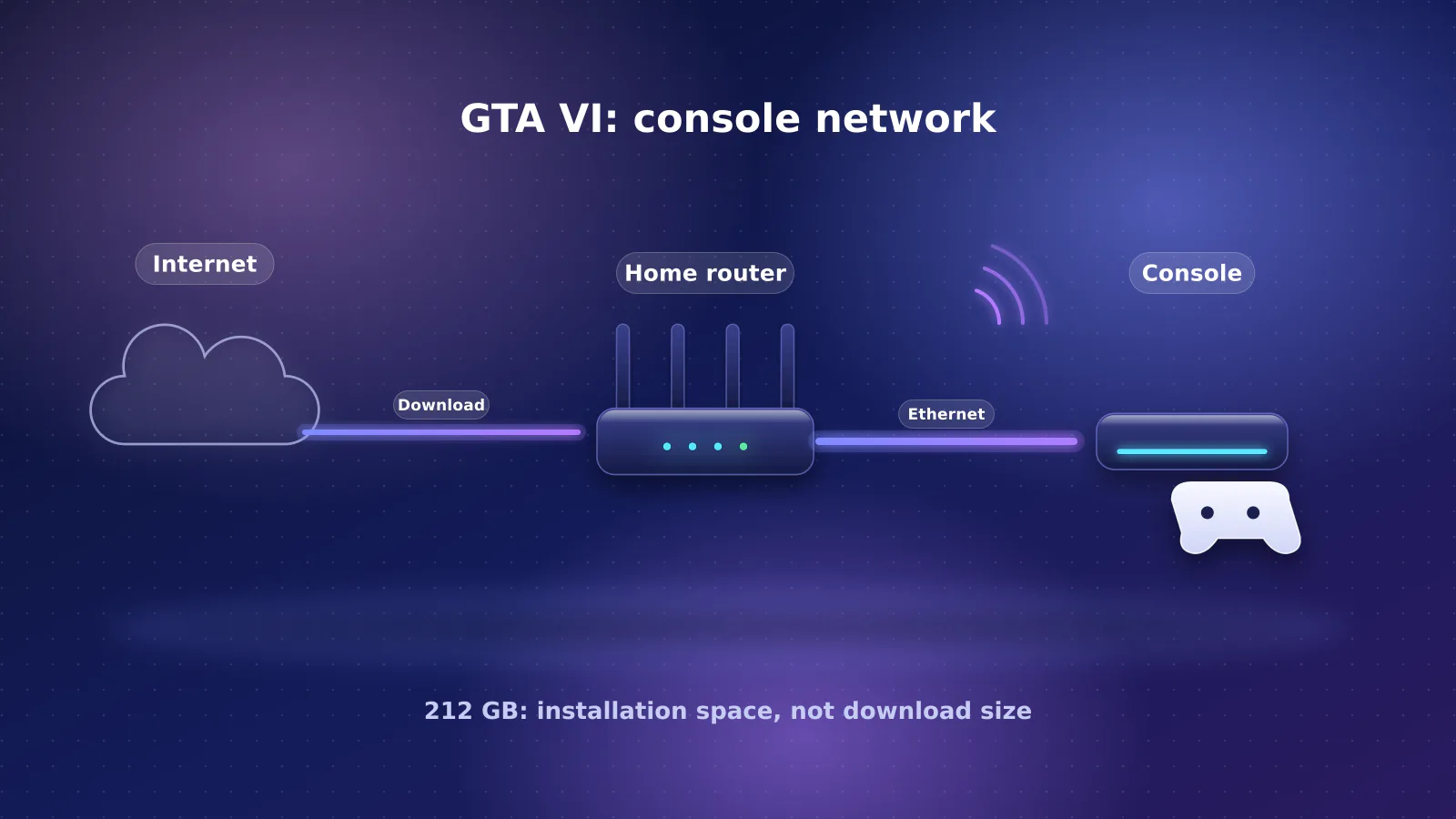
- Your router Its upload and download queue, NAT and port rules: yours to change
- Modem and provider line Your provider's to fix, once you've shown it's the line
- Internet route Outside your home, VPN or not
- Rockstar services and other players Their status and their connections: not yours to change
Want the latency patterns read for you? The Network Health check runs a speed test that records idle latency, jitter and latency while downloading and uploading. Run it once on a cable and once on Wi-Fi in the console's spot.
What each result means
| What you see | What it points to | Go to |
|---|---|---|
| A status page shows an outage or maintenance | Not your network | Wait; recheck the status page |
| Worse on Wi-Fi, fine on a cable in the same spot | The Wi-Fi link to the console | Wi-Fi or Ethernet |
| Steady when idle, ping jumps during a download or upload | Bufferbloat at your router or modem | Bufferbloat |
| Strict, Moderate or Type 3; can't join friends | NAT on your router, a second router, or your provider | NAT |
| Packet loss on the console's test, wired | The cable or port, or the line | Cable, port and line |
| Wired, idle and still bad, worse in the evening | Likely your provider's network | When to get help |
| Every test clean, lag in some sessions only | Other players or the session | Nothing at home will change it; try a new session |
The fixes for the parts you control
Wi-Fi or Ethernet
If the cable test was clean and Wi-Fi wasn't, the Wi-Fi link is the cause. A cable to the console is the most direct fix; Ethernet vs Wi-Fi for gaming covers why Wi-Fi adds jitter a cable doesn't and the options when you can't run one.
If the console stays on Wi-Fi, Microsoft's Xbox page lists what to look at; the same checks are worth making for any console on Wi-Fi:
- Active interference: devices "broadcasting a wireless signal", including "wireless headsets, baby monitors, other wireless networks". Microsoft says third-party wireless headsets "broadcast on the same frequency as wireless routers"; unplug the base station and test again.
- Passive interference: materials such as "concrete, glass, lead and copper piping", mirrors, tile and plaster weaken the signal.
- Distance and line of sight: Microsoft says the ideal distance for an Xbox "is usually between 5 and 50 feet", and that moving devices "outside of entertainment cabinets or desks can often help."
For which console radios support which Wi-Fi generation, see console Wi-Fi radios compared.
Bufferbloat
If ping was steady when idle and jumped when the line was busy, a queue is filling at the slowest point of your connection. The IETF's RFC 7567 says "One major source of delay is the buildup of queues in network devices", and names gaming among the interactive applications that perform better when delay is low. The fix is smart queue management (SQM) on your router, set just under your real line speed. The bufferbloat and SQM guide has the test, the settings and what SQM can't fix, and finding where jitter comes from separates a queue from a Wi-Fi problem.
NAT
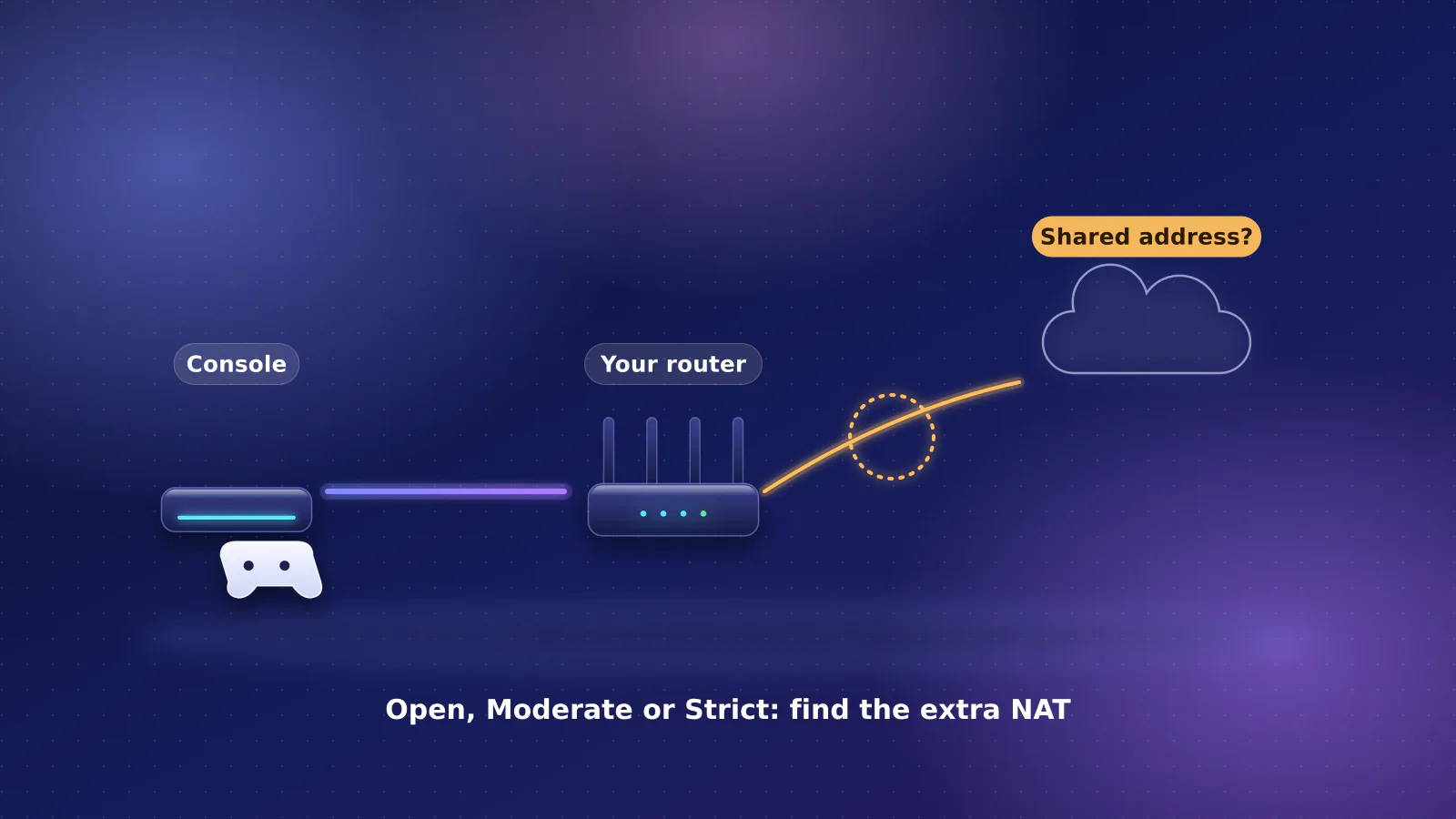
If the console shows Strict, Moderate or Type 3, Rockstar's PS5 and Xbox pages say that with a firewall or router "you may need to access them to change your NAT Type", and list the ports GTA Online uses. Work through finding the cause of a strict NAT before forwarding anything: two routers in a row (double NAT) or your provider's shared address (CGNAT) keep the result strict however your own router is set. Microsoft's Xbox page also warns: "Do not use a combination of port forwarding, UPnP, and perimeter network settings." On PC, Rockstar's strict NAT page describes one method, under a UPnP heading: turning on network discovery in Windows' advanced sharing settings.
Cable, port and line
Packet loss on a wired test points at the cable, the router port or the line. Microsoft's steps: swap in a different network cable, then move the console's cable to a router port you know works, and test after each change. Then restart the network: Rockstar says to leave the router unplugged "for about 10 minutes"; Microsoft's sequence is five minutes, then the modem first, waiting for its lights to settle, then the router.
Rockstar's other steps
- DNS. Rockstar's pages suggest Google's 8.8.8.8 and 8.8.4.4. Rockstar's Xbox page says to "write down your existing DNS servers" first, so you can put them back if nothing changes.
- MTU. Rockstar's PS5 page sets MTU Settings to Automatic.
- Console cache. Rockstar's PS5 page includes clearing the cache from the menu that appears when you hold the power button until the second beep; its Xbox page has you power the console off, unplug it for two minutes, and clear alternate MAC addresses under Network settings, Advanced settings.
On PC: kicks from BattlEye
GTA Online on PC uses BattlEye anti-cheat (Rockstar says launching without it "will not allow the game to connect to official GTA Online servers"), and a BattlEye kick is a different problem from a network error. Rockstar's page for the message "You were kicked from the session by BattlEye" (last updated May 27, 2025) lists four causes: software conflicts, "System performance issues when loading into a session", "Network latency" and anti-cheat detection. BattlEye's own FAQ says its "client not responding" kick can happen if "the server's or your connection times out for quite a while or breaks up completely", and suggests updating your modem or router firmware and contacting your provider if it continues. Rockstar's BattlEye troubleshooting page (February 24, 2026) adds non-network steps: keep BattlEye enabled in the launcher, leave launch arguments blank and add BattlEye to your antivirus exclusions. If kicks come with lag spikes, run the tests above; if they don't, start with Rockstar's BattlEye page.
What gaming VPNs and boosters can and can't change
A VPN sends your traffic through its own server before it goes on to the game. Cloudflare's explanation of VPN speed covers both sides: "VPNs can increase latency by introducing extra travel time for requests and responses", each extra hop "introduces more latency", and there's "a tradeoff between VPN encryption strength and latency." It also says that if a provider "throttles communication speeds with a specific service, a VPN could circumvent this throttling", and that "Under specific circumstances, VPNs can increase speeds for certain services."
Whatever a product is called, ask which part of the path it changes:
| Part of the path | Can a VPN or traffic relay change it? |
|---|---|
| Wi-Fi between the console and the router | No. The traffic crosses the same air before it reaches any VPN. |
| The queue in your router and modem (bufferbloat) | No. Your traffic still waits in the same queue on your own line. |
| Your NAT result | None of the sources read for this guide cover it. If you use one, run the console's NAT test with it on and off and compare. |
| The route from your provider onward | Yes, that's what it changes. Cloudflare says that can add latency, or in specific cases help, for example where a provider throttles a service. |
| Another player's connection or a Rockstar outage | No. |
RouterHaus doesn't recommend any gaming VPN or booster. If your own tests are clean on a cable and the lag tracks the time of day, the honest next step is your provider, with your test results in hand.
When new equipment is actually justified
Most GTA Online lag fixes cost nothing: a cable, a setting or a call to your provider. New equipment makes sense only when a test points to it:
- Your router has no SQM and the loaded-latency test shows bufferbloat. That's a lag problem a router replacement can fix; check that the maker documents SQM before you buy.
- The console can't be wired and Wi-Fi is the proven cause. A wired access point near the console, or a powerline or MoCA adapter, can do the job of a cable; the options when you can't run a cable compares them.
- Microsoft's direct-to-modem test fixes it. Microsoft says that if connecting the console straight to the modem works, the router may be "incompatible with the XBOX console because of its firmware, or the router has had a hardware failure", and lists a firmware update and a factory reset before buying a new router.
A "gaming router" label on its own changes none of the causes above.
When to get help
Call your provider when the wired, idle test is bad, especially in the evening, or when the console shows packet loss on a known-good cable. Microsoft's page says that if a direct-to-modem connection doesn't fix it, you may need to ask your provider to replace a defective modem, verify its settings or check your speed, and to "document as much of the problem as you can" first: your speed test results, any error messages and the changes you've made. For a session error that continues when every test is clean, Rockstar Support's site has a Submit a Request form. If the fix is a cable run to the console and the job needs hands on site, RouterHaus can connect you with a licensed contractor; ask for a network plan.
Frequently asked questions
Why does GTA Online lag when my internet is fast?
Rockstar lists 7.5 Mbps download and 1 Mbps upload, so if your plan clears those, a faster plan is unlikely to be the fix. Look instead at delay, delay that swings and lost packets: a weak Wi-Fi link, a router queue that fills when someone uploads, or a problem outside your home. Test loaded latency wired and on Wi-Fi to tell them apart.
Is GTA Online peer-to-peer?
Rockstar's support pages don't say how sessions are hosted. They say that when GTA Online is up, problems may come from connection types conflicting with other players, and that a more open NAT type has fewer conflicts. So another player's connection, as well as yours, can be part of a session problem.
Will a gaming VPN fix GTA Online lag?
It can't fix your Wi-Fi, your router's queue or another player's connection, which are the usual causes. It only changes the route from your home outward. Cloudflare notes that a VPN can add latency, and can help in specific cases such as a provider throttling a service.
Why do I keep getting kicked from GTA Online sessions on PC?
Check whether the message names BattlEye. Rockstar lists software conflicts, system performance, network latency and anti-cheat detection as causes of a BattlEye kick, and BattlEye says a connection that times out or breaks up can trigger its 'client not responding' kick. A network error message instead points to the tests in this guide.
Does GTA VI have the same online problems?
GTA VI launched on November 19, 2026, and PlayStation's store FAQ describes it as a single-player experience. The lag, NAT and session advice in this guide is about GTA Online.
Sources
Read on November 27, 2026.
- Rockstar Games Support: Grand Theft Auto Online connection troubleshooting for PlayStation 5 (last updated July 5, 2024)
- Rockstar Games Support: Grand Theft Auto Online connection troubleshooting for Xbox Series X|S (last updated September 18, 2025)
- Rockstar Games Support: Grand Theft Auto Online PC connection troubleshooting (last updated May 2, 2024)
- Rockstar Games Support: How to resolve strict NAT type errors in GTA Online on PC (last updated January 23, 2026)
- Rockstar Games Support: Kicked from session by BattlEye alert in Grand Theft Auto V (last updated May 27, 2025)
- Rockstar Games Support: BattlEye troubleshooting for Grand Theft Auto V (last updated February 24, 2026)
- Rockstar Games Support: Service status
- BattlEye: Support FAQ
- Xbox Support: Troubleshoot your network connection speed and Xbox status
- PlayStation: Service status
- PlayStation: Grand Theft Auto VI listing and FAQ (single-player, released November 19, 2026)
- Cloudflare Blog: How does Cloudflare's speed test really work? (October 27, 2025)
- Cloudflare Learning: How VPNs affect Internet speed
- IETF RFC 7567: IETF recommendations regarding active queue management (July 2015)