TL;DR: one good router for one compact floor; mesh when area, walls or floors add up
A single, centrally placed router is usually enough for a one-level home that fits inside one access point’s rough coverage area (about 1,800 sq ft with drywall and wood walls, less with plaster or masonry). Once the home is larger than that, spans more than one floor (and is over about 1,200 sq ft), or has block, brick, stucco or plaster walls between you and the router, add a second access point: a mesh node or a wired access point. If you can, connect the nodes with Ethernet.

The coverage rule of thumb we use
RouterHaus uses one cautious estimate everywhere on the site, including the network planner and the router finder. It is a starting point for planning, not a measurement of any product. The full reasoning is on our methodology page.
| Dominant wall type | Rough area per access point |
|---|---|
| Drywall and wood framing | about 1,800 sq ft |
| Plaster (often over metal or wood lath) | about 1,400 sq ft |
| Block, brick, stucco or concrete | about 1,000 sq ft |
- Multi-floor homes over about 1,200 sq ft usually need one access point per floor, even when the total area alone suggests fewer. A small two-level condo or townhouse can often manage with one well-placed router.
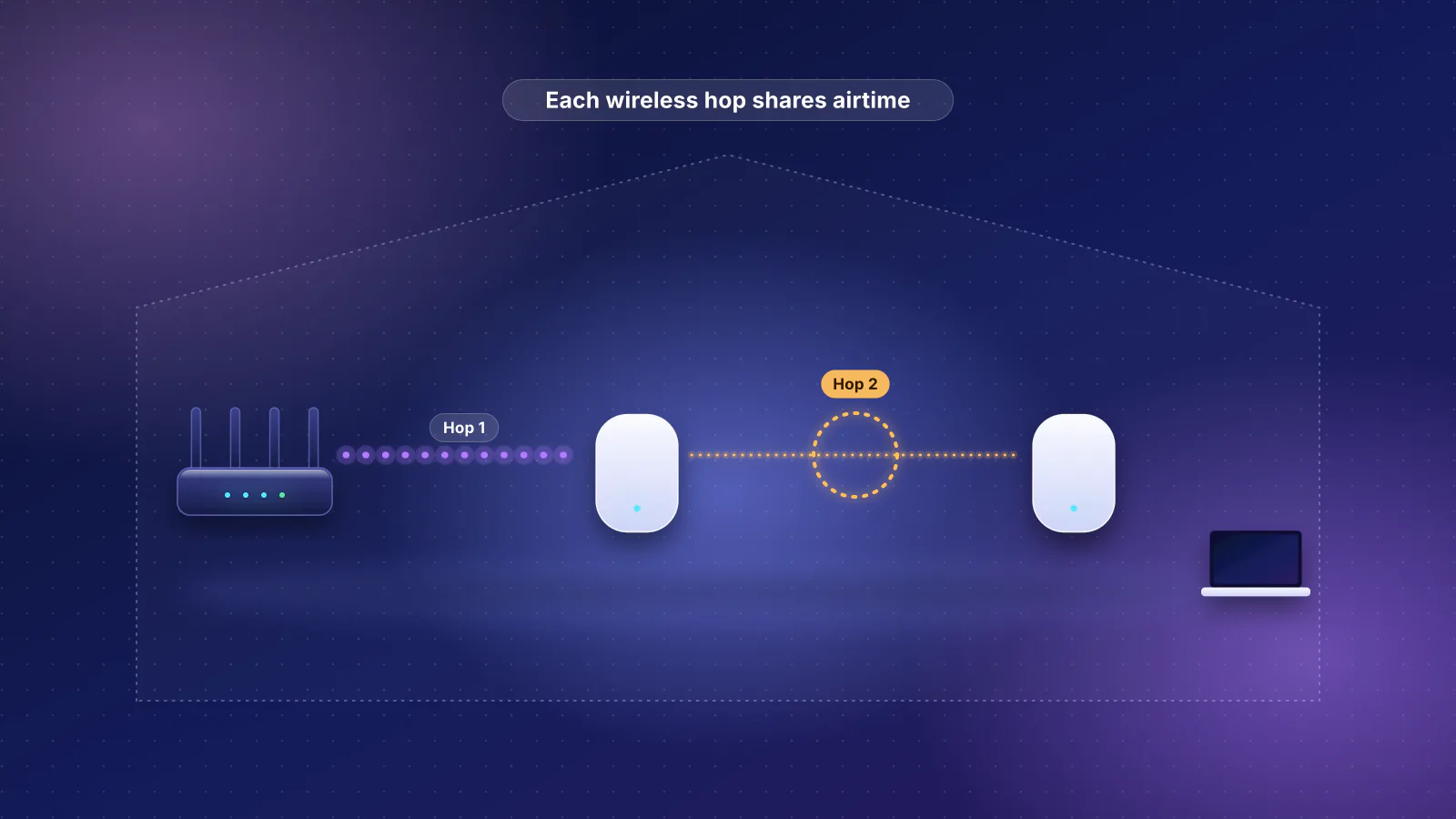
- Ethernet between nodes beats wireless links. A wired connection between access points keeps all of the wireless airtime for your devices.
- Manufacturer coverage claims (for example “up to 3,000 sq ft”) rarely say what walls or layout they assume. Treat them as upper limits.
Example: a 2,600 sq ft single-story home with drywall walls works out to two access points. A 2,200 sq ft two-story home also needs two, one per floor. A 1,600 sq ft home with interior block walls may need two as well.
Bands, walls and why range varies
- 2.4 GHz reaches farthest and passes through walls best, but has little spectrum (only channels 1, 6 and 11 don’t overlap in North America) and is crowded. It still matters for smart-home gear.
- 5 GHz is the everyday workhorse: much more capacity, somewhat less reach, because its signals don’t penetrate walls as well as 2.4 GHz (Apple).
- 6 GHz (Wi-Fi 6E and Wi-Fi 7) has the most clean spectrum and is where Wi-Fi 7’s 320 MHz channels are available (Wi-Fi Alliance). At the same power it loses only a little more signal than 5 GHz (Cisco Wi-Fi 6E white paper), but Cisco expects most 6 GHz access points to run under the FCC’s low-power indoor rules, which allow less power than some 5 GHz channels (47 CFR 15.407). In a home it is usually strongest in the same room or the next one.
Building materials matter more than most spec sheets admit; NETGEAR notes that Wi-Fi signals are diminished when they travel through brick walls or other solid objects. Masonry, plaster over metal lath, tiled bathrooms, mirrors, metal ductwork and appliances all weaken or block the signal. One expensive router at the far end of a house usually does worse than two modest access points placed well. For a step-by-step diagnosis of weak rooms, see how to find and fix Wi-Fi dead zones.
Five-minute home audit
- Area and floors: Divide your living area by the figure for your wall type above, then, if the home has more than one floor and is over about 1,200 sq ft, make sure you have at least one access point per floor.
- Construction: Note block, brick, stucco, plaster, tiled bathrooms and metal ducts between the router spot and the rooms you use.
- Where you use Wi-Fi: Office, TV room, bedrooms, patio. Can one central spot reach them through one or two ordinary walls?
- Where the internet comes in: The router has to connect to the modem or fiber terminal. If that is in a corner or garage, a single router may never sit centrally.
- Wiring options: Is there Ethernet in the walls, or coax you could use with MoCA adapters, between likely node spots?
Device count on its own is rarely the reason to buy mesh. Dozens of low-traffic gadgets are fine on one good router; see how bandwidth is shared in a busy home. Extra access points help when those devices are spread over a large area.
Decision table: single vs mesh
| Home | Usual pick | Why |
|---|---|---|
| Apartment or condo, one level, drywall | One router | Fits within one access point’s rough area; a central spot reaches every room. |
| Single-story home larger than about 1,800 sq ft, or a long or L-shaped layout | Two access points (mesh or wired AP) | The far rooms need a nearer radio. |
| Two or three stories, over about 1,200 sq ft | One access point per floor | Floors and ceilings block more than walls; one unit per level is the reliable starting point. |
| Block, brick, stucco or plaster walls | More access points, wired if possible | Use the 1,400 or 1,000 sq ft figure; wireless links between nodes suffer through masonry too. |
| Detached office, casita or garage | Wired access point in that building | Exterior walls are often the thickest in the house. Run Ethernet (outdoor-rated) or plan a dedicated link. |
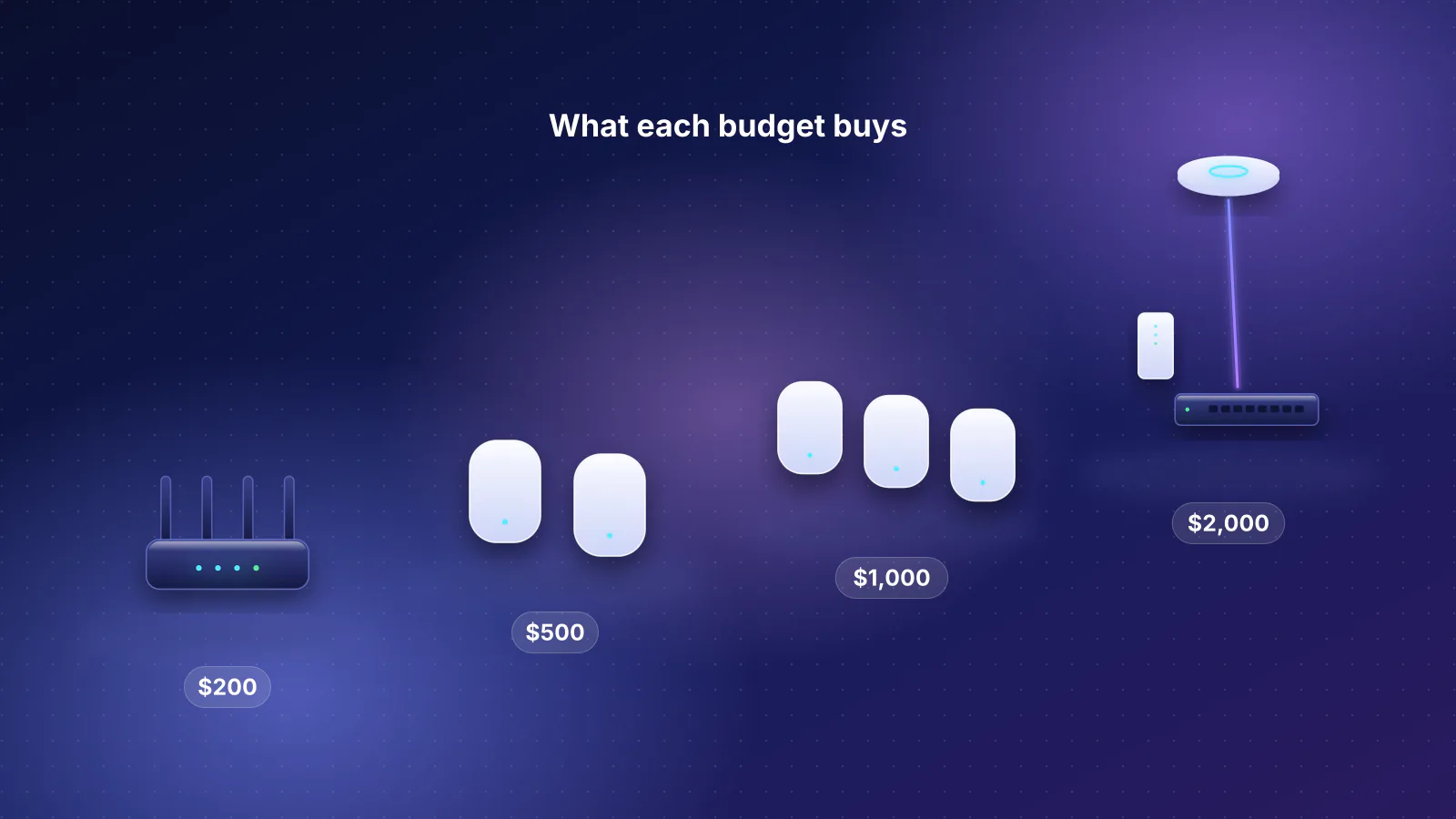
Ready to compare hardware? The router finder filtered to mesh systems applies the same rule of thumb to your answers, and our guide to home network setups by budget shows what each price level buys.
Backhaul matters more than the box
The backhaul is the link between the main router and each additional node. It decides how much of your internet speed reaches the far rooms.
- Ethernet (best): Every current mesh system in our catalog has at least one Ethernet port on its main unit, but not every node does: the eero 6 3-pack's two extenders and the Linksys Velop Micro 6's LN1200 nodes have none, so they can't use wired backhaul. Check that the maker supports wired backhaul on the exact nodes you buy. It is fast, consistent and leaves all of the wireless airtime for your devices.
- MoCA over coax (good alternative): If you have TV coax in the walls, MoCA adapters can carry the backhaul instead of new Ethernet runs (MoCA Alliance).
- Wireless with a dedicated band (acceptable): Tri-band and quad-band systems can reserve one radio for node-to-node traffic (NETGEAR). Place nodes with as few walls between them as possible.
- Wireless on a shared band (weakest): Dual-band systems carry backhaul and client traffic on the same radios, so far rooms get less.
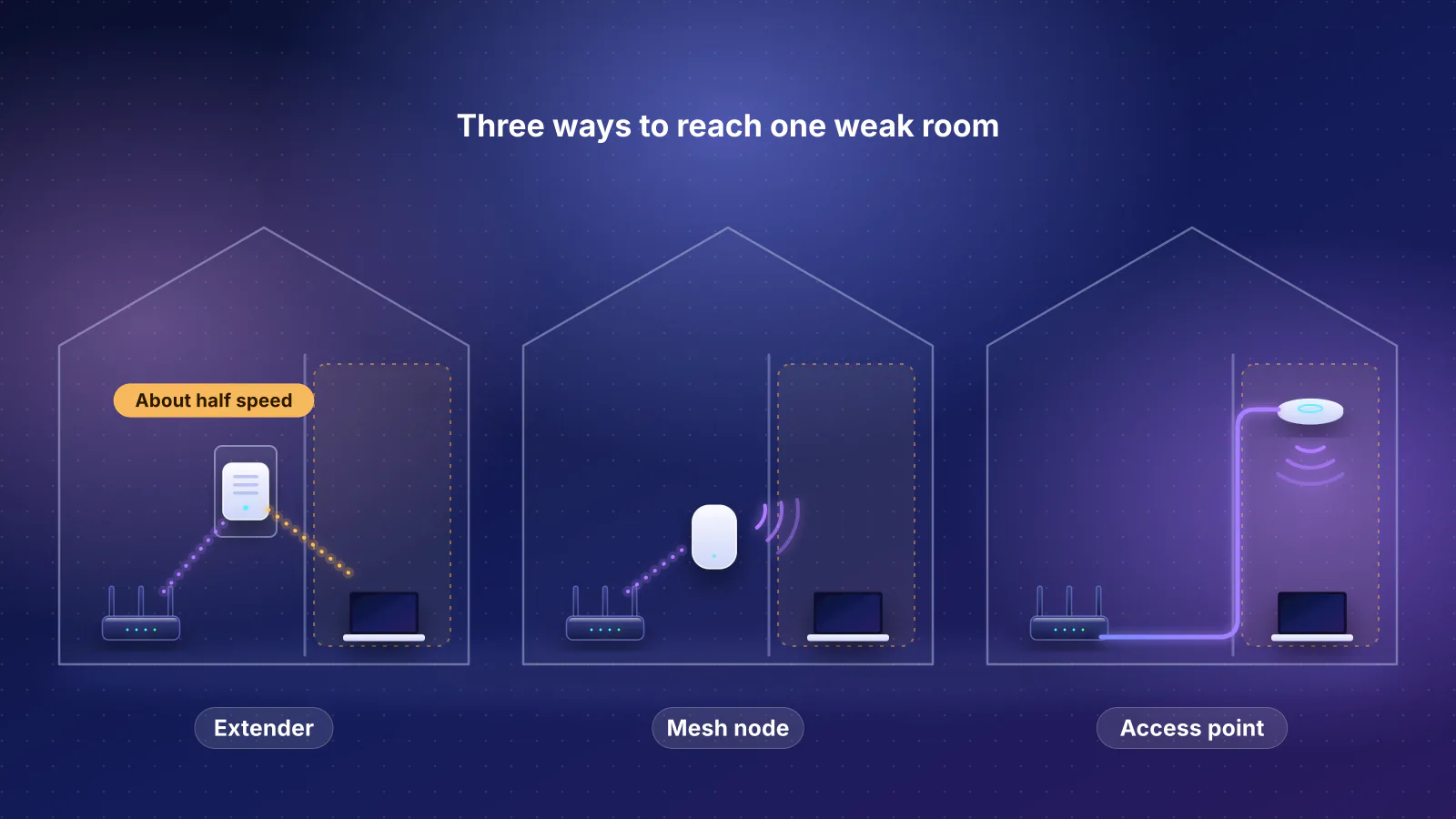
- Plug-in range extenders: An extender receives and retransmits traffic, so every packet crosses the air twice; TP-Link says that because of how extenders work, “normally the wireless speed will get halved” (TP-Link). A mesh system from one vendor, or a wired access point, is the better fix.
Also check the ports on the main unit. If your internet plan is faster than 1 Gbps, the router needs a multi-gig (2.5 Gbps or faster) WAN port, or the plan is capped below a gigabit. The router buying guide covers ports in detail.
Already have mesh and a far room is still slow? The node’s link back to the router is the first thing to check; our guide to why mesh Wi-Fi doesn’t fix every slow room explains how.
Placement that works
- Main router: As central as the internet connection allows, at shelf height or higher, in the open. Not inside a cabinet, behind a TV or on the floor.
- Nodes: Put a node about halfway between the main router (or the previous node) and the weak area, not inside the weak area itself (NETGEAR placement guidance). Most mesh apps show a link-quality indicator; use it.
- Stairs and landings: In multi-story homes, an open spot such as a landing, with as few walls and floors as possible between nodes, gives the link a clearer path. NETGEAR recommends open areas with line of sight to other nodes and notes that higher placement can help reach upstairs.
- Heat: Keep units in conditioned living space, not in hot attics or garages.
- Smart-home gear: Leave 2.4 GHz enabled; many plugs, sensors and cameras only use that band.
Common mistakes
- Two routers in a row (double NAT): If your ISP gateway also routes, put it in bridge mode, use IP passthrough where bridge mode isn’t offered, or set your mesh to access-point mode. Do one, not both: if neither device routes, nothing hands out addresses. Bridge mode and IP passthrough aren’t the same thing: AT&T describes passthrough as the gateway sharing its internet address “with a single device on the LAN,” and calls it an alternative to bridged mode (AT&T). Apple’s router guidance says to “enable NAT only on your router” (Apple).
- Hiding hardware: Media cabinets and closets cost coverage. Give radios open air.
- Mixing brands: Mesh nodes generally join only a system from the same maker and product family. Stay within one system.
- Skipping updates: Turn on automatic firmware updates if the system offers them (CISA).
- A separate name per band: Apple recommends one network name across all bands, and its devices flag Wi-Fi 6E networks that use different names per band as having limited compatibility (Apple).
Setup checklist (single router or mesh)
- One name, strong security: One network name for all bands; WPA3 Personal, or WPA2/WPA3 transitional if older devices need it (Apple).
- Leave 6 GHz on if your system has it, so newer phones and laptops can use it nearby.
- Channels and widths: Auto is fine for most homes. Apple recommends 20 MHz on 2.4 GHz and auto widths on 5 and 6 GHz.
- Backhaul: Wire what you can; otherwise follow the app’s placement indicator.
- Check each room: Run a speed and latency test where you actually use Wi-Fi. If one room is weak, move the nearest node a few feet and test again.
Not sure how many access points your layout needs, or dealing with block walls and a casita? Our consultations start with a remote floor-plan review.
Frequently asked questions
Is one high-end router better than a mesh system?
In a compact, single-level home, yes: one good router placed centrally is simpler and avoids extra hops. Once the home is larger than one access point can cover, spans several floors or has masonry walls, two well-placed modest units usually beat one expensive router.
How many mesh nodes do I need?
As a rule of thumb, plan about one access point per 1,800 sq ft with drywall walls, 1,400 with plaster and 1,000 with block, brick, stucco or concrete, and at least one per floor in multi-floor homes over about 1,200 sq ft. Start there and add a node only if a room you use stays weak.
Do I need Wi-Fi 7 for mesh?
No. A Wi-Fi 6 or 6E mesh with wired backhaul can perform very well. Wi-Fi 7 helps most when your phones and laptops support it and you use the 6 GHz band near a node.
What if I cannot run Ethernet between nodes?
Use coax with MoCA adapters if you have it. Otherwise choose a tri-band or quad-band system that can dedicate a radio to backhaul, and place nodes with as few walls between them as possible.
Are range extenders the same as mesh?
Not quite. Many plug-in extenders repeat traffic on the same channel and use a separate network name, so speed drops and devices roam poorly. A mesh system from one vendor coordinates its nodes and usually roams better.
Should I keep my ISP gateway’s Wi-Fi on with a mesh system?
Usually not. Turn off the gateway’s Wi-Fi and either put the gateway in bridge mode (or IP passthrough where that’s what it offers) or run the mesh in access-point mode, so only one device routes and only one set of networks broadcasts.
Sources
Read on October 21, 2026.
- Wi-Fi Alliance: Wi-Fi (MAC/PHY), Wi-Fi 7 features (320 MHz channels in 6 GHz)
- Cisco: Wi-Fi 6E white paper (5 vs 6 GHz path loss, low-power indoor operation)
- eCFR: 47 CFR 15.407, U-NII general technical requirements (5 and 6 GHz power limits)
- Apple: Recommended settings for Wi-Fi routers and access points (one name, WPA3, channel widths, NAT on one device)
- Apple Platform Deployment: Optimize your Wi-Fi networks (2.4 and 5 GHz reach, 2.4 GHz channels)
- NETGEAR: How many mesh Wi-Fi satellites do you need? (halfway placement, open areas, dedicated backhaul, brick walls)
- TP-Link: Application scenarios for dual-band range extenders (extender speed halved)
- MoCA Alliance: MoCA for Wi-Fi backhaul
- CISA: Project Upskill module 5, securing your home Wi-Fi (firmware updates)
- AT&T Business: Configuring IP Passthrough and DMZplus
- RouterHaus methodology (coverage rule of thumb)