
The short version
- A gaming router is a normal router with extra software. The gaming features documented by ASUS and TP-Link are device and app priority (gaming ports, Game Boost, game QoS), port-forwarding presets (Open NAT, game port forwarding), Wi-Fi networks set aside for gaming, and paid route-acceleration services.
- None of the 13 gaming-branded routers in the RouterHaus catalog documents SQM, the feature that directly targets lag when someone else uploads or downloads. Several non-gaming routers at the same prices do.
- Priority only works where the queue is. A gaming port or game QoS can only reorder traffic if your router, not your modem, is the bottleneck, which is why these features ask for your internet speed.
- What matters more: a cable to the console or PC, control of latency under load, a working NAT setup, and strong Wi-Fi where you play. A 2.5G port only matters on plans faster than 1 Gbps.
- No home router fixes the distance to the game server or congestion inside your provider's network.
What makes a router a "gaming router"
There's no standard behind the label. In the RouterHaus catalog, the gaming-branded lines are ASUS ROG Rapture, ROG Strix and TUF Gaming, and TP-Link Archer Gaming (GE models). The gaming part is a bundle of firmware features, styling and, on some models, a port labeled for gaming. On paper the hardware can be close to a non-gaming sibling: the catalog lists the TUF Gaming BE3600 with the same Wi-Fi class and port layout as ASUS's RT-BE58U in a different chassis, and TP-Link's Archer GE400 with the same published radios and ports as the Archer BE400, plus game acceleration, a game panel and RGB lighting. ASUS groups its features as "Triple-level Game Acceleration": device and port priority, game packet priority, and game server acceleration. TP-Link's Archer GE800 manual groups its own under a Game Center menu.


NETGEAR's gaming line, Nighthawk Pro Gaming (XR models), isn't in the catalog. NETGEAR documents its QoS as allocating bandwidth to devices and prioritizing traffic, and says DumaOS 3.0 adds a Congestion Control feature against "queueing delays". The current Nighthawk RS routers in the catalog carry no gaming branding, and the catalog records documented QoS settings only for the RS700S (Dynamic QoS).
Each gaming feature, mapped to what it does
From each maker's own support pages and manuals, checked October 21, 2026.
| Feature | What the maker documents | What it is | When it can help |
|---|---|---|---|
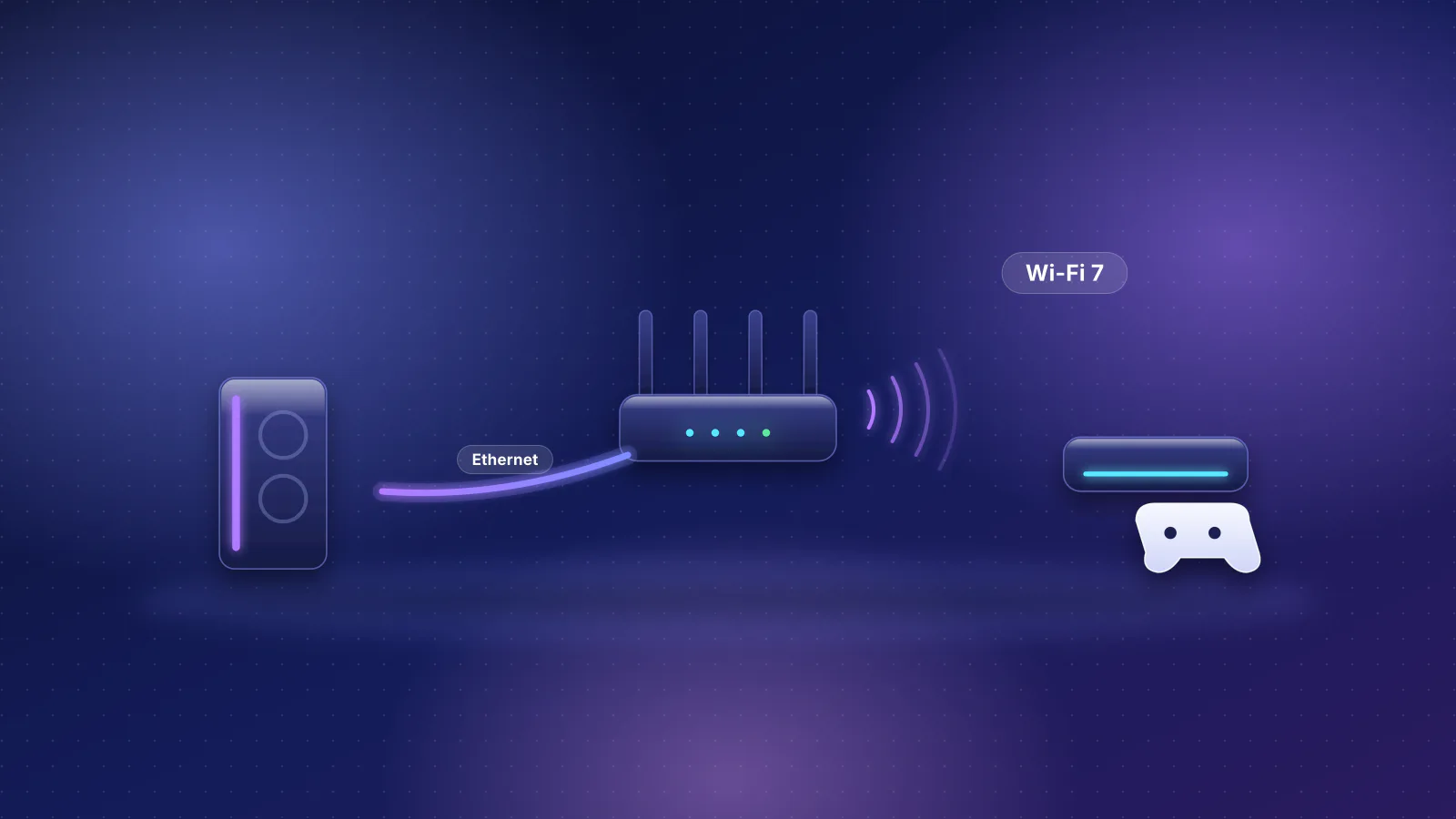
| Gaming port (ASUS ROG and TUF; TP-Link Archer Gaming) | ASUS: plug in your gaming device "and your router will make this device the first priority"; on the ROG Strix, it works "without the need for any configuration". TP-Link: it "prioritizes the game device traffic". | Device priority assigned by port | Only for a wired device, and only when the router's own queue is the one that fills |
| Game Boost, Adaptive QoS, Adaptive QoE Gaming Mode (ASUS) | Game Boost "make[s] game packets a top priority"; Gaming Mode "increases the traffic weight of game packets" | App priority by traffic type | Same condition as above; ASUS warns traditional QoS carries "a risk of speed reduction" |
| Game Acceleration QoS and Gear Acceleration (TP-Link) | QoS "automatically detects and optimizes gaming streams" after you enter "the maximum upload and download bandwidth provided by your ISP"; Gear Acceleration prioritizes a device for a duration you pick | App and device priority with a bandwidth setting | When the bandwidth you enter is at or below what the line really delivers, which may be less than the ISP's maximum |
| Game server acceleration (WTFast GPN, GTNet) | ASUS: WTFast gets "a better route from a router to a game server"; GTNet is a subscription offer with a free trial and a computer app. TP-Link's Game Server Acceleration: needs a WTFast account and "your subscribed GPN service". | A paid third-party routing service between you and the game server | When your provider's route to a particular server is poor; it can't shorten the distance |
| Open NAT (ASUS), Game Port Forwarding (TP-Link) | ASUS: "Easy Game Console Port Forwarding", configurable per gaming Wi-Fi network on its Wi-Fi 7 gaming routers. TP-Link: "built-in rules for popular online games". | Port-forwarding presets | Saves looking up port numbers; any router with port forwarding can do the same by hand |
| Gaming Wi-Fi network or band | ASUS Gaming Network: a separate SSID for gaming devices with its own Open NAT, VPN and MLO settings. TP-Link GE650: a "dedicated 5 GHz gaming band". | A separate Wi-Fi network | When other devices actually stay off it; it doesn't add airtime to the band |
| RGB lighting, game panel, ping monitor | TP-Link's Game Panel shows RGB effects, traffic and router load; its Game Detector "displays the real-time ping of your game servers" | Styling and monitoring | Useful for checking server ping; no effect on it |
Two details worth checking on a spec sheet. First, the gaming port isn't always the fastest port: ASUS describes the TUF Gaming BE3600's LAN4 gaming port as 1G, while the ROG Strix GS-BE12000 has two 2.5 Gbps gaming ports. Second, check what survives access-point mode: TP-Link's manual says QoS, NAT forwarding and game acceleration "are not supported in the Access Point mode", and ASUS says its Gaming Network isn't supported in AP mode. Priority and port forwarding only make sense on the device that routes your internet connection.
Priority isn't SQM
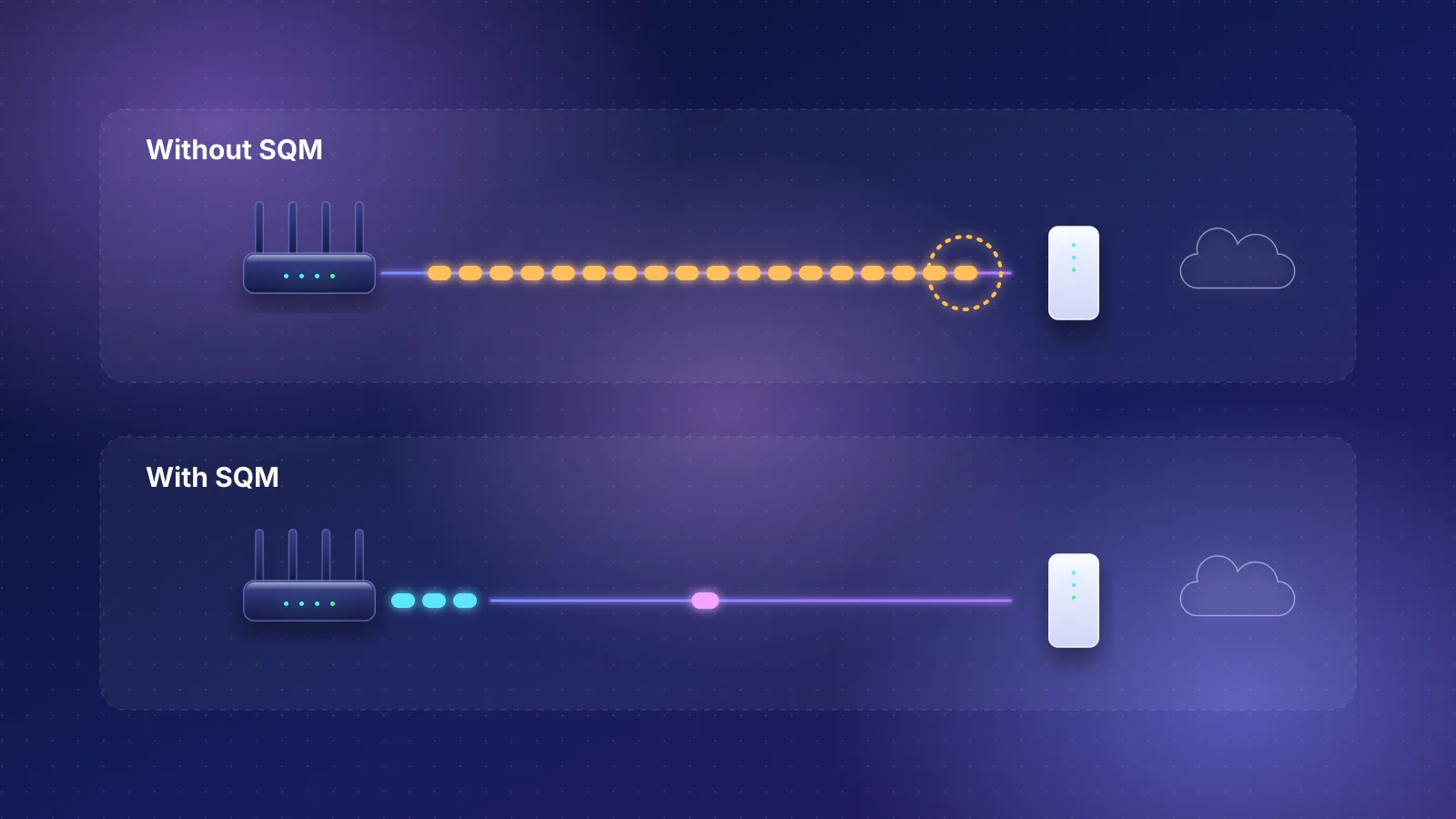
Almost every gaming feature in the table is a form of priority: decide which packets go first. The problem most gamers notice, lag that appears when someone else uploads or downloads, is bufferbloat: a long queue at the slowest link, usually your provider's line. Its direct fix is smart queue management (SQM), which keeps every queue short with algorithms such as fq_codel (RFC 8290) or CAKE. OpenWrt describes the difference: classic QoS "only does prioritization", while SQM combines flow scheduling, active queue management and shaping.
Priority also has to happen where packets actually wait. If your modem's queue is the one filling up, rules in the router behind it have nothing to reorder. That's why TP-Link's game QoS, ASUS's Traditional QoS and NETGEAR's Dynamic QoS all ask for your internet bandwidth: NETGEAR says it's needed "so that Dynamic QoS can perform bandwidth allocation and traffic prioritization". OpenWrt's SQM documentation explains the principle: you "take control of the bottleneck link away from the ISP and move it into the router" by entering speeds "a few percent below the actual speeds". The makers' own instructions don't say that: TP-Link asks for the maximum your ISP provides, and NETGEAR recommends filling the field from its built-in speed test. Enter the advertised speed, or a single high speed-test result, and the bottleneck may stay in the modem.
ASUS's Traditional QoS guide notes that "it is unnecessary to set the download bandwidth limit because the download priority depends on the upload packet priority", and that a download value of 0 means no limit. Follow that and the router doesn't cap downloads, so a download queue that fills on the provider's side isn't moved into the router. A gaming port and priority rules aren't useless, but they're a less direct tool than SQM, and the gaming routers in the catalog don't document SQM at all. Our bufferbloat and SQM guide covers how to test for it and how to set it up.
What actually matters for gaming
In roughly the order to check them, none of which needs a gaming-branded router:
- A cable to the console or PC. Ethernet removes Wi-Fi contention and interference from the path. If a cable can't reach, a mesh unit or access point near the setup with a short cable to the console is the next best thing. See Ethernet vs Wi-Fi for gaming.
- Control of latency under load. Run a loaded-latency test (Waveform's bufferbloat test or Speedtest's download and upload ping) from a wired computer. If ping jumps while the line is busy, you want documented SQM, or at least a QoS feature whose bandwidth you can set below your real speed.
- A working NAT setup. Strict or moderate NAT types break party chat, hosting and some matchmaking. Microsoft's order for fixing it on Xbox: turn on UPnP, update router firmware, check for multiple consoles, then forward ports, then use the router's DMZ (perimeter network) as a later step. Two routers in a row cause the same symptoms; see double NAT and NAT types. Port forwarding and UPnP are ordinary router settings (TP-Link's GE800 manual notes UPnP is on by default); the gaming presets pre-fill them.
- Wi-Fi coverage where you play. If you must play on Wi-Fi, signal strength and how crowded the band is at your desk matter more than any gaming mode. A router or mesh unit in the room, and 6 GHz for devices that support it, are the fixes. See the 10-minute low-lag fix and why range matters.
- A 2.5G port only if your plan needs it. A 1 Gbps internet port can't carry a plan faster than 1 Gbps, so multi-gig plans need multi-gig ports end to end. Faster ports shorten game downloads and updates; they don't make the round trip to a game server shorter.
What no home router can fix
- Distance to the server. The ITU's planning value for optical fiber is 5 microseconds per kilometer one way, so each 1,000 km of cable path adds about 10 ms to the round trip before any equipment is counted (arithmetic). Picking a nearer server region in the game helps more than any router setting.
- Your provider's routing and congestion. TP-Link describes its Game Server Acceleration as connecting you to the game server "via the shortest route", which only helps when your provider's default route isn't already a good one. Such services can only choose among available paths, and both ASUS's GTNet and the WTFast-based GPN on TP-Link routers are subscriptions. The IETF's L4S architecture (RFC 9330) lists "network interconnections" among places where queues can build outside your home.
- The provider's NAT. If your provider shares one public address among customers (carrier-grade NAT), port forwarding and Open NAT presets on your router can't open ports on the provider's side; the double NAT guide covers which providers this affects.
Gaming routers vs routers with documented SQM
The rule for the first table: every Wi-Fi 7 router in the RouterHaus catalog from a gaming-branded line (ASUS ROG Rapture, ROG Strix, TUF Gaming; TP-Link Archer Gaming) that has a published price. The ROG Strix GS-BE18000 and Archer GE400 are in the catalog but have no published US price, so they're left out. All eight document priority QoS; none documents SQM.
| Product | Internet port | Fastest LAN port | Maker's routing, plan or wired-speed figure | Price |
|---|---|---|---|---|
| ASUS TUF Gaming BE3600 (TUF-BE3600) Router · Wi-Fi 7 |
2.5 Gbps | 1 Gbps | Not published | $179.99 Manufacturer price (not re-confirmed), checked October 20, 2026 |
| ASUS TUF Gaming BE6500 (TUF-BE6500) Router · Wi-Fi 7 |
2.5 Gbps | 2.5 Gbps | Not published | $219.99 Manufacturer price (not re-confirmed), checked October 20, 2026 |
| ASUS TUF Gaming BE9400 (TUF-BE9400) Router · Wi-Fi 7 |
2.5 Gbps | 2.5 Gbps | Not published | $279.99 Manufacturer store price, checked October 20, 2026 |
| TP-Link Archer GE650 Router · Wi-Fi 7 |
5 Gbps | 5 Gbps | Not published | $349.99 Launch price, checked October 20, 2026 |
| ASUS ROG Strix GS-BE12000 Router · Wi-Fi 7 |
2.5 Gbps | 2.5 Gbps | Not published | $399.99 Manufacturer store price, checked October 20, 2026 |
| TP-Link Archer GE800 Router · Wi-Fi 7 |
10 Gbps | 2.5 Gbps | Not published | $599.99 Launch price, checked October 20, 2026 |
| ASUS GT-BE98 Pro Router · Wi-Fi 7 |
10 Gbps | 10 Gbps | Not published | $699.99 Manufacturer store price, checked October 20, 2026 |
| ASUS GT-BE19000AI Router · Wi-Fi 7 |
10 Gbps | 10 Gbps | Not published | $899.99 Manufacturer store price, checked October 20, 2026 |
The rule for the second table: every Wi-Fi 7 home router or mesh system in the catalog whose maker documents SQM, priced within the same range as the first table, excluding outdoor, PoE-powered and cellular units.
| Product | Internet port | Fastest LAN port | Maker's routing, plan or wired-speed figure | Price |
|---|---|---|---|---|
| GL.iNet Flint 3e (GL-BE6500) Router · Wi-Fi 7 |
2.5 Gbps | 2.5 Gbps | Not published | $179.99 Manufacturer price (not re-confirmed), checked October 20, 2026 |
| GL.iNet Flint 3 (GL-BE9300) Router · Wi-Fi 7 |
2.5 Gbps | 2.5 Gbps | Not published | $209.99 Manufacturer store price, checked October 20, 2026 |
| Ubiquiti UniFi Express 7 (UX7) Router · Wi-Fi 7 |
10 Gbps | 2.5 Gbps | Not published | $219.00 Manufacturer store price incl. US store surcharge (list $199.00), checked October 20, 2026 |
| eero Pro 7 (1-pack) Mesh system · Wi-Fi 7 |
5 Gbps | 5 Gbps | 5 Gbps | $299.99 Manufacturer store price, checked October 20, 2026 |
| Ubiquiti UniFi Dream Router 7 (UDR7) Router · Wi-Fi 7 |
10 Gbps | 2.5 Gbps | Not published | $307.00 Manufacturer store price incl. US store surcharge (list $279.00), checked October 20, 2026 |
| Firewalla Orange Router · Wi-Fi 7 |
2.5 Gbps | 2.5 Gbps | Not published | $429.00 Manufacturer store price, checked October 20, 2026 |
| eero Max 7 (1-pack) Mesh system · Wi-Fi 7 |
10 Gbps | 10 Gbps | Not published | $599.99 Manufacturer store price, checked October 20, 2026 |
Read the second table with the SQM caveats in mind. Ubiquiti doesn't recommend its Smart Queues at 300 Mbps or more, GL.iNet says SQM "works best for low-bandwidth or congested networks", and eero's SQM article describes a single switch with no speed setting. On a fast plan, SQM's processor cost can matter more than the router's Wi-Fi rating. The gaming routers have their own strengths, such as AiMesh (ASUS) or EasyMesh (TP-Link) support for adding units later, so compare the ports, Wi-Fi bands and management style you need, not the label.
Which to buy
| Your symptom | Likely cause | Fix | Does a gaming router's gaming software help? |
|---|---|---|---|
| Lag only when someone else uploads or downloads | Bufferbloat | Documented SQM, tuned below your real speed | Partly, if its QoS is set with an accurate bandwidth; SQM is the direct fix |
| Fine wired, laggy on Wi-Fi | Weak or crowded Wi-Fi link | Cable, or an access point or mesh unit near the setup; 6 GHz | Only through its Wi-Fi hardware, which non-gaming routers also offer |
| Strict or moderate NAT, party chat fails | NAT: double NAT, UPnP off, or provider NAT | UPnP, port forwarding, bridge mode or passthrough on the gateway | Presets save typing; they can't fix provider NAT |
| High ping all the time, even wired and idle | Distance or provider routing | Nearer server region; possibly a route service | Only through a paid route service |
| Downloads slower than a multi-gig plan | A 1 Gbps port in the path | 2.5G or faster ports end to end | Only if it has the ports, like any router |
A gaming router is a reasonable buy when its Wi-Fi, ports and price suit you anyway, and you're happy to treat the gaming features as extras. If your loaded-latency test shows bufferbloat, a router with documented SQM is the more direct purchase. If your wired test is clean and the lag is on Wi-Fi, spend on coverage at the spot where you play rather than on a new router class.
Frequently asked questions
Does a gaming router lower ping?
Not your idle ping, which is set by the distance to the server and your provider's network. Gaming features can reduce extra delay when your network is busy, but only if the router's own queue is the bottleneck, which usually means entering a bandwidth figure at or below your real speed. Documented SQM targets that delay more directly.
Is the gaming port faster than the other ports?
Not necessarily. It's a LAN port that the router gives priority to. On the TUF Gaming BE3600 the gaming port is a 1 Gbps port, while on the ROG Strix GS-BE12000 both gaming ports are 2.5 Gbps. Check the spec sheet if port speed matters for your plan.
Do I need WTFast, GPN or GTNet?
Only if your ping to a specific server is consistently worse than it should be for the distance, and only after fixing Wi-Fi, bufferbloat and NAT. These are paid route services. They can choose a different path to the server; they can't make a distant server close.
Will a gaming router give me an open NAT type?
It can make port forwarding easier, but NAT type also depends on what's in front of the router. If the provider's gateway is still routing (double NAT) or the provider uses carrier-grade NAT, settings on your router alone won't open it.
Do gaming features work if my router is in access-point mode?
Mostly not. TP-Link says QoS, NAT forwarding and game acceleration aren't supported in access-point mode, and ASUS says its Gaming Network isn't supported in AP mode. If your gaming router sits behind a provider gateway in AP mode, the gateway does the routing, so its settings, not your router's, decide priority and port forwarding.
Sources
Read on October 21, 2026.
- ASUS: [ROG Gaming Router] Triple-level Game Acceleration - Introduction
- ASUS: [Gaming Network] The Evolution of Triple-level Game Acceleration
- ASUS: How to Use ASUS Subscription Offers to Optimize Game Server Acceleration with GTNet
- ASUS: Introduction and settings of QoS on ASUS Router, How to set up QoS - Traditional type and Adaptive QoE and Bandwidth Limitation
- ASUS ROG: ROG Strix GS-BE12000 product page and ASUS: TUF Gaming BE3600 product page
- TP-Link: Archer GE800 user guide (V1.6, PDF)
- TP-Link: Archer GE650 product page
- NETGEAR: How does QoS work on my Nighthawk Pro Gaming router?, What is QoS on my NETGEAR router? and How do I enable Dynamic QoS?
- Xbox Support: Troubleshoot NAT errors and multiplayer game issues
- OpenWrt: SQM (Smart Queue Management) and SQM details
- RFC 8290: The Flow Queue CoDel Packet Scheduler and Active Queue Management Algorithm
- RFC 9330: L4S Internet Service: Architecture
- Ubiquiti: UniFi Gateway - Smart Queues
- GL.iNet: SQM (router docs 4)
- eero: What is Smart Queue Management (SQM)?
- ITU-T Recommendation G.114: One-way transmission time (2003), Table A.1
- RouterHaus catalog data (product family, ports, features.sqm and features.smartQos fields)


.jpg)