The short version
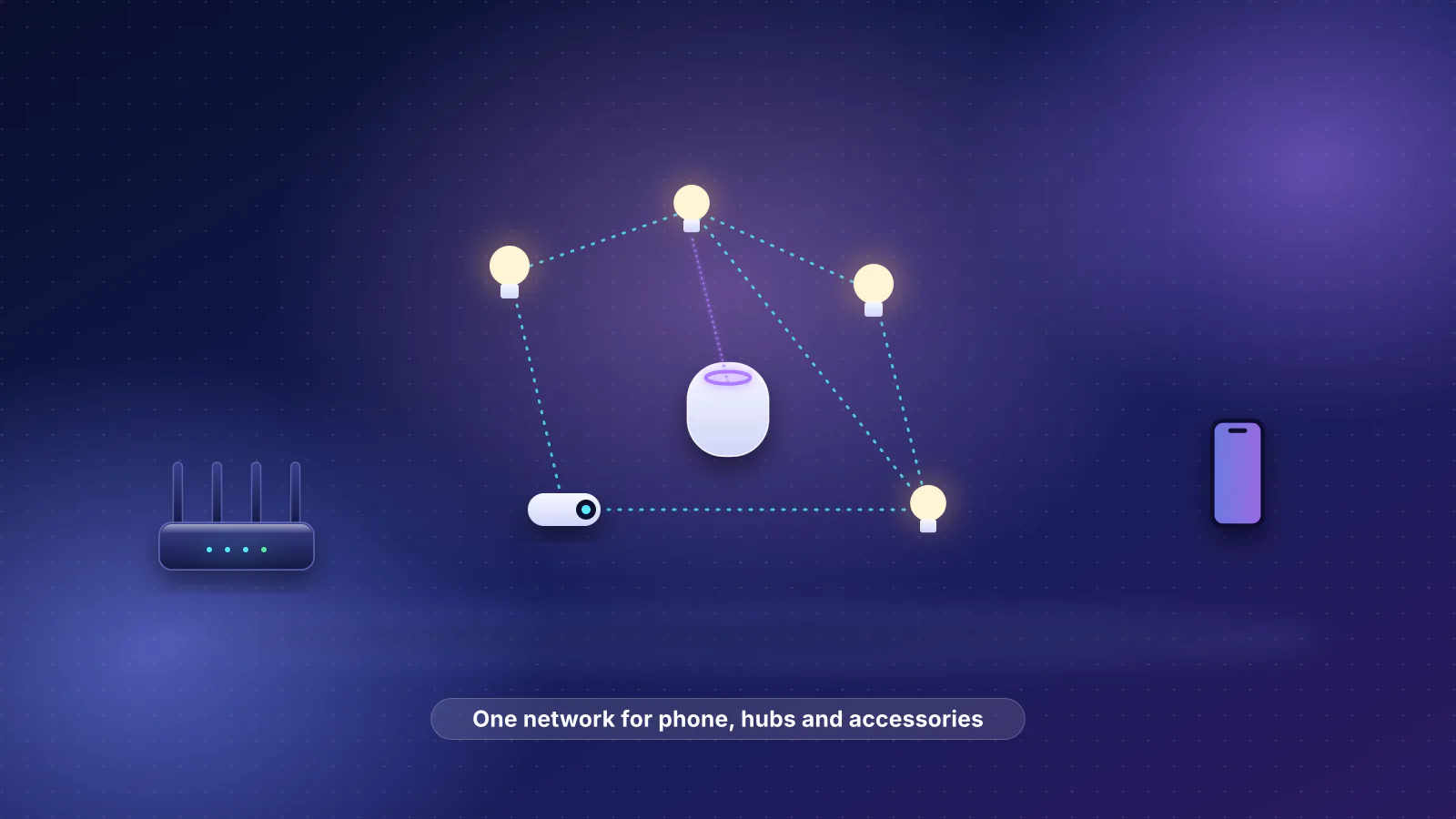
- Matter setup is a relay with three legs. The phone reads the setup code, talks to the device over Bluetooth LE, hands it your Wi-Fi or Thread network details, and then has to find it again on your home network using IPv6 and multicast discovery. A failure on any leg looks like "setup failed".
- Start with the phone. Bluetooth on, the app allowed to use it (and, on iPhone, the local network), and the phone on the same Wi-Fi network as your hub. Apple's setup page asks for Bluetooth on and everything on the same Wi-Fi network.
- Then the device: close to the router, freshly powered so its pairing window is open, and not already paired somewhere else. Amazon lists an expired commissioning window and a hidden "bound" state from earlier pairing among the common causes.
- Then the network: 2.4 GHz available for Wi-Fi devices, no guest network or client isolation between phone, hub and device, and IPv6 allowed on the home network. Google says "IPv6 must be enabled on your home wireless network" for Matter.
- Thread devices need a Thread border router. Google says "you need a Thread Border Router to complete setup"; SmartThings and Apple say the same in their own words.
- Buy nothing until those checks are done. The cases where new equipment is justified are narrow: no Thread border router for a Thread device, a phone below the ecosystem's minimum, or a router with no way to allow what Matter needs.
How Matter setup works
Matter calls setup "commissioning". The Connectivity Standards Alliance, which publishes Matter, says it "uses numeric and QR setup codes, and Bluetooth Low Energy to simplify setup", that "Bluetooth LE (commissioning only) is used for secure device onboarding and initial setup and provisioning", and that Matter "natively supports Wi-Fi, Ethernet, and Thread". Put together with the Matter SDK documentation and chip maker Silicon Labs' commissioning guide, the steps are:
- The code. You scan the QR code or type the numeric code. SmartThings says setup codes are 11 or 21 digits. Silicon Labs explains that the code carries a discriminator, a value "to distinguish advertising devices", and a passcode "used during commissioning".
- Finding the device over Bluetooth LE. A device in commissioning mode advertises over Bluetooth LE; Silicon Labs' example flow describes this step as "BLE beaconing and connection between the mobile phone and the Matter device". Silicon Labs lists Bluetooth LE, a Wi-Fi soft access point and discovery over IP as the possible methods, and says Thread devices "must also support BLE" for discovery and commissioning. Google's setup page asks for a phone that "supports Bluetooth Low Energy (BLE) 4.2 or higher".
- A secure session and a certificate check. The phone and device build an encrypted session, with the passcode from the code as an input. The phone then checks that the device is a certified Matter device: Silicon Labs says the commissioner retrieves the device's PAA (Product Attestation Authority) certificate from the Distributed Compliance Ledger (DCL) and validates the device's credentials.
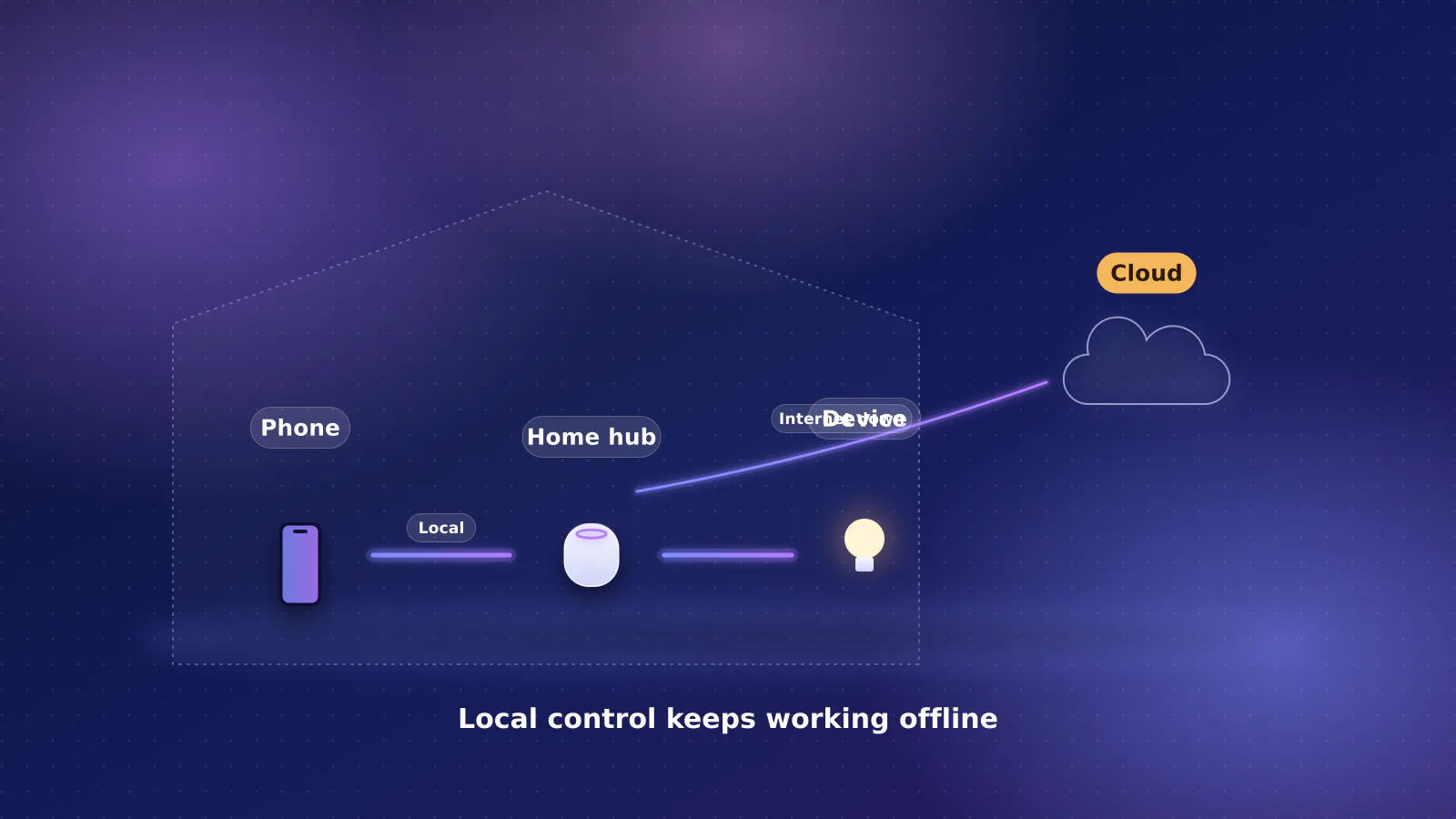
- Network details. For a Wi-Fi device, the phone sends your network name and password; for a Thread device, the Thread network's details. The Thread Group puts it simply: "Onboarding a Thread device to a network is generally accomplished by securely giving the network credentials to the device." The device then joins.
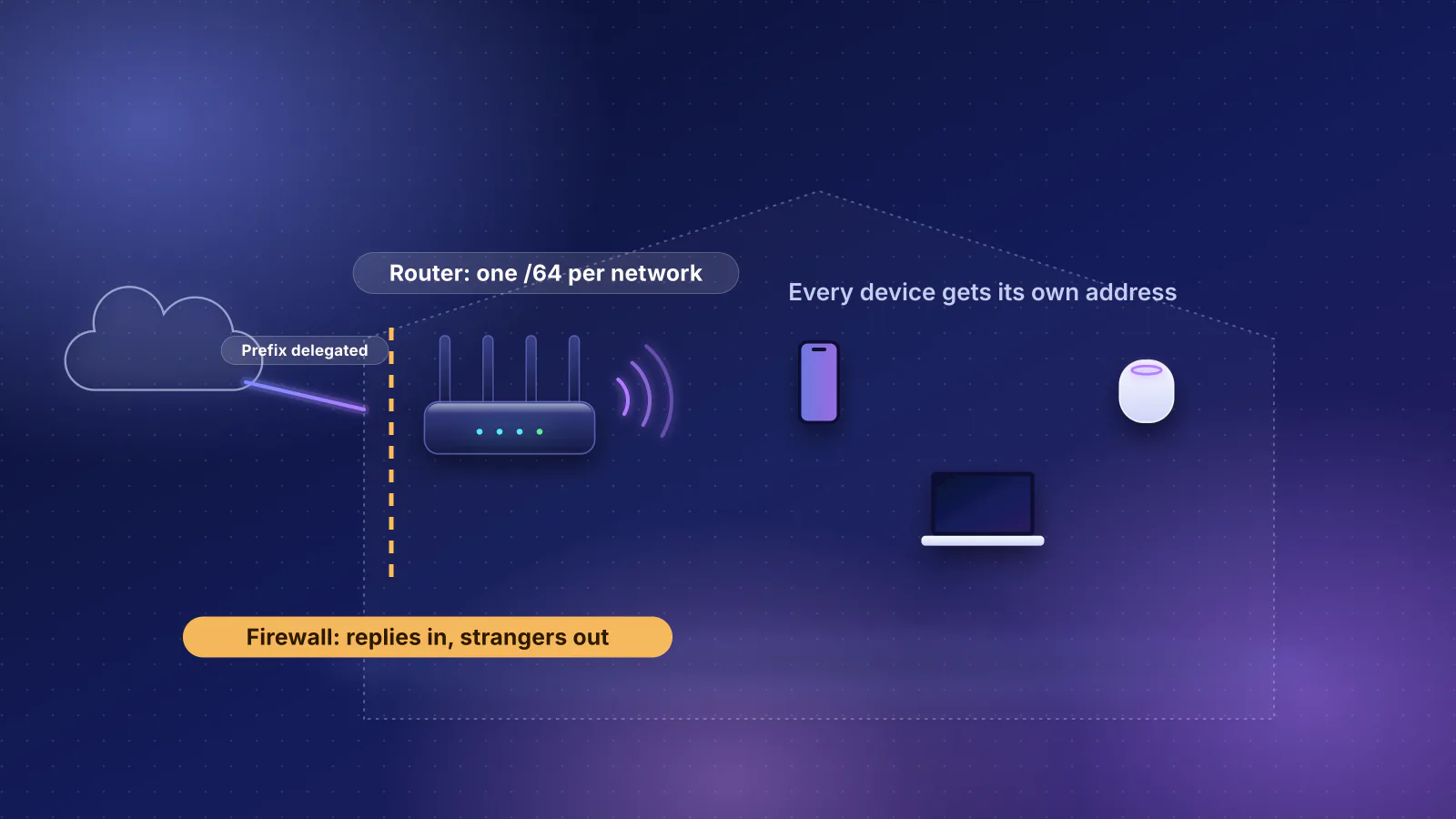
- Finding it again on your network. The phone or hub now has to reach the device over IP. Google says "Matter uses IPv6 for its operational communications". The Matter SDK documentation says discovery runs over DNS-SD, handled "over mDNS on WiFi" and through an SRP server on the border router for Thread. The open-source matter.js project describes Matter as "based on IPv6 link-local multicast protocols" that "do not work across different LANs or VLANs".
- Setup app on the phone Reads the code; needs Bluetooth and, on iPhone, local network permission
- Bluetooth LE to the device Short range; only works while the device's pairing window is open
- Device joins Wi-Fi or Thread 2.4 GHz for many Wi-Fi devices; Thread needs a border router
- Home network Must pass IPv6 and mDNS between device, hub and phone: no guest network, isolation or multicast filtering in the way
- Phone and hub find the device Setup completes only when this last step succeeds
That last step explains a confusing pattern. Google warns that "Without IPv6 enabled on your home wireless network, the setup process may initially appear to succeed at times." The device got your network details and joined, but the phone or hub could not complete the job over the network.
Where setup stopped tells you the cause
Apps word their errors differently, so go by what the app was doing when it failed rather than by the exact message.
| Where it stopped | Likely cause | Go to |
|---|---|---|
| The app never finds the device after you scan the code | Bluetooth off or not allowed for the app; device not in pairing mode or its window has closed; device already paired elsewhere | The phone, the device |
| The code is rejected or "already added" | The device is still paired to another app or home, or a sharing code has expired | Already-paired devices |
| Stalls while connecting the device to Wi-Fi | No 2.4 GHz for a 2.4 GHz device, the wrong network chosen, an unsupported security type, or weak signal | 2.4 GHz and Wi-Fi settings |
| Fails near the end, after the network step, or "can't reach device" | Phone, hub and device can't see each other: guest network, client isolation, a VLAN, IPv6 or multicast blocked | Isolation, guest networks and VLANs, IPv6 and multicast |
| Asks for a hub or border router, or a Thread device fails at the network step | No Matter hub, or no Thread border router the phone can use | Thread devices |
What Apple, Google, Amazon and SmartThings say
Each ecosystem's own help page for failed setup, read November 27, 2026. Their advice overlaps more than it differs.
- Apple (If you can't add a smart home accessory to the Home app, published May 12, 2026): update the iPhone or iPad and turn on Bluetooth; put the iPhone or iPad, accessories and home hubs "on the same Wi-Fi network"; make sure the iPhone is on a network that supports 2.4 GHz, because "Some accessories aren't compatible with 5.0 GHz networks"; bring the accessory closer to the router; unplug third-party bridges and home hubs and plug them back in. Apple also notes you can't add accessories from a Mac. For an accessory used in another home, the alert reads "To add this accessory to your home, you'll need to reset it first."
- Google (Set up, manage, and control Matter-enabled devices with Google Home; no date shown): you need "A Matter-enabled hub for Google Home", a router with "IPv6 enabled", and for Thread devices "a Thread Border Router to complete setup". Phones need Android 8.1 or later with a recent Google Play services, or iOS 16.5 or later. If setup freezes, Google says to restart the Matter device, close the Google Home app, clear its cache, restart the phone and try again, then contact the maker, which may mean a factory reset.
- Amazon (Best Practices to Commission Matter Devices with Alexa, developer documentation, last modified April 8, 2026): written for device makers, it lists why a device that "appears ready" still fails: "Hidden 'bound' state due to prior commissioning", "BLE advertising failures", "Misconfigured network settings" and "Expired commissioning window", and notes that "the commissioning window closes after several minutes". We couldn't open Amazon's consumer Alexa help pages, which block automated reading, so this summary relies on Amazon's developer page; the Alexa app's own help may give more consumer-facing steps.
- Samsung SmartThings (What is Matter?; no date shown): "Be sure that you have either a SmartThings or third-party Matter Controller added to your smart home", check that the QR code is readable and the device is in pairing mode and in range, and if Wi-Fi or Thread signal is the issue, confirm the frequency (2.4 or 5 GHz) and the security type are compatible, then restart the device and controller. For Thread: "To connect devices built on Thread, you will need a Matter controller that includes a Thread Border Router."
The phone: Bluetooth, permissions and network
Likely cause. The setup app can't use Bluetooth, can't see the local network, or the phone is on a different network from the hub.
Safe check. Look at three things on the phone before you touch the router:
- Bluetooth is on in the phone's settings, not just in Control Center or a quick-settings tile.
- The app has permission. On iPhone, Apple says apps that "interact with devices on your network must ask for permission"; check Settings, Privacy & Security, Local Network, and turn access on for the setup app. If you tapped Don't Allow, Apple says the app loses access to your local network. On Android 12 and later, scanning for Bluetooth devices needs the permission Android shows as Nearby devices; on Android 11 and earlier it needs location permission, because, in Android's developer documentation's words, "a Bluetooth scan could potentially be used to gather information about the location of the user." Check the app's permissions in Android's settings.
- The phone's Wi-Fi network is the same one your hub uses, by name. Apple asks for the iPhone or iPad, accessories and home hubs to be on the same Wi-Fi network. Because the Bluetooth step doesn't use your network, a phone on the guest network or a second network name may get through it and still fail at the end.
What the result means. A permission turned off or Bluetooth off explains an app that never finds the device: fix it and retry. A phone on a different network than the hub points to the last step; move the phone to the hub's network. If all three are right, move on to the device.
The device: pairing window, distance and power
Likely cause. The device stopped advertising, or it's too far from the phone or the hub.
Safe check and fix.
- Reopen the window. Power the device off and on, or use the maker's pairing-mode steps, then scan straight away. Amazon says the window "closes after several minutes"; TP-Link's troubleshooting page for its Tapo and Kasa devices says "Matter setup is only available for 15 minutes", and that a device powered on longer than that needs a power cycle to reset the timer. Those two figures are Amazon's and TP-Link's; other makers' timings may differ, so check the manual.
- Set up close. Apple says to bring the accessory closer to the router; Home Assistant's Matter documentation says to keep the phone "in close range of the border router and your device". Move it to its final spot afterward.
- Check power. Google asks for the device to be "plugged in or fully charged".
What the result means. If setup now gets past the point where it found nothing, the window or distance was the cause. If the app still can't find a powered, freshly reset device next to the phone, the device may still be paired elsewhere (next section), or it needs the maker's help.
Devices that are already paired
A Matter device that's already in one app won't accept its printed code in a second app as if it were new; Amazon calls this a hidden "bound" state. You have two choices: share it from the first app, or factory reset it and start over.
To share, open the app it's already in and generate a temporary pairing code. Amazon says customers "must first open the original administrator app to generate a temporary pairing code". Google's option is "Use pairing code"; SmartThings uses Share with other services and notes the new code "is different than the QR code physically on your device"; in Apple Home you add it with More options, then choose the accessory. TP-Link adds two practical points: don't generate codes in several apps in a row, and keep the code screen open while you enter it. How sharing works between ecosystems, and what it means for the network, is covered in multi-admin: one accessory, several apps.
2.4 GHz and Wi-Fi settings
Likely cause. The device is 2.4 GHz only and the network it was offered isn't, or a Wi-Fi setting it can't handle.
Safe check. Look in the device's manual or the maker's page for its Wi-Fi band and security support, and on your phone, confirm which network it's on. Home Assistant says "Matter devices often use the 2.4 GHz frequency for Wi-Fi" and to "make sure your phone is in the same 2.4 GHz network where you want to operate your devices". SmartThings asks you to confirm the frequency and security type are compatible.
The change. Apple's reason for asking for a 2.4 GHz network is that "Some accessories aren't compatible with 5.0 GHz networks." TP-Link warns that some controllers pass on credentials for a 5 GHz-only network, which its devices don't support, and suggests setting the device up in its own app first in that case. Connecting 2.4 GHz-only devices has the steps for each mesh maker, including temporarily pausing 5 GHz, and the other settings (WPA3, protected management frames, Wi-Fi 6 features) that stop some devices joining.
Isolation, guest networks and VLANs
Likely cause. The device joined, but the phone or hub can't see it, because something on the network keeps devices apart.
Safe check. In your router's app or admin page, check three things for the network the device, hub and phone use:
- Guest network. TP-Link's Matter troubleshooting says that if the controller or the device is on a guest, IoT or other VLAN network, temporarily move both to the main network, and to keep the controller "in the same local network" as the device.
- Client or AP isolation. TP-Link describes AP isolation as isolating "all the connected clients within the same wireless network from each other", which is the opposite of what the last step needs. It should be off on the network your smart home uses.
- A separate IoT network or VLAN. If the device is on one and the hub or phone on another, discovery has to cross a boundary that, per matter.js, link-local multicast doesn't cross. Home Assistant says Matter "is designed for regular residential network setups" and "may not integrate well with" enterprise features such as VLANs.
A useful sign while you retry, which follows from the steps above rather than from any maker's page: watch your router's list of connected devices. A Wi-Fi device that shows up there during setup has probably joined, so if setup still fails, the last step is the more likely problem, which points to these settings or to IPv6 below.
What the result means. If setup succeeds with everything on the main network, the separation was the cause. You can keep it that way, or rebuild the separation with the mDNS and firewall rules in HomeKit and Matter across VLANs, which also has the dns-sd commands for checking discovery from a Mac. The fuller list of router settings is in router settings that cause "No Response"; the same settings that drop a working device can stop a new one pairing.
IPv6 and multicast settings
Likely cause. IPv6 is turned off or filtered inside the home, or a multicast "optimization" setting drops discovery traffic.
Safe check. In the router's settings, find the IPv6 section and any multicast settings (names vary by maker). Home Assistant lists multicast filtering and "(malfunctioning) IGMP" snooping among the features Matter may not get along with.
- IPv6. Google says "IPv6 must be enabled on your home wireless network" before adding Matter devices, while noting "Some Matter devices still work with IPv4." What Matter needs is IPv6 on your local network, not necessarily from your provider; our IPv6 guide explains the difference and what turning IPv6 off breaks. If you turned it off while troubleshooting something else, turn it back on.
- Multicast. Home Assistant says "a setting on your router or Wi-Fi access point to 'optimize' multicast traffic can harm the (discovery) traffic from Matter devices." Turn such a setting off for the setup and see if it helps; matter.js also advises against mDNS forwarders on the same network, saying they can "corrupt or severely hinder the Matter packets".
What the result means. Setup that completes after enabling IPv6 on the LAN or relaxing a multicast setting confirms it. If neither changes anything and the earlier checks passed, the problem is more likely the device or the ecosystem's hub than your network: try the ecosystem's restart steps above, then the device maker's support.
Thread devices need a border router
A Thread device doesn't join your Wi-Fi; it reaches your network through a Thread border router, which the Thread Group says "enables bi-directional IPv6 communication across Thread and non-Thread networks (e.g. Wi-Fi and Ethernet)". It also says "In practice, a Border Router is required to enable the majority of use-cases", and in a July 2, 2025 post that "Thread devices connect to and join users' home networks via a Thread Border Router."
Safe check. Confirm you have one in the ecosystem you're adding to. Apple says "Thread-based accessories require a Thread-enabled home hub", while adding that iPhones on iOS 18 can pair and manage Thread accessories locally, which may need a manufacturer update; Google lists which of its hubs are also Thread border routers; SmartThings needs a Matter controller "that includes a Thread Border Router". Home Assistant adds that the phone "needs to know the credentials" of your Thread network.
What the result means. No border router at all means a Thread device can't finish setup on that ecosystem, and this is one of the few cases where buying something is the fix (below). If you have one but setup still fails, or you have several brands' border routers forming separate Thread networks, that's a Thread network problem: see your router: IPv6, multicast and the same network and why you have more than one Thread network.
The fix order, in one list
- Turn on Bluetooth and give the setup app its Bluetooth (Nearby devices) and, on iPhone, Local Network permissions.
- Put the phone on the same Wi-Fi network as your hub.
- Power-cycle the device to reopen its pairing window, and set it up next to the phone and router.
- If it's already in another app, share it with a fresh pairing code from that app, or factory reset it.
- Make sure 2.4 GHz is available to a 2.4 GHz device and the phone isn't steering it to 5 GHz.
- Take the device, hub and phone off any guest network, turn off client isolation, and keep them on one network for setup.
- Allow IPv6 on the home network and turn off multicast "optimization".
- For a Thread device, confirm a Thread border router in the same ecosystem.
- Restart the hub and the app as the ecosystem's page says, then contact the device maker.
When new equipment is justified
Most pairing failures end with a changed setting. Spending money makes sense in three cases:
- A Thread device and no Thread border router in the ecosystem you use. A hub or speaker that the ecosystem lists as a Thread border router is the fix; you may already own one, so check the maker's list first. Which to choose, and how many, is in how many border routers, and where.
- A phone below the ecosystem's minimum, for example below Google's stated Android 8.1 or iOS 16.5, or without Bluetooth LE 4.2.
- A router with no way to allow what Matter needs on the network your smart home uses: no way to turn off isolation, or IPv6 blocked on the home network with no setting to change it. Check the maker's help pages before concluding a setting doesn't exist.
A new router does not fix a closed pairing window, a missing permission, a device still paired elsewhere or a phone on the wrong network.
When to get professional help
Almost everything here is a setting you can change and change back. Hands-on help is worth it when the network itself needs rework: a segmented network you want to keep while making Matter work across it, or a hub or border router that needs a cable run to sit where it can reach your devices. When the job needs hands on site, RouterHaus can connect you with a licensed contractor through a consultation request.
Frequently asked questions
Why does Matter setup use Bluetooth if the device is Wi-Fi?
Bluetooth LE is usually how the phone first reaches a device that isn't on any network yet. The Connectivity Standards Alliance says Bluetooth LE is used for commissioning only: the phone uses it to hand over your network details, and after that the device works over Wi-Fi, Thread or Ethernet.
My Matter device joined the Wi-Fi but setup still failed. Why?
The last step, where the phone or hub finds the device on your network over IPv6 and mDNS, didn't work. The usual causes are a guest network, client isolation, a separate VLAN, IPv6 turned off on the home network, or a multicast setting. Google warns that without IPv6 the setup may initially appear to succeed.
Do I need IPv6 from my internet provider for Matter?
Google asks for IPv6 enabled on your home wireless network. What Matter uses is IPv6 between devices inside your home; Home Assistant says there is no requirement for an IPv6-enabled internet connection. Leave IPv6 on in your router's local network settings.
The app says my device is already added. What now?
It's still paired to another app or home. Either open that app and generate a temporary pairing code to share it, or factory reset the device with the maker's steps and set it up again. The code printed on the device works only for a device that isn't paired.
How long do I have to pair a Matter device after powering it on?
It depends on the device. Amazon's documentation says the commissioning window closes after several minutes, and TP-Link says Matter setup on its Tapo and Kasa devices is available for 15 minutes. Other makers may differ. If in doubt, power the device off and on and scan right away.
Sources
Read on November 27, 2026.
- Connectivity Standards Alliance: Matter FAQ
- Thread Group: Thread Border Router white paper (July 2022, PDF)
- Thread Group: Thread with Matter, better connections, smarter homes (July 2, 2025)
- Apple Support: If you can't add a smart home accessory to the Home app (May 12, 2026)
- Apple Support: Pair and manage your Matter accessories (May 7, 2026)
- Apple Support: If an app would like to connect to devices on your local network (April 7, 2026)
- Google Home Help: Set up, manage, and control Matter-enabled devices with Google Home
- Google Home Help: Prepare your smart home for Matter
- Google Home Developers: Thread and IPv6
- Amazon Alexa developer documentation: Best Practices to Commission Matter Devices with Alexa (last modified April 8, 2026)
- SmartThings Support: What is Matter?
- Android Developers: Bluetooth permissions (last updated November 16, 2026)
- Matter SDK documentation: Discovery from a host computer
- matter.js server: operating system requirements
- Silicon Labs: Matter commissioning
- TP-Link Support: Troubleshooting for Tapo/Kasa Matter configuration on third-party platform (updated November 6, 2025)
- TP-Link Support: Brief Introduction of AP Isolation (updated September 15, 2026)
- Home Assistant: Matter integration documentation